> For the complete documentation index, see [llms.txt](https://docs.maiagent.ai/llms.txt). Markdown versions of documentation pages are available by appending `.md` to page URLs; this page is available as [Markdown](https://docs.maiagent.ai/tools/setup_api_tool.md).
# 建立 API 工具
本指南將引導您在平台中建立新的 MCP 工具。
{% hint style="info" %}
您可以使用 MaiAgent 製作的 [工具製作 AI 助理](https://chat.maiagent.ai/web-chats/27934296-105a-4f3f-80f0-7e9dcdb638d3) 協助您建立 API 工具
{% endhint %}
API 工具用於整合外部服務、自動化操作流程。
## **什麼是 API?**
**API(Application Programming Interface,應用程式介面)** 是不同軟體系統之間溝通的橋樑。簡單來說,它就像是**軟體世界的「服務員」**,幫助不同的程式互相傳遞資訊和執行功能。
想像你在餐廳用餐:
* **你**:需要食物的客戶(應用程式)
* **廚房**:製作食物的地方(提供服務的系統)
* **服務員**:在你和廚房之間傳遞訊息(**API**)
你不需要直接進廚房,只要告訴服務員你要什麼,服務員會把你的需求傳達給廚房,然後把做好的餐點送到你面前。
API 流程示意圖
API 工具可以協助您自動操作標準化流程及設置特定的回傳格式,也可以協助您獲取您系統中的資訊如:
**電商客服自動化**
```
客戶詢問訂單 ➡️ API 查詢訂單狀態 ➡️ 自動回覆配送進度
```
**行銷活動管理**
```
新產品上架 ➡️ 自動更新官網 ➡️ 發送 EDM ➡️ 社群平台宣傳
```
**線上課程平台:**
```
學生詢問課程進度 ➡️ API 查詢學習紀錄 ➡️ 自動回覆完成百分比和下次上課時間
```
透過 API 工具,AI 助理從單純的對話機器人,進化成能夠實際執行業務流程的智慧助理,大幅提升工作效率和自動化程度。
## 快速建立 API 工具
### 1. 進入工具管理介面
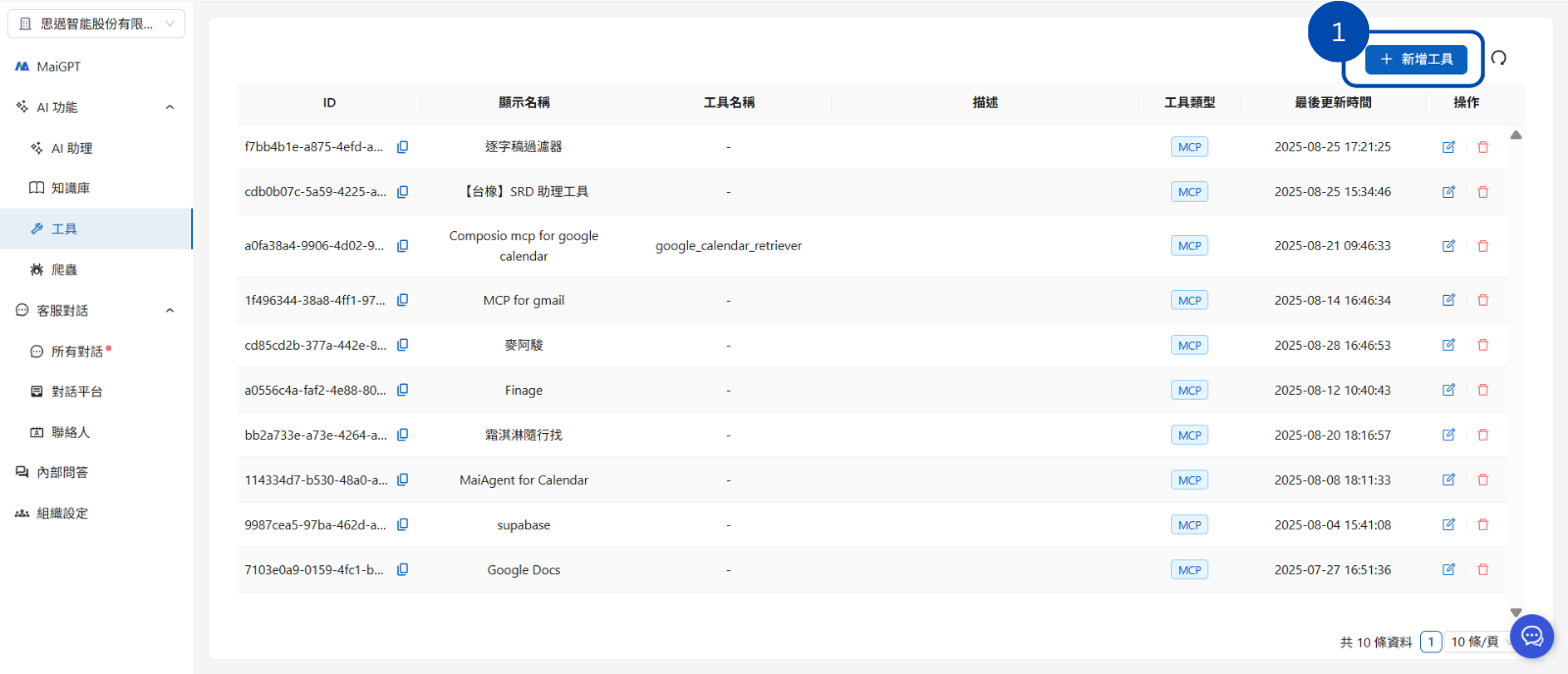
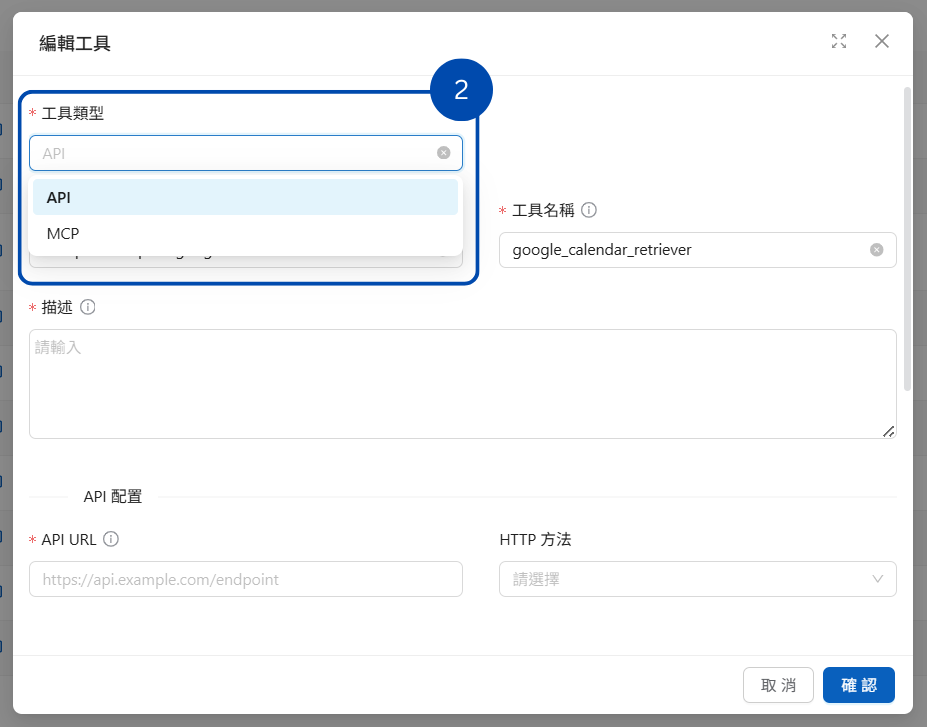
首先,請從左側導航欄進入「 AI 功能」區塊,然後點擊「🔧 工具」。進入工具列表頁面後,點選右上角的「➕ 新增工具」按鈕。
### 7. 💾 儲存工具
確認所有設定無誤後,捲動到頁面底部,點擊「確認」按鈕。您的新工具就建立完成了!
## 在 Query 參數中引用 AI 助理的參數
許多第三方 API 的查詢條件是「固定語法+使用者提供的值」組成的一整個字串,例如 OData 風格的 `$filter=ProductName eq 'Chai'`,或搜尋類 API 的 `q=` 參數。這類 API 要的不是一個獨立的參數,而是把值嵌進固定的字串裡。
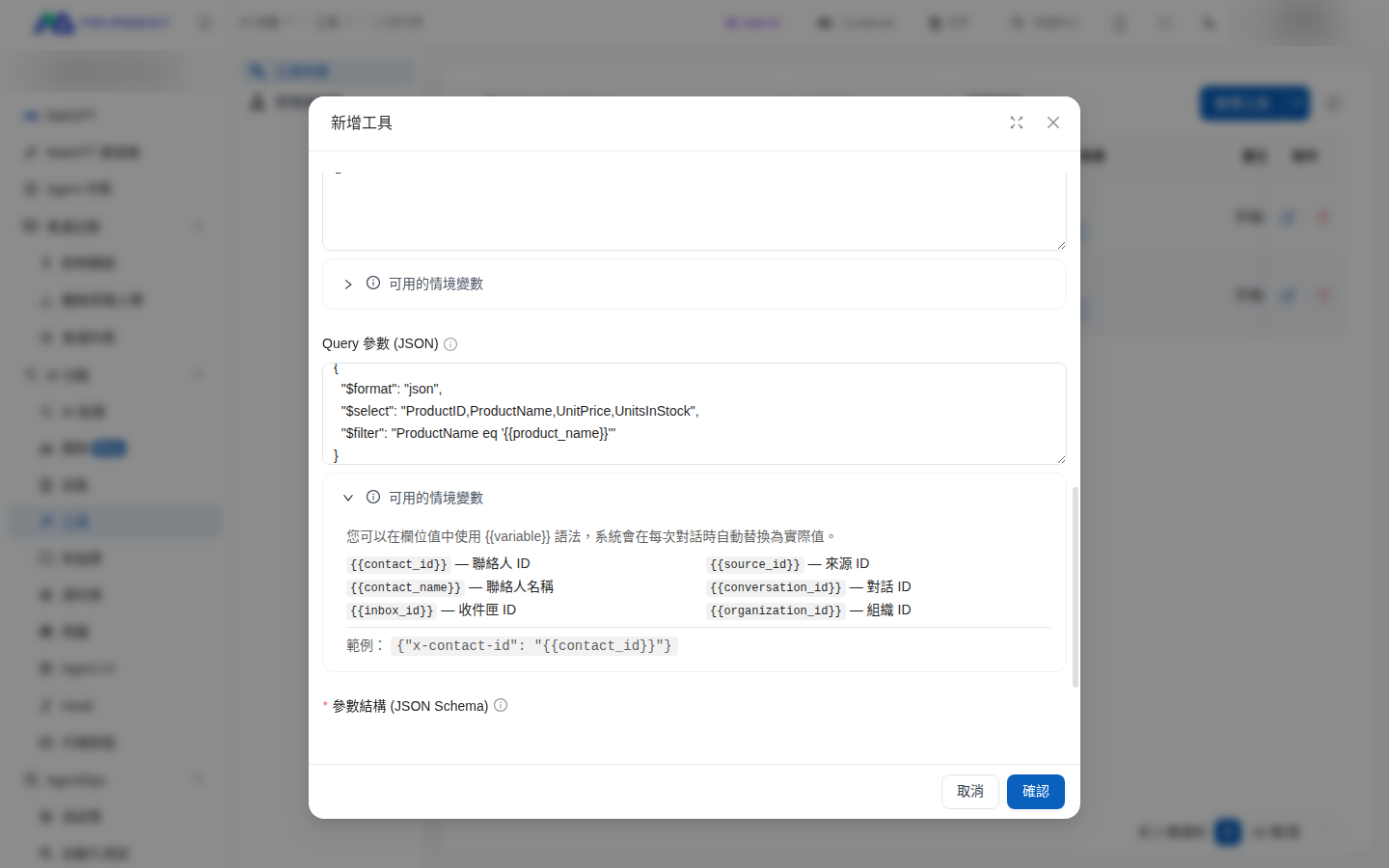
在「Query 參數」的值裡寫 `{{參數名}}`,MaiAgent 會在 AI 助理呼叫工具時,把「參數結構」中同名參數的值代入後再送出請求。設定者負責寫好固定的骨架,AI 助理只負責填值,語法正確性不再交給模型判斷。
### 使用情境
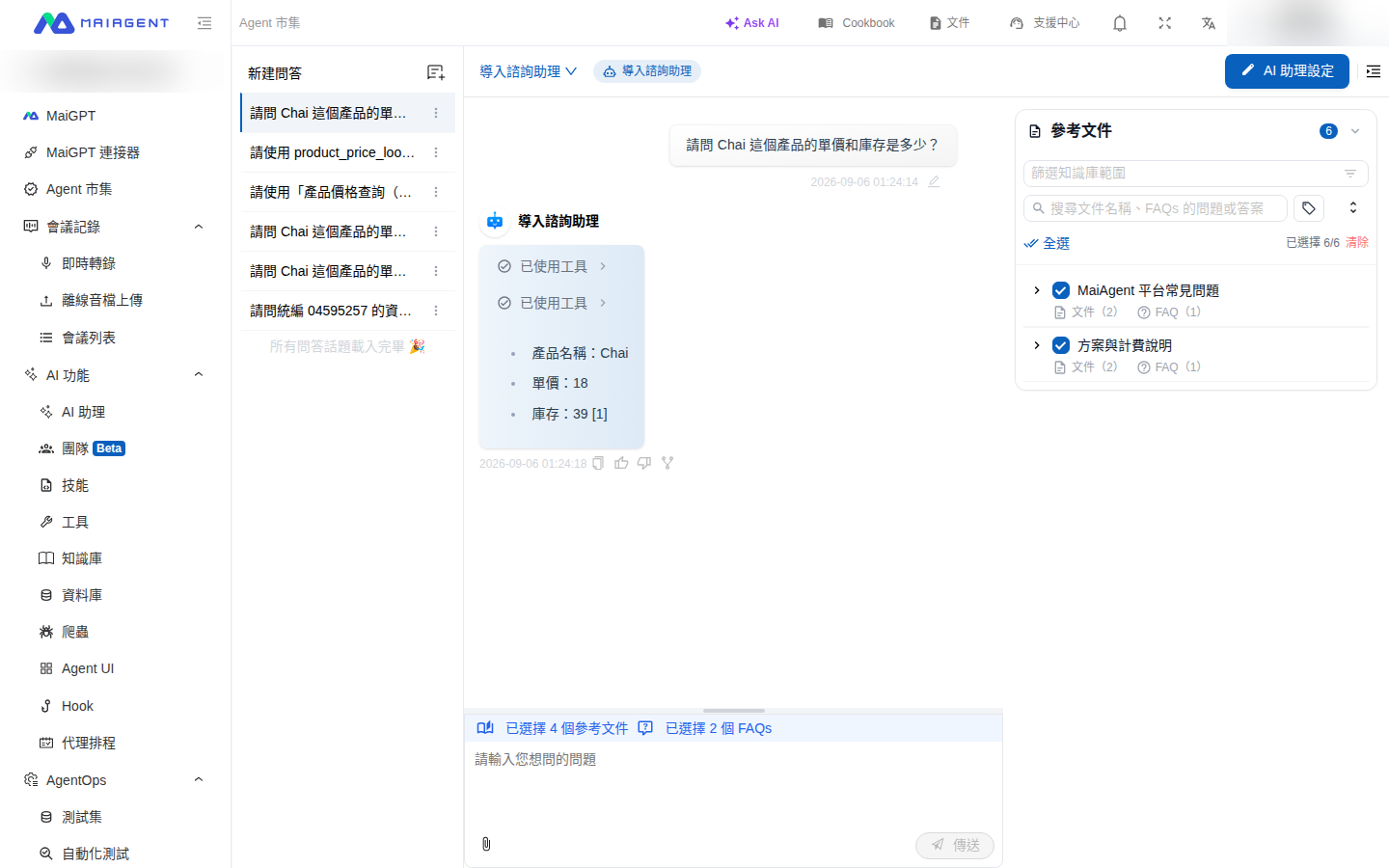
採購部門想讓公司內部的 AI 助理直接回答「某個產品目前的單價和庫存是多少」,資料來源是公司商品目錄系統提供的 OData 查詢服務。過去這類查詢必須為每一支 API 另外寫程式;現在採購專員只要建立一個 API 工具,把查詢條件寫成 `ProductName eq '{{product_name}}'`,再把工具配置給 AI 助理。同事在對話中問「Chai 這個產品的單價和庫存是多少?」,AI 助理會自動把 `Chai` 填進查詢條件、呼叫 API,並回覆產品名稱、單價與庫存。
### 設定步驟
以下用公開的 Northwind 示範資料服務(OData)示範,可直接照做:
{% stepper %}
{% step %}
### 建立工具並填入基本資料
依照上方「快速建立 API 工具」的步驟新增一個 API 工具,填入顯示名稱(例如 產品價格查詢)、工具名稱 `product_price_lookup`、描述與提示詞,並將 API URL 設為:
```
https://services.odata.org/V4/Northwind/Northwind.svc/Products
```
HTTP 方法 維持 `GET`。
{% endstep %}
{% step %}
### 在參數結構宣告要由 AI 助理填入的參數
在 參數結構 (JSON Schema) 宣告 `product_name`,並用 `description` 告訴 AI 助理該填什麼:
```json
{
"type": "object",
"properties": {
"product_name": {
"type": "string",
"description": "完整的英文產品名稱,例如 Chai"
}
},
"required": ["product_name"]
}
```
{% endstep %}
{% step %}
### 在 Query 參數的值裡引用該參數
在 Query 參數 (JSON) 填入固定的查詢骨架,並在值裡用 `{{product_name}}` 引用剛才宣告的參數:
```json
{
"$format": "json",
"$select": "ProductID,ProductName,UnitPrice,UnitsInStock",
"$filter": "ProductName eq '{{product_name}}'"
}
```
點擊「確認」儲存工具。
{% endstep %}
{% step %}
### 配置給 AI 助理並測試
依照 [爲 AI 助理配置工具](/tools/configure_tools.md) 把這個工具加入一個 Agent 模式的 AI 助理並儲存。接著從左側導航列進入「Agent 市集」,切換到「組織自建」,點選該 AI 助理開始對話,輸入「請問 Chai 這個產品的單價和庫存是多少?」。AI 助理會顯示「已使用工具」,並回覆 Chai 的單價與庫存。
AI 助理把使用者提供的產品名稱代入查詢條件後呼叫 API
{% endstep %}
{% endstepper %}
### 代入規則
| 規則 | 說明 |
| ----------------- | ------------------------------------------------------------------------------ |
| **變數名稱必須與參數結構一致** | `{{product_name}}` 對應「參數結構」中 `properties` 的參數名稱,大小寫需完全相符 |
| **只有值會代入** | 模板只作用在 Query 參數的值;鍵 (Key) 維持原樣,不做代入 |
| **值以原文代入** | 參數值一律以字面文字代入,不做數值轉換;例如統一編號 `04595257` 的前導零會保留 |
| **缺值即中止** | AI 助理這次呼叫沒有提供該參數(或值為空)時,工具會以錯誤中止並指出是哪個參數缺值,不會把 `{{product_name}}` 原樣送出去 |
| **情境變數優先** | 若參數名稱與情境變數(如 `contact_id`、`conversation_id`)相同,一律代入情境變數的值,AI 助理提供的值不會覆蓋 |
| **被引用的參數仍會一併送出** | 被模板引用的參數仍會照原本的行為當成獨立的 query 參數一起送出(例如同時送出 `product_name=Chai`),多數 API 會忽略多餘的參數 |
| **參數名稱原樣保存** | Query 參數的鍵含底線或大寫(例如 `Business_Accounting_NO`)會原樣保存,不會被系統改寫 |
{% hint style="info" %}
「標頭 (JSON)」的值同樣支援 `{{參數名}}` 引用參數結構中的參數,規則與 Query 參數相同。
{% endhint %}
{% hint style="warning" %}
不含 `{{ }}` 的既有工具設定完全不受影響。若舊工具的 Query 參數名稱曾被系統改寫(例如 `Business_Accounting_NO` 變成 `business__accounting_no`),重新開啟該工具、把名稱改回正確寫法並儲存即可。重新開啟編輯視窗時,Query 參數的值會以 `****` 遮罩顯示,直接儲存不會遺失原值。
{% endhint %}
## ⚠️ 重要提醒
**連線測試**
* 建立工具後,建議先測試 API 是否正常運作
* 可使用測試工具驗證工具功能,如:
* POSTMAN
* 企業自己搭建的 API 測試請求平台
**權限管理**
* 定期檢查工具使用狀況及權限開放狀態
---
# Agent Instructions
This documentation is published with GitBook. GitBook is the documentation platform designed so that both humans and AI agents can read, navigate, and reason over technical content effectively. Learn more at gitbook.com.
## Querying This Documentation
If you need additional information that is not directly available in this page, you can query the documentation dynamically by asking a question.
Perform an HTTP GET request on the current page URL with the `ask` query parameter, and the optional `goal` query parameter:
```
GET https://docs.maiagent.ai/tools/setup_api_tool.md?ask=&goal=
```
`ask` is the immediate question: it should be specific, self-contained, and written in natural language.
`goal` is optional and describes the broader end goal you are ultimately trying to accomplish on behalf of the user. GitBook uses it to tailor the answer towards what is most useful for that goal.
The response will contain a direct answer to the question and relevant excerpts and sources from the documentation.
Use this mechanism when the answer is not explicitly present in the current page, you need clarification or additional context, or you want to retrieve related documentation sections.
%20(1).png?alt=media)
.png?alt=media)
.png?alt=media)
.png?alt=media)
.png?alt=media)
.png?alt=media)
.png?alt=media)
.png?alt=media)
.png?alt=media)