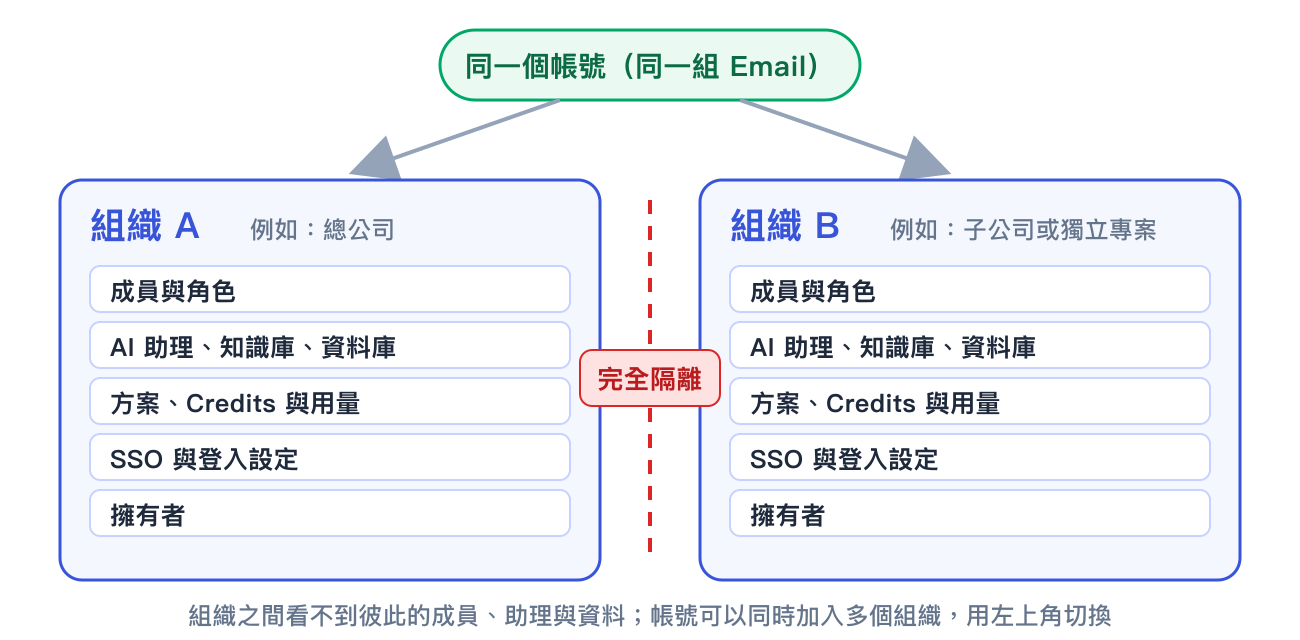
The same account can join multiple organizations. Each organization has its own members, resources, plan, and owners, and cannot see the data of other organizations
The same account can join multiple organizations. Each organization has its own members, resources, plan, and owners, and cannot see the data of other organizations
| Scenario | Recommendation |
|---|---|
| Departments need different permissions | Use one organization and create one role for each department |
| Employees do not want others to see the assistants they create | Use one organization and create one role per person. See the Role Permission Planning Guide |
| Test and production environments must be separate | One organization is sufficient. The platform separates testing and production by “publishing to different roles,” so you do not need to duplicate an entire organization |
| Subsidiaries need separate billing and separate owners | Use separate organizations. Plans, Credits, and usage statistics are managed per organization |
| The two sides log in with different company accounts (SSO) | Use separate organizations. SSO settings are tied to an organization |
| Data must be completely isolated due to regulatory or contractual requirements | Use separate organizations. Nothing is shared between organizations |
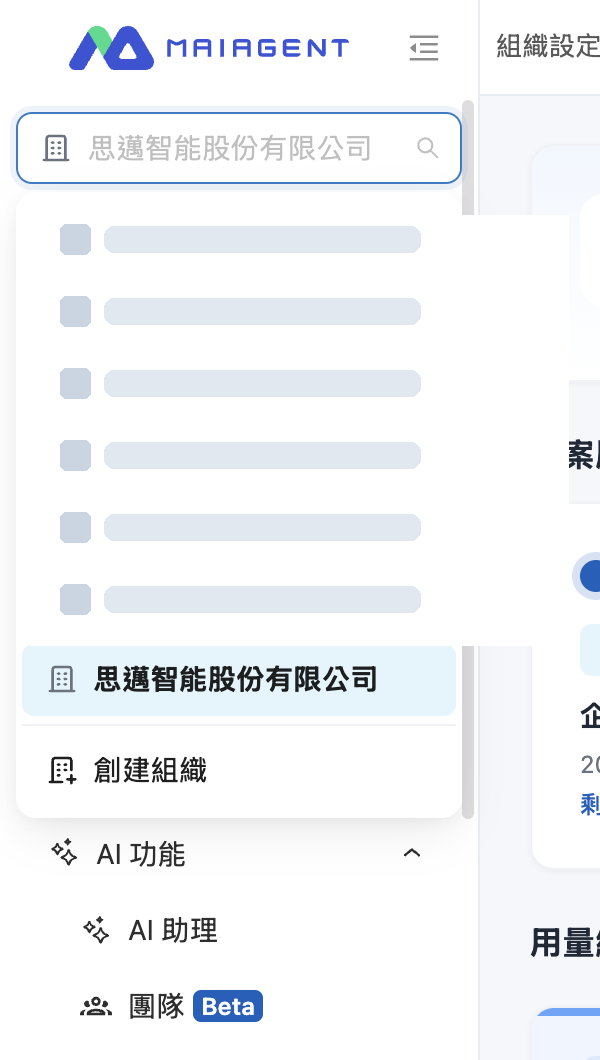
The organization switcher is at the top of the left menu, with “Create Organization” at the bottom of the list
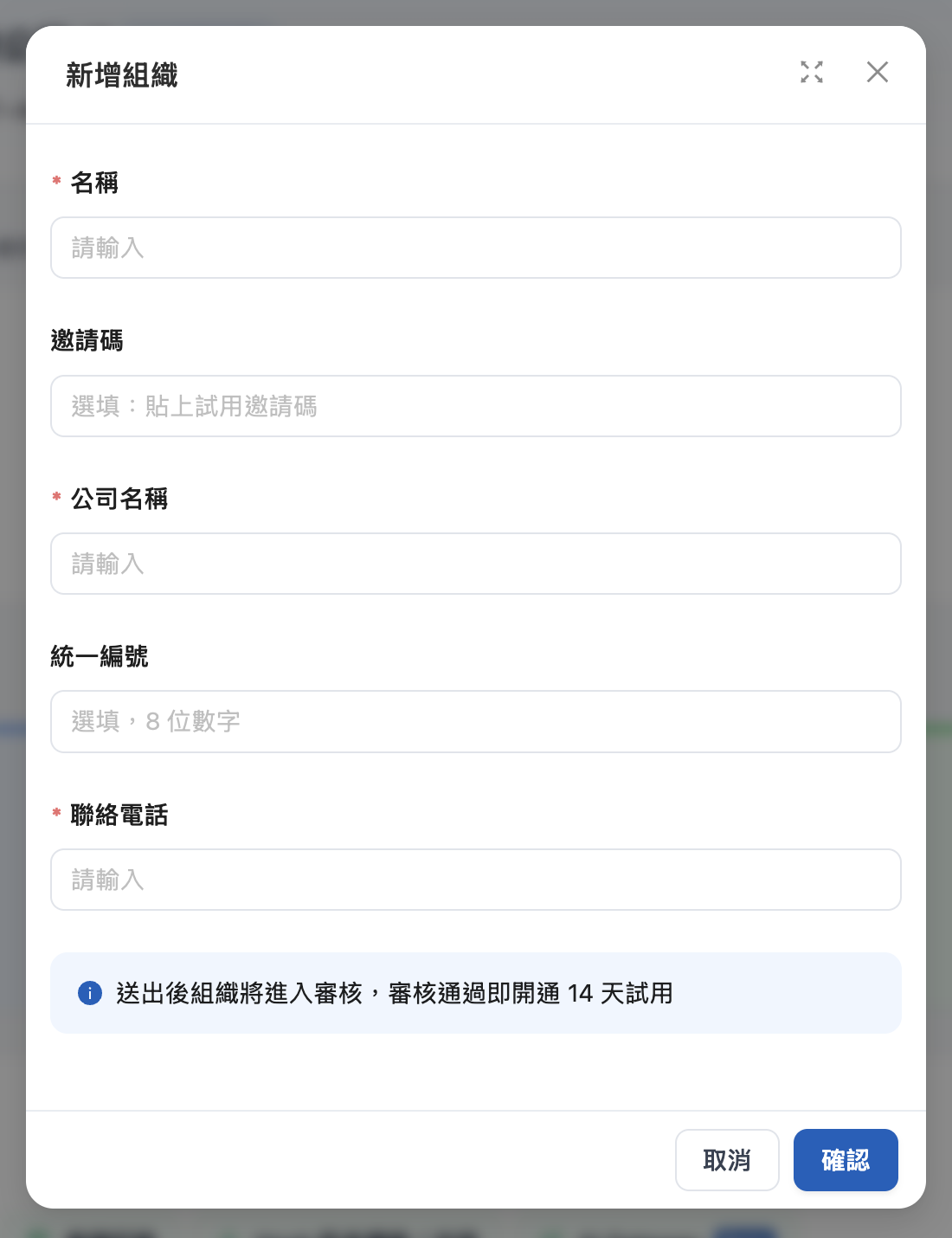
The “Add Organization” window
| Field | Required | Description |
|---|---|---|
| Name | Yes | The organization's display name on the platform. You can change it later in Organization Overview |
| Invitation code | No | A trial invitation code provided by MaiAgent. After you paste it, the company information is filled in automatically, and you can start using the organization immediately after creation without waiting for approval |
| Company name | Yes | The company's full legal name for the approval application |
| Business registration number | No | 8 digits |
| Contact phone number | Yes | Used to contact you if there are questions during the review |
| Task | Where to do it |
|---|---|
| View the plan expiration date and monthly usage, and change the organization name | Organization Overview |
| Customize the admin interface with the company's logos and theme color (Enterprise) | Organization Overview → Organization Branding |
| Design roles and decide who can create assistants and who can only use them | Roles and Permissions |
| Add members, assign roles, and remove members | Member Management |
| Log in with company accounts and synchronize the member list | Third-Party Login (SSO) and Identity Synchronization (LDAP) |
| Manage Credits and member quotas | Credits Billing |
| Delete the entire organization when it is no longer used | Delete Organization; this cannot be undone |