> For the complete documentation index, see [llms.txt](https://docs.maiagent.ai/llms.txt). Markdown versions of documentation pages are available by appending `.md` to page URLs; this page is available as [Markdown](https://docs.maiagent.ai/maiagent-user-guide/en/org/credits.md).

# Credits Billing System

MaiAgent platform's Credits billing system — one quota covers all AI features.

{% hint style="success" %}
✨ **MaiAgent uses the Credits billing system** — a single quota covers conversations, voice, image generation, document parsing, and all other AI features, with models billed by tier and usage that is transparent and trackable.
{% endhint %}

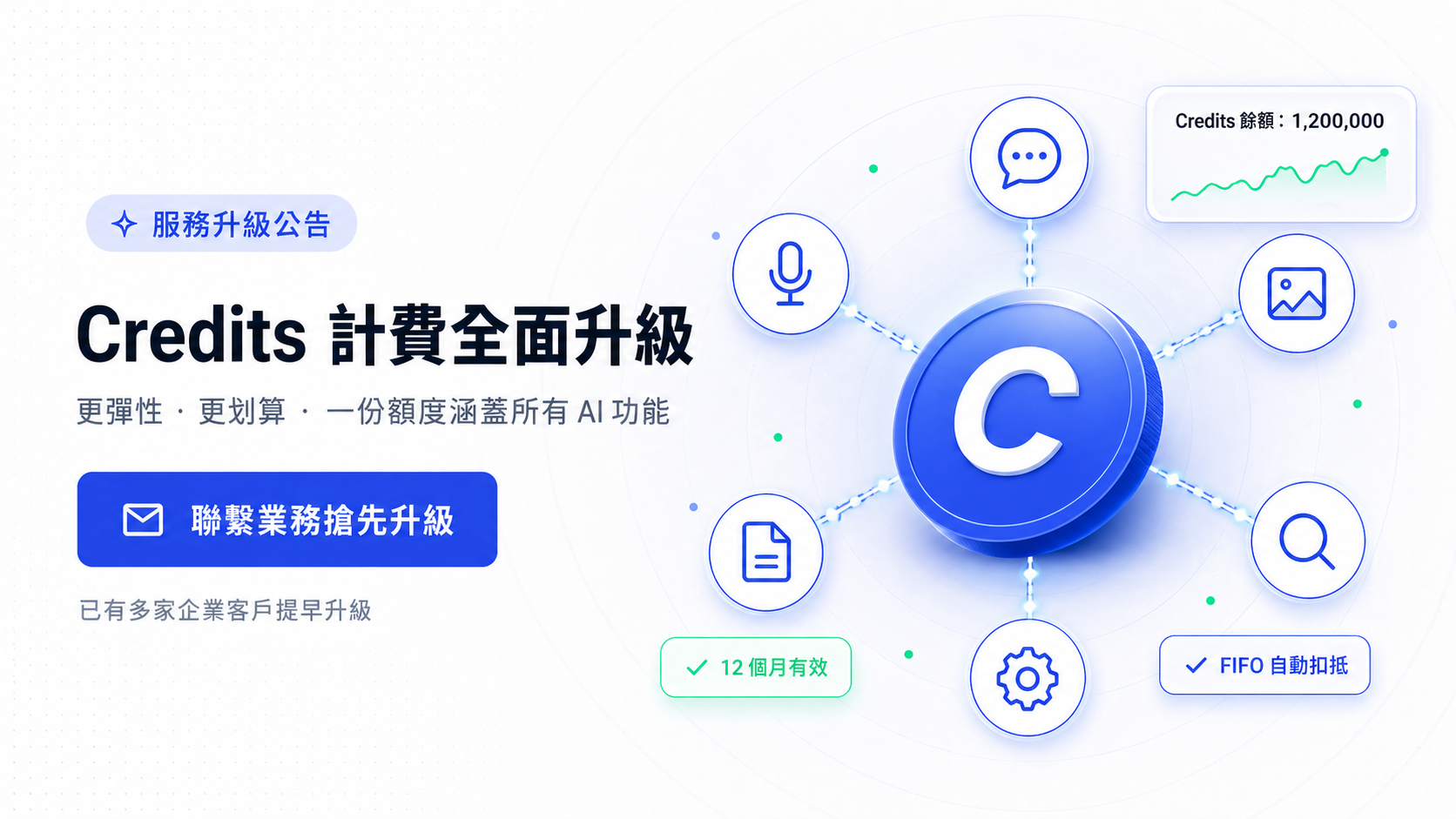
<figure><img src="https://1360999650-files.gitbook.io/~/files/v0/b/gitbook-x-prod.appspot.com/o/spaces%2F6v6TNkkOQVfRYfcNirHL%2Fuploads%2Fgit-blob-ddb6a71dfed0998f8b18369fa94f0875e72b8442%2Fcredit-illustration-1-hero.png?alt=media" alt=""><figcaption><p>Credits billing system — one quota covers all AI features</p></figcaption></figure>

## Three Key Highlights of the Credits System <a href="#credits-highlights" id="credits-highlights"></a>

### 1. One Quota for All AI Features <a href="#one-quota-for-everything" id="one-quota-for-everything"></a>

**All features are available by default, with each feature having its own independent Credits rate** — one quota covers all AI services simultaneously, no need for separate procurement or multi-platform contracts, making **billing more intuitive and budgets more controllable**.

<figure><img src="https://1360999650-files.gitbook.io/~/files/v0/b/gitbook-x-prod.appspot.com/o/spaces%2F6v6TNkkOQVfRYfcNirHL%2Fuploads%2Fgit-blob-c4dfe904ceee4ce7bfcd6656895e75aee384496d%2Fcredit-illustration-2-all-in-one.png?alt=media" alt=""><figcaption><p>One Credits quota simultaneously supports conversations, voice, image generation, document parsing, web search, and tool calls</p></figcaption></figure>

### 2. Models Billed by Tier — Budget Control Is Back in Your Hands <a href="#multi-model-budget-control" id="multi-model-budget-control"></a>

Cost differences between AI models can be as much as **tens of times**. Under the Credits system, these differences are directly reflected in your costs:

* General customer service FAQ → Use **Claude 4.5 Haiku** to save costs
* Complex analysis, deep research → Use **Claude 4.6 Opus** for the highest quality
* Multiple AI assistants each using different models, with Credits deducted at tier-based rates — you decide how to allocate your budget

### 3. Transparent and Trackable — Financial Reconciliation Made Simple <a href="#transparent-tracking" id="transparent-tracking"></a>

Every Credits consumption is mapped to the **model used, feature type, and AI assistant**, and can be queried in real time on the management panel, filtered by any dimension, and exported to CSV for internal reports. **No more wondering "where did the money go."**

***

## What Are Credits? <a href="#what-is-credits" id="what-is-credits"></a>

Credits are MaiAgent platform's **universal billing unit**. Every AI conversation, image generation, voice processing, document parsing, and other operation consumes corresponding Credits based on the model and feature used.

### Core Principles <a href="#core-principles" id="core-principles"></a>

* **Different models, different rates**: Lightweight models cost less, flagship models are billed proportionally — you decide how much each task is worth
* **All features billed uniformly**: Text, images, voice, document parsing, web search, and more are all measured in Credits
* **Transparent and trackable**: View Credits balance and detailed usage in real time on the management panel, with CSV export support
* **First in, first out**: Credits are automatically deducted in FIFO order — **Credits expiring soonest are used first** to avoid waste from expiration

***

## Main Model Credits Rates <a href="#model-rates" id="model-rates"></a>

Rates for representative models from each provider, with **Input and Output priced separately** (per 1 million tokens):

| Model                 | Input Credits / 1M tokens | Output Credits / 1M tokens | Use Cases                                                       |
| --------------------- | ------------------------- | -------------------------- | --------------------------------------------------------------- |
| **Claude 4.6 Opus**   | 99,000                    | 495,000                    | Deep research, high-quality content creation, complex reasoning |
| **Claude 4.6 Sonnet** | 59,400                    | 297,000                    | Complex analysis, content generation, professional Q\&A         |
| **Claude 4.5 Haiku**  | 19,800                    | 99,000                     | General customer service, FAQ, simple Q\&A                      |
| **GPT-5**             | 24,750                    | 198,000                    | Advanced analysis, long document processing                     |
| **GPT-5-mini**        | 4,950                     | 39,600                     | General Q\&A, simple tasks                                      |
| **Gemini 3.1 Pro**    | 39,600                    | 237,600                    | Long context, complex analysis                                  |
| **Gemini 3 Flash**    | 9,900                     | 59,400                     | General Q\&A, multimodal                                        |

{% hint style="info" %}
**Real usage example**: Using the most common **Claude 4.5 Haiku**, a single customer service conversation of approximately 500 characters consumes about **25–50 Credits**. Purchasing 1,000,000 Credits can support tens of thousands of customer service conversations — and the same quota can also be used for voice processing, image generation, and document parsing.
{% endhint %}

The platform also supports image generation, speech-to-text, text-to-speech, document parsing, web search, and other features — **all billed uniformly in Credits, with no separate add-on purchases required**. For the complete rate table, go to <mark style="color:blue;">**Organization Settings**</mark> → <mark style="color:blue;">**Credits**</mark> → <mark style="color:blue;">**Pricing**</mark>.

***

## Available Tokens Reference by Plan <a href="#plan-token-reference" id="plan-token-reference"></a>

Depending on the model used, the same Credits can process different amounts of tokens:

| Plan         | Monthly Credits | Claude 4.5 Haiku \~Can Process | Claude 4.6 Sonnet \~Can Process | Claude 4.6 Opus \~Can Process |
| ------------ | --------------- | ------------------------------ | ------------------------------- | ----------------------------- |
| Standard     | 500,000         | \~11.48M tokens                | \~3.83M tokens                  | \~770K tokens                 |
| Professional | 5,000,000       | \~114.78M tokens               | \~38.26M tokens                 | \~7.65M tokens                |
| Enterprise   | 10,000,000      | \~229.57M tokens               | \~76.52M tokens                 | \~15.30M tokens               |

***

## Credits Top-Up Plans <a href="#topup-plans" id="topup-plans"></a>

| Credits   | Claude 4.5 Haiku approx. |
| --------- | ------------------------ |
| 50,000    | \~1.15M tokens           |
| 500,000   | \~11.48M tokens          |
| 1,000,000 | \~22.96M tokens          |
| 2,500,000 | \~57.39M tokens          |

{% hint style="info" %}
**Expiration Rules**\
• **Monthly plan quota** Credits expire at the end of the current month\
• **Top-up** Credits are valid for **12 months** from the purchase date; unused Credits will expire after the validity period
{% endhint %}

***

## Plan Quota vs. Top-Up Credits <a href="#plan-vs-topup" id="plan-vs-topup"></a>

The subscription plan's "**monthly quota**" and "**top-up Credits**" are two independent but complementary pools. The system automatically handles the deduction order — you don't need to allocate manually.

### Comparison <a href="#plan-vs-topup-comparison" id="plan-vs-topup-comparison"></a>

| Item                | Plan Quota (Monthly)                                            | Top-Up Credits                                                    |
| ------------------- | --------------------------------------------------------------- | ----------------------------------------------------------------- |
| **Source**          | Automatically issued with subscription plan                     | Purchased by you at any time                                      |
| **Issuance Timing** | Beginning of each month                                         | Effective immediately after purchase                              |
| **Validity**        | **Expires at end of month**, unused balance does not carry over | Valid for **12 months** from purchase date                        |
| **Use Case**        | Standard daily usage                                            | Supplement when monthly quota is insufficient / unexpected demand |

### Deduction Order: First to Expire, First Deducted (FIFO) <a href="#fifo-deduction" id="fifo-deduction"></a>

The system uses **FIFO (First In, First Out)** logic, determining deduction order based on "**expiration date**":

```
Daily usage → First deducts from current month's "plan quota" (expires at month-end)
           → When quota is exhausted → Automatically deducts from "top-up Credits" (by purchase date order)
           → Month-end reset → Next month's quota is issued again
```

The purpose of this design: **Prevent your top-up Credits from being consumed while monthly quota goes to waste due to expiration**.

{% hint style="success" %}
**Example**: You are an Enterprise customer (10,000,000 Credits monthly quota) and purchase 1,000,000 Credits mid-month.

* The system first uses up the remaining monthly quota (expires at month-end)
* Top-up Credits of 1,000,000 are only used after the monthly quota is exhausted (preserved for use anytime within 12 months)
  {% endhint %}

### Why Two Types? <a href="#why-two-types" id="why-two-types"></a>

* **Subscription plan quota** = Stable daily budget, fixed every month
* **Top-up Credits** = Flexible backup, available for immediate replenishment when business demand surges
* Together they let you **control your budget while handling fluctuations**

***

## AI Gateway Traffic Fees for Self-Hosted Models <a href="#ai-gateway-traffic-fee" id="ai-gateway-traffic-fee"></a>

When an organization uses an AI Gateway model with its own credentials or infrastructure, MaiAgent does not charge the platform's LLM token rates. Instead, it charges a traffic fee based on the total number of tokens in each request. The total includes input tokens, output tokens, prompt cache writes, and prompt cache reads. The actual percentage depends on the organization's settings.

{% hint style="info" %}
The traffic fee is calculated as “total tokens × the organization's traffic fee rate,” and the result is deducted in Credits. Models hosted by MaiAgent continue to be billed at their original Input/Output rates and are not covered by this section.
{% endhint %}

### Use Case <a href="#traffic-fee-scenario" id="traffic-fee-scenario"></a>

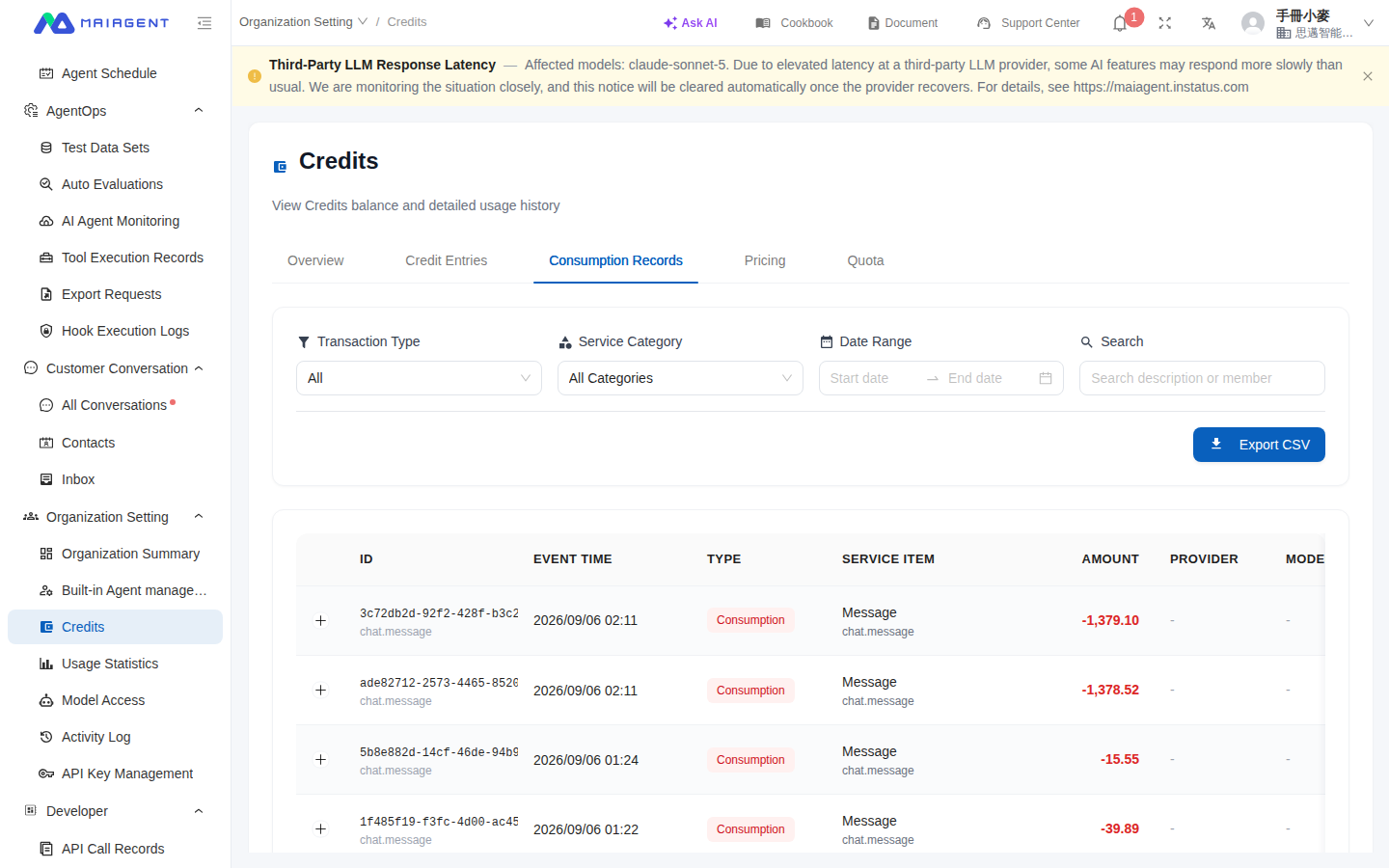
For example, an IT department connects a company-hosted model to AI Gateway, and a finance team member wants to verify the cost of these requests at the end of the month. They first check the organization's traffic fee rate under “Pricing,” then filter for platform fees under “Consumption Records.” The page lists AI Gateway traffic fees separately, allowing them to reconcile self-hosted model traffic against hosted model charges.

### View Traffic Fee Rates and Consumption <a href="#view-traffic-fee" id="view-traffic-fee"></a>

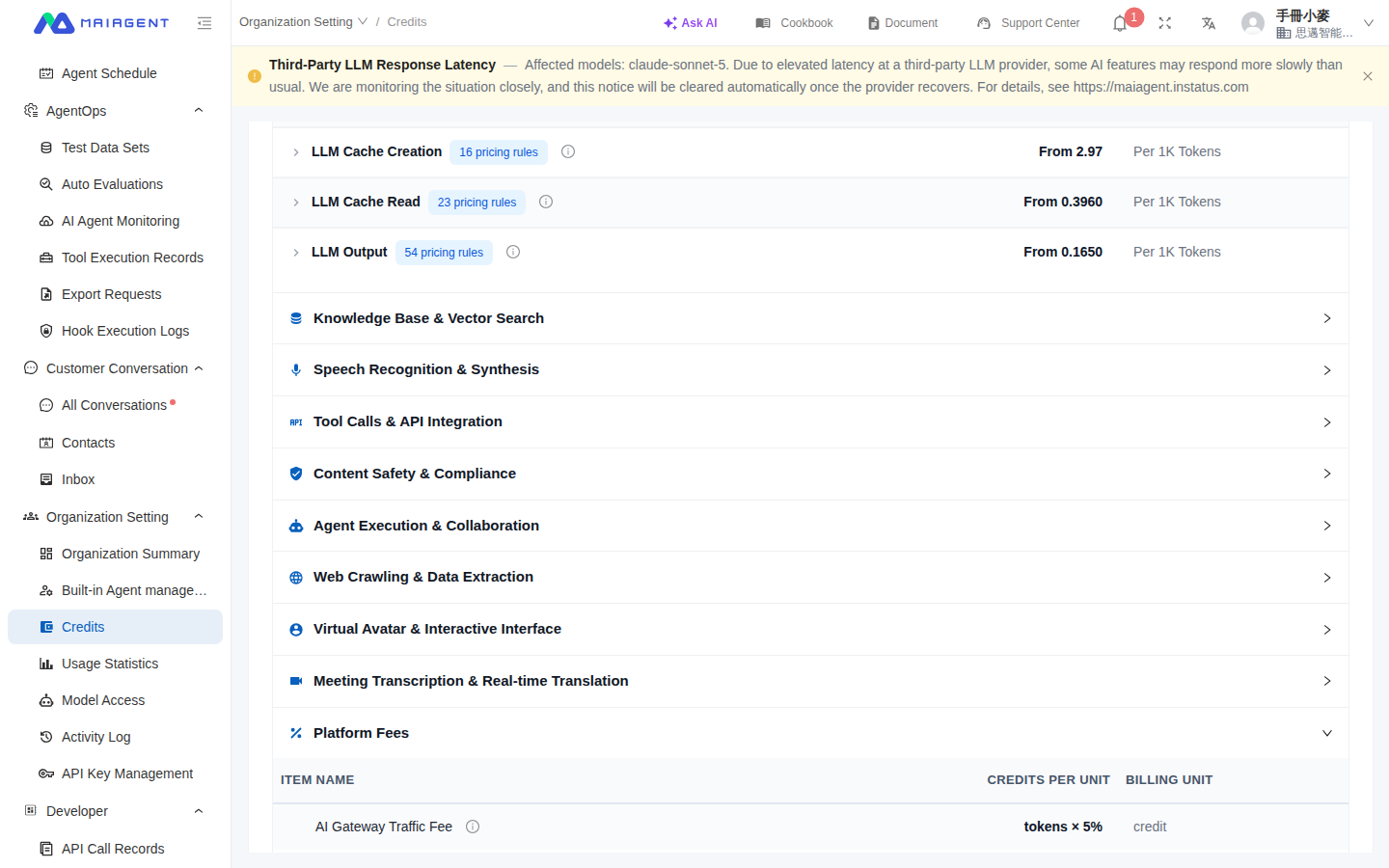
1. Go to <mark style="color:blue;">**Organization Settings**</mark> → <mark style="color:blue;">**Credits**</mark> → <mark style="color:blue;">**Pricing**</mark>.
2. Under “Platform Fees,” find <mark style="color:blue;">**AI Gateway Traffic Fee**</mark> and review the “total tokens × percentage” rate description.
3. Switch to <mark style="color:blue;">**Consumption Records**</mark> and filter by “Platform Fees” to view actual deductions.
4. Hover over an AI Gateway traffic fee entry to verify the input, output, cache write, cache read, and billing percentage details.

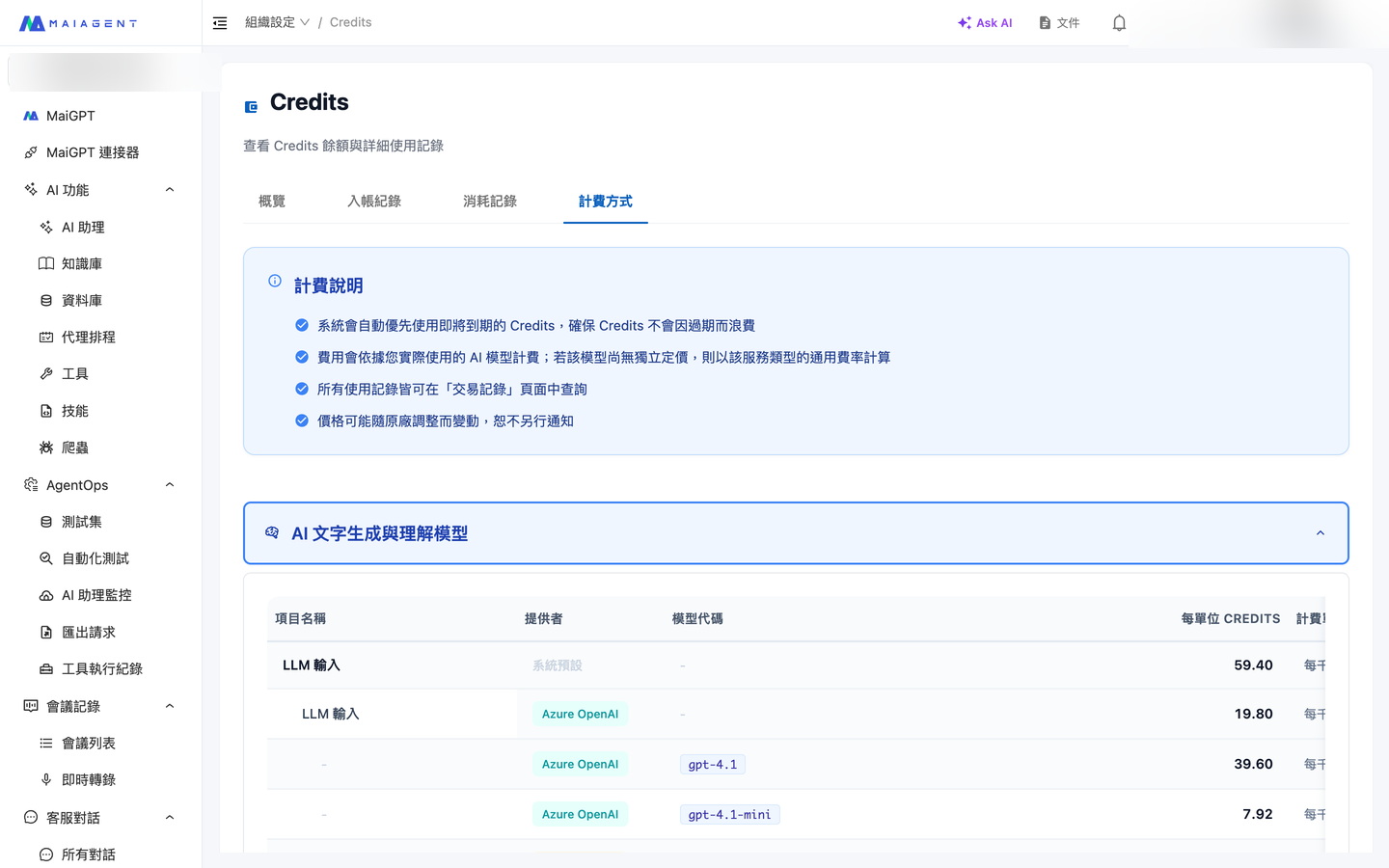
<figure><img src="https://1360999650-files.gitbook.io/~/files/v0/b/gitbook-x-prod.appspot.com/o/spaces%2F6v6TNkkOQVfRYfcNirHL%2Fuploads%2Fgit-blob-589731f9acdea9f28a8b1c8605e68e6b33f18548%2Fcredits-ai-gateway-pricing.png?alt=media" alt="Credits Pricing tab"><figcaption><p>View Credits rates for each service under “Pricing.”</p></figcaption></figure>

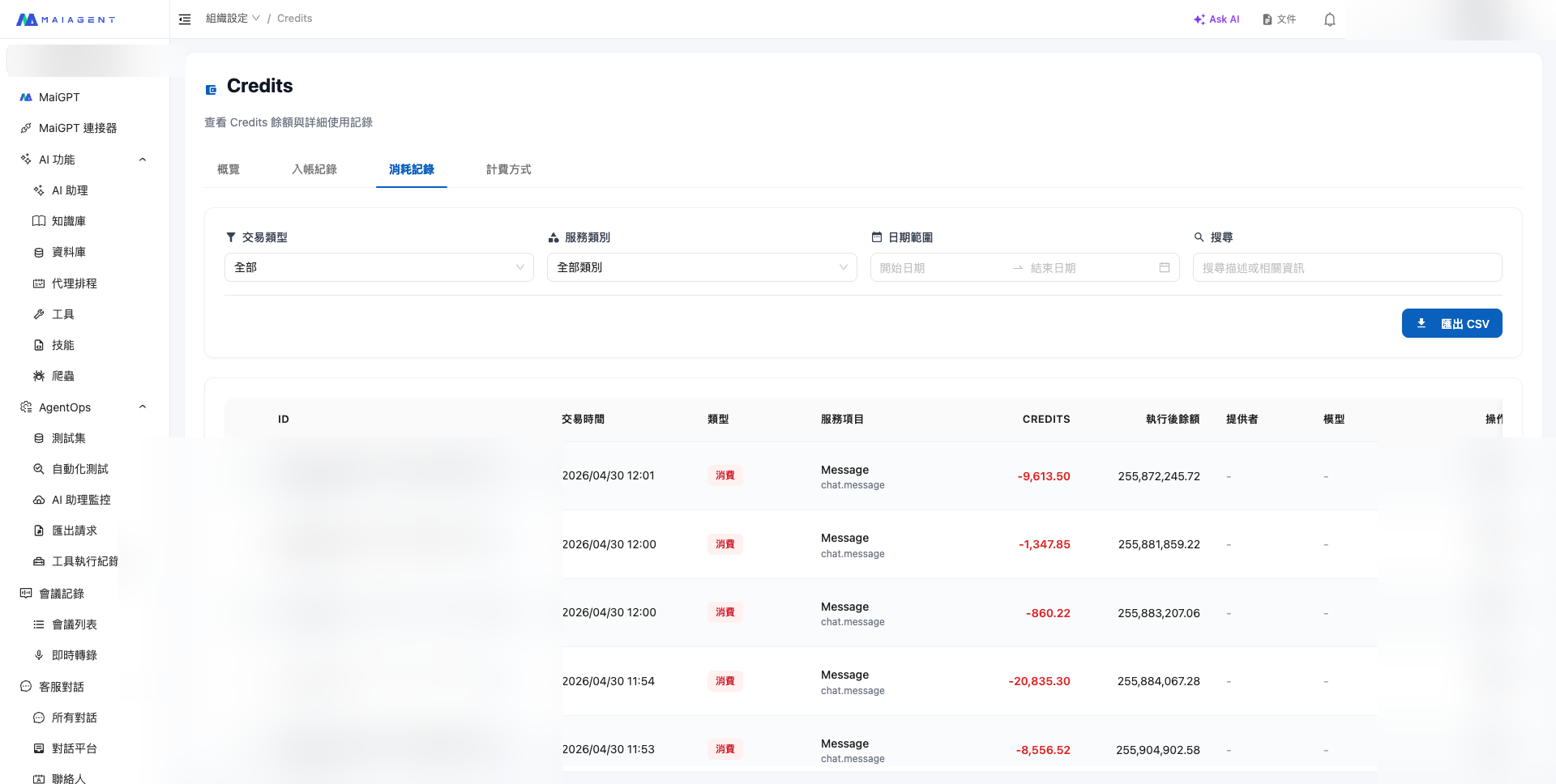
<figure><img src="https://1360999650-files.gitbook.io/~/files/v0/b/gitbook-x-prod.appspot.com/o/spaces%2F6v6TNkkOQVfRYfcNirHL%2Fuploads%2Fgit-blob-24638d9ed0a64102b9d9097ba106fef27c141f93%2Fcredits-ai-gateway-consumption.png?alt=media" alt="Credits Consumption Records tab"><figcaption><p>Filter actual deductions under “Consumption Records” by type, service category, date, or keyword.</p></figcaption></figure>

{% hint style="warning" %}
Traffic fee details appear in Consumption Records only after the organization actually uses a self-hosted (BYOK or independently hosted) AI Gateway model. Pricing shows the current rate, while historical entries retain the billing information that applied when each transaction occurred.
{% endhint %}

***

## Credits Management Panel <a href="#management-panel" id="management-panel"></a>

You can access the management interface at <mark style="color:blue;">**Organization Settings**</mark> → <mark style="color:blue;">**Credits**</mark>, which includes five tabs:

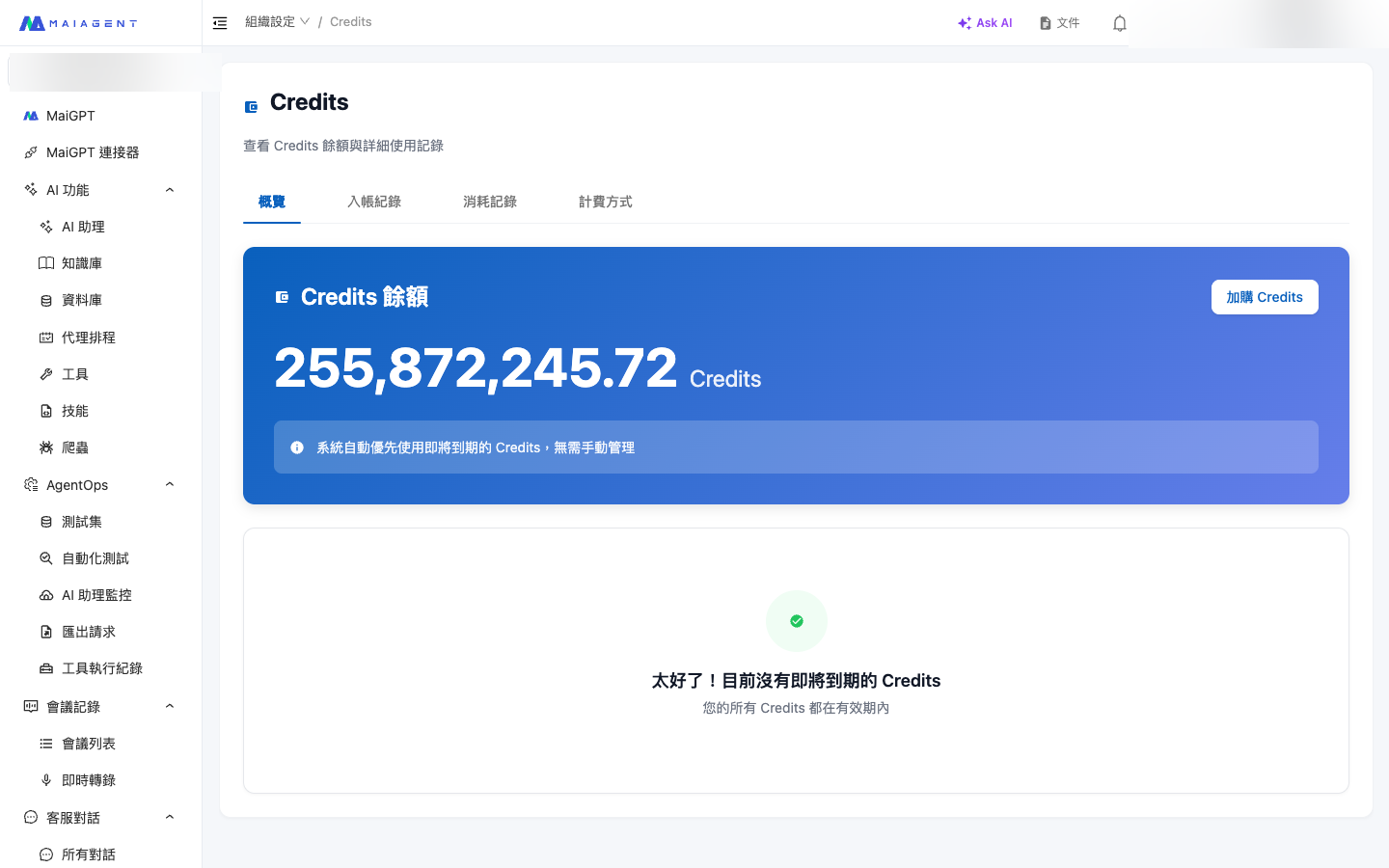
### Overview <a href="#overview-tab" id="overview-tab"></a>

* View total Credits balance and soon-to-expire credits in real time
* Monthly usage trend chart
* Expiring Credits reminders
* Low balance alert settings (in-app notification + Email; see [Low Balance Alerts](#low-balance-alert) for details)

<figure><img src="https://1360999650-files.gitbook.io/~/files/v0/b/gitbook-x-prod.appspot.com/o/spaces%2F6v6TNkkOQVfRYfcNirHL%2Fuploads%2Fgit-blob-3f607a177e928d881df79b615c86203016151fb9%2Fcredit-1-overview.png?alt=media" alt=""><figcaption><p>Overview Tab: Real-time Credits balance and expiration reminders</p></figcaption></figure>

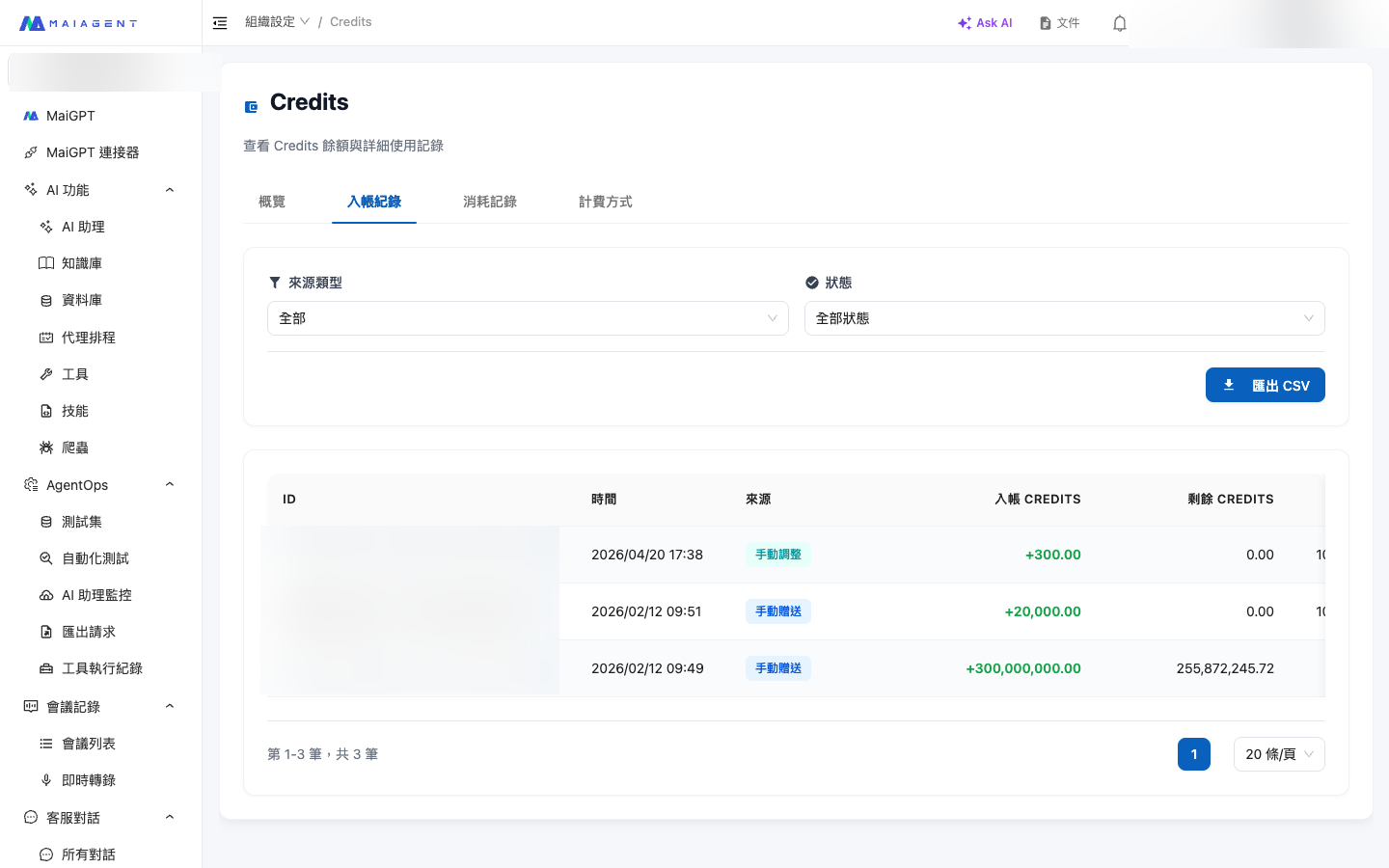
### Deposit Records <a href="#deposits-tab" id="deposits-tab"></a>

* Displays every Credits source: plan issuance, top-ups, gifts, etc.
* Shows validity periods (monthly quota expires at month-end, top-ups valid for 12 months from purchase date)
* Uses **FIFO deduction** (first to expire, first deducted), fully showing the remaining balance of each deposit
* Supports **CSV export** for financial bookkeeping and annual audits

<figure><img src="https://1360999650-files.gitbook.io/~/files/v0/b/gitbook-x-prod.appspot.com/o/spaces%2F6v6TNkkOQVfRYfcNirHL%2Fuploads%2Fgit-blob-841869bbc95eef21c7f52365b382ceeb69cce267%2Fcredit-2-deposits.png?alt=media" alt=""><figcaption><p>Deposit Records Tab: Complete view of Credits sources, validity periods, and remaining balances</p></figcaption></figure>

### Consumption Records <a href="#consumption-tab" id="consumption-tab"></a>

* Filter usage details by date, type, AI assistant, and other dimensions
* Each consumption entry shows the model used, Credits consumed, and corresponding event
* Supports **CSV export** for record-keeping or external analysis (a best friend for internal financial reconciliation)

<figure><img src="https://1360999650-files.gitbook.io/~/files/v0/b/gitbook-x-prod.appspot.com/o/spaces%2F6v6TNkkOQVfRYfcNirHL%2Fuploads%2Fgit-blob-9265ca5f54d3d1ca372e22bb884fccbd26408e54%2Fcredit-3-consumption.png?alt=media" alt=""><figcaption><p>Consumption Records Tab: Every usage detail maps to a model, AI assistant, and event</p></figcaption></figure>

### Pricing <a href="#pricing-tab" id="pricing-tab"></a>

* Complete listing of all model and feature rates
* Covers all billing categories including LLM conversations, voice, knowledge base, web scraping, tools, AI assistant computation, Avatar, and more

<figure><img src="https://1360999650-files.gitbook.io/~/files/v0/b/gitbook-x-prod.appspot.com/o/spaces%2F6v6TNkkOQVfRYfcNirHL%2Fuploads%2Fgit-blob-081859f5a3b6da7807f239ffd940f0ef69ca22f8%2Fcredit-4-pricing.png?alt=media" alt=""><figcaption><p>Pricing Tab: Complete rate table for all models and features</p></figcaption></figure>

#### View Conversation Attachment and Derived File Storage Fees <a href="#attachment-and-derived-storage" id="attachment-and-derived-storage"></a>

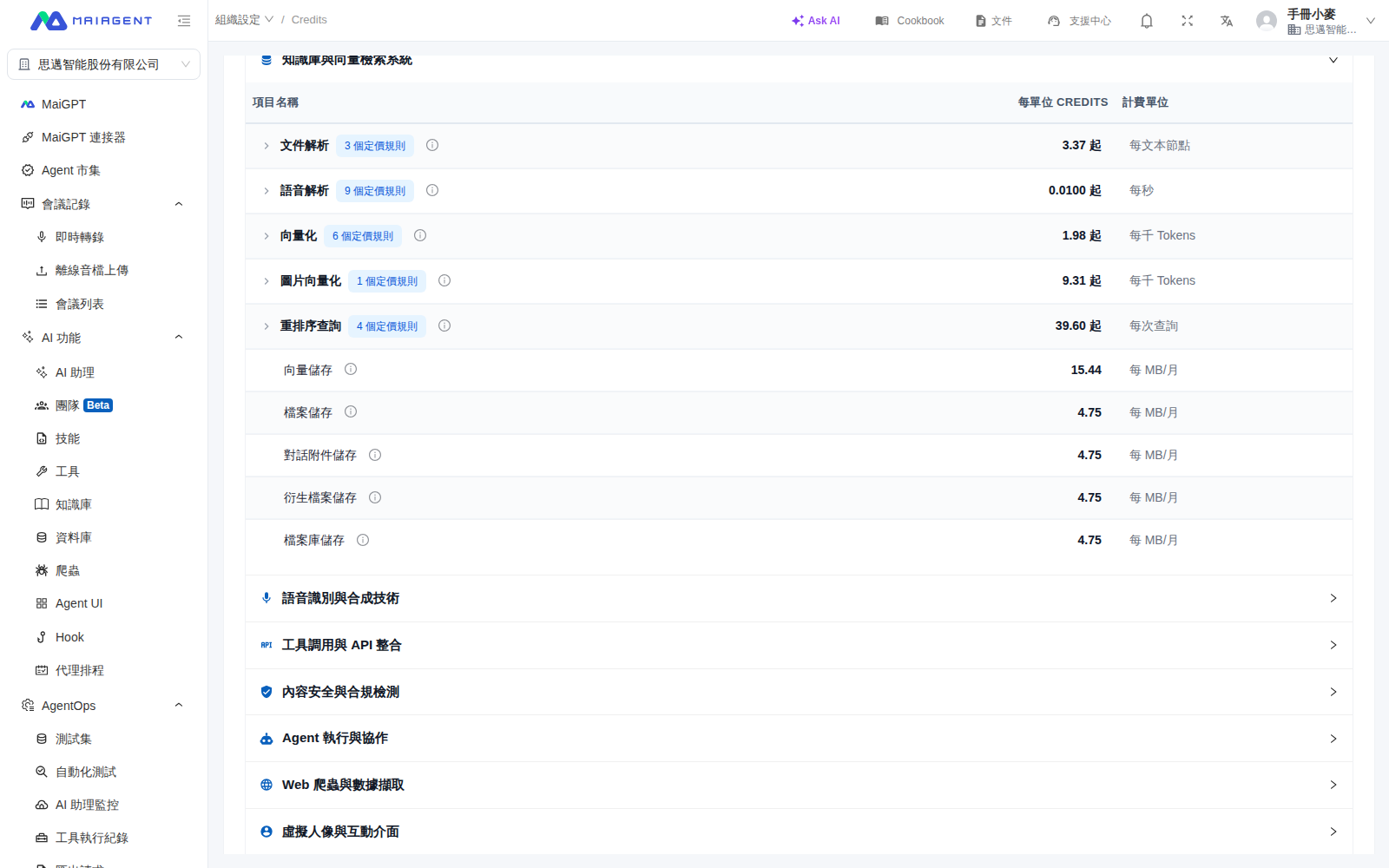
Files uploaded in conversations use "Conversation Attachment Storage." Format conversions, reprocessed copies, and speech transcription copies generated when the system processes files use "Derived File Storage." Both are billed in MB per month, with Credits deducted daily based on actual usage. Original files are billed under the corresponding storage item and are not billed again as derived files.

{% hint style="info" %}
The retention period for conversation attachments is determined by system settings and is currently shown in the description for "Conversation Attachment Storage." The retention countdown restarts whenever a conversation receives a new message. When the retention period ends, attachments and any processing copies generated from them are automatically deleted, and billing stops. Deleted files cannot be recovered, so download any files you need to retain long-term before the deadline.
{% endhint %}

1. Go to <mark style="color:blue;">**Organization Settings**</mark> → <mark style="color:blue;">**Credits**</mark>.
2. Switch to <mark style="color:blue;">**Pricing**</mark>.
3. Expand <mark style="color:blue;">**Knowledge Base and Vector Search System**</mark>.
4. Review the Credits per unit and billing units for <mark style="color:blue;">**Conversation Attachment Storage**</mark> and <mark style="color:blue;">**Derived File Storage**</mark>. Hover over the information icon to view retention and billing details.

<figure><img src="https://1360999650-files.gitbook.io/~/files/v0/b/gitbook-x-prod.appspot.com/o/spaces%2F6v6TNkkOQVfRYfcNirHL%2Fuploads%2Fgit-blob-cdaf245bd3a3c0393c93c541287bd6f7b14f5f02%2Fcredits-attachment-storage-pricing.png?alt=media" alt="Conversation Attachment Storage and Derived File Storage items in Credits Pricing"><figcaption><p>Expand "Knowledge Base and Vector Search System" to compare the rates for the two types of file storage.</p></figcaption></figure>

**Use Case**

The customer service manager at MaiAgent regularly asks visitors to upload screenshots of their issues in conversations. During month-end reconciliation, she goes to Credits "Pricing" and expands "Knowledge Base and Vector Search System" to confirm which rate applies to conversation attachments and which applies to processed copies. After reviewing the attachment retention details, she downloads any screenshots that need to be kept before the deadline. Attachments that are no longer used are automatically deleted when the retention period ends, so they no longer incur storage fees.

### Quota Allocation <a href="#quota-tab" id="quota-tab"></a>

* Administrators can set individual Credits spending limits and validity periods for each member
* Supports distributing, editing, and disabling quotas, as well as a "Require Quota" toggle for access control
* Searchable member filtering by status (Active / Expired / Unallocated)

See [Member Credits Quota Management](/maiagent-user-guide/en/org/credits/member-credit-quota.md) for details.

***

## Low Balance Alerts <a href="#low-balance-alert" id="low-balance-alert"></a>

When your organization's Credits balance falls below the threshold you set, the system **proactively sends an alert**, giving you time to top up and avoid service interruptions. Alerts are sent through **in-app notifications**, and paid plans also **automatically send an Email**, so you can receive alerts immediately without logging in to the admin console.

{% hint style="info" %}
In-app notifications are available on all plans; **Email notifications are available only on paid plans**. This alert does not apply to organizations billed through AWS Marketplace. You must have access to the Credits page to configure and view alerts.
{% endhint %}

### Notification Channels <a href="#alert-channels" id="alert-channels"></a>

| Channel                 | Description                                                                              |
| ----------------------- | ---------------------------------------------------------------------------------------- |
| **In-app notification** | Creates an announcement in the admin console when the balance falls below the threshold  |
| **Email notification**  | Paid plans also send an alert email to members with the Owner role and custom recipients |

Both channels share the same **enable toggle** and **alert threshold**. Disabling alerts stops both in-app and Email notifications.

### Who Receives the Email <a href="#alert-recipients" id="alert-recipients"></a>

* **All members with the Owner role**: Automatically included when alerts are enabled; emails are always sent to them
* **Custom recipients**: An organization can enter up to **5 Email addresses** as additional recipients
* If the two groups overlap, the system **automatically removes duplicates**, so each Email address receives only one message

### Configuration <a href="#configure-alert" id="configure-alert"></a>

1. Go to <mark style="color:blue;">**Organization Settings**</mark> → <mark style="color:blue;">**Credits**</mark> → <mark style="color:blue;">**Overview**</mark>
2. Find the <mark style="color:blue;">**Balance Alert**</mark> card and click <mark style="color:blue;">**Settings**</mark>
3. Turn on <mark style="color:blue;">**Enable Balance Alerts**</mark> and enter an **alert threshold**
4. In the <mark style="color:blue;">**Notification Recipients**</mark> field, enter additional Email addresses that should receive alerts (up to 5; you can paste multiple comma-separated Email addresses and they will be split automatically)
5. Save to complete the configuration

### Trigger Conditions <a href="#alert-trigger" id="alert-trigger"></a>

* Automatically triggers when the **balance falls below your configured alert threshold**, sending both an in-app notification and an Email
* Each wallet sends an alert **at most once every 24 hours** to avoid repeated interruptions
* The alert is a branded HTML email that includes the current **balance**, the **threshold**, and a “View Credit Usage Details” button. To purchase additional Credits, contact <sales@maiagent.ai>

***

## Prompt Cache Usage <a href="#prompt-cache-usage" id="prompt-cache-usage"></a>

### What Is Prompt Cache, and How Does It Save Money? <a href="#what-is-prompt-cache" id="what-is-prompt-cache"></a>

Each time an AI assistant responds, it must send the **context for the entire conversation** back to the model, including role instructions (System Prompt), knowledge base content, and previous conversation content. This content is **highly repetitive** across multiple conversations with the same assistant: the role instructions remain the same every time, and knowledge base excerpts are often identical.

**Prompt Cache** is a cost optimization for this repetition. When a model processes cacheable content, it may first **write the content to the cache**. If a later request hits the same content while the cache is still valid, the model can **read it from the cache** instead. Cache creation and cache reads are billed at their respective rates, and the unit rate for cache reads is typically lower than for standard input. Whether this actually saves Credits depends on the creation cost, the number of subsequent cache hits, and the rates of the model used.

Conversations with Prompt Cache enabled may show the following billing items (under the “AI Text Generation and Understanding Models” billing category):

| Billing Item           | Description                                                                                                      |
| ---------------------- | ---------------------------------------------------------------------------------------------------------------- |
| **LLM Cache Creation** | The number of Tokens consumed when writing input content to the cache, billed at the model's cache creation rate |
| **LLM Cache Read**     | The number of input Tokens read from the cache, billed at the model's cache read rate                            |

{% hint style="info" %}
Use of Prompt Cache is determined automatically by the **model and platform settings**; no manual action is required. Billing details list only cache items that actually occurred for the request and have a Token count greater than 0. You may therefore see only “LLM Cache Creation” or “LLM Cache Read,” or neither item.
{% endhint %}

### Use Case <a href="#cache-scenario" id="cache-scenario"></a>

To check whether an AI assistant has recently reduced costs through caching, an organization administrator can first go to <mark style="color:blue;">**Organization Settings**</mark> → <mark style="color:blue;">**Usage Statistics**</mark> and review <mark style="color:blue;">**Cache Savings**</mark>. To investigate an individual request, go to <mark style="color:blue;">**Credits**</mark> → <mark style="color:blue;">**Consumption Records**</mark>, expand a conversation charge with cache items, and verify the cache creation or read quantity and Credits.

### Which Scenarios Save the Most? <a href="#cache-best-scenarios" id="cache-best-scenarios"></a>

Caching reduces the cost of “repeated input,” so **the more content is repeated and the more often it repeats, the greater the benefit**:

* **Assistants with long role instructions (System Prompts)**: For example, a customer service assistant may include complete response guidelines and product information. When subsequent requests hit the same cache, more content can be billed at the cache read rate
* **Frequently used assistants**: The more often subsequent requests hit the same content while the cache remains valid, the more likely the cache creation cost will be offset
* **Long, multi-turn conversations**: If the model can reuse earlier conversation content, later turns may generate more cache read usage

### Where to View Cache Usage <a href="#where-to-view-cache-usage" id="where-to-view-cache-usage"></a>

The platform provides three levels of detail: **individual billing entries**, **organization-wide aggregate statistics**, and **Token details for a single conversation**.

#### 1. Credits → Consumption Records and Pricing <a href="#cache-in-credits" id="cache-in-credits"></a>

Use this to reconcile individual entries and verify each cache charge:

1. Go to <mark style="color:blue;">**Organization Settings**</mark> → <mark style="color:blue;">**Credits**</mark> → <mark style="color:blue;">**Consumption Records**</mark>
2. Find a conversation charge (chat.message) that used caching and click the expand arrow on the left. Based on actual usage for that request, the details list “LLM Cache Creation” or “LLM Cache Read,” together with the Credits consumed, quantity, and corresponding model
3. Switch to the <mark style="color:blue;">**Pricing**</mark> tab to view the rates for each model's cache items (priced per thousand Tokens)

<figure><img src="https://1360999650-files.gitbook.io/~/files/v0/b/gitbook-x-prod.appspot.com/o/spaces%2F6v6TNkkOQVfRYfcNirHL%2Fuploads%2Fgit-blob-42d20a806c837c95b5564775545c822794d788ef%2Fcache-01-consumption-records.png?alt=media" alt="Cache billing items in Consumption Records"><figcaption><p>Consumption Records: Expand an individual conversation charge to view the cache billing items actually generated by that request</p></figcaption></figure>

#### 2. Usage Statistics → Billing Category Tab <a href="#cache-in-usage-stats" id="cache-in-usage-stats"></a>

Use this to view the share of organization-wide cache consumption and the amount saved:

1. Go to <mark style="color:blue;">**Organization Settings**</mark> → <mark style="color:blue;">**Usage Statistics**</mark>
2. Change the metric dropdown to <mark style="color:blue;">**Credits**</mark>. The <mark style="color:blue;">**Billing Category**</mark> tab appears only after this selection
3. In the <mark style="color:blue;">**Usage Overview**</mark> section, <mark style="color:blue;">**Cache Savings**</mark> displays the number of Credits saved when the net savings for the selected period is greater than 0
4. Switch to the <mark style="color:blue;">**Billing Category**</mark> tab to view Credit consumption by category in a pie chart, ranking bar chart, and details table. When corresponding usage exists, cache creation or read items appear under the “AI Text Generation and Understanding Models” category
<figure><img src="https://1360999650-files.gitbook.io/~/files/v0/b/gitbook-x-prod.appspot.com/o/spaces%2F6v6TNkkOQVfRYfcNirHL%2Fuploads%2Fgit-blob-0e4cb43b0bda7d8a1a165c3e4eb8323cf15de696%2Fcache-02-savings-card.png?alt=media" alt="Cache Savings amount in Usage Overview"><figcaption><p>Usage Overview: “Cache Savings” appears when net savings are greater than 0</p></figcaption></figure>

<figure><img src="https://1360999650-files.gitbook.io/~/files/v0/b/gitbook-x-prod.appspot.com/o/spaces%2F6v6TNkkOQVfRYfcNirHL%2Fuploads%2Fgit-blob-15e401a076373ed369f3f0ad4409aa373f80784c%2Fusage-stats-credit-categories.png?alt=media" alt="Usage Statistics Billing Category tab: LLM Cache Creation and Read billing items"><figcaption><p>Usage Statistics “Billing Category” tab: LLM Cache Creation and Read under the “AI Text Generation and Understanding Models” category</p></figcaption></figure>

{% hint style="warning" %}
The “Billing Category” tab **appears only after the metric is changed to Credits** and is available only to organizations using the Credit billing model. If you cannot find this tab, first verify the selection in the metric dropdown.
{% endhint %}

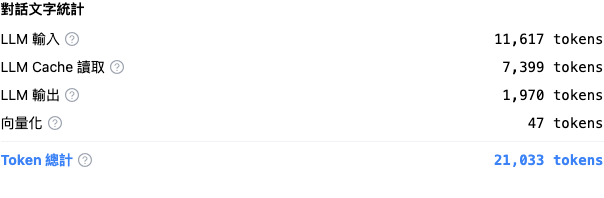
#### 3. AgentOps → Conversation Text Statistics <a href="#cache-in-agentops" id="cache-in-agentops"></a>

Use this to analyze actual cache hits for **a single conversation**:

1. Go to <mark style="color:blue;">**AgentOps**</mark> → <mark style="color:blue;">**AI Assistant Monitoring**</mark>
2. Open the details of any conversation record and find the <mark style="color:blue;">**Conversation Text Statistics**</mark> section
3. If the message has cache usage, it lists the Token count for “LLM Cache Creation” or “LLM Cache Read” based on the items that actually occurred. Items with no corresponding usage are not displayed

<figure><img src="https://1360999650-files.gitbook.io/~/files/v0/b/gitbook-x-prod.appspot.com/o/spaces%2F6v6TNkkOQVfRYfcNirHL%2Fuploads%2Fgit-blob-0dec37ee809f2089857bee16844f8d08b641ae89%2Fcache-03-agentops-text-stats.png?alt=media" alt="Conversation text statistics in the AgentOps conversation record details"><figcaption><p>Conversation record details: This conversation generated 7,399 LLM Cache Read Tokens. Because there was no cache creation usage, the creation item is not displayed.</p></figcaption></figure>

### Frequently asked questions <a href="#cache-faq" id="cache-faq"></a>

#### Q: Why does “LLM Cache Creation” appear on my bill? <a href="#cache-faq-extra-charge" id="cache-faq-extra-charge"></a>

“LLM Cache Creation” means that content from the request was written to the cache and is billed separately at the model's cache creation rate. It is not guaranteed to occur only during the first turn of an entire conversation; the cache may be created again after it expires or when cacheable content changes. Subsequent requests that hit the cache are billed at the “LLM Cache Read” rate. Use <mark style="color:blue;">**Cache savings**</mark> under <mark style="color:blue;">**Usage statistics**</mark> to determine the net savings for the selected period. This figure is not displayed when the creation cost exceeds the read savings.

#### Q: How can I find out how much the cache has saved me? <a href="#cache-faq-savings" id="cache-faq-savings"></a>

Go to <mark style="color:blue;">**Organization settings**</mark> → <mark style="color:blue;">**Usage statistics**</mark>, then view <mark style="color:blue;">**Cache savings**</mark> in the <mark style="color:blue;">**Usage overview**</mark> section. When the net savings for the selected period are greater than 0, the number of Credits saved is displayed. It is not displayed if the value is 0, negative, or below the display precision.

#### Q: Do I need to enable Prompt Cache myself? <a href="#cache-faq-enable" id="cache-faq-enable"></a>

**No.** Cache usage is determined automatically by the model's capabilities and platform settings. No additional action or configuration is required.

#### Q: Why don't some conversations show cache items? <a href="#cache-faq-missing" id="cache-faq-missing"></a>

Cache items are displayed only when the model reports the corresponding usage. If the request neither creates nor hits a cache, the corresponding items do not appear in the details. This does not affect normal AI assistant responses.

***

## Frequently asked questions <a href="#faq" id="faq"></a>

### Q: Can I use different models together? <a href="#faq-mixed-models" id="faq-mixed-models"></a>

**Yes.** Under the Credits system, **the corresponding number of Credits is deducted based on the model tier used**—use the affordable Haiku for customer-service FAQs and Opus for in-depth analysis. You have complete control over how your budget is allocated.

### Q: How can I view my Credits usage? <a href="#faq-view-usage" id="faq-view-usage"></a>

Go to <mark style="color:blue;">**Organization settings**</mark> → <mark style="color:blue;">**Credits**</mark>. The **Overview** page shows your real-time balance, the **Credit history** page shows each source of Credits and its expiration date, and the **Usage history** page provides detailed usage records and supports CSV export.

### Q: What happens when I use up my monthly quota? <a href="#faq-quota-exhausted" id="faq-quota-exhausted"></a>

When the monthly Credits quota is exhausted, the AI assistant stops responding. You can purchase additional Credits at any time. **They take effect immediately after purchase** and remain valid for 12 months from the purchase date.

### Q: Can I still use the platform after my plan expires or if I do not have a paid plan? <a href="#faq-no-active-plan" id="faq-no-active-plan"></a>

**Starting June 9, 2026**, organizations without an active paid plan—including those on a free plan, whose trial has ended, or whose plan has expired without renewal—are prompted to upgrade when performing operations that require AI computation. The platform retains all data for **90 days** from the plan expiration date. During this period, only storage Credits are charged and settled when the plan is restored. Resubscribe within 90 days to restore everything; if you do not resubscribe by the deadline, the data is permanently deleted and cannot be recovered. For details, see [Trials and subscription plans—What happens to my data after my plan expires or is downgraded to the free version?](/maiagent-user-guide/en/others/trial-and-plans.md#data-retention-policy).

### Q: Do Credits expire? <a href="#faq-expiration" id="faq-expiration"></a>

* Credits from the **monthly plan quota** expire at the end of the month
* **Additional Credits** remain valid for 12 months from the purchase date

***

## Need help? Contact us <a href="#contact-sales" id="contact-sales"></a>

To learn more about how the Credits system can support your company's budget-control needs, or to discuss plan configurations and additional Credit purchases, contact us through the following channels:

* **Sales team**: <sales@maiagent.ai>
* **Official website**: <https://maiagent.ai>

Thank you for choosing MaiAgent. We will continue building more flexible, cost-effective, and trustworthy AI services for you.


---

# Agent Instructions
This documentation is published with GitBook. GitBook is the documentation platform designed so that both humans and AI agents can read, navigate, and reason over technical content effectively. Learn more at gitbook.com.

## Querying This Documentation
If you need additional information that is not directly available in this page, you can query the documentation dynamically by asking a question.

Perform an HTTP GET request on the current page URL with the `ask` query parameter, and the optional `goal` query parameter:

```
GET https://docs.maiagent.ai/maiagent-user-guide/en/org/credits.md?ask=<question>&goal=<endgoal>
```

`ask` is the immediate question: it should be specific, self-contained, and written in natural language.
`goal` is optional and describes the broader end goal you are ultimately trying to accomplish on behalf of the user. GitBook uses it to tailor the answer towards what is most useful for that goal.

The response will contain a direct answer to the question and relevant excerpts and sources from the documentation.

Use this mechanism when the answer is not explicitly present in the current page, you need clarification or additional context, or you want to retrieve related documentation sections.