> For the complete documentation index, see [llms.txt](https://docs.maiagent.ai/llms.txt). Markdown versions of documentation pages are available by appending `.md` to page URLs; this page is available as [Markdown](https://docs.maiagent.ai/work/meeting-records/quick-entry.md).
# 會議記錄快捷入口
從 MaiGPT 首頁的「辦公應用」快捷面板開始錄音,或接續查看最近的會議記錄與摘要
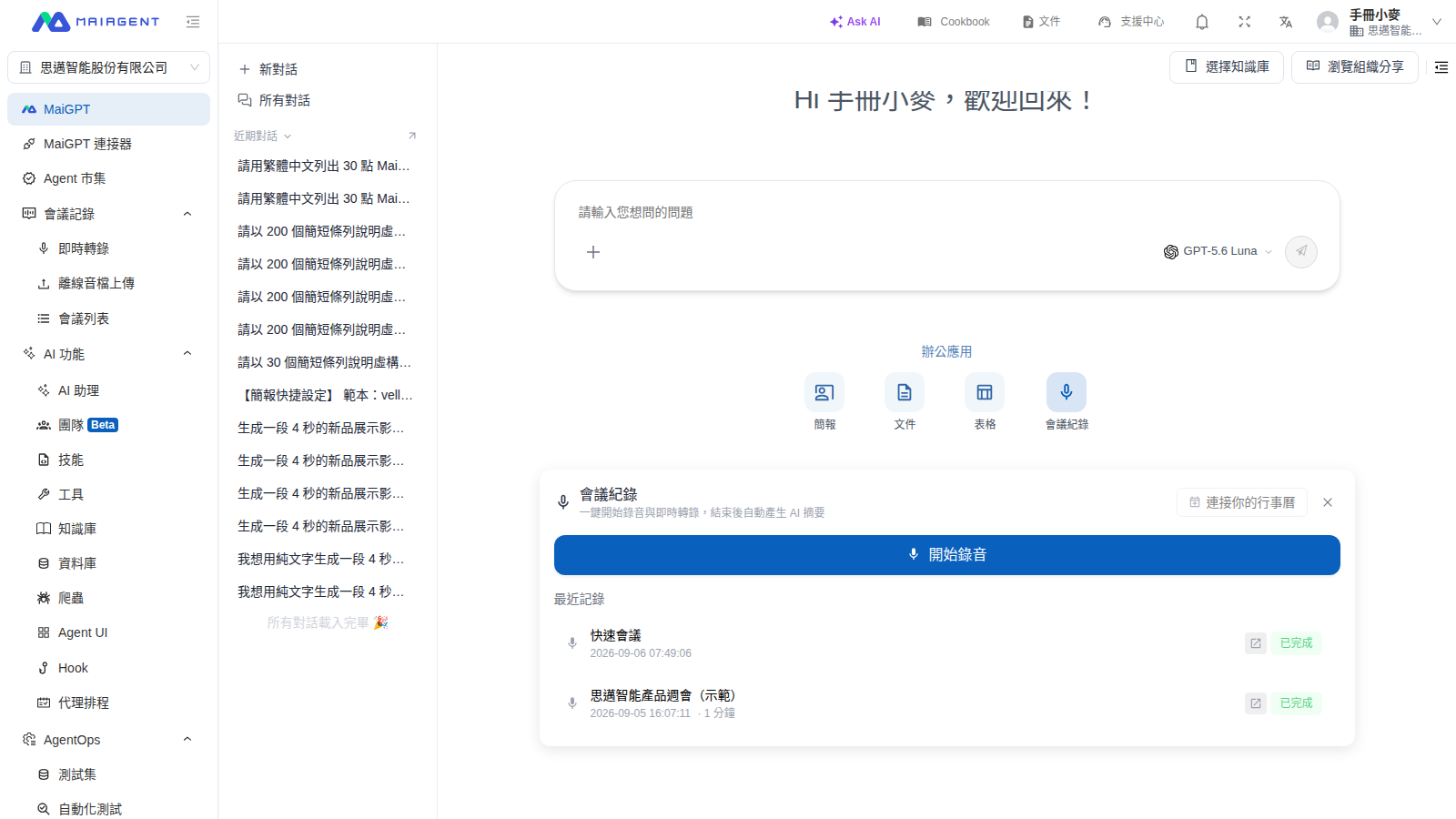
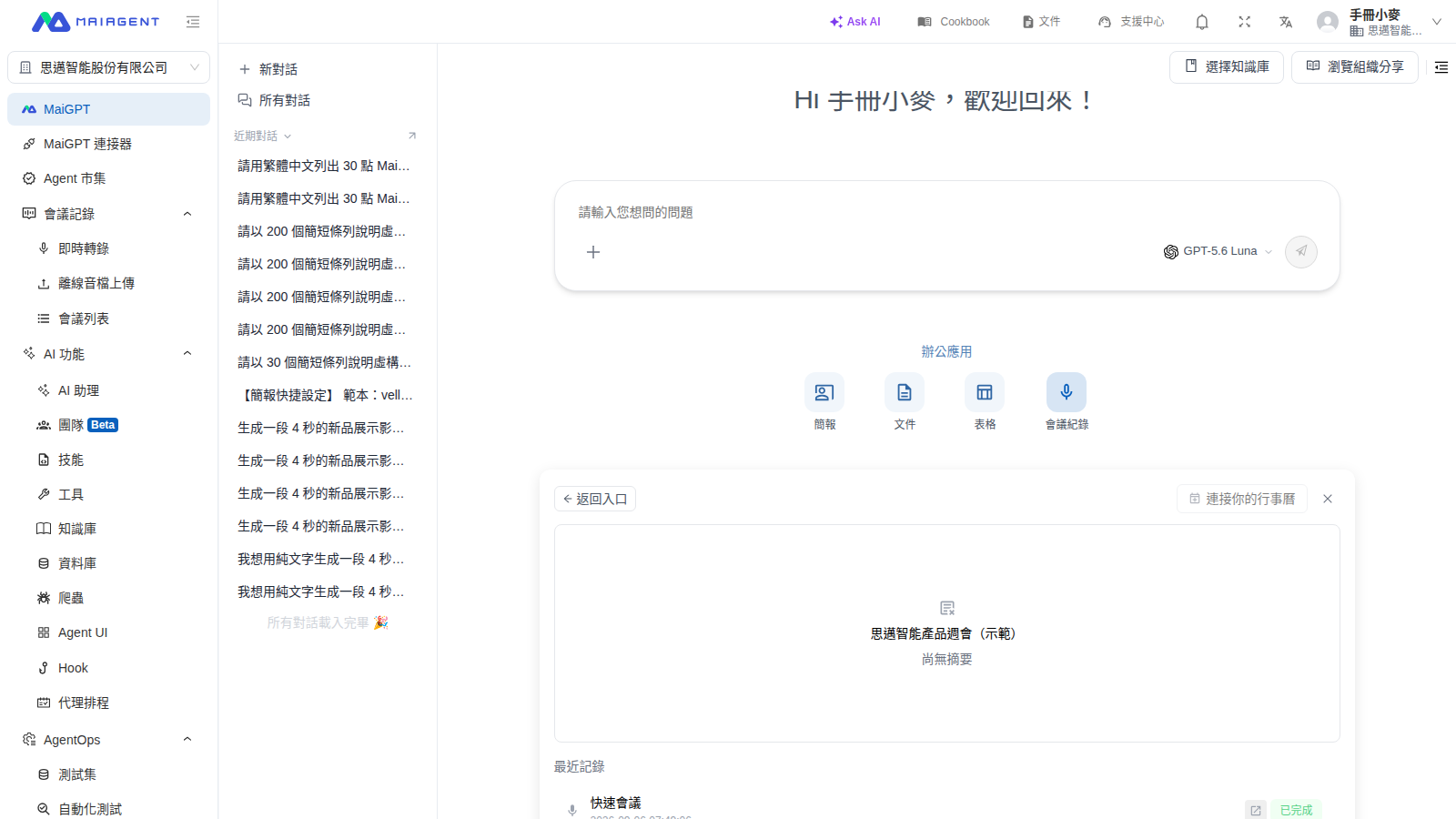
在 MaiGPT 首頁的「辦公應用」區點選 會議紀錄,可以直接開始錄音,也可以從「最近記錄」接續查看既有會議。
{% endstep %}
{% step %}
### 4. 開啟完整記錄
需要逐字稿等完整內容時,將游標移到該筆記錄右側的按鈕上,看到「查看完整記錄」提示後點選,即前往該場會議的完整記錄頁。此時會離開 MaiGPT 對話頁;看完後從側邊選單點選 MaiGPT 即可回來。
{% endstep %}
{% endstepper %}
### 錄音結束後:把摘要帶進對話
在快捷面板錄完一場會議,面板會顯示「錄音已完成」卡片,問你要不要讓 AI 產生會議摘要。按 產生摘要 後,摘要會直接顯示在卡片裡,下方有兩個按鈕:
* 開啟完整頁面:前往這場會議的完整記錄頁。
* 帶入對話:把摘要內容放進 MaiGPT 的輸入框,接著就能請 AI 依摘要列待辦、寫會後通知信或繼續追問。
不需要摘要時按 稍後再說,之後仍可在完整記錄頁產生,見 [AI 摘要](/work/meeting-records/summary.md)。
### 最近記錄的狀態
| 畫面狀態 | 代表意思 | 建議操作 |
| -------- | ---------------- | ---------------- |
| **生成中** | 會議仍在轉錄、處理或產生摘要 | 稍後重新開啟快捷面板查看最新狀態 |
| **生成失敗** | 會議轉錄或摘要產生失敗 | 前往完整會議記錄確認失敗狀態 |
| **尚無摘要** | 會議已完成,但還沒有可顯示的摘要 | 前往完整會議記錄產生或查看摘要 |
{% hint style="info" %}
若「最近記錄」顯示「尚無會議記錄」,請先完成一場會議記錄,再回到此面板查看。
{% endhint %}
完整的錄音、轉錄與摘要操作請見[建立會議記錄](/work/meeting-records/create-meeting.md)、[即時會議記錄](/work/meeting-records/live-transcription.md)與[AI 會議摘要與問答](/work/meeting-records/summary.md)。
---
# Agent Instructions
This documentation is published with GitBook. GitBook is the documentation platform designed so that both humans and AI agents can read, navigate, and reason over technical content effectively. Learn more at gitbook.com.
## Querying This Documentation
If you need additional information that is not directly available in this page, you can query the documentation by asking a question.
Perform an HTTP GET request on the following URL with the `ask` and `goal` query parameters:
```
GET https://docs.maiagent.ai/work/meeting-records/quick-entry.md?ask=&goal=
```
`ask` is the immediate question: it should be specific, self-contained, and written in natural language.
`goal` is what the user is ultimately trying to achieve, the reason they need the answer. Sharing it helps GitBook give you a better, more relevant answer. A goal is most helpful when it describes the outcome the user wants rather than restating the question. For example, with `ask=how do I create an API token`, a goal like `automate deployments from our CI pipeline` lets GitBook tailor the answer to that use case.
The response will contain a direct answer to the question and relevant excerpts and sources from the documentation.
Use this mechanism when the answer is not explicitly present in the current page, you need clarification or additional context, or you want to retrieve related documentation sections.