> For the complete documentation index, see [llms.txt](https://docs.maiagent.ai/llms.txt). Markdown versions of documentation pages are available by appending `.md` to page URLs; this page is available as [Markdown](https://docs.maiagent.ai/work/file-library.md).

# 檔案庫

檔案庫是組織的檔案集中處：用檔案工作區整理每個專案的文件，讓 MaiGPT 直接讀檔、改檔，每次異動都有版本紀錄可以還原。

**檔案放一起，AI 直接用。**

檔案庫是組織的檔案集中處。你可以把一個專案的規格書、報價單、FAQ、會議紀錄放進同一個**檔案工作區**，再從工作區直接開啟 MaiGPT 對話：AI 會自己找到需要的檔案、整份讀完再回答，也能在你確認後直接修改檔案。AI 產出的文件與圖片會自動存回檔案庫，所有上傳、修改、搬移與刪除都記在版本紀錄裡，可以一鍵還原。

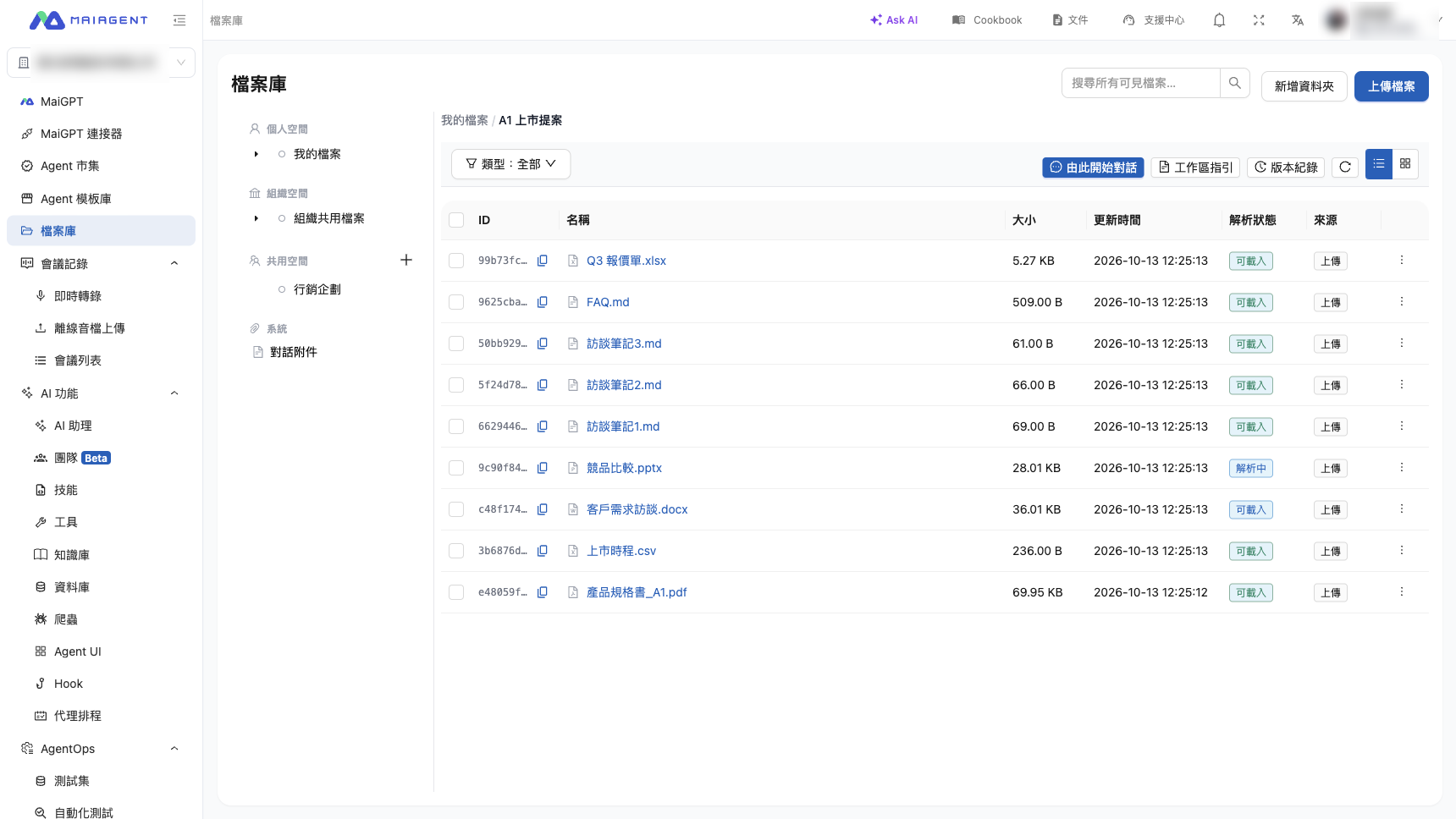
<figure><img src="https://1593648278-files.gitbook.io/~/files/v0/b/gitbook-x-prod.appspot.com/o/spaces%2Fmzb5NG9GDzFP2YDKeYVl%2Fuploads%2Fgit-blob-bd4186d6400315facb700e01f2788ee6bbcc4cf7%2Ffile-library-overview.png?alt=media" alt="檔案庫畫面：左側為空間樹，右側為工作區內的檔案清單"><figcaption><p>左側選擇空間與工作區，右側是工作區內的檔案、大小、更新時間與來源</p></figcaption></figure>

***

## 使用情境 <a href="#use-case" id="use-case"></a>

業務專員要準備新品上市提案。她在<mark style="color:blue;">我的檔案</mark>建立一個「A1 上市提案」工作區，一次匯入規格書、報價單、FAQ 和客戶訪談紀錄。接著在工作區按<mark style="color:blue;">由此開始對話</mark>，請 MaiGPT「整理 Q3 報價單的方案差異」——AI 自己找到報價單、讀完整份檔案後列出比較表，並標出資料來自哪份文件。她再請 AI 把 FAQ 第三題的保固說明改成兩年，確認後 AI 直接寫回檔案，版本紀錄留下「由她在對話中確認」的紀錄；若之後發現改錯，打開版本清單就能還原。

***

## 檔案庫的空間 <a href="#spaces" id="spaces"></a>

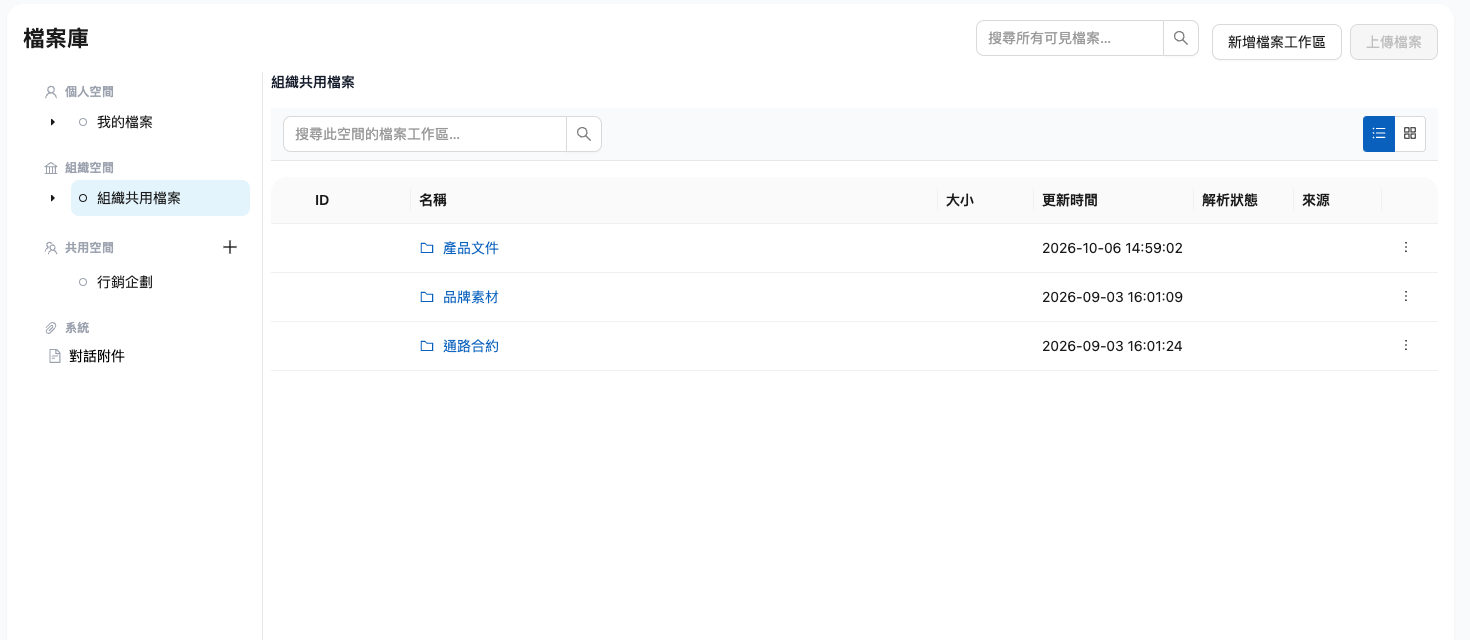
左側空間樹分成四區：

| 空間                | 誰看得到           | 用途                                                            |
| ----------------- | -------------- | ------------------------------------------------------------- |
| **個人空間 › 我的檔案**   | 只有自己           | 個人的工作檔案；AI 產出的檔案會自動收進其中的 <mark style="color:blue;">暫存區</mark> |
| **組織空間 › 組織共用檔案** | 有組織空間檢視權限的成員   | 全組織共用的資料，例如產品文件、品牌素材                                          |
| **共用空間**          | 依授權角色開放        | 跨部門一起用的資料夾，詳見 [共用空間](/work/file-library/shared-spaces.md)     |
| **系統 › 對話附件**     | 自己（組織擁有者可看全組織） | 列出你參與過的對話中、尚未歸檔到工作區、仍在計費的附件，可下載或提前刪除                          |

<figure><img src="https://1593648278-files.gitbook.io/~/files/v0/b/gitbook-x-prod.appspot.com/o/spaces%2Fmzb5NG9GDzFP2YDKeYVl%2Fuploads%2Fgit-blob-ee60e7c521d1f5894315550c4c65b993519eb9ef%2Ffile-library-spaces.png?alt=media" alt="檔案庫左側空間樹：個人空間、組織空間、共用空間與系統"><figcaption><p>空間樹依「個人空間、組織空間、共用空間、系統」分區</p></figcaption></figure>

空間的最上層只能建立**檔案工作區**，不能直接上傳檔案；檔案都放在工作區（或工作區裡的資料夾）中。

***

## 什麼是檔案工作區 <a href="#workspace" id="workspace"></a>

檔案工作區是一組相關檔案的資料夾，通常一個專案、一位客戶或一個主題建一個。工作區有三個重點：

* **AI 的工作範圍**：在工作區按 <mark style="color:blue;">由此開始對話</mark>，MaiGPT 就會掛上這個工作區，能讀取、修改其中的檔案。
* **工作區指引**：系統會自動整理一份「這個工作區放了什麼、該怎麼用」的說明，AI 回答時會參考它。
* **版本紀錄**：工作區內每一次異動都記錄下來，可以一鍵還原。

***

## 檔案庫和知識庫有什麼不同 <a href="#vs-knowledge-base" id="vs-knowledge-base"></a>

|             | 檔案庫                  | [知識庫](/build/knowledge-base/km.md) |
| ----------- | -------------------- | ---------------------------------- |
| **適合放什麼**   | 日常工作檔案、專案資料、AI 產出    | 要讓 Agent 回答問題的參考資料（手冊、SOP、FAQ）     |
| **AI 怎麼使用** | 需要時整份讀取檔案，也能修改、改名、搬移 | 先檢索出相關片段，再依片段回答                    |
| **誰在用**     | 成員在 MaiGPT 中使用       | Agent 與 MaiGPT 皆可引用                |
| **版本**      | 每次修改都留版本，可還原         | 以知識庫的檔案管理為準                        |

簡單說：要「找答案」用知識庫，要「處理檔案」用檔案庫。

***

## 開通與權限 <a href="#availability-and-permissions" id="availability-and-permissions"></a>

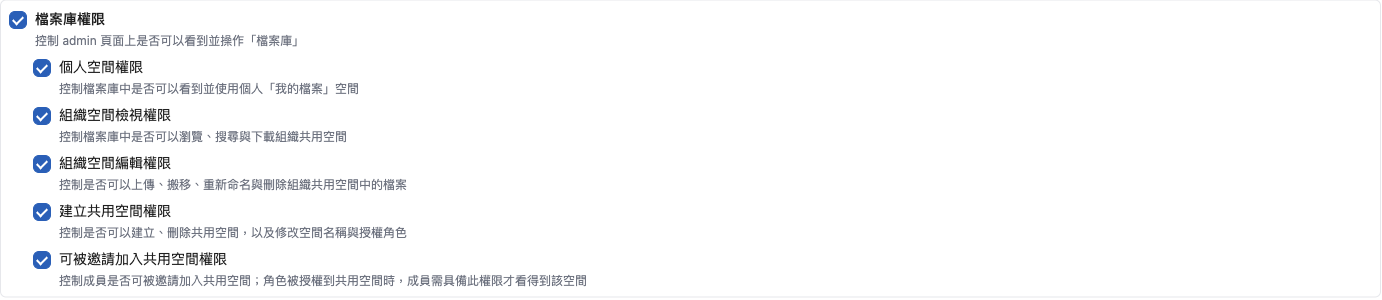
檔案庫預設**只有擁有者可以操作**。要開放給成員，請由擁有者或有角色管理權限的人建立自訂角色，勾選需要的檔案庫權限，再把成員加入該角色；預設角色不能授予檔案庫權限。成員能使用哪些空間，由所屬自訂角色的檔案庫權限決定：

| 權限           | 控制範圍                                               |
| ------------ | -------------------------------------------------- |
| **檔案庫權限**    | 左側選單是否顯示 <mark style="color:blue;">檔案庫</mark>      |
| 個人空間權限       | 能否使用自己的 <mark style="color:blue;">我的檔案</mark>      |
| 組織空間檢視權限     | 能否瀏覽、搜尋、下載 <mark style="color:blue;">組織共用檔案</mark> |
| 組織空間編輯權限     | 能否在組織共用檔案上傳、搬移、重新命名、刪除                             |
| 建立共用空間權限     | 能否建立、刪除共用空間，以及修改空間名稱與授權角色                          |
| 可被邀請加入共用空間權限 | 能否被授權角色帶入共用空間                                      |

<figure><img src="https://1593648278-files.gitbook.io/~/files/v0/b/gitbook-x-prod.appspot.com/o/spaces%2Fmzb5NG9GDzFP2YDKeYVl%2Fuploads%2Fgit-blob-d83cf25adcc0559c0ea7a948457e8875afc70fb0%2Ffile-library-role-permissions.png?alt=media" alt="角色權限頁的檔案庫權限區塊，含六項權限"><figcaption><p>在角色權限頁勾選檔案庫權限</p></figcaption></figure>

設定方式見 [角色權限管理](/org/roles/role-permission.md#permission-structure-overview)。只有檢視權限的成員，MaiGPT 一樣能幫他讀檔，但不會替他修改檔案。

沒有任何檔案庫權限的成員，左側選單不會出現檔案庫；直接開啟檔案庫網址會看到「你目前沒有檔案庫權限，請洽組織管理者」；在 MaiGPT 對話中，檔案庫的掛載與附加入口會呈停用。

***

## 使用限制 <a href="#limits" id="limits"></a>

| 項目      | 限制                                                                                        |
| ------- | ----------------------------------------------------------------------------------------- |
| 單檔大小    | 10 MB                                                                                     |
| 支援格式    | PDF、DOC、DOCX、PPT、PPTX、XLS、XLSX、CSV、TXT、MD、JSON、HTML、PNG、JPG、JPEG、GIF、WebP、MP3、WAV、M4A、MP4 |
| 資料夾層數   | 最多 10 層                                                                                   |
| 批次移動／刪除 | 每次最多 200 個檔案                                                                              |
| 檔案版本    | 每個檔案保留最近 20 個版本                                                                           |

存放費用見 [Credits 計費制度：檔案庫儲存費](/others/credits.md#file-library-storage)。

***

## 接下來 <a href="#next-steps" id="next-steps"></a>

* [建立工作區與匯入檔案](/work/file-library/create-and-import.md)
* [搜尋、篩選與檔案詳情](/work/file-library/search-and-details.md)
* [在 MaiGPT 使用工作區](/work/file-library/use-in-maigpt.md)
* [讓 AI 修改、整理檔案](/work/file-library/ai-edit.md)
* [版本紀錄與還原](/work/file-library/versions.md)
* [共用空間](/work/file-library/shared-spaces.md)
* [線上編輯](/work/file-library/online-editing.md)


---

# Agent Instructions
This documentation is published with GitBook. GitBook is the documentation platform designed so that both humans and AI agents can read, navigate, and reason over technical content effectively. Learn more at gitbook.com.

## Querying This Documentation
If you need additional information that is not directly available in this page, you can query the documentation by asking a question.

Perform an HTTP GET request on the following URL with the `ask` and `goal` query parameters:

```
GET https://docs.maiagent.ai/work/file-library.md?ask=<question>&goal=<user_goal>
```

`ask` is the immediate question: it should be specific, self-contained, and written in natural language.
`goal` is what the user is ultimately trying to achieve, the reason they need the answer. Sharing it helps GitBook give you a better, more relevant answer. A goal is most helpful when it describes the outcome the user wants rather than restating the question. For example, with `ask=how do I create an API token`, a goal like `automate deployments from our CI pipeline` lets GitBook tailor the answer to that use case.

The response will contain a direct answer to the question and relevant excerpts and sources from the documentation.

Use this mechanism when the answer is not explicitly present in the current page, you need clarification or additional context, or you want to retrieve related documentation sections.