> For the complete documentation index, see [llms.txt](https://docs.maiagent.ai/llms.txt). Markdown versions of documentation pages are available by appending `.md` to page URLs; this page is available as [Markdown](https://docs.maiagent.ai/tools/tool-display-settings.md).
# 自訂工具訊息顯示
自訂 API、MCP 與 Function 工具執行時在對話中顯示的文案、詳細程度與結果格式。
當 AI 助理呼叫工具時,您可以決定對話中要顯示多少執行資訊,也可以把工具回傳結果整理成容易閱讀的格式。這些設定適用於 API、MCP 與 Function 工具。
{% hint style="info" %}
具有該工具編輯權限的成員,可以編輯顯示文案、顯示模式與輸出渲染模板;沒有編輯權限時,這些設定會以唯讀方式顯示。
{% endhint %}
## 使用情境
客服主管建立了一個查詢試用申請的 API 工具,希望客服人員能看見查詢進度,但不需要展開所有技術細節。她在工具的「顯示文案」頁籤選擇「精簡」,並設定完成時顯示的文字。之後助理呼叫工具時,客服人員會看見簡短的執行狀態,而不是完整的工具輸入與輸出。
## 設定顯示方式
{% stepper %}
{% step %}
### 開啟工具編輯視窗
從左側選單進入 AI 功能 → 工具。在工具列表找到要設定的工具,點擊右側的編輯圖示。
{% endstep %}
{% step %}
### 進入顯示文案頁籤
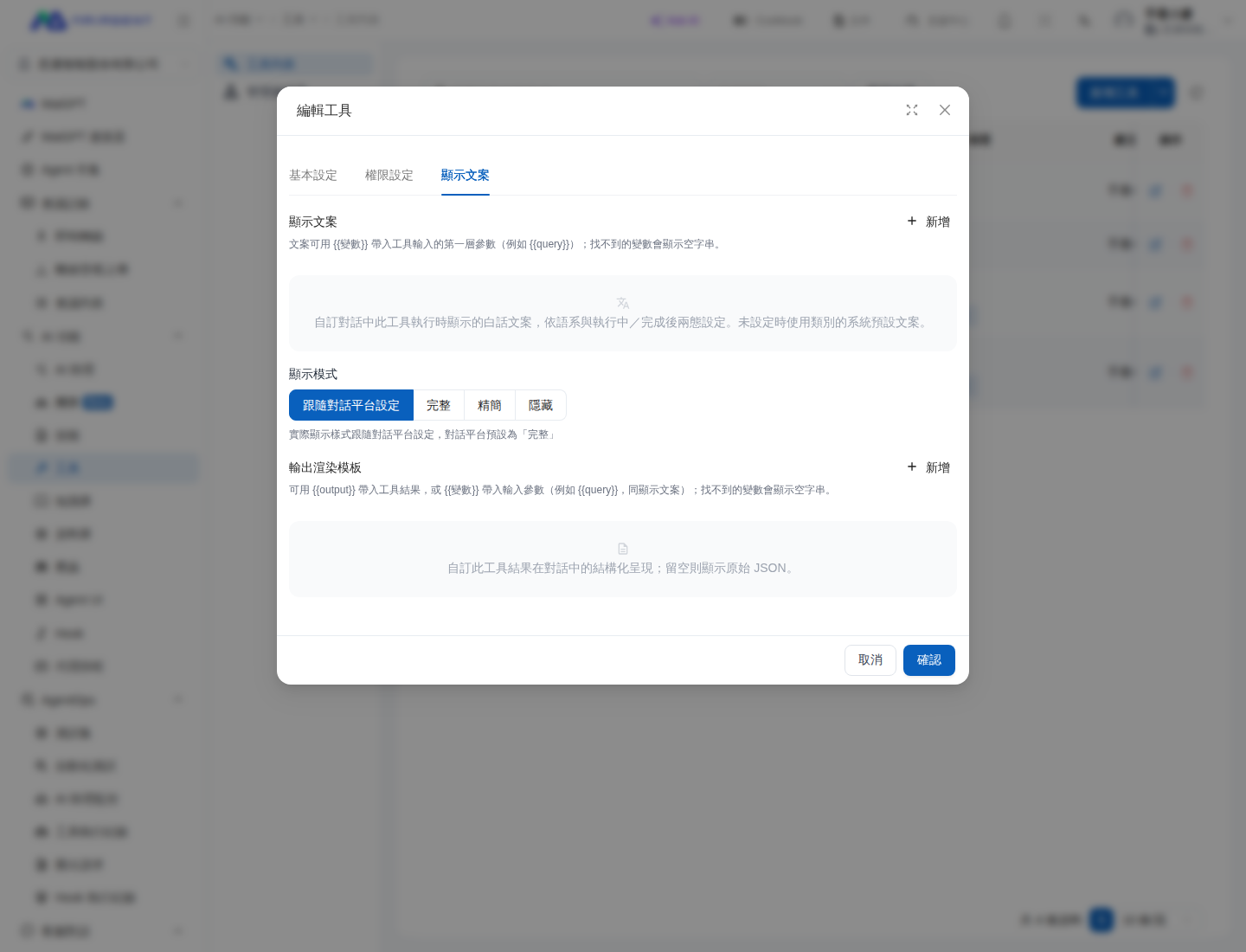
在「編輯工具」視窗選擇 顯示文案。
工具的顯示文案與顯示模式設定
{% endstep %}
{% step %}
### 選擇顯示模式
依對話使用者需要看到的資訊量,選擇一種模式:
| 模式 | 對話中的效果 |
| -------- | ----------------------- |
| 跟隨對話平台設定 | 沿用對話平台的預設顯示方式;目前預設為「完整」 |
| 完整 | 顯示工具執行的完整資訊 |
| 精簡 | 只顯示精簡的執行資訊 |
| 隱藏 | 不顯示工具執行區塊 |
{% hint style="warning" %}
「隱藏」只會隱藏對話中的工具執行區塊,不會停用工具。若要阻止 AI 助理呼叫工具,請到 AI 助理的「工具」設定取消配置該工具。
{% endhint %}
{% endstep %}
{% step %}
### 自訂顯示文案
在「顯示文案」區域點擊 新增,設定工具執行中與完成後要顯示的文字。文案可使用 `{{變數}}` 帶入工具輸入的第一層參數,例如 `{{query}}`;找不到變數時會顯示空字串。
{% endstep %}
{% step %}
### 設定輸出渲染模板
若要整理工具回傳內容,在「輸出渲染模板」區域點擊 新增。模板可使用 `{{output}}` 帶入完整工具結果,或用 `{{變數}}` 帶入工具輸入的第一層參數。找不到變數時會顯示空字串;模板留空時則會顯示原始 JSON。
完成後點擊 確認 儲存。
{% endstep %}
{% endstepper %}
## 選擇模式的建議
* 工具結果需要供使用者核對時,選擇「完整」。
* 使用者只需要知道系統正在處理時,選擇「精簡」並搭配清楚的顯示文案。
* 執行細節不適合出現在對話中時,選擇「隱藏」。
設定完成後,建議將工具配置給測試用 AI 助理並實際發送一次問題,確認文案與輸出模板符合工具真正回傳的欄位。
---
# Agent Instructions
This documentation is published with GitBook. GitBook is the documentation platform designed so that both humans and AI agents can read, navigate, and reason over technical content effectively. Learn more at gitbook.com.
## Querying This Documentation
If you need additional information that is not directly available in this page, you can query the documentation dynamically by asking a question.
Perform an HTTP GET request on the current page URL with the `ask` query parameter, and the optional `goal` query parameter:
```
GET https://docs.maiagent.ai/tools/tool-display-settings.md?ask=&goal=
```
`ask` is the immediate question: it should be specific, self-contained, and written in natural language.
`goal` is optional and describes the broader end goal you are ultimately trying to accomplish on behalf of the user. GitBook uses it to tailor the answer towards what is most useful for that goal.
The response will contain a direct answer to the question and relevant excerpts and sources from the documentation.
Use this mechanism when the answer is not explicitly present in the current page, you need clarification or additional context, or you want to retrieve related documentation sections.