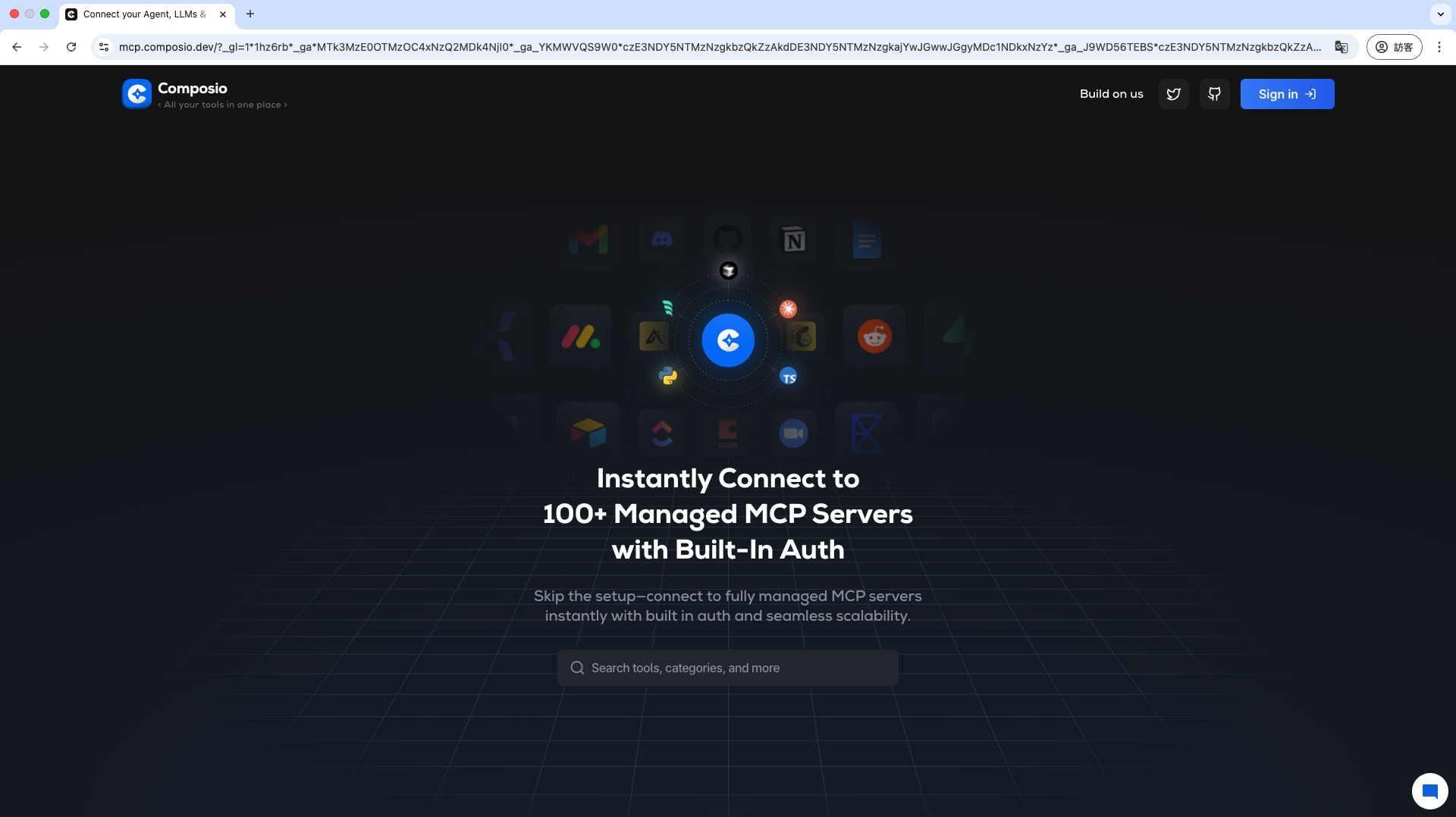
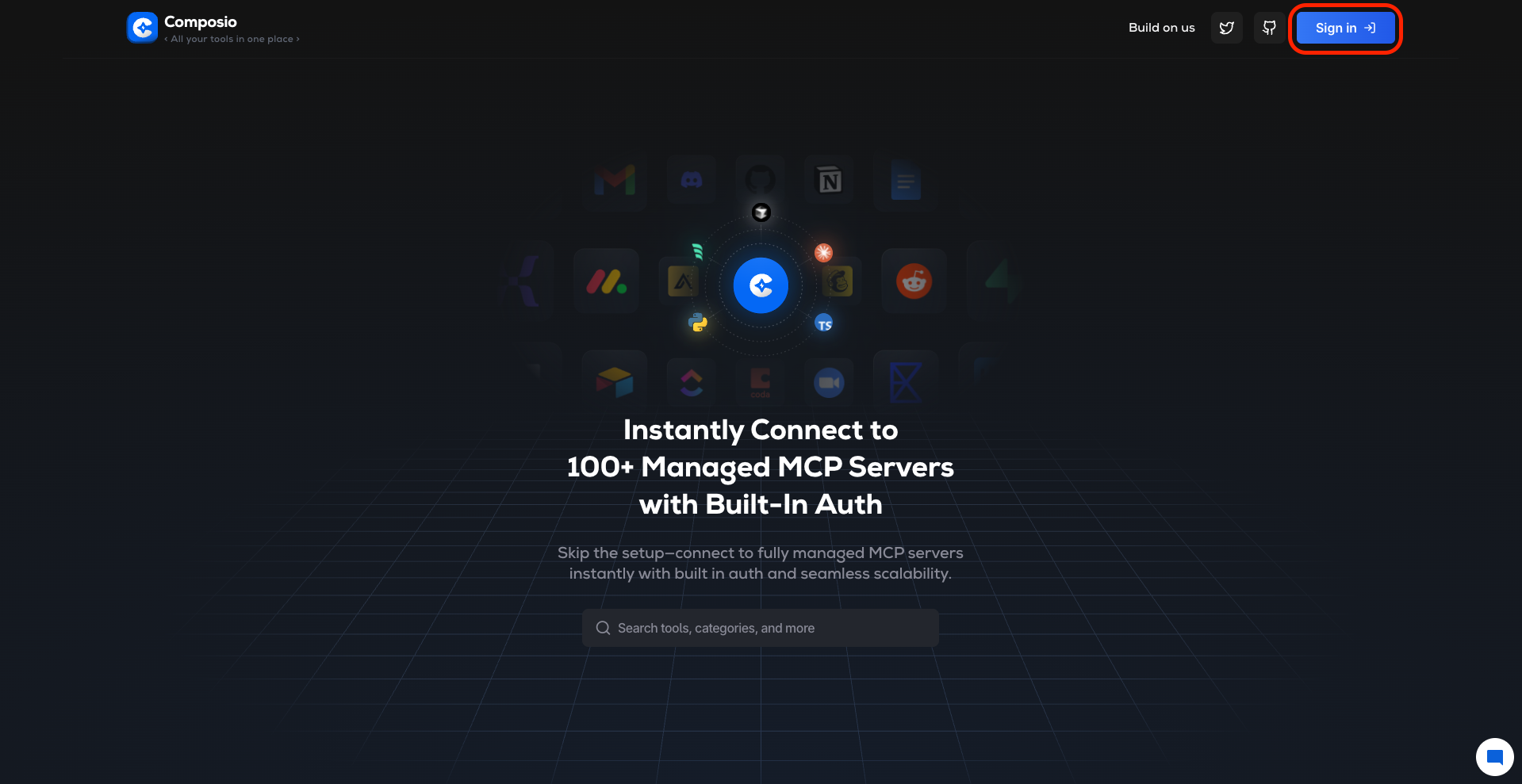
## 👆 步驟 3:選擇您需要的工具/應用程式
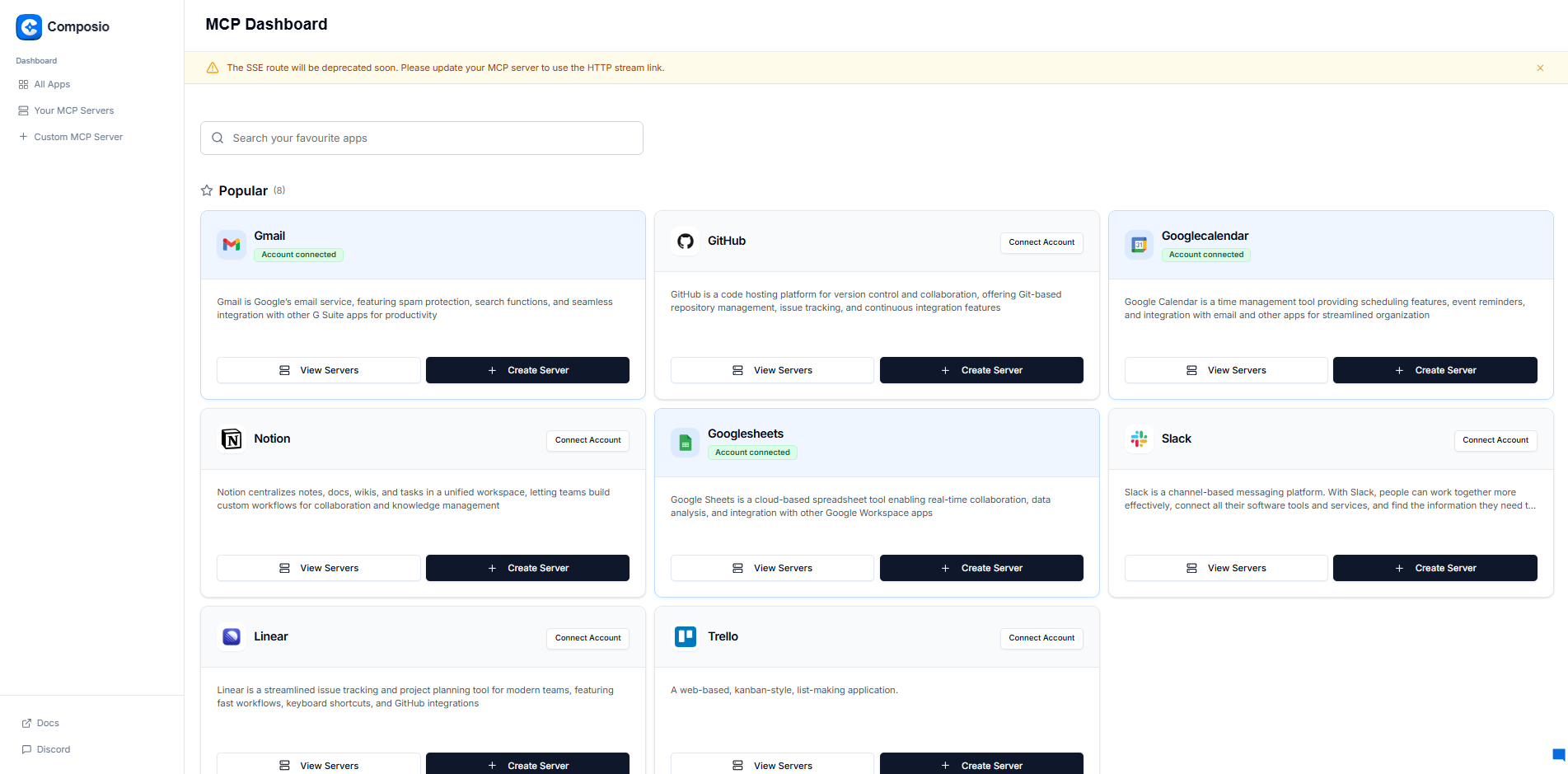
1. 在 **Composio MCP Dashboard** 中,瀏覽或搜尋您希望 Agent 使用的工具或應用程式 (例如 Google Drive, Slack, Jira, GitHub 等)。
以 Google Calendar 為例:
## 🔐 步驟 4:建立 Server,連接帳號
1. 找到工具後,需要先進行帳號連結授權才能啟用工具。
按下 「+Create Server」
2. 為 Server 命名,完成後點下「Next」
3. 系統會彈出該服務的授權視窗,請您確認授予 Composio 訪問權限。
* 例如,如果是 Google 服務,您需要選擇要授權的 Google 帳號,並確認授權範圍。
* 這一步是必要的,因為 Composio 需要獲得您的授權才能代表您執行操作。
點選 **"Connect"** 授權完成後,您會被重定向回 Composio 平台
3. 選擇要授權使用的工具,點擊「Create Server」 建立連線
* **重要提示**:Configure Actions 可以根據用戶實際會用到的功能進行選取,若沒有特別需求全選即可。
## 🔗 步驟 5:複製 MCP 伺服器 URL
1. Server 建置完成後,系統將為您生成一個專屬的 **MCP 伺服器**。
{% hint style="info" %}
建議切換為 HTTP Stream(Streamable HTTP)。MaiAgent 也支援 SSE,但只有網址路徑以 `/sse` 結尾、路徑中含 `/sse/`,或 query string 帶 `transport=sse` 時才會以 SSE 連線,其餘網址一律以 Streamable HTTP 連線。
{% endhint %}
2. 在「MCP Server Created」視窗的 HTTP Stream 頁籤複製網址(格式為 `https://mcp.composio.dev/composio/server//mcp?...`),進入 MaiAgent 頁面。
{% hint style="warning" %}
這個網址本身帶有 Composio 的授權,請比照密碼保管,不要公開或截圖分享。
{% endhint %}
## 💻 步驟 6:在 MaiAgent 建置 MCP 工具
在 MaiAgent 新增一個 MCP 工具,把步驟 5 複製的 Composio **MCP 伺服器 URL** 貼到「或直接輸入(無認證 / Service Account)」下方的網址欄位。這個 URL 本身已包含 Composio 的授權,「標頭 (JSON)」維持 `{}` 即可。接著點「重新取得」,在「允許的工具 (JSON 數組)」以每個工具右側的開關選擇要開放給 Agent 的工具,再儲存。
完整操作步驟與各欄位說明,請見使用者手冊的 [建立 MCP 工具:MCP 伺服器網址](https://docs.maiagent.ai/build/tools/mcp-setup#mcp-server-url)。
## ⚠️ 注意事項
* **URL 的私密性**:生成的 **MCP Server URL** 本身帶有您在 Composio 的授權,取得網址的人就能以您的帳號呼叫工具,請勿洩露。
* **所有使用者共用同一個帳號**:所有透過這個 Agent 對話的使用者,都會以您在 Composio 授權的帳號操作。個人帳號型的服務(個人信箱、個人行事曆)請只在內部 Agent 使用,或改用 MaiAgent 的 OAuth 連接器並選擇聯絡人個別授權,見 [Remote MCP 服務概述:限制與注意事項](/tech/mcp/remote-mcp.md#limitations)。
* **新增的動作不會自動開放**:之後在 Composio 端新增動作,要回到 MaiAgent 的工具設定點「重新取得」並開啟,Agent 才能使用。
* **多個工具**:如果您需要整合多個不同的應用程式 (例如同時使用 Google Drive 和 Slack),您可能需要為每個應用程式在 **Composio MCP 目錄**中重複上述步驟 3 到 5,以獲取它們各自的 **MCP 伺服器 URL**,並在 MaiAgent 中分別設定不同的工具再分配給 Agent。
* **Composio 文件**:Composio 的介面或流程可能會更新,建議隨時參考 [Composio 官方最新的說明文件](https://docs.composio.dev/getting-started/welcome)以獲取最準確的資訊。
---
# Agent Instructions
This documentation is published with GitBook. GitBook is the documentation platform designed so that both humans and AI agents can read, navigate, and reason over technical content effectively. Learn more at gitbook.com.
## Querying This Documentation
If you need additional information that is not directly available in this page, you can query the documentation by asking a question.
Perform an HTTP GET request on the following URL with the `ask` and `goal` query parameters:
```
GET https://docs.maiagent.ai/tech/mcp/composio.md?ask=&goal=
```
`ask` is the immediate question: it should be specific, self-contained, and written in natural language.
`goal` is what the user is ultimately trying to achieve, the reason they need the answer. Sharing it helps GitBook give you a better, more relevant answer. A goal is most helpful when it describes the outcome the user wants rather than restating the question. For example, with `ask=how do I create an API token`, a goal like `automate deployments from our CI pipeline` lets GitBook tailor the answer to that use case.
The response will contain a direct answer to the question and relevant excerpts and sources from the documentation.
Use this mechanism when the answer is not explicitly present in the current page, you need clarification or additional context, or you want to retrieve related documentation sections.

.png?alt=media)
.png?alt=media)
.png?alt=media)