> For the complete documentation index, see [llms.txt](https://docs.maiagent.ai/llms.txt). Markdown versions of documentation pages are available by appending `.md` to page URLs; this page is available as [Markdown](https://docs.maiagent.ai/tech/ja/serve/web-chat-sdk/web-chat-maigpt-mode.md).

# MaiGPT モードでの埋め込み

ChatGPT のような MaiGPT の完全な会話インターフェースをウェブサイトや製品に埋め込み、指定コンテナとフローティングボタンからの全画面表示の両方に対応します

MaiGPT モードは、**ChatGPT のような完全な会話インターフェース**（会話履歴のサイドバー、会話検索、設定パネル）を提供します。既存の「右下のチャットバブル」（floating / sidebar）とは異なり、ページの主要な機能エリアや、サイト全体の Agent への入り口として適しています。

{% hint style="warning" %}
**MaiGPT モードが決めるのはインターフェースの外観だけで、Agent の能力ではありません。** 適用先の Web Chat に紐づく Agent の指示、モデル、ツールが使用されます。画像生成やウェブ閲覧などの機能を利用するには、まず [MaiGPT の連携：適切な Agent の選択と機能の設定](/tech/ja/work/maigpt-system-integration-guide/maigpt-integration.md)に従って Agent の応答モードを Agent に設定し、ツールを追加してください。組織に組み込まれた MaiGPT 製品はログイン済みのメンバー専用で、その Web Chat を外部ページに埋め込むことはできません。
{% endhint %}

{% hint style="info" %}
このページでは、MaiGPT モード専用の設定を説明します。埋め込みの基本、設定の完全なリファレンス、JavaScript API については、[Web Chat の埋め込みと SDK](/tech/ja/serve/web-chat-sdk.md)をご覧ください。このページに記載していない共通パラメータ（`auth`、`queryMetadata`、ボタンの外観など）も、MaiGPT モードで使用できます。
{% endhint %}

## 1. 2 つのレイアウトモード <a href="#layout-modes" id="layout-modes"></a>

同じ設定で 2 つのレイアウトに対応し、`targetElement` の有無によって決まります。

```mermaid
flowchart TD
    A["フロントエンドで embed.min.js を読み込み<br/>maiagentChatbotConfig を設定<br/>（enabledWindowModes の先頭は maigpt）"] --> B{"config に<br/>targetElement がありますか？"}
    B -->|あり| C["モード A：指定コンテナに埋め込み<br/>iframe がコンテナ全体を 100% × 100% で占有<br/>常時表示"]
    B -->|なし| D["モード B：右下のフローティングボタン<br/>クリック → 全画面 iframe ＋右上の閉じるボタン"]
    C -.->|"5 秒以内に要素が見つからない"| E["⚠️ 埋め込みなし<br/>コンソールにエラーを表示"]
```

* **モード A — 指定コンテナへの埋め込み**：ページ内の指定した `div` に MaiGPT を常時表示します（システムの主要な作業エリアに適しています）
* **モード B — フローティングボタン + 全画面**：右下のフローティングボタンをクリックすると、全画面で開きます（サイト全体の Agent への入り口に適しています）

どちらの動作も同じ `maigpt` モードで実現し、違いは `targetElement` フィールドだけです。

## 2. モード A：指定コンテナへの埋め込み <a href="#mode-a-container" id="mode-a-container"></a>

### 埋め込みコード <a href="#mode-a-code" id="mode-a-code"></a>

```html
<!-- ページ内にコンテナを用意し、サイズを指定してください -->
<div id="maigpt-container" style="height: 720px;"></div>

<script>
  window.maiagentChatbotConfig = {
    webChatId: 'your-web-chat-id',
    baseUrl: 'https://chat.maiagent.ai/web-chats',
    enabledWindowModes: ['maigpt'],
    targetElement: '#maigpt-container',
    primaryColor: '#1890ff',
    maigptTitle: 'Acme GPT',
  }
</script>
<script
  src="https://chat.maiagent.ai/js/embed.min.js"
  defer>
</script>
```

{% hint style="info" %}
`baseUrl` と SDK Loader の URL は SaaS 環境（`chat.maiagent.ai`）の例です。プライベートクラウド / オンプレミス環境では、ご利用環境のドメインに置き換えてください。
{% endhint %}

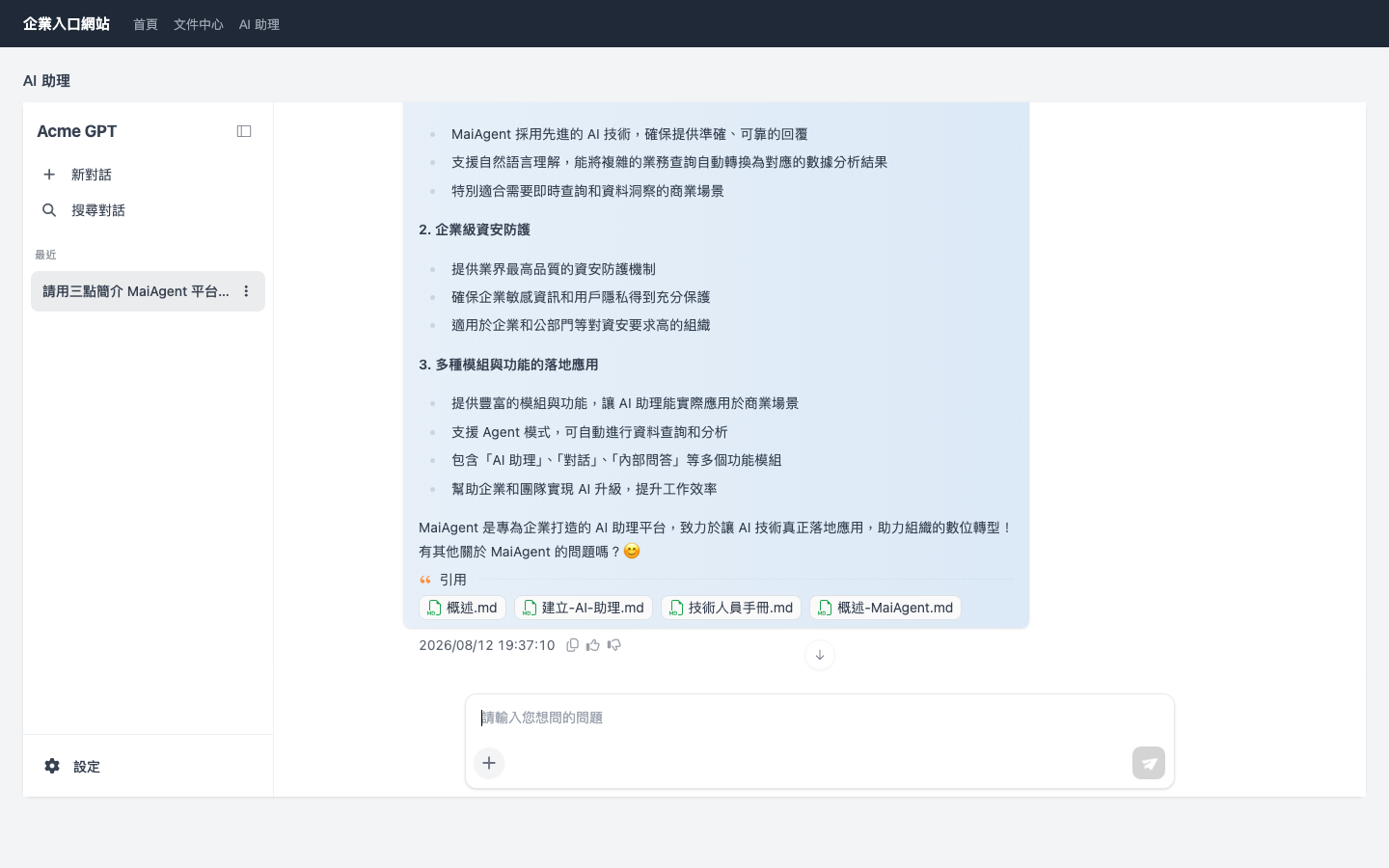
実際の埋め込み例（企業ポータルに MaiGPT を埋め込み、`maigptTitle` をブランド名に設定しています）：

<figure><img src="https://605688223-files.gitbook.io/~/files/v0/b/gitbook-x-prod.appspot.com/o/spaces%2FVYMUz6J7vDZ0QTvb1rbN%2Fuploads%2Fgit-blob-aab515bf01f9122d1b558aeaefcd1e59079466a0%2Fwebchat-maigpt-mode-a-container.png?alt=media" alt="指定コンテナに MaiGPT を埋め込んだ実際の画面"><figcaption><p>モード A：ページ内の指定コンテナに MaiGPT を常時表示し、左側に会話履歴のサイドバーを配置します</p></figcaption></figure>

### コンテナの要件 <a href="#container-requirements" id="container-requirements"></a>

* **コンテナの高さは必ずご自身で指定してください**（iframe は `100%` でコンテナ全体を占有します。コンテナの高さが 0 の場合、内容は表示されません）
* `targetElement` は **CSS セレクタの文字列**（例：`'#maigpt-container'`）または **HTMLElement オブジェクト**を受け付けます。`<body>` を指定すると全画面で表示します
* セレクタの文字列を渡した場合、SDK は要素の出現を最大 5 秒間待機します。SPA で少し遅れてマウントされるコンテナにも対応できます
* コンテナが `position: static` の場合、SDK が自動的に `position: relative` に変更するため、通常は対応不要です
* iframe はそのコンテナだけを占有し、ページのほかのエリアには影響しません

{% hint style="warning" %}
**コンテナが見つからない場合は埋め込まれません**：セレクタに誤りがある、5 秒以内に要素が現れない、または渡された HTMLElement がまだページに追加されていない場合、MaiGPT は表示されません。コンソールには原因を示す `[maiagent] targetElement ... MaiGPT embed skipped` エラーが表示されます。

次の点を確認してください：(1) セレクタの綴りが正しいこと。(2) SDK の読み込み後 5 秒以内にコンテナが DOM に現れること（loader の `<script>` をコンテナの後に置き、`defer` を付けてください。SPA ではコンテナのマウント後に SDK を読み込んでください）。
{% endhint %}

## 3. モード B：フローティングボタン + 全画面 <a href="#mode-b-floating" id="mode-b-floating"></a>

### 埋め込みコード <a href="#mode-b-code" id="mode-b-code"></a>

```html
<script>
  window.maiagentChatbotConfig = {
    webChatId: 'your-web-chat-id',
    baseUrl: 'https://chat.maiagent.ai/web-chats',
    enabledWindowModes: ['maigpt'],
    primaryColor: '#1890ff',
    maigptTitle: 'Acme GPT',
  }
</script>
<script
  src="https://chat.maiagent.ai/js/embed.min.js"
  defer>
</script>
```

### 動作の説明 <a href="#mode-b-behavior" id="mode-b-behavior"></a>

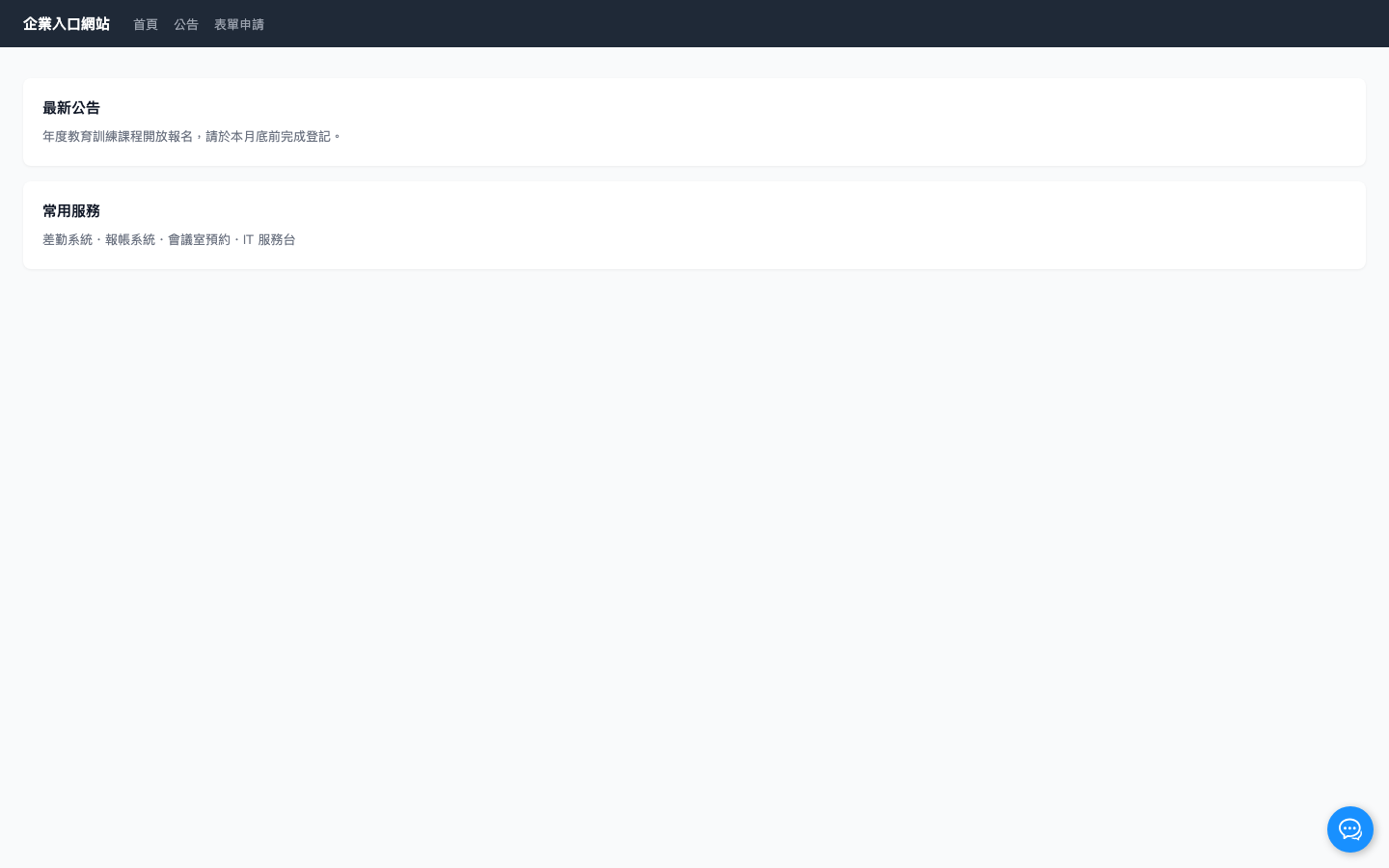
1. ページ右下にフローティングボタンが表示されます（色は `primaryColor` を使用します）
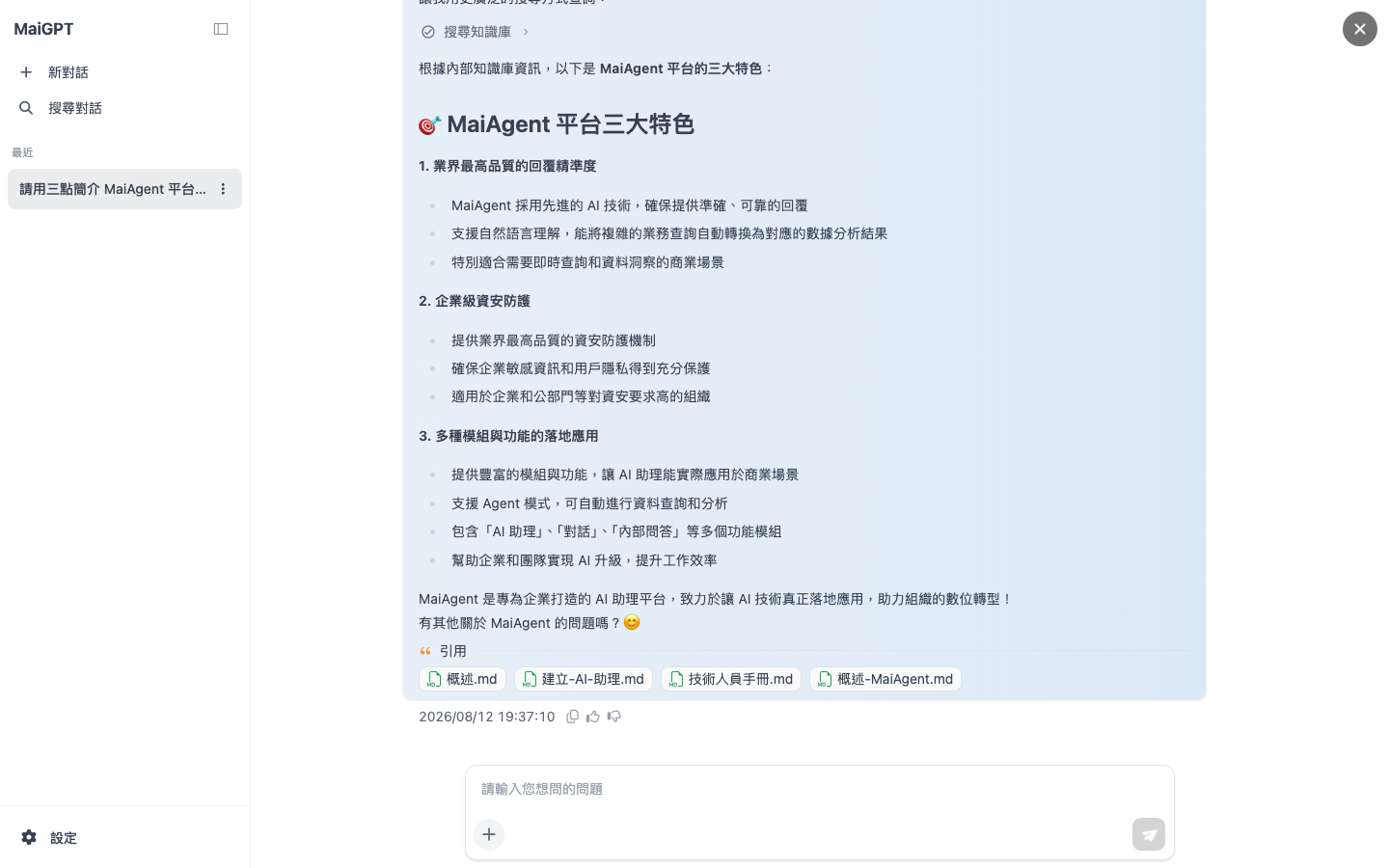
2. ボタンをクリック → MaiGPT が**全画面 iframe** で開き、右上に「×」の閉じるボタンが表示されます
3. 「×」をクリック → 全画面表示が閉じ、フローティングボタンに戻ります
4. 閉じたとき、iframe は非表示になるだけで破棄されません → **再度開くと、それまでの会話状態が保持されます**

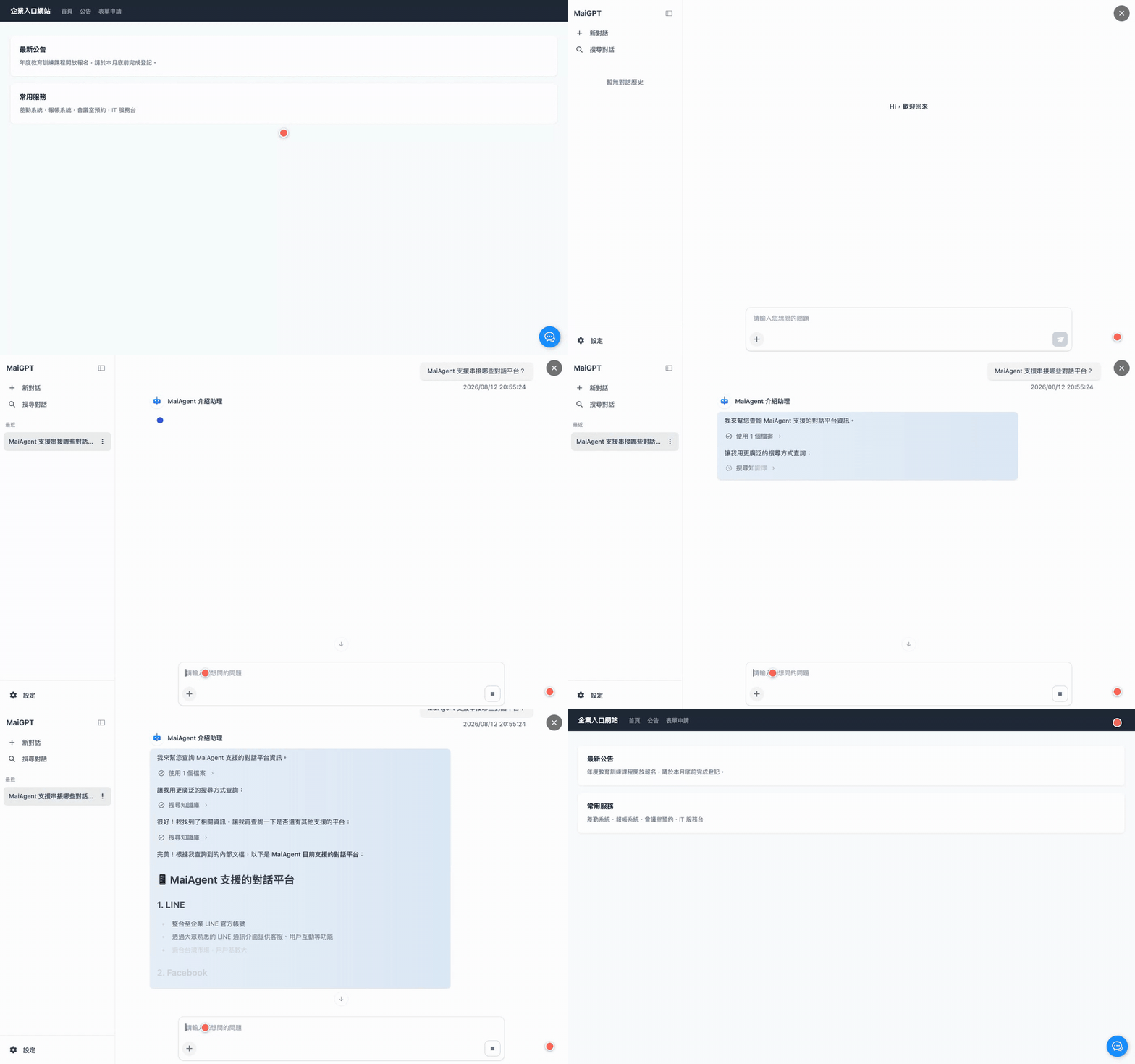
<figure><img src="https://605688223-files.gitbook.io/~/files/v0/b/gitbook-x-prod.appspot.com/o/spaces%2FVYMUz6J7vDZ0QTvb1rbN%2Fuploads%2Fgit-blob-2c2fb982ff4bef9a000a279fe72580b846b69ce3%2Fwebchat-maigpt-mode-b-demo.gif?alt=media" alt="モード B の操作デモ：フローティングボタンから全画面を開き、質問を送信して AI の回答を受け取り、ボタンに戻ります"><figcaption><p>モード B の操作デモ：フローティングボタンをクリック → 全画面で開く → 質問を送信して AI のストリーミング回答を受信 → 「×」で閉じてボタンに戻ります</p></figcaption></figure>

<details>

<summary>2 つの状態の静止画</summary>

<figure><img src="https://605688223-files.gitbook.io/~/files/v0/b/gitbook-x-prod.appspot.com/o/spaces%2FVYMUz6J7vDZ0QTvb1rbN%2Fuploads%2Fgit-blob-a605610e4f3854e4ad4134d63dd03a69e7e18b36%2Fwebchat-maigpt-mode-b-button.png?alt=media" alt="フローティングボタンの状態"><figcaption><p>閉じた状態：ページ右下にフローティングボタンだけを表示し、元のページを妨げません</p></figcaption></figure>

<figure><img src="https://605688223-files.gitbook.io/~/files/v0/b/gitbook-x-prod.appspot.com/o/spaces%2FVYMUz6J7vDZ0QTvb1rbN%2Fuploads%2Fgit-blob-51d70d15376664ce3e569f562c98e75f67ea3927%2Fwebchat-maigpt-mode-b-fullscreen.png?alt=media" alt="全画面で開いた状態"><figcaption><p>開いた状態：MaiGPT が全画面で表示され、右上の「×」で閉じられます</p></figcaption></figure>

</details>

### ボタンの外観パラメータ（すべて任意、モード B のみ） <a href="#mode-b-button-options" id="mode-b-button-options"></a>

| パラメータ                  | デフォルト値                               | 説明                       |
| ---------------------- | ------------------------------------ | ------------------------ |
| `primaryColor`         | `#1890ff`                            | ボタンの背景色です。ブランドカラーに変更できます |
| `buttonSize`           | `3rem`                               | ボタンのサイズです                |
| `buttonRadius`         | `50%`                                | ボタンの角丸です                 |
| `buttonPositionBottom` | `1rem`                               | ウィンドウ下端からの距離です           |
| `buttonPositionRight`  | `1rem`                               | ウィンドウ右端からの距離です           |
| `buttonIcon`           | （組み込みアイコン）                           | カスタムボタンアイコンの画像 URL です    |
| `boxShadow`            | `0.125rem 0.125rem 0.5rem #00000044` | ボタンの影です                  |

## 4. 全パラメータ一覧 <a href="#config-reference" id="config-reference"></a>

| フィールド                | 型                          | 必須 | 説明                                                                                                                                             |
| -------------------- | -------------------------- | -- | ---------------------------------------------------------------------------------------------------------------------------------------------- |
| `webChatId`          | `string`                   | ✅  | Web Chat ID です                                                                                                                                 |
| `baseUrl`            | `string`                   | ✅  | Web Chat サービスの URL です。SaaS では `https://chat.maiagent.ai/web-chats` を使用します                                                                      |
| `enabledWindowModes` | `string[]`                 | ✅  | `['maigpt']` 固定です（先頭の要素がモードを決定します）                                                                                                             |
| `targetElement`      | `string` または `HTMLElement` | ✖  | 値あり → モード A、値なし → モード B です                                                                                                                     |
| `maigptTitle`        | `string`                   | ✖  | サイドバー左上のブランドタイトルです。未設定の場合は `MaiGPT` を表示します                                                                                                     |
| `primaryColor`       | `string`                   | ✖  | インターフェースのメインカラーです。ブランドカラーに変更できます                                                                                                               |
| `locale`             | `string`                   | ✖  | インターフェースの言語です。メッセージとともに AI にも送られ、回答言語の参考になります。下記の[言語設定](#locale)をご覧ください。ユーザーが手動で言語を選択した場合は、その選択が優先されます                                         |
| `contactId`          | `string`                   | ✖  | ログインユーザーの識別に使用する MaiAgent の連絡先 ID です。[ユーザーの識別](#identify-user)をご覧ください                                                                          |
| `queryMetadata`      | `object` または `string`      | ✖  | 会話に付加するクエリメタデータです。[ナレッジ管理権限の概要](/tech/ja/identity-and-access/zhi-shi-guan-li-quan-xian-query-metadata-cha-xun-yuan-zi-liao-zong-lan.md)をご覧ください |

未知のフィールドを設定してもエラーにはなりませんが、綴りを確認できるように、コンソールに `[maiagent] Unknown config options: ...` の警告が表示されます。

## 5. locale による言語設定 <a href="#locale" id="locale"></a>

```javascript
window.maiagentChatbotConfig = {
  // ...
  locale: 'en',
}
```

### 対応する言語の値 <a href="#supported-locales" id="supported-locales"></a>

`zh-TW`（繁体字中国語）、`zh-CN`（簡体字中国語）、`en`、`ja`、`ko`、`th`、`vi-VN`、`id`、`fil-PH`、`ms-MY`、`km-KH`、`lo-LA`、`my-MM`

### 優先順位 <a href="#locale-priority" id="locale-priority"></a>

1. ユーザーがウィンドウ内で手動で選択した言語（設定メニュー、Web Chat メニュー、またはデータ入力フォームの言語切り替え）。手動で選択すると、このブラウザに記憶され、以降は config の `locale` や `MaiAgent.locale.set()` で上書きされません
2. 埋め込み先ページで指定した言語：config の `locale` または `MaiAgent.locale.set(lang)`。ウィンドウの準備が整う前に `locale.set()` が呼び出されている場合は、そちらが優先されます
3. このブラウザで前回使用した言語
4. ブラウザの言語
5. デフォルトの `zh-TW`

渡した値は、対応リストにある同じ言語の値に対応付けられます（例：`en-US` は `en` に対応）。リストにない言語は `zh-TW` が使用されます。

{% hint style="info" %}
`locale` は**インターフェースのテキスト**（ボタン、メニュー、案内）を決定し、すべてのメッセージとともに AI にも送られます。プラットフォームはロールの指示の後にユーザーの言語設定を付加し、ユーザーが希望する言語を判断できない場合はその言語で回答するようモデルに求めます（[ロールの指示：プラットフォームが付加するコンテキスト](/tech/ja/advanced-genai-tech/system-prompt.md#platform-context)をご覧ください）。これは参考情報であり強制ではないため、ユーザーが別の言語で質問した場合、AI は通常その質問の言語で回答します。
{% endhint %}

## 6. ユーザーの識別（contactId） <a href="#identify-user" id="identify-user"></a>

AI に「誰が質問しているか」を知らせるには（デバイス間での会話履歴の保持、回答のパーソナライズ、ユーザー権限でのツール呼び出し）、config に `contactId` を含めてください。

1. ユーザーのログイン時に、バックエンドが[連絡先の本人識別情報同期 API](/tech/ja/serve/contacts/contact-credentials-sync.md) を呼び出して `contactId` を取得します
2. フロントエンドで config に `contactId` を追加します。

```javascript
// ログイン後に API からユーザー情報（contactId を含む）を取得する想定です
const loginResponse = await fetch('/api/auth/login', {
  method: 'POST',
  body: JSON.stringify({ username, password })
});
const userData = await loginResponse.json();

// Web Chat の config を動的に設定します
window.maiagentChatbotConfig = {
  webChatId: 'your-web-chat-id',
  baseUrl: 'https://chat.maiagent.ai/web-chats',
  enabledWindowModes: ['maigpt'],
  targetElement: '#maigpt-container',
  contactId: userData.maiagentContactId,  // ログインレスポンスから取得します
};
```

{% hint style="warning" %}
`contactId` は、ログインしているユーザーに対応する値である必要があります。`contactId` を渡さない場合は匿名利用となり、会話履歴はブラウザ単位で保持されます（同じブラウザで再読み込みしても残ります）。ただし、デバイス間での共有や、ユーザー本人の識別情報を使った個人データへのアクセスはできません。
{% endhint %}

## 7. よくある質問 <a href="#faq" id="faq"></a>

<details>

<summary>MaiGPT モードと従来のチャットバブル（floating / sidebar）は何が違いますか？</summary>

MaiGPT は完全な会話作業インターフェース（会話履歴のサイドバー、会話検索、設定パネル）で、コンテナ全体または画面全体を占有します。floating / sidebar はページの隅に重ねて表示する小さなウィンドウです。どちらも同じ `enabledWindowModes` フィールドで切り替えます：`['maigpt']` と `['floating', 'sidebar']`。MaiGPT モードではウィンドウモードの切り替えは提供しません。

</details>

<details>

<summary>会話履歴はどこに保存されますか？</summary>

Web Chat の識別方式に従って、MaiAgent のバックエンドに保持されます。`contactId` がない場合はブラウザ単位（匿名）で、`contactId` がある場合はその連絡先に紐づき、デバイスをまたいで利用できます。

</details>

<details>

<summary>同じページに 2 つの MaiGPT を配置できますか？</summary>

できません。SDK はページごとに 1 回だけ初期化され、重複した読み込みは無視されます。

</details>

<details>

<summary>SPA（React / Vue）でモード A を埋め込むにはどうすればよいですか？</summary>

コンテナ要素のマウントが完了してから `embed.min.js` を読み込んでください（または、その時点で `window.maiagentChatbotConfig` を設定し、loader script を動的に挿入してください）。SDK が先に実行された場合はコンテナを最大 5 秒間待機し、タイムアウトすると埋め込みを行いません（[コンテナの要件](#container-requirements)をご覧ください）。

</details>

<details>

<summary>左上の「MaiGPT」を自社のブランド名に変更できますか？</summary>

できます。config に `maigptTitle: 'Acme GPT'` を追加すると、両方のモードに適用されます。未設定または空文字列の場合は、デフォルトの `MaiGPT` に戻ります。

</details>


---

# Agent Instructions
This documentation is published with GitBook. GitBook is the documentation platform designed so that both humans and AI agents can read, navigate, and reason over technical content effectively. Learn more at gitbook.com.

## Querying This Documentation
If you need additional information that is not directly available in this page, you can query the documentation by asking a question.

Perform an HTTP GET request on the following URL with the `ask` and `goal` query parameters:

```
GET https://docs.maiagent.ai/tech/ja/serve/web-chat-sdk/web-chat-maigpt-mode.md?ask=<question>&goal=<user_goal>
```

`ask` is the immediate question: it should be specific, self-contained, and written in natural language.
`goal` is what the user is ultimately trying to achieve, the reason they need the answer. Sharing it helps GitBook give you a better, more relevant answer. A goal is most helpful when it describes the outcome the user wants rather than restating the question. For example, with `ask=how do I create an API token`, a goal like `automate deployments from our CI pipeline` lets GitBook tailor the answer to that use case.

The response will contain a direct answer to the question and relevant excerpts and sources from the documentation.

Use this mechanism when the answer is not explicitly present in the current page, you need clarification or additional context, or you want to retrieve related documentation sections.