> For the complete documentation index, see [llms.txt](https://docs.maiagent.ai/llms.txt). Markdown versions of documentation pages are available by appending `.md` to page URLs; this page is available as [Markdown](https://docs.maiagent.ai/tech/ja/others/google-sheet-integration.md).
# Google Sheets 連携
このページでは、Google Apps Script を使用して MaiAgent の強力な AI 機能を Google Sheets に統合する方法を説明します。この方法により、スプレッドシートから MaiAgent Chatbot を直接呼び出し、複数の入力を一括処理できるため、作業効率が大幅に向上します。
## 設定を始める
### ステップ 1:Google Apps Script エディタを開く
1. MaiAgent と連携する Google Sheets のスプレッドシートを開くか、新しいスプレッドシートを作成します。
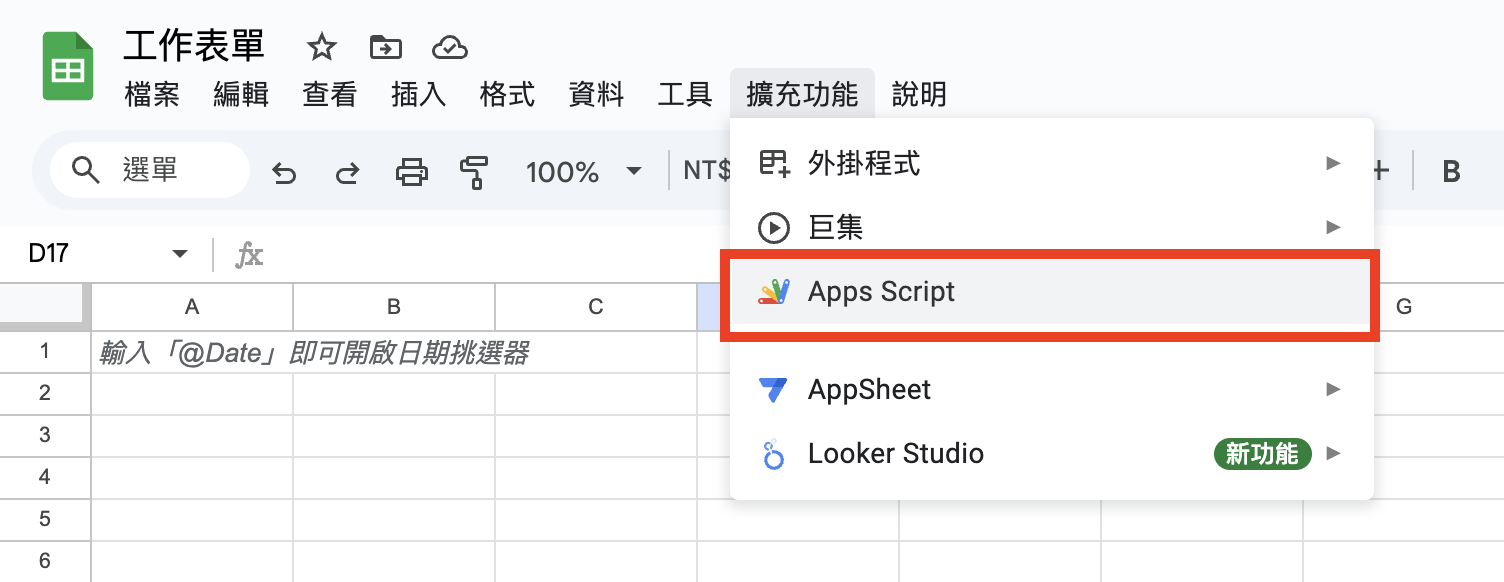
2. 上部メニューの「拡張機能」>「Apps Script」をクリックします。
### ステップ 2:スクリプトを貼り付けて設定する
1. Apps Script エディタに `Code.gs` というファイルが表示されます。デフォルトの内容をすべて削除します。
2. 下部の[付録](#fu-jian)にある、MaiAgent が提供する Apps Script コード全体をコピーし、`Code.gs` ファイルに貼り付けます。
3. **冒頭の API\_KEY と CHATBOT\_ID を置き換えます。**
4. 置き換えた後、エディタ上部の保存アイコン(💾)をクリックしてスクリプトを保存します。
## Google Sheets で MaiAgent 関数を使用する
上記の設定と認証が完了すると、Google Sheets の組み込み関数と同じように `maiagent` 関数を使用できます。
#### 1. Agent を 1 回呼び出す
任意のセルに、次の形式の数式を入力します。
`=maiagent("Agent に送信するメッセージの内容")`
例:
* `=maiagent("こんにちは、自己紹介をしてください")`
* `=maiagent("今日はいい天気ですね")`
Enter キーを押すと、スクリプトが指定した MaiAgent AI アシスタントにメッセージを送信し、その応答をセルに表示します。
#### 2. 別のセルからメッセージの内容を読み取る
別のセルの内容を `maiagent` 関数の入力メッセージとして使用できます。
送信するメッセージがセル `A1` に入力されているとします。別のセル(例:`B1`)に次のように入力します。
`=maiagent(A1)`
これにより、セル `B1` に `A1` の内容に対する MaiAgent の応答が表示されます。
## 連携結果のデモ動画
{% embed url="" %}
## まとめ
Google Apps Script を介して MaiAgent を Google Sheets に統合すると、自動化と生産性向上の新たな可能性が広がります。技術者は具体的なニーズに合わせてスプレッドシートをカスタマイズし、コンテンツ生成、データ分析、自動応答などに対応する強力な AI インタラクションツールとして活用できます。
## **付録**
{% code title="Apps Script コード" %}
```javascript
// --- ここで API キーと Chatbot ID を定義します ---
const API_KEY = '<実際の API キーに置き換えてください>';
const CHATBOT_ID = '<実際の Chatbot ID に置き換えてください>';
// --- --- --- --- --- --- --- --- --- --- --- ---
/**
* MaiAgent API にメッセージを送信し、応答内容を直接返します。
* API キーと Chatbot ID には、スクリプトの冒頭で定義した定数を使用します。
* is_streaming は false に固定され、conversation と attachments は送信されません。
*
* @param {string} messageContent 送信するメッセージの内容です。
* @return {string} API 応答の「content」フィールドの内容、またはエラーメッセージです。
*/
function maiagent(messageContent) {
// API_KEY と CHATBOT_ID が設定されているか確認します
if (API_KEY === 'YOUR_API_KEY' || CHATBOT_ID === 'YOUR_CHATBOT_ID') {
const warningMessage = '警告:API キーまたは Chatbot ID がスクリプトで設定されていません。スクリプトを編集し、YOUR_API_KEY と YOUR_CHATBOT_ID を置き換えてください。';
Logger.log(warningMessage);
// 無効な API 呼び出しを防ぐため、ここでエラーをスローするか警告を返すことができます
// throw new Error(warningMessage);
return warningMessage;
}
const url = `https://api.maiagent.ai/api/v1/chatbots/${CHATBOT_ID}/completions/`;
const payload = {
message: {
content: messageContent
},
is_streaming: false
};
const options = {
method: 'post',
contentType: 'application/json',
headers: {
'Authorization': `Api-Key ${API_KEY}`
},
payload: JSON.stringify(payload),
muteHttpExceptions: true // API が返す可能性のあるエラーメッセージを処理できるように true に設定します
};
try {
const response = UrlFetchApp.fetch(url, options);
const responseCode = response.getResponseCode();
const responseBody = response.getContentText();
if (responseCode === 200) {
Logger.log('API 呼び出しに成功しました:');
Logger.log(responseBody); // デバッグしやすいように、完全な元の応答を引き続き記録します
try {
const jsonResponse = JSON.parse(responseBody);
if (jsonResponse && typeof jsonResponse.content !== 'undefined') {
return jsonResponse.content; // content フィールドの値を直接返します
} else {
Logger.log('API 応答は成功しましたが、「content」フィールドがないか、形式が正しくありません。');
Logger.log(responseBody);
return 'エラー:API 応答は成功しましたが、「content」フィールドがありません。';
}
} catch (parseError) {
Logger.log(`API 応答の JSON 解析中にエラーが発生しました:${parseError.toString()}`);
Logger.log(`元の応答内容:${responseBody}`);
return `エラー:API 応答の解析に失敗しました - ${parseError.toString()}`;
}
} else {
Logger.log(`API 呼び出しに失敗しました。応答コード:${responseCode}`);
Logger.log(`エラー応答の内容:${responseBody}`);
return `エラー:${responseCode} - ${responseBody}`;
}
} catch (e) {
Logger.log(`API 呼び出し中に例外が発生しました:${e.toString()}`);
Logger.log(e.stack); // 詳細なデバッグのためにスタックトレースを記録します
return `例外:${e.toString()}`;
}
}
```
{% endcode %}
---
# Agent Instructions
This documentation is published with GitBook. GitBook is the documentation platform designed so that both humans and AI agents can read, navigate, and reason over technical content effectively. Learn more at gitbook.com.
## Querying This Documentation
If you need additional information that is not directly available in this page, you can query the documentation dynamically by asking a question.
Perform an HTTP GET request on the current page URL with the `ask` query parameter, and the optional `goal` query parameter:
```
GET https://docs.maiagent.ai/tech/ja/others/google-sheet-integration.md?ask=&goal=
```
`ask` is the immediate question: it should be specific, self-contained, and written in natural language.
`goal` is optional and describes the broader end goal you are ultimately trying to accomplish on behalf of the user. GitBook uses it to tailor the answer towards what is most useful for that goal.
The response will contain a direct answer to the question and relevant excerpts and sources from the documentation.
Use this mechanism when the answer is not explicitly present in the current page, you need clarification or additional context, or you want to retrieve related documentation sections.