> For the complete documentation index, see [llms.txt](https://docs.maiagent.ai/llms.txt). Markdown versions of documentation pages are available by appending `.md` to page URLs; this page is available as [Markdown](https://docs.maiagent.ai/tech/ja/mcp/zapier.md).

# Zapier 連携

Zapier MCP 連携：Zapier MCP コンソールで MCP Server を作成し、AI に公開するアクション（Actions）を選択して endpoint をコピーし、MaiAgent で MCP ツールを作成します。

このガイドでは、[Zapier MCP](https://mcp.zapier.com/) から MCP (Model Context Protocol) サーバー URL を取得して設定する手順を説明します。MaiAgent の Agent が、Zapier の Remote MCP サービスを通じて外部アプリケーションのアクション（Actions）を呼び出せるようになります。

## ✅ 前提条件

* [Zapier](https://zapier.com/) アカウントを持ち、[Zapier MCP コンソール](https://mcp.zapier.com/)にログインできることが必要です。Zapier MCP のプランと利用上限については、Zapier の公式説明を確認してください。
* Zapier に接続したアプリケーション（Google Workspace、Slack、Notion、Salesforce など）を MaiAgent の Agent で使用したいことが前提です。
* 対象アプリケーションへのアクセスを認可する権限が必要です（認可可能な Google / Slack アカウントを持っているなど）。

## 🌐 ステップ 1：Zapier Central（MCP コンソール）にログイン / 登録します

1. 管理者または適切な権限を持つアカウントで [🌐Zapier 公式サイト↗](https://zapier.com/)にログインします。

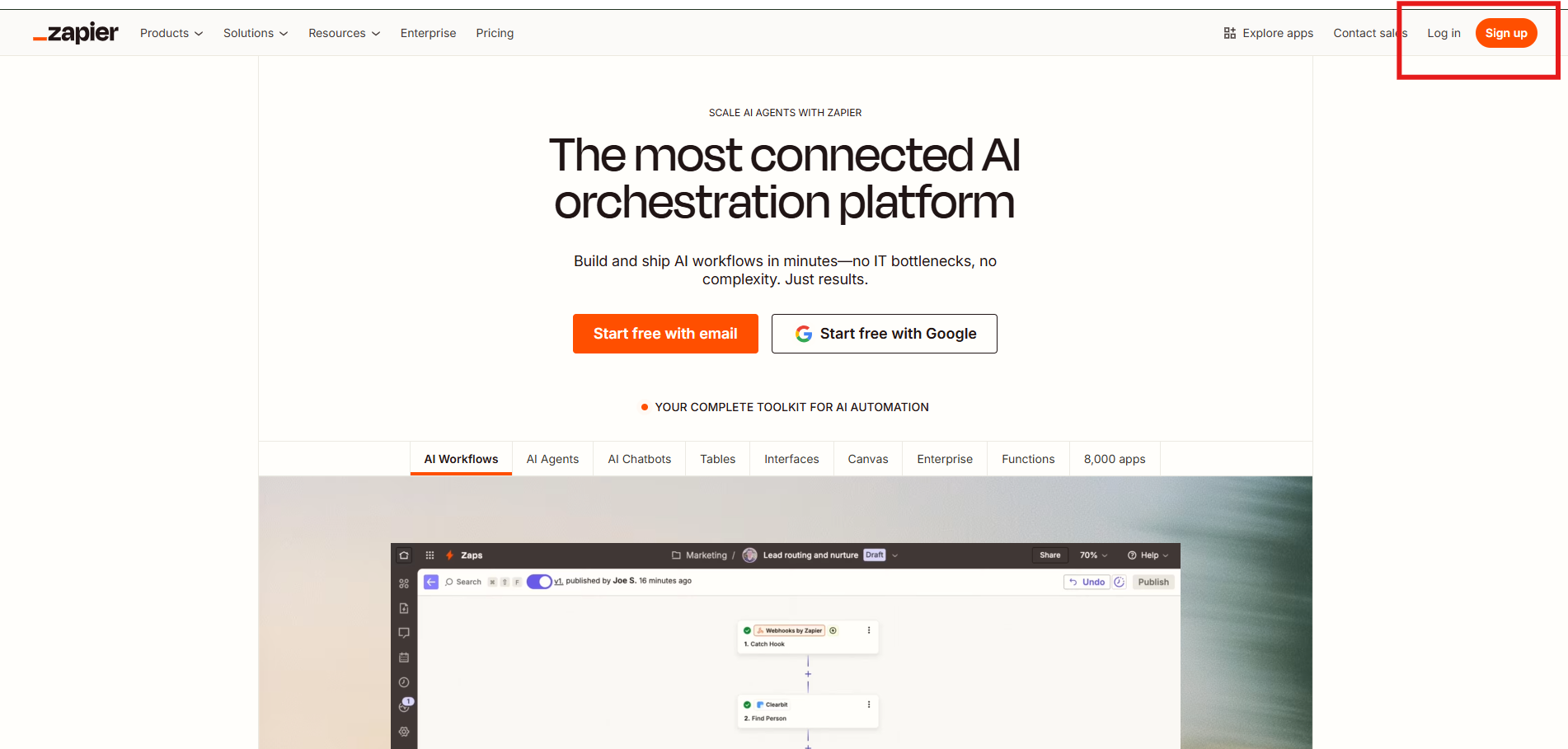
   右上の「log in」をクリックしてログインします。未登録の場合は、公式サイトで「Sign up」をクリックしてアカウントを登録してください。

<figure><img src="https://605688223-files.gitbook.io/~/files/v0/b/gitbook-x-prod.appspot.com/o/spaces%2FVYMUz6J7vDZ0QTvb1rbN%2Fuploads%2Fgit-blob-5dfe287a1cbf7a388fb3eb1138fe8358461ac68a%2F%E8%9E%A2%E5%B9%95%E6%93%B7%E5%8F%96%E7%95%AB%E9%9D%A2%202025-08-08%20110128.png?alt=media" alt=""><figcaption><p>Zapier 公式サイトのトップページ</p></figcaption></figure>

## 👆 ステップ 2：[Zapier MCP コンソール](https://mcp.zapier.com/)で MCP Server を作成します

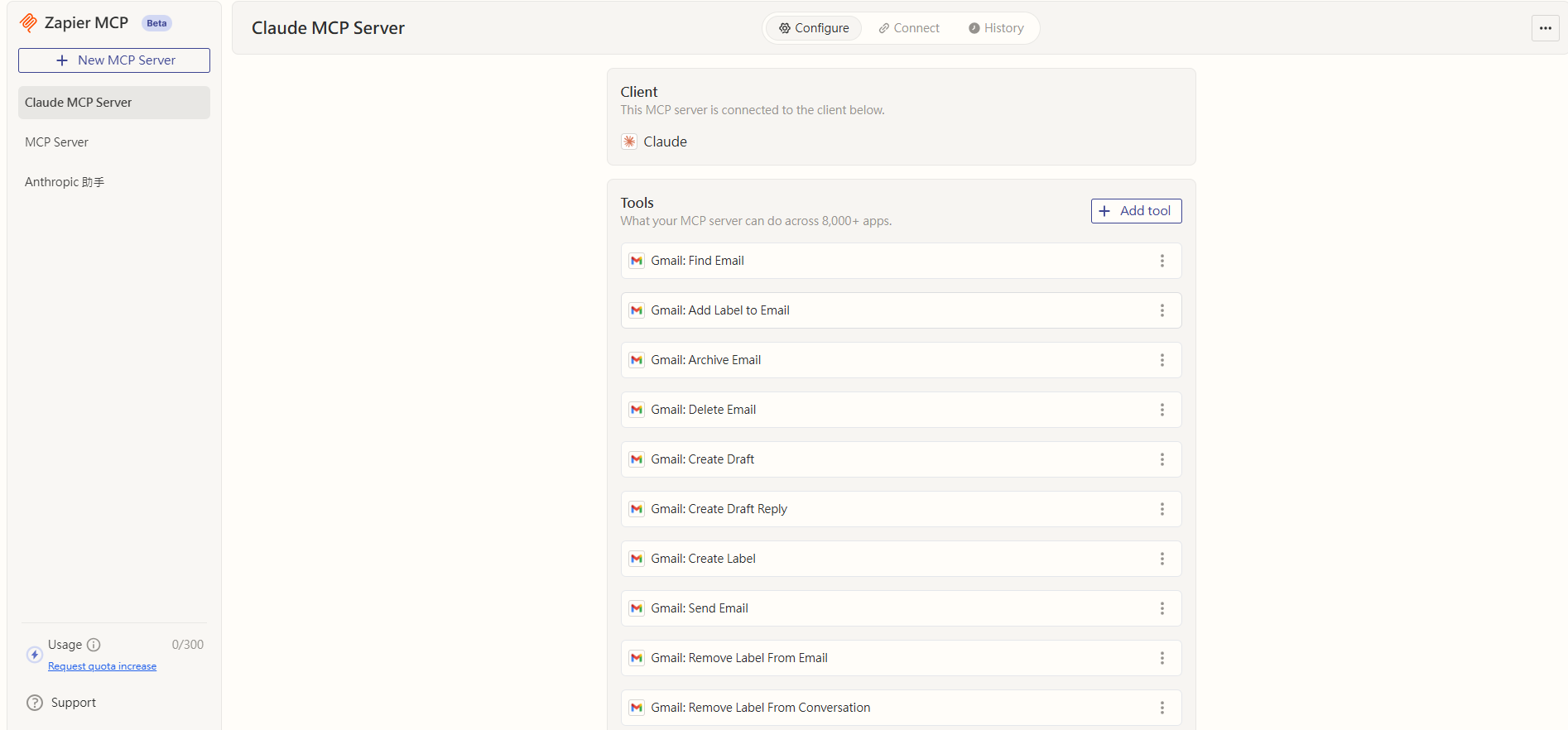
1. [Zapier MCP コンソール](https://mcp.zapier.com/)にアクセスします

<figure><img src="https://605688223-files.gitbook.io/~/files/v0/b/gitbook-x-prod.appspot.com/o/spaces%2FVYMUz6J7vDZ0QTvb1rbN%2Fuploads%2Fgit-blob-8bb741851f88d862cee8f5cc5f4f739788946a54%2F%E8%9E%A2%E5%B9%95%E6%93%B7%E5%8F%96%E7%95%AB%E9%9D%A2%202025-08-08%20110800.png?alt=media" alt=""><figcaption><p>Zapier MCP コンソールのトップページ</p></figcaption></figure>

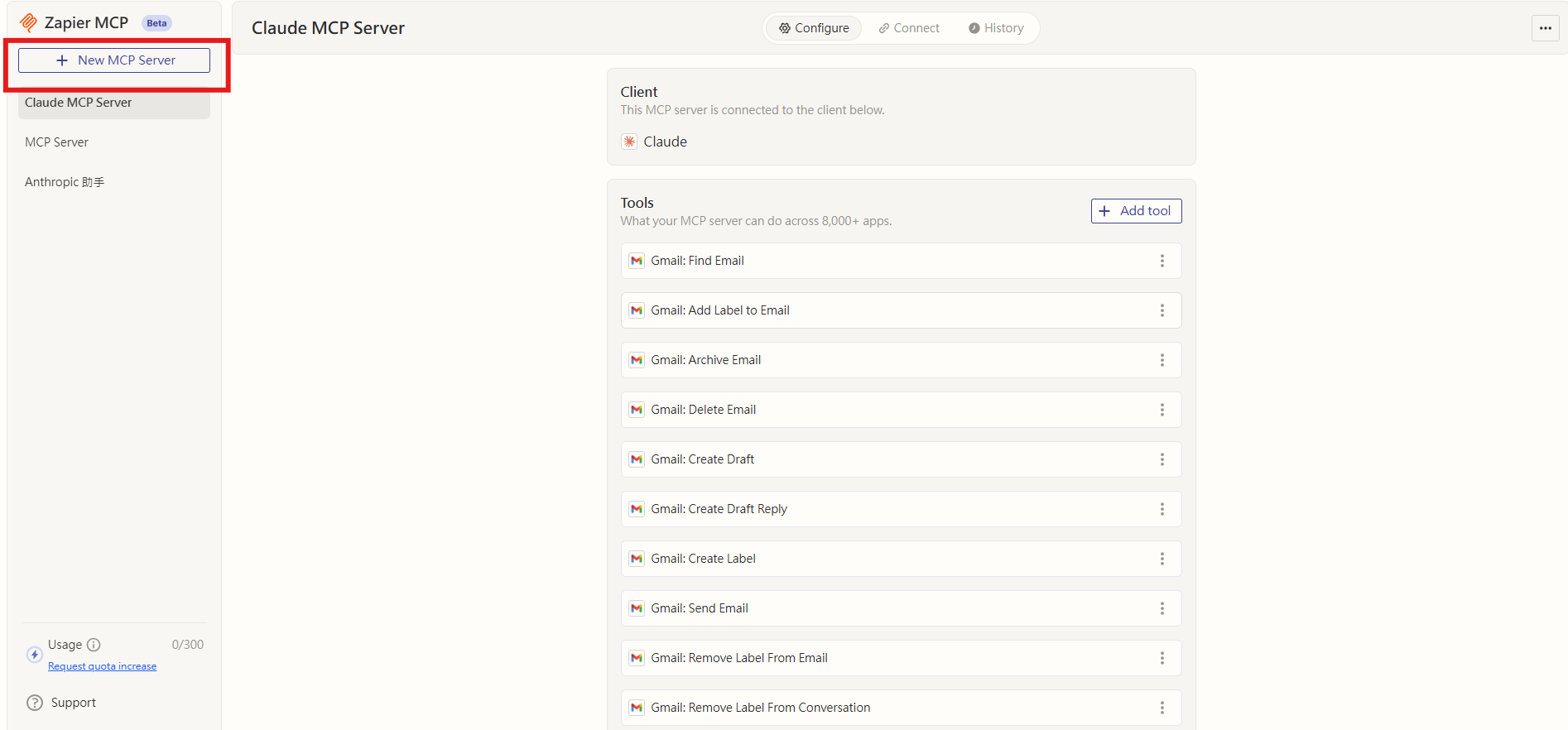
このページでは、独自の MCP Server を作成し、さまざまな外部ツールを接続して MCP サービスとして利用できます。2. 左上の「+ New MCP Server」ボタンをクリックして MCP Server を作成します。

<figure><img src="https://605688223-files.gitbook.io/~/files/v0/b/gitbook-x-prod.appspot.com/o/spaces%2FVYMUz6J7vDZ0QTvb1rbN%2Fuploads%2Fgit-blob-f13e7cb8d3b772fe41db89cd592d24fd2ec7eccd%2F%E8%9E%A2%E5%B9%95%E6%93%B7%E5%8F%96%E7%95%AB%E9%9D%A2%202025-08-08%20110800-1.png?alt=media" alt=""><figcaption><p>MCP Server の作成（+ New MCP Server）</p></figcaption></figure>

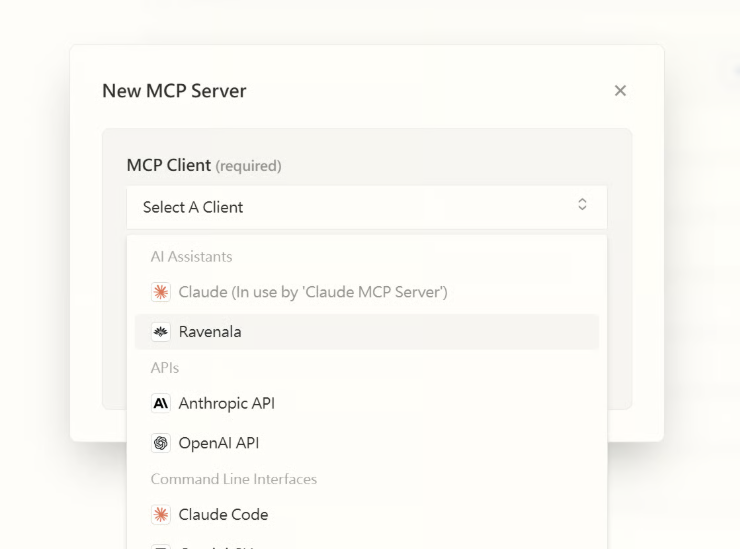
クリックすると、次の画面が表示されます⬇️

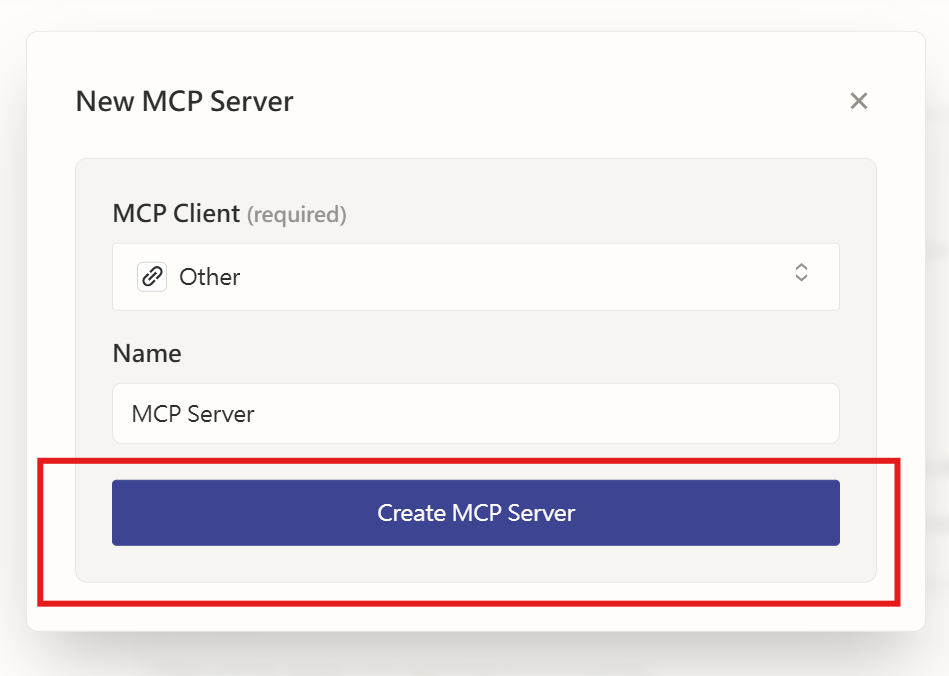
<figure><img src="https://605688223-files.gitbook.io/~/files/v0/b/gitbook-x-prod.appspot.com/o/spaces%2FVYMUz6J7vDZ0QTvb1rbN%2Fuploads%2Fgit-blob-637660cd31cc03bdb6da604a5be175a18ff87100%2F%E8%9E%A2%E5%B9%95%E6%93%B7%E5%8F%96%E7%95%AB%E9%9D%A2%202025-08-08%20111109.png?alt=media" alt=""><figcaption><p>MCP Server 作成設定ページ</p></figcaption></figure>

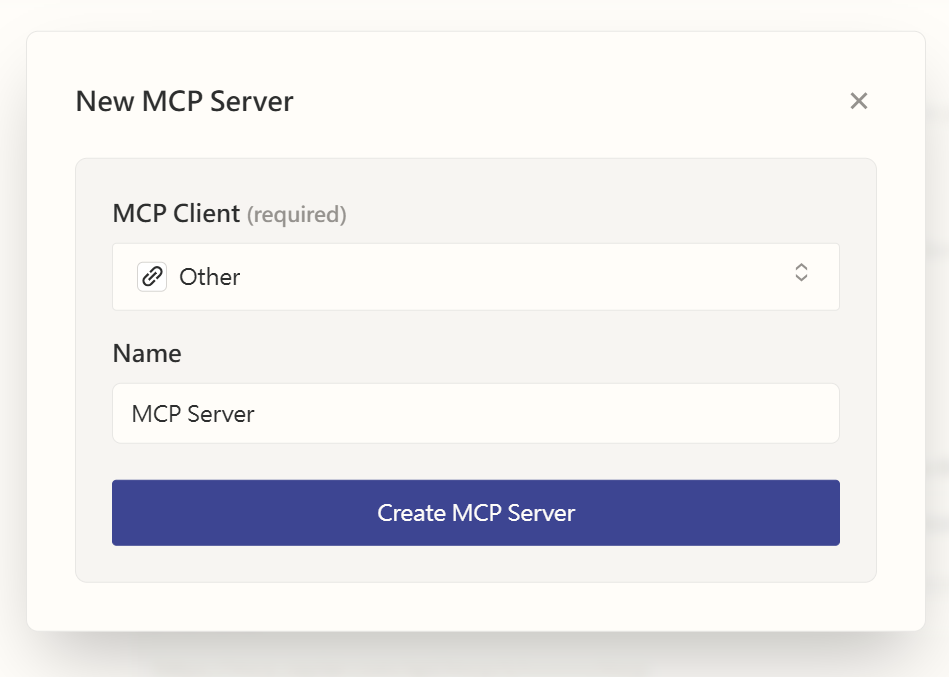
* MCP Client として Other を選択します

{% hint style="info" %}
MCP Client は \*\*Other（その他）\*\*を選択してください。
{% endhint %}

* このサービスに名前を付けます（ここでは MCP Server）

<figure><img src="https://605688223-files.gitbook.io/~/files/v0/b/gitbook-x-prod.appspot.com/o/spaces%2FVYMUz6J7vDZ0QTvb1rbN%2Fuploads%2Fgit-blob-2d4249e4b95ab73854c621390cd03ce21849c1f0%2F%E8%9E%A2%E5%B9%95%E6%93%B7%E5%8F%96%E7%95%AB%E9%9D%A2%202025-08-08%20154144.png?alt=media" alt=""><figcaption><p>MCP Server の命名</p></figcaption></figure>

3. 「Create MCP Server」をクリックしてサービスを作成します

<figure><img src="https://605688223-files.gitbook.io/~/files/v0/b/gitbook-x-prod.appspot.com/o/spaces%2FVYMUz6J7vDZ0QTvb1rbN%2Fuploads%2Fgit-blob-76b5561595cf2d05a58ce16c4adb3deb0e33ac2e%2F%E8%9E%A2%E5%B9%95%E6%93%B7%E5%8F%96%E7%95%AB%E9%9D%A2%202025-08-08%20154144-1.png?alt=media" alt=""><figcaption><p>MCP Server の作成</p></figcaption></figure>

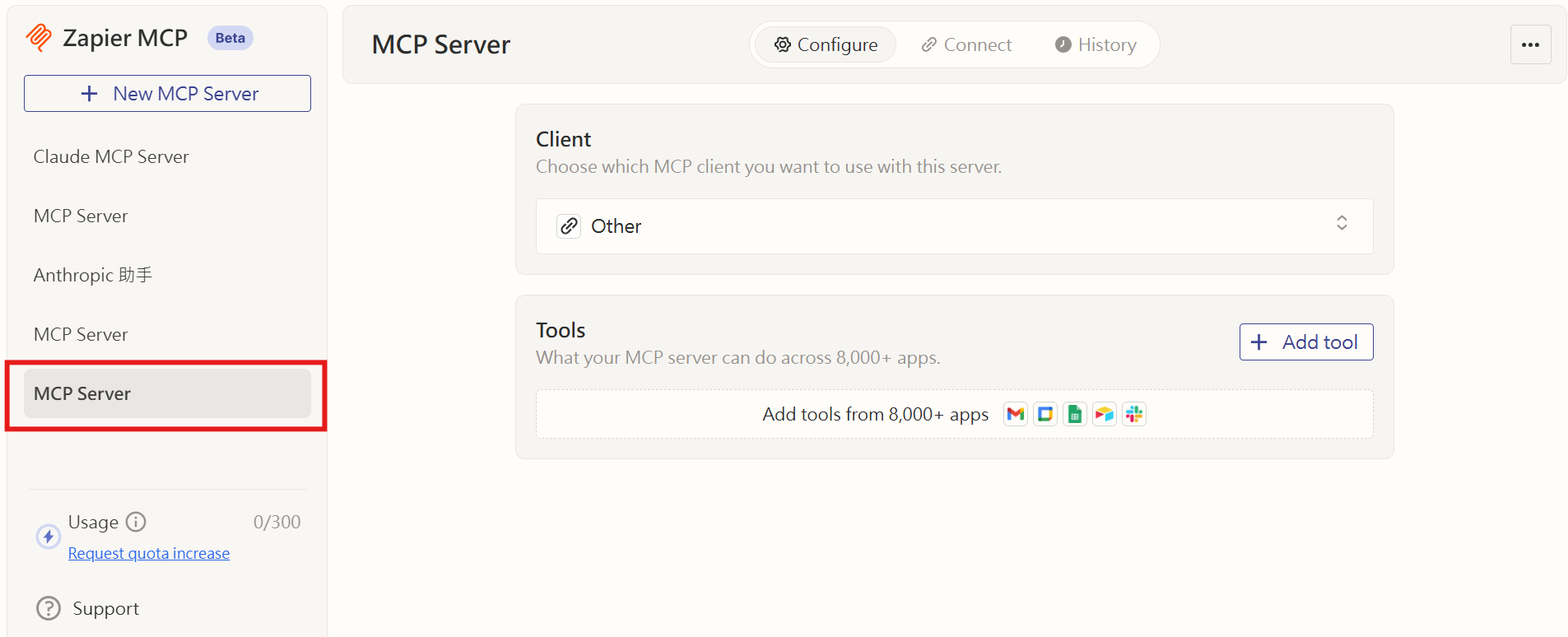
MCP Server が正常に作成されると、次の画面が表示され、左側のサイドバーメニューに、先ほど名前を付けたサービスが表示されます。

<figure><img src="https://605688223-files.gitbook.io/~/files/v0/b/gitbook-x-prod.appspot.com/o/spaces%2FVYMUz6J7vDZ0QTvb1rbN%2Fuploads%2Fgit-blob-e868f9047b13bf065714de9ff15062b356d062f9%2F%E8%9E%A2%E5%B9%95%E6%93%B7%E5%8F%96%E7%95%AB%E9%9D%A2%202025-08-08%20154714.png?alt=media" alt=""><figcaption><p>MCP Server の作成完了</p></figcaption></figure>

## 🔧 ステップ 3：AI に公開するツールを選択します

MCP Server と外部ツールを接続します：

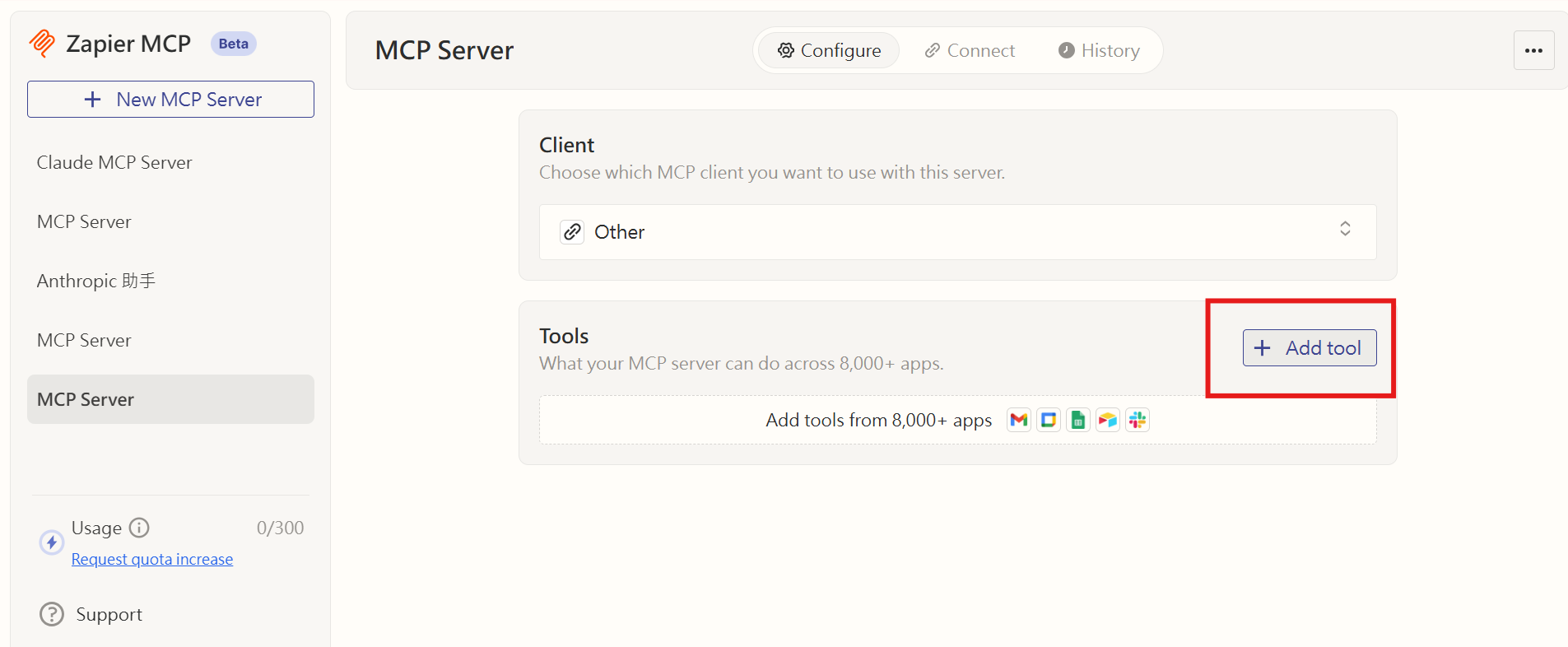
1. 接続するサービスの下にある「+Add Tool」をクリックします

<figure><img src="https://605688223-files.gitbook.io/~/files/v0/b/gitbook-x-prod.appspot.com/o/spaces%2FVYMUz6J7vDZ0QTvb1rbN%2Fuploads%2Fgit-blob-42b73e413a4019cd286b64624c6e47c847237b8d%2F%E8%9E%A2%E5%B9%95%E6%93%B7%E5%8F%96%E7%95%AB%E9%9D%A2%202025-08-08%20154830-1.png?alt=media" alt=""><figcaption><p>ツールの追加（+Add Tool）</p></figcaption></figure>

{% hint style="info" %}
ヒント：必要な操作がまだ明確でない場合は、よく使う比較的リスクの低い読み取り操作（Read-Only）から始め、書き込み操作（Write）を段階的に有効にしてください。

* 業務用アカウントのみを認可し、組織の最小権限の原則（Least Privilege）に従うことを推奨します。
  {% endhint %}

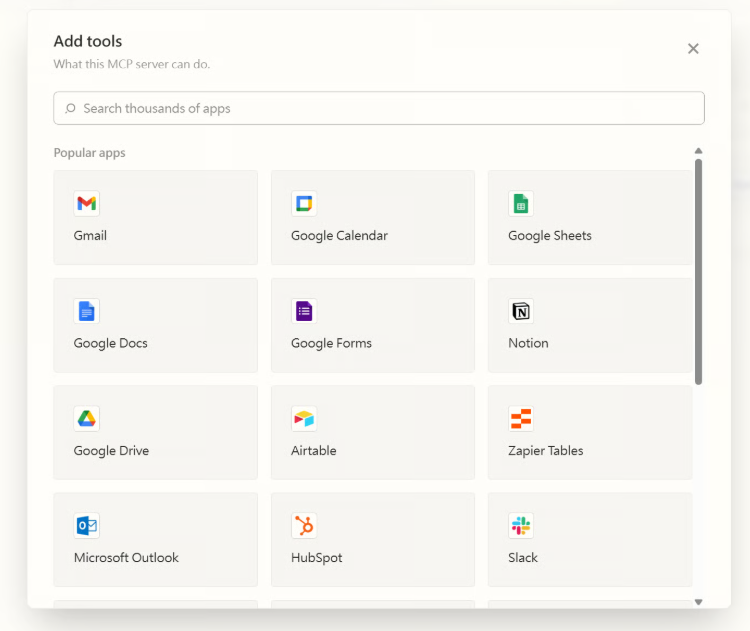
2. クリックすると、接続可能なすべての外部ツールが一覧表示されます

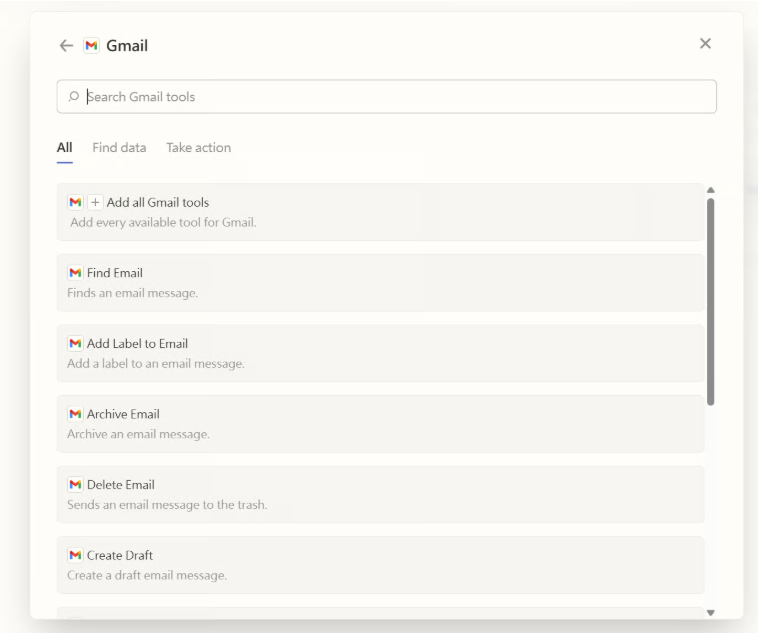
<figure><img src="https://605688223-files.gitbook.io/~/files/v0/b/gitbook-x-prod.appspot.com/o/spaces%2FVYMUz6J7vDZ0QTvb1rbN%2Fuploads%2Fgit-blob-95e71cf54f159540e7c33ba8a542db985bb0d426%2F%E8%9E%A2%E5%B9%95%E6%93%B7%E5%8F%96%E7%95%AB%E9%9D%A2%202025-08-08%20114333.png?alt=media" alt=""><figcaption><p>接続可能な外部ツールの一覧</p></figcaption></figure>

Gmail を例に、Gmail アイコンをクリックして接続します。

{% hint style="info" %}
一部の外部サービスは認可が必要です。そのツールを接続して使用するには、アクセスを認可する必要があります。
{% endhint %}

3. 追加後、接続する Google アカウントを選択し、必要なツールを選びます。または、「Add all Gmail tools」ボタンをクリックして Gmail が提供するすべてのツールを追加します。

<figure><img src="https://605688223-files.gitbook.io/~/files/v0/b/gitbook-x-prod.appspot.com/o/spaces%2FVYMUz6J7vDZ0QTvb1rbN%2Fuploads%2Fgit-blob-e5ea9499807eb4214da1f4c79423cb963603b6de%2F%E8%9E%A2%E5%B9%95%E6%93%B7%E5%8F%96%E7%95%AB%E9%9D%A2%202025-08-08%20114830.png?alt=media" alt=""><figcaption><p>使用するツールの選択</p></figcaption></figure>

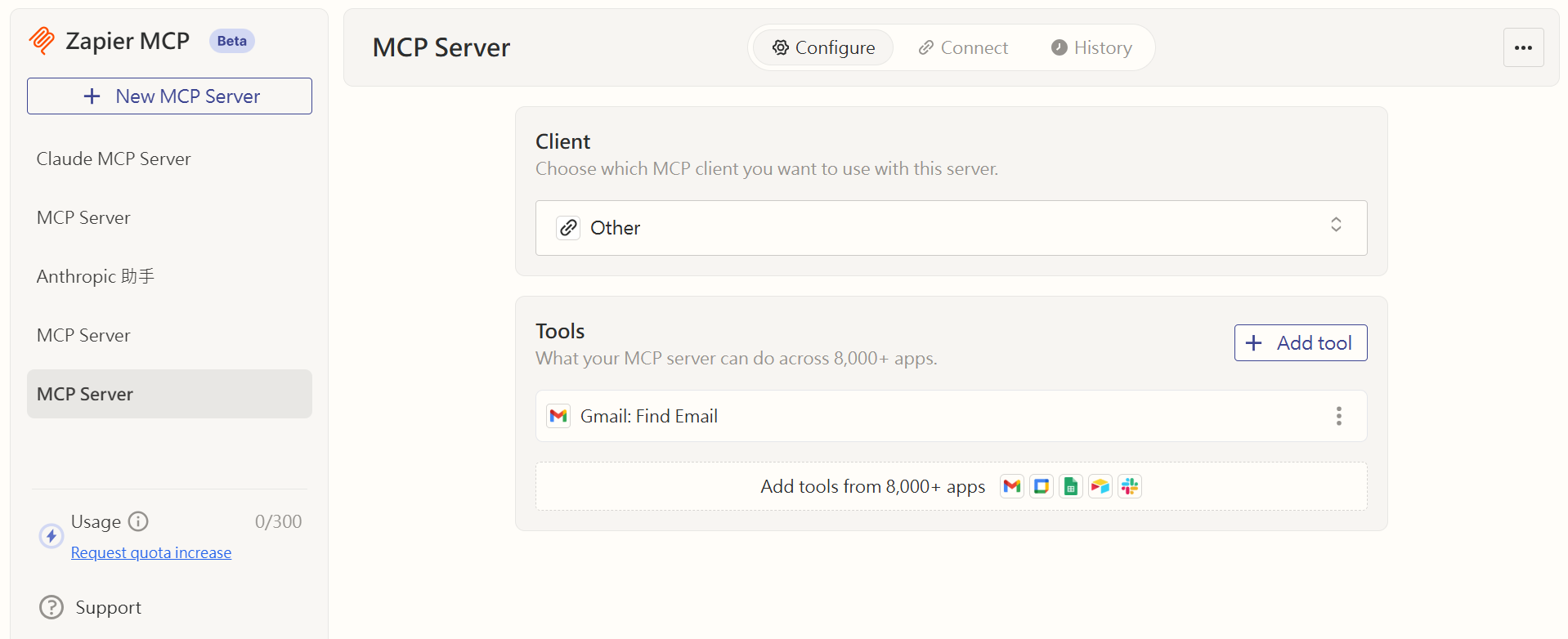
完了すると、Gmail 関連のツールがこの MCP Server に追加され、接続されます。ここでは Find Email ツールのみを選択します。

<figure><img src="https://605688223-files.gitbook.io/~/files/v0/b/gitbook-x-prod.appspot.com/o/spaces%2FVYMUz6J7vDZ0QTvb1rbN%2Fuploads%2Fgit-blob-b741bf32e224ebdeeadd7ddf9db19422724819d9%2F%E8%9E%A2%E5%B9%95%E6%93%B7%E5%8F%96%E7%95%AB%E9%9D%A2%202025-08-08%20154945.png?alt=media" alt=""><figcaption><p>追加された Gmail ツール（Find Email）</p></figcaption></figure>

接続が完了すると、選択したツールがツール一覧に表示されます。

## ↔️ ステップ 4：MCP endpoint をコピーします

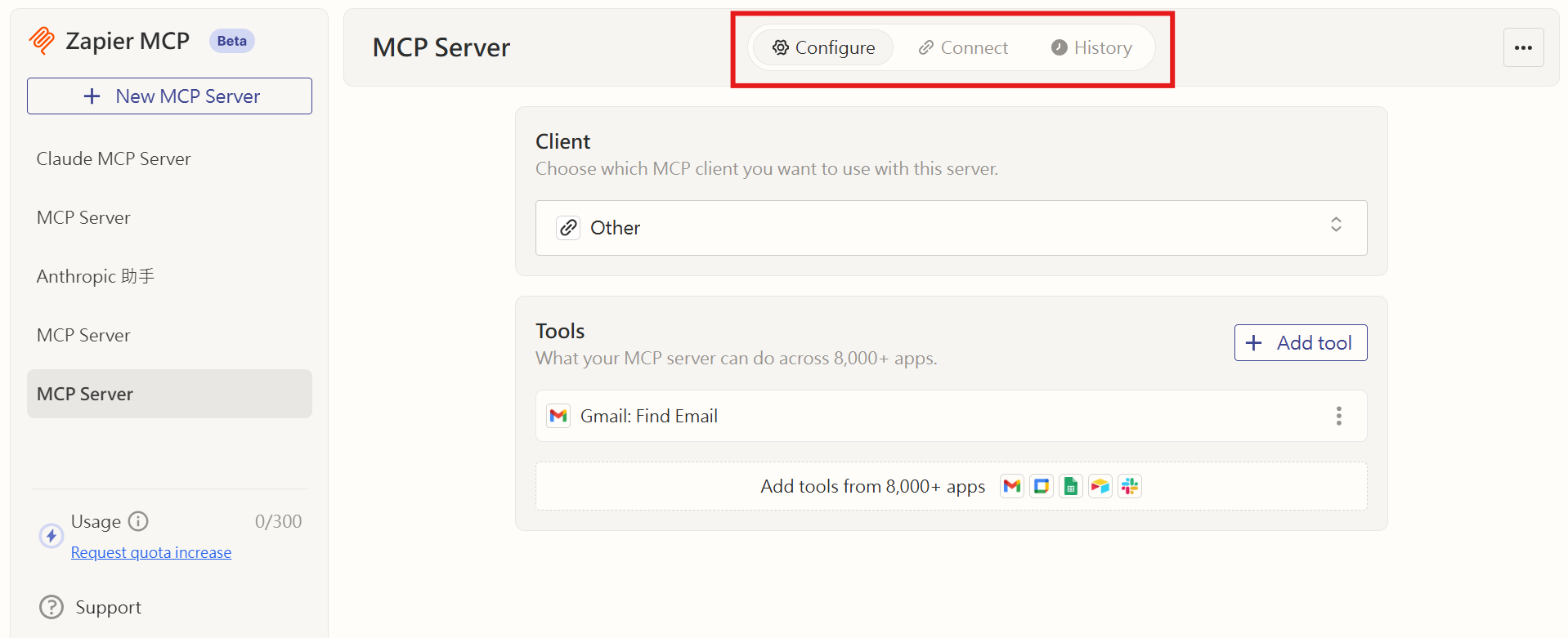
1. MCP Server ページで、上部のタブを「Connect」に切り替えます。

<figure><img src="https://605688223-files.gitbook.io/~/files/v0/b/gitbook-x-prod.appspot.com/o/spaces%2FVYMUz6J7vDZ0QTvb1rbN%2Fuploads%2Fgit-blob-3e0471c96c1167c84a974cad143ecf6408b84b12%2F%E8%9E%A2%E5%B9%95%E6%93%B7%E5%8F%96%E7%95%AB%E9%9D%A2%202025-08-08%20154945-2.png?alt=media" alt=""><figcaption><p>Connect タブ</p></figcaption></figure>

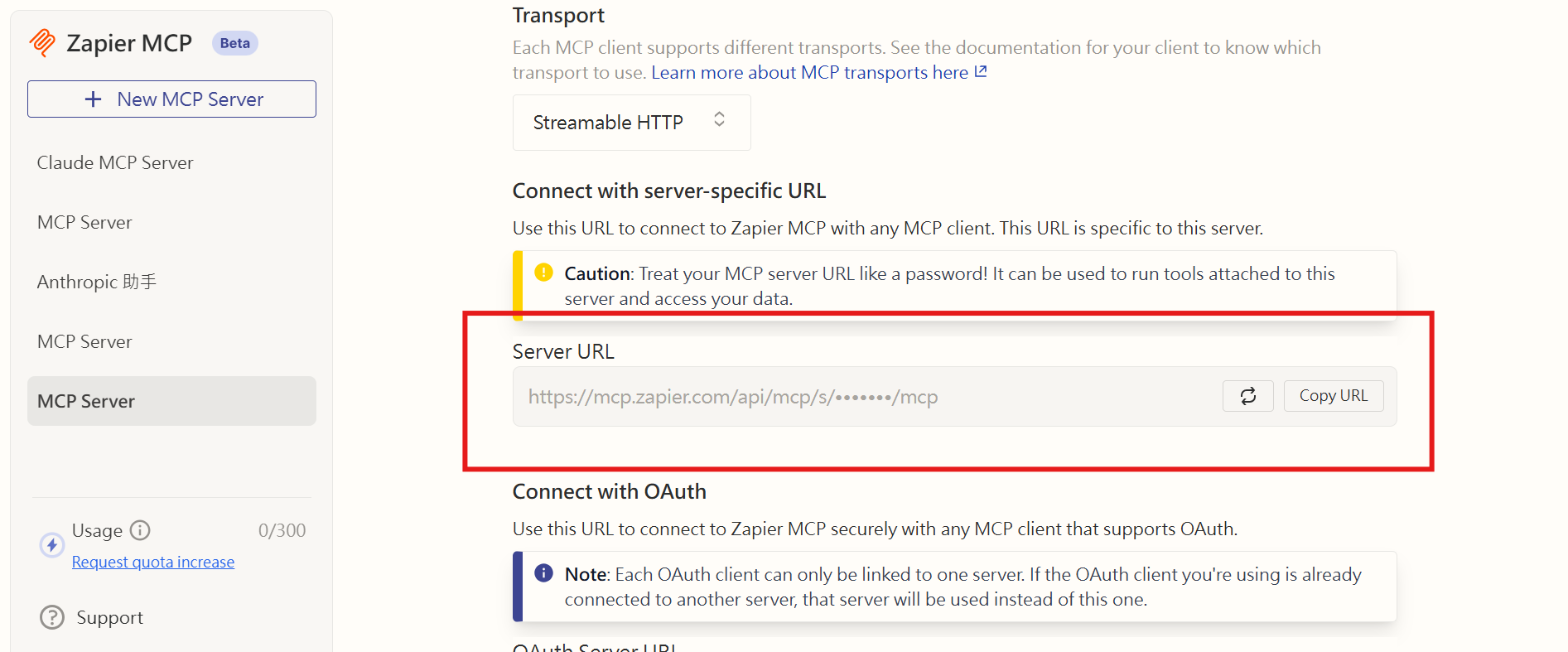
2\. このタブで「Server URL」を取得してコピーします。

<figure><img src="https://605688223-files.gitbook.io/~/files/v0/b/gitbook-x-prod.appspot.com/o/spaces%2FVYMUz6J7vDZ0QTvb1rbN%2Fuploads%2Fgit-blob-9acd1caafd59b2aa2160c5d3856f51b87e968e49%2F%E8%9E%A2%E5%B9%95%E6%93%B7%E5%8F%96%E7%95%AB%E9%9D%A2%202025-08-08%20155221.png?alt=media" alt=""><figcaption><p>MCP Server URL</p></figcaption></figure>

> 注意：この URL は機密情報です。信頼できるシステム（ご利用の MaiAgent 環境など）にのみ提供してください。

## 💻 ステップ 5：MaiAgent で MCP ツールを設定します

MaiAgent で MCP ツールを追加し、ステップ 4 でコピーした **Zapier MCP サーバー URL** を「<mark style="color:blue;">または直接入力（認証なし / Service Account）</mark>」の下にある URL 欄に貼り付けます。この URL 自体に Zapier の認可情報が含まれているため、「<mark style="color:blue;">ヘッダー (JSON)</mark>」は `{}` のままにします。次に「<mark style="color:blue;">再取得</mark>」をクリックすると、Zapier で追加したアクション（Find email など）が「<mark style="color:blue;">許可されたツール (JSON 配列)</mark>」の一覧に表示されます。各ツールの右側のスイッチで Agent に公開するツールを選択し、保存します。

詳しい操作手順と各フィールドの説明は、ユーザーマニュアルの [MCP ツールの作成：MCP サーバー URL](https://docs.maiagent.ai/build/tools/mcp-setup#mcp-server-url) を参照してください。

## デモ動画

{% embed url="<https://drive.google.com/file/d/1az-aQ5JlQvGBUd9nQN45zI-g9xcnN1Td/view?usp=drive_link>" %}

## ⚠️ 注意事項

* URL の機密性：MCP Server URL 自体に Zapier の認可情報が含まれます。この URL を取得した人は、あなたのアカウントでアクションを呼び出せます。安全に保管し、外部に公開しないでください。
* 同じアカウントの共有：この Agent と会話するすべてのユーザーは、Zapier に接続したあなたのアカウントで操作します。個人アカウントに紐づくサービス（個人メール、個人カレンダー）は、内部向け Agent でのみ使用してください。[Remote MCP サービス概要：制限と注意事項](/tech/ja/mcp/remote-mcp.md#limitations)を参照してください。
* 最小権限：Agent に必要なアプリケーションとアクションのみを公開し、リスクを抑えてください。
* 認可の失効：Zapier 接続の認可が失効した場合（キーの取り消し、OAuth の有効期限切れなど）は、Zapier 側で再認可してください。
* 複数のツール：複数のアプリケーション（Google Drive と Slack の併用など）を統合する場合は、Zapier MCP コンソールでステップ 3 を繰り返し、同じ MCP Server に新しいツールを追加してください。MCP URL の変更は不要です。新しく追加したアクションは Agent に**自動では公開されません**。MaiAgent のツール設定で「<mark style="color:blue;">再取得</mark>」をクリックすると、新しいアクションが「<mark style="color:blue;">許可されたツール (JSON 配列)</mark>」に表示されます。有効にして保存してください。

{% hint style="info" %}

* ログと監査：MaiAgent 側では、呼び出しごとにツール実行記録（入力パラメータ、出力またはエラー、ステータス、所要時間）が保存されます。<mark style="color:blue;">AgentOps</mark> → <mark style="color:blue;">ツール実行記録</mark>で確認できます。ユーザーマニュアルの[ツール実行記録](https://docs.maiagent.ai/build/agent-ops/tool-execution-records)を参照してください。Zapier 側の実行記録は Zapier で確認してください。
* バージョン変更やその他の更新に伴う互換性の問題を避けるため、[Zapier 公式サポートセンター](https://help.zapier.com/)を定期的に参照し、認可、接続、制限について確認してください。
  {% endhint %}


---

# Agent Instructions
This documentation is published with GitBook. GitBook is the documentation platform designed so that both humans and AI agents can read, navigate, and reason over technical content effectively. Learn more at gitbook.com.

## Querying This Documentation
If you need additional information that is not directly available in this page, you can query the documentation by asking a question.

Perform an HTTP GET request on the following URL with the `ask` and `goal` query parameters:

```
GET https://docs.maiagent.ai/tech/ja/mcp/zapier.md?ask=<question>&goal=<user_goal>
```

`ask` is the immediate question: it should be specific, self-contained, and written in natural language.
`goal` is what the user is ultimately trying to achieve, the reason they need the answer. Sharing it helps GitBook give you a better, more relevant answer. A goal is most helpful when it describes the outcome the user wants rather than restating the question. For example, with `ask=how do I create an API token`, a goal like `automate deployments from our CI pipeline` lets GitBook tailor the answer to that use case.

The response will contain a direct answer to the question and relevant excerpts and sources from the documentation.

Use this mechanism when the answer is not explicitly present in the current page, you need clarification or additional context, or you want to retrieve related documentation sections.