> For the complete documentation index, see [llms.txt](https://docs.maiagent.ai/llms.txt). Markdown versions of documentation pages are available by appending `.md` to page URLs; this page is available as [Markdown](https://docs.maiagent.ai/maiagent-user-guide/ja/org/querymetadata/query-builder.md).

# クエリビルダーで構築を開始

クエリビルダー：連絡先、会話メッセージ、または Web Chat の読み込みパラメータに対するクエリメタデータをグラフィカルに作成し、Agent が検索できるナレッジベースの範囲を制限します。

## 連絡先クエリメタデータの設定 <a href="#contact-query-metadata-setup" id="contact-query-metadata-setup"></a>

MaiAgent サービスの「クエリビルダー」を使用すると、グラフィカルな操作でクエリメタデータを作成できます。ここでは、連絡先のクエリメタデータを作成する例を説明します。

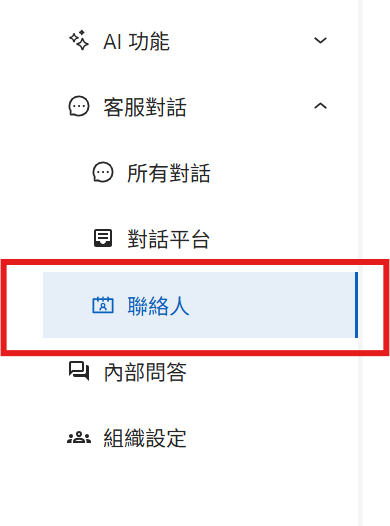
### ステップ 1：MaiAgent 管理画面の連絡先エリアに移動する <a href="#step-1-enter-contact-area" id="step-1-enter-contact-area"></a>

<figure><img src="https://2584873290-files.gitbook.io/~/files/v0/b/gitbook-x-prod.appspot.com/o/spaces%2FTvHx8hgwYGDTLD3A7xoW%2Fuploads%2Fgit-blob-e1193c589be2e94dd3b408588d7ea9a426bb3d2a%2F%E8%9E%A2%E5%B9%95%E6%93%B7%E5%8F%96%E7%95%AB%E9%9D%A2%202025-08-07%20165727.png?alt=media" alt=""><figcaption><p>連絡先エリアの入口</p></figcaption></figure>

### ステップ 2：連絡先を設定する <a href="#step-2-configure-contact" id="step-2-configure-contact"></a>

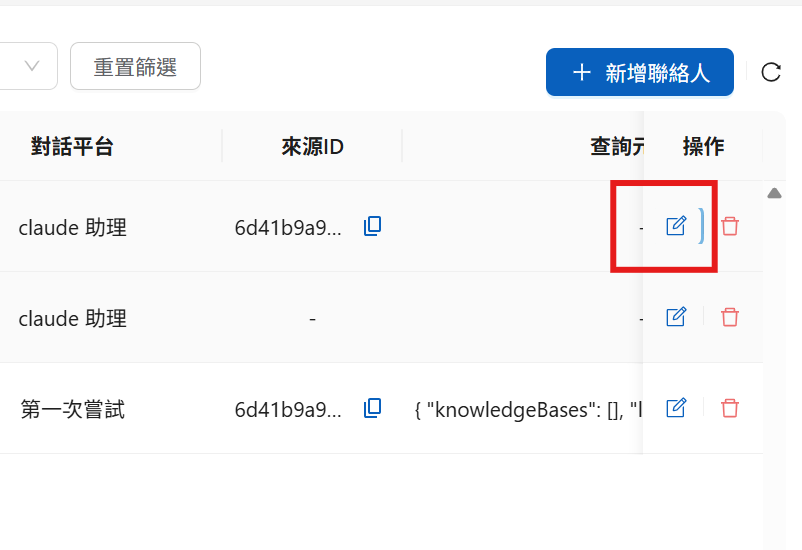
1. 設定したい連絡先を見つけて、「編集」をクリックします

<figure><img src="https://2584873290-files.gitbook.io/~/files/v0/b/gitbook-x-prod.appspot.com/o/spaces%2FTvHx8hgwYGDTLD3A7xoW%2Fuploads%2Fgit-blob-3e040c93c8149b98cec909c9f006f59876673de0%2F%E8%9E%A2%E5%B9%95%E6%93%B7%E5%8F%96%E7%95%AB%E9%9D%A2%202025-08-07%20165859.png?alt=media" alt=""><figcaption><p>連絡先の編集入口</p></figcaption></figure>

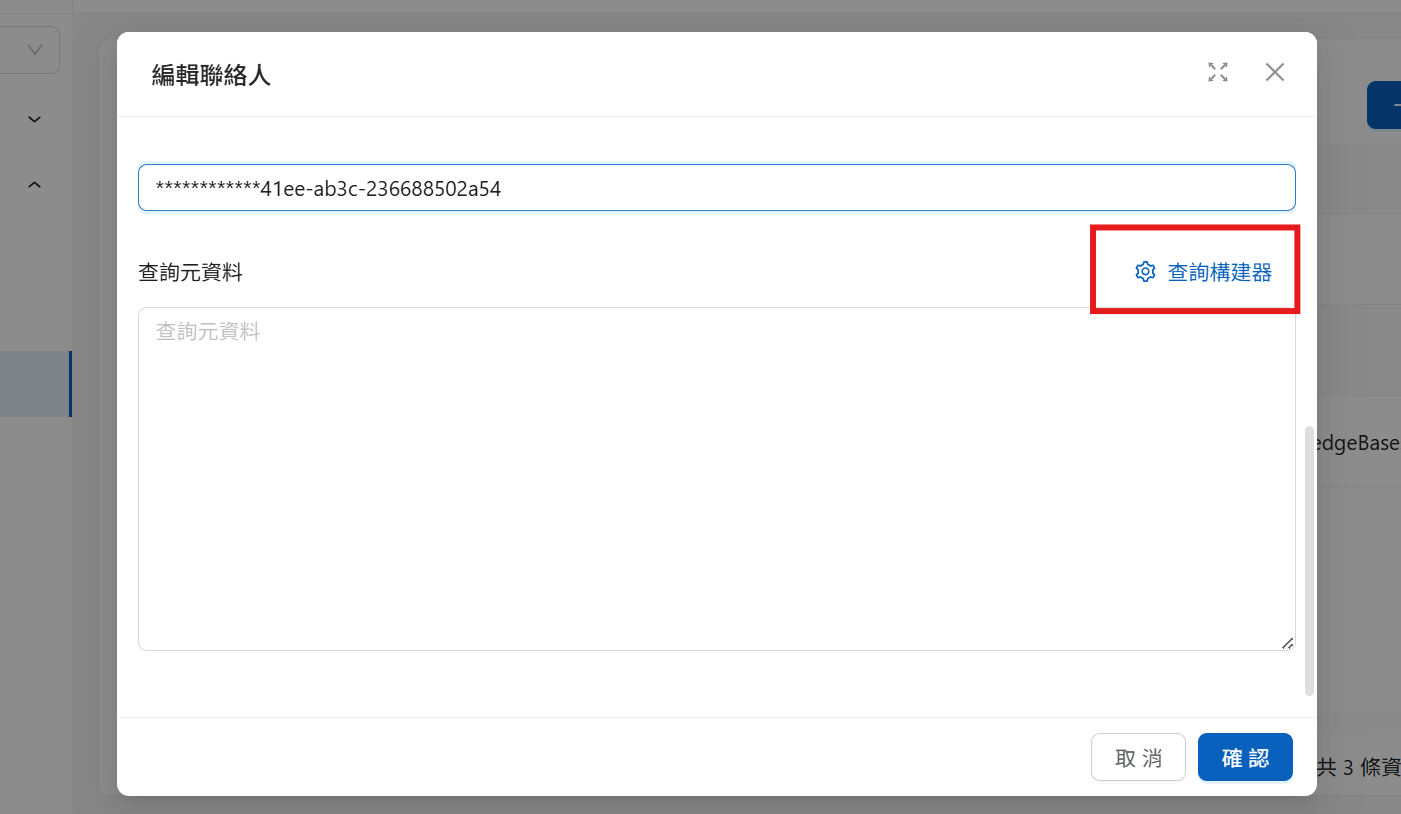
2\. クリックすると、次の画面が表示されます

<figure><img src="https://2584873290-files.gitbook.io/~/files/v0/b/gitbook-x-prod.appspot.com/o/spaces%2FTvHx8hgwYGDTLD3A7xoW%2Fuploads%2Fgit-blob-ce1f2353f60000f676e26df8cd028b2729a238e1%2Fquery%20metadata%20maker.png?alt=media" alt=""><figcaption><p>クエリビルダーの入口</p></figcaption></figure>

クエリビルダーをクリックして、グラフィカルなインターフェースを開きます。

### ステップ 3：開放する権限を選択する <a href="#step-3-select-permissions" id="step-3-select-permissions"></a>

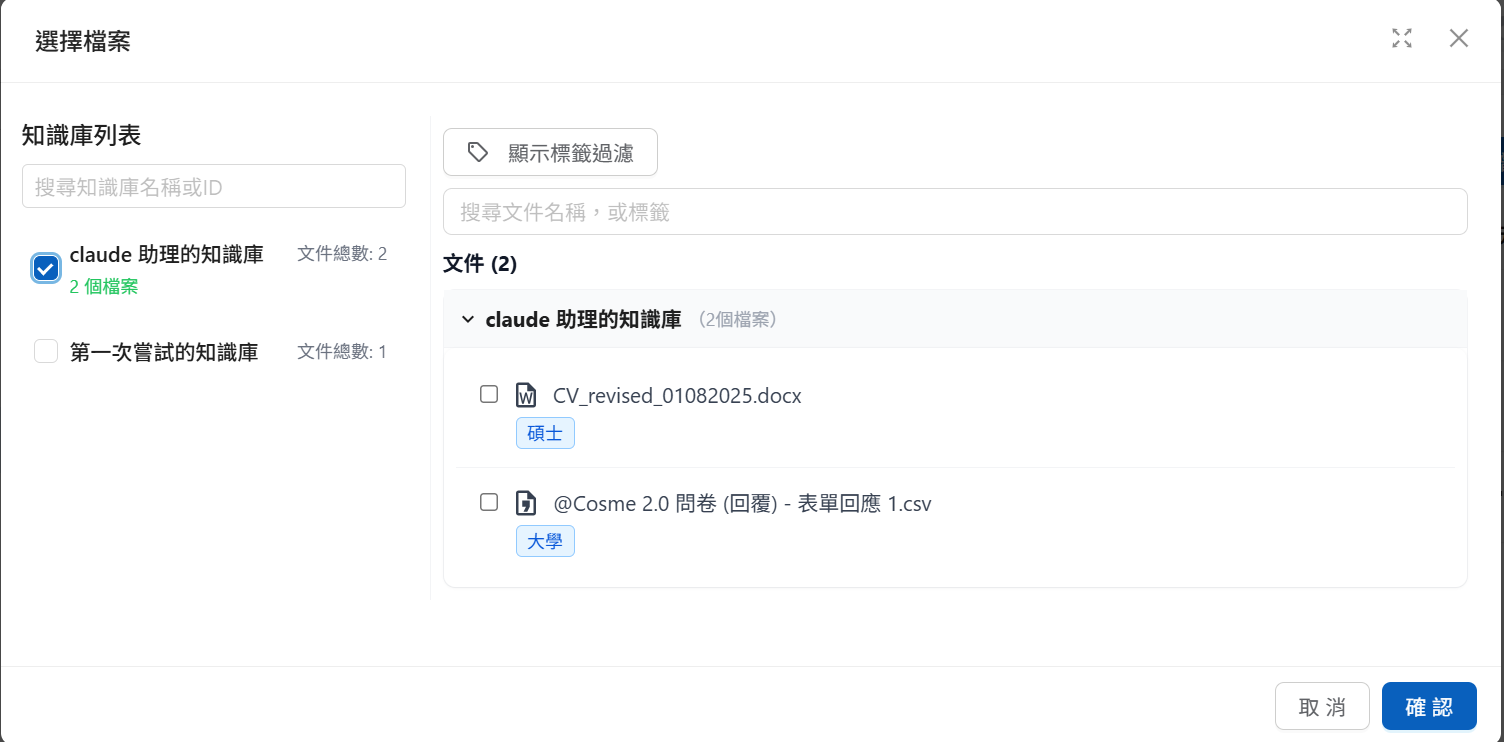
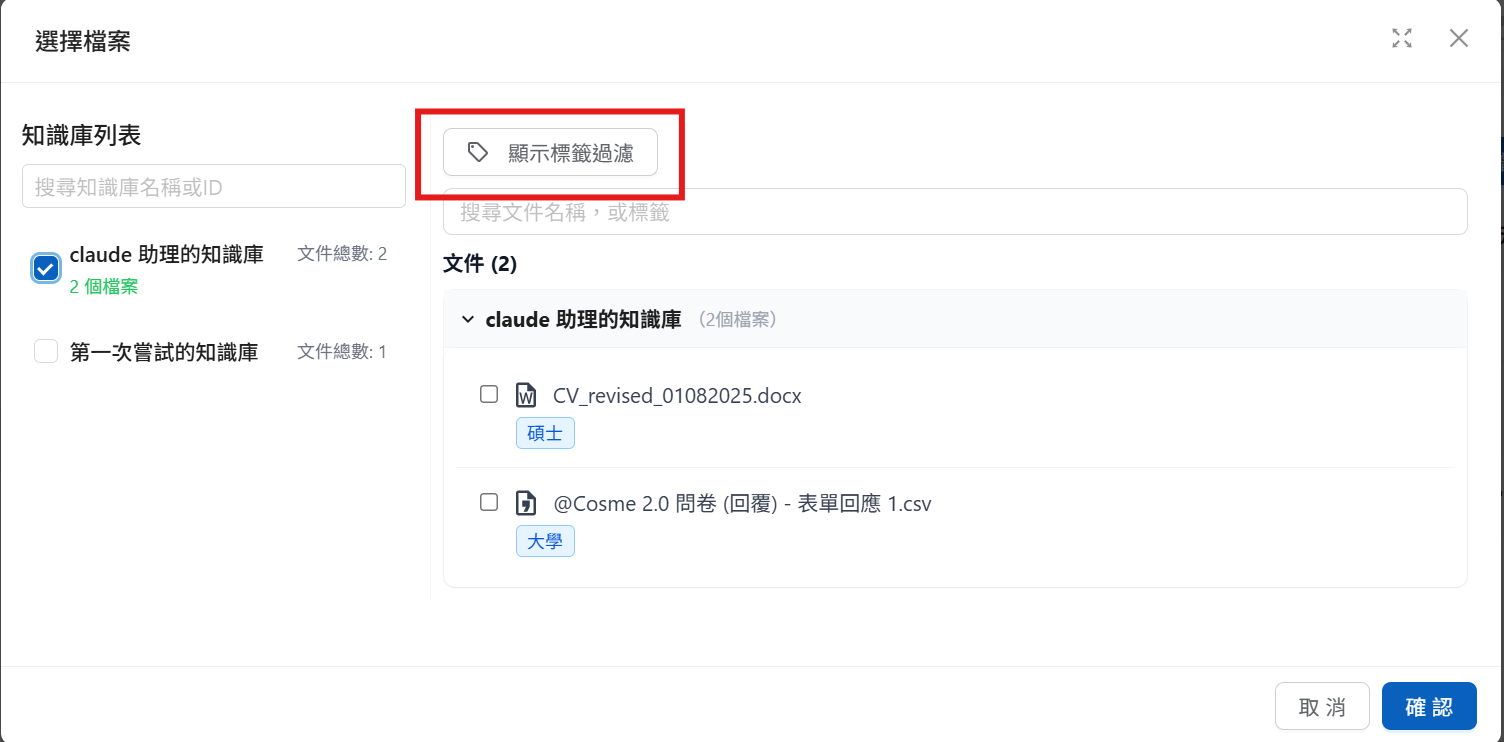
1. 開放したいナレッジベースを選択します。ナレッジベース内の一部のドキュメントだけを選択することもできます

<figure><img src="https://2584873290-files.gitbook.io/~/files/v0/b/gitbook-x-prod.appspot.com/o/spaces%2FTvHx8hgwYGDTLD3A7xoW%2Fuploads%2Fgit-blob-3cb875fe8a74fe9532e04d2d816b04dab3c3f3b3%2F%E8%9E%A2%E5%B9%95%E6%93%B7%E5%8F%96%E7%95%AB%E9%9D%A2%202025-08-07%20170306.png?alt=media" alt=""><figcaption><p>ナレッジベースとドキュメントの選択</p></figcaption></figure>

2\. 特定のタグに基づいてドキュメントを開放したい場合は、「タグフィルターを表示」をクリックして、タグの設定エリアを開きます

<figure><img src="https://2584873290-files.gitbook.io/~/files/v0/b/gitbook-x-prod.appspot.com/o/spaces%2FTvHx8hgwYGDTLD3A7xoW%2Fuploads%2Fgit-blob-4858e1ff92d8efc4cd28216d2ff05c207215aaca%2F%E8%9E%A2%E5%B9%95%E6%93%B7%E5%8F%96%E7%95%AB%E9%9D%A2%202025-08-07%20170306-1.png?alt=media" alt=""><figcaption><p>タグフィルターの設定</p></figcaption></figure>

ここでタグを追加し、判定方法を選択できます。同じタググループ内では「<mark style="color:blue;">すべてのタグを含む（AND）</mark>」または「<mark style="color:blue;">いずれかのタグを含む（OR）</mark>」を、複数の条件グループ間では「<mark style="color:blue;">すべてのグループに一致（AND）</mark>」または「<mark style="color:blue;">いずれか 1 つのグループに一致すれば可（OR）</mark>」を選択します（旧バージョンのスクリーンショットでは AND／OR ボタンで表示されていますが、意味は同じです）。これらは、開放済みのナレッジベース内のドキュメントを開放する基準となります。ビルダーの下にある「影響を受けるファイル」パネルには、検索可能なファイルがリアルタイムで表示されます。

{% hint style="info" %}
Agent がすべての会話プラットフォームで同じタグ条件をデフォルトで適用するようにしたい場合は、Agent の設定ページで設定することもできます。詳しくは [ナレッジベースのタグフィルター](/maiagent-user-guide/ja/build/agent/label-filter.md) をご覧ください。連絡先のクエリメタデータは、Agent のデフォルト条件より優先されます。
{% endhint %}

## 会話の設定（Message） <a href="#message-settings" id="message-settings"></a>

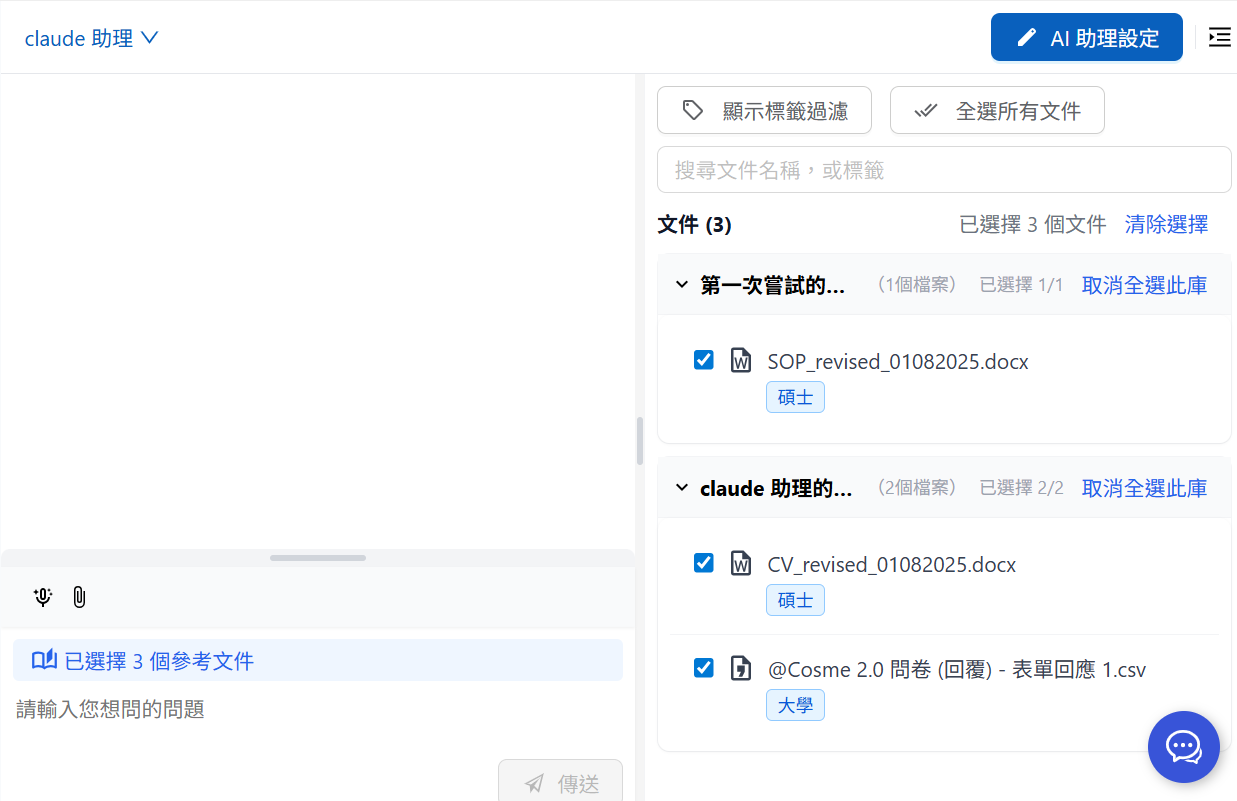
下の図の右側メニューから、開放するナレッジ権限を選択することもできます。

<figure><img src="https://2584873290-files.gitbook.io/~/files/v0/b/gitbook-x-prod.appspot.com/o/spaces%2FTvHx8hgwYGDTLD3A7xoW%2Fuploads%2Fgit-blob-c197581d7292296d9555671138c8d7ed62ce5a70%2F%E8%9E%A2%E5%B9%95%E6%93%B7%E5%8F%96%E7%95%AB%E9%9D%A2%202025-08-08%20095028.png?alt=media" alt=""><figcaption><p>内部会話：利用可能なナレッジ権限の選択</p></figcaption></figure>

同様に「タグフィルターを表示」を使って、タグのフィルター条件を設定できます。

{% hint style="info" %}
新しいメッセージを送信する前に、右側の権限を変更してナレッジを管理することもできます。
{% endhint %}

<figure><img src="https://2584873290-files.gitbook.io/~/files/v0/b/gitbook-x-prod.appspot.com/o/spaces%2FTvHx8hgwYGDTLD3A7xoW%2Fuploads%2Fgit-blob-1fd810ec8e5c4b185673a93858d73a36bca5d085%2F%E8%9E%A2%E5%B9%95%E6%93%B7%E5%8F%96%E7%95%AB%E9%9D%A2%202025-08-08%20124143.png?alt=media" alt=""><figcaption><p>利用可能なドキュメント一覧</p></figcaption></figure>

<figure><img src="https://2584873290-files.gitbook.io/~/files/v0/b/gitbook-x-prod.appspot.com/o/spaces%2FTvHx8hgwYGDTLD3A7xoW%2Fuploads%2Fgit-blob-e6b0091dcec82fe35f8d8f6f859ed8fd886249a0%2F%E8%9E%A2%E5%B9%95%E6%93%B7%E5%8F%96%E7%95%AB%E9%9D%A2%202025-08-08%20124344.png?alt=media" alt=""><figcaption><p>選択済みドキュメントの状態</p></figcaption></figure>

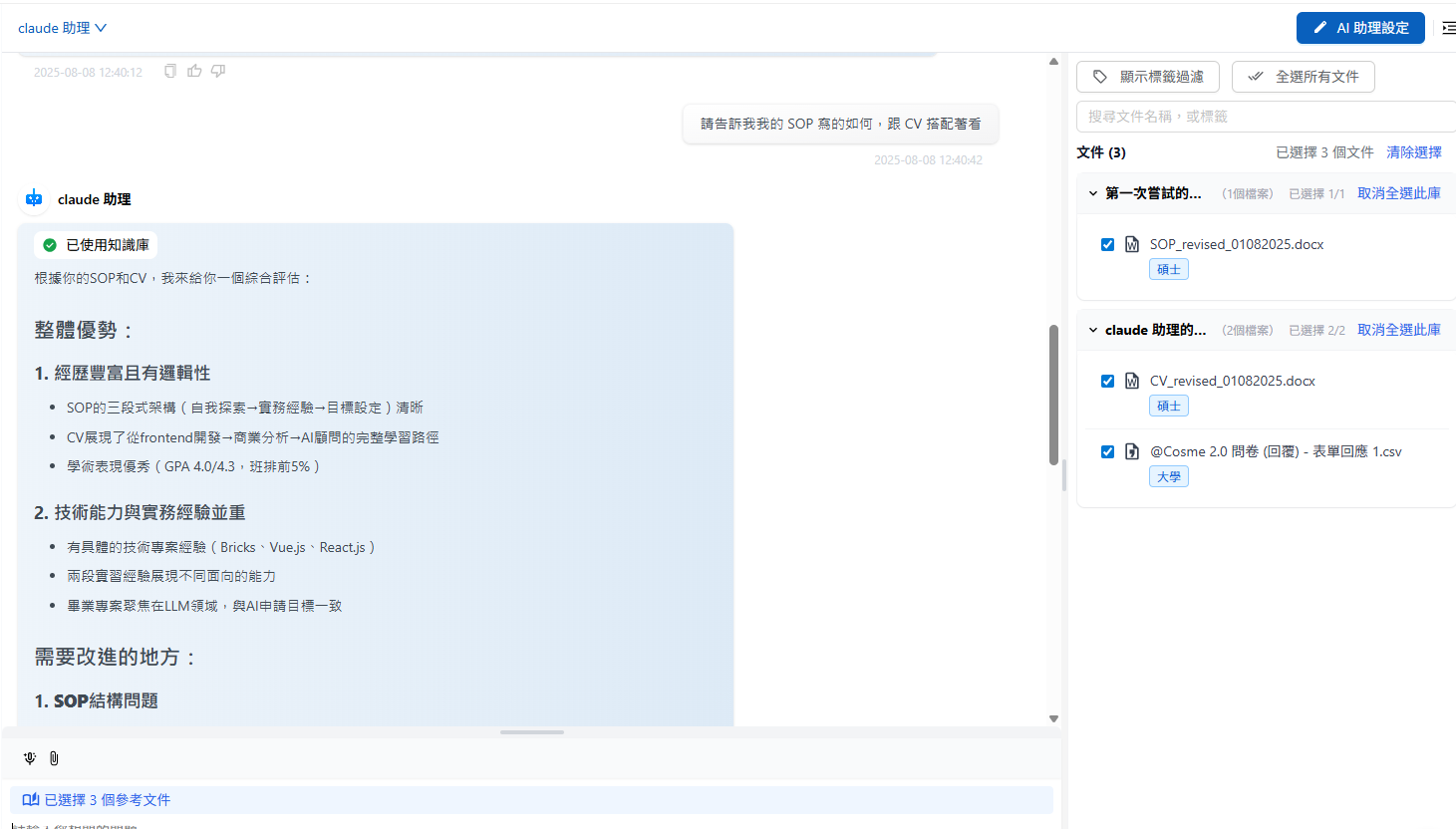
現在、参照できるファイルは CV、SOP、アンケートの 3 つです。

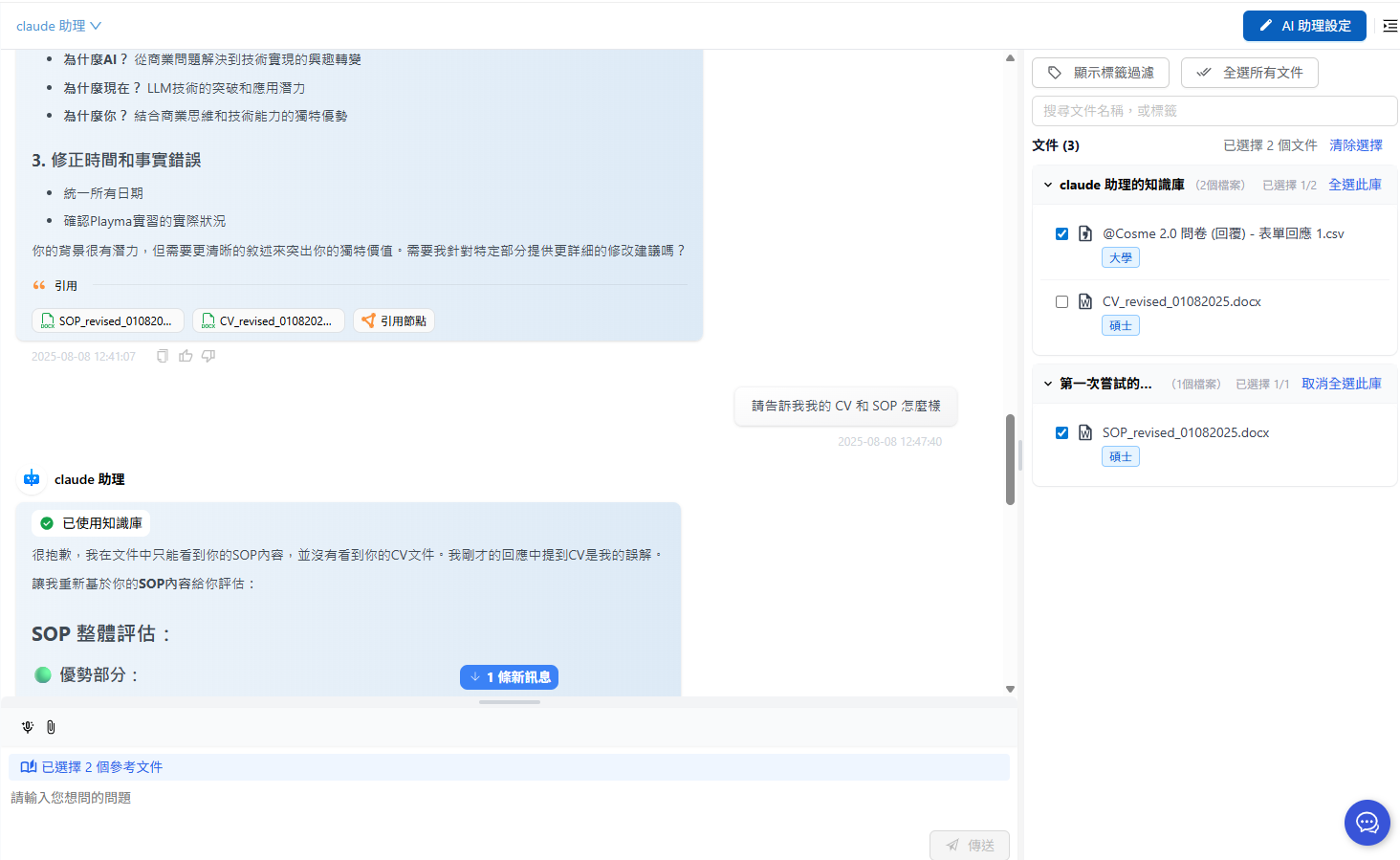
次のメッセージで CV のチェックを外してから、もう一度メッセージを送信します。

<figure><img src="https://2584873290-files.gitbook.io/~/files/v0/b/gitbook-x-prod.appspot.com/o/spaces%2FTvHx8hgwYGDTLD3A7xoW%2Fuploads%2Fgit-blob-9805fef0555d8b09f66eebd0114738a62852f580%2F%E8%9E%A2%E5%B9%95%E6%93%B7%E5%8F%96%E7%95%AB%E9%9D%A2%202025-08-08%20124830.png?alt=media" alt=""><figcaption><p>ドキュメントのチェックを外す例</p></figcaption></figure>

Agent は CV ファイルを使用できなくなり、引用ライブラリにも CV の引用は表示されません。

<figure><img src="https://2584873290-files.gitbook.io/~/files/v0/b/gitbook-x-prod.appspot.com/o/spaces%2FTvHx8hgwYGDTLD3A7xoW%2Fuploads%2Fgit-blob-18ee67d0a77a1ce864386d755225372b9f15fd63%2F%E8%9E%A2%E5%B9%95%E6%93%B7%E5%8F%96%E7%95%AB%E9%9D%A2%202025-08-08%20124958.png?alt=media" alt=""><figcaption><p>引用ライブラリの変化：CV を除外した後</p></figcaption></figure>

メッセージを送信する前に毎回権限を調整でき、そのターンの回答で引用できる内容に影響します。

## Web Chat 読み込み時の事前設定 <a href="#webchat-preload-settings" id="webchat-preload-settings"></a>

MaiAgent では、Web Chat を正式に初期化する前に、クエリメタデータを事前に設定できます。連絡先が存在しない段階で会話内容を制限したい場合（たとえば、連絡先アカウントを登録していないお客様に Web Chat サービスを提供する場合）は、埋め込み時にクエリメタデータを渡すことで、システムがメッセージ単位のナレッジベースドキュメントのフィルタリング機能をデフォルトで有効にします。

Web Chat の設定については、[技術者向けマニュアル：構築を始める—JSON 形式を使う](https://docs.maiagent.ai/tech/identity-and-access/zhi-shi-guan-li-quan-xian-query-metadata-cha-xun-yuan-zi-liao-zong-lan/json-interfaces#webchat-chu-shi-hua-she-ding)をご参照ください。

{% hint style="info" %}
JSON 形式でクエリメタデータを構築することもできます。[技術者向けマニュアル：構築を始める](https://docs.maiagent.ai/tech/identity-and-access/zhi-shi-guan-li-quan-xian-query-metadata-cha-xun-yuan-zi-liao-zong-lan/json-interfaces)[—](https://docs.maiagent.ai/tech/identity-and-access/zhi-shi-guan-li-quan-xian-query-metadata-cha-xun-yuan-zi-liao-zong-lan/json-interfaces)[JSON 形式を使う](https://docs.maiagent.ai/tech/identity-and-access/zhi-shi-guan-li-quan-xian-query-metadata-cha-xun-yuan-zi-liao-zong-lan/json-interfaces)をご覧ください。
{% endhint %}


---

# Agent Instructions
This documentation is published with GitBook. GitBook is the documentation platform designed so that both humans and AI agents can read, navigate, and reason over technical content effectively. Learn more at gitbook.com.

## Querying This Documentation
If you need additional information that is not directly available in this page, you can query the documentation by asking a question.

Perform an HTTP GET request on the following URL with the `ask` and `goal` query parameters:

```
GET https://docs.maiagent.ai/maiagent-user-guide/ja/org/querymetadata/query-builder.md?ask=<question>&goal=<user_goal>
```

`ask` is the immediate question: it should be specific, self-contained, and written in natural language.
`goal` is what the user is ultimately trying to achieve, the reason they need the answer. Sharing it helps GitBook give you a better, more relevant answer. A goal is most helpful when it describes the outcome the user wants rather than restating the question. For example, with `ask=how do I create an API token`, a goal like `automate deployments from our CI pipeline` lets GitBook tailor the answer to that use case.

The response will contain a direct answer to the question and relevant excerpts and sources from the documentation.

Use this mechanism when the answer is not explicitly present in the current page, you need clarification or additional context, or you want to retrieve related documentation sections.