## 👆 ステップ 3:必要なツール/アプリケーションを選択する
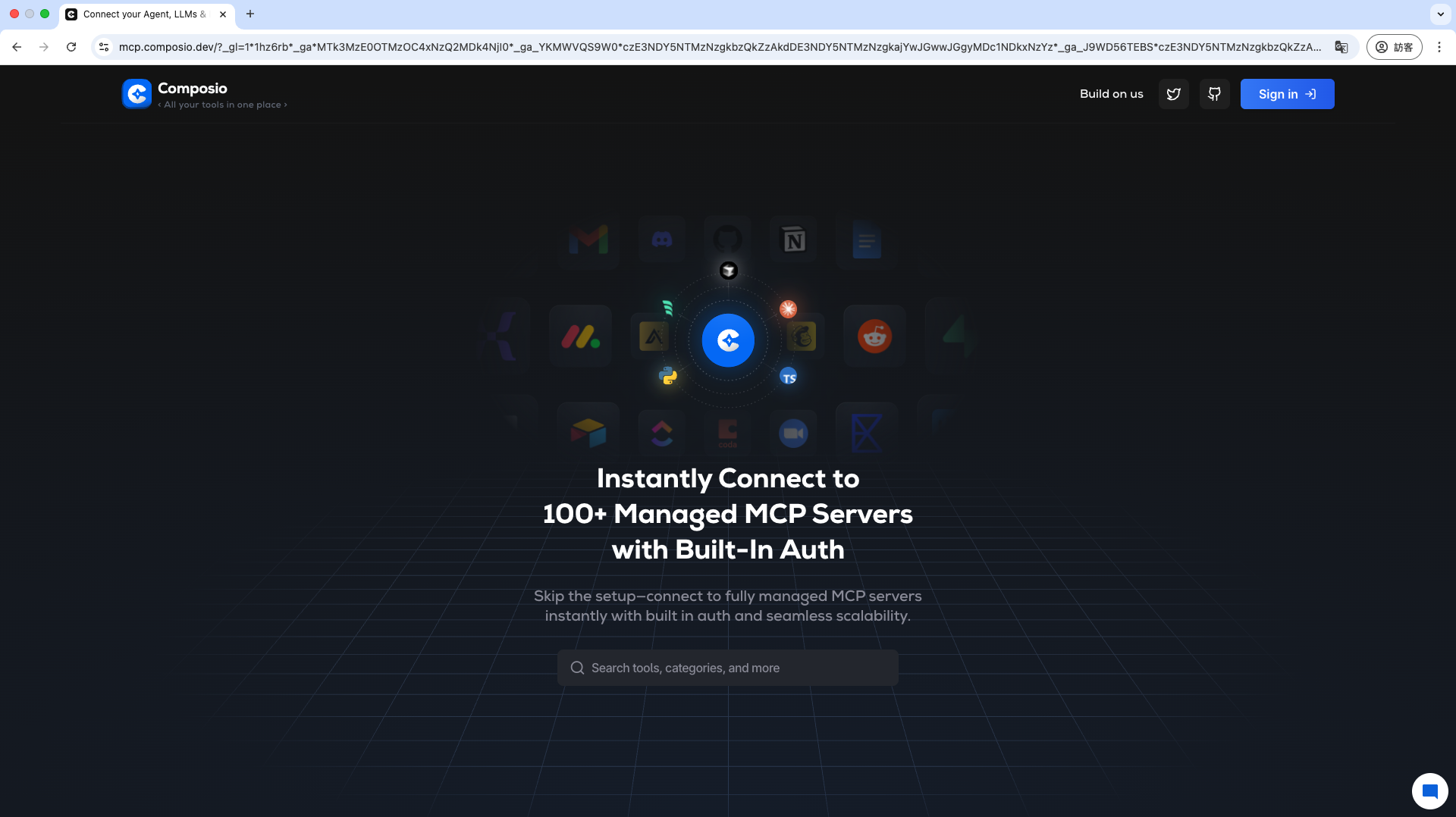
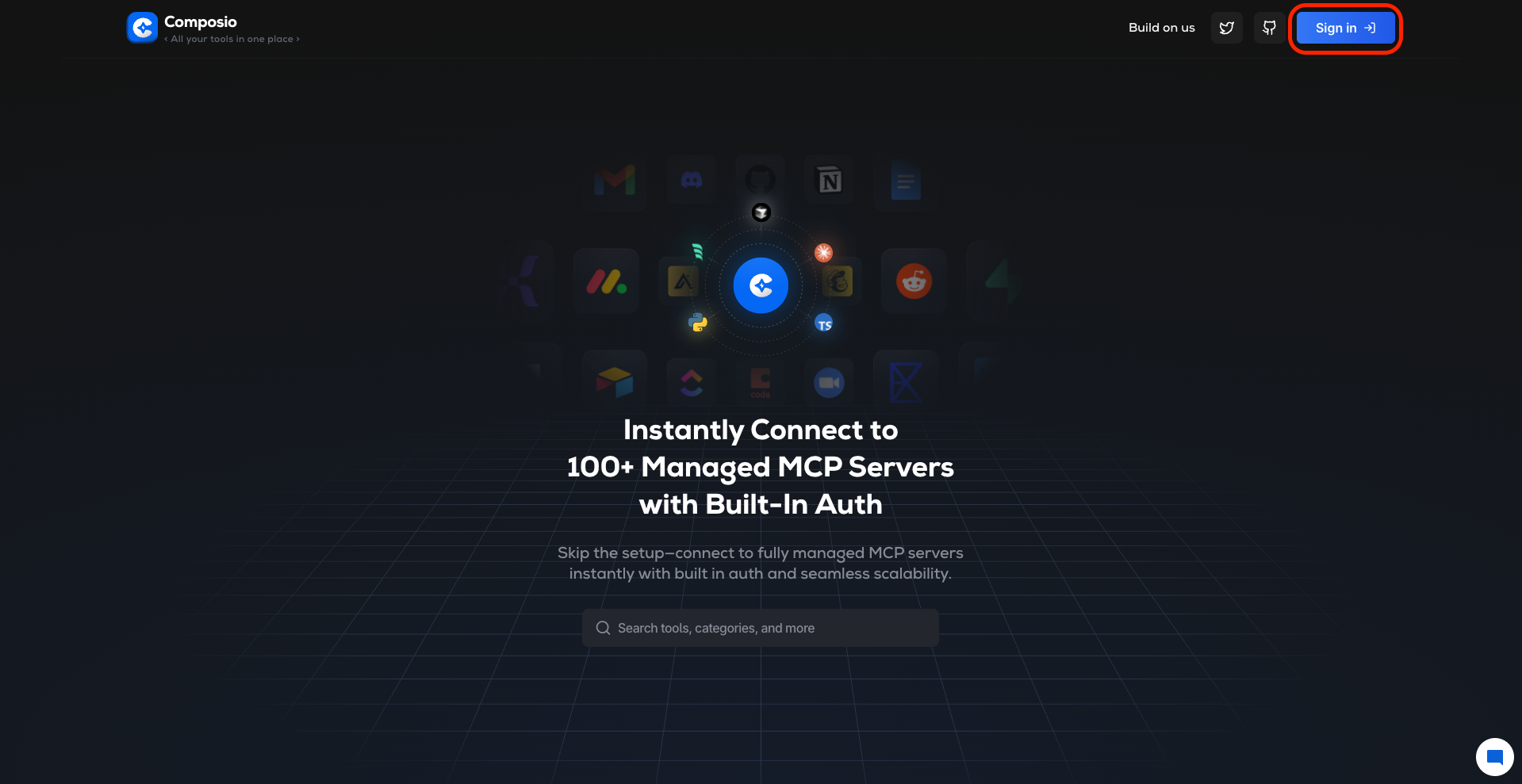
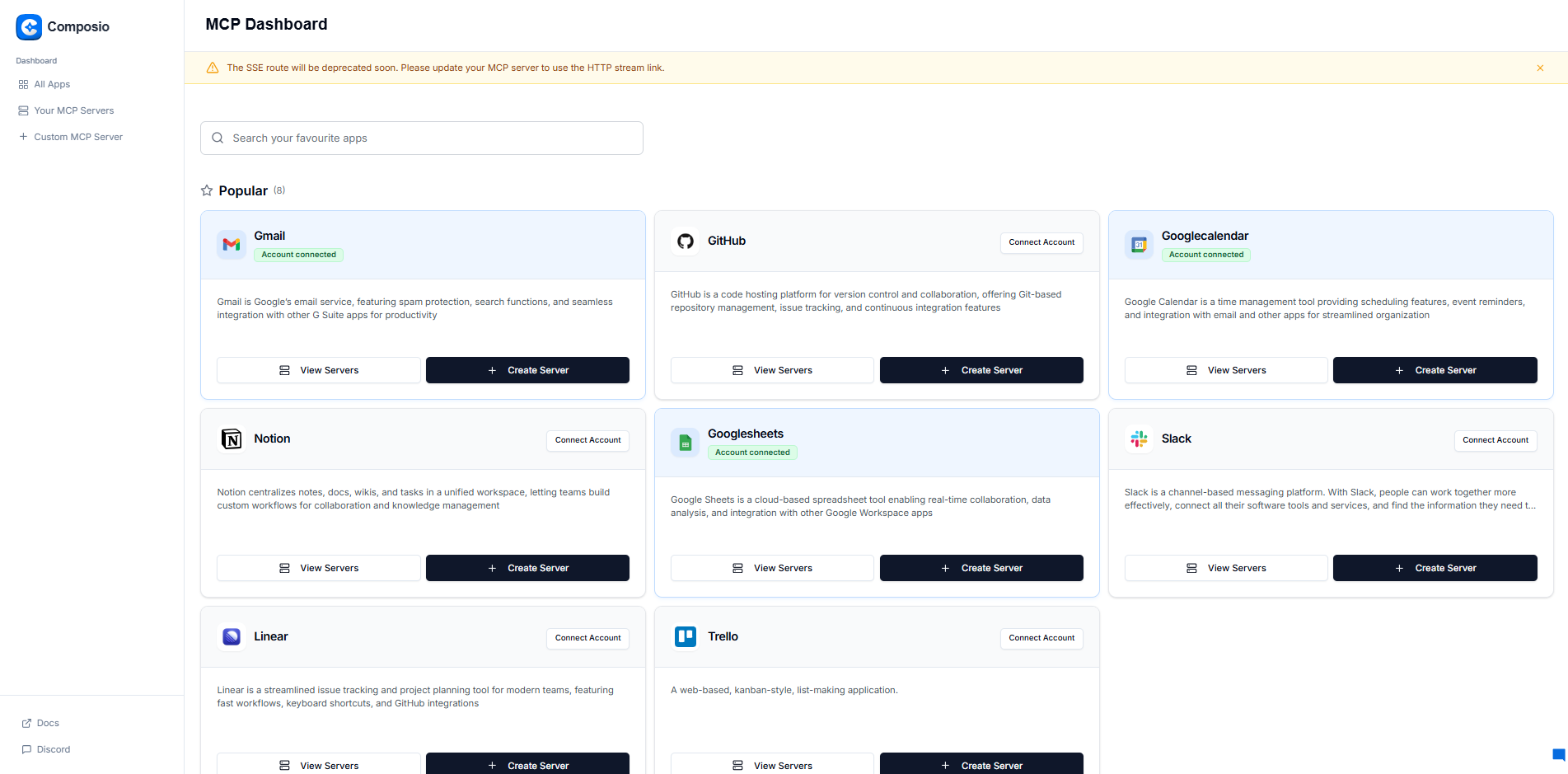
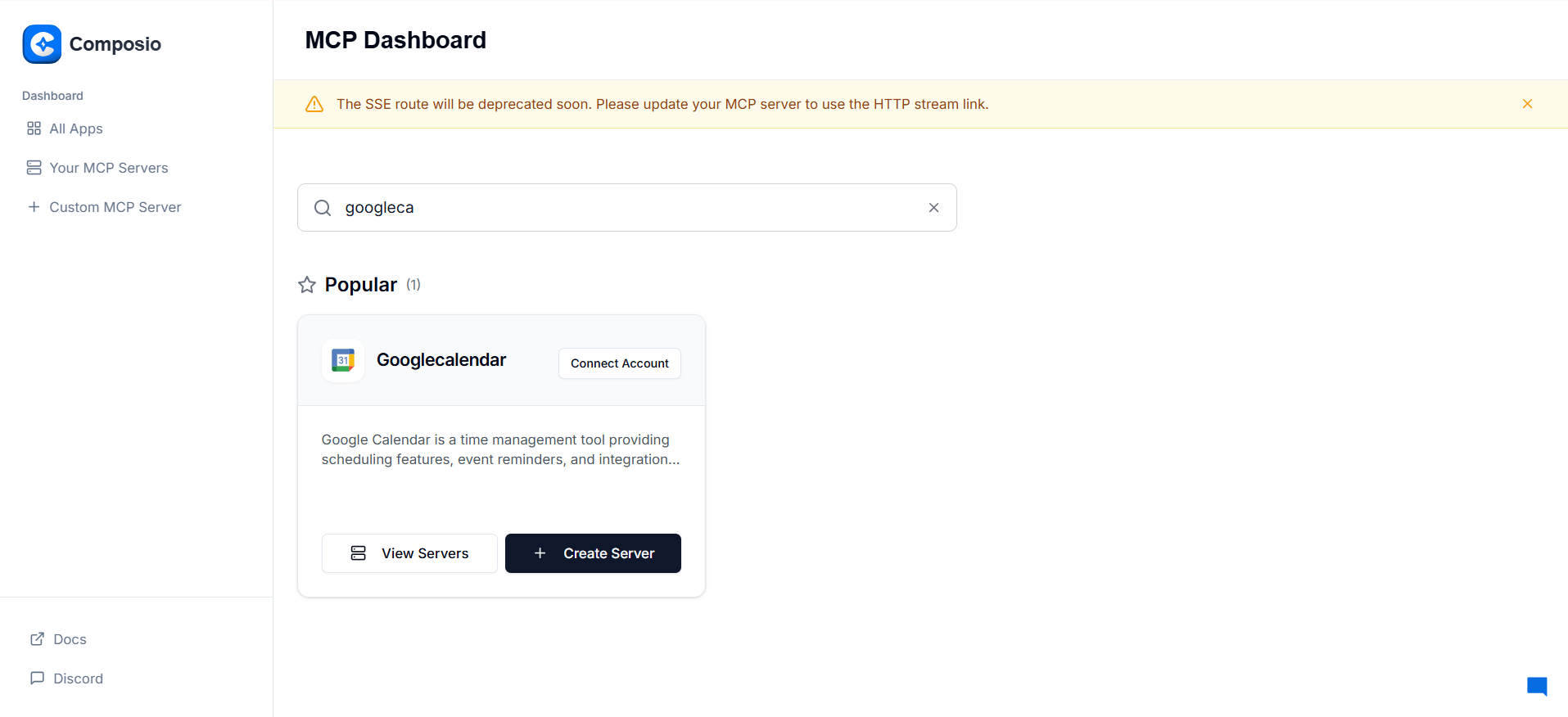
1. **Composio MCP Dashboard** で、Agent に使用させたいツールやアプリケーション (Google Drive、Slack、Jira、GitHub など) を閲覧または検索します。
Google Calendar を例に説明します:
## 🔐 ステップ 4:Server を作成し、アカウントを接続する
1. ツールを見つけたら、有効にする前にアカウントの接続を認可する必要があります。
「+Create Server」をクリックします
2. Server に名前を付け、完了したら「Next」をクリックします
3. サービスの認可ウィンドウが表示されます。Composio にアクセス権限を付与することを確認します。
* 例えば Google サービスの場合、認可する Google アカウントを選択し、権限の範囲を確認する必要があります。
* Composio が代理で操作するには認可が必要なため、この手順は必須です。
**"Connect"** をクリックします。認可が完了すると、Composio プラットフォームにリダイレクトされます
3. 使用を許可するツールを選択し、「Create Server」をクリックして接続を作成します
* **重要な注意事項**:Configure Actions では、ユーザーが実際に使用する機能を選択できます。特別な要件がなければ、すべて選択しても構いません。
## 🔗 ステップ 5:MCP サーバー URL をコピーする
1. Server の構築が完了すると、専用の **MCP サーバー**が生成されます。
{% hint style="info" %}
HTTP Stream(Streamable HTTP)への切り替えを推奨します。MaiAgent は SSE にも対応していますが、URL のパスが `/sse` で終わる場合、パスに `/sse/` が含まれる場合、またはクエリ文字列に `transport=sse` が含まれる場合にのみ SSE で接続します。それ以外の URL はすべて Streamable HTTP で接続します。
{% endhint %}
2. 「MCP Server Created」ウィンドウの HTTP Stream タブで URL(形式は `https://mcp.composio.dev/composio/server//mcp?...`)をコピーし、MaiAgent のページに移動します。
{% hint style="warning" %}
この URL 自体に Composio の認可情報が含まれています。パスワードと同様に管理し、公開したりスクリーンショットで共有したりしないでください。
{% endhint %}
## 💻 ステップ 6:MaiAgent で MCP ツールを作成する
MaiAgent で MCP ツールを追加し、ステップ 5 でコピーした Composio の **MCP サーバー URL** を「または直接入力(認証なし / Service Account)」の下にある URL 欄に貼り付けます。この URL 自体に Composio の認可情報が含まれているため、「ヘッダー (JSON)」は `{}` のままにします。続いて「再取得」をクリックし、「許可するツール (JSON 配列)」で各ツールの右側にあるスイッチを使って Agent に公開するツールを選択してから保存します。
詳しい操作手順と各フィールドの説明は、ユーザーマニュアルの [MCP ツールの作成:MCP サーバー URL](https://docs.maiagent.ai/build/tools/mcp-setup#mcp-server-url)をご覧ください。
## ⚠️ 注意事項
* **URL の機密性**:生成された **MCP Server URL** 自体に Composio の認可情報が含まれています。URL を入手した人は、そのアカウントでツールを呼び出せるため、漏えいさせないでください。
* **すべてのユーザーが同じアカウントを共有します**:この Agent を通じて会話するすべてのユーザーは、Composio で認可したアカウントで操作します。個人アカウントに紐づくサービス(個人用メールボックスやカレンダー)は内部向け Agent でのみ使用するか、MaiAgent の OAuth コネクタで連絡先ごとの個別認可を選択してください。[Remote MCP サービスの概要:制限と注意事項](/tech/ja/mcp/remote-mcp.md#limitations)をご覧ください。
* **新しいアクションは自動で有効になりません**:後から Composio 側でアクションを追加した場合は、MaiAgent のツール設定に戻って「再取得」をクリックし、有効にする必要があります。その後、Agent が使用できるようになります。
* **複数のツール**:複数のアプリケーションを統合する場合(例えば Google Drive と Slack を同時に使用する場合)、**Composio MCP ディレクトリ**でアプリケーションごとに上記のステップ 3~5 を繰り返し、それぞれの **MCP サーバー URL** を取得する必要がある場合があります。MaiAgent で別々のツールとして設定し、Agent に割り当ててください。
* **Composio のドキュメント**:Composio のインターフェースや手順は更新される可能性があります。正確な情報を得るため、[Composio の最新の公式ドキュメント](https://docs.composio.dev/getting-started/welcome)を随時参照してください。
---
# Agent Instructions
This documentation is published with GitBook. GitBook is the documentation platform designed so that both humans and AI agents can read, navigate, and reason over technical content effectively. Learn more at gitbook.com.
## Querying This Documentation
If you need additional information that is not directly available in this page, you can query the documentation by asking a question.
Perform an HTTP GET request on the following URL with the `ask` and `goal` query parameters:
```
GET https://docs.maiagent.ai/tech/ja/mcp/composio.md?ask=&goal=
```
`ask` is the immediate question: it should be specific, self-contained, and written in natural language.
`goal` is what the user is ultimately trying to achieve, the reason they need the answer. Sharing it helps GitBook give you a better, more relevant answer. A goal is most helpful when it describes the outcome the user wants rather than restating the question. For example, with `ask=how do I create an API token`, a goal like `automate deployments from our CI pipeline` lets GitBook tailor the answer to that use case.
The response will contain a direct answer to the question and relevant excerpts and sources from the documentation.
Use this mechanism when the answer is not explicitly present in the current page, you need clarification or additional context, or you want to retrieve related documentation sections.
.png?alt=media)
.png?alt=media)
.png?alt=media)