> For the complete documentation index, see [llms.txt](https://docs.maiagent.ai/llms.txt). Markdown versions of documentation pages are available by appending `.md` to page URLs; this page is available as [Markdown](https://docs.maiagent.ai/tech/ja/authorization-integration/zhi-shi-guan-li-quan-xian-query-metadata-cha-xun-yuan-zi-liao-zong-lan/graphical-interface.md).

# 構築を始める—「クエリビルダー」を使用

管理画面の「クエリビルダー」でチェックボックスを使用して Query Metadata を設定します。連絡先レベルと社内Q\&Aでのメッセージごとの設定に対応しています

クエリビルダーは、Query Metadata をグラフィカルに設定する方法です。JSON の代わりにチェックボックスを使用するため、管理画面での手動管理に適しています。2つの入口は、[概要ページ](/tech/ja/authorization-integration/zhi-shi-guan-li-quan-xian-query-metadata-cha-xun-yuan-zi-liao-zong-lan.md#levels)の2つのレベルに対応しています。

* **連絡先の編集** → そのユーザーのすべての会話に対するナレッジ範囲を設定します（連絡先レベル）
* **社内Q\&A** → 各メッセージを送信する前にナレッジ範囲を選択します（メッセージレベル）

{% hint style="info" %}
ネストしたラベル条件が必要な場合、または API／埋め込みコードから設定する場合は、[JSON 形式](/tech/ja/authorization-integration/zhi-shi-guan-li-quan-xian-query-metadata-cha-xun-yuan-zi-liao-zong-lan/json-interfaces.md)を使用してください。どちらの方法でも同等の設定が生成されます。
{% endhint %}

## 連絡先（Contact）レベルの設定 <a href="#contact-level" id="contact-level"></a>

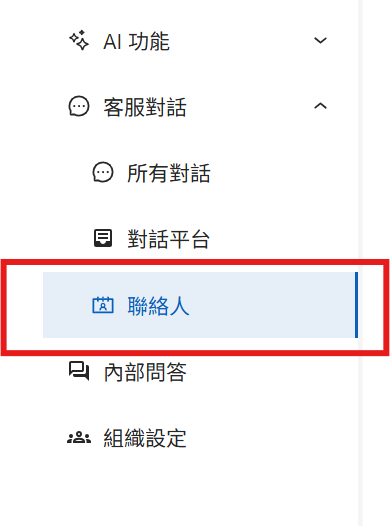
### ステップ 1：管理画面の連絡先エリアに移動する <a href="#step-1-contacts" id="step-1-contacts"></a>

<figure><img src="https://605688223-files.gitbook.io/~/files/v0/b/gitbook-x-prod.appspot.com/o/spaces%2FVYMUz6J7vDZ0QTvb1rbN%2Fuploads%2Fgit-blob-e1193c589be2e94dd3b408588d7ea9a426bb3d2a%2F%E8%9E%A2%E5%B9%95%E6%93%B7%E5%8F%96%E7%95%AB%E9%9D%A2%202025-08-07%20165727.png?alt=media" alt=""><figcaption><p>連絡先エリアへの入口</p></figcaption></figure>

### ステップ 2：連絡先を編集し、クエリビルダーを開く <a href="#step-2-edit" id="step-2-edit"></a>

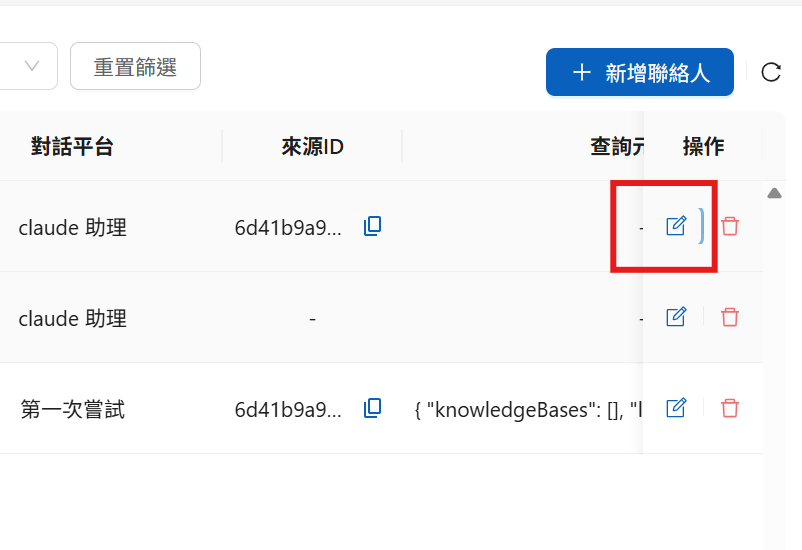
設定する連絡先を見つけ、<mark style="color:blue;">編集</mark>をクリックします。

<figure><img src="https://605688223-files.gitbook.io/~/files/v0/b/gitbook-x-prod.appspot.com/o/spaces%2FVYMUz6J7vDZ0QTvb1rbN%2Fuploads%2Fgit-blob-3e040c93c8149b98cec909c9f006f59876673de0%2F%E8%9E%A2%E5%B9%95%E6%93%B7%E5%8F%96%E7%95%AB%E9%9D%A2%202025-08-07%20165859.png?alt=media" alt=""><figcaption><p>連絡先編集画面への入口</p></figcaption></figure>

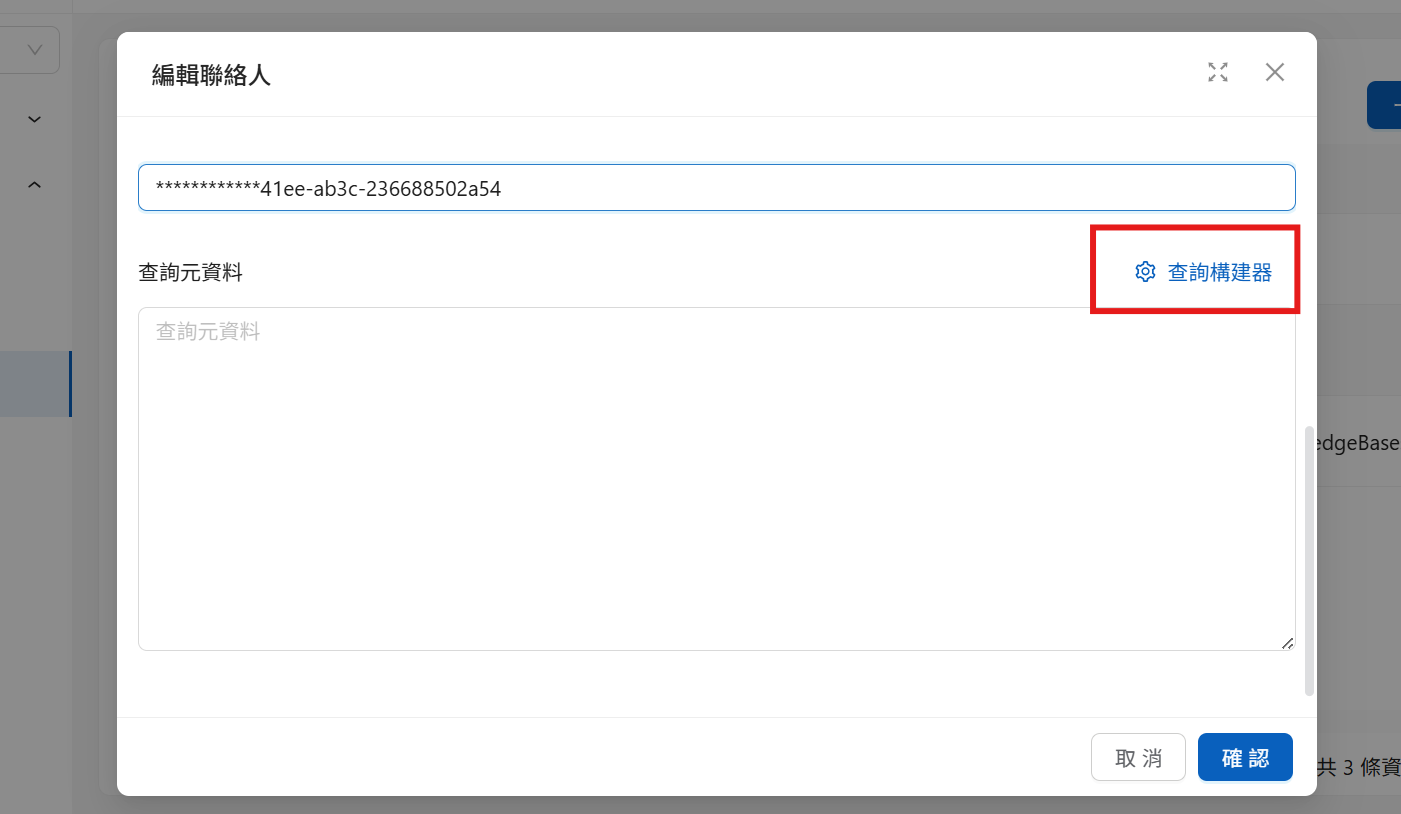
編集画面で<mark style="color:blue;">クエリビルダー</mark>をクリックし、グラフィカルインターフェースを開きます。

<figure><img src="https://605688223-files.gitbook.io/~/files/v0/b/gitbook-x-prod.appspot.com/o/spaces%2FVYMUz6J7vDZ0QTvb1rbN%2Fuploads%2Fgit-blob-ce1f2353f60000f676e26df8cd028b2729a238e1%2Fquery%20metadata%20maker.png?alt=media" alt=""><figcaption><p>クエリビルダーへの入口</p></figcaption></figure>

### ステップ 3：許可する範囲を選択する <a href="#step-3-select" id="step-3-select"></a>

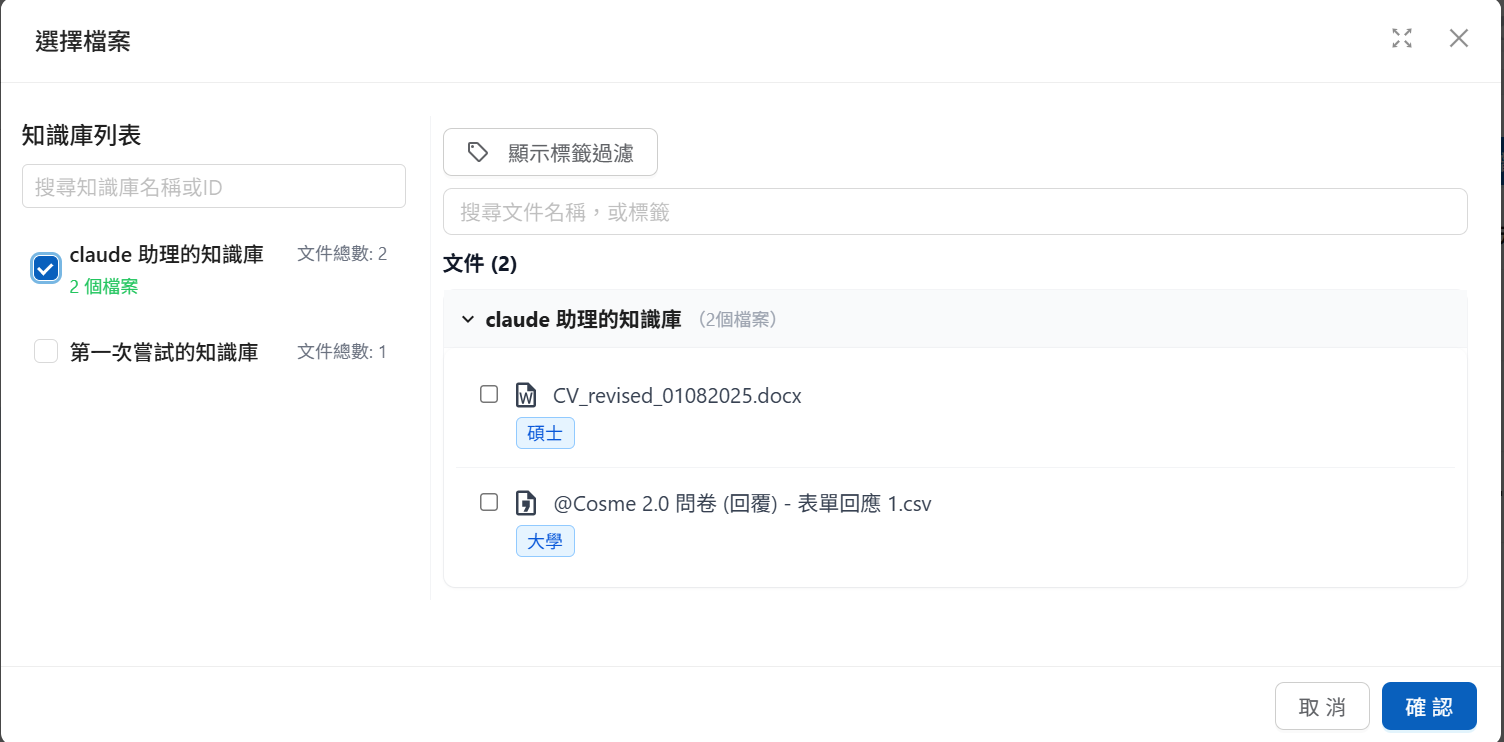
許可するナレッジベースを選択します。ナレッジベースを展開すると、その中の一部のドキュメントだけを選択できます。

<figure><img src="https://605688223-files.gitbook.io/~/files/v0/b/gitbook-x-prod.appspot.com/o/spaces%2FVYMUz6J7vDZ0QTvb1rbN%2Fuploads%2Fgit-blob-3cb875fe8a74fe9532e04d2d816b04dab3c3f3b3%2F%E8%9E%A2%E5%B9%95%E6%93%B7%E5%8F%96%E7%95%AB%E9%9D%A2%202025-08-07%20170306.png?alt=media" alt=""><figcaption><p>ナレッジベースとドキュメントの選択</p></figcaption></figure>

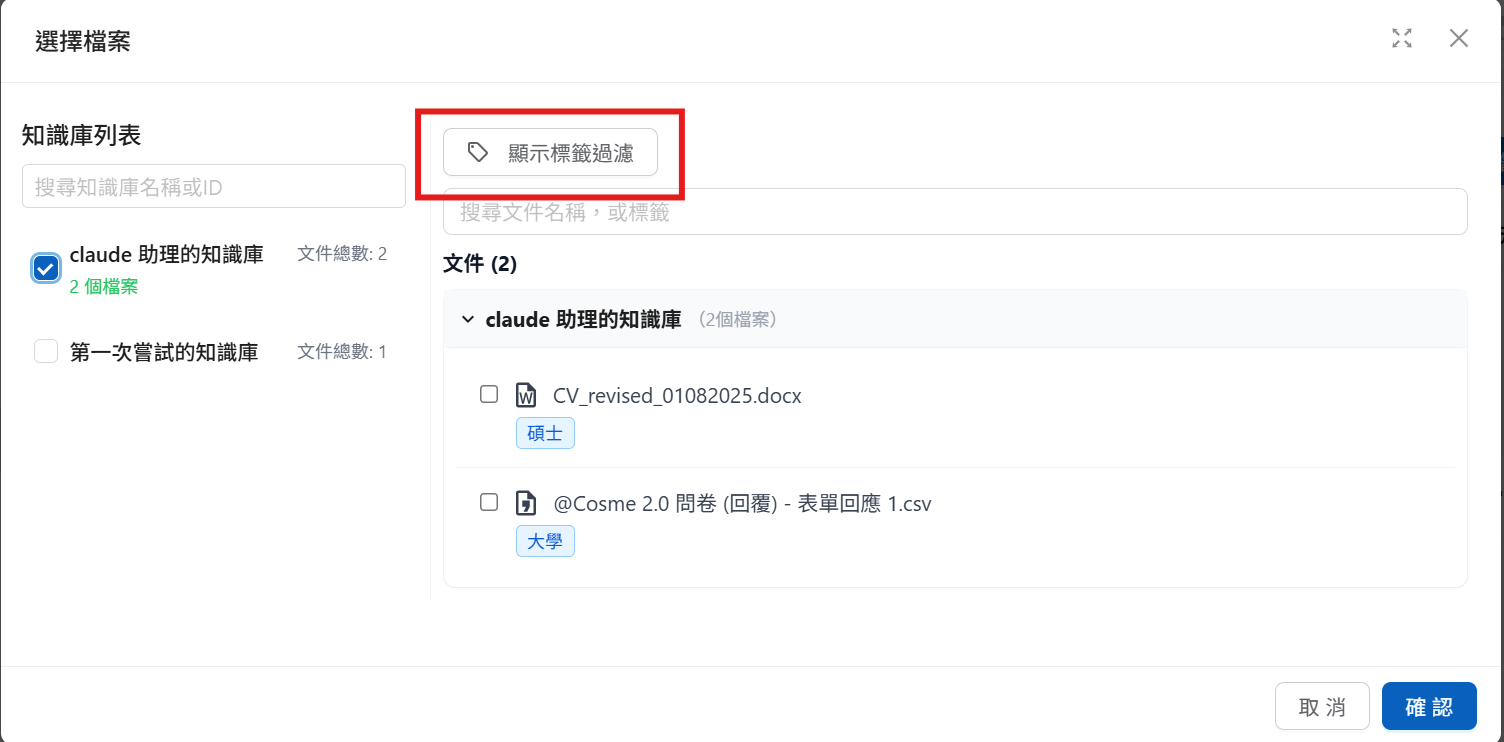
ラベルで絞り込む場合は、<mark style="color:blue;">ラベルフィルターを表示</mark>をクリックしてラベル条件の設定を展開します。

<figure><img src="https://605688223-files.gitbook.io/~/files/v0/b/gitbook-x-prod.appspot.com/o/spaces%2FVYMUz6J7vDZ0QTvb1rbN%2Fuploads%2Fgit-blob-4858e1ff92d8efc4cd28216d2ff05c207215aaca%2F%E8%9E%A2%E5%B9%95%E6%93%B7%E5%8F%96%E7%95%AB%E9%9D%A2%202025-08-07%20170306-1.png?alt=media" alt=""><figcaption><p>ラベルフィルターの設定</p></figcaption></figure>

ラベル条件は `OR`（いずれかのラベルに一致）または `AND`（すべてのラベルに同時に一致する必要があります）で組み合わせ、選択済みのナレッジベースの範囲内でドキュメントをさらに絞り込みます。これは [JSON 形式の `label_relations`](/tech/ja/authorization-integration/zhi-shi-guan-li-quan-xian-query-metadata-cha-xun-yuan-zi-liao-zong-lan/json-interfaces.md#id-1labelrelations-luo-ji) と同じ意味です。

## 社内Q\&A：メッセージごとの設定 <a href="#message-level" id="message-level"></a>

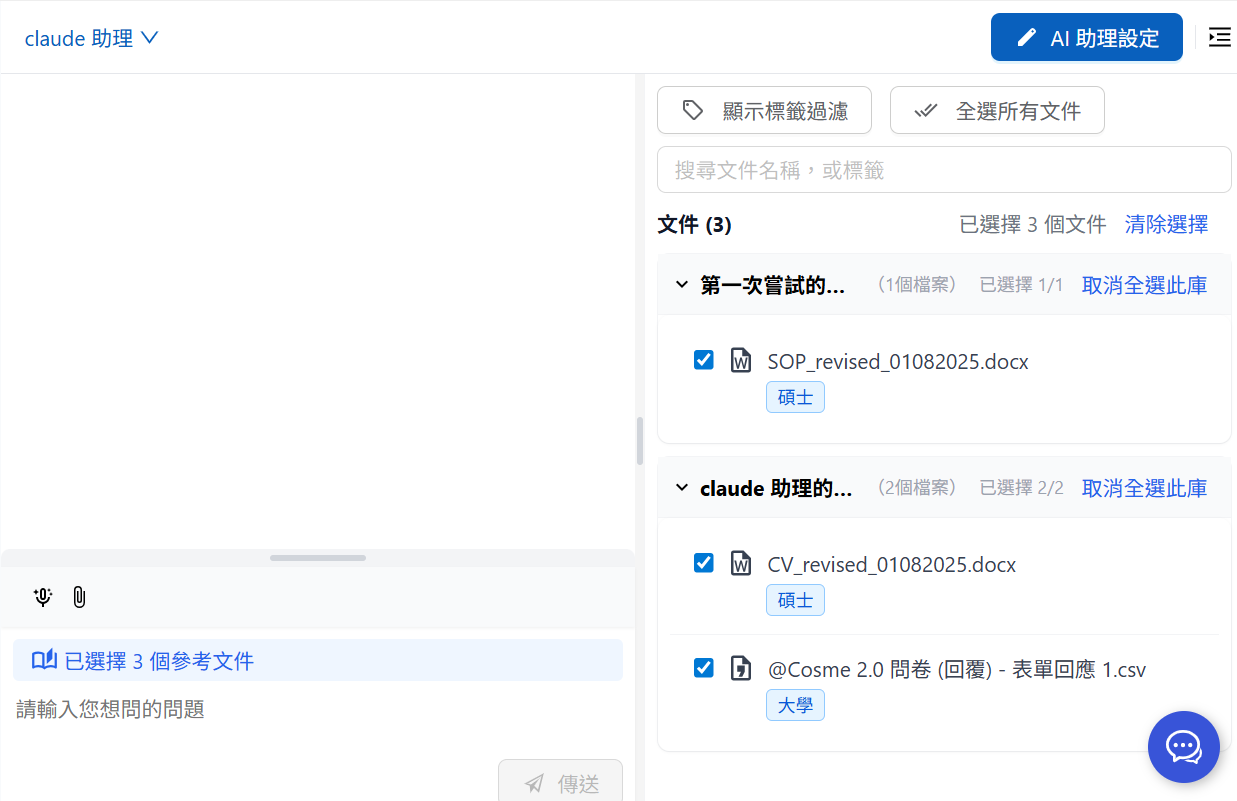
メンバーが社内Q\&Aを使用する際、画面右側のメニューで、そのメッセージが参照するナレッジ範囲（メッセージレベルの Query Metadata）を選択できます。

<figure><img src="https://605688223-files.gitbook.io/~/files/v0/b/gitbook-x-prod.appspot.com/o/spaces%2FVYMUz6J7vDZ0QTvb1rbN%2Fuploads%2Fgit-blob-c197581d7292296d9555671138c8d7ed62ce5a70%2F%E8%9E%A2%E5%B9%95%E6%93%B7%E5%8F%96%E7%95%AB%E9%9D%A2%202025-08-08%20095028.png?alt=media" alt=""><figcaption><p>社内Q&#x26;A：利用可能なナレッジ権限の選択</p></figcaption></figure>

同様に、<mark style="color:blue;">ラベルフィルターを表示</mark>を使用してラベル条件を設定できます。

{% hint style="info" %}
メッセージを送信する前に毎回調整でき、**その回の回答**が引用できる内容にのみ影響します。メッセージレベルの設定は連絡先レベルより優先されます（[解決順序](/tech/ja/authorization-integration/zhi-shi-guan-li-quan-xian-query-metadata-cha-xun-yuan-zi-liao-zong-lan.md#resolution-order)を参照してください）。
{% endhint %}

### 動作例 <a href="#demo" id="demo"></a>

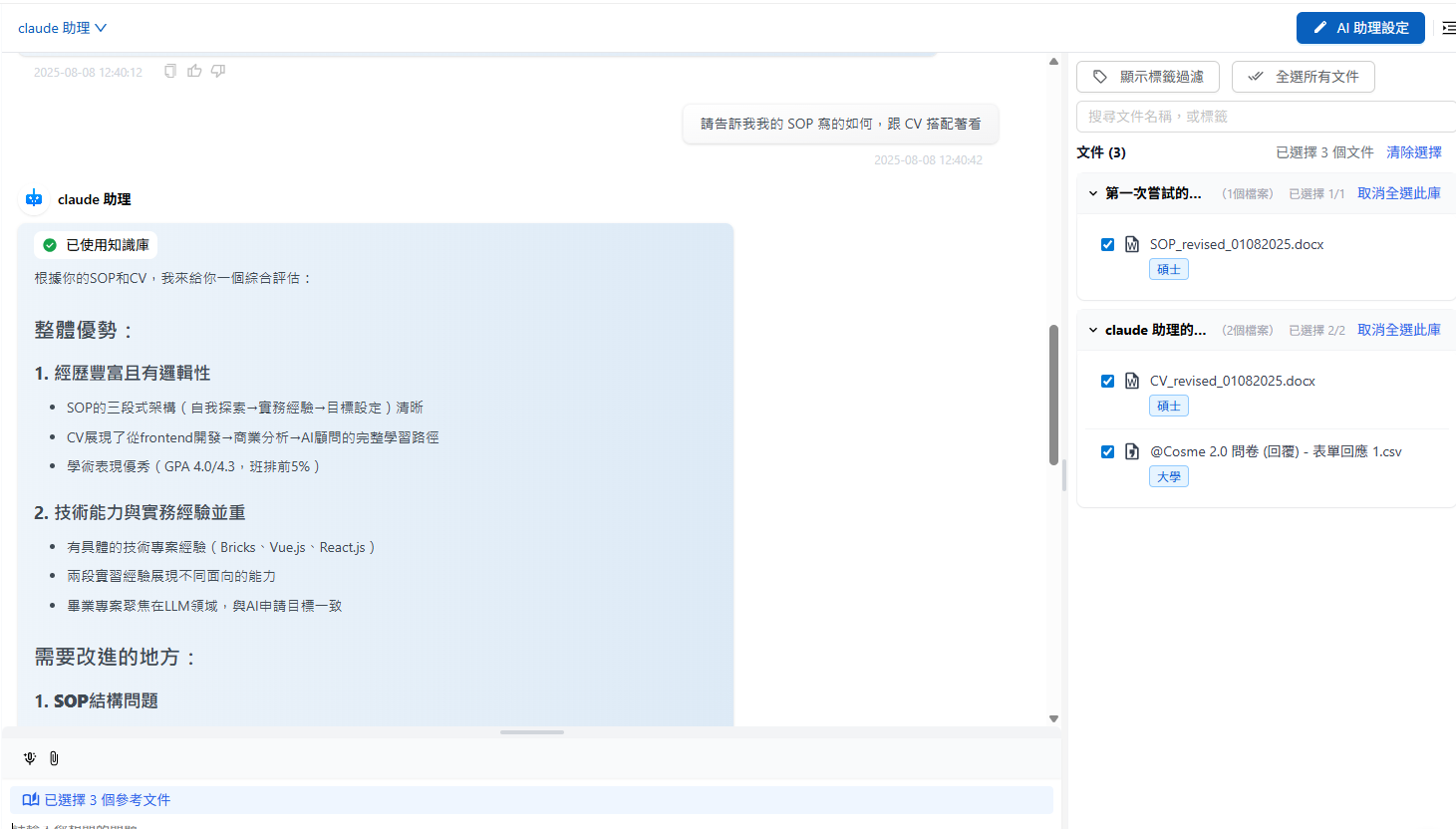
CV、SOP、アンケート調査の3つのファイルを選択すると、AI は3つすべてを引用できます。

<figure><img src="https://605688223-files.gitbook.io/~/files/v0/b/gitbook-x-prod.appspot.com/o/spaces%2FVYMUz6J7vDZ0QTvb1rbN%2Fuploads%2Fgit-blob-1fd810ec8e5c4b185673a93858d73a36bca5d085%2F%E8%9E%A2%E5%B9%95%E6%93%B7%E5%8F%96%E7%95%AB%E9%9D%A2%202025-08-08%20124143.png?alt=media" alt=""><figcaption><p>利用可能なドキュメント一覧</p></figcaption></figure>

<figure><img src="https://605688223-files.gitbook.io/~/files/v0/b/gitbook-x-prod.appspot.com/o/spaces%2FVYMUz6J7vDZ0QTvb1rbN%2Fuploads%2Fgit-blob-e6b0091dcec82fe35f8d8f6f859ed8fd886249a0%2F%E8%9E%A2%E5%B9%95%E6%93%B7%E5%8F%96%E7%95%AB%E9%9D%A2%202025-08-08%20124344.png?alt=media" alt=""><figcaption><p>選択済みドキュメントの状態</p></figcaption></figure>

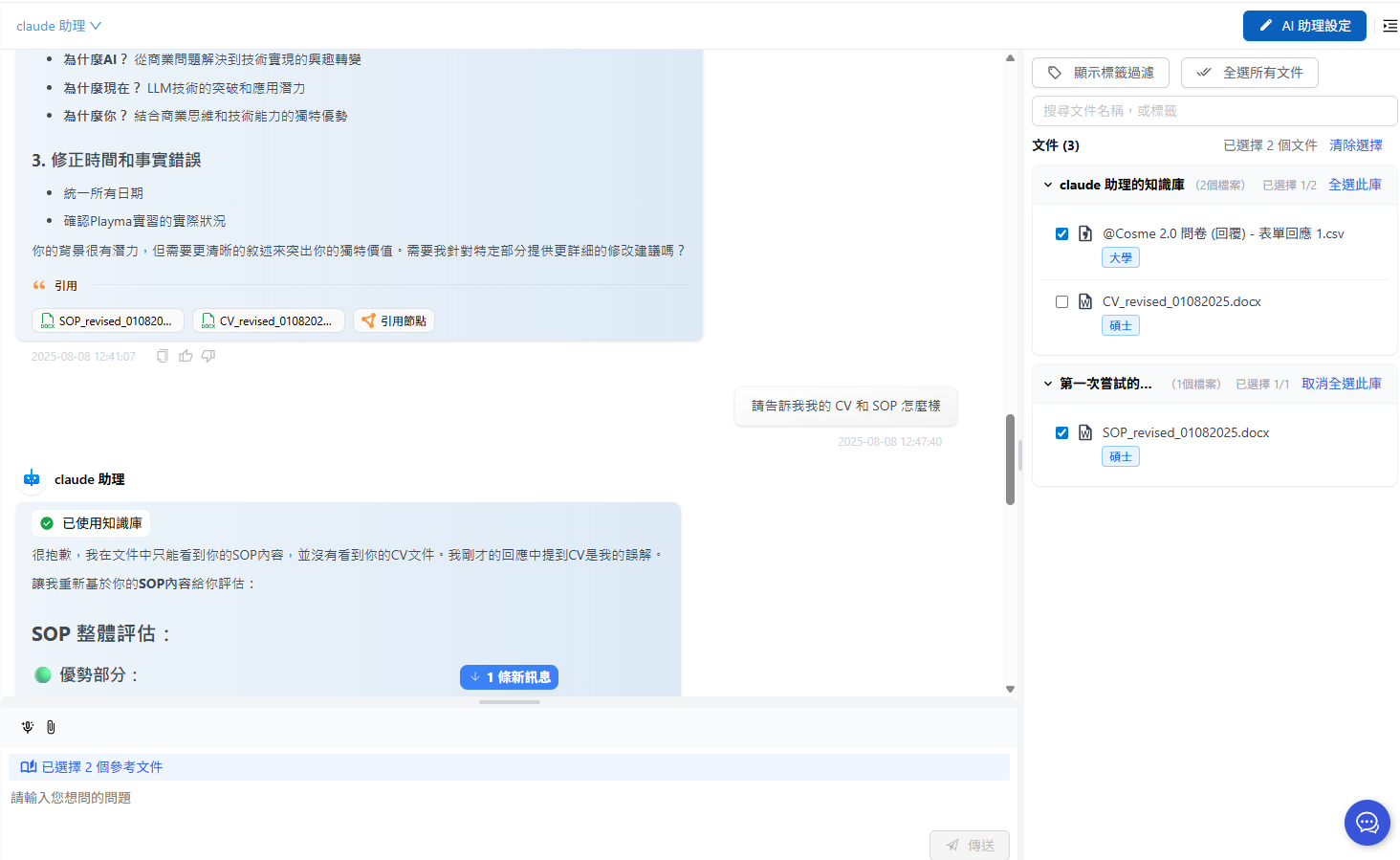
次のメッセージでは CV の選択を解除してから送信します。

<figure><img src="https://605688223-files.gitbook.io/~/files/v0/b/gitbook-x-prod.appspot.com/o/spaces%2FVYMUz6J7vDZ0QTvb1rbN%2Fuploads%2Fgit-blob-9805fef0555d8b09f66eebd0114738a62852f580%2F%E8%9E%A2%E5%B9%95%E6%93%B7%E5%8F%96%E7%95%AB%E9%9D%A2%202025-08-08%20124830.png?alt=media" alt=""><figcaption><p>ドキュメントの選択を解除する例</p></figcaption></figure>

すると AI は CV ファイルを使用できなくなり、引用一覧にも CV が表示されなくなります。

<figure><img src="https://605688223-files.gitbook.io/~/files/v0/b/gitbook-x-prod.appspot.com/o/spaces%2FVYMUz6J7vDZ0QTvb1rbN%2Fuploads%2Fgit-blob-18ee67d0a77a1ce864386d755225372b9f15fd63%2F%E8%9E%A2%E5%B9%95%E6%93%B7%E5%8F%96%E7%95%AB%E9%9D%A2%202025-08-08%20124958.png?alt=media" alt=""><figcaption><p>引用一覧の変化：CV を削除した後</p></figcaption></figure>


---

# Agent Instructions
This documentation is published with GitBook. GitBook is the documentation platform designed so that both humans and AI agents can read, navigate, and reason over technical content effectively. Learn more at gitbook.com.

## Querying This Documentation
If you need additional information that is not directly available in this page, you can query the documentation dynamically by asking a question.

Perform an HTTP GET request on the current page URL with the `ask` query parameter, and the optional `goal` query parameter:

```
GET https://docs.maiagent.ai/tech/ja/authorization-integration/zhi-shi-guan-li-quan-xian-query-metadata-cha-xun-yuan-zi-liao-zong-lan/graphical-interface.md?ask=<question>&goal=<endgoal>
```

`ask` is the immediate question: it should be specific, self-contained, and written in natural language.
`goal` is optional and describes the broader end goal you are ultimately trying to accomplish on behalf of the user. GitBook uses it to tailor the answer towards what is most useful for that goal.

The response will contain a direct answer to the question and relevant excerpts and sources from the documentation.

Use this mechanism when the answer is not explicitly present in the current page, you need clarification or additional context, or you want to retrieve related documentation sections.