> For the complete documentation index, see [llms.txt](https://docs.maiagent.ai/llms.txt). Markdown versions of documentation pages are available by appending `.md` to page URLs; this page is available as [Markdown](https://docs.maiagent.ai/tech/en/work/maigpt-system-integration-guide/maigpt-integration.md).

# Integrate MaiGPT: Choose the Right Agent and Complete Its Capabilities

Integrate MaiGPT into your system: distinguish the MaiGPT product from MaiGPT window mode, build your own Agent with image generation and other tools for customers, or embed the MaiGPT product with me

“MaiGPT” refers to two different things on the MaiAgent platform. Distinguishing them before integrating can save most of the back-and-forth:

|                                  | **MaiGPT product** (built-in organization Agent)                                                                                                                                                                                                                                                                                                      | **MaiGPT window mode** (a Web Chat SDK layout)                                                                                                                 |
| -------------------------------- | ----------------------------------------------------------------------------------------------------------------------------------------------------------------------------------------------------------------------------------------------------------------------------------------------------------------------------------------------------- | -------------------------------------------------------------------------------------------------------------------------------------------------------------- |
| What it is                       | An enterprise AI workspace automatically provided to every organization and centrally maintained by MaiAgent, with built-in AI image generation, Deep Research, connectors, and more. See [What is MaiGPT?](https://docs.maiagent.ai/work/maigpt)                                                                                                     | A **full ChatGPT-like interface** (sidebar conversation history, search, settings) enabled by `enabledWindowModes: ['maigpt']`; purely a frontend presentation |
| Who can use it                   | Organization **members** after signing in (web, iOS App, LINE, Microsoft Teams), with permissions controlled by [role usage permissions](https://docs.maiagent.ai/org/roles/maigpt-role-permissions)                                                                                                                                                  | Any Web Chat can use this layout, including anonymous visitors and users with [contact identity](/tech/en/serve/web-chat-sdk.md#identify-users)                |
| Can you embed it in your system? | **Only for organization members**: creating a conversation requires member identity and the `maigpt_access` permission. Embedding it directly using its Web Chat ID returns `400 You do not have permission to use MaiGPT.` To embed it for members, follow [embedding with member identity](#member-embed) and have your backend issue member tokens | **Yes**: sections 2 and 3 of this page explain how                                                                                                             |
| Can you customize it?            | **No**: instructions, models, tools, and skills are configured centrally by the platform. Organizations can only **restrict** access through role permissions                                                                                                                                                                                         | **Yes**: the interface runs on an AI Agent you create. You control its instructions, models, tools, and knowledge bases                                        |

**Conclusion**: there are two use cases. For **your customers who are not organization members**, **create your own AI Agent, add the tools you need, and embed it in MaiGPT window mode** (sections 2 and 3). For **organization members** who need the MaiGPT product's capabilities (image generation, Deep Research, connectors, role permissions), use [embedding with member identity](#member-embed) (section 5), with your backend issuing short-lived tokens for members.

## 1. Common Symptoms <a href="#symptoms" id="symptoms"></a>

| What you see                                                                                                                                          | Cause                                                                                                                                           | Solution                                                                                                                                                                     |
| ----------------------------------------------------------------------------------------------------------------------------------------------------- | ----------------------------------------------------------------------------------------------------------------------------------------------- | ---------------------------------------------------------------------------------------------------------------------------------------------------------------------------- |
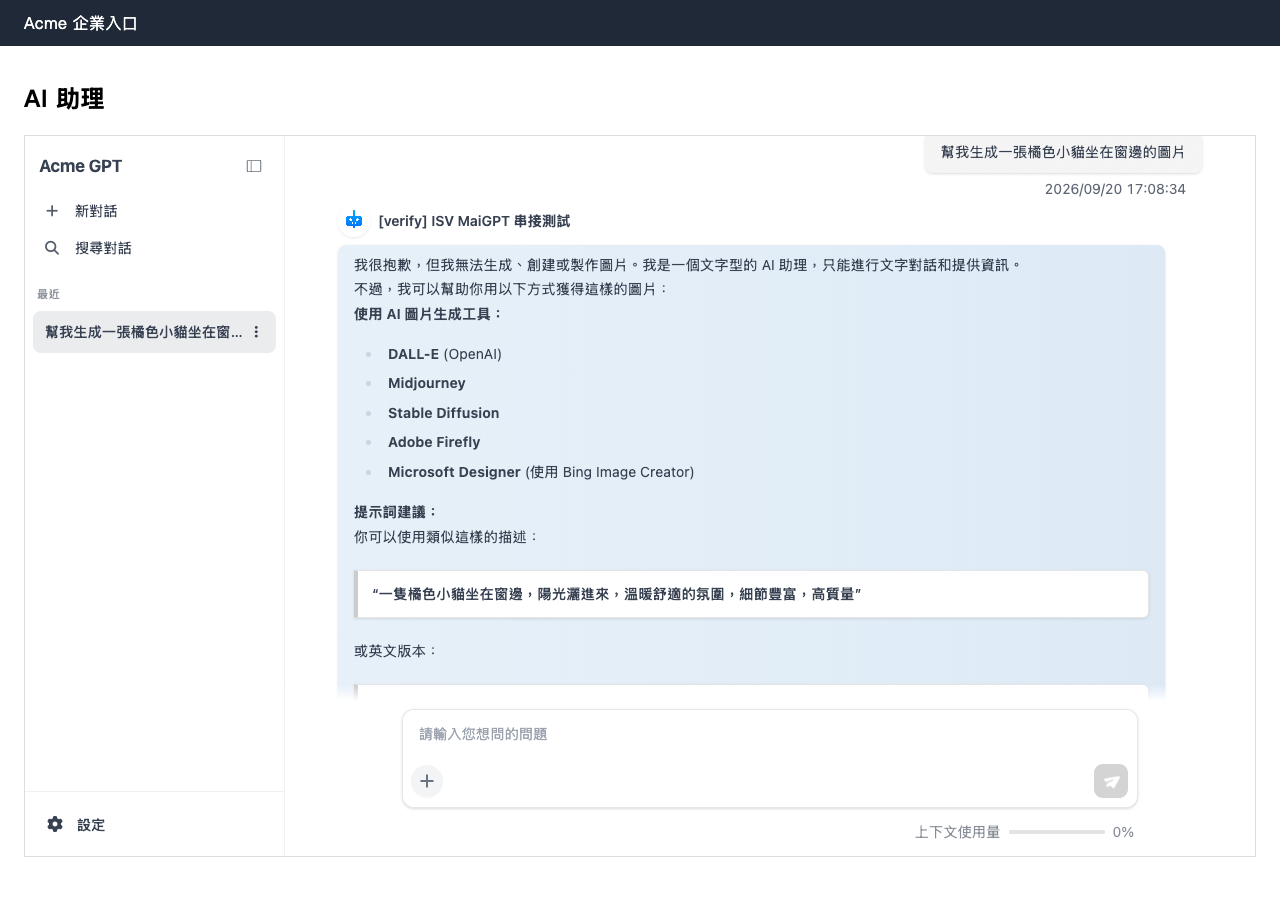
| The interface looks like MaiGPT, but responses behave like a regular chat. When asked to generate an image, the AI replies “I cannot generate images” | You embedded a regular AI Agent, and either (1) its reply mode is not **Agent mode**, or (2) it has no image generation or other tools attached | Follow [section 2](#build-agent) to switch to Agent mode and add tools                                                                                                       |
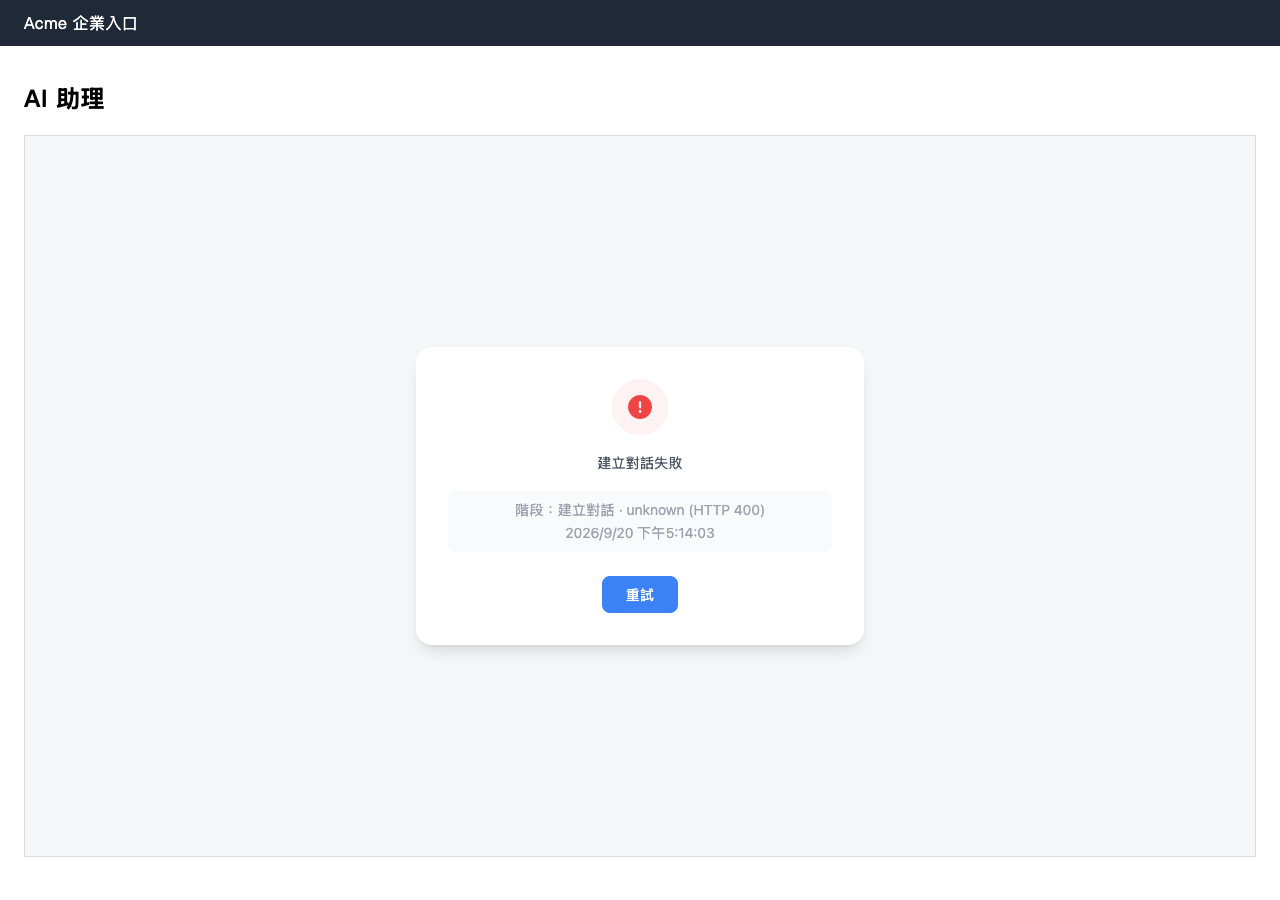
| The chat window will not open and displays “Failed to create conversation (HTTP 400)”; the API returns `You do not have permission to use MaiGPT.`    | The embedded Web Chat ID belongs to the organization's built-in MaiGPT product, and the visitor has no member identity                          | For customers → use your own Agent's Web Chat ID ([section 3](#embed)); for members → provide a member token as described in [embedding with member identity](#member-embed) |
| MaiGPT does not appear in the backend AI Agent list API                                                                                               | `GET /api/v1/chatbots/` lists only Agents created by the organization; the MaiGPT product is excluded                                           | This is expected behavior; integrations use Agents you create                                                                                                                |

<figure><img src="https://3415477754-files.gitbook.io/~/files/v0/b/gitbook-x-prod.appspot.com/o/spaces%2FNBTi475lqozGpB7xObpE%2Fuploads%2Fgit-blob-395666ae30129d6b54c4deede6fbfda478f4f635%2Fwebchat-maigpt-builtin-permission-error.png?alt=media" alt="The chat window displays a conversation creation failure when embedding the organization&#x27;s built-in MaiGPT Web Chat"><figcaption><p>Embedding the organization's built-in MaiGPT Web Chat: the visitor is not a signed-in member, so conversation creation is rejected (HTTP 400)</p></figcaption></figure>

## 2. Create an AI Agent That Can Generate Images and Use Tools <a href="#build-agent" id="build-agent"></a>

The following example uses AI image generation. Add other capabilities (web search, web fetching, MCP tools, your own API tools) in the same way.

{% stepper %}
{% step %}

### Create an AI Agent

In the admin console, go to “AI Features → AI Assistants”, create a new AI Agent, and set its role instructions and model. See [Create an Agent](https://docs.maiagent.ai/build/agent/setup) in the user manual.
{% endstep %}

{% step %}

### Switch the Reply Mode to “Agent Mode”

Open the Agent's “Reply Mode Settings” and change its reply mode to **Agent mode**.

{% hint style="danger" %}
Only Agent mode calls tools. The default “RAG Q\&A” mode responds quickly but **does not use any tools**—this is the most common reason why an Agent still cannot generate images after you add an image generation tool.
{% endhint %}
{% endstep %}

{% step %}

### Add Tools

Open the Agent's “Tools” page, click “Select Tools”, and select the built-in tools you need, such as:

* **Image generation**: `Global_Image_Tool_OpenAI_GPT_Image_2`, `Global_Image_Tool_Gemini_3`, and others (selecting one is enough; for model differences, see [Built-in AI Image Generation Tools](https://docs.maiagent.ai/build/tools/ai-image-generation-guide))
* **Web search**: `Global_Tavily_Search_Tool`
* **Web fetching**: `Global_Web_Fetch_Tool`
* Your system's [API tools](/tech/en/api-integration/api-tool-engineering-guide.md) or MCP tools

For the full procedure, see [Configure Tools for an Agent](https://docs.maiagent.ai/build/tools/configure_tools) in the user manual.
{% endstep %}

{% step %}

### Create a Web Chat Conversation Platform

Under “Customer Service Conversations → Conversation Platforms”, add a **Web Chat** for this Agent and obtain its `webChatId`. See [Connect a Conversation Platform: Website](https://docs.maiagent.ai/build/choose-channel/web-chat/website).
{% endstep %}
{% endstepper %}

### Automate with the API (for ISVs Setting Up Customer Environments) <a href="#build-agent-api" id="build-agent-api"></a>

All four steps above have corresponding APIs, allowing software vendors to automate provisioning for each customer. For authentication and obtaining an API Key, see [Quickstart](/tech/en/api-integration/quickstart.md).

```bash
# 1. List built-in tools and obtain the image generation tool's id
GET /api/v1/tools/

# 2. Create an AI Agent: agent reply mode + attached tools
POST /api/v1/chatbots/
{
  "name": "Acme GPT",
  "instructions": "You are Acme's AI assistant. Please respond in Traditional Chinese.",
  "largeLanguageModel": "<LLM id>",
  "embeddingModel": "<embedding model id>",
  "rerankerModel": "<reranker model id>",
  "replyMode": "agent",
  "tools": ["<id of Global_Image_Tool_OpenAI_GPT_Image_2>"]
}

# 3. Create a Web Chat conversation platform for the Agent (channel.id in the response is webChatId)
POST /api/v1/inboxes/
{
  "name": "Acme GPT",
  "chatbot": "<chatbot id>",
  "channelType": "web",
  "channel": {
    "name": "Acme GPT",
    "theme": { "primaryColor": "#1890ff", "...": "..." },
    "darkTheme": { "primaryColor": "#404040", "...": "..." }
  }
}
```

* To change an existing Agent's mode or add tools, use `PATCH /api/v1/chatbots/{id}/`. Pass the complete array of tool ids in `tools` (the entire array is replaced)
* `theme` and `darkTheme` are required. To get a ready-made set of fields to copy, call `GET /api/v1/web-chats/{existing webChatId}/`
* Always create a Web Chat together with its inbox via `POST /api/v1/inboxes/`. Calling `POST /api/v1/web-chats/` directly creates an orphan Web Chat without an inbox, which returns 404 when embedded

## 3. Embed in MaiGPT Window Mode <a href="#embed" id="embed"></a>

Use the `webChatId` from section 2 and add the embed code from [Embed in MaiGPT Mode](/tech/en/serve/web-chat-sdk/web-chat-maigpt-mode.md) to your page:

```html
<div id="maigpt-container" style="height: 720px;"></div>
<script>
  window.maiagentChatbotConfig = {
    webChatId: '<webChatId created in section 2>',
    baseUrl: 'https://chat.maiagent.ai/web-chats',
    enabledWindowModes: ['maigpt'],
    targetElement: '#maigpt-container',
    maigptTitle: 'Acme GPT',
  }
</script>
<script src="https://chat.maiagent.ai/js/embed.min.js" defer></script>
```

To let the Agent identify signed-in users and call your APIs with their permissions, add `contactId` or `auth` as described in the [Software Vendor Integration Guide](/tech/en/serve/vendor-integration-guide.md).

### Verification: The Same Embed Code, Before and After Adding Capabilities <a href="#verify" id="verify"></a>

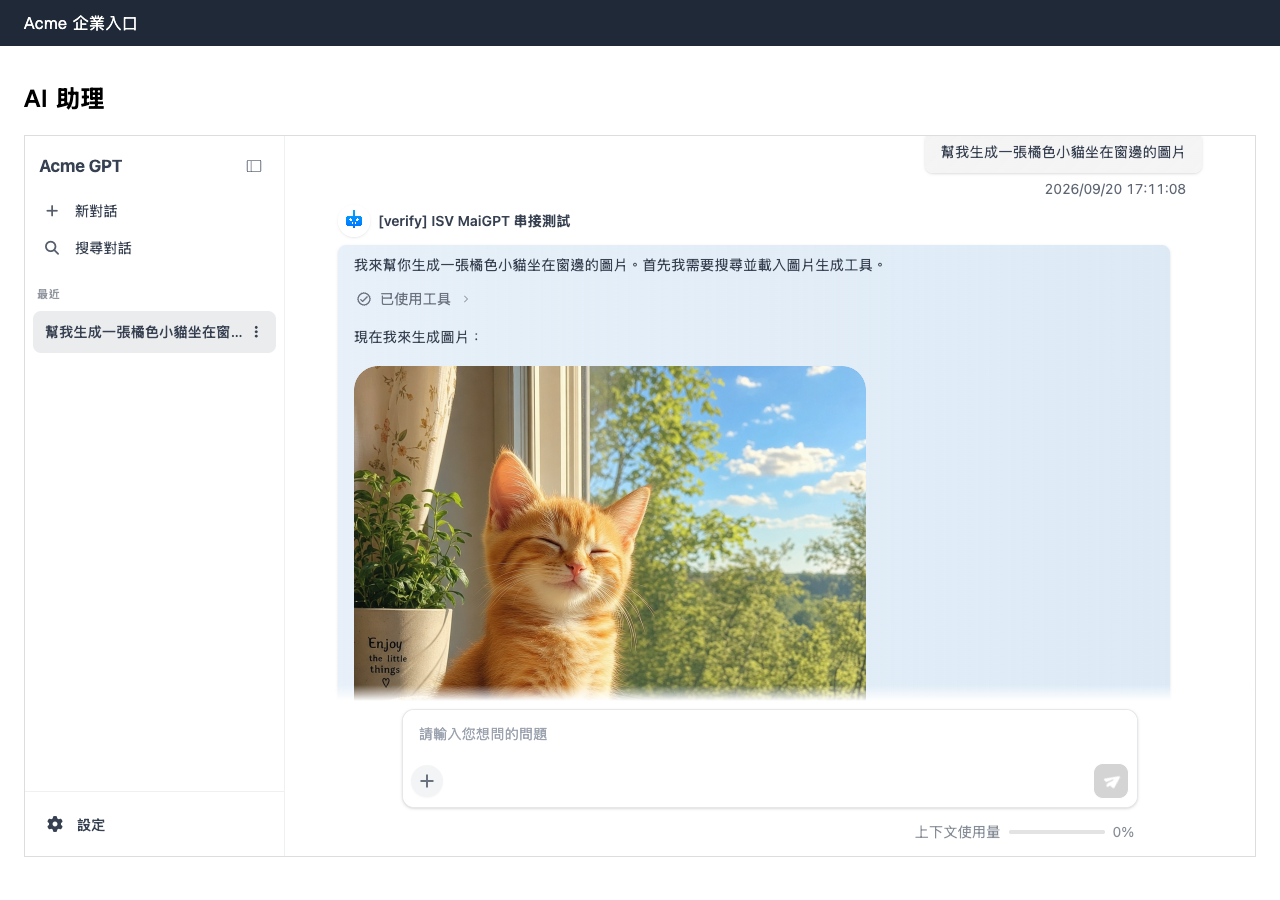
The two screenshots below show the same AI Agent and the same embed code. Only the “reply mode + tools” settings differ:

{% tabs %}
{% tab title="Before: RAG Q\&A mode, no tools" %}

<figure><img src="https://3415477754-files.gitbook.io/~/files/v0/b/gitbook-x-prod.appspot.com/o/spaces%2FNBTi475lqozGpB7xObpE%2Fuploads%2Fgit-blob-fff3ac5078e623be9f11f236a6bfc84da898cffd%2Fwebchat-maigpt-agent-before-tools.png?alt=media" alt="In MaiGPT window mode, an Agent without tools replies that it cannot generate images"><figcaption><p>The interface uses MaiGPT window mode, but the Agent replies “I cannot generate, create, or produce images”</p></figcaption></figure>
{% endtab %}

{% tab title="After: Agent mode + image generation tool" %}

<figure><img src="https://3415477754-files.gitbook.io/~/files/v0/b/gitbook-x-prod.appspot.com/o/spaces%2FNBTi475lqozGpB7xObpE%2Fuploads%2Fgit-blob-bb169ef18215ee1c7aea31a29a3004458d46802f%2Fwebchat-maigpt-agent-with-image-tool.png?alt=media" alt="In MaiGPT window mode, an Agent with an image generation tool generates an image directly"><figcaption><p>With the same embed code, the Agent calls the image generation tool and produces an image directly in the conversation</p></figcaption></figure>
{% endtab %}
{% endtabs %}

## 4. When to Use the MaiGPT Product Itself <a href="#when-to-use-maigpt-product" id="when-to-use-maigpt-product"></a>

If you want “an internal Agent with ChatGPT-level capabilities for our employees”, rather than “an embedded experience in our product for our customers”, using the MaiGPT product directly is the easiest option:

* Employees can sign in to the platform as organization members and use it via the [web version](https://docs.maiagent.ai/work/maigpt/access/web), [iOS App](https://docs.maiagent.ai/work/maigpt/access/ios), [LINE](https://docs.maiagent.ai/work/maigpt/access/line), or [Microsoft Teams](https://docs.maiagent.ai/work/maigpt/access/teams)
* Image generation, Deep Research, connectors, and skills are built in. Administrators only need to use [role usage permissions](https://docs.maiagent.ai/org/roles/maigpt-role-permissions) to decide who can use which features
* To add company-specific knowledge, make the knowledge bases available within the scope visible to members; you do not need to create another Agent

“Embed it in our system for organization members” → use embedding with member identity in section 5. If any of these apply—“for non-members (customers, registered users)”, “add our own API tools”, or “change instructions or models”—use the custom Agent approach in sections 2 and 3.

## 5. Embed with Member Identity: Embed the MaiGPT Product in Your System for Organization Members <a href="#member-embed" id="member-embed"></a>

{% hint style="info" %}
For a walkthrough from start to finish, see [Add MaiGPT to Your System](/tech/en/work/maigpt-system-integration-guide.md). This section provides a complete parameter reference.
{% endhint %}

Use this approach when your system's users **are also members of a MaiAgent organization** (such as an enterprise portal, employee workspace, or ISV-managed internal enterprise system) and you want the MaiGPT product itself without creating another Agent. **Your backend** uses the organization API Key to issue a short-lived token for the signed-in member. The frontend embeds MaiGPT's Web Chat using the SDK's existing member identity injection settings.

```mermaid
sequenceDiagram
    participant U as Member browser
    participant P as Your backend
    participant M as MaiAgent API
    participant W as MaiGPT Web Chat
    U->>P: Signed in, opens a page containing MaiGPT
    U->>P: SDK calls auth.getToken → requests your backend
    P->>M: POST /api/v1/members/embed-tokens/ (Api-Key, specifying member email)
    M-->>P: accessToken (15 minutes), organizationId, member.userId
    P-->>U: Returns to getToken
    U->>W: SDK creates conversations and sends messages as the member
    Note over U,W: When the token is near expiry, iframe notifies SDK, which calls getToken again to renew automatically
```

### Prerequisites <a href="#member-embed-prerequisites" id="member-embed-prerequisites"></a>

* An **organization API Key** whose holder is the organization owner or has the “Organization Overview” management permission through their role—only a Key issued by someone who can manage members can issue tokens on members' behalf. For obtaining an API Key, see [Quickstart](/tech/en/api-integration/quickstart.md)
* The user must already be a member of the organization, with a role that permits MaiGPT access ([MaiGPT Role Usage Permissions](https://docs.maiagent.ai/org/roles/maigpt-role-permissions)). Token issuance returns 404 if the member does not exist; it does not provision members automatically. For how users become members (SCIM provisioning API, admin console invitations, SSO), see [Member Provisioning](/tech/en/identity-and-access/member-provisioning.md). The standard ISV-managed integration uses SCIM to create members, then issues tokens as described in this section
* MaiGPT's Web Chat ID: the entry returned by `GET /api/v1/web-chats/` with the name `MaiGPT` and `accessType` set to `web`

### Step 1: Issue a Member Token on Your Backend <a href="#member-embed-issue" id="member-embed-issue"></a>

Create an endpoint on your backend that only signed-in users can call (for example, `GET /maigpt-token`). It calls MaiAgent internally, and the frontend SDK calls it when needed:

```bash
curl -X POST https://api.maiagent.ai/api/v1/members/embed-tokens/ \
  -H "Authorization: Api-Key <your organization API Key>" \
  -H "Content-Type: application/json" \
  -d '{"email": "alice@acme.com"}'
```

Provide either `email` or `memberId` (`memberId` is the MaiAgent member ID). Success returns `201` (`expiresAt` is in epoch milliseconds):

```json
{
  "accessToken": "<short-lived member JWT>",
  "organizationId": "8d2f...-...",
  "expiresAt": 1789906401000,
  "member": {
    "id": "c1a4...-...",
    "userId": "5e77...-...",
    "email": "alice@acme.com",
    "name": "Alice"
  }
}
```

| Status code | Meaning                                                                                                   |
| ----------- | --------------------------------------------------------------------------------------------------------- |
| `400`       | Both `email` and `memberId` were provided, or neither was provided                                        |
| `401`       | The request did not authenticate with Api-Key (member sign-in tokens and anonymous requests are rejected) |
| `403`       | The API Key holder is neither the organization owner nor authorized to manage the organization            |
| `404`       | The specified member does not exist, is disabled, or does not belong to the Key's organization            |

{% hint style="warning" %}
**Token rules**: tokens have a fixed lifetime of **15 minutes**, with no refresh token and no option to extend them. You can issue multiple tokens for the same member; previous tokens remain valid until expiry. This token **can only be used for Web Chat conversations** (the three calls for creating a conversation, sending messages, and continuing after handoff). Any `/api/v1/` endpoint, other conversation management operation, or WebSocket request using it returns `401`. Each issuance is recorded in the organization's API request logs for auditing (the token in the response is not logged).
{% endhint %}

### Step 2: Give the Frontend SDK a Token Retrieval Function <a href="#member-embed-frontend" id="member-embed-frontend"></a>

Use the same embed settings as [section 3](#embed), with an additional `auth.getToken`, and replace `webChatId` with MaiGPT's Web Chat ID:

```html
<div id="maigpt-container" style="height: 720px;"></div>
<script>
  window.maiagentChatbotConfig = {
    webChatId: '<MaiGPT Web Chat ID>',
    baseUrl: 'https://chat.maiagent.ai/web-chats',
    enabledWindowModes: ['maigpt'],
    targetElement: '#maigpt-container',
    auth: {
      // Called once when the SDK initializes, then again near token expiry to renew automatically; no timer is needed
      getToken: async () => {
        const res = await fetch('/maigpt-token', { credentials: 'include' })  // Your backend; see step 1
        const { accessToken, organizationId, member } = await res.json()
        return { accessToken, organizationId, sourceId: member.userId }
      },
    },
  }
</script>
<script src="https://chat.maiagent.ai/js/embed.min.js" defer></script>
```

Fields in the object returned by `getToken`:

| Field            | Required    | Description                                                                                                                              |
| ---------------- | ----------- | ---------------------------------------------------------------------------------------------------------------------------------------- |
| `accessToken`    | ✅           | `accessToken` from the step 1 response                                                                                                   |
| `organizationId` | ✅           | `organizationId` from the step 1 response                                                                                                |
| `sourceId`       | Recommended | `member.userId` from the step 1 response; you can also set it in `auth.sourceId`. If both are provided, `auth.sourceId` takes precedence |

Place `auth` inside `maiagentChatbotConfig` so the SDK knows to wait for member identity injection before creating the first conversation when it opens the chat window. If you call `MaiAgent.auth.setup()` only after the SDK loads, it may attempt to create the first conversation anonymously before identity injection and be rejected.

{% hint style="danger" %}
`sourceId` must be `member.userId` from the response, not `member.id` or the user ID in your system. MaiGPT uses it to associate conversations with the member. An incorrect value creates an anonymous conversation and prevents access to that member's MaiGPT history.
{% endhint %}

### How Expiry and Renewal Work <a href="#member-embed-refresh" id="member-embed-refresh"></a>

* Tokens last 15 minutes. The iframe notifies the SDK 60 seconds before expiry. The SDK calls `getToken` again to obtain and inject a new token. **The same conversation continues without reloading the page or iframe**, transparently to the user.
* **Every `getToken` call must request a new token from MaiAgent; never return a cached value**: the SDK schedules the next renewal based on the token's own lifetime. Returning the same token as before is treated as a failure and triggers the retry process below.
* If `getToken` fails (for example, the user has signed out or your backend returns 401), the SDK retries after 30, 60, and 120 seconds. If all retries fail, it stops and logs an error in the console. After the token expires, the next message fails to send and displays the existing error prompt. The conversation and messages already sent remain available.
* When users sign out of your system, call `MaiAgent.auth.signOut()`. The SDK clears their identity and stops renewal; issued tokens remain valid for at most another 15 minutes. When another user signs in, call `MaiAgent.auth.setup()` again. Any in-progress renewal for the previous user is invalidated.
* If the Web Chat enables [Source ID Signature Verification](/tech/en/serve/web-chat-sdk.md#source-id-signature), signatures are single-use. The SDK does not reuse the initial `ts`/`sig` during renewal. Have `getToken` return a new signature as well (`{ accessToken, ts, sig }`).
* If you provide a static `auth.accessToken` instead of using `getToken`, the SDK does not renew it. After 15 minutes, you must call `MaiAgent.auth.setup()` again yourself.

### Choosing Between This Approach and Your Own Agent <a href="#member-embed-vs-agent" id="member-embed-vs-agent"></a>

|                            | Embed MaiGPT with member identity (this section)                                                    | Your own Agent + MaiGPT window mode (sections 2 and 3)   |
| -------------------------- | --------------------------------------------------------------------------------------------------- | -------------------------------------------------------- |
| Users                      | Must be organization members                                                                        | Anyone (customers, registered users, anonymous visitors) |
| Capabilities               | Full MaiGPT suite: image generation, Deep Research, connectors, skills, subject to role permissions | The tools and knowledge bases you select                 |
| Custom instructions/models | No (centrally configured by the platform)                                                           | Yes                                                      |
| Backend work               | One endpoint that calls the token issuance API                                                      | None (optional contact identity synchronization)         |
| Billing attribution        | The member's credits                                                                                | The Agent/Web Chat                                       |

## 6. Frequently Asked Questions <a href="#faq" id="faq"></a>

<details>

<summary>I see a Web Chat named MaiGPT under “Conversation Platforms” in the admin console. Can I use its embed code?</summary>

You cannot use the embed code directly: it is the conversation platform for the organization's built-in MaiGPT product and serves only organization members. When embedded in an external page, visitors have no member identity, so conversation creation is rejected (HTTP 400 `You do not have permission to use MaiGPT.`). If users are already organization members, have your backend issue member tokens and embed it as described in [embedding with member identity](#member-embed). Otherwise, add a separate Web Chat for your own AI Agent.

</details>

<details>

<summary>Can my own Agent have the image generation, Deep Research, and connectors available in the MaiGPT product?</summary>

* Built-in tools such as **image generation, web search, and web fetching** are available to all Agents. Select them on the Agent's “Tools” page
* **Connectors** (Notion, Slack, Google Drive, etc.) can be linked to your own Agent in its settings
* **Deep Research and tool toggles** can be made available to end users in MaiGPT window mode. The Agent owner must enable MaiGPT mode for that Web Chat in the admin console. See [Embed in MaiGPT Window Mode](https://docs.maiagent.ai/build/choose-channel/web-chat/maigpt-embed#deep-research) in the user manual

</details>

<details>

<summary>The reply mode is already Agent and an image generation tool is attached. Why does it still not generate images?</summary>

Check in order: (1) Does the embed code's `webChatId` belong to a Web Chat attached to this Agent? (An Agent can have multiple conversation platforms.) (2) Does the organization's plan support it, and are there enough credits? (Image generation is charged per image; insufficient credits prevent messages from being sent.) (3) Do the role instructions include restrictions such as “only respond with text” that limit tool use? Tool setting changes also apply to existing conversations; you do not need to start a new one.

</details>

<details>

<summary>How does MaiGPT window mode differ from floating/sidebar?</summary>

Only the interface layout differs. They all use the same underlying AI Agent and contact mechanism. See [Embed in MaiGPT Mode](/tech/en/serve/web-chat-sdk/web-chat-maigpt-mode.md).

</details>


---

# Agent Instructions
This documentation is published with GitBook. GitBook is the documentation platform designed so that both humans and AI agents can read, navigate, and reason over technical content effectively. Learn more at gitbook.com.

## Querying This Documentation
If you need additional information that is not directly available in this page, you can query the documentation by asking a question.

Perform an HTTP GET request on the following URL with the `ask` and `goal` query parameters:

```
GET https://docs.maiagent.ai/tech/en/work/maigpt-system-integration-guide/maigpt-integration.md?ask=<question>&goal=<user_goal>
```

`ask` is the immediate question: it should be specific, self-contained, and written in natural language.
`goal` is what the user is ultimately trying to achieve, the reason they need the answer. Sharing it helps GitBook give you a better, more relevant answer. A goal is most helpful when it describes the outcome the user wants rather than restating the question. For example, with `ask=how do I create an API token`, a goal like `automate deployments from our CI pipeline` lets GitBook tailor the answer to that use case.

The response will contain a direct answer to the question and relevant excerpts and sources from the documentation.

Use this mechanism when the answer is not explicitly present in the current page, you need clarification or additional context, or you want to retrieve related documentation sections.