> For the complete documentation index, see [llms.txt](https://docs.maiagent.ai/llms.txt). Markdown versions of documentation pages are available by appending `.md` to page URLs; this page is available as [Markdown](https://docs.maiagent.ai/tech/en/serve/web-chat-sdk/web-chat-maigpt-mode.md).

# Embed in MaiGPT Mode

Embed the full ChatGPT-like MaiGPT conversation interface in your website or product, with support for a designated container or a floating button with fullscreen display

MaiGPT mode provides a **full ChatGPT-like conversation interface** (conversation history sidebar, conversation search, and settings panel). It differs from the existing "chat bubble in the bottom-right corner" (floating / sidebar) and works well as the main feature area of a page or a site-wide Agent entry point.

{% hint style="warning" %}
**MaiGPT mode determines only the interface appearance, not the Agent's capabilities.** It uses the instructions, model, and tools of the Agent whose Web Chat it is applied to. For capabilities such as image generation and web browsing, first follow [Integrating MaiGPT: Choose the Right Agent and Configure Its Capabilities](/tech/en/work/maigpt-system-integration-guide/maigpt-integration.md) to set the Agent's reply mode to Agent and attach tools. The organization's built-in MaiGPT product is available only to logged-in members, and its Web Chat cannot be embedded in external pages.
{% endhint %}

{% hint style="info" %}
This page focuses on settings specific to MaiGPT mode. For embedding basics, the full configuration reference, and the JavaScript API, see [Web Chat Embedding and SDK](/tech/en/serve/web-chat-sdk.md). Common parameters not listed here (`auth`, `queryMetadata`, button appearance, etc.) also apply to MaiGPT mode.
{% endhint %}

## 1. Two Layout Modes <a href="#layout-modes" id="layout-modes"></a>

The same configuration supports two layouts, determined by whether `targetElement` is present:

```mermaid
flowchart TD
    A["Frontend loads embed.min.js<br/>Sets maiagentChatbotConfig<br/>(first enabledWindowModes item is maigpt)"] --> B{"Does config have<br/>targetElement?"}
    B -->|Yes| C["Mode A: Embed in a designated container<br/>iframe fills the container at 100% × 100%<br/>Always visible"]
    B -->|No| D["Mode B: Floating button in the bottom-right corner<br/>Click → fullscreen iframe + close button in the top-right corner"]
    C -.->|"Element not found within 5 seconds"| E["⚠️ No embedding<br/>Error displayed in console"]
```

* **Mode A — Embed in a designated container**: MaiGPT stays visible in a designated `div` on the page (suitable as the system's main workspace)
* **Mode B — Floating button + fullscreen**: A floating button in the bottom-right corner opens a fullscreen view when clicked (suitable as a site-wide Agent entry point)

Both behaviors use the same `maigpt` mode; the only difference is the `targetElement` field.

## 2. Mode A: Embed in a Designated Container <a href="#mode-a-container" id="mode-a-container"></a>

### Embed Code <a href="#mode-a-code" id="mode-a-code"></a>

```html
<!-- Prepare a container on the page and set its dimensions yourself -->
<div id="maigpt-container" style="height: 720px;"></div>

<script>
  window.maiagentChatbotConfig = {
    webChatId: 'your-web-chat-id',
    baseUrl: 'https://chat.maiagent.ai/web-chats',
    enabledWindowModes: ['maigpt'],
    targetElement: '#maigpt-container',
    primaryColor: '#1890ff',
    maigptTitle: 'Acme GPT',
  }
</script>
<script
  src="https://chat.maiagent.ai/js/embed.min.js"
  defer>
</script>
```

{% hint style="info" %}
The `baseUrl` and SDK Loader URL examples use the SaaS environment (`chat.maiagent.ai`). For private cloud / on-premises deployments, replace them with your environment's domain.
{% endhint %}

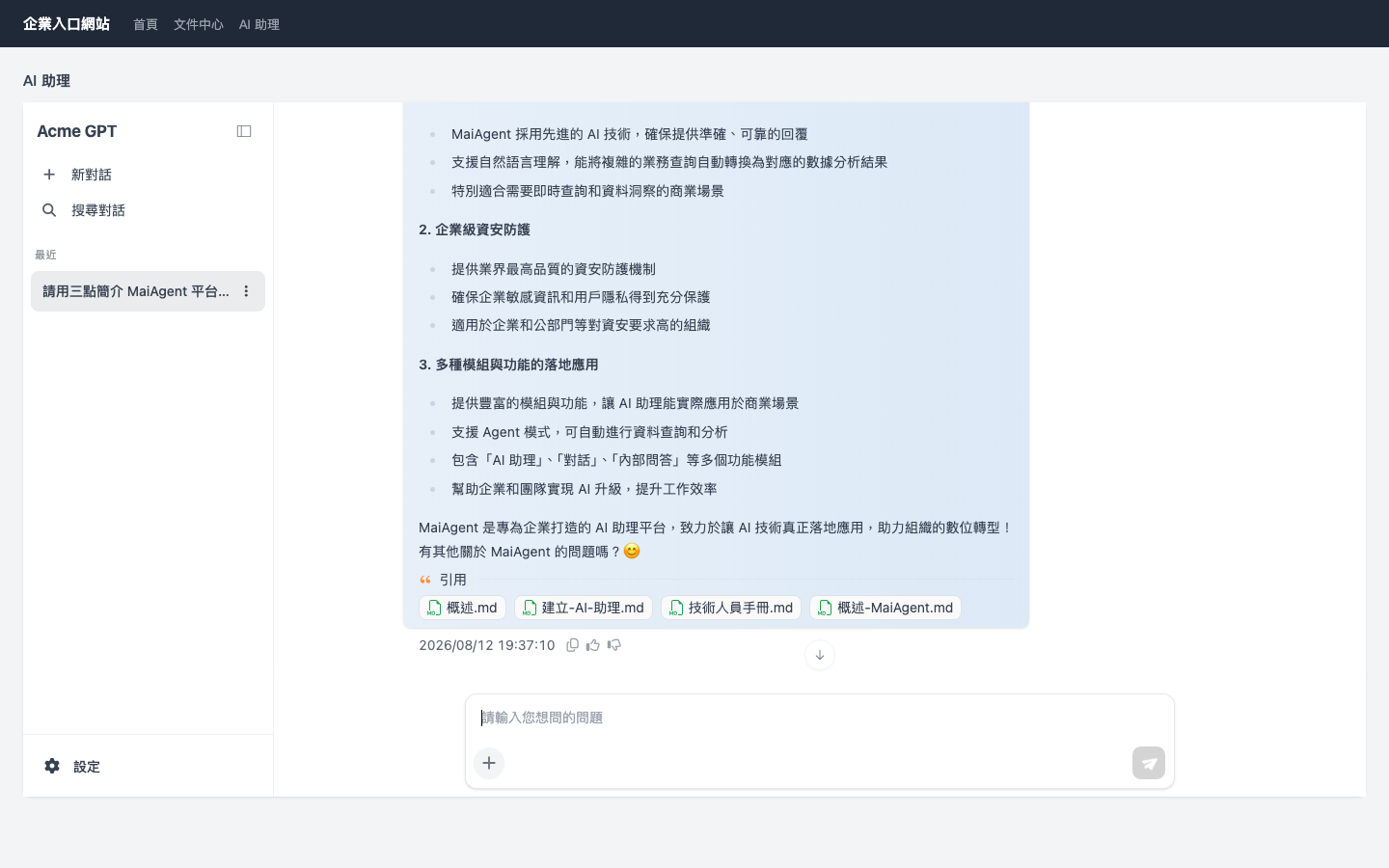
An example of the embedded interface (MaiGPT embedded in an enterprise portal, with `maigptTitle` set to the brand name):

<figure><img src="https://3415477754-files.gitbook.io/~/files/v0/b/gitbook-x-prod.appspot.com/o/spaces%2FNBTi475lqozGpB7xObpE%2Fuploads%2Fgit-blob-aab515bf01f9122d1b558aeaefcd1e59079466a0%2Fwebchat-maigpt-mode-a-container.png?alt=media" alt="MaiGPT embedded in a designated container"><figcaption><p>Mode A: MaiGPT stays visible in the designated container on the page, with the conversation history sidebar on the left</p></figcaption></figure>

### Container Requirements <a href="#container-requirements" id="container-requirements"></a>

* **You must set the container's height yourself** (the iframe fills the container at `100%`; content is invisible if the container height is 0)
* `targetElement` accepts a **CSS selector string** (such as `'#maigpt-container'`) or an **HTMLElement object**; specifying `<body>` displays it fullscreen
* When you pass a selector string, the SDK waits up to 5 seconds for the element to appear, so it can also find containers that mount a little later in an SPA
* If the container has `position: static`, the SDK automatically changes it to `position: relative`; you generally do not need to handle this
* The iframe occupies only that container and does not affect other areas of the page

{% hint style="warning" %}
**Nothing is embedded if the container cannot be found**: If the selector is incorrect, the element does not appear within 5 seconds, or the provided HTMLElement has not yet been attached to the page, MaiGPT will not appear. The console displays a `[maiagent] targetElement ... MaiGPT embed skipped` error explaining the reason.

Check that: (1) the selector is spelled correctly; (2) the container appears in the DOM within 5 seconds after the SDK loads (place the loader `<script>` after the container and add `defer`; in an SPA, load the SDK after the container mounts).
{% endhint %}

## 3. Mode B: Floating Button + Fullscreen <a href="#mode-b-floating" id="mode-b-floating"></a>

### Embed Code <a href="#mode-b-code" id="mode-b-code"></a>

```html
<script>
  window.maiagentChatbotConfig = {
    webChatId: 'your-web-chat-id',
    baseUrl: 'https://chat.maiagent.ai/web-chats',
    enabledWindowModes: ['maigpt'],
    primaryColor: '#1890ff',
    maigptTitle: 'Acme GPT',
  }
</script>
<script
  src="https://chat.maiagent.ai/js/embed.min.js"
  defer>
</script>
```

### Behavior <a href="#mode-b-behavior" id="mode-b-behavior"></a>

1. A floating button appears in the bottom-right corner of the page (using `primaryColor`)
2. Click the button → MaiGPT opens in a **fullscreen iframe**, with an "×" close button in the top-right corner
3. Click "×" → the fullscreen view collapses back to the floating button
4. When collapsed, the iframe is only hidden, not destroyed → **reopening it preserves the existing conversation state**

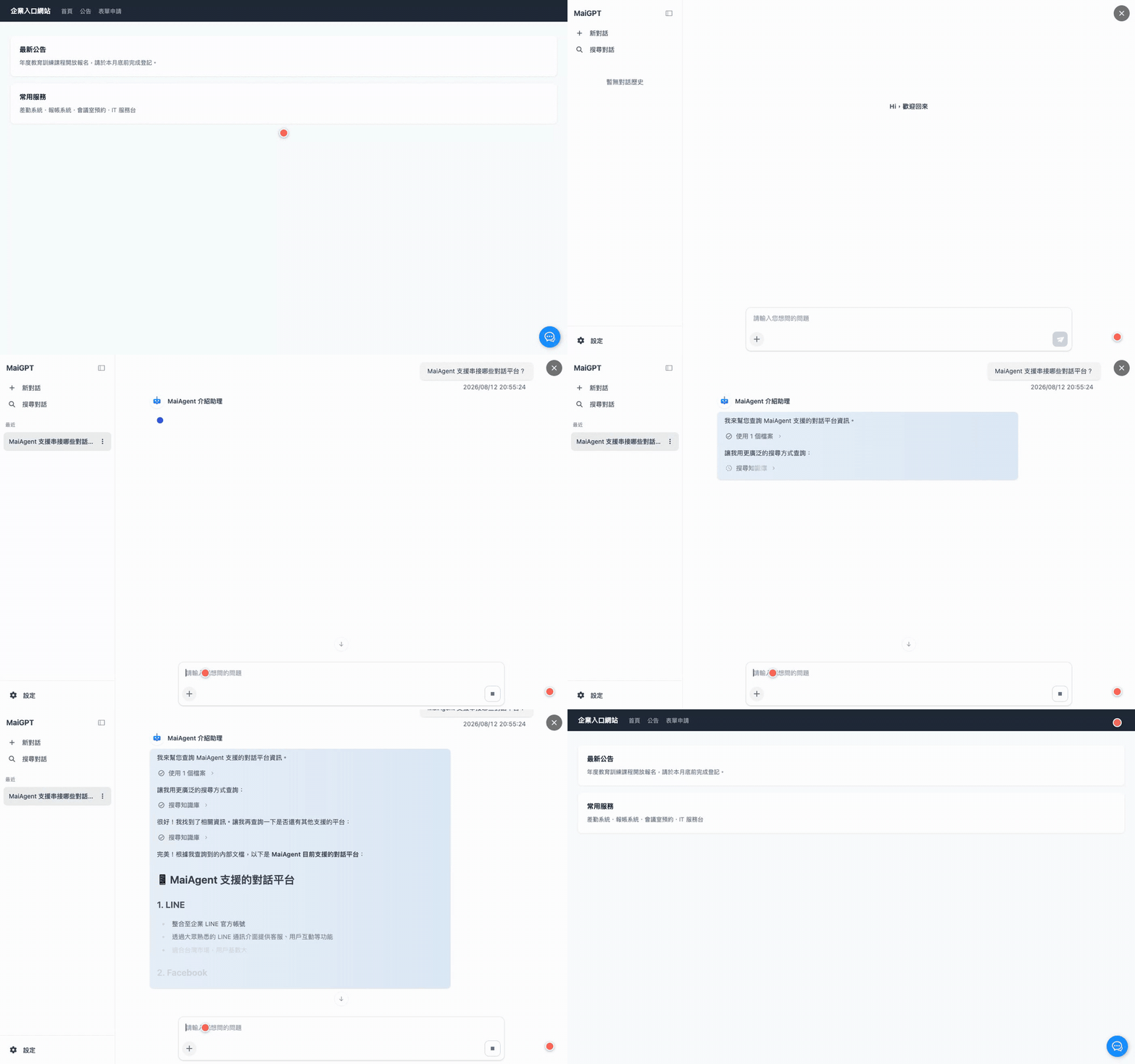
<figure><img src="https://3415477754-files.gitbook.io/~/files/v0/b/gitbook-x-prod.appspot.com/o/spaces%2FNBTi475lqozGpB7xObpE%2Fuploads%2Fgit-blob-2c2fb982ff4bef9a000a279fe72580b846b69ce3%2Fwebchat-maigpt-mode-b-demo.gif?alt=media" alt="Mode B demo: open fullscreen from the floating button, submit a question and receive an AI reply, then collapse back to the button"><figcaption><p>Mode B demo: click the floating button → open fullscreen → submit a question and receive a streaming AI reply → click "×" to collapse back to the button</p></figcaption></figure>

<details>

<summary>Static screenshots of the two states</summary>

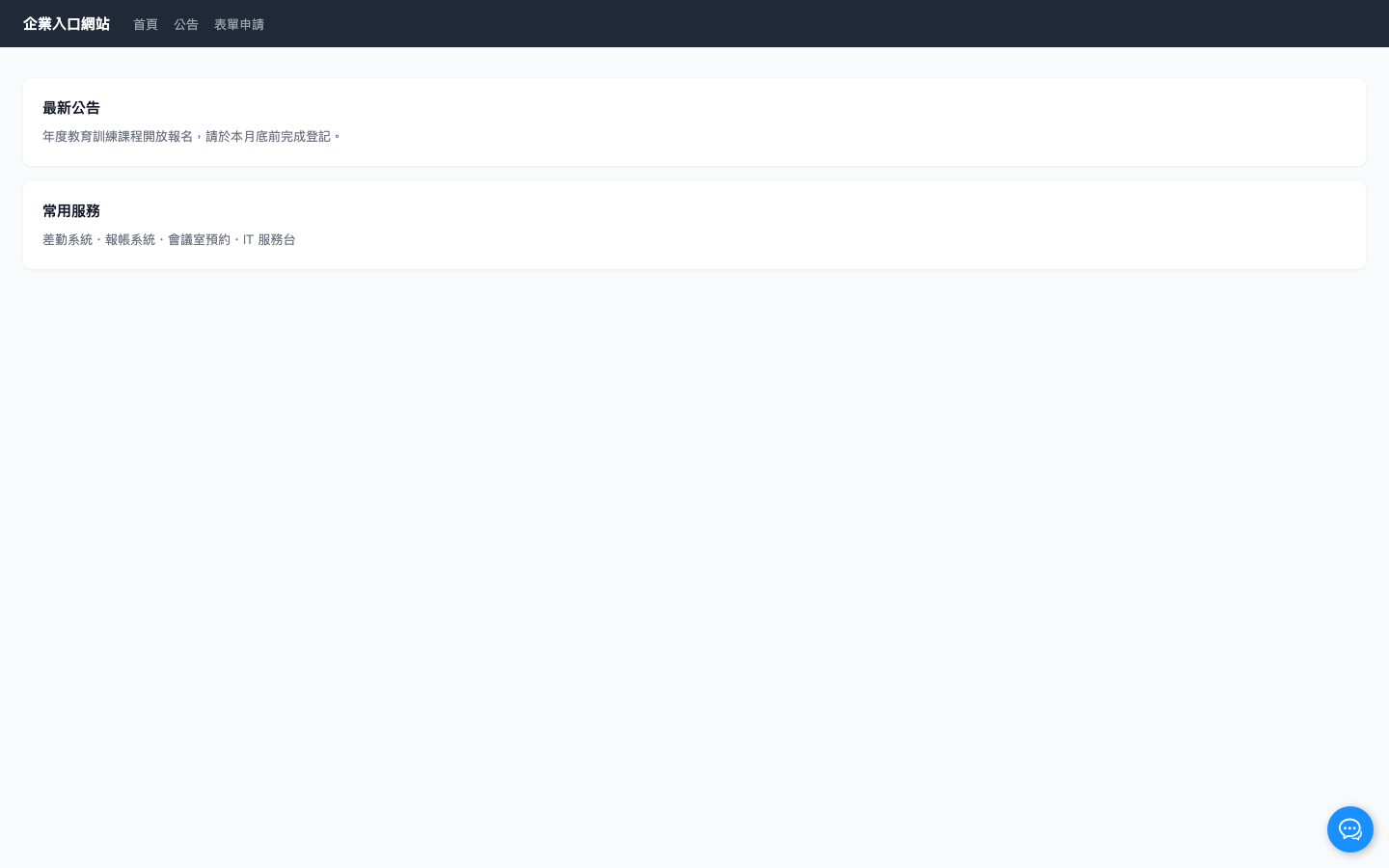
<figure><img src="https://3415477754-files.gitbook.io/~/files/v0/b/gitbook-x-prod.appspot.com/o/spaces%2FNBTi475lqozGpB7xObpE%2Fuploads%2Fgit-blob-a605610e4f3854e4ad4134d63dd03a69e7e18b36%2Fwebchat-maigpt-mode-b-button.png?alt=media" alt="Floating button state"><figcaption><p>Collapsed state: only the floating button appears in the bottom-right corner, without interfering with the original page</p></figcaption></figure>

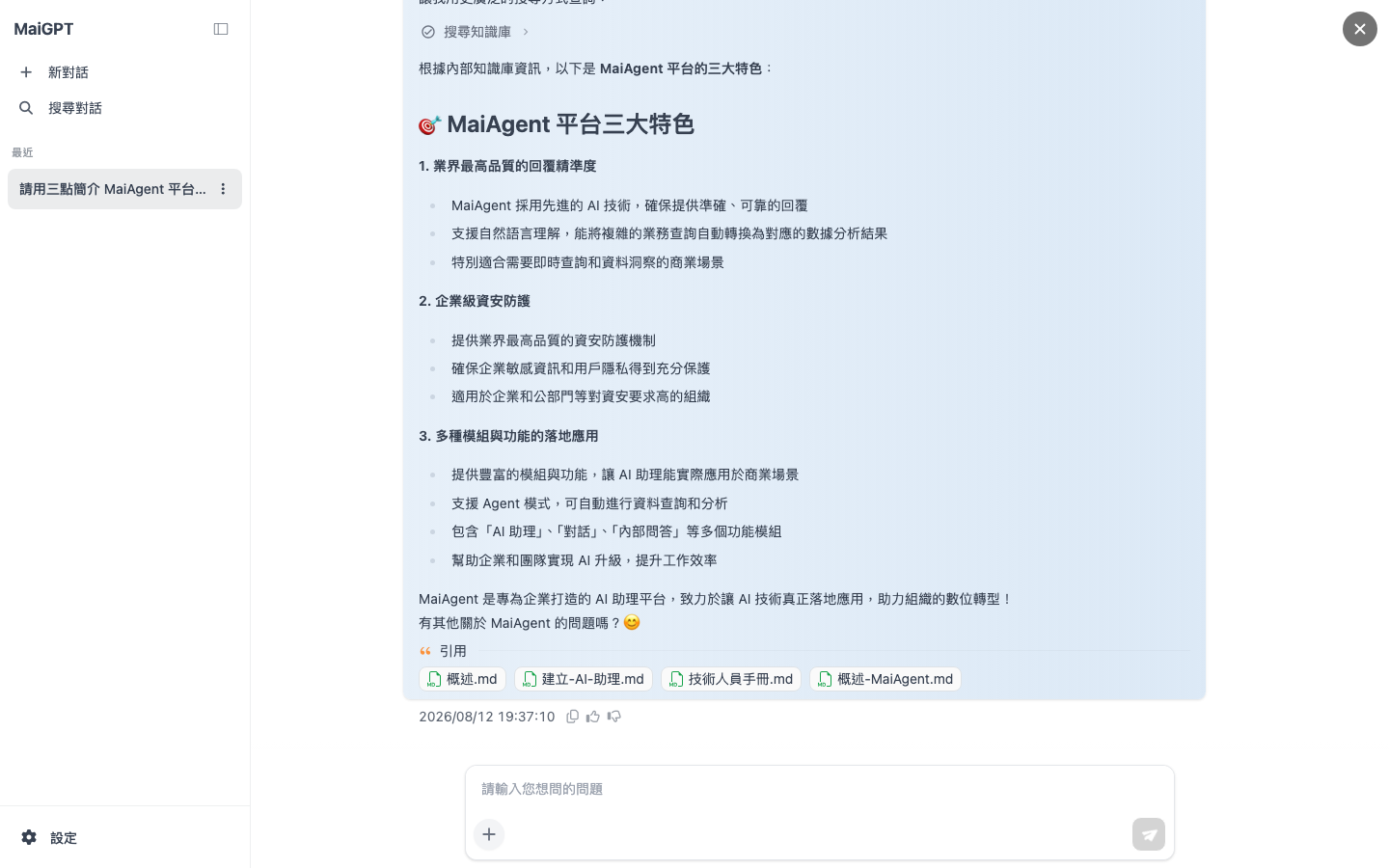
<figure><img src="https://3415477754-files.gitbook.io/~/files/v0/b/gitbook-x-prod.appspot.com/o/spaces%2FNBTi475lqozGpB7xObpE%2Fuploads%2Fgit-blob-51d70d15376664ce3e569f562c98e75f67ea3927%2Fwebchat-maigpt-mode-b-fullscreen.png?alt=media" alt="Fullscreen open state"><figcaption><p>Open state: MaiGPT is displayed fullscreen; click "×" in the top-right corner to collapse it</p></figcaption></figure>

</details>

### Button Appearance Parameters (All Optional; Mode B Only) <a href="#mode-b-button-options" id="mode-b-button-options"></a>

| Parameter              | Default                              | Description                                                 |
| ---------------------- | ------------------------------------ | ----------------------------------------------------------- |
| `primaryColor`         | `#1890ff`                            | Button background color; can be changed to your brand color |
| `buttonSize`           | `3rem`                               | Button size                                                 |
| `buttonRadius`         | `50%`                                | Button border radius                                        |
| `buttonPositionBottom` | `1rem`                               | Distance from the bottom of the viewport                    |
| `buttonPositionRight`  | `1rem`                               | Distance from the right edge of the viewport                |
| `buttonIcon`           | (built-in icon)                      | Image URL for a custom button icon                          |
| `boxShadow`            | `0.125rem 0.125rem 0.5rem #00000044` | Button shadow                                               |

## 4. Full Parameter Reference <a href="#config-reference" id="config-reference"></a>

| Field                | Type                      | Required | Description                                                                                                                                                                                          |
| -------------------- | ------------------------- | -------- | ---------------------------------------------------------------------------------------------------------------------------------------------------------------------------------------------------- |
| `webChatId`          | `string`                  | ✅        | Web Chat ID                                                                                                                                                                                          |
| `baseUrl`            | `string`                  | ✅        | Web Chat service URL; `https://chat.maiagent.ai/web-chats` for SaaS                                                                                                                                  |
| `enabledWindowModes` | `string[]`                | ✅        | Always `['maigpt']` (the first element determines the mode)                                                                                                                                          |
| `targetElement`      | `string` or `HTMLElement` | ✖        | Present → Mode A; absent → Mode B                                                                                                                                                                    |
| `maigptTitle`        | `string`                  | ✖        | Brand title at the top-left of the sidebar; displays `MaiGPT` if not set                                                                                                                             |
| `primaryColor`       | `string`                  | ✖        | Primary interface color; can be changed to your brand color                                                                                                                                          |
| `locale`             | `string`                  | ✖        | Interface language. It is also sent with messages to the AI as a reference for the reply language; see [Locale](#locale) below. A language the user selected manually takes precedence               |
| `contactId`          | `string`                  | ✖        | MaiAgent contact ID for identifying the logged-in user; see [Identifying Users](#identify-user)                                                                                                      |
| `queryMetadata`      | `object` or `string`      | ✖        | Query metadata attached to the conversation; see [Knowledge Management Permissions Overview](/tech/en/identity-and-access/zhi-shi-guan-li-quan-xian-query-metadata-cha-xun-yuan-zi-liao-zong-lan.md) |

Unknown fields do not cause an error, but the console displays a `[maiagent] Unknown config options: ...` warning to help check for typos.

## 5. Locale <a href="#locale" id="locale"></a>

```javascript
window.maiagentChatbotConfig = {
  // ...
  locale: 'en',
}
```

### Supported Locale Values <a href="#supported-locales" id="supported-locales"></a>

`zh-TW` (Traditional Chinese), `zh-CN` (Simplified Chinese), `en`, `ja`, `ko`, `th`, `vi-VN`, `id`, `fil-PH`, `ms-MY`, `km-KH`, `lo-LA`, `my-MM`

### Priority Order <a href="#locale-priority" id="locale-priority"></a>

1. A language the user selected manually in the window (the language switch in the settings menu, the Web Chat menu, or the data collection form). Once selected, it is remembered in this browser, and neither the config's `locale` nor `MaiAgent.locale.set()` overrides it afterward
2. The language specified by the embedding page: the config's `locale` or `MaiAgent.locale.set(lang)`; if `locale.set()` was called before the window was ready, it takes precedence
3. The language last used in this browser
4. The browser language
5. Default: `zh-TW`

The value you pass is matched to the value for the same language in the supported list (for example, `en-US` maps to `en`); a language outside the list falls back to `zh-TW`.

{% hint style="info" %}
`locale` determines the **interface text** (buttons, menus, and prompts) and is also sent to the AI with every message: the platform appends the user's locale after the role instructions and asks the model to answer in that language when it cannot tell which language the user prefers (see [Role Instructions: Platform-Appended Context](/tech/en/advanced-genai-tech/system-prompt.md#platform-context)). It is a reference, not a requirement; when the user asks in another language, the AI usually replies in the language of the question.
{% endhint %}

## 6. Identifying Users (contactId) <a href="#identify-user" id="identify-user"></a>

To let the AI know "who is asking" (preserve conversation history across devices, personalize replies, and call tools with the user's permissions), include `contactId` in the config:

1. When the user logs in, the backend calls the [Contact Identity Sync API](/tech/en/serve/contacts/contact-credentials-sync.md) to obtain `contactId`
2. The frontend adds `contactId` to the config:

```javascript
// Assume the API returns user information (including contactId) after login
const loginResponse = await fetch('/api/auth/login', {
  method: 'POST',
  body: JSON.stringify({ username, password })
});
const userData = await loginResponse.json();

// Dynamically configure Web Chat
window.maiagentChatbotConfig = {
  webChatId: 'your-web-chat-id',
  baseUrl: 'https://chat.maiagent.ai/web-chats',
  enabledWindowModes: ['maigpt'],
  targetElement: '#maigpt-container',
  contactId: userData.maiagentContactId,  // Obtained from the login response
};
```

{% hint style="warning" %}
`contactId` must correspond to the logged-in user. Without `contactId`, usage is anonymous: conversation history is retained per browser (and remains after refreshing the same browser), but cannot follow the user across devices or provide access to personal data under the user's identity.
{% endhint %}

## 7. Frequently Asked Questions <a href="#faq" id="faq"></a>

<details>

<summary>How does MaiGPT mode differ from the original chat bubble (floating / sidebar)?</summary>

MaiGPT is a full conversation workspace (conversation history sidebar, conversation search, and settings panel) that occupies the entire container or screen; floating / sidebar is a small window overlaid in a corner of the page. Both are selected through the same `enabledWindowModes` field: `['maigpt']` vs `['floating', 'sidebar']`. MaiGPT mode does not offer window mode switching.

</details>

<details>

<summary>Where is conversation history stored?</summary>

It is retained on the MaiAgent backend according to Web Chat's identification mechanism. Without `contactId`, it is associated with the browser (anonymous); with `contactId`, it follows that contact across devices.

</details>

<details>

<summary>Can I put two MaiGPT instances on the same page?</summary>

No. The SDK initializes only once per page, and duplicate loads are ignored.

</details>

<details>

<summary>How do I embed Mode A in an SPA (React / Vue)?</summary>

Ensure the container element has mounted before loading `embed.min.js` (or set `window.maiagentChatbotConfig` and dynamically insert the loader script at that point). If the SDK runs first, it waits up to 5 seconds for the container; on timeout, it skips embedding (see [Container Requirements](#container-requirements)).

</details>

<details>

<summary>Can I change the "MaiGPT" name in the top-left corner to my own brand?</summary>

Yes. Add `maigptTitle: 'Acme GPT'` to the config; it applies to both modes. If unset or set to an empty string, it falls back to the default `MaiGPT`.

</details>


---

# Agent Instructions
This documentation is published with GitBook. GitBook is the documentation platform designed so that both humans and AI agents can read, navigate, and reason over technical content effectively. Learn more at gitbook.com.

## Querying This Documentation
If you need additional information that is not directly available in this page, you can query the documentation by asking a question.

Perform an HTTP GET request on the following URL with the `ask` and `goal` query parameters:

```
GET https://docs.maiagent.ai/tech/en/serve/web-chat-sdk/web-chat-maigpt-mode.md?ask=<question>&goal=<user_goal>
```

`ask` is the immediate question: it should be specific, self-contained, and written in natural language.
`goal` is what the user is ultimately trying to achieve, the reason they need the answer. Sharing it helps GitBook give you a better, more relevant answer. A goal is most helpful when it describes the outcome the user wants rather than restating the question. For example, with `ask=how do I create an API token`, a goal like `automate deployments from our CI pipeline` lets GitBook tailor the answer to that use case.

The response will contain a direct answer to the question and relevant excerpts and sources from the documentation.

Use this mechanism when the answer is not explicitly present in the current page, you need clarification or additional context, or you want to retrieve related documentation sections.