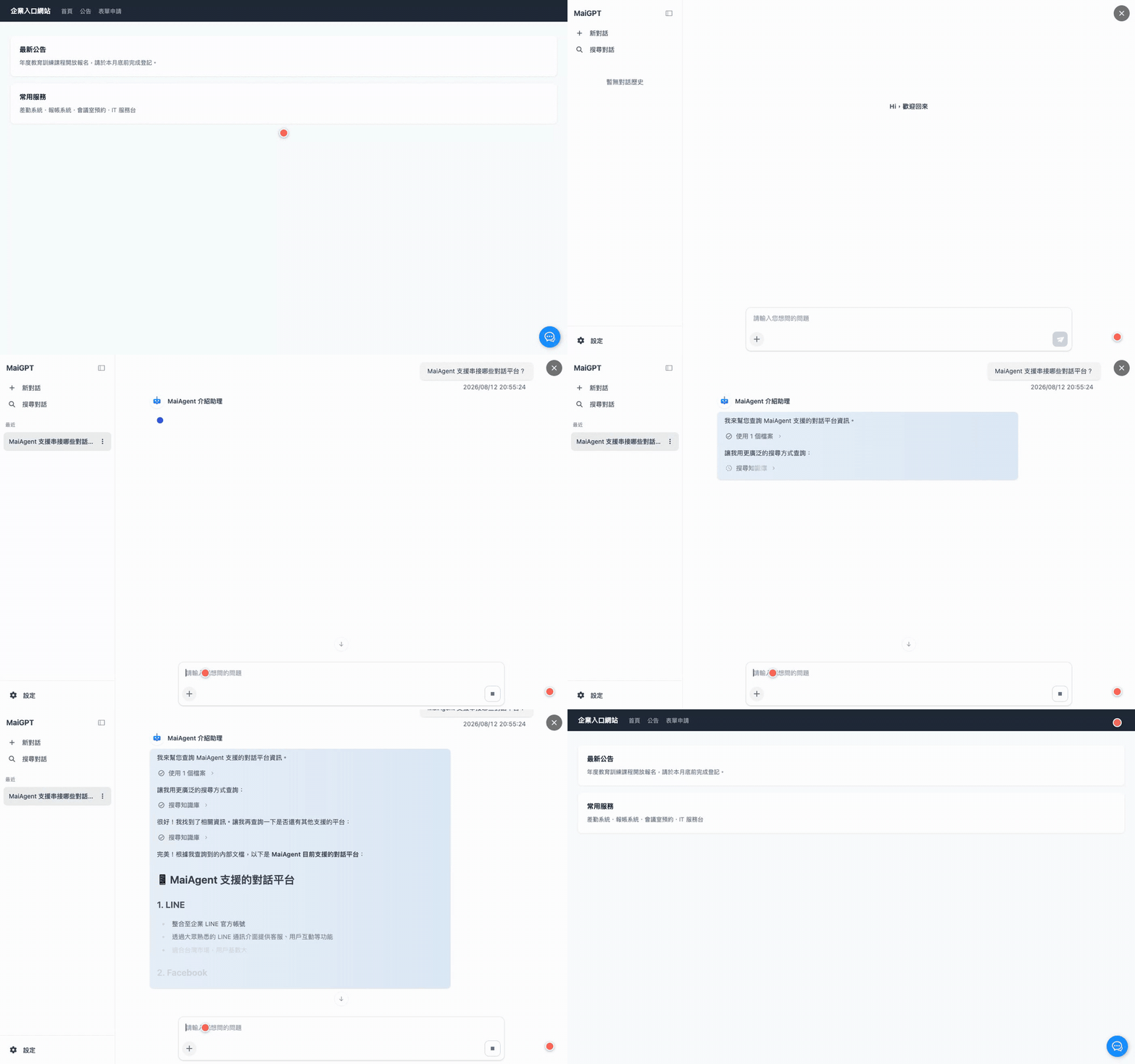
Embedding in MaiGPT Mode
Embed a complete ChatGPT-like MaiGPT conversation interface into your website or product, with both specified-container and floating full-screen layouts
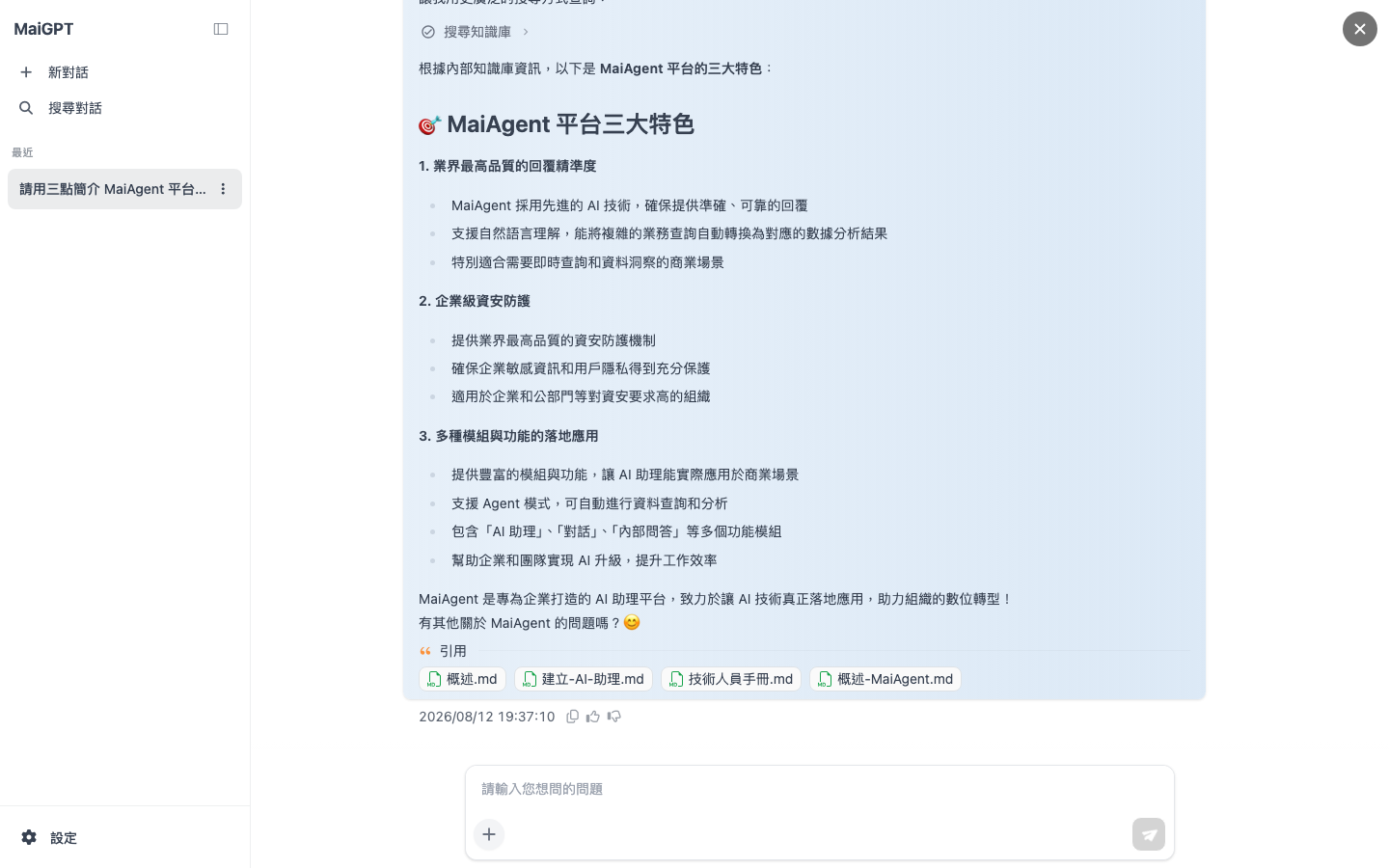
MaiGPT mode provides a complete ChatGPT-like conversation interface (conversation history sidebar, conversation search, and settings panel). Unlike the existing bottom-right chat bubble (floating / sidebar), it is ideal as the main feature area of a page or a site-wide AI assistant entry point.
MaiGPT mode only determines the appearance of the interface, not what the assistant can do. It uses the instructions, model, and tools of whichever AI assistant's Web Chat it is applied to. To provide capabilities such as image generation and web access, first follow Integrating MaiGPT: Choose the Right Assistant and Add Capabilities to set the assistant to Agent mode and attach tools. The organization's built-in MaiGPT product is available only to signed-in members, and its Web Chat cannot be embedded in external pages.
1. Two Layout Modes
The same configuration supports two layouts, determined by whether targetElement is present:
Mode A — Embed in a specified container: MaiGPT remains visible in a specified
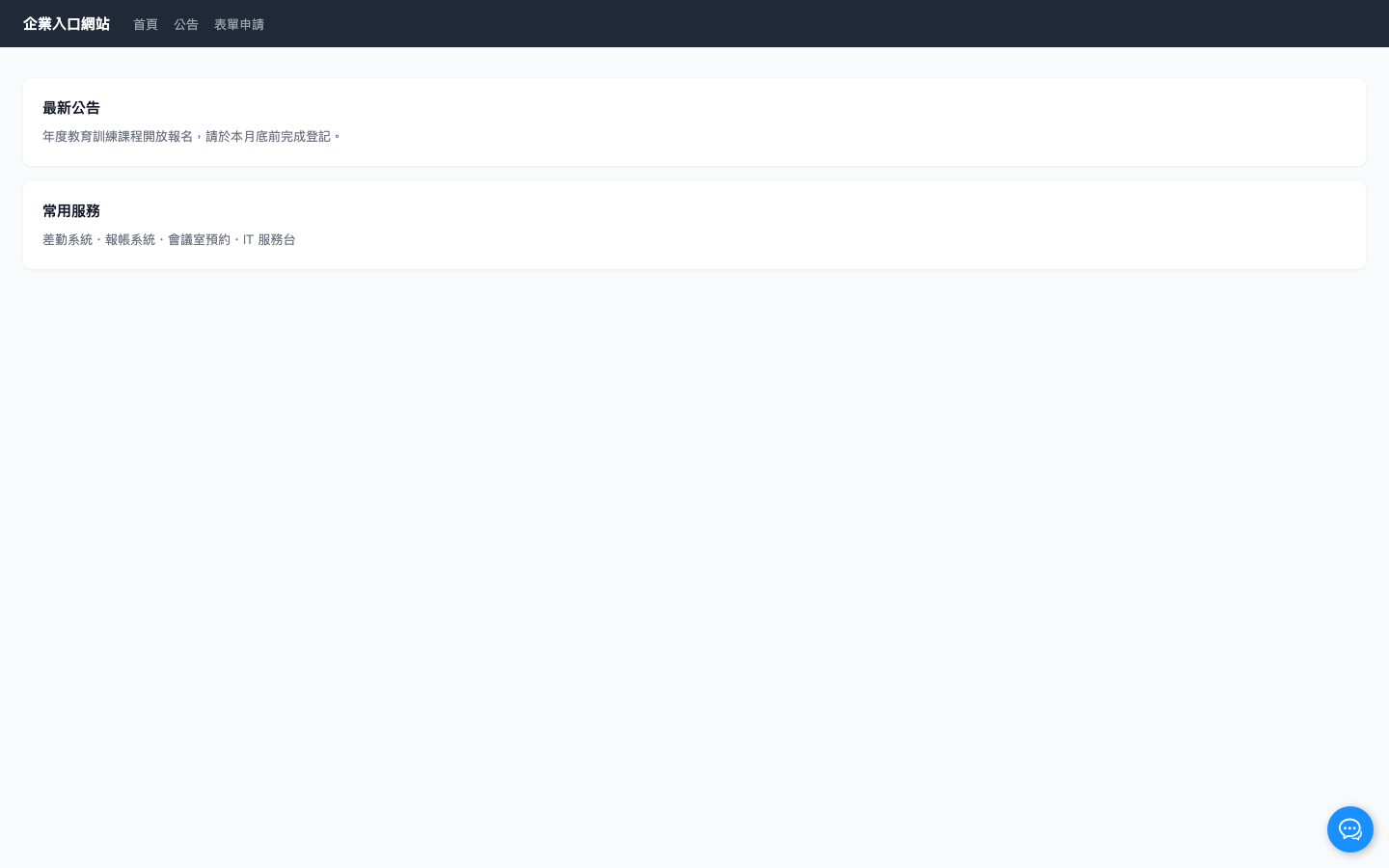
divon the page (ideal as the system's main workspace)Mode B — Floating button + full screen: A floating button at the bottom-right opens MaiGPT in full screen when clicked (ideal as a site-wide AI assistant entry point)
Both behaviors are triggered by the same maigpt mode; the only difference is the targetElement field.
2. Mode A: Embed in a Specified Container
Embed Code
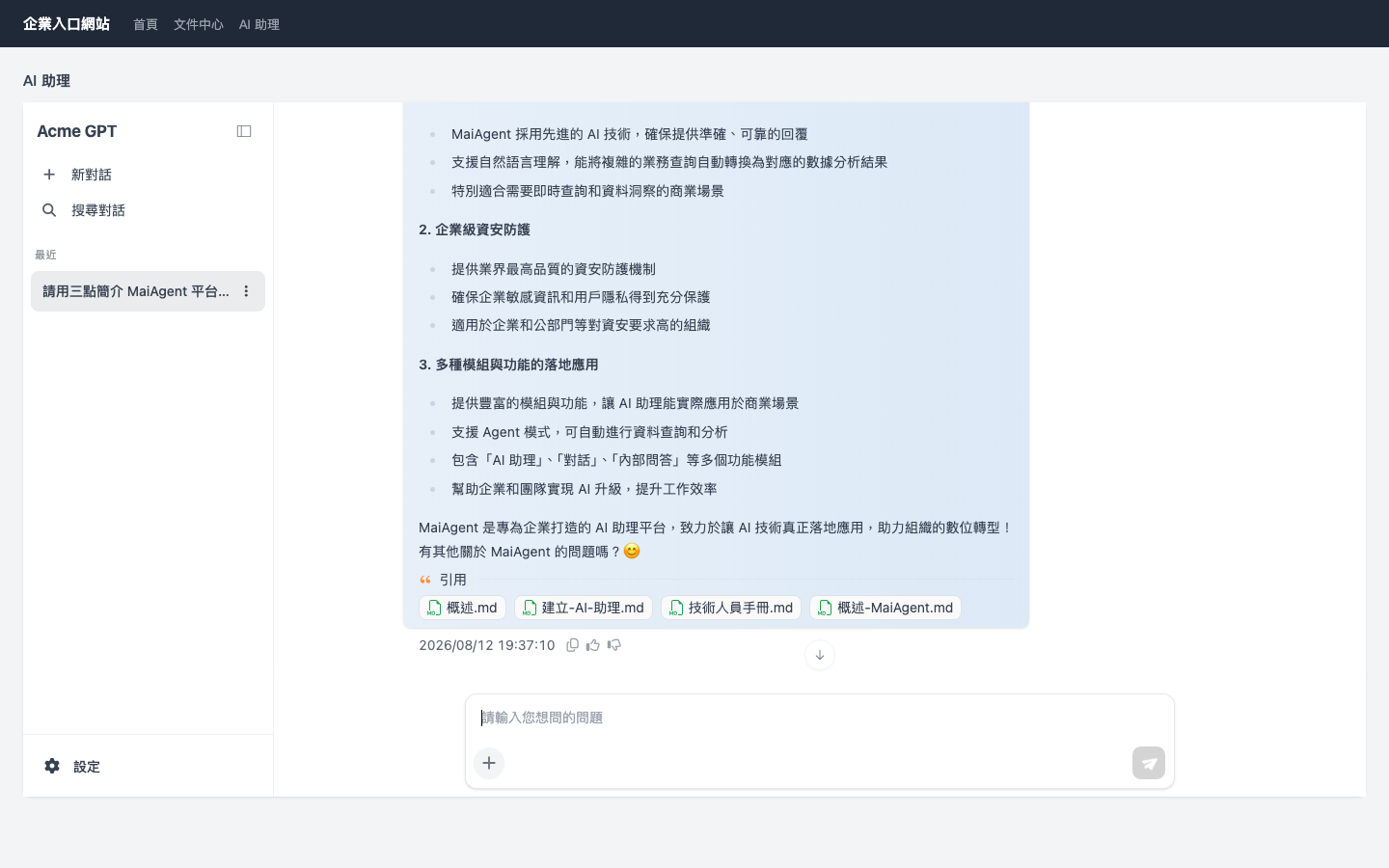
Actual embedded result (MaiGPT embedded in an enterprise portal, with maigptTitle set to the brand name):

Container Requirements
You must set the container height (the iframe fills the container at
100%; content is not visible if the container height is 0)targetElementaccepts a CSS selector string (such as'#maigpt-container') or an HTMLElement objectIf the container uses
position: static, the SDK automatically changes it toposition: relative; no action is usually requiredThe iframe occupies only that container and does not affect other areas of the page
Important: If the selector does not match an element, the fallback covers the entire page in full screen with no close button (the console displays the warning [maiagent] targetElement selector "..." not found, falling back to <body>).
Confirm that: (1) the selector is spelled correctly; and (2) the container exists in the DOM when the SDK loads (place the loader <script> after the container and add defer; for dynamically rendered SPA pages, load the SDK only after the container mounts).
3. Mode B: Floating Button + Full Screen
Embed Code
Behavior
A floating button appears at the bottom-right of the page (using
primaryColor)Click the button → MaiGPT opens in a full-screen iframe, with an “×” close button at the top-right
Click “×” → the full-screen view collapses back to the floating button
When collapsed, the iframe is only hidden, not destroyed → opening it again preserves the existing conversation state

Button Appearance Parameters (All Optional, Mode B Only)
primaryColor
#1890ff
Button background color; can be changed to your brand color
buttonSize
3rem
Button size
buttonRadius
50%
Button corner radius
buttonPositionBottom
1rem
Distance from the bottom of the viewport
buttonPositionRight
1rem
Distance from the right of the viewport
buttonIcon
(built-in icon)
Image URL for a custom button icon
boxShadow
0.125rem 0.125rem 0.5rem #00000044
Button shadow
4. Complete Parameter Reference
webChatId
string
✅
WebChat ID
baseUrl
string
✅
Web Chat service URL; for SaaS, use https://chat.maiagent.ai/web-chats
enabledWindowModes
string[]
✅
Fixed at ['maigpt'] (the first element determines the mode)
targetElement
string or HTMLElement
✖
Value present → Mode A; no value → Mode B
maigptTitle
string
✖
Brand title at the top-left of the sidebar; defaults to MaiGPT when unset
primaryColor
string
✖
Primary interface color; can be changed to your brand color
locale
string
✖
Interface language; see Locales. If omitted, the previously remembered locale or browser locale is used
queryMetadata
object or string
✖
Query metadata attached to the conversation; see Knowledge Management Permissions Overview
Unknown configuration fields do not cause errors, but the console displays an [maiagent] Unknown config options: ... warning to help identify typos.
5. Locales
Supported Locale Values
zh-TW (Traditional Chinese), zh-CN (Simplified Chinese), en, ja, ko, th, vi-VN, id, fil-PH, ms-MY, km-KH, lo-LA, my-MM
Resolution Order
The
localein config (always takes effect and has the highest priority)The locale the user last used in this browser (remembered)
The browser locale
Default:
zh-TW
6. Identifying Users (contactId)
To let the AI know “who is asking” (preserving conversation history across devices, providing personalized responses, and calling tools with the user's permissions), include contactId in config:
When the user signs in, the backend calls the Contact Identity Sync API to obtain the
contactIdThe frontend adds the
contactIdto config:
contactId must be the value associated with the signed-in user. Without a contactId, usage is anonymous: conversation history is retained per browser (and remains after refreshing the same browser), but it is not available across devices and personal data cannot be accessed using the user's identity.
7. FAQ
Last updated
Was this helpful?