> For the complete documentation index, see [llms.txt](https://docs.maiagent.ai/llms.txt). Markdown versions of documentation pages are available by appending `.md` to page URLs; this page is available as [Markdown](https://docs.maiagent.ai/tech/en/others/google-sheet-integration.md).
# Google Sheets Integration
This page explains how to integrate MaiAgent's powerful AI features into Google Sheets using Google Apps Script. This integration lets you call your MaiAgent Chatbot directly from a spreadsheet and process multiple inputs in batches, significantly improving productivity.
## Getting Started
### Step 1: Open the Google Apps Script editor
1. Open the Google Sheets spreadsheet that you want to integrate with MaiAgent, or create a new spreadsheet.
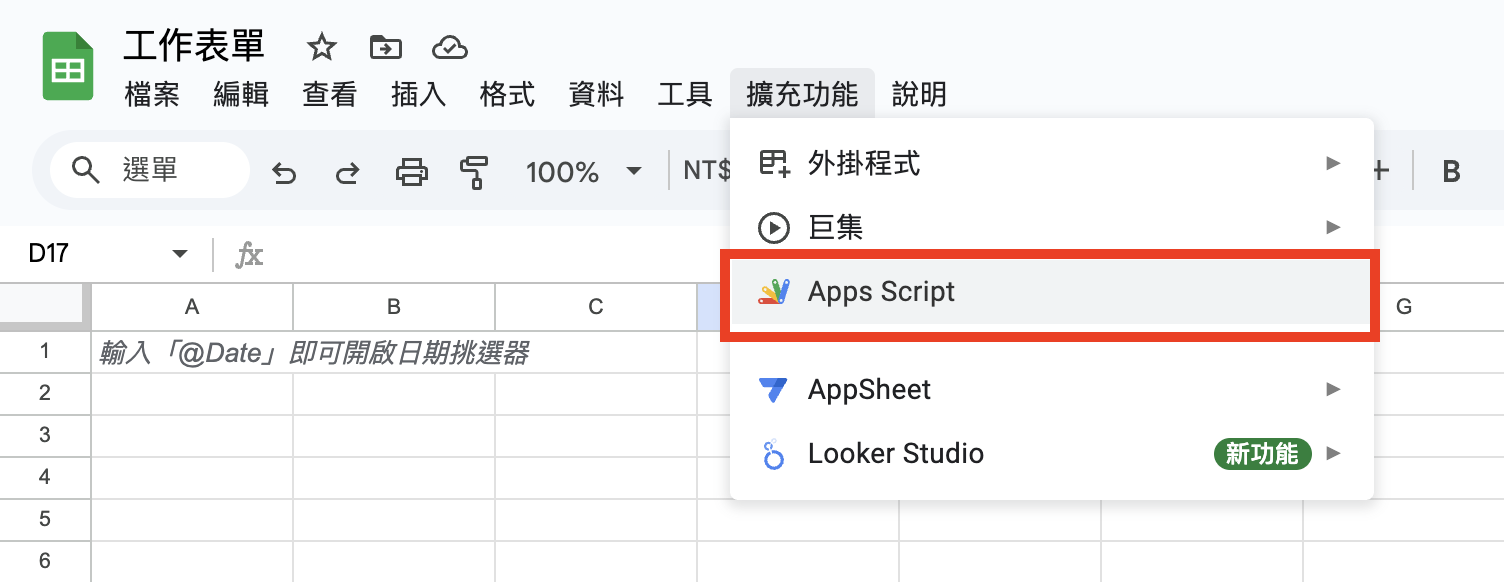
2. From the top menu, click **Extensions** > **Apps Script**.
### Step 2: Paste and configure the script
1. In the Apps Script editor, you will see a file named `Code.gs`. Delete its default contents.
2. Copy the complete Apps Script code provided by MaiAgent in the [Appendix](#fu-jian) below and paste it into the `Code.gs` file.
3. **Replace the API\_KEY and CHATBOT\_ID at the beginning of the script.**
4. After replacing them, click the save icon (💾) at the top of the editor to save your script.
## Using the MaiAgent Function in Google Sheets
After completing the setup and granting authorization, you can use the `maiagent` function in Google Sheets just like a built-in function.
#### 1. Make a single Agent call
Enter a formula in the following format in any cell:
`=maiagent("The message you want to send to the Agent")`
For example:
* `=maiagent("Hello, please introduce yourself")`
* `=maiagent("The weather is lovely today")`
After you press Enter, the script sends your message to the specified MaiAgent AI assistant and displays the assistant's response in that cell.
#### 2. Read message content from another cell
You can use the contents of another cell as the input message for the `maiagent` function.
Suppose cell `A1` contains the message you want to send. You can enter the following in another cell, such as `B1`:
`=maiagent(A1)`
Cell `B1` will then display MaiAgent's response to the contents of `A1`.
## Integration Demo Video
{% embed url="" %}
## Conclusion
Integrating MaiAgent with Google Sheets through Google Apps Script opens up new possibilities for automation and greater productivity. Technical users can customize spreadsheets for specific needs, turning them into powerful AI interaction tools for content generation, data analysis, automated responses, and more.
## **Appendix**
{% code title="Apps Script Code" %}
```javascript
// --- Define your API key and Chatbot ID here ---
const API_KEY = '';
const CHATBOT_ID = '';
// --- --- --- --- --- --- --- --- --- --- --- ---
/**
* Sends a message to the MaiAgent API and returns the response content directly.
* The API key and Chatbot ID use the constants defined at the beginning of the script.
* is_streaming is fixed to false; conversation and attachments are not sent.
*
* @param {string} messageContent The message content to send.
* @return {string} The value of the "content" field in the API response, or an error message.
*/
function maiagent(messageContent) {
// Check whether API_KEY and CHATBOT_ID have been configured
if (API_KEY === 'YOUR_API_KEY' || CHATBOT_ID === 'YOUR_CHATBOT_ID') {
const warningMessage = 'Warning: The API key or Chatbot ID has not been configured in the script. Edit the script and replace YOUR_API_KEY and YOUR_CHATBOT_ID.';
Logger.log(warningMessage);
// You can throw an error or return a warning here to prevent an invalid API call
// throw new Error(warningMessage);
return warningMessage;
}
const url = `https://api.maiagent.ai/api/v1/chatbots/${CHATBOT_ID}/completions/`;
const payload = {
message: {
content: messageContent
},
is_streaming: false
};
const options = {
method: 'post',
contentType: 'application/json',
headers: {
'Authorization': `Api-Key ${API_KEY}`
},
payload: JSON.stringify(payload),
muteHttpExceptions: true // Set to true so that errors returned by the API can be handled
};
try {
const response = UrlFetchApp.fetch(url, options);
const responseCode = response.getResponseCode();
const responseBody = response.getContentText();
if (responseCode === 200) {
Logger.log('API call succeeded:');
Logger.log(responseBody); // Continue logging the complete raw response to facilitate debugging
try {
const jsonResponse = JSON.parse(responseBody);
if (jsonResponse && typeof jsonResponse.content !== 'undefined') {
return jsonResponse.content; // Return the value of the content field directly
} else {
Logger.log('The API response succeeded, but the "content" field is missing or the format is invalid.');
Logger.log(responseBody);
return 'Error: The API response succeeded, but the "content" field is missing.';
}
} catch (parseError) {
Logger.log(`An error occurred while parsing the API response JSON: ${parseError.toString()}`);
Logger.log(`Raw response content: ${responseBody}`);
return `Error: Failed to parse the API response - ${parseError.toString()}`;
}
} else {
Logger.log(`API call failed. Response code: ${responseCode}`);
Logger.log(`Error response content: ${responseBody}`);
return `Error: ${responseCode} - ${responseBody}`;
}
} catch (e) {
Logger.log(`An exception occurred during the API call: ${e.toString()}`);
Logger.log(e.stack); // Log the stack trace for more detailed debugging
return `Exception: ${e.toString()}`;
}
}
```
{% endcode %}
---
# Agent Instructions
This documentation is published with GitBook. GitBook is the documentation platform designed so that both humans and AI agents can read, navigate, and reason over technical content effectively. Learn more at gitbook.com.
## Querying This Documentation
If you need additional information that is not directly available in this page, you can query the documentation dynamically by asking a question.
Perform an HTTP GET request on the current page URL with the `ask` query parameter, and the optional `goal` query parameter:
```
GET https://docs.maiagent.ai/tech/en/others/google-sheet-integration.md?ask=&goal=
```
`ask` is the immediate question: it should be specific, self-contained, and written in natural language.
`goal` is optional and describes the broader end goal you are ultimately trying to accomplish on behalf of the user. GitBook uses it to tailor the answer towards what is most useful for that goal.
The response will contain a direct answer to the question and relevant excerpts and sources from the documentation.
Use this mechanism when the answer is not explicitly present in the current page, you need clarification or additional context, or you want to retrieve related documentation sections.