> For the complete documentation index, see [llms.txt](https://docs.maiagent.ai/llms.txt). Markdown versions of documentation pages are available by appending `.md` to page URLs; this page is available as [Markdown](https://docs.maiagent.ai/tech/en/mcp/zapier.md).

# Zapier Integration

Zapier MCP integration: create an MCP Server in the Zapier MCP console, select the Actions available to AI, copy the endpoint, and create an MCP tool in MaiAgent.

This guide walks you through obtaining and configuring an MCP (Model Context Protocol) server URL from [Zapier MCP](https://mcp.zapier.com/), so your Agent in MaiAgent can call actions in external applications through Zapier's Remote MCP service.

## ✅ Prerequisites

* You have a [Zapier](https://zapier.com/) account and can sign in to the [Zapier MCP console](https://mcp.zapier.com/). Refer to Zapier's official documentation for Zapier MCP plans and usage limits.
* You want to make applications connected through Zapier (such as Google Workspace, Slack, Notion, Salesforce…) available to your Agent in MaiAgent.
* You have permission to authorize access to the target applications (for example, a Google / Slack account that you can authorize).

## 🌐 Step 1: Sign In / Register with Zapier Central (MCP Console)

1. Sign in to the [🌐Zapier website↗](https://zapier.com/) with an administrator account or an account with the appropriate permissions.

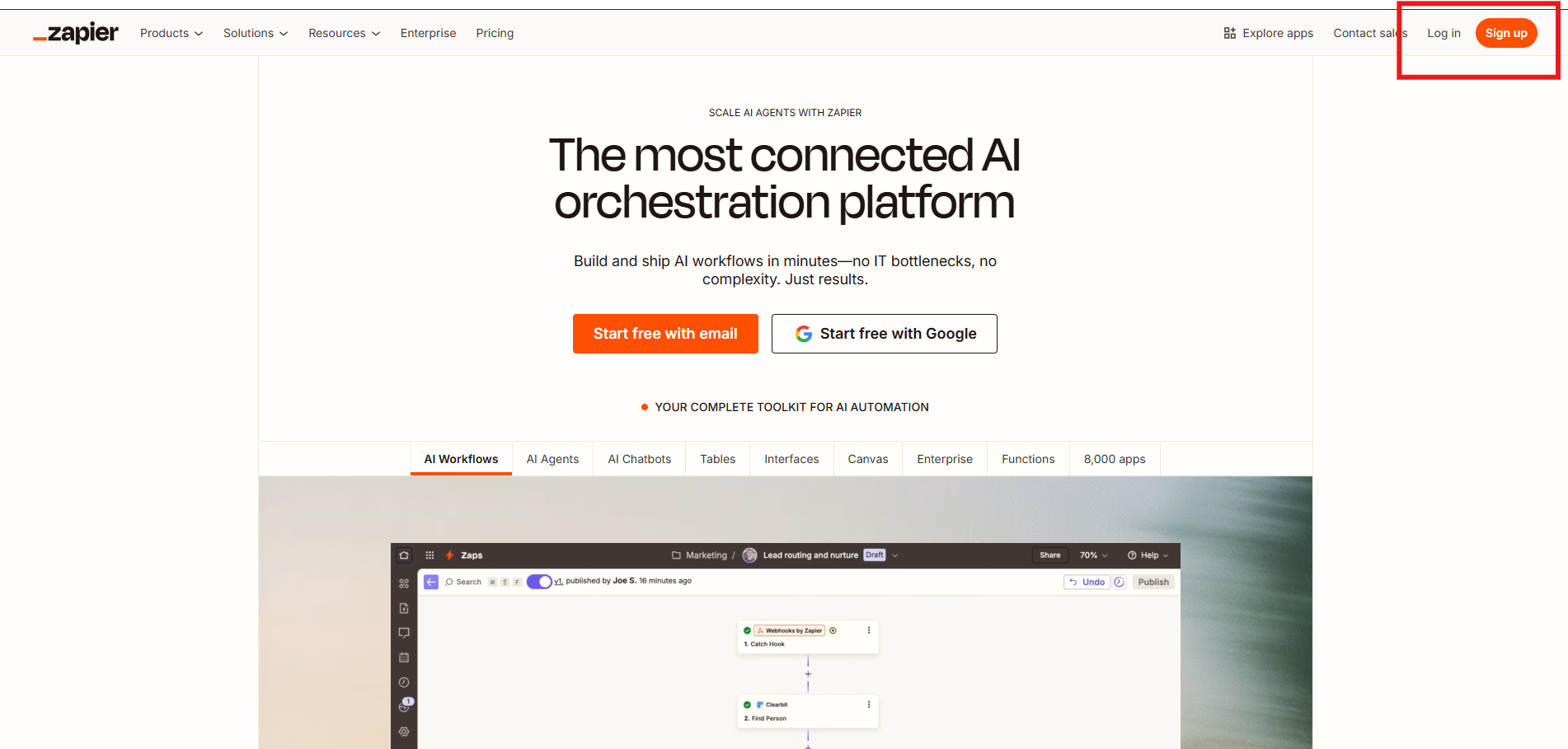
   Click “log in” in the upper-right corner to sign in. If you have not registered yet, visit the website and click “Sign up” to create an account.

<figure><img src="https://3415477754-files.gitbook.io/~/files/v0/b/gitbook-x-prod.appspot.com/o/spaces%2FNBTi475lqozGpB7xObpE%2Fuploads%2Fgit-blob-5dfe287a1cbf7a388fb3eb1138fe8358461ac68a%2F%E8%9E%A2%E5%B9%95%E6%93%B7%E5%8F%96%E7%95%AB%E9%9D%A2%202025-08-08%20110128.png?alt=media" alt=""><figcaption><p>Zapier website home page</p></figcaption></figure>

## 👆 Step 2: Create an MCP Server in the [Zapier MCP Console](https://mcp.zapier.com/)

1. Go to the [Zapier MCP console](https://mcp.zapier.com/)

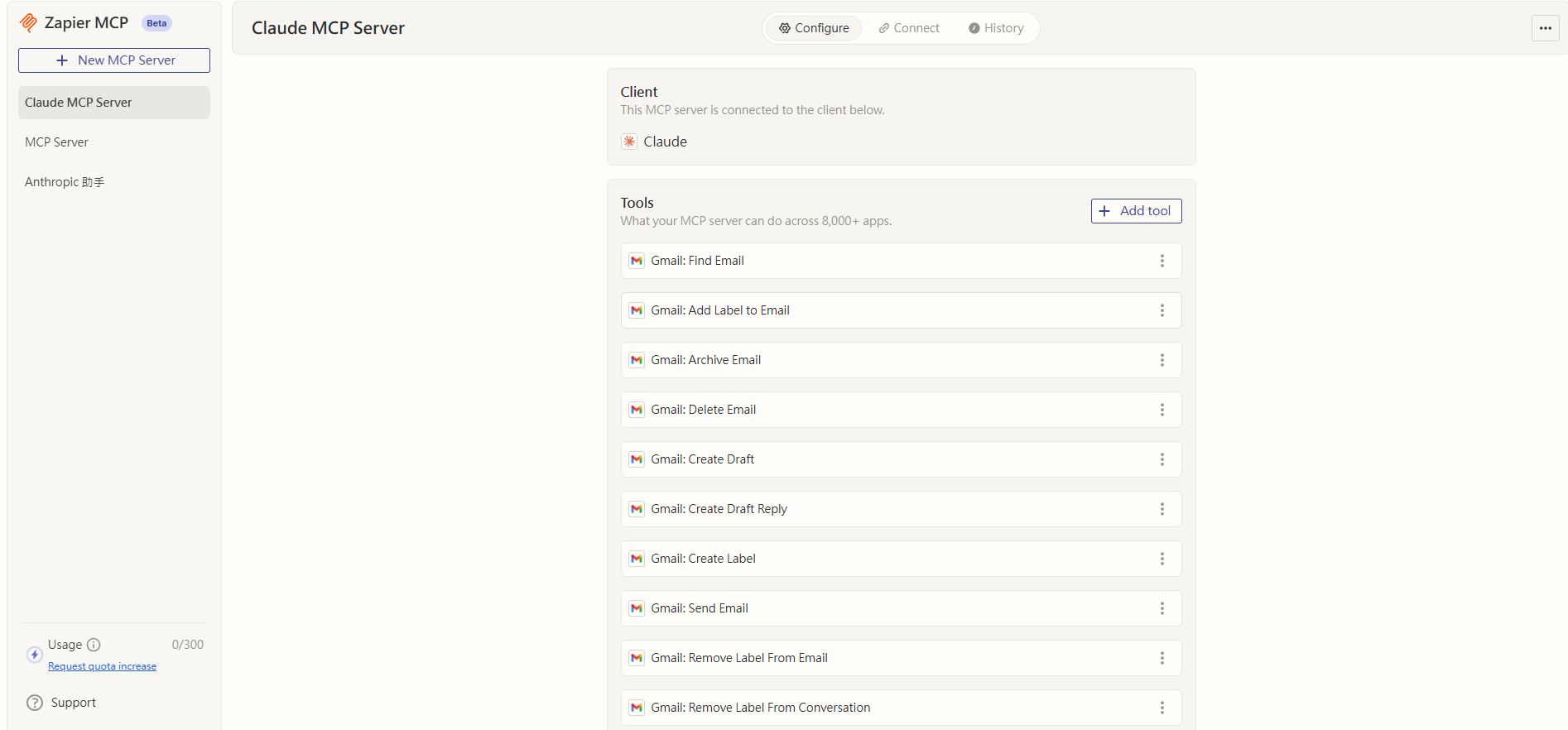
<figure><img src="https://3415477754-files.gitbook.io/~/files/v0/b/gitbook-x-prod.appspot.com/o/spaces%2FNBTi475lqozGpB7xObpE%2Fuploads%2Fgit-blob-8bb741851f88d862cee8f5cc5f4f739788946a54%2F%E8%9E%A2%E5%B9%95%E6%93%B7%E5%8F%96%E7%95%AB%E9%9D%A2%202025-08-08%20110800.png?alt=media" alt=""><figcaption><p>Zapier MCP console home page</p></figcaption></figure>

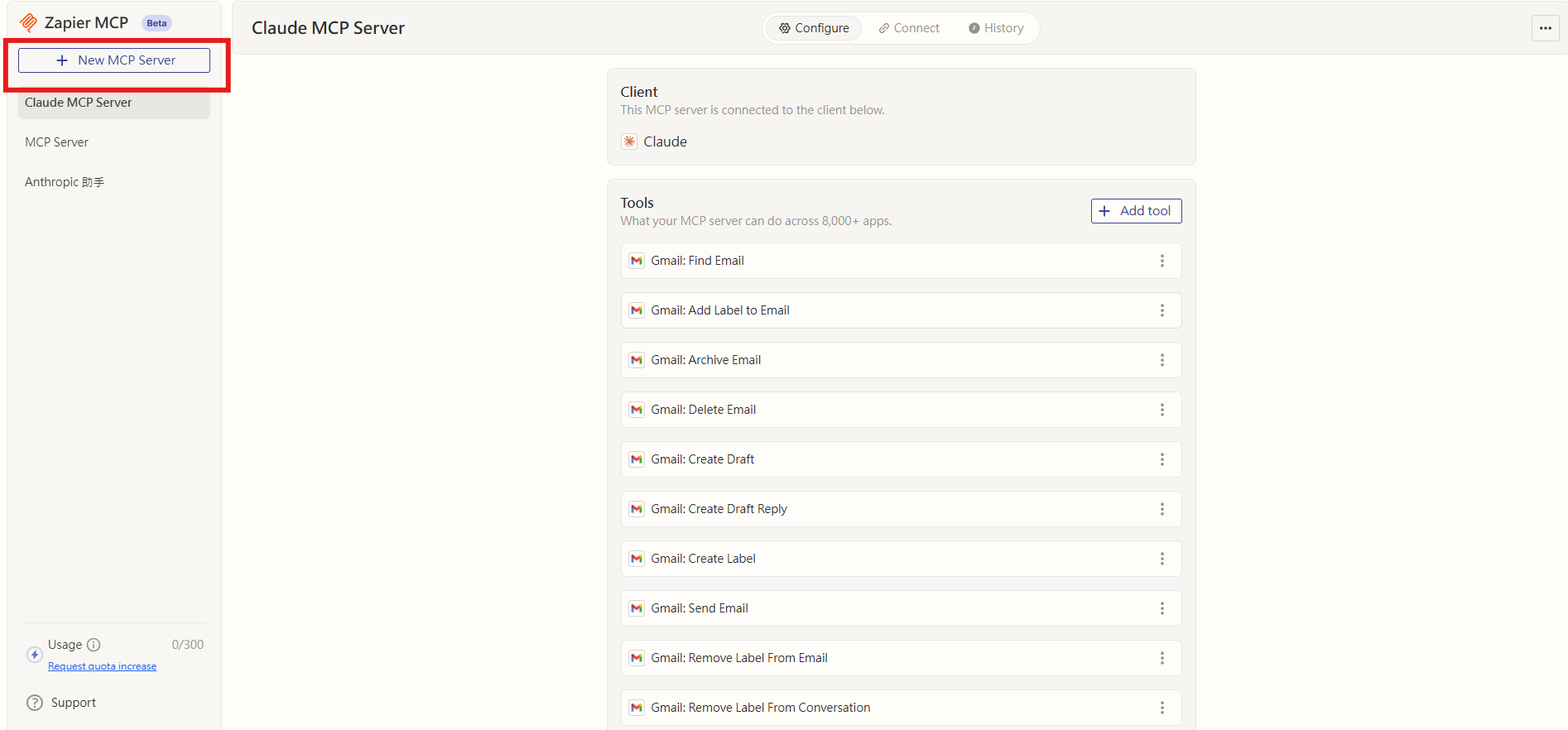
On this page, you can create your own MCP Server and connect different external tools to use as MCP services. 2. Click the “+ New MCP Server” button in the upper-left corner to create an MCP Server.

<figure><img src="https://3415477754-files.gitbook.io/~/files/v0/b/gitbook-x-prod.appspot.com/o/spaces%2FNBTi475lqozGpB7xObpE%2Fuploads%2Fgit-blob-f13e7cb8d3b772fe41db89cd592d24fd2ec7eccd%2F%E8%9E%A2%E5%B9%95%E6%93%B7%E5%8F%96%E7%95%AB%E9%9D%A2%202025-08-08%20110800-1.png?alt=media" alt=""><figcaption><p>Create an MCP Server (+ New MCP Server)</p></figcaption></figure>

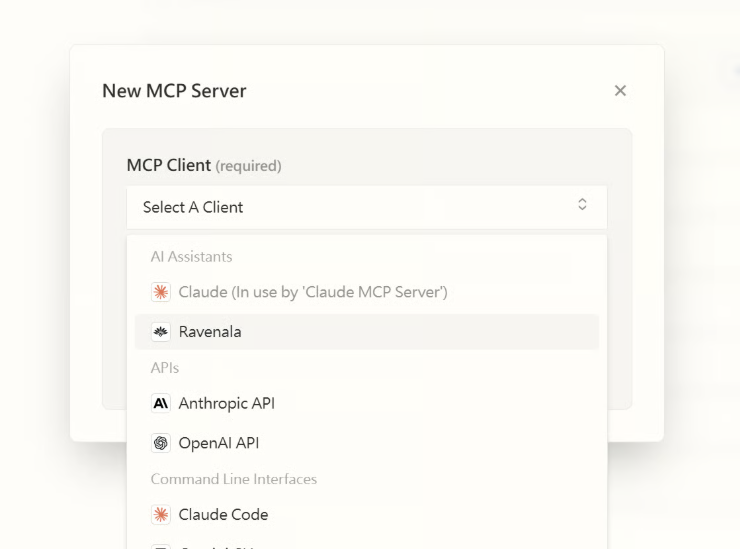
The following screen appears after you click⬇️

<figure><img src="https://3415477754-files.gitbook.io/~/files/v0/b/gitbook-x-prod.appspot.com/o/spaces%2FNBTi475lqozGpB7xObpE%2Fuploads%2Fgit-blob-637660cd31cc03bdb6da604a5be175a18ff87100%2F%E8%9E%A2%E5%B9%95%E6%93%B7%E5%8F%96%E7%95%AB%E9%9D%A2%202025-08-08%20111109.png?alt=media" alt=""><figcaption><p>MCP Server creation settings page</p></figcaption></figure>

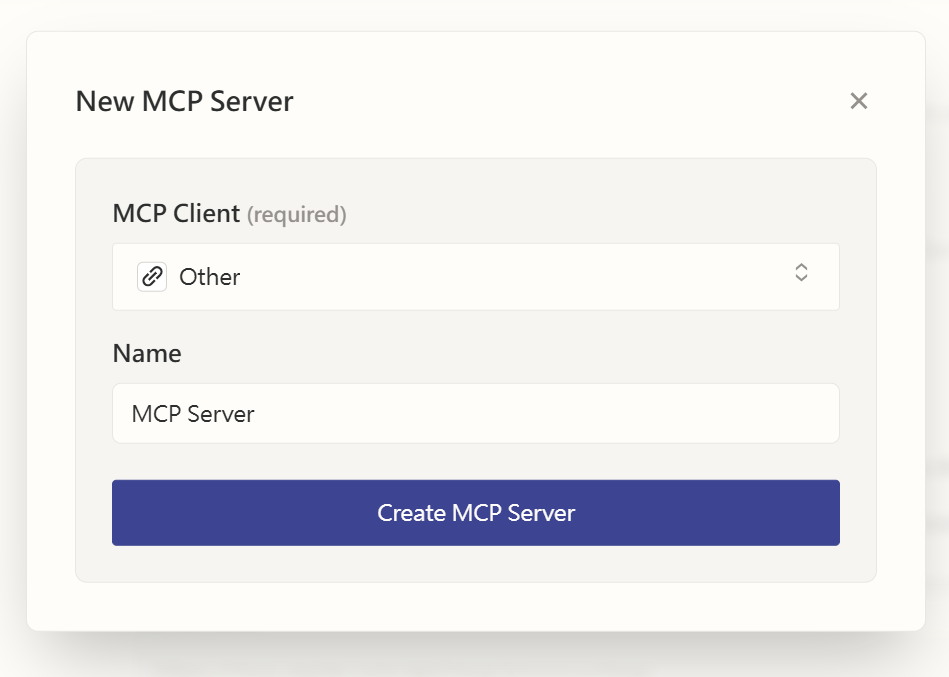
* Select Other as the MCP Client

{% hint style="info" %}
Select **Other** for the MCP Client.
{% endhint %}

* Name this service (MCP Server in this example)

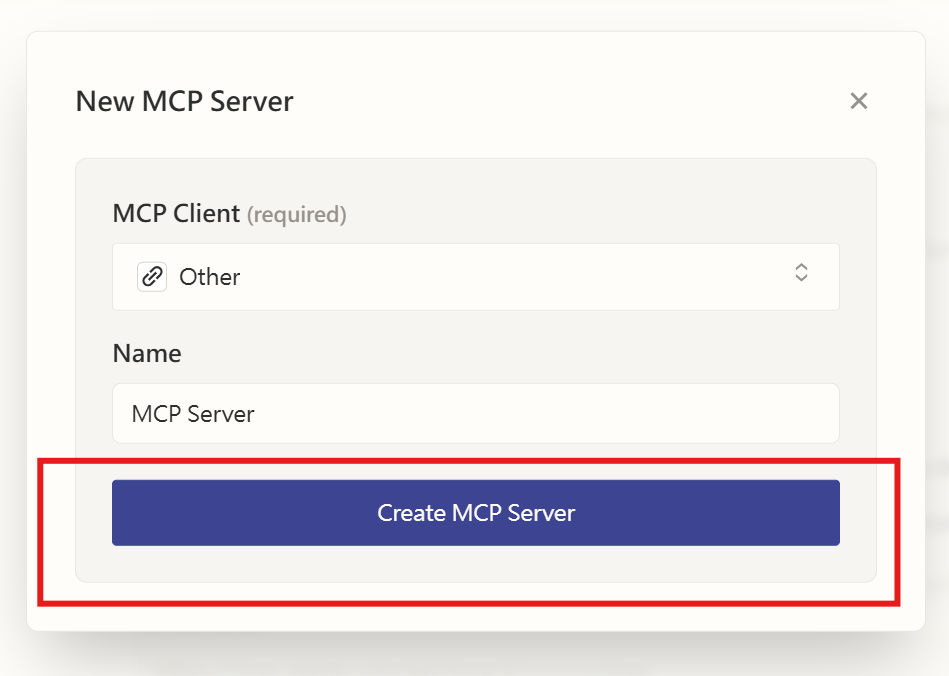
<figure><img src="https://3415477754-files.gitbook.io/~/files/v0/b/gitbook-x-prod.appspot.com/o/spaces%2FNBTi475lqozGpB7xObpE%2Fuploads%2Fgit-blob-2d4249e4b95ab73854c621390cd03ce21849c1f0%2F%E8%9E%A2%E5%B9%95%E6%93%B7%E5%8F%96%E7%95%AB%E9%9D%A2%202025-08-08%20154144.png?alt=media" alt=""><figcaption><p>Name the MCP Server</p></figcaption></figure>

3. Click “Create MCP Server” to create the service

<figure><img src="https://3415477754-files.gitbook.io/~/files/v0/b/gitbook-x-prod.appspot.com/o/spaces%2FNBTi475lqozGpB7xObpE%2Fuploads%2Fgit-blob-76b5561595cf2d05a58ce16c4adb3deb0e33ac2e%2F%E8%9E%A2%E5%B9%95%E6%93%B7%E5%8F%96%E7%95%AB%E9%9D%A2%202025-08-08%20154144-1.png?alt=media" alt=""><figcaption><p>Create the MCP Server</p></figcaption></figure>

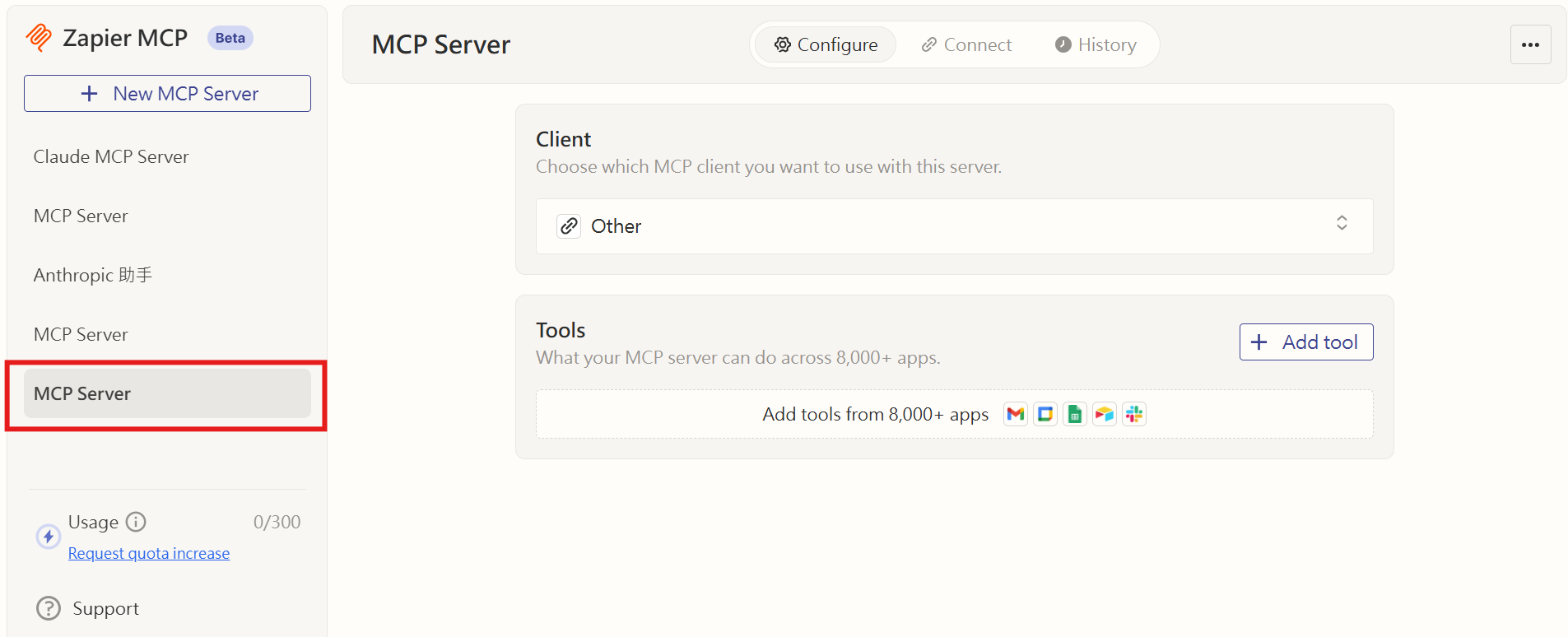
Once your MCP Server is created, the following screen appears, and the service you just named appears in the left sidebar menu.

<figure><img src="https://3415477754-files.gitbook.io/~/files/v0/b/gitbook-x-prod.appspot.com/o/spaces%2FNBTi475lqozGpB7xObpE%2Fuploads%2Fgit-blob-e868f9047b13bf065714de9ff15062b356d062f9%2F%E8%9E%A2%E5%B9%95%E6%93%B7%E5%8F%96%E7%95%AB%E9%9D%A2%202025-08-08%20154714.png?alt=media" alt=""><figcaption><p>MCP Server created successfully</p></figcaption></figure>

## 🔧 Step 3: Select the Tools Available to AI

Connect the MCP Server to external tools:

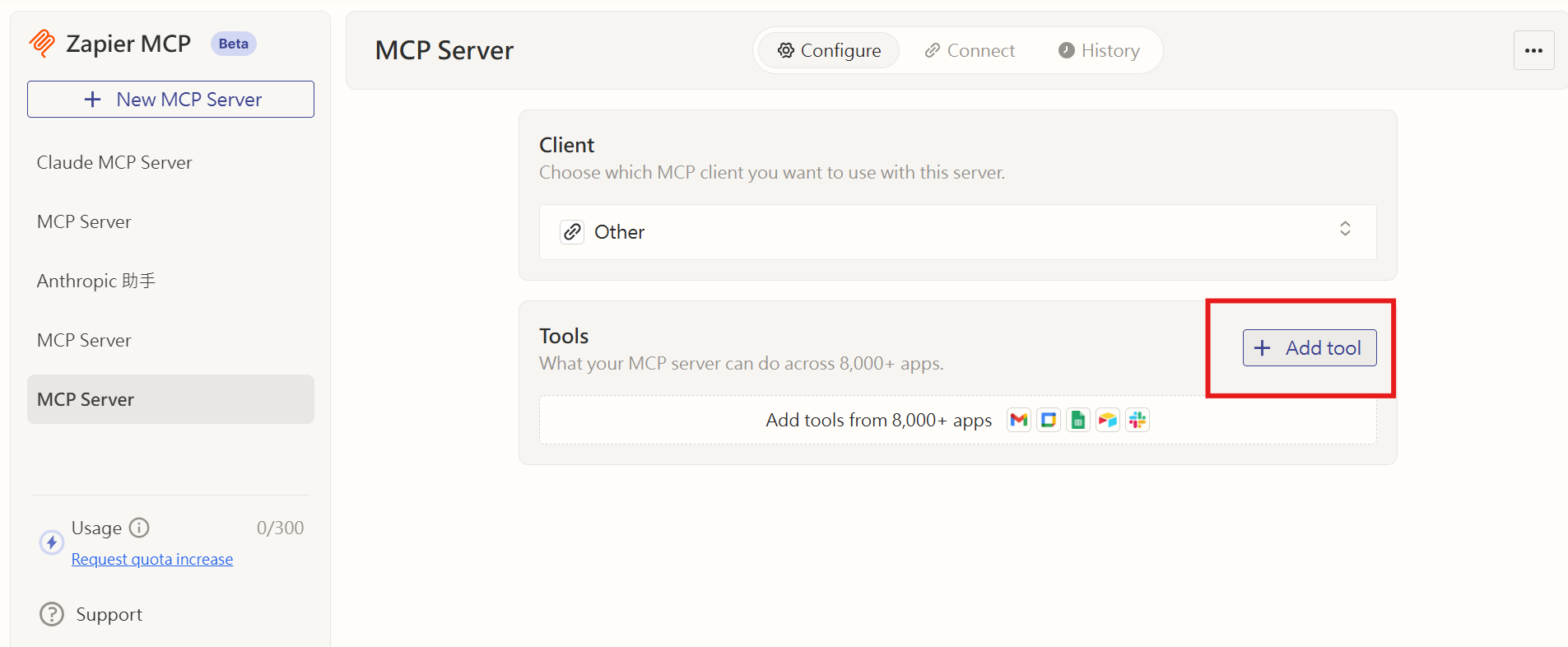
1. Click “+Add Tool” under the service you want to connect

<figure><img src="https://3415477754-files.gitbook.io/~/files/v0/b/gitbook-x-prod.appspot.com/o/spaces%2FNBTi475lqozGpB7xObpE%2Fuploads%2Fgit-blob-42b73e413a4019cd286b64624c6e47c847237b8d%2F%E8%9E%A2%E5%B9%95%E6%93%B7%E5%8F%96%E7%95%AB%E9%9D%A2%202025-08-08%20154830-1.png?alt=media" alt=""><figcaption><p>Add a tool (+Add Tool)</p></figcaption></figure>

{% hint style="info" %}
Tip: If you are not yet sure what you need, start with commonly used, lower-risk read actions (Read-Only), then gradually enable write actions (Write).

* Authorize only accounts used for work, and follow your organization's principle of least privilege (Least Privilege).
  {% endhint %}

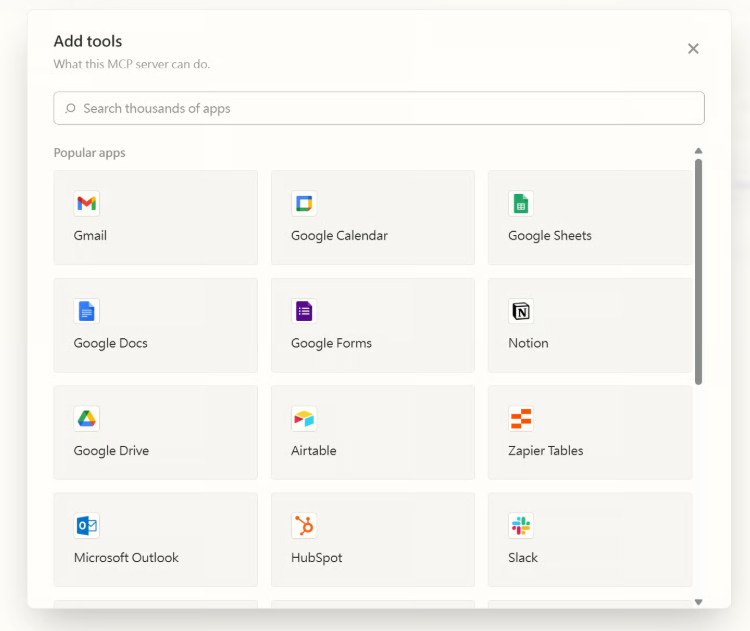
2. After you click, all external tools that can be connected are listed

<figure><img src="https://3415477754-files.gitbook.io/~/files/v0/b/gitbook-x-prod.appspot.com/o/spaces%2FNBTi475lqozGpB7xObpE%2Fuploads%2Fgit-blob-95e71cf54f159540e7c33ba8a542db985bb0d426%2F%E8%9E%A2%E5%B9%95%E6%93%B7%E5%8F%96%E7%95%AB%E9%9D%A2%202025-08-08%20114333.png?alt=media" alt=""><figcaption><p>List of external tools available to connect</p></figcaption></figure>

For example, click the Gmail icon to connect Gmail.

{% hint style="info" %}
Some external services require authorization. To use those tools, you must authorize access when connecting them.
{% endhint %}

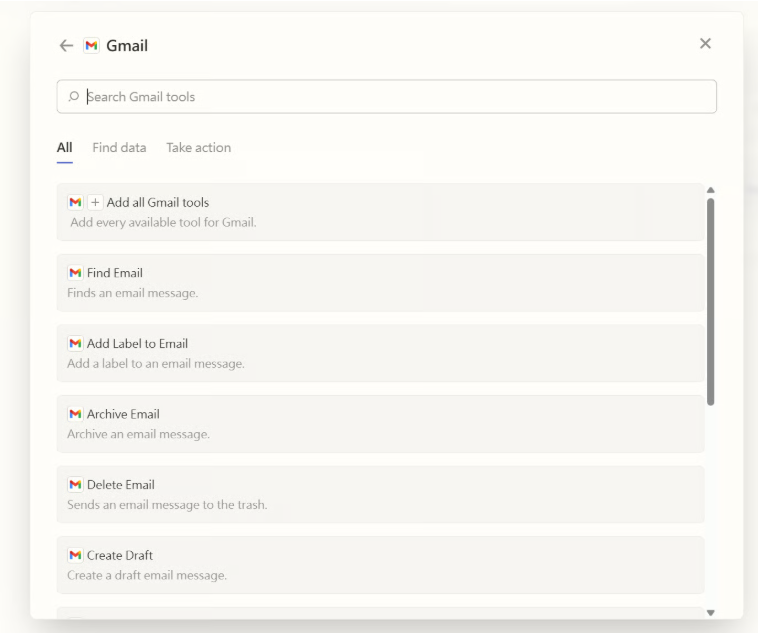
3. After adding Gmail, select the Google account to connect and the tools you need, or click “Add all Gmail tools” to add all tools provided by Gmail.

<figure><img src="https://3415477754-files.gitbook.io/~/files/v0/b/gitbook-x-prod.appspot.com/o/spaces%2FNBTi475lqozGpB7xObpE%2Fuploads%2Fgit-blob-e5ea9499807eb4214da1f4c79423cb963603b6de%2F%E8%9E%A2%E5%B9%95%E6%93%B7%E5%8F%96%E7%95%AB%E9%9D%A2%202025-08-08%20114830.png?alt=media" alt=""><figcaption><p>Select the tools to use</p></figcaption></figure>

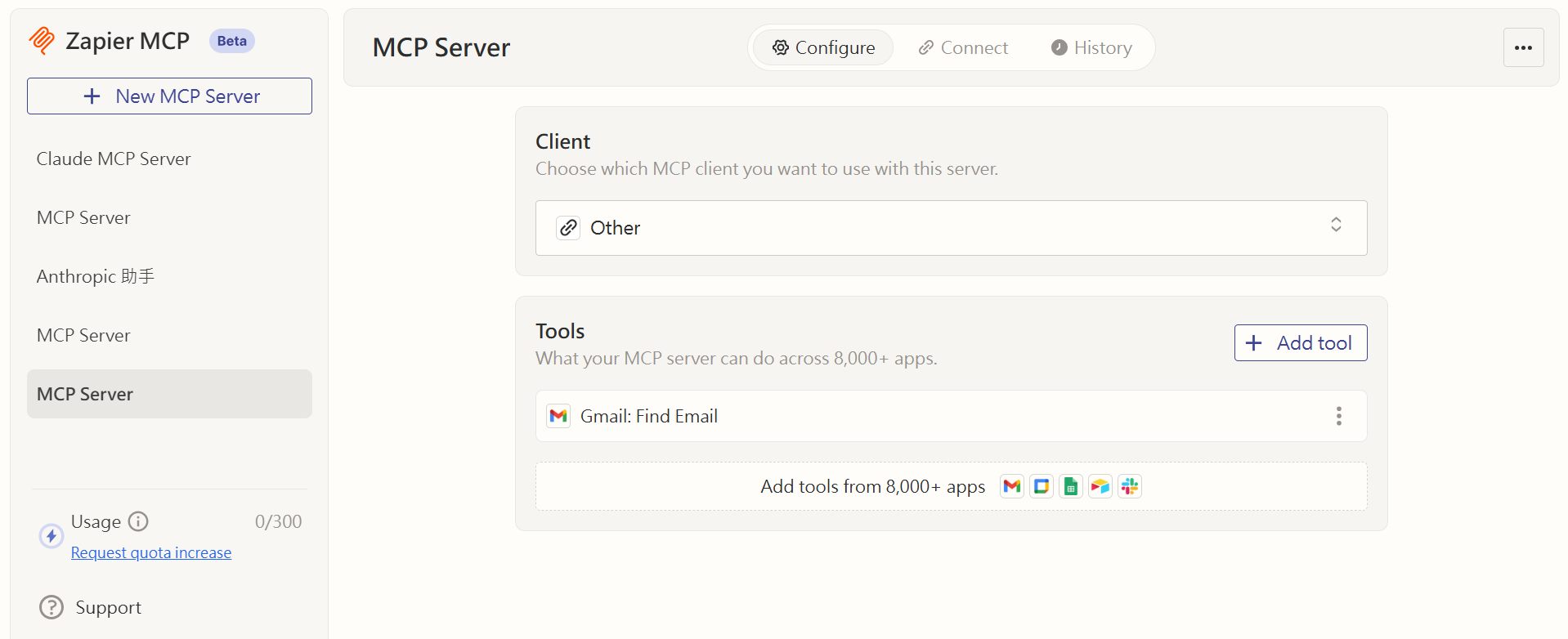
Once finished, Gmail tools are added and connected to this MCP Server. Here, we select only the Find Email tool.

<figure><img src="https://3415477754-files.gitbook.io/~/files/v0/b/gitbook-x-prod.appspot.com/o/spaces%2FNBTi475lqozGpB7xObpE%2Fuploads%2Fgit-blob-b741bf32e224ebdeeadd7ddf9db19422724819d9%2F%E8%9E%A2%E5%B9%95%E6%93%B7%E5%8F%96%E7%95%AB%E9%9D%A2%202025-08-08%20154945.png?alt=media" alt=""><figcaption><p>Added Gmail tool (Find Email)</p></figcaption></figure>

After connecting, the tools you selected appear in the tool list.

## ↔️ Step 4: Copy the MCP Endpoint

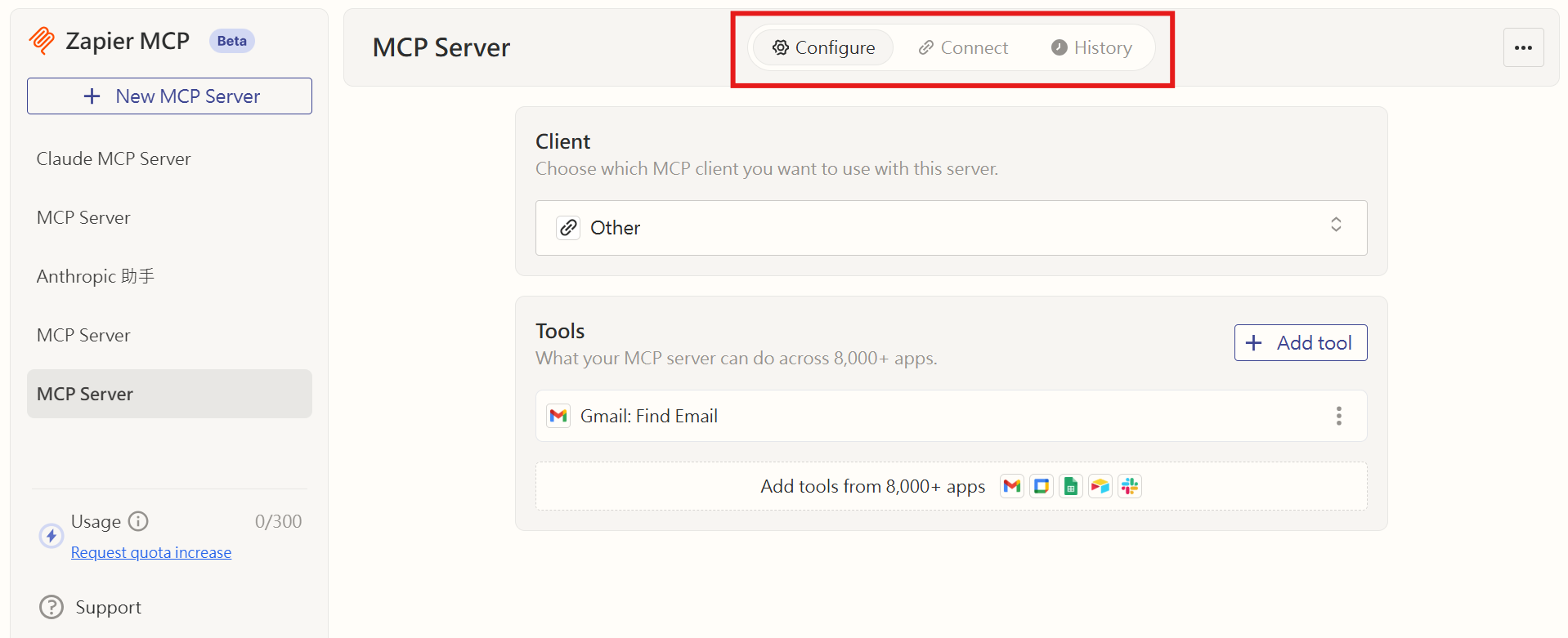
1. On the MCP Server page, switch to the “Connect” tab at the top.

<figure><img src="https://3415477754-files.gitbook.io/~/files/v0/b/gitbook-x-prod.appspot.com/o/spaces%2FNBTi475lqozGpB7xObpE%2Fuploads%2Fgit-blob-3e0471c96c1167c84a974cad143ecf6408b84b12%2F%E8%9E%A2%E5%B9%95%E6%93%B7%E5%8F%96%E7%95%AB%E9%9D%A2%202025-08-08%20154945-2.png?alt=media" alt=""><figcaption><p>Connect tab</p></figcaption></figure>

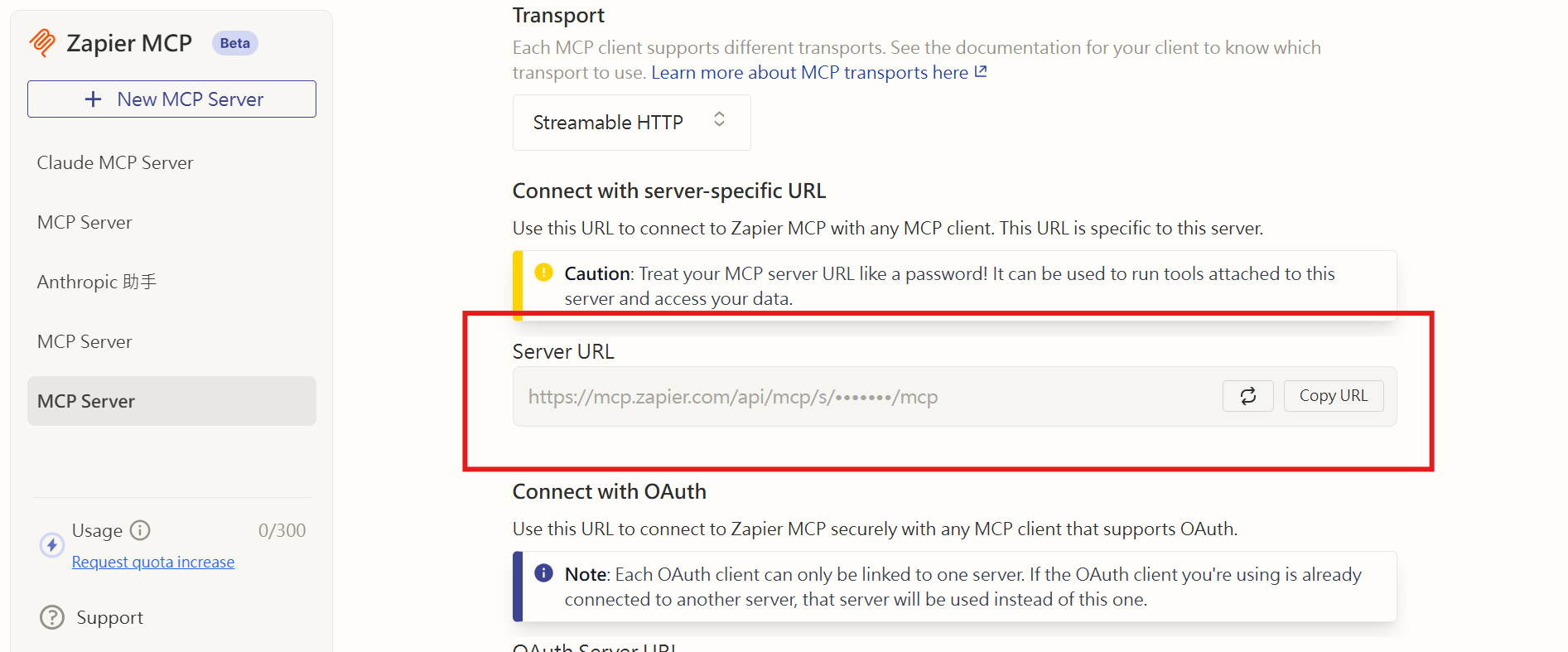
2\. Obtain and copy the “Server URL” on this tab.

<figure><img src="https://3415477754-files.gitbook.io/~/files/v0/b/gitbook-x-prod.appspot.com/o/spaces%2FNBTi475lqozGpB7xObpE%2Fuploads%2Fgit-blob-9acd1caafd59b2aa2160c5d3856f51b87e968e49%2F%E8%9E%A2%E5%B9%95%E6%93%B7%E5%8F%96%E7%95%AB%E9%9D%A2%202025-08-08%20155221.png?alt=media" alt=""><figcaption><p>MCP Server URL</p></figcaption></figure>

> Note: This URL is private information and should only be shared with trusted systems (such as your MaiAgent environment).

## 💻 Step 5: Set Up an MCP Tool in MaiAgent

Add an MCP tool in MaiAgent and paste the **Zapier MCP server URL** copied in Step 4 into the URL field below “<mark style="color:blue;">Or enter directly (No authentication / Service Account)</mark>”. This URL already includes Zapier's authorization, so leave “<mark style="color:blue;">Headers (JSON)</mark>” as `{}`. Next, click “<mark style="color:blue;">Refresh</mark>”. The actions you just added in Zapier (such as Find email) appear in the “<mark style="color:blue;">Allowed tools (JSON array)</mark>” list. Use the toggle to the right of each tool to select the tools available to the Agent, then save.

For complete instructions and explanations of each field, see [Create an MCP tool: MCP server URL](https://docs.maiagent.ai/build/tools/mcp-setup#mcp-server-url) in the user manual.

## Demo Video

{% embed url="<https://drive.google.com/file/d/1az-aQ5JlQvGBUd9nQN45zI-g9xcnN1Td/view?usp=drive_link>" %}

## ⚠️ Notes

* URL confidentiality: The MCP Server URL contains your Zapier authorization. Anyone who obtains the URL can call actions using your account. Store it securely and avoid sharing it publicly.
* Shared account: All users who chat with this Agent perform operations through the account you connected in Zapier. Use services tied to personal accounts (personal email or calendars) only with internal Agents. See [Remote MCP service overview: limitations and notes](/tech/en/mcp/remote-mcp.md#limitations).
* Least privilege: Enable only the applications and actions the Agent needs to reduce exposure to risk.
* Expired authorization: If authorization for a Zapier connection expires (for example, a revoked key or expired OAuth authorization), reauthorize it in Zapier.
* Multiple tools: To integrate multiple applications (such as Google Drive and Slack), repeat Step 3 in the Zapier MCP console to add tools to the same MCP Server; you do not need to change the MCP URL. Newly added actions **are not automatically enabled** for the Agent. Click “<mark style="color:blue;">Refresh</mark>” in MaiAgent's tool settings. The new actions appear under “<mark style="color:blue;">Allowed tools (JSON array)</mark>”; enable them and save.

{% hint style="info" %}

* Logs and auditing: MaiAgent records every call in the tool execution records (input parameters, output or errors, status, and duration). View them under <mark style="color:blue;">AgentOps</mark> → <mark style="color:blue;">Tool execution records</mark>. See [Tool execution records](https://docs.maiagent.ai/build/agent-ops/tool-execution-records) in the user manual; view Zapier's execution records in Zapier.
* To avoid compatibility issues caused by version changes or other updates, regularly consult the [Zapier support center](https://help.zapier.com/) for information on authorization, connections, and limits.
  {% endhint %}


---

# Agent Instructions
This documentation is published with GitBook. GitBook is the documentation platform designed so that both humans and AI agents can read, navigate, and reason over technical content effectively. Learn more at gitbook.com.

## Querying This Documentation
If you need additional information that is not directly available in this page, you can query the documentation by asking a question.

Perform an HTTP GET request on the following URL with the `ask` and `goal` query parameters:

```
GET https://docs.maiagent.ai/tech/en/mcp/zapier.md?ask=<question>&goal=<user_goal>
```

`ask` is the immediate question: it should be specific, self-contained, and written in natural language.
`goal` is what the user is ultimately trying to achieve, the reason they need the answer. Sharing it helps GitBook give you a better, more relevant answer. A goal is most helpful when it describes the outcome the user wants rather than restating the question. For example, with `ask=how do I create an API token`, a goal like `automate deployments from our CI pipeline` lets GitBook tailor the answer to that use case.

The response will contain a direct answer to the question and relevant excerpts and sources from the documentation.

Use this mechanism when the answer is not explicitly present in the current page, you need clarification or additional context, or you want to retrieve related documentation sections.