> For the complete documentation index, see [llms.txt](https://docs.maiagent.ai/llms.txt). Markdown versions of documentation pages are available by appending `.md` to page URLs; this page is available as [Markdown](https://docs.maiagent.ai/tech/en/mcp/composio.md).

# Composio Integration

Composio integration: obtain an MCP Server URL from the Composio MCP directory, connect third-party accounts, and create MCP tools in MaiAgent for Agents to use.

This guide walks you through obtaining and configuring an MCP (Model Context Protocol) server URL from Composio so that your Agents in MaiAgent can use the MCP Server services provided by Composio.

## ✅ Prerequisites

* You have a Composio account.
* You want to integrate Composio tools into your Agents in MaiAgent.

## 🌐 Step 1: Visit the Composio MCP Directory

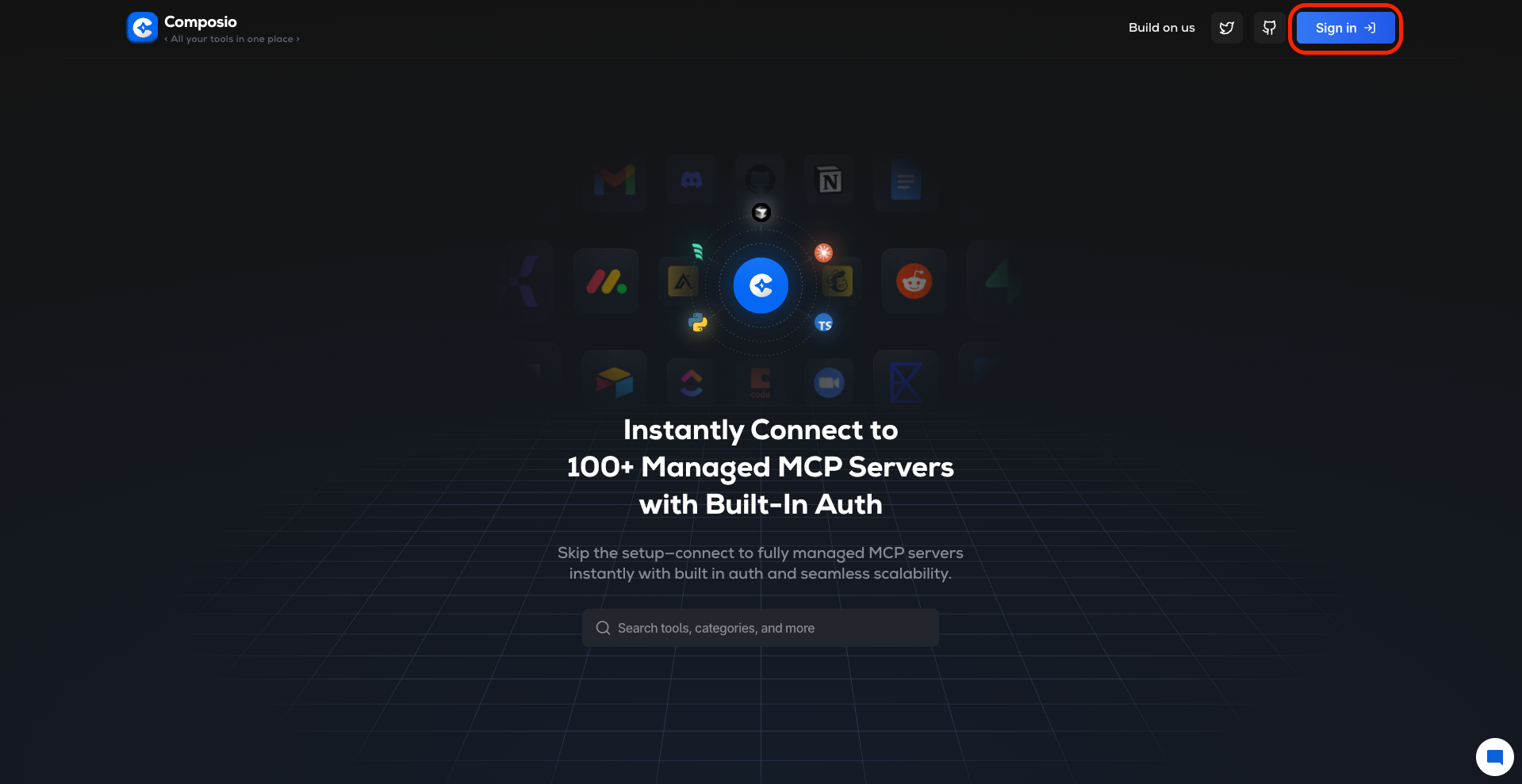
1. Open your web browser and follow the link to the [**Composio MCP Tool Directory**](https://mcp.composio.dev/):
   * This page lists the tools and applications that Composio provides for integration with Agents.

<figure><img src="https://3415477754-files.gitbook.io/~/files/v0/b/gitbook-x-prod.appspot.com/o/spaces%2FNBTi475lqozGpB7xObpE%2Fuploads%2Fgit-blob-4901b881dddf4a6c52011f664087db41852b86ea%2F%E6%88%AA%E5%9C%96%202025-05-11%20%E4%B8%8B%E5%8D%885.04.39.png?alt=media" alt="Overview of the Composio MCP directory page"><figcaption><p>The Composio MCP directory lists many applications and tools available for integration</p></figcaption></figure>

## 🔑 Step 2: Sign In to Your Account

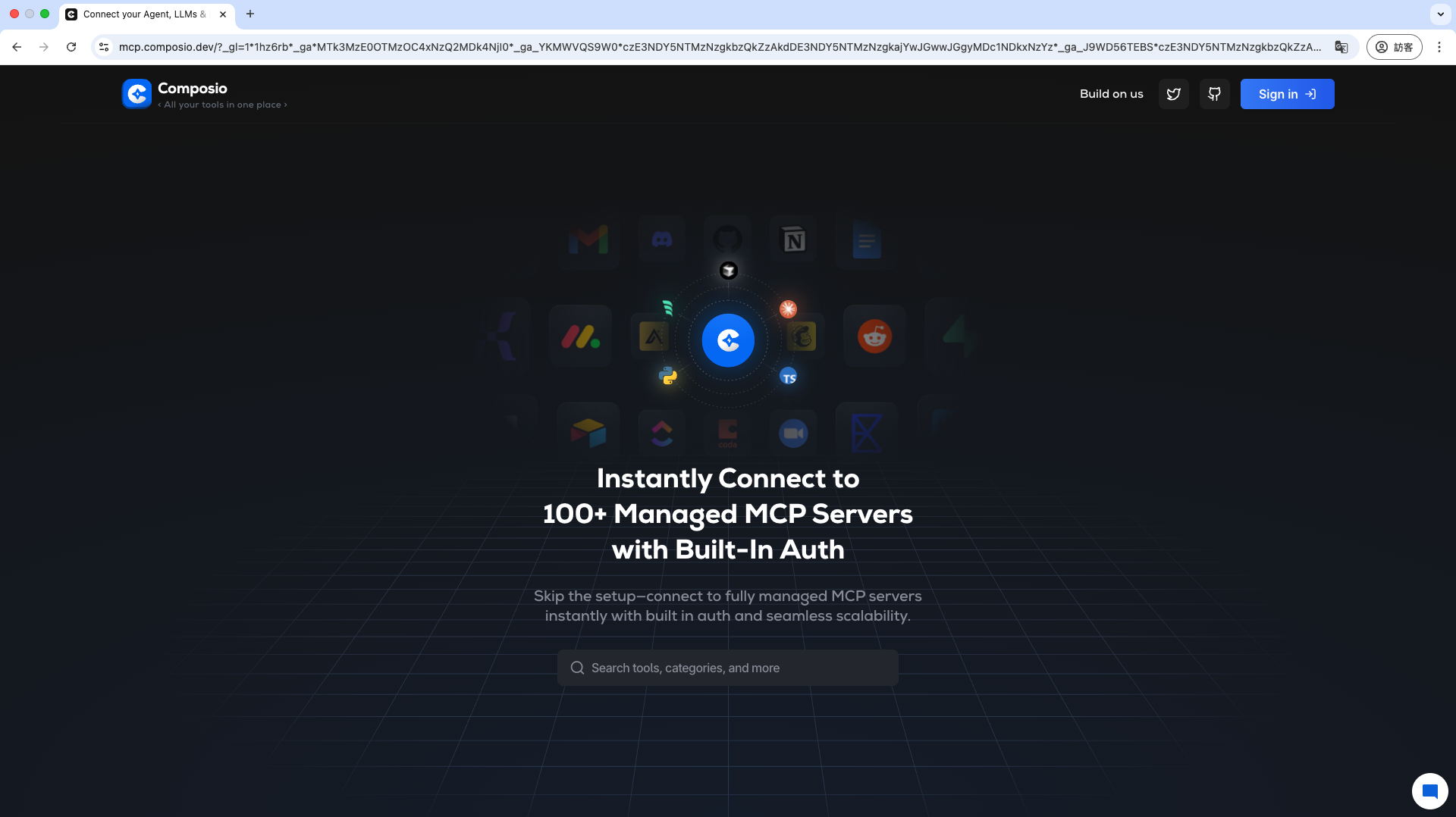
1. Find and click the **"Sign in"** button in the upper-right corner of the Composio MCP directory page.
2. Sign in with your Composio account.
   * If you do not have a Composio account yet, complete the registration process first.

<figure><img src="https://3415477754-files.gitbook.io/~/files/v0/b/gitbook-x-prod.appspot.com/o/spaces%2FNBTi475lqozGpB7xObpE%2Fuploads%2Fgit-blob-20bfd09fa0a34519de6a87c2c35eb320862efa43%2F%E6%88%AA%E5%9C%96%202025-05-11%20%E4%B8%8B%E5%8D%885.06.04.png?alt=media" alt="Location of the Composio MCP sign-in button"><figcaption><p>Click the "Sign in" button in the upper-right corner of the page to sign in to your account</p></figcaption></figure>

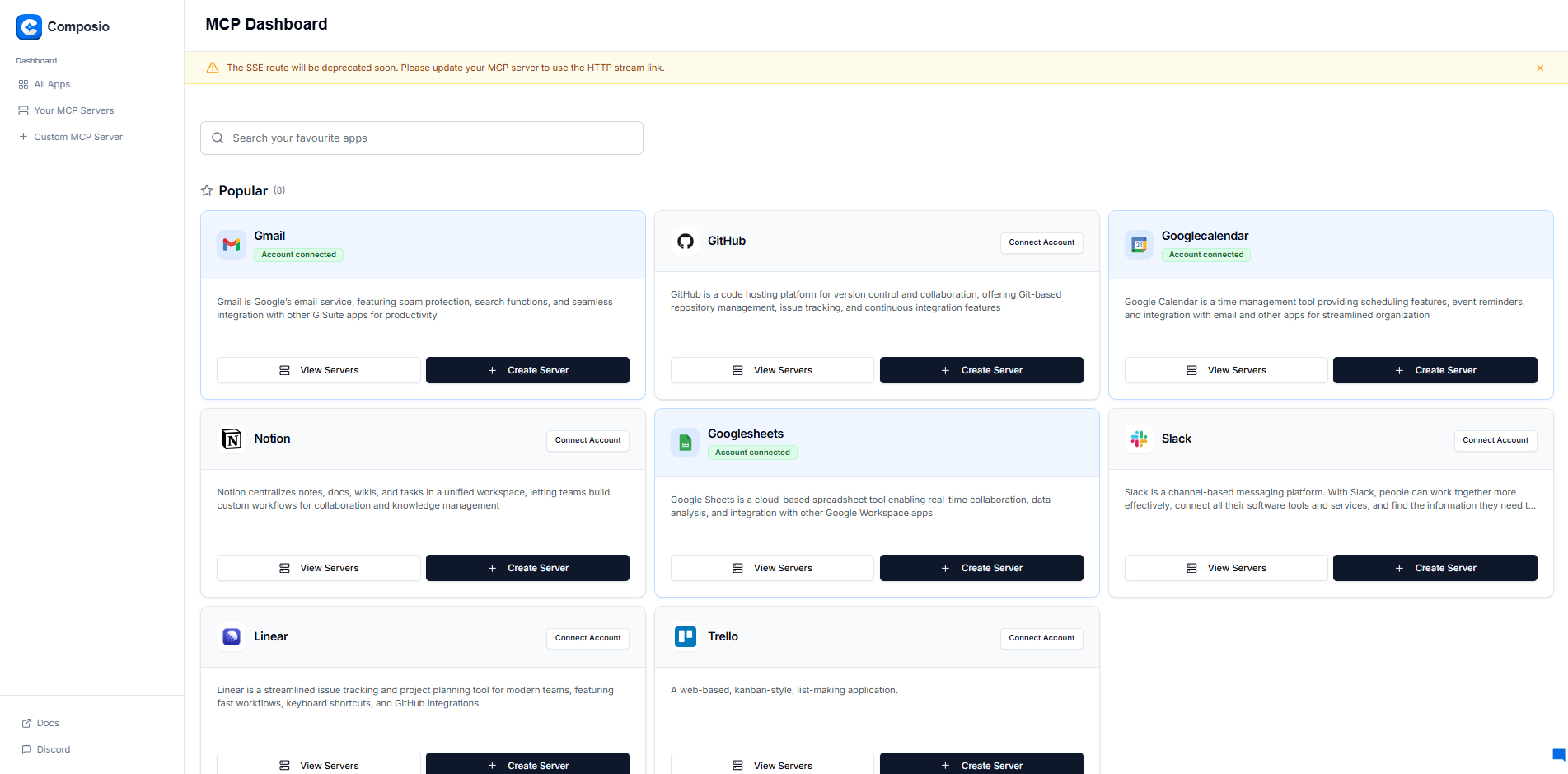
3. After you sign in, the page updates to your personalized MCP Dashboard, displaying all the tools and applications available to you.

<figure><img src="https://3415477754-files.gitbook.io/~/files/v0/b/gitbook-x-prod.appspot.com/o/spaces%2FNBTi475lqozGpB7xObpE%2Fuploads%2Fgit-blob-9f6fa93454bb1a9a2129a0735ca6bf531eac95ca%2F%E8%9E%A2%E5%B9%95%E6%93%B7%E5%8F%96%E7%95%AB%E9%9D%A2%202025-08-20%20110840.png?alt=media" alt="Location of the Composio MCP sign-in button"><figcaption><p>Composio MCP Dashboard</p></figcaption></figure>

## 👆 Step 3: Select the Tools/Applications You Need

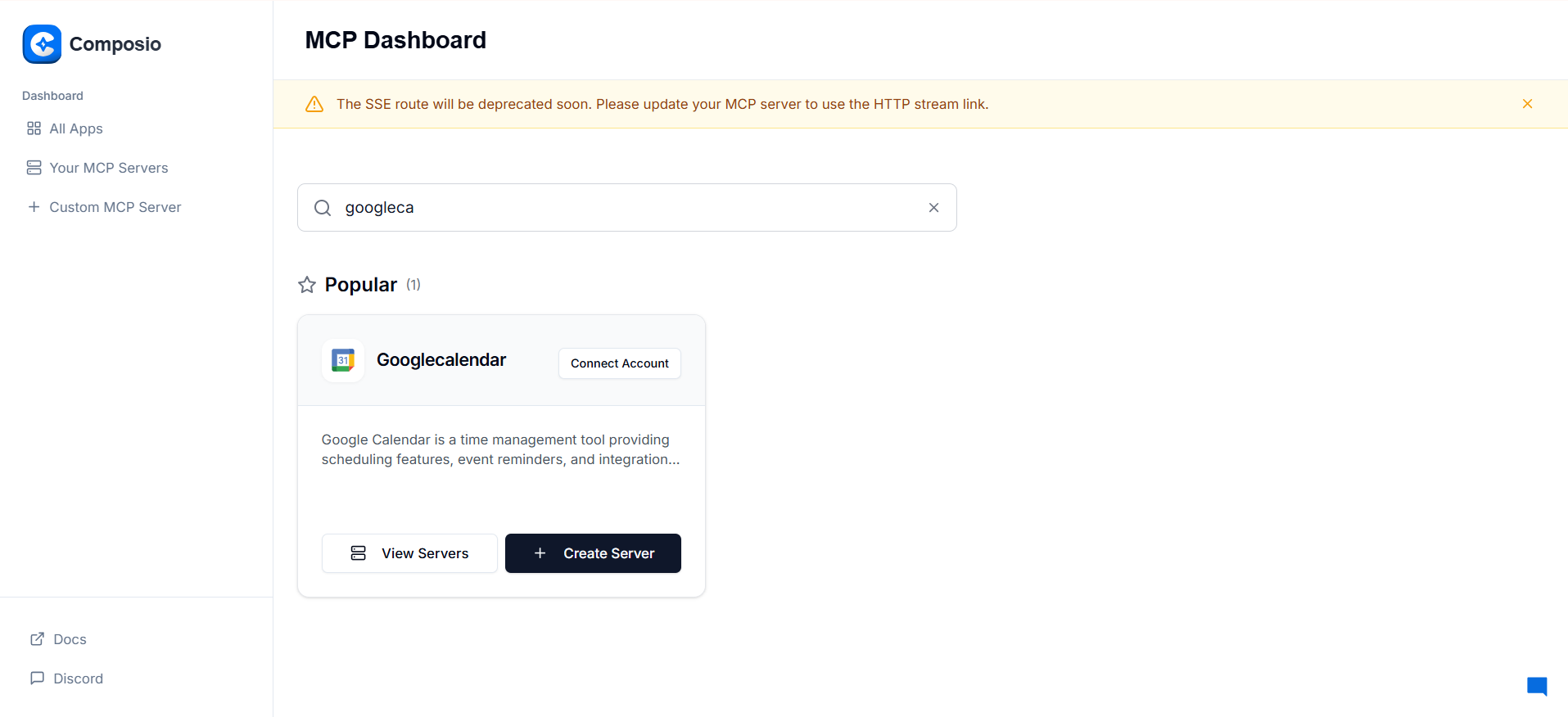
1. In the **Composio MCP Dashboard**, browse or search for the tools or applications you want your Agent to use (such as Google Drive, Slack, Jira, GitHub, etc.).

Using Google Calendar as an example:

<figure><img src="https://3415477754-files.gitbook.io/~/files/v0/b/gitbook-x-prod.appspot.com/o/spaces%2FNBTi475lqozGpB7xObpE%2Fuploads%2Fgit-blob-db31bbbed233743e9a53ee1e6ea8311215139bf5%2F%E8%9E%A2%E5%B9%95%E6%93%B7%E5%8F%96%E7%95%AB%E9%9D%A2%202025-08-20%20105214.png?alt=media" alt=""><figcaption></figcaption></figure>

## 🔐 Step 4: Create a Server and Connect an Account

1. After finding a tool, authorize an account connection before you can enable the tool.

Click "<mark style="color:blue;">+Create Server</mark>"

<figure><img src="https://3415477754-files.gitbook.io/~/files/v0/b/gitbook-x-prod.appspot.com/o/spaces%2FNBTi475lqozGpB7xObpE%2Fuploads%2Fgit-blob-17afef14a4cdbef915b7d0752ecdded965ab68af%2Fimage%20(39).png?alt=media" alt=""><figcaption></figcaption></figure>

2. Name the Server, then click "<mark style="color:blue;">Next</mark>"

<figure><img src="https://3415477754-files.gitbook.io/~/files/v0/b/gitbook-x-prod.appspot.com/o/spaces%2FNBTi475lqozGpB7xObpE%2Fuploads%2Fgit-blob-58533aa5bbde26d4741e304d5071d8a6ce7fdff6%2Fimage%20(40).png?alt=media" alt=""><figcaption></figcaption></figure>

3. The service's authorization window opens. Confirm that you want to grant Composio access.

* For example, for a Google service, select the Google account you want to authorize and confirm the requested permissions.
* This step is required because Composio needs your authorization to perform operations on your behalf.

Click **"Connect"**. After authorization is complete, you are redirected to the Composio platform

3. Select the tools you want to authorize, then click "<mark style="color:blue;">Create Server</mark>" to create the connection

* **Important note**: In Configure Actions, select the features users will actually use. If you have no specific requirements, you can select all actions.

<figure><img src="https://3415477754-files.gitbook.io/~/files/v0/b/gitbook-x-prod.appspot.com/o/spaces%2FNBTi475lqozGpB7xObpE%2Fuploads%2Fgit-blob-332afd1b685406495b85180483010d73492f929b%2Fimage%20(42).png?alt=media" alt=""><figcaption></figcaption></figure>

## 🔗 Step 5: Copy the MCP Server URL

1. After the Server is set up, the system creates a dedicated **MCP server** for you.

{% hint style="info" %}
We recommend switching to HTTP Stream (Streamable HTTP). MaiAgent also supports SSE, but uses SSE only when the URL path ends with `/sse`, contains `/sse/`, or the query string includes `transport=sse`. All other URLs use Streamable HTTP.
{% endhint %}

2. In the "MCP Server Created" window, copy the URL from the HTTP Stream tab (in the format `https://mcp.composio.dev/composio/server/<server-id>/mcp?...`), then go to MaiAgent.

{% hint style="warning" %}
The URL itself contains Composio authorization. Treat it like a password and do not share it publicly or in screenshots.
{% endhint %}

## 💻 Step 6: Create an MCP Tool in MaiAgent

Add an MCP tool in MaiAgent and paste the Composio **MCP server URL** you copied in Step 5 into the URL field under "<mark style="color:blue;">Or enter directly (No authentication / Service Account)</mark>". This URL already contains Composio authorization, so leave "<mark style="color:blue;">Headers (JSON)</mark>" as `{}`. Next, click "<mark style="color:blue;">Fetch again</mark>". Under "<mark style="color:blue;">Allowed tools (JSON array)</mark>", use the toggle to the right of each tool to select the tools your Agent can access, then save.

For the complete steps and field descriptions, see [Create an MCP Tool: MCP Server URL](https://docs.maiagent.ai/build/tools/mcp-setup#mcp-server-url) in the user manual.

## ⚠️ Notes

* **URL privacy**: The generated **MCP Server URL** itself contains your Composio authorization. Anyone who obtains it can call tools using your account. Do not disclose it.
* **All users share the same account**: All users who chat through this Agent perform operations using the account you authorized in Composio. For services tied to personal accounts (personal mailboxes or calendars), use only internal Agents, or use MaiAgent's OAuth connectors with individual contact authorization. See [Remote MCP Service Overview: Limitations and Notes](/tech/en/mcp/remote-mcp.md#limitations).
* **New actions are not enabled automatically**: If you add actions in Composio later, return to the tool settings in MaiAgent, click "<mark style="color:blue;">Fetch again</mark>", and enable them before your Agent can use them.
* **Multiple tools**: If you need to integrate several applications (for example, Google Drive and Slack together), you may need to repeat Steps 3 through 5 in the **Composio MCP directory** for each application to obtain its **MCP server URL**, then configure separate tools in MaiAgent and assign them to your Agent.
* **Composio documentation**: Composio's interface or workflow may change. Refer to the [latest official Composio documentation](https://docs.composio.dev/getting-started/welcome) for the most accurate information.


---

# Agent Instructions
This documentation is published with GitBook. GitBook is the documentation platform designed so that both humans and AI agents can read, navigate, and reason over technical content effectively. Learn more at gitbook.com.

## Querying This Documentation
If you need additional information that is not directly available in this page, you can query the documentation by asking a question.

Perform an HTTP GET request on the following URL with the `ask` and `goal` query parameters:

```
GET https://docs.maiagent.ai/tech/en/mcp/composio.md?ask=<question>&goal=<user_goal>
```

`ask` is the immediate question: it should be specific, self-contained, and written in natural language.
`goal` is what the user is ultimately trying to achieve, the reason they need the answer. Sharing it helps GitBook give you a better, more relevant answer. A goal is most helpful when it describes the outcome the user wants rather than restating the question. For example, with `ask=how do I create an API token`, a goal like `automate deployments from our CI pipeline` lets GitBook tailor the answer to that use case.

The response will contain a direct answer to the question and relevant excerpts and sources from the documentation.

Use this mechanism when the answer is not explicitly present in the current page, you need clarification or additional context, or you want to retrieve related documentation sections.