> For the complete documentation index, see [llms.txt](https://docs.maiagent.ai/llms.txt). Markdown versions of documentation pages are available by appending `.md` to page URLs; this page is available as [Markdown](https://docs.maiagent.ai/tech/en/authorization-integration/zhi-shi-guan-li-quan-xian-query-metadata-cha-xun-yuan-zi-liao-zong-lan/graphical-interface.md).

# Get Started—Using the Query Builder

Configure Query Metadata by selecting options in the backend Query Builder, covering contact-level and per-message settings for internal Q\&A

The Query Builder provides a graphical way to configure Query Metadata: use checkboxes instead of JSON, making it suitable for manual management in the backend. Its two entry points correspond to the two levels described on the [overview page](/tech/en/authorization-integration/zhi-shi-guan-li-quan-xian-query-metadata-cha-xun-yuan-zi-liao-zong-lan.md#levels):

* **Edit Contact** → Configure the knowledge scope for all conversations with that user (contact level)
* **Internal Q\&A** → Select the knowledge scope before sending each message (message level)

{% hint style="info" %}
If you need nested label conditions or want to configure settings through an API or embedded code, use the [JSON format](/tech/en/authorization-integration/zhi-shi-guan-li-quan-xian-query-metadata-cha-xun-yuan-zi-liao-zong-lan/json-interfaces.md). Both methods produce equivalent settings.
{% endhint %}

## Contact-Level Settings <a href="#contact-level" id="contact-level"></a>

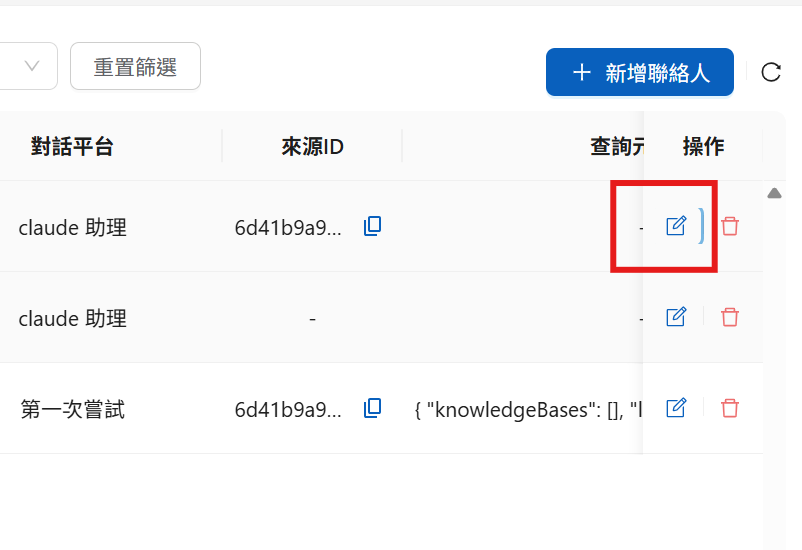
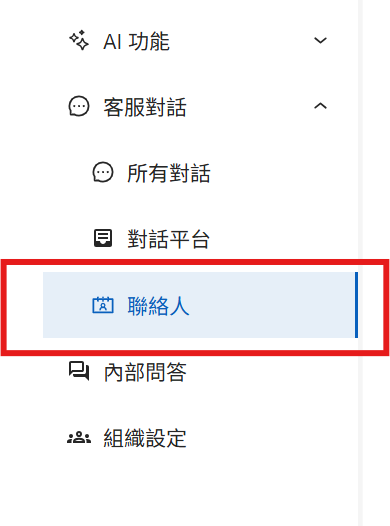
### Step 1: Open the Contacts Area in the Backend <a href="#step-1-contacts" id="step-1-contacts"></a>

<figure><img src="https://3415477754-files.gitbook.io/~/files/v0/b/gitbook-x-prod.appspot.com/o/spaces%2FNBTi475lqozGpB7xObpE%2Fuploads%2Fgit-blob-e1193c589be2e94dd3b408588d7ea9a426bb3d2a%2F%E8%9E%A2%E5%B9%95%E6%93%B7%E5%8F%96%E7%95%AB%E9%9D%A2%202025-08-07%20165727.png?alt=media" alt=""><figcaption><p>Contacts area entry point</p></figcaption></figure>

### Step 2: Edit a Contact and Open the Query Builder <a href="#step-2-edit" id="step-2-edit"></a>

Find the contact you want to configure and click <mark style="color:blue;">Edit</mark>:

<figure><img src="https://3415477754-files.gitbook.io/~/files/v0/b/gitbook-x-prod.appspot.com/o/spaces%2FNBTi475lqozGpB7xObpE%2Fuploads%2Fgit-blob-3e040c93c8149b98cec909c9f006f59876673de0%2F%E8%9E%A2%E5%B9%95%E6%93%B7%E5%8F%96%E7%95%AB%E9%9D%A2%202025-08-07%20165859.png?alt=media" alt=""><figcaption><p>Edit Contact entry point</p></figcaption></figure>

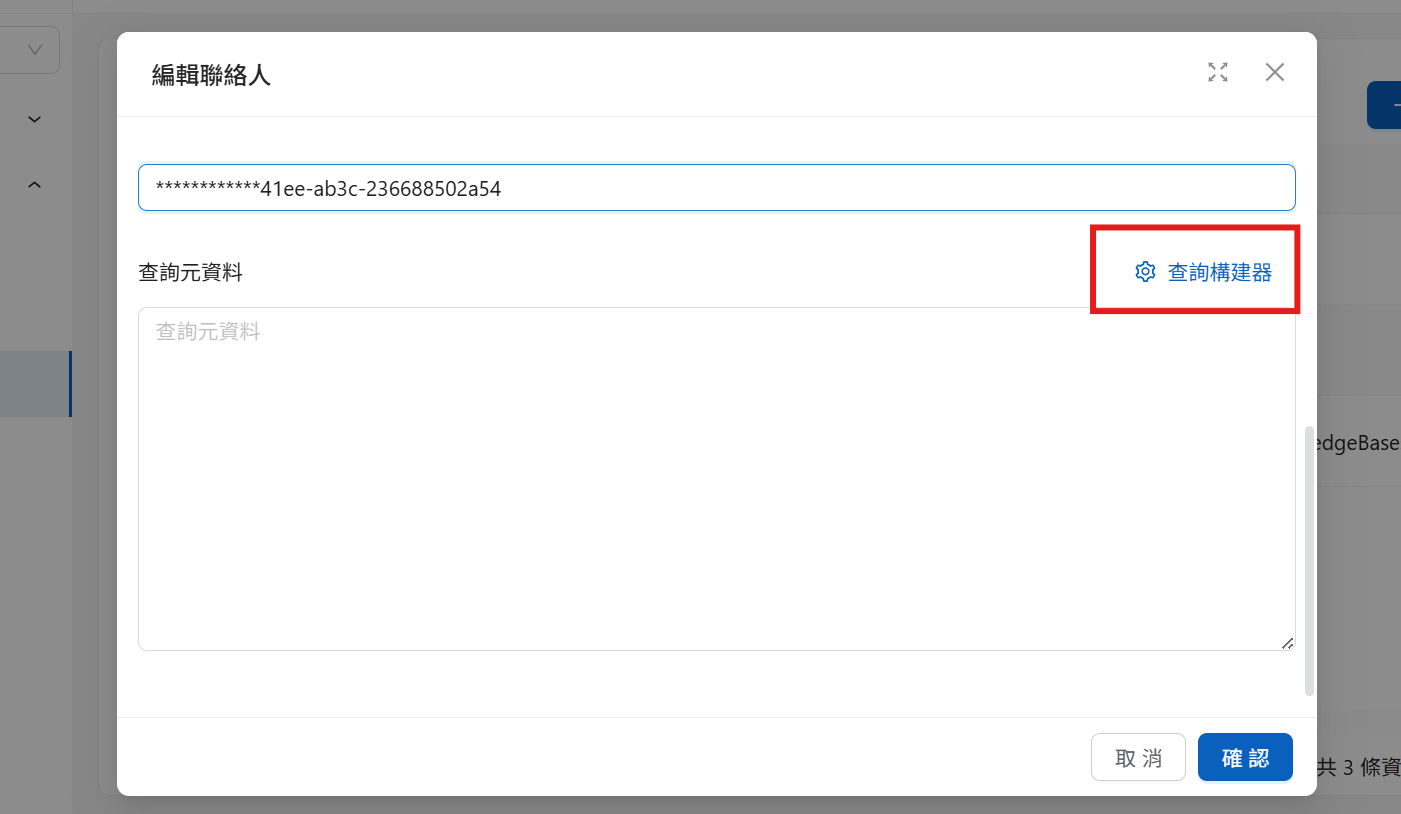
On the edit screen, click <mark style="color:blue;">Query Builder</mark> to open the graphical interface:

<figure><img src="https://3415477754-files.gitbook.io/~/files/v0/b/gitbook-x-prod.appspot.com/o/spaces%2FNBTi475lqozGpB7xObpE%2Fuploads%2Fgit-blob-ce1f2353f60000f676e26df8cd028b2729a238e1%2Fquery%20metadata%20maker.png?alt=media" alt=""><figcaption><p>Query Builder entry point</p></figcaption></figure>

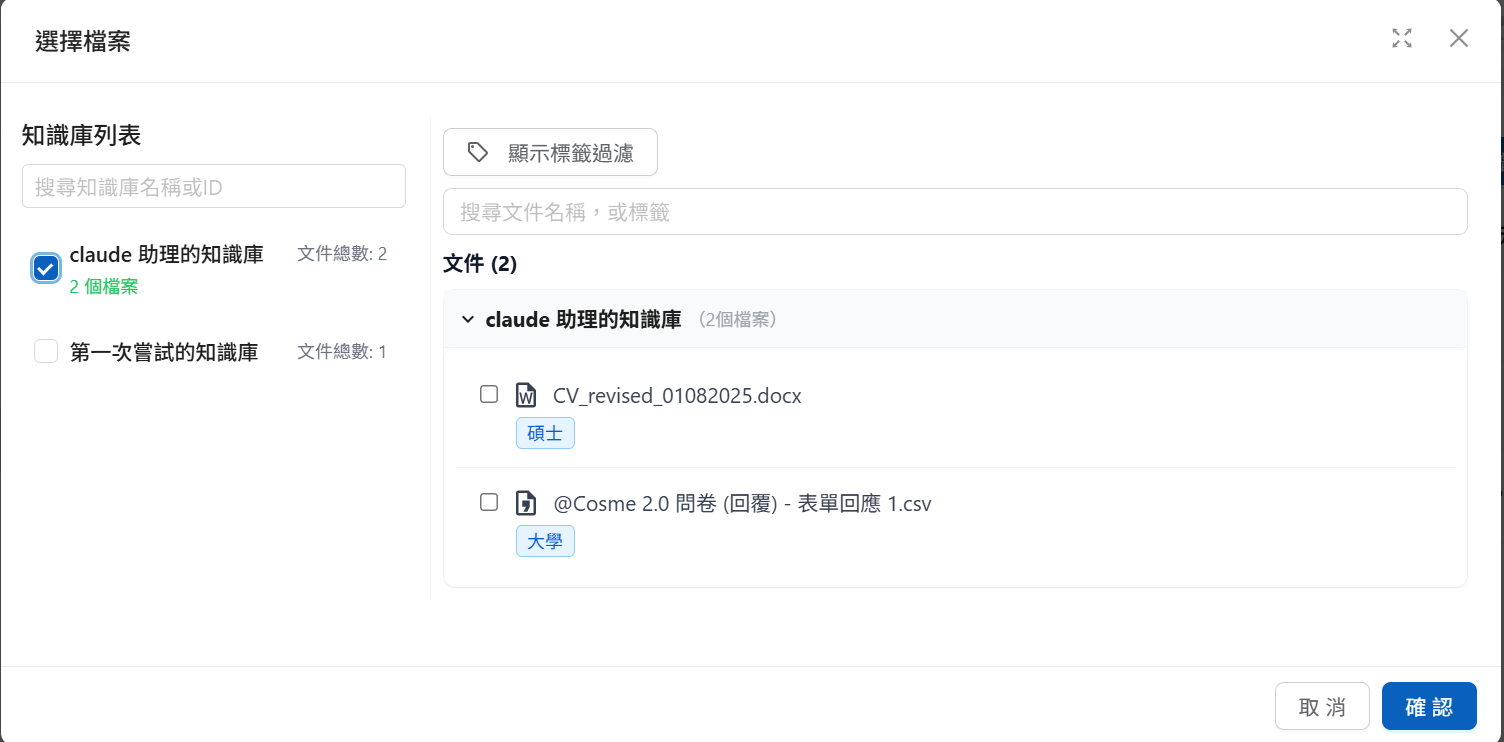
### Step 3: Select the Scope to Allow <a href="#step-3-select" id="step-3-select"></a>

Select the knowledge bases to allow. Expand a knowledge base to select only some of its documents:

<figure><img src="https://3415477754-files.gitbook.io/~/files/v0/b/gitbook-x-prod.appspot.com/o/spaces%2FNBTi475lqozGpB7xObpE%2Fuploads%2Fgit-blob-3cb875fe8a74fe9532e04d2d816b04dab3c3f3b3%2F%E8%9E%A2%E5%B9%95%E6%93%B7%E5%8F%96%E7%95%AB%E9%9D%A2%202025-08-07%20170306.png?alt=media" alt=""><figcaption><p>Select knowledge bases and documents</p></figcaption></figure>

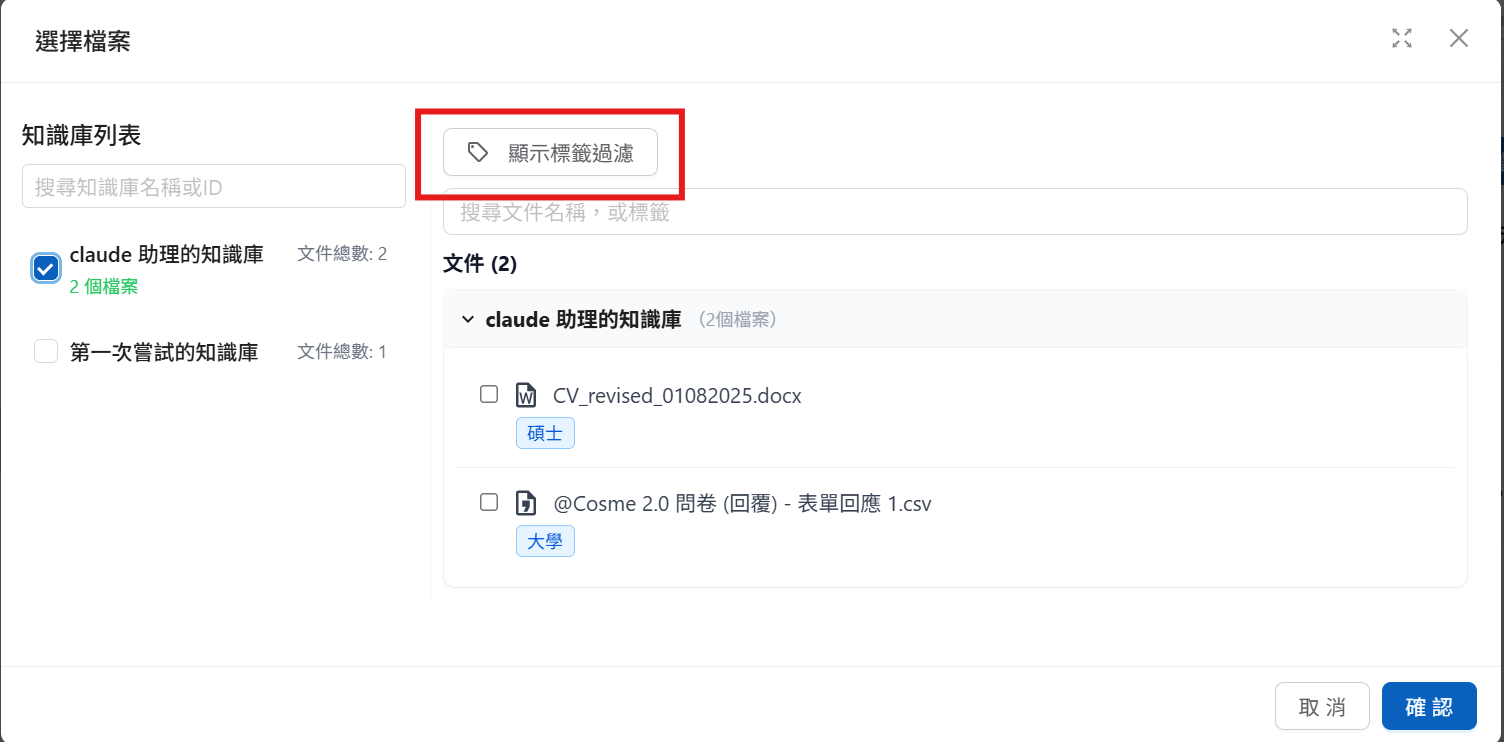
To filter by label, click <mark style="color:blue;">Show Label Filters</mark> to expand the label condition settings:

<figure><img src="https://3415477754-files.gitbook.io/~/files/v0/b/gitbook-x-prod.appspot.com/o/spaces%2FNBTi475lqozGpB7xObpE%2Fuploads%2Fgit-blob-4858e1ff92d8efc4cd28216d2ff05c207215aaca%2F%E8%9E%A2%E5%B9%95%E6%93%B7%E5%8F%96%E7%95%AB%E9%9D%A2%202025-08-07%20170306-1.png?alt=media" alt=""><figcaption><p>Label filter settings</p></figcaption></figure>

Combine label conditions with `OR` (match any label) or `AND` (match all labels) to further filter documents within the selected knowledge bases. This has the same semantics as [`label_relations` in the JSON format](/tech/en/authorization-integration/zhi-shi-guan-li-quan-xian-query-metadata-cha-xun-yuan-zi-liao-zong-lan/json-interfaces.md#id-1labelrelations-luo-ji).

## Internal Q\&A: Per-Message Settings <a href="#message-level" id="message-level"></a>

When members use Internal Q\&A, they can select the knowledge scope that each message may reference from the menu on the right side of the interface (that is, message-level Query Metadata):

<figure><img src="https://3415477754-files.gitbook.io/~/files/v0/b/gitbook-x-prod.appspot.com/o/spaces%2FNBTi475lqozGpB7xObpE%2Fuploads%2Fgit-blob-c197581d7292296d9555671138c8d7ed62ce5a70%2F%E8%9E%A2%E5%B9%95%E6%93%B7%E5%8F%96%E7%95%AB%E9%9D%A2%202025-08-08%20095028.png?alt=media" alt=""><figcaption><p>Internal Q&#x26;A: select available knowledge permissions</p></figcaption></figure>

You can also use <mark style="color:blue;">Show Label Filters</mark> to configure label conditions.

{% hint style="info" %}
You can adjust the settings before sending each message. They affect only the content that **the response in that turn** can reference. Message-level settings take precedence over contact-level settings (see [Resolution Order](/tech/en/authorization-integration/zhi-shi-guan-li-quan-xian-query-metadata-cha-xun-yuan-zi-liao-zong-lan.md#resolution-order)).
{% endhint %}

### Demonstration <a href="#demo" id="demo"></a>

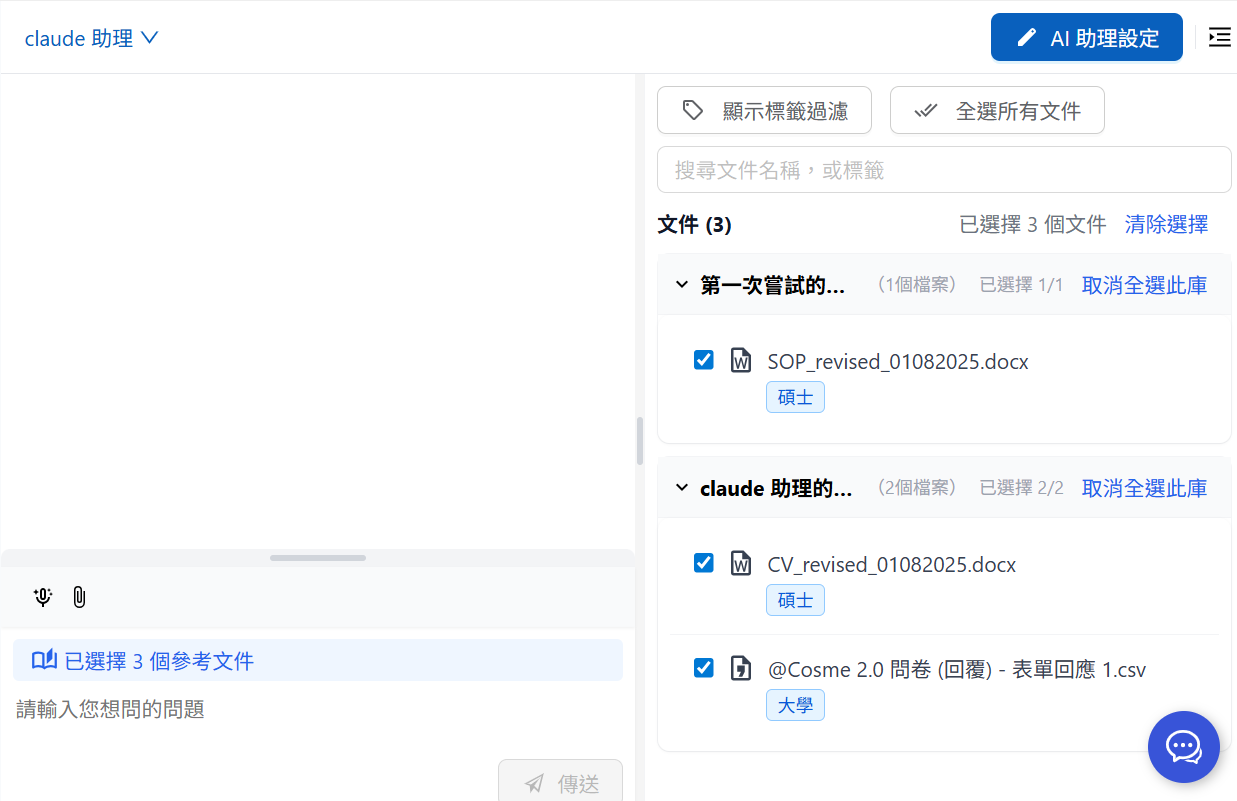
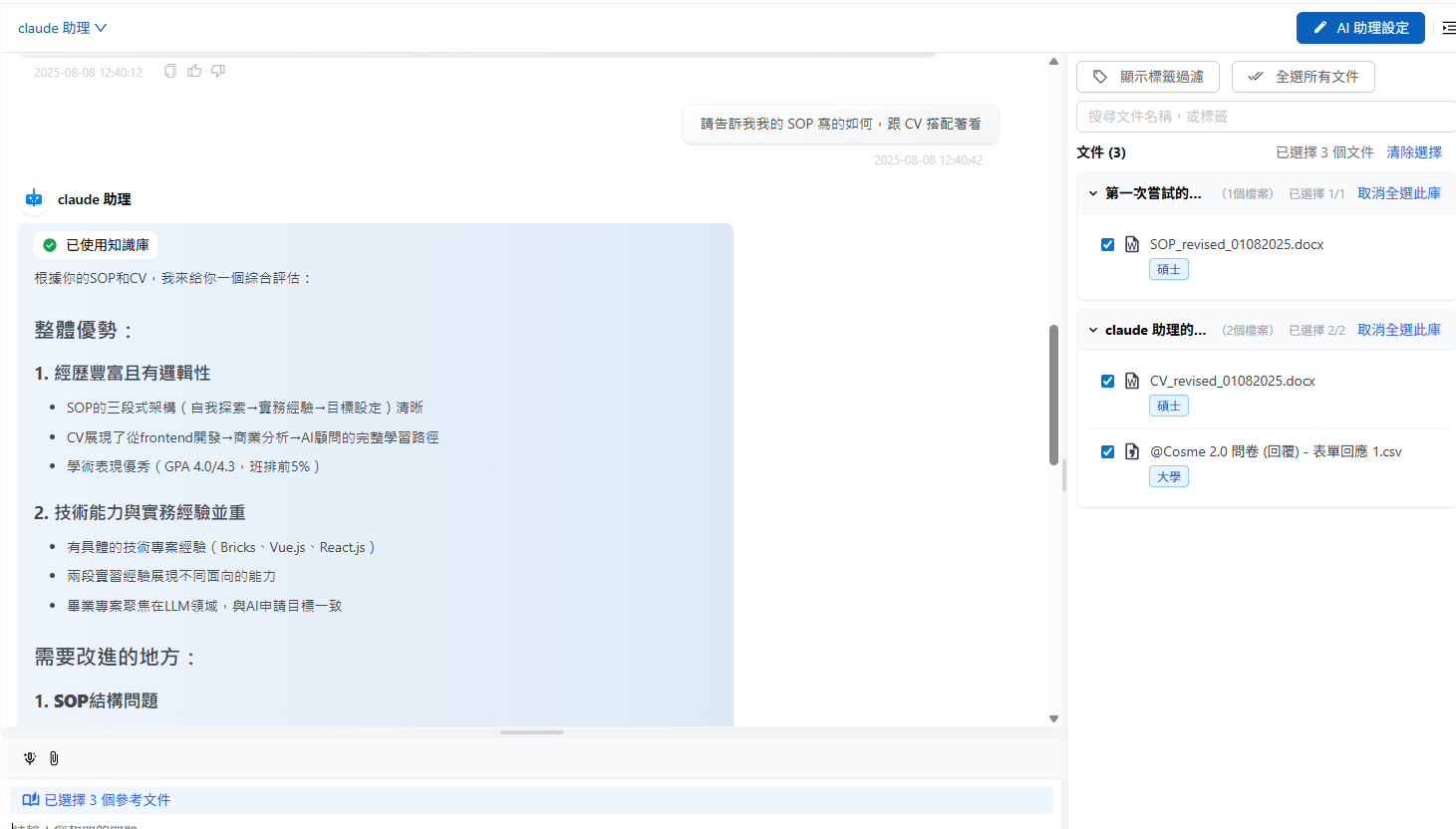
When the CV, SOP, and survey files are selected, the AI can reference all three:

<figure><img src="https://3415477754-files.gitbook.io/~/files/v0/b/gitbook-x-prod.appspot.com/o/spaces%2FNBTi475lqozGpB7xObpE%2Fuploads%2Fgit-blob-1fd810ec8e5c4b185673a93858d73a36bca5d085%2F%E8%9E%A2%E5%B9%95%E6%93%B7%E5%8F%96%E7%95%AB%E9%9D%A2%202025-08-08%20124143.png?alt=media" alt=""><figcaption><p>Available document list</p></figcaption></figure>

<figure><img src="https://3415477754-files.gitbook.io/~/files/v0/b/gitbook-x-prod.appspot.com/o/spaces%2FNBTi475lqozGpB7xObpE%2Fuploads%2Fgit-blob-e6b0091dcec82fe35f8d8f6f859ed8fd886249a0%2F%E8%9E%A2%E5%B9%95%E6%93%B7%E5%8F%96%E7%95%AB%E9%9D%A2%202025-08-08%20124344.png?alt=media" alt=""><figcaption><p>Selected document status</p></figcaption></figure>

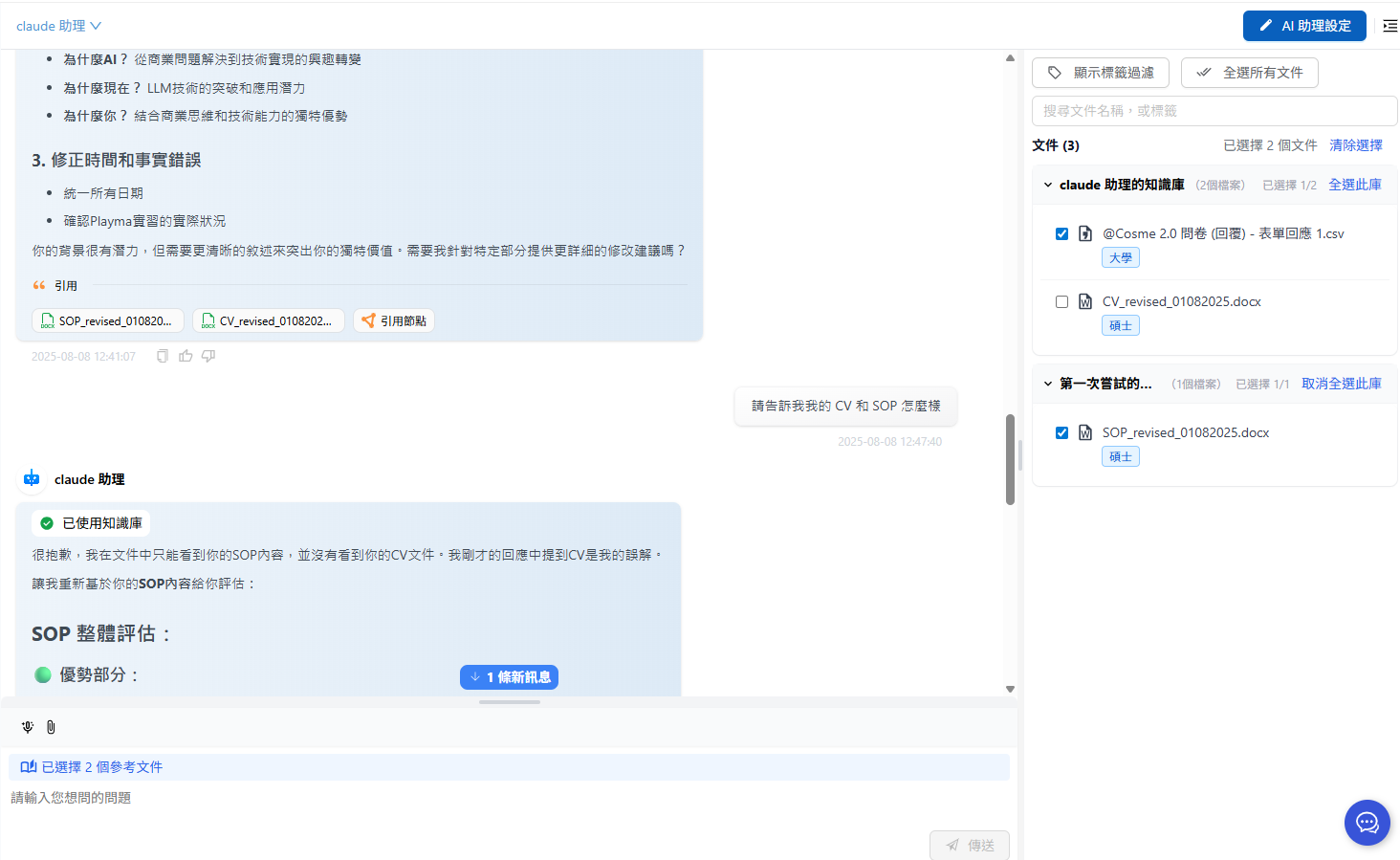
Before sending the next message, clear the CV checkbox:

<figure><img src="https://3415477754-files.gitbook.io/~/files/v0/b/gitbook-x-prod.appspot.com/o/spaces%2FNBTi475lqozGpB7xObpE%2Fuploads%2Fgit-blob-9805fef0555d8b09f66eebd0114738a62852f580%2F%E8%9E%A2%E5%B9%95%E6%93%B7%E5%8F%96%E7%95%AB%E9%9D%A2%202025-08-08%20124830.png?alt=media" alt=""><figcaption><p>Example of clearing a document selection</p></figcaption></figure>

The AI can no longer use the CV file, and the reference list no longer displays the CV:

<figure><img src="https://3415477754-files.gitbook.io/~/files/v0/b/gitbook-x-prod.appspot.com/o/spaces%2FNBTi475lqozGpB7xObpE%2Fuploads%2Fgit-blob-18ee67d0a77a1ce864386d755225372b9f15fd63%2F%E8%9E%A2%E5%B9%95%E6%93%B7%E5%8F%96%E7%95%AB%E9%9D%A2%202025-08-08%20124958.png?alt=media" alt=""><figcaption><p>Reference list after removing the CV</p></figcaption></figure>


---

# Agent Instructions
This documentation is published with GitBook. GitBook is the documentation platform designed so that both humans and AI agents can read, navigate, and reason over technical content effectively. Learn more at gitbook.com.

## Querying This Documentation
If you need additional information that is not directly available in this page, you can query the documentation dynamically by asking a question.

Perform an HTTP GET request on the current page URL with the `ask` query parameter, and the optional `goal` query parameter:

```
GET https://docs.maiagent.ai/tech/en/authorization-integration/zhi-shi-guan-li-quan-xian-query-metadata-cha-xun-yuan-zi-liao-zong-lan/graphical-interface.md?ask=<question>&goal=<endgoal>
```

`ask` is the immediate question: it should be specific, self-contained, and written in natural language.
`goal` is optional and describes the broader end goal you are ultimately trying to accomplish on behalf of the user. GitBook uses it to tailor the answer towards what is most useful for that goal.

The response will contain a direct answer to the question and relevant excerpts and sources from the documentation.

Use this mechanism when the answer is not explicitly present in the current page, you need clarification or additional context, or you want to retrieve related documentation sections.