> For the complete documentation index, see [llms.txt](https://docs.maiagent.ai/llms.txt). Markdown versions of documentation pages are available by appending `.md` to page URLs; this page is available as [Markdown](https://docs.maiagent.ai/tech/en/api-integration/knowledge-base-api.md).
# Use the Knowledge Base—Upload, Search, and Manage
Use the API to upload files to a knowledge base, search (retrieve) its content using natural language and get relevant chunks, and manage knowledge base files; includes a complete upload, wait for par
## Overview
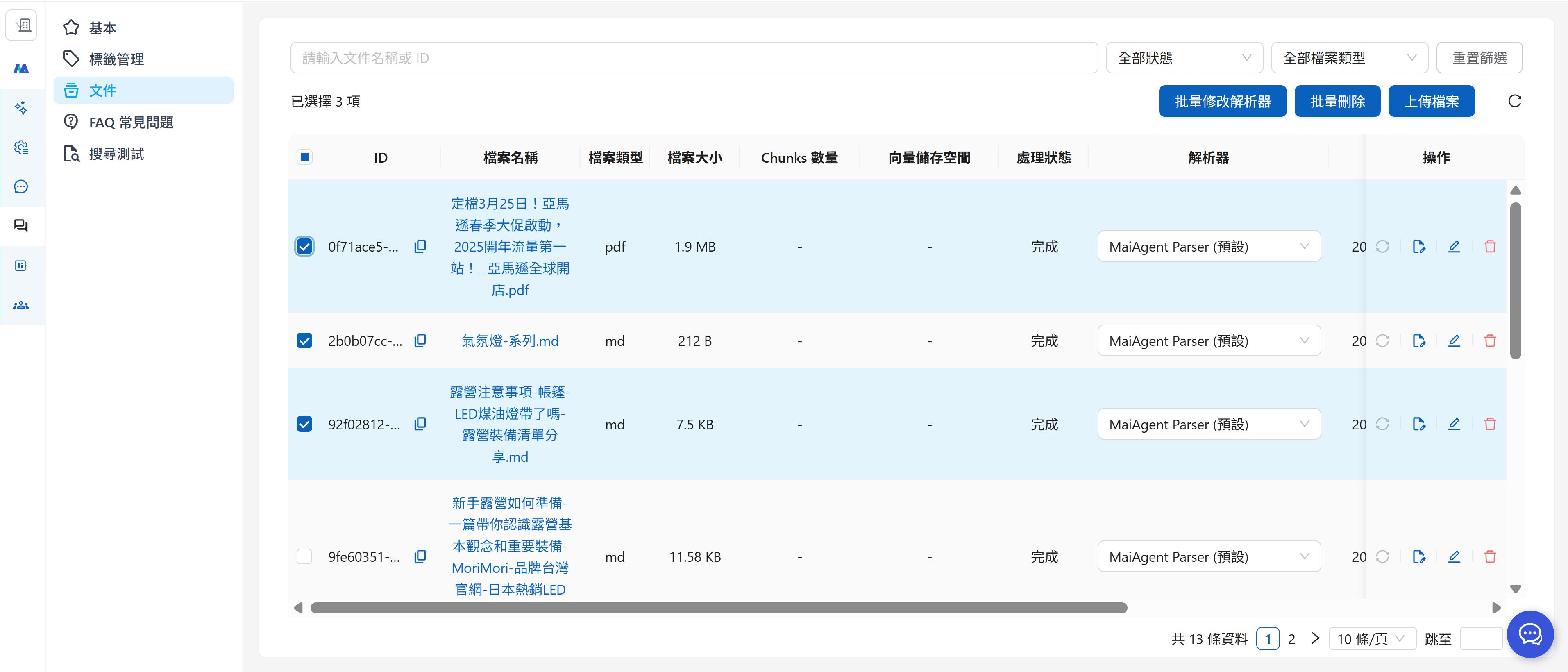
MaiAgent lets developers manage knowledge base files through its API. Developers can perform the following operations on knowledge bases within a workspace:
* Upload new files to a knowledge base
* List all files in a knowledge base
* Update information for existing files
* Delete individual files or multiple files in a batch
* Retrieve knowledge base content (see [Search a Knowledge Base](#search-knowledge-base))
{% hint style="info" %}
**📘 Important Reminder**
All API operations require a valid API Key for authentication. Make sure your API Key has the appropriate permissions.
{% endhint %}
***
## Knowledge Base Operations
### Create a Knowledge Base
Before using knowledge bases, you must create at least **one**. When creating a knowledge base, specify its Embedding Model, Reranker Model, name, and the Agents that can use it, along with other settings.
You can specify these settings in a script. The endpoint is `POST /api/v1/knowledge-bases/`; the following example shows a request to create a knowledge base. Set `embeddingModel` and `rerankerModel` to model IDs, which you can look up with `GET /api/v1/embedding-models/` and `GET /api/v1/reranker-models/`, respectively. `numberOfRetrievedChunks` is the number of chunks to retrieve.
{% code overflow="wrap" %}
```json
{
"embeddingModel": "550e8400-e29b-41d4-a716-446655440000",
"rerankerModel": "550e8400-e29b-41d4-a716-446655440000",
"name": "Internal Training Manual",
"description": "This knowledge base is for internal training and includes user manuals, product manuals, and troubleshooting manuals, exclusively for onboarding new employees",
"numberOfRetrievedChunks": 12,
"enableRerank": true,
"chatbots": [
{
"id": "550e8400-e29b-41d4-a716-446655440000"
}
],
"groups": [
{
"id": "550e8400-e29b-41d4-a716-446655440000"
}
]
}
```
{% endcode %}
A `201` response containing the new knowledge base (including its `id`) indicates that creation succeeded. You can then perform operations on this knowledge base.
### Use an ID to Operate on a Single Knowledge Base
Before managing files in a specific knowledge base, obtain its unique identifier (`id`).
{% hint style="warning" %}
How do I get a knowledge base ID?
1. Get the `id` of a newly created knowledge base
After you create a knowledge base with a script, the HTTPS response includes its ID. The `id` in the response is the knowledge base's `id` value.
2. Get the `id` of another existing knowledge base
Retrieve the list of all knowledge bases and find the corresponding `id` in the response. See the API documentation: [Knowledge Bases (New)](https://docs.maiagent.ai/api/api-reference/zhi-shi-ku-xin-ban#knowledge-bases-list).
{% endhint %}
### List Knowledge Base Files
`GET /api/v1/knowledge-bases/{knowledgeBasePk}/files/` lists files in a knowledge base. Filter by `fileType` (such as `pdf`, `docx`, `txt`, or `xlsx`), `status`, or `query` (keywords). Only a file with `status` set to `done` has finished parsing and is available for Agent retrieval. For query parameters and response fields, see [List Files in a Knowledge Base](https://docs.maiagent.ai/api/api-reference/zhi-shi-ku-xin-ban#knowledge-bases-files-list) in the API documentation.
The response has three fields related to size, each with a different meaning: `size` is the size of the uploaded file itself (bytes), `vectorStorageSize` is the space it occupies in the vector index (bytes), and `chunksCount` is the number of chunks produced by parsing. Use `size` to calculate knowledge base capacity and `vectorStorageSize` to estimate vector storage.
#### Example: List All PDF Files
{% tabs %}
{% tab title="Shell/Bash" %}
{% code overflow="wrap" %}
```bash
# Example API call (Shell)
curl -X GET "https://api.maiagent.ai/api/v1/knowledge-bases/550e8400-e29b-41d4-a716-446655440000/files/?fileType=pdf&page=1&pageSize=20" \
-H "Authorization: Api-Key YOUR_API_KEY"
# Replace YOUR_API_KEY and verify the request data before running.
```
{% endcode %}
{% endtab %}
{% endtabs %}
***
## File Operations
### Upload Files to a Knowledge Base
`POST /api/v1/knowledge-bases/{knowledgeBasePk}/files/` registers files already uploaded to storage with the knowledge base specified in the URL and starts parsing. Set `file` to the `fields.key` returned by Step 1 of the [Presigned File Upload Flow](/tech/en/api-integration/api_knowledge.md), not an external URL. You can register multiple files at once; we recommend no more than 50 per request. For fields, including the optional `parser`, `labels`, and `rawUserDefineMetadata`, see [Upload Files to a Knowledge Base](https://docs.maiagent.ai/api/api-reference/zhi-shi-ku-xin-ban#knowledge-bases-files-create) in the API documentation.
#### Example: Upload a Single Document—Product Manual
{% code overflow="wrap" %}
```json
{
"files": [
{
"filename": "產品手冊.pdf",
"file": "media/chatbots/chatbot-file/86572e41-16ba-45dd-b049-28c69f77ffb0.pdf",
"parser": "3fa85f64-5717-4562-b3fc-2c963f66afa6",
"labels": [
{
"id": "3fa85f64-5717-4562-b3fc-2c963f66afa6"
}
]
}
]
}
```
{% endcode %}
The response is an array of newly created file objects, including the file IDs generated by the system.
#### Duplicate Filenames and Repeated Registration
* **Filenames are not unique keys**: Sending another `POST` with the same `filename` to the same knowledge base creates a separate document (`201`). It neither overwrites the existing file nor returns a conflict; both documents are included in retrieval. To update content, first locate the old file with `GET …/files/?query=filename`, delete it, and upload the new one. Alternatively, use `PATCH` to update only labels and metadata.
* **Each `fields.key` can only be registered once**: The file ID is derived from the name of the object uploaded to storage. Sending another `POST` with the same `fields.key` returns `400` with `detail` set to “This file has already been uploaded to the knowledge base”. When retrying, repeat Presigned Steps 1 → 2 to obtain a new `key`.
* Filename matching is meaningful only within the same knowledge base. Different knowledge bases can contain files with the same name.
#### Example: Upload Multiple Files at Once
All files registered in one request go into the knowledge base specified in the URL. To place files in different knowledge bases, make a separate call for each knowledge base.
{% code overflow="wrap" %}
```json
{
"files": [
{
"filename": "新人教育手冊.pdf",
"file": "media/chatbots/chatbot-file/0b6f3c2e-6a51-4f43-9d3f-6e2f1c9a7b10.pdf"
},
{
"filename": "D256 產品說明文件.pdf",
"file": "media/chatbots/chatbot-file/5d1f2a7c-3b8e-4c19-9a62-1e4b7f0c8d35.pdf"
}
]
}
```
{% endcode %}
{% hint style="danger" %}
Note: A single file must not exceed 100MB. Larger files cannot be processed correctly, and HTTP will return an error message.
{% endhint %}
### Update Information for Existing Files
`PUT`/`PATCH /api/v1/knowledge-bases/{knowledgeBasePk}/files/{id}/` updates only `labels` and `rawUserDefineMetadata`. The filename and file content remain unchanged, and no reupload is required. Omitted fields remain unchanged; an empty array for `labels` clears the labels. For fields, see [Update File Information](https://docs.maiagent.ai/api/api-reference/zhi-shi-ku-xin-ban#knowledge-bases-files-update) in the API documentation.
#### Endpoint
```
PUT /api/v1/knowledge-bases/{knowledgeBasePk}/files/{id}/
```
**Example Request**
{% code overflow="wrap" %}
```json
{
"labels": [
{
"id": "550e8400-e29b-41d4-a716-446655440000"
}
],
"rawUserDefineMetadata": {
"editDate": "2025/10/30",
"version": "online"
}
}
```
{% endcode %}
### Rules for Metadata (`rawUserDefineMetadata`)
When uploading or updating files, `rawUserDefineMetadata` is a `{"field name": value}` object. Its fields correspond to the knowledge base's metadata fields (`GET`/`POST /api/v1/knowledge-bases/{knowledgeBasePk}/metadata-keys/`, with fields such as `keyName`, `isRequired`, `defaultValue`, and `enabledForSearch`). The platform applies these rules:
| Rule | Behavior |
| ------------------- | ----------------------------------------------------------------------------------------------------------------------------------------------------------------------------------------------------------------------------------- |
| Unknown field names | Not rejected: the platform automatically creates a custom field with the same name in the knowledge base, available for subsequent files |
| Value types | Always stored as strings: objects and arrays become JSON strings, booleans become `true`/`false`, and other types are converted to strings. Values longer than 1000 characters are truncated without an error |
| Update scope | Including `rawUserDefineMetadata` in `PUT`/`PATCH` **replaces the entire set**: existing fields not listed are removed from this file, and `{}` clears all metadata. To change only one field, include the other fields as well |
| `defaultValue` | When a field has a default value, newly uploaded files automatically receive that value |
| `isRequired` | Only affects form validation in the administration interface; the API does not reject uploads or updates because required fields are missing |
| `enabledForSearch` | When enabled, this field's value is sent to the model along with retrieved chunks, and Agent file searches also match against it. When disabled, it is only displayed in the administration interface and does not affect retrieval |
| System fields | `url` and fields beginning with `crawl_` are written by the crawler, marked as system fields when created, and not sent to the model |
### Batch Reparse
`PATCH /api/v1/knowledge-bases/{knowledgeBasePk}/files/batch-reparse/` reparses the specified files with the specified parsers. The request body is an array, with each item representing one file:
```json
[
{"id": "", "parser": ""},
{"id": "", "parser": null}
]
```
* `id` is required, and the file must belong to the knowledge base specified in the URL.
* Set `parser` to a parser ID (available from `GET /api/v1/parsers/`) to use that parser. Set it to `null` to clear the assigned parser and return to automatic detection when reparsing.
* **Items without a `parser` key are skipped** and are not reparsed. To rerun with the original parser, explicitly include its parser ID.
* An empty array `[]` returns `200` but does nothing; it does **not** mean “reparse everything”. To reparse an entire knowledge base, first [list its files](#list-files) to obtain their IDs, then submit them in batches.
* Only files with status `done` or `failed`, or files that have been processing longer than the platform's stuck-processing threshold, can be reparsed. Files in other states cause the entire request to return `400`. Reparsing deducts Credits again based on parser usage.
### Delete Files
#### Delete a Single File
`DELETE /api/v1/knowledge-bases/{knowledgeBasePk}/files/{id}/` removes a single file from the knowledge base. Success returns `204`, and the Agent no longer references that document. See [Delete a File](https://docs.maiagent.ai/api/api-reference/zhi-shi-ku-xin-ban#knowledge-bases-files-destroy) in the API documentation.
**Example**
{% tabs %}
{% tab title="Shell/Bash" %}
```bash
# Example API call (Shell)
curl -X DELETE "https://api.maiagent.ai/api/v1/knowledge-bases/550e8400-e29b-41d4-a716-446655440000/files/550e8400-e29b-41d4-a716-446655440000/" \
-H "Authorization: Api-Key YOUR_API_KEY"
# Replace YOUR_API_KEY and verify the request data before running.
```
{% endtab %}
{% endtabs %}
#### Batch Delete Files
`POST /api/v1/knowledge-bases/{knowledgeBasePk}/files/batch-delete/` uses `ids` to delete multiple files from the same knowledge base at once; it cannot delete across knowledge bases. Success returns `200`. `queued` lists file IDs queued for deletion, and `skipped` lists files skipped because they are already being deleted. See [Batch Delete Files](https://docs.maiagent.ai/api/api-reference/zhi-shi-ku-xin-ban#knowledge-bases-files-batch-delete-create) in the API documentation.
Example Request Values
```json
{
"ids": [
"550e8400-e29b-41d4-a716-446655440000",
"550e8400-e29b-41d4-a716-446655449198",
"0b6f3c2e-6a51-4f43-9d3f-6e2f1c9a7b10"
]
}
```
#### Retrieval Consistency After Deletion
| Timing | State |
| ----------------------------------------------------------------------------------------------- | --------------------------------------------------------------------------------------------------------------------------------------------------------------------------------------------------------------------------------------------------------------------------------- |
| As soon as `DELETE` returns `204` (or batch deletion returns `200` and the file is in `queued`) | The file's chunks and citation nodes have been removed synchronously. Subsequent [retrieval API](#search-knowledge-base) calls and Agent answers no longer return its content; no waiting or polling is needed |
| Subsequent background processing | Vectors in the vector database and the file itself in storage are cleaned up in the background. During this period, the file list's `status` may show `deleting`, or `delete_failed` if cleanup fails (you can retry deletion). Files in either state are excluded from retrieval |
| `GET …/files/{id}/` | Returns `404` after deletion |
| Conversation history | Message text is preserved. `citationNodes` that referenced the file are removed along with its chunks, so querying old messages no longer lists citations to that file. Export citation records before deletion if you need to retain them |
| Retrieval or deletion requests during deletion | Retrieval responds normally (excluding the file). Batch deletion places files already being deleted in `skipped`; a single-file `DELETE` still returns `204` without an error |
Deletion cannot be undone. Uploading the file again incurs parsing and vectorization charges again.
***
## Search a Knowledge Base
Query a single knowledge base with a text string to retrieve the most relevant chunks. Retrieval works the same way as in Agent conversations, using the knowledge base's configured Embedding model, Reranker, number of retrieved chunks, and similarity threshold. For the flow, see [RAG Knowledge Base Retrieval System](/tech/en/quickstart/rag.md#retrieval-flow).
### Endpoint
`POST /api/v1/knowledge-bases/{id}/search/`, where `{id}` is the knowledge base ID. The member associated with the API Key must have access to this knowledge base. See [Search the Content of a Specific Knowledge Base](https://docs.maiagent.ai/api/api-reference/zhi-shi-ku-xin-ban#knowledge-bases-search-create) in the API documentation.
### Request Fields
Put the search text in the required `query` field of the request body. `searchMode` accepts `hybrid` (the default; automatically switches to `semantic` when hybrid retrieval is disabled on the platform), `semantic`, or `keyword` (Elasticsearch only). To restrict the scope, include `queryMetadata` in the same format as [Query Metadata](/tech/en/identity-and-access/zhi-shi-guan-li-quan-xian-query-metadata-cha-xun-yuan-zi-liao-zong-lan.md). However, `knowledgeBases` must contain exactly one entry, and its `knowledgeBaseId` must match the knowledge base ID in the URL. Omitting it searches the entire knowledge base.
Example: Search only within two files.
```json
{
"query": "How many days do I have to return an item?",
"searchMode": "hybrid",
"queryMetadata": {
"knowledgeBases": [
{
"knowledgeBaseId": "57a5630e-ed2f-42f4-aff1-d1edc241ceb6",
"chatbotFileIds": ["", ""],
"hasUserSelectedAll": false
}
]
}
}
```
### Response Fields
The response is an array of chunk objects (without pagination), sorted by relevance from highest to lowest, with at most the knowledge base's number of retrieved chunks. The response **does not include** similarity scores; use the array order to judge relevance. For chunks from FAQ, `filename` is `FAQ` and `chatbotFile` is `null`. For fields, see [Search the Content of a Specific Knowledge Base](https://docs.maiagent.ai/api/api-reference/zhi-shi-ku-xin-ban#knowledge-bases-search-create) in the API documentation.
### Errors and Billing
| Status Code | Scenario |
| ----------- | --------------------------------------------------------------------------------------------------------------------------------------------------------------------------------- |
| `400` | Invalid `queryMetadata` format or mismatched knowledge base IDs; the vector database does not support `keyword` mode; retrieval failed (`Search failed. Please try again later.`) |
| `402` | Insufficient organization Credits or member allowance |
| `403`/`404` | The member associated with the key lacks access to this knowledge base, or the knowledge base does not exist |
Each retrieval deducts Credits based on Embedding and Reranker usage, just as retrieval during Agent conversations does.
***
## Troubleshooting
All file endpoints are under `/knowledge-bases/{knowledgeBasePk}/files/…`. Permissions are checked against the knowledge base in the URL first, then the file. Use the table below to diagnose issues:
| Status Code | Common Causes | How to Check and Resolve |
| ----------- | ----------------------------------------------------------------------------------------------------------------------------------------------------------------------------------------------------------------------------------------------------------------------------------------------------------------------------------------------------------------------------------------------------------------------------- | --------------------------------------------------------------------------------------------------------------------------------------------------------------------------------------------------------------------------------------------------------------------------------------------------------------------------------------------------------------------------------------------------------- |
| `401` | The key is invalid or disabled, or the `Authorization` header format is not `Api-Key ` | Test the key with `GET /api/v1/knowledge-bases/`; see [API Conventions: Authentication](/tech/en/api-integration/api-conventions.md#authentication) |
| `403` | The member associated with the key is not in the organization that owns this knowledge base (including a mistyped ID pointing to someone else's knowledge base), or the member's role lacks access to it. Write operations (upload, update, reparse) require the role's “update” permission for this knowledge base; deletion requires “delete” permission. When permissions are missing, `detail` specifies update or delete | First use `GET /api/v1/knowledge-bases/` to confirm the ID appears in the list. If it does but writes return `403`, ask the organization owner to enable update/delete permissions for this knowledge base in the role settings, or use the owner's key |
| `404` | The knowledge base has been deleted (or is being deleted); file `{id}` does not belong to the knowledge base in the URL (it is in another knowledge base, has been deleted, or is a conversation attachment rather than a knowledge base file) | Find the file ID with `GET …/files/?query=filename` in the correct knowledge base. Moving a file between knowledge bases preserves its ID but changes its knowledge base; update the URL |
| `400` | `file` is not the Presigned `fields.key`; the same `key` was registered more than once; no parser supports the file extension (`detail`: “Unsupported file type for parsing”); `fileSize` exceeds the upload limit (blocked at Presigned Step 1); the knowledge base ID in `queryMetadata` differs from the URL; `ids` contains files from other knowledge bases | Correct the request based on `detail`. For supported extensions, see [Parser Tools](/tech/en/quickstart/parser.md#document-parsers); for size limits, see [API Conventions: Upload Size Limits](/tech/en/api-integration/api-conventions.md#upload-limits). Both are available from `GET /api/v1/allowed-file-specs/` |
| `402` | Insufficient organization Credits or member allowance (retrieval and parsing both deduct Credits) | Add Credits or adjust the allowance first |
| `500` | Platform error | First use `GET …/files/?query=filename` to check whether the file was created. If it was, do not resubmit (this would create two entries); use `GET …/files/{id}/` to track its status instead. If it was not, wait a few seconds and repeat Steps 1 → 3. If it still fails, record the time, knowledge base ID, file ID, and request body with the key removed, and contact your MaiAgent representative |
To inspect the actual request and response for each call, use [API Call Logs](https://docs.maiagent.ai/org/developer/api-logs) in the administration interface. A parsing failure (`status: failed`) is not an HTTP error: call `GET /api/v1/knowledge-bases/{knowledgeBasePk}/files/{id}/latest-failed-reason/` to get the latest failure's `errorMessage` and `createdAt`. Fix the file and upload it again, or use the batch reparse endpoint to switch parsers. Hovering over the “Failed” status in the administration interface's file list shows the same reason.
***
## Complete Example: Upload, Wait for Parsing, and Retrieve
The following Python example uploads a PDF to a knowledge base, waits for parsing to finish, and retrieves content immediately afterward. Uploads use the Presigned flow; see [Presigned File Upload Flow](/tech/en/api-integration/api_knowledge.md) for details of each step.
```python
import os
import time
import requests
BASE = 'https://api.maiagent.ai/api/v1'
HEADERS = {'Authorization': 'Api-Key YOUR_API_KEY'}
KB_ID = 'YOUR_KNOWLEDGE_BASE_ID'
PATH = '/path/to/manual.pdf'
# 1. Get a Presigned URL and upload the file directly to storage
filename = os.path.basename(PATH)
presign = requests.post(
f'{BASE}/upload-presigned-url/',
headers=HEADERS,
json={
'modelName': 'chatbot-file',
'fieldName': 'file',
'filename': filename,
'fileSize': os.path.getsize(PATH),
},
)
presign.raise_for_status()
presign = presign.json()
with open(PATH, 'rb') as f:
upload = requests.post(presign['url'], data=presign['fields'], files={'file': f})
assert upload.status_code == 204, upload.text
# 2. Register the uploaded file with the knowledge base and start parsing
created = requests.post(
f'{BASE}/knowledge-bases/{KB_ID}/files/',
headers=HEADERS,
json={'files': [{'filename': filename, 'file': presign['fields']['key']}]},
)
created.raise_for_status()
file_id = created.json()[0]['id']
# 3. Poll the file status until done or failed
deadline = time.time() + 30 * 60
while True:
status = requests.get(
f'{BASE}/knowledge-bases/{KB_ID}/files/{file_id}/', headers=HEADERS
).json()['status']
if status in ('done', 'failed'):
break
if time.time() > deadline:
raise TimeoutError('File parsing timed out')
time.sleep(10)
if status == 'failed':
raise RuntimeError('File parsing failed; check the failure reason in the administration interface')
# 4. Retrieve content
results = requests.post(
f'{BASE}/knowledge-bases/{KB_ID}/search/',
headers=HEADERS,
json={'query': 'How long is the warranty period?'},
)
results.raise_for_status()
for node in results.json():
print(node['displayTitle'], node['pageStart'], node['displayText'][:80])
```
* Statuses `initial` and `processing` mean processing is still in progress; only files with `done` status are included in retrieval.
* Parsing time depends on file size, page count, and parser; large files may take several minutes. Use a polling interval of at least 5 seconds and set a timeout.
* If parsing fails (`failed`), call `GET …/files/{file_id}/latest-failed-reason/` to get the failure reason (the same as “Failure Reason” in the administration interface's file list). Fix the file and upload it again or reparse it; see [Troubleshooting](#troubleshooting).
***
## Use Cases
The knowledge base file management API has many practical uses, such as:
### 1. Automated Document Updates
When your product documentation is updated in a Git repository, use a CI/CD pipeline to automatically upload the latest version to the knowledge base. This ensures the Agent always has access to current product information.
#### **Example Workflow**
{% stepper %}
{% step %}
**Detect a commit that updates documentation**
{% endstep %}
{% step %}
**Check whether the file already exists**
Use the MaiAgent API to check for a matching file in the knowledge base.
{% endstep %}
{% step %}
**Update/Upload the File**
If it exists, update it with the partial information update endpoint; otherwise, use the file upload endpoint to upload a new file.
{% endstep %}
{% endstepper %}
### 2. Content Management System Integration
If you use MaiAgent as a content management system (CMS), you can build a management interface that lets content editors:
* Upload new content files
* Organize content with labels
* Search and filter specific types of content
* Delete outdated content in batches
***
## Summary
MaiAgent's public REST API lets you manage knowledge base files more efficiently, including:
* Create knowledge bases
* List and filter files
* Upload new files
* Update file information
* Delete individual files or multiple files in a batch
* Retrieve knowledge base content
## Next Steps
* Read the complete [API Reference](https://docs.maiagent.ai/api) to start using MaiAgent API services
* Explore the [MaiAgent Web Chat SDK ](https://docs.maiagent.ai/tech/api-integration/web-chat-sdk)to simplify API integration
---
# Agent Instructions
This documentation is published with GitBook. GitBook is the documentation platform designed so that both humans and AI agents can read, navigate, and reason over technical content effectively. Learn more at gitbook.com.
## Querying This Documentation
If you need additional information that is not directly available in this page, you can query the documentation by asking a question.
Perform an HTTP GET request on the following URL with the `ask` and `goal` query parameters:
```
GET https://docs.maiagent.ai/tech/en/api-integration/knowledge-base-api.md?ask=&goal=
```
`ask` is the immediate question: it should be specific, self-contained, and written in natural language.
`goal` is what the user is ultimately trying to achieve, the reason they need the answer. Sharing it helps GitBook give you a better, more relevant answer. A goal is most helpful when it describes the outcome the user wants rather than restating the question. For example, with `ask=how do I create an API token`, a goal like `automate deployments from our CI pipeline` lets GitBook tailor the answer to that use case.
The response will contain a direct answer to the question and relevant excerpts and sources from the documentation.
Use this mechanism when the answer is not explicitly present in the current page, you need clarification or additional context, or you want to retrieve related documentation sections.
.png?alt=media)