> For the complete documentation index, see [llms.txt](https://docs.maiagent.ai/llms.txt). Markdown versions of documentation pages are available by appending `.md` to page URLs; this page is available as [Markdown](https://docs.maiagent.ai/tech/api-integration/web-chat-sdk/web-chat-maigpt-mode.md).

# MaiGPT 模式嵌入

將類 ChatGPT 的 MaiGPT 完整對話介面嵌入您的網站或產品，支援指定容器與漂浮全屏兩種佈局

MaiGPT 模式提供**類 ChatGPT 的完整對話介面**（側欄對話歷史、搜尋對話、設定面板），與既有的「右下角聊天泡泡」（floating / sidebar）不同，適合作為頁面主要功能區塊，或全站 AI 助理入口。

{% hint style="warning" %}
**MaiGPT 模式只決定介面長相，不決定助理會什麼。** 它套在哪個 AI 助理的 Web Chat 上，就是那個助理的指令、模型與工具；要有生圖、上網等能力，請先照[串接 MaiGPT：選對助理、補齊能力](/tech/api-integration/web-chat-sdk/maigpt-integration.md)把助理設成 Agent 模式並掛上工具。組織內建的 MaiGPT 產品只供登入成員使用，其 Web Chat 不能嵌入外部頁面。
{% endhint %}

{% hint style="info" %}
本頁聚焦 MaiGPT 模式專屬設定。嵌入的基本觀念、完整配置參考與 JavaScript API 請見 [Web Chat 嵌入與 SDK](/tech/api-integration/web-chat-sdk.md)；未在本頁列出的共通參數（`auth`、`queryMetadata`、按鈕外觀等）在 MaiGPT 模式同樣適用。
{% endhint %}

## 一、兩種佈局模式 <a href="#layout-modes" id="layout-modes"></a>

同一份設定支援兩種佈局，由 `targetElement` 是否存在決定：

```mermaid
flowchart TD
    A["前端載入 embed.min.js<br/>設定 maiagentChatbotConfig<br/>（enabledWindowModes 首項為 maigpt）"] --> B{"config 有<br/>targetElement？"}
    B -->|有| C["模式 A：嵌入指定容器<br/>iframe 撐滿容器 100% × 100%<br/>常駐顯示"]
    B -->|無| D["模式 B：右下角漂浮按鈕<br/>點擊 → 全屏 iframe＋右上角關閉鈕"]
    C -.->|"selector 找不到元素"| E["⚠️ fallback：全屏覆蓋整頁<br/>且沒有關閉鈕"]
```

* **模式 A — 嵌入指定容器**：MaiGPT 常駐顯示在頁面中的指定 `div`（適合作為系統的主要工作區）
* **模式 B — 漂浮按鈕 + 全屏**：右下角漂浮按鈕，點擊後全屏開啟（適合全站 AI 助理入口）

兩種行為皆由相同的 `maigpt` 模式觸發，只差 `targetElement` 一個欄位。

## 二、模式 A：嵌入指定容器 <a href="#mode-a-container" id="mode-a-container"></a>

### 嵌入程式碼 <a href="#mode-a-code" id="mode-a-code"></a>

```html
<!-- 頁面中先準備好容器，並自行給定尺寸 -->
<div id="maigpt-container" style="height: 720px;"></div>

<script>
  window.maiagentChatbotConfig = {
    webChatId: 'your-web-chat-id',
    baseUrl: 'https://chat.maiagent.ai/web-chats',
    enabledWindowModes: ['maigpt'],
    targetElement: '#maigpt-container',
    primaryColor: '#1890ff',
    maigptTitle: 'Acme GPT',
  }
</script>
<script
  src="https://chat.maiagent.ai/js/embed.min.js"
  defer>
</script>
```

{% hint style="info" %}
`baseUrl` 與 SDK Loader 網址以 SaaS 環境（`chat.maiagent.ai`）為例；私有雲 / 地端部署請換成您環境的網域。
{% endhint %}

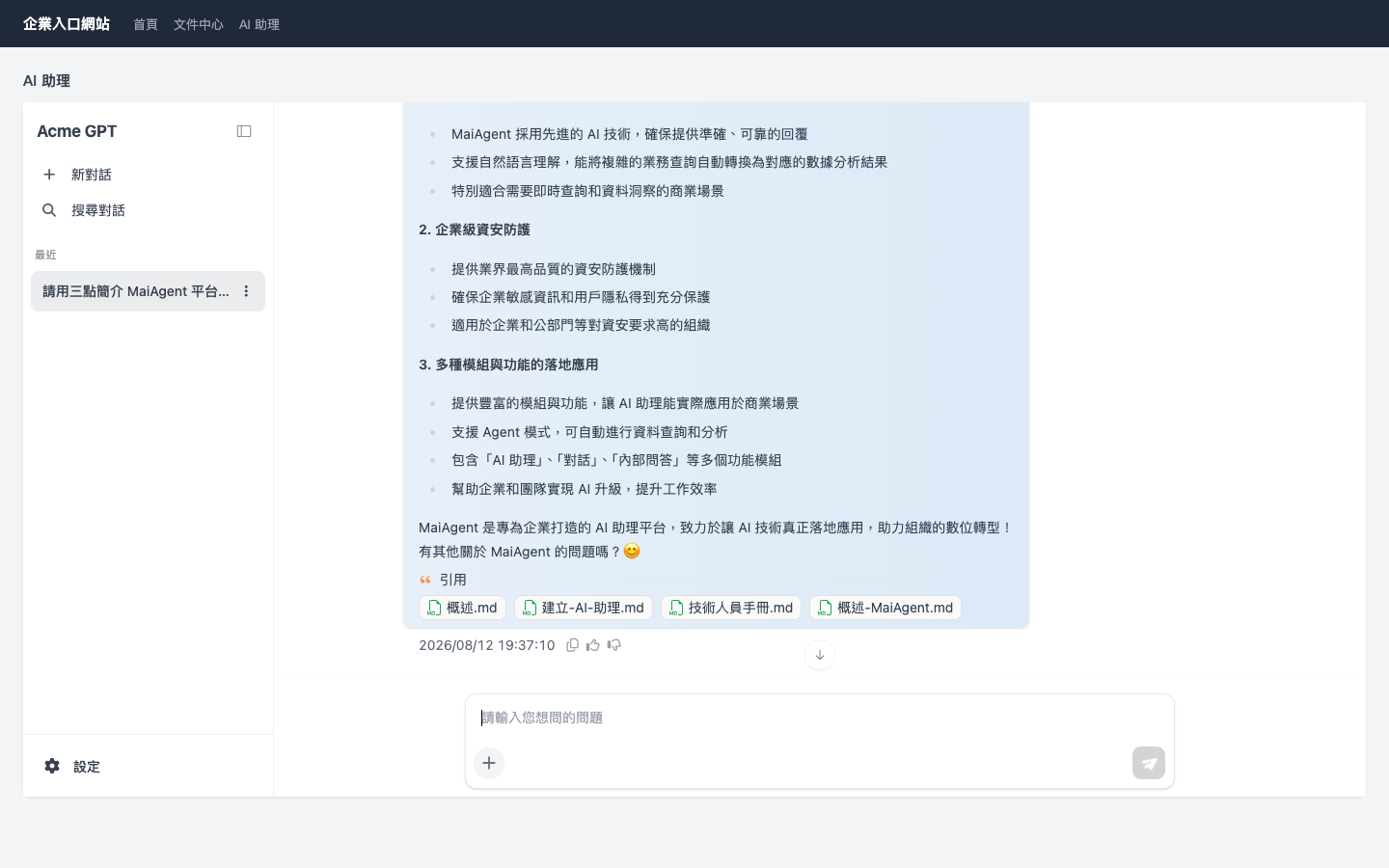
實際嵌入效果（企業入口網站內嵌 MaiGPT，`maigptTitle` 設為品牌名稱）：

<figure><img src="https://527168072-files.gitbook.io/~/files/v0/b/gitbook-x-prod.appspot.com/o/spaces%2F38pkhhqHl1oA6yyE9R2n%2Fuploads%2Fgit-blob-aab515bf01f9122d1b558aeaefcd1e59079466a0%2Fwebchat-maigpt-mode-a-container.png?alt=media" alt="MaiGPT 嵌入指定容器的實際畫面"><figcaption><p>模式 A：MaiGPT 常駐顯示在頁面指定容器內，左側為對話歷史側欄</p></figcaption></figure>

### 容器要求 <a href="#container-requirements" id="container-requirements"></a>

* **容器必須自行給定高度**（iframe 以 `100%` 撐滿容器；容器高度為 0 時看不到內容）
* `targetElement` 接受 **CSS selector 字串**（如 `'#maigpt-container'`）或 **HTMLElement 物件**
* 容器若為 `position: static`，SDK 會自動改為 `position: relative`，一般不需處理
* iframe 只佔據該容器，不影響頁面其他區塊

{% hint style="danger" %}
**重要：selector 找不到元素時，會 fallback 成全屏覆蓋整個頁面，且沒有關閉鈕**（console 會出現 `[maiagent] targetElement selector "..." not found, falling back to <body>` 警告）。

請確認：(1) selector 拼寫正確；(2) SDK 載入時容器已存在於 DOM（loader `<script>` 請放在容器之後並加 `defer`；SPA 動態渲染的頁面需在容器 mount 後才載入 SDK）。
{% endhint %}

## 三、模式 B：漂浮按鈕 + 全屏 <a href="#mode-b-floating" id="mode-b-floating"></a>

### 嵌入程式碼 <a href="#mode-b-code" id="mode-b-code"></a>

```html
<script>
  window.maiagentChatbotConfig = {
    webChatId: 'your-web-chat-id',
    baseUrl: 'https://chat.maiagent.ai/web-chats',
    enabledWindowModes: ['maigpt'],
    primaryColor: '#1890ff',
    maigptTitle: 'Acme GPT',
  }
</script>
<script
  src="https://chat.maiagent.ai/js/embed.min.js"
  defer>
</script>
```

### 行為說明 <a href="#mode-b-behavior" id="mode-b-behavior"></a>

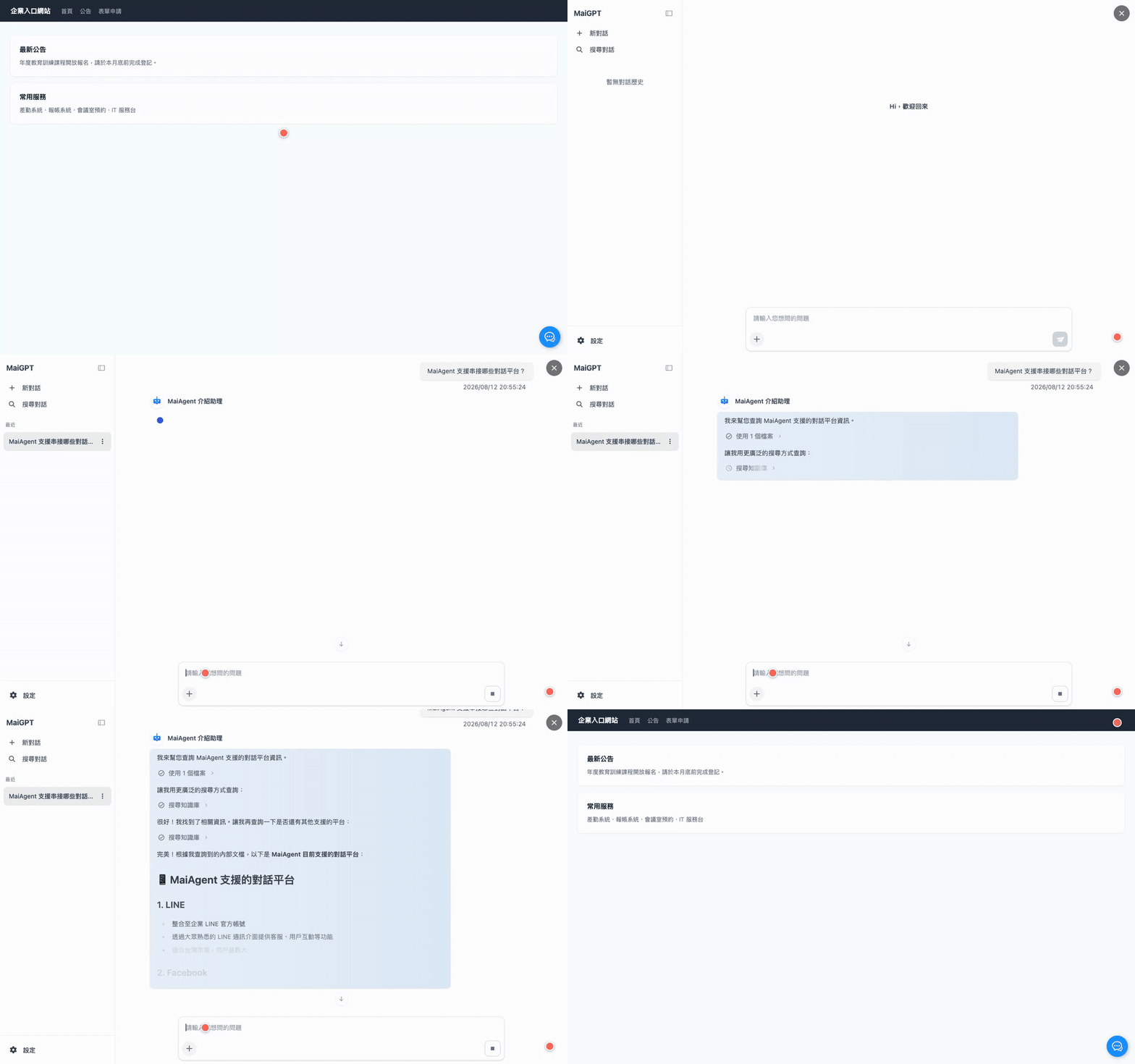
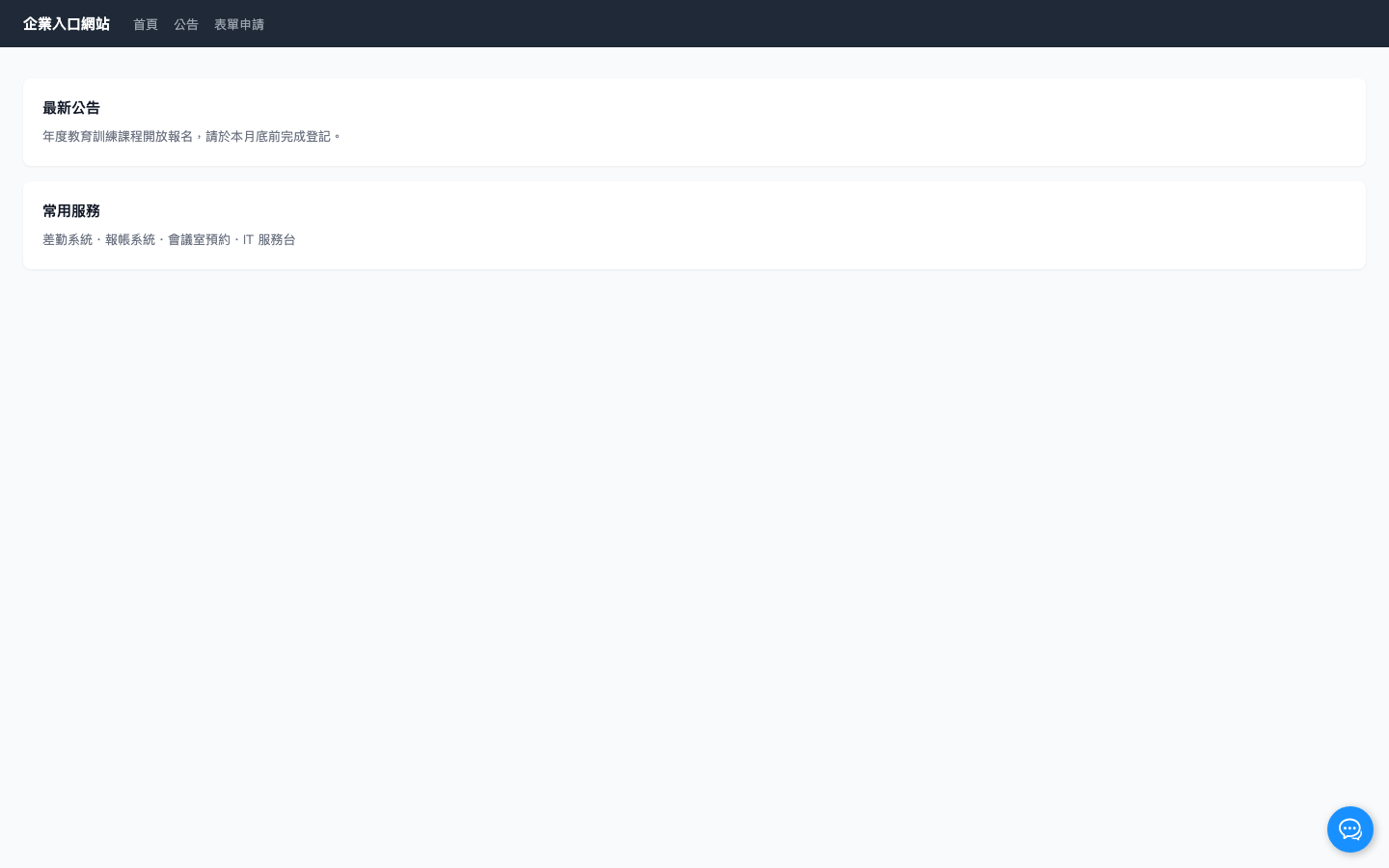
1. 頁面右下角顯示漂浮按鈕（顏色取 `primaryColor`）
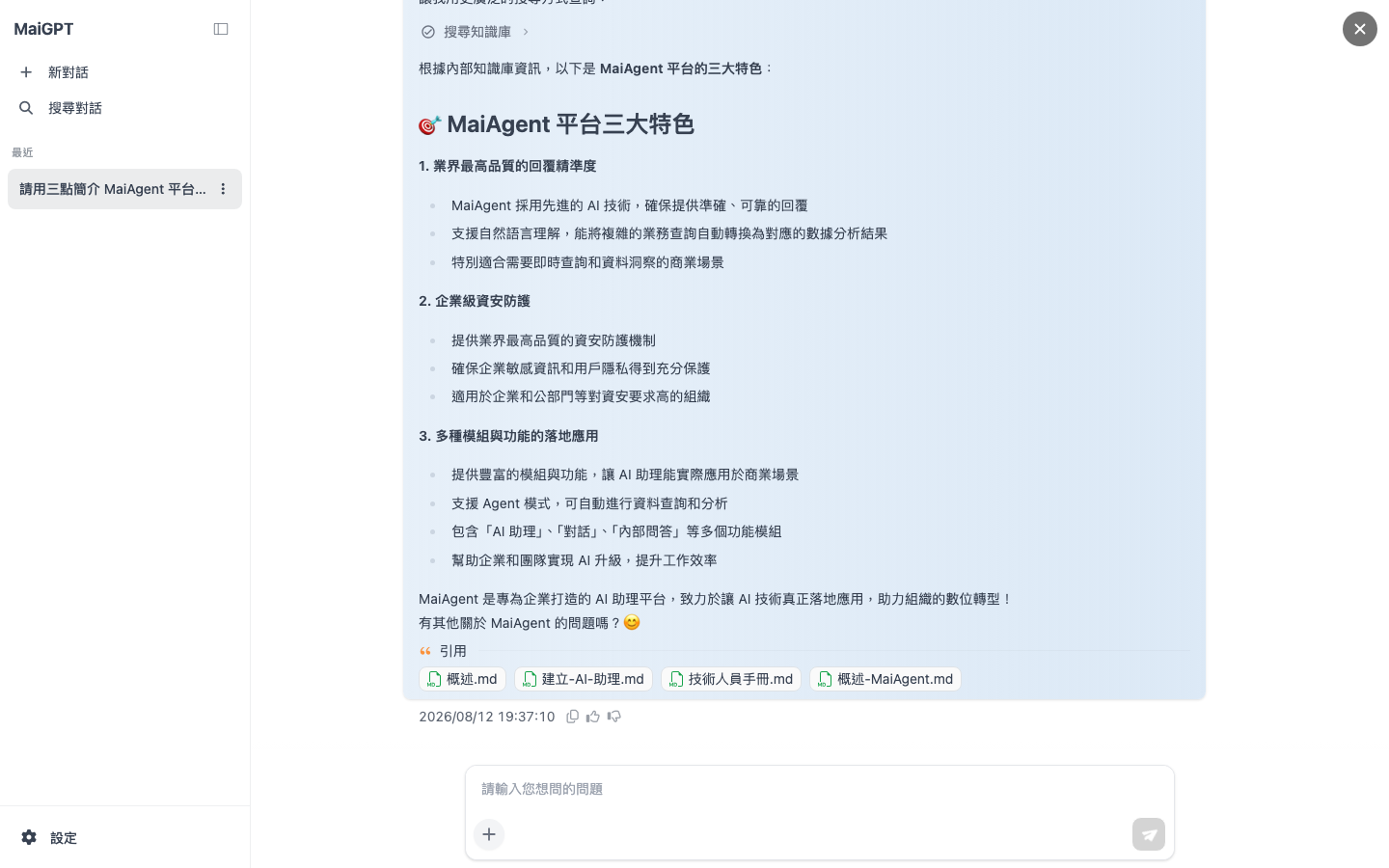
2. 點擊按鈕 → MaiGPT 以**全屏 iframe** 開啟，右上角出現「×」關閉鈕
3. 點「×」→ 全屏收合、回到漂浮按鈕
4. 收合時 iframe 僅隱藏、不銷毀 → **再次開啟會保留原本的對話狀態**

<figure><img src="https://527168072-files.gitbook.io/~/files/v0/b/gitbook-x-prod.appspot.com/o/spaces%2F38pkhhqHl1oA6yyE9R2n%2Fuploads%2Fgit-blob-2c2fb982ff4bef9a000a279fe72580b846b69ce3%2Fwebchat-maigpt-mode-b-demo.gif?alt=media" alt="模式 B 操作示範：漂浮按鈕開啟全屏、送出問題取得 AI 回覆、收合回按鈕"><figcaption><p>模式 B 操作示範：點擊漂浮按鈕 → 全屏開啟 → 送出問題、AI 串流回覆 → 「×」收合回按鈕</p></figcaption></figure>

<details>

<summary>兩個狀態的靜態截圖</summary>

<figure><img src="https://527168072-files.gitbook.io/~/files/v0/b/gitbook-x-prod.appspot.com/o/spaces%2F38pkhhqHl1oA6yyE9R2n%2Fuploads%2Fgit-blob-a605610e4f3854e4ad4134d63dd03a69e7e18b36%2Fwebchat-maigpt-mode-b-button.png?alt=media" alt="漂浮按鈕狀態"><figcaption><p>收合狀態：頁面右下角僅顯示漂浮按鈕，不干擾原頁面</p></figcaption></figure>

<figure><img src="https://527168072-files.gitbook.io/~/files/v0/b/gitbook-x-prod.appspot.com/o/spaces%2F38pkhhqHl1oA6yyE9R2n%2Fuploads%2Fgit-blob-51d70d15376664ce3e569f562c98e75f67ea3927%2Fwebchat-maigpt-mode-b-fullscreen.png?alt=media" alt="全屏開啟狀態"><figcaption><p>開啟狀態：MaiGPT 全屏顯示，右上角「×」可收合</p></figcaption></figure>

</details>

### 按鈕外觀參數（皆選填，僅模式 B 適用） <a href="#mode-b-button-options" id="mode-b-button-options"></a>

| 參數                     | 預設值                                  | 說明            |
| ---------------------- | ------------------------------------ | ------------- |
| `primaryColor`         | `#1890ff`                            | 按鈕底色，可改為品牌色   |
| `buttonSize`           | `3rem`                               | 按鈕尺寸          |
| `buttonRadius`         | `50%`                                | 按鈕圓角          |
| `buttonPositionBottom` | `1rem`                               | 距視窗底部         |
| `buttonPositionRight`  | `1rem`                               | 距視窗右側         |
| `buttonIcon`           | （內建 icon）                            | 自訂按鈕圖示的圖片 URL |
| `boxShadow`            | `0.125rem 0.125rem 0.5rem #00000044` | 按鈕陰影          |

## 四、完整參數表 <a href="#config-reference" id="config-reference"></a>

| 欄位                   | 型別                       | 必填 | 說明                                                                                                                                  |
| -------------------- | ------------------------ | -- | ----------------------------------------------------------------------------------------------------------------------------------- |
| `webChatId`          | `string`                 | ✅  | WebChat ID                                                                                                                          |
| `baseUrl`            | `string`                 | ✅  | Web Chat 服務位址，SaaS 為 `https://chat.maiagent.ai/web-chats`                                                                           |
| `enabledWindowModes` | `string[]`               | ✅  | 固定 `['maigpt']`（第一個元素決定模式）                                                                                                          |
| `targetElement`      | `string` 或 `HTMLElement` | ✖  | 有值 → 模式 A；無值 → 模式 B                                                                                                                 |
| `maigptTitle`        | `string`                 | ✖  | 側欄左上角品牌標題，不設定則顯示 `MaiGPT`                                                                                                           |
| `primaryColor`       | `string`                 | ✖  | 介面主色，可調整為品牌色                                                                                                                        |
| `locale`             | `string`                 | ✖  | 介面語系，見下方[語系](#locale)；不指定時由上次記住的語系或瀏覽器語系決定                                                                                          |
| `contactId`          | `string`                 | ✖  | MaiAgent 聯絡人 ID，用於識別登入使用者，見[識別使用者](#identify-user)                                                                                  |
| `queryMetadata`      | `object` 或 `string`      | ✖  | 附帶到對話的查詢元資料，詳見[知識管理權限總覽](/tech/authorization-integration/zhi-shi-guan-li-quan-xian-query-metadata-cha-xun-yuan-zi-liao-zong-lan.md) |

設定未知的欄位不會報錯，但 console 會出現 `[maiagent] Unknown config options: ...` 警告，方便檢查拼字。

## 五、locale 語系 <a href="#locale" id="locale"></a>

```javascript
window.maiagentChatbotConfig = {
  // ...
  locale: 'en',
}
```

### 支援的語系值 <a href="#supported-locales" id="supported-locales"></a>

`zh-TW`（繁中）、`zh-CN`（簡中）、`en`、`ja`、`ko`、`th`、`vi-VN`、`id`、`fil-PH`、`ms-MY`、`km-KH`、`lo-LA`、`my-MM`

### 決定順序 <a href="#locale-priority" id="locale-priority"></a>

1. config 的 `locale`（一定生效，優先權最高）
2. 使用者上次在此瀏覽器使用過的語系（會被記住）
3. 瀏覽器語系
4. 預設 `zh-TW`

{% hint style="info" %}
`locale` 只影響**介面文字**（按鈕、選單、提示），不影響 AI 回答的語言。傳入不支援的值會被忽略，依序 fallback。
{% endhint %}

## 六、識別使用者（contactId） <a href="#identify-user" id="identify-user"></a>

若要讓 AI 知道「誰在問」（跨裝置保留對話歷史、個人化回覆、以使用者權限呼叫工具），需在 config 帶入 `contactId`：

1. 後端在使用者登入時呼叫 [聯絡人身份同步 API](/tech/authorization-integration/contact-credentials-sync.md) 取得 `contactId`
2. 前端把 `contactId` 加進 config：

```javascript
// 假設登入後從 API 取得使用者資訊（含 contactId）
const loginResponse = await fetch('/api/auth/login', {
  method: 'POST',
  body: JSON.stringify({ username, password })
});
const userData = await loginResponse.json();

// 動態設定 WebChat config
window.maiagentChatbotConfig = {
  webChatId: 'your-web-chat-id',
  baseUrl: 'https://chat.maiagent.ai/web-chats',
  enabledWindowModes: ['maigpt'],
  targetElement: '#maigpt-container',
  contactId: userData.maiagentContactId,  // 從登入 response 取得
};
```

{% hint style="warning" %}
`contactId` 必須是該登入使用者對應的值。不帶 `contactId` 時為匿名使用：對話歷史以瀏覽器為單位保留（同一瀏覽器重新整理後仍在），但無法跨裝置、也無法以使用者身份存取個人資料。
{% endhint %}

## 七、常見問題 <a href="#faq" id="faq"></a>

<details>

<summary>MaiGPT 模式跟原本的聊天泡泡（floating / sidebar）差在哪？</summary>

MaiGPT 是完整的對話工作介面（側欄對話歷史、搜尋對話、設定面板），佔據整個容器或全屏；floating / sidebar 是疊在頁面角落的小視窗。兩者用同一個 `enabledWindowModes` 欄位切換：`['maigpt']` vs `['floating', 'sidebar']`。MaiGPT 模式下不提供視窗模式切換。

</details>

<details>

<summary>對話歷史存在哪裡？</summary>

依 WebChat 的識別機制保留在 MaiAgent 後端。不帶 `contactId` 時以瀏覽器為單位（匿名）；帶 `contactId` 時跟著該聯絡人，可跨裝置。

</details>

<details>

<summary>同一頁可以放兩個 MaiGPT 嗎？</summary>

不行。SDK 每頁只初始化一次，重複載入會被忽略。

</details>

<details>

<summary>SPA（React / Vue）怎麼嵌入模式 A？</summary>

確保容器元素 mount 完成後再載入 `embed.min.js`（或屆時再設定 `window.maiagentChatbotConfig` 並動態插入 loader script）。若 SDK 先跑、容器還不存在，會觸發全屏 fallback（見[容器要求](#container-requirements)）。

</details>

<details>

<summary>左上角的「MaiGPT」名稱可以改成自家品牌嗎？</summary>

可以。config 加 `maigptTitle: 'Acme GPT'` 即可，兩種模式都生效；不設定或給空字串時回到預設 `MaiGPT`。

</details>


---

# Agent Instructions
This documentation is published with GitBook. GitBook is the documentation platform designed so that both humans and AI agents can read, navigate, and reason over technical content effectively. Learn more at gitbook.com.

## Querying This Documentation
If you need additional information that is not directly available in this page, you can query the documentation dynamically by asking a question.

Perform an HTTP GET request on the current page URL with the `ask` query parameter, and the optional `goal` query parameter:

```
GET https://docs.maiagent.ai/tech/api-integration/web-chat-sdk/web-chat-maigpt-mode.md?ask=<question>&goal=<endgoal>
```

`ask` is the immediate question: it should be specific, self-contained, and written in natural language.
`goal` is optional and describes the broader end goal you are ultimately trying to accomplish on behalf of the user. GitBook uses it to tailor the answer towards what is most useful for that goal.

The response will contain a direct answer to the question and relevant excerpts and sources from the documentation.

Use this mechanism when the answer is not explicitly present in the current page, you need clarification or additional context, or you want to retrieve related documentation sections.