> For the complete documentation index, see [llms.txt](https://docs.maiagent.ai/llms.txt). Markdown versions of documentation pages are available by appending `.md` to page URLs; this page is available as [Markdown](https://docs.maiagent.ai/start/notifications.md).

# 通知中心

後台右上角鈴鐺的「通知中心」：系統公告與組織公告的差別、會收到哪些通知（轉真人、額度提醒、連接器已啟用等）、維護橫幅與自動跳出的時機、組織公告的短暫提示與彈出視窗、如何標為已讀，以及新成員看得到哪些公告。

<mark style="color:blue;">通知中心</mark> 是後台右上角的鈴鐺，集中顯示 MaiAgent 平台發布的公告，以及你所在組織的公告與系統通知，例如對話被指派給你的轉真人通知、個人額度即將用罄的提醒。所有登入的成員都看得到鈴鐺；裡面出現哪些通知，取決於你**目前所在的組織**與你的角色。

## 打開通知中心 <a href="#open-notification-center" id="open-notification-center"></a>

點後台右上角的鈴鐺圖示。鈴鐺上的紅色數字是**未讀**通知數（超過 99 顯示 99+），計算範圍是系統公告加上目前組織的通知。頁面開著時，未讀數約每分鐘自動更新一次；從其他瀏覽器分頁切回來時也會重新檢查。

通知中心分成兩個分頁，分頁名稱後的數字是該分頁目前可看到的通知總數：

| 分頁                                    | 內容                                                  |
| ------------------------------------- | --------------------------------------------------- |
| <mark style="color:blue;">系統公告</mark> | MaiAgent 平台發布給所有使用者的公告，例如系統維護、功能更新，以及模型服務延遲或異常的即時狀態 |
| <mark style="color:blue;">組織公告</mark> | 目前組織的公告：組織擁有者發布的公告，以及系統依你的工作自動發出的通知                 |

## 會收到哪些通知 <a href="#notification-types" id="notification-types"></a>

<mark style="color:blue;">組織公告</mark> 分頁常見的通知如下。每則通知都有顯示期間，過期後會自動從清單消失。

| 通知                                                                                                                                                                    | 誰會收到                   | 顯示多久      |
| --------------------------------------------------------------------------------------------------------------------------------------------------------------------- | ---------------------- | --------- |
| 組織擁有者在 [公告管理](/org/overview/announcements.md) 發布的公告                                                                                                                   | 全部成員，或發布時指定的群組（角色）、成員  | 依發布時設定的期間 |
| <mark style="color:blue;">轉真人通知</mark>                                                                                                                                | 對話被指派的客服專員，以及設定的副本通知對象 | 7 天       |
| <mark style="color:blue;">個人額度即將用罄</mark>、<mark style="color:blue;">個人額度即將到期</mark>                                                                                   | 額度到達提醒條件的成員本人          | 7 天       |
| <mark style="color:blue;">點數餘額不足提醒</mark>、<mark style="color:blue;">Credits 即將到期</mark>、<mark style="color:blue;">付款失敗</mark>、<mark style="color:blue;">自動加值失敗</mark> | 組織擁有者                  | 7 天       |
| <mark style="color:blue;">資料保留警告</mark>                                                                                                                               | 組織擁有者                  | 到預計清除日為止  |
| <mark style="color:blue;">連接器已啟用</mark>                                                                                                                               | 先前申請啟用該連接器的成員          | 7 天       |

轉真人通知怎麼設定收件人，見 [轉真人客服通知](/build/conversation-settings/human-handoff/handoff-notification.md)；額度提醒的條件，見 [成員 Credits 額度管理](/others/credits/member-credit-quota.md)。哪些通知會同時寄 Email、系統還會在什麼時候寄信，見 [系統通知與 Email](/start/system-emails.md)。

## 查看通知與標為已讀 <a href="#read-notifications" id="read-notifications"></a>

### 清單怎麼看 <a href="#list-layout" id="list-layout"></a>

* **未讀**的通知標題是粗體，左側有一個小圓點。
* 較重要的通知會加上標籤：<mark style="color:blue;">重要</mark>（例如轉真人通知、額度提醒）或 <mark style="color:blue;">緊急</mark>（例如資料保留警告）。
* 每則顯示內容摘要與發布多久前；發布者選擇公開身分時，會顯示 <mark style="color:blue;">發布者</mark> 的姓名與 Email。
* 清單一次載入 10 則，往下捲動會自動載入更多，到底時顯示「沒有更多資料了」。沒有任何通知時顯示 <mark style="color:blue;">暫無公告</mark>。

### 標為已讀 <a href="#mark-as-read" id="mark-as-read"></a>

點一則通知會開啟詳情視窗，顯示完整內容與顯示期間。通知附有連結時，視窗下方會有連結文字，預設是 <mark style="color:blue;">了解更多</mark>；轉真人通知則是 <mark style="color:blue;">前往接手</mark>，點了會開啟該對話。

按 <mark style="color:blue;">知道了</mark> 或右上角的關閉，這則通知就會標為已讀，紅色數字跟著減少。已讀的通知仍留在清單中，在顯示期間內隨時可以再點開。

### 全部標記已讀 <a href="#mark-all-as-read" id="mark-all-as-read"></a>

有未讀通知時，通知中心右上角會出現 <mark style="color:blue;">全部標記已讀</mark>。按下後，你在**系統公告與目前組織**看得到的通知全部標為已讀，畫面顯示 <mark style="color:blue;">已全部標記為已讀</mark>。其他組織的通知不受影響，切換過去後要另外處理。

## 自動跳出的系統公告 <a href="#banner-and-popup" id="banner-and-popup"></a>

兩種系統公告在你還沒讀過時會主動出現，不必打開鈴鐺：

| 類型   | 出現方式                   | 怎麼讓它消失                                            |
| ---- | ---------------------- | ------------------------------------------------- |
| 系統維護 | 頁面內容最上方的橫幅，一次只顯示一則     | 點橫幅右側的關閉，同時標為已讀                                   |
| 功能更新 | 登入（或重新載入後台）與換頁時自動跳出的視窗 | 按 <mark style="color:blue;">知道了</mark> 或關閉，同時標為已讀 |

**同時有多則系統維護公告時**：橫幅只顯示最優先的一則（<mark style="color:blue;">緊急</mark> 優先於 <mark style="color:blue;">重要</mark>，再來是 <mark style="color:blue;">一般</mark>；同級時較新的在前），內容過長會截斷，滑鼠移上去可看完整的標題與內容。其餘的收在橫幅右側的「還有 N 則公告」，點開後在橫幅下方展開清單，每列顯示標題與開始時間，也能在清單裡個別關閉。關掉目前這則後，由下一則遞補。

**功能更新視窗什麼時候跳**：只在你登入或重新載入後台、以及切換到另一個頁面時檢查，停在同一頁操作時不會突然跳出。每次最多跳一個視窗，其餘留到下次換頁；同時有組織公告的 [彈出視窗](#org-announcement-reminders) 時，組織公告先跳。

## 組織公告的主動提醒 <a href="#org-announcement-reminders" id="org-announcement-reminders"></a>

組織公告預設只出現在鈴鐺的 <mark style="color:blue;">組織公告</mark> 分頁。組織擁有者發布時若把 [提醒方式](/org/overview/announcements.md#reminder-method) 設成 <mark style="color:blue;">短暫提示</mark> 或 <mark style="color:blue;">彈出視窗</mark>，你在下次登入（或重新載入後台）或換頁時會主動看到。短暫提示每則只出現一次；彈出視窗在你關閉前，重新整理或換頁會再跳出。兩種提醒上方都標有 <mark style="color:blue;">組織公告</mark>。

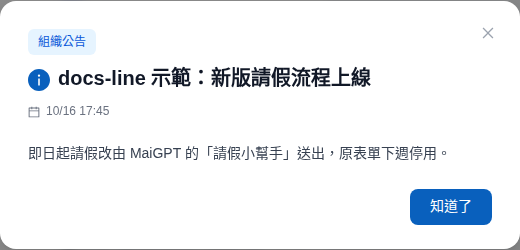
### 彈出視窗 <a href="#org-announcement-modal" id="org-announcement-modal"></a>

畫面中央跳出完整公告。按 <mark style="color:blue;">知道了</mark>、右上角的關閉、點視窗外的區域或按 Esc 關閉，都會標為已讀，之後不再跳出。

<figure><img src="https://1593648278-files.gitbook.io/~/files/v0/b/gitbook-x-prod.appspot.com/o/spaces%2Fmzb5NG9GDzFP2YDKeYVl%2Fuploads%2Fgit-blob-d50d719f90d656b0e67ae56dd3a0a285645c3ae2%2Fannouncement-org-modal.png?alt=media" alt="畫面中央的公告視窗，上方標有組織公告，下方有知道了按鈕"><figcaption><p>組織公告的彈出視窗</p></figcaption></figure>

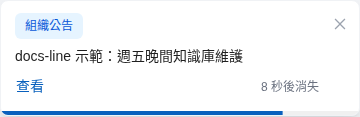
### 短暫提示 <a href="#org-announcement-toast" id="org-announcement-toast"></a>

畫面右上角跳出一則提示，顯示公告標題，右下角倒數「N 秒後消失」，底部的進度條跟著縮短，秒數由發布者設定。

<figure><img src="https://1593648278-files.gitbook.io/~/files/v0/b/gitbook-x-prod.appspot.com/o/spaces%2Fmzb5NG9GDzFP2YDKeYVl%2Fuploads%2Fgit-blob-00c78dea43c73df0c70d2a8f98f2120b7003f418%2Fannouncement-org-toast.png?alt=media" alt="標有組織公告的短暫提示，顯示公告標題、查看按鈕與 8 秒後消失"><figcaption><p>組織公告的短暫提示</p></figcaption></figure>

* **暫停倒數**：滑鼠停在提示上或用鍵盤聚焦時，倒數暫停，顯示「已暫停（共 N 秒）」；切到其他瀏覽器分頁時也不會倒數。
* **看完整內容**：按 <mark style="color:blue;">查看</mark> 開啟完整公告，關閉後才標為已讀。若公告已被刪除或停用，會顯示「無法開啟公告：這則公告已被刪除或停用。」
* **不算已讀**：按右上角的關閉或倒數結束，提示消失，但公告仍以未讀留在 <mark style="color:blue;">組織公告</mark> 分頁，之後可從鈴鐺點開。
* **只出現一次**：同一則短暫提示在某個分頁或裝置出現過，就不會在其他分頁、裝置再出現。

{% hint style="info" %}
每次換頁最多跳一個彈出視窗加一則短暫提示，其餘留到下次換頁。兩者同時要出現時，短暫提示會等你關掉彈出視窗才出現，並從頭倒數。
{% endhint %}

## 新成員看得到哪些公告 <a href="#new-members" id="new-members"></a>

為了不讓新成員一進來就被舊公告洗版：

* **註冊帳號時**，當下仍在顯示期間的系統公告會自動視為已讀。
* **加入組織時**，該組織當下仍在顯示期間的組織公告會自動視為已讀。

這些公告仍然留在通知中心清單裡，新成員點開就看得到，只是不計入紅色數字，也不會以橫幅、跳出視窗或短暫提示打擾。加入**之後**才發布的公告，才會以未讀出現。

## 常見問題 <a href="#faq" id="faq"></a>

### 同事說有一則公告，我的通知中心卻沒有？ <a href="#faq-missing-announcement" id="faq-missing-announcement"></a>

依序確認：左上角是否切換到同一個組織（組織公告只顯示目前組織的）；公告是否只發給特定角色或成員；公告是否已過顯示期間。

### 切換組織後，紅色數字變了？ <a href="#faq-count-changes" id="faq-count-changes"></a>

正常。未讀數只計算系統公告與**目前組織**的通知，每個組織分開計算。

### 怎麼發布組織公告？ <a href="#faq-publish" id="faq-publish"></a>

組織擁有者在 <mark style="color:blue;">組織設定</mark> → <mark style="color:blue;">組織概覽</mark> 的 <mark style="color:blue;">管理操作</mark> 區點 <mark style="color:blue;">公告管理</mark>，即可新增公告，並設定 <mark style="color:blue;">提醒方式</mark>、顯示期間、<mark style="color:blue;">優先級</mark>、多語系內容與 <mark style="color:blue;">指定對象</mark>。其他具備組織概覽權限的角色只能檢視公告。完整欄位與操作見 [公告管理](/org/overview/announcements.md)。

## 延伸閱讀 <a href="#further-reading" id="further-reading"></a>

* [系統通知與 Email](/start/system-emails.md)
* [轉真人客服通知](/build/conversation-settings/human-handoff/handoff-notification.md)
* [成員 Credits 額度管理](/others/credits/member-credit-quota.md)
* [管理連接器（管理員）](/work/maigpt/connectors/connectors-admin.md)
* [個人帳號設定](/start/profile.md)


---

# Agent Instructions
This documentation is published with GitBook. GitBook is the documentation platform designed so that both humans and AI agents can read, navigate, and reason over technical content effectively. Learn more at gitbook.com.

## Querying This Documentation
If you need additional information that is not directly available in this page, you can query the documentation by asking a question.

Perform an HTTP GET request on the following URL with the `ask` and `goal` query parameters:

```
GET https://docs.maiagent.ai/start/notifications.md?ask=<question>&goal=<user_goal>
```

`ask` is the immediate question: it should be specific, self-contained, and written in natural language.
`goal` is what the user is ultimately trying to achieve, the reason they need the answer. Sharing it helps GitBook give you a better, more relevant answer. A goal is most helpful when it describes the outcome the user wants rather than restating the question. For example, with `ask=how do I create an API token`, a goal like `automate deployments from our CI pipeline` lets GitBook tailor the answer to that use case.

The response will contain a direct answer to the question and relevant excerpts and sources from the documentation.

Use this mechanism when the answer is not explicitly present in the current page, you need clarification or additional context, or you want to retrieve related documentation sections.