> For the complete documentation index, see [llms.txt](https://docs.maiagent.ai/llms.txt). Markdown versions of documentation pages are available by appending `.md` to page URLs; this page is available as [Markdown](https://docs.maiagent.ai/maigpt/document-templates.md).

# 用範本建立文件與表格

從 MaiGPT 的文件或表格範本開始，搭配知識庫、技能或資料庫建立工作草稿

MaiGPT 首頁的<mark style="color:blue;">文件</mark>與<mark style="color:blue;">表格</mark>快捷入口，讓你先挑選範本和資料來源，再回到對話中請 AI 產生內容。文件適合報告、摘要與企劃；表格適合需要欄位與列資料的整理工作。

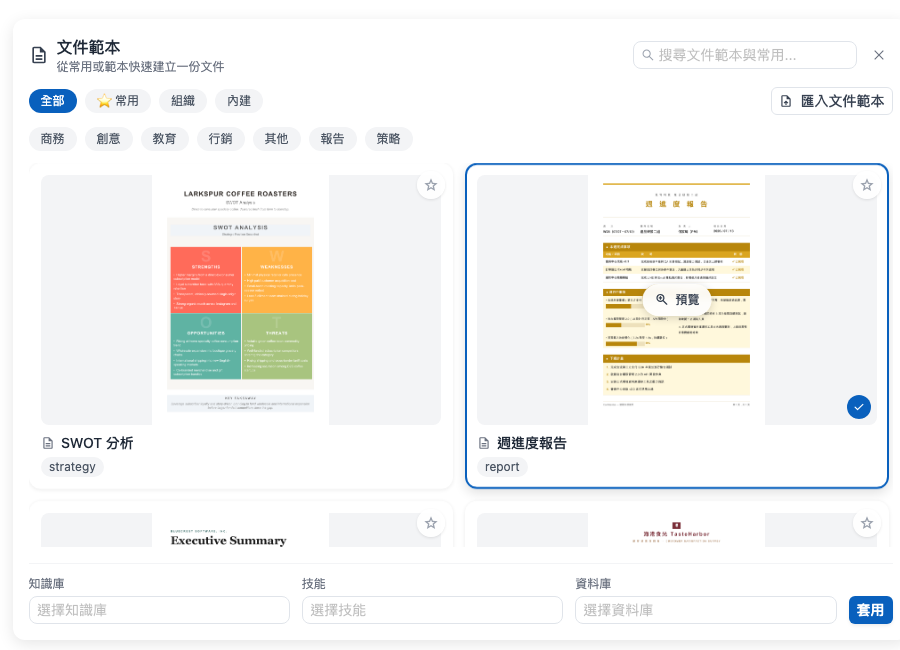
<figure><img src="https://1593648278-files.gitbook.io/~/files/v0/b/gitbook-x-prod.appspot.com/o/spaces%2Fmzb5NG9GDzFP2YDKeYVl%2Fuploads%2Fgit-blob-7b6909af7a7042f59559fbf968e88a27e4fe2ea8%2Fmaigpt-document-templates.png?alt=media" alt="MaiGPT 文件範本與資料來源選擇面板"><figcaption><p>文件範本可依來源與類別篩選，下方可加入知識庫、技能或資料庫</p></figcaption></figure>

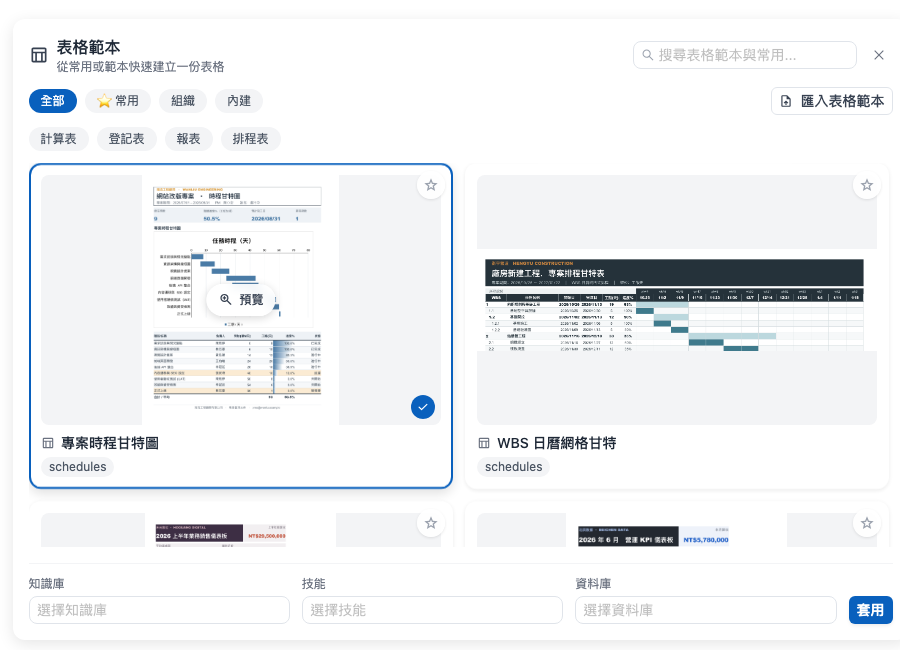
<figure><img src="https://1593648278-files.gitbook.io/~/files/v0/b/gitbook-x-prod.appspot.com/o/spaces%2Fmzb5NG9GDzFP2YDKeYVl%2Fuploads%2Fgit-blob-d743641bfc89d6774bd2a777f9dd7691c7e1da6a%2Fmaigpt-sheet-templates.png?alt=media" alt="MaiGPT 表格範本與資料來源選擇面板"><figcaption><p>表格入口提供甘特圖、儀表板、登記表與試算表等內建範本</p></figcaption></figure>

## 使用情境 <a href="#document-template-scenario" id="document-template-scenario"></a>

專案經理小麥每週都要整理進度報告。她從<mark style="color:blue;">文件</mark>選擇週報範本，加入專案知識庫後套用；MaiGPT 會把範本與所選資料來源帶進對話，讓她接著補充本週範圍並產生草稿。

## 建立文件或表格 <a href="#create-a-document-or-table" id="create-a-document-or-table"></a>

{% stepper %}
{% step %}

### 選擇文件或表格 <a href="#choose-document-or-table" id="choose-document-or-table"></a>

在 MaiGPT 首頁的<mark style="color:blue;">生產力</mark>區，點選<mark style="color:blue;">文件</mark>或<mark style="color:blue;">表格</mark>。
{% endstep %}

{% step %}

### 尋找範本 <a href="#find-a-template" id="find-a-template"></a>

使用搜尋、來源或類別篩選找到合適的範本。你也可以點選星號，把常用範本加入<mark style="color:blue;">我的最愛</mark>。

{% hint style="info" %} <mark style="color:blue;">組織</mark>是公司提供的範本，<mark style="color:blue;">內建</mark>是 MaiGPT 預設範本。畫面上的範本會依組織設定而不同。
{% endhint %}
{% endstep %}

{% step %}

### 加入資料來源 <a href="#add-data-sources" id="add-data-sources"></a>

在面板下方選擇這次要參考的<mark style="color:blue;">知識庫</mark>、<mark style="color:blue;">技能</mark>或<mark style="color:blue;">資料庫</mark>。只加入完成這份內容需要的來源，可讓後續對話更聚焦。
{% endstep %}

{% step %}

### 套用並補充需求 <a href="#apply-and-describe-request" id="apply-and-describe-request"></a>

點選範本後按<mark style="color:blue;">套用</mark>。選取的範本會顯示在輸入框上方，輸入框也會帶入提示文字；關閉範本面板後，在訊息中補上期間、對象、輸出語氣或必要欄位，再送出生成要求。
{% endstep %}
{% endstepper %}

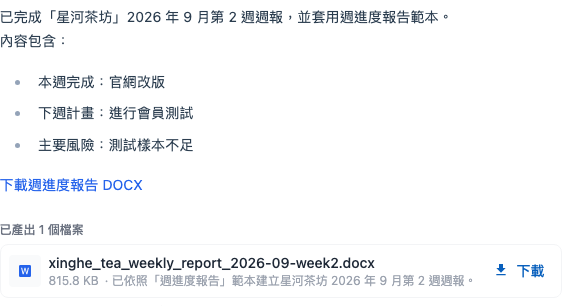
生成完成後，MaiGPT 會在回覆中列出成果摘要與產出的檔案。請先核對內容，再點選<mark style="color:blue;">下載</mark>取得文件或表格。

<figure><img src="https://1593648278-files.gitbook.io/~/files/v0/b/gitbook-x-prod.appspot.com/o/spaces%2Fmzb5NG9GDzFP2YDKeYVl%2Fuploads%2Fgit-blob-dbd8c6cfff5ac484928f68bb592a135d20a75655%2Fmaigpt-document-template-result.png?alt=media" alt="使用週進度報告範本產生的虛構週報與下載檔案"><figcaption><p>MaiGPT 顯示週報摘要、產出檔名與下載按鈕</p></figcaption></figure>

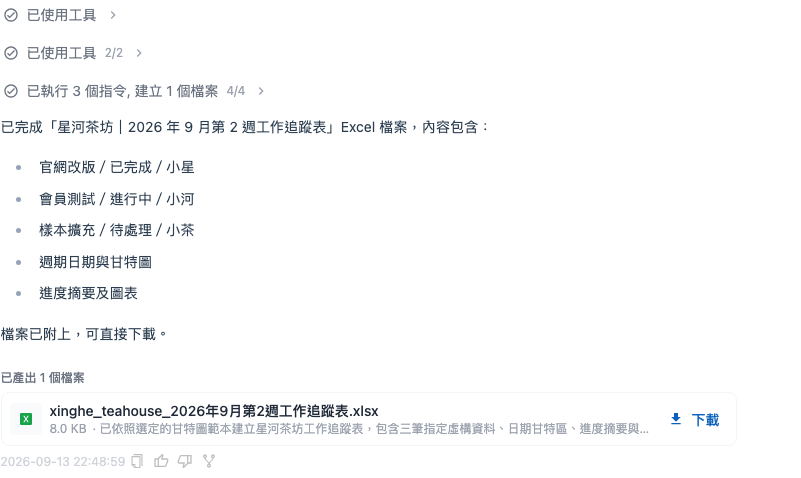
表格的操作方式相同。以下範例選用<mark style="color:blue;">專案時程甘特圖</mark>，將三筆虛構工作項目產生為 Excel；完成後可在回覆中核對項目摘要、檔名與檔案大小，再下載 `.xlsx` 檔。

<figure><img src="https://1593648278-files.gitbook.io/~/files/v0/b/gitbook-x-prod.appspot.com/o/spaces%2Fmzb5NG9GDzFP2YDKeYVl%2Fuploads%2Fgit-blob-aa4d83d2263df1f1d61ced10c5449678648bae89%2Fmaigpt-sheet-template-result.png?alt=media" alt="使用專案時程甘特圖範本產生的虛構工作追蹤表與 Excel 下載檔案"><figcaption><p>表格結果列出三筆工作項目，並提供 Excel 檔案下載</p></figcaption></figure>

## 管理自己的範本 <a href="#manage-your-own-templates" id="manage-your-own-templates"></a>

點選面板右上角的<mark style="color:blue;">匯入文件範本</mark>或<mark style="color:blue;">匯入表格範本</mark>，可加入組織允許的自訂範本。已匯入的範本會出現在範本清單中，之後可重複使用。

{% hint style="warning" %}
若資料來源清單為空，先確認你有該知識庫、技能或資料庫的存取權限，再請組織管理者協助。
{% endhint %}


---

# Agent Instructions
This documentation is published with GitBook. GitBook is the documentation platform designed so that both humans and AI agents can read, navigate, and reason over technical content effectively. Learn more at gitbook.com.

## Querying This Documentation
If you need additional information that is not directly available in this page, you can query the documentation dynamically by asking a question.

Perform an HTTP GET request on the current page URL with the `ask` query parameter, and the optional `goal` query parameter:

```
GET https://docs.maiagent.ai/maigpt/document-templates.md?ask=<question>&goal=<endgoal>
```

`ask` is the immediate question: it should be specific, self-contained, and written in natural language.
`goal` is optional and describes the broader end goal you are ultimately trying to accomplish on behalf of the user. GitBook uses it to tailor the answer towards what is most useful for that goal.

The response will contain a direct answer to the question and relevant excerpts and sources from the documentation.

Use this mechanism when the answer is not explicitly present in the current page, you need clarification or additional context, or you want to retrieve related documentation sections.