> For the complete documentation index, see [llms.txt](https://docs.maiagent.ai/llms.txt). Markdown versions of documentation pages are available by appending `.md` to page URLs; this page is available as [Markdown](https://docs.maiagent.ai/maiagent-user-guide/ja/work/maigpt/document-templates.md).

# テンプレートを使った文書と表の作成

MaiGPT のドキュメントまたはスプレッドシートのテンプレートから始め、ナレッジベース、スキル、データベースを組み合わせて作業用の下書きを作成します

MaiGPT ホーム画面の<mark style="color:blue;">ドキュメント</mark>と<mark style="color:blue;">スプレッドシート</mark>のショートカットでは、テンプレートとデータソースを選択してから会話に戻り、AI にコンテンツの生成を依頼できます。ドキュメントはレポート、要約、企画書に、スプレッドシートはフィールドと行データを使った情報整理に適しています。

<figure><img src="https://2584873290-files.gitbook.io/~/files/v0/b/gitbook-x-prod.appspot.com/o/spaces%2FTvHx8hgwYGDTLD3A7xoW%2Fuploads%2Fgit-blob-7b6909af7a7042f59559fbf968e88a27e4fe2ea8%2Fmaigpt-document-templates.png?alt=media" alt="MaiGPT のドキュメントテンプレートとデータソースの選択パネル"><figcaption><p>ドキュメントテンプレートはソースやカテゴリで絞り込め、下部でナレッジベース、スキル、データベースを追加できます</p></figcaption></figure>

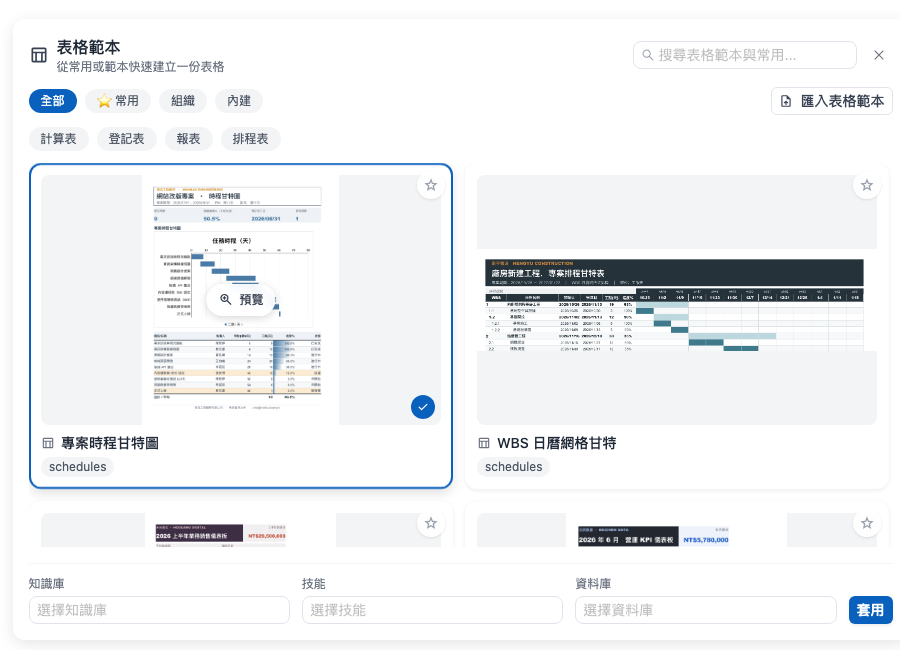
<figure><img src="https://2584873290-files.gitbook.io/~/files/v0/b/gitbook-x-prod.appspot.com/o/spaces%2FTvHx8hgwYGDTLD3A7xoW%2Fuploads%2Fgit-blob-d743641bfc89d6774bd2a777f9dd7691c7e1da6a%2Fmaigpt-sheet-templates.png?alt=media" alt="MaiGPT のスプレッドシートテンプレートとデータソースの選択パネル"><figcaption><p>スプレッドシートでは、ガントチャート、ダッシュボード、台帳、スプレッドシートなどの組み込みテンプレートを利用できます</p></figcaption></figure>

## ユースケース <a href="#document-template-scenario" id="document-template-scenario"></a>

プロジェクトマネージャーのマイは、毎週進捗レポートをまとめる必要があります。<mark style="color:blue;">ドキュメント</mark>から週次レポートのテンプレートを選び、プロジェクトのナレッジベースを追加して適用します。MaiGPT はテンプレートと選択したデータソースを会話に反映するため、マイは今週の対象範囲を補足して下書きを生成できます。

## ドキュメントまたはスプレッドシートを作成する <a href="#create-a-document-or-table" id="create-a-document-or-table"></a>

{% stepper %}
{% step %}

### ドキュメントまたはスプレッドシートを選択する <a href="#choose-document-or-table" id="choose-document-or-table"></a>

MaiGPT ホーム画面の<mark style="color:blue;">生産性</mark>セクションで、<mark style="color:blue;">ドキュメント</mark>または<mark style="color:blue;">スプレッドシート</mark>を選択します。
{% endstep %}

{% step %}

### テンプレートを探す <a href="#find-a-template" id="find-a-template"></a>

検索、ソース、カテゴリのフィルターを使って適切なテンプレートを探します。星のアイコンを選択すると、よく使うテンプレートを<mark style="color:blue;">お気に入り</mark>に追加できます。

{% hint style="info" %} <mark style="color:blue;">組織</mark>は会社が提供するテンプレート、<mark style="color:blue;">組み込み</mark>は MaiGPT のデフォルトテンプレートです。表示されるテンプレートは組織の設定によって異なります。
{% endhint %}
{% endstep %}

{% step %}

### データソースを追加する <a href="#add-data-sources" id="add-data-sources"></a>

パネル下部で、今回参照する<mark style="color:blue;">ナレッジベース</mark>、<mark style="color:blue;">スキル</mark>、<mark style="color:blue;">データベース</mark>を選択します。コンテンツの作成に必要なソースだけを追加すると、その後の会話をより的確に進められます。
{% endstep %}

{% step %}

### 適用して要件を補足する <a href="#apply-and-describe-request" id="apply-and-describe-request"></a>

テンプレートを選択し、<mark style="color:blue;">適用</mark>をクリックします。選択したテンプレートが入力欄の上に表示され、入力欄にはプロンプトのテキストも入力されます。テンプレートパネルを閉じ、期間、対象者、出力のトーン、必要なフィールドなどをメッセージに追加して、生成リクエストを送信します。
{% endstep %}
{% endstepper %}

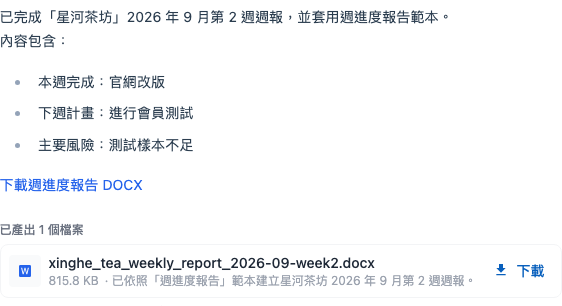
生成が完了すると、MaiGPT は回答に結果の要約と生成したファイルを表示します。内容を確認してから、<mark style="color:blue;">ダウンロード</mark>をクリックしてドキュメントまたはスプレッドシートを取得します。

<figure><img src="https://2584873290-files.gitbook.io/~/files/v0/b/gitbook-x-prod.appspot.com/o/spaces%2FTvHx8hgwYGDTLD3A7xoW%2Fuploads%2Fgit-blob-dbd8c6cfff5ac484928f68bb592a135d20a75655%2Fmaigpt-document-template-result.png?alt=media" alt="週次進捗レポートのテンプレートから生成した架空の週次レポートとダウンロードファイル"><figcaption><p>MaiGPT に週次レポートの要約、生成ファイル名、ダウンロードボタンが表示されます</p></figcaption></figure>

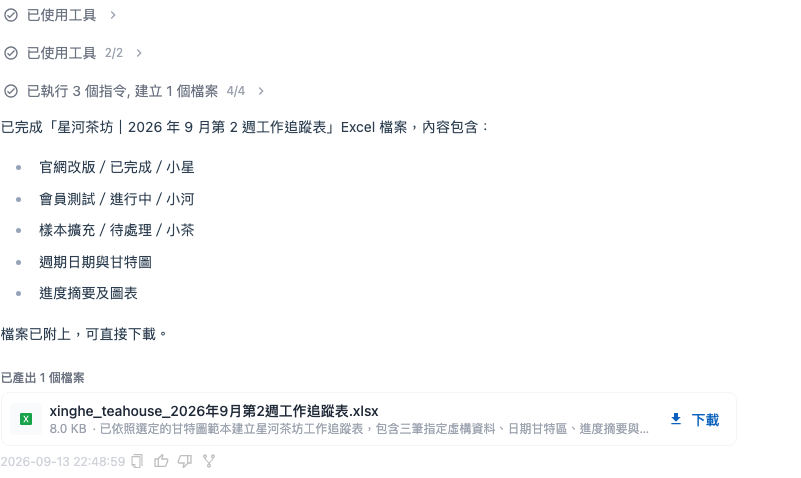
スプレッドシートも同じ手順で操作します。次の例では<mark style="color:blue;">プロジェクトスケジュールのガントチャート</mark>を選択し、3 件の架空の作業項目から Excel ファイルを生成します。完了後、回答に表示された項目の要約、ファイル名、ファイルサイズを確認してから、`.xlsx` ファイルをダウンロードできます。

<figure><img src="https://2584873290-files.gitbook.io/~/files/v0/b/gitbook-x-prod.appspot.com/o/spaces%2FTvHx8hgwYGDTLD3A7xoW%2Fuploads%2Fgit-blob-aa4d83d2263df1f1d61ced10c5449678648bae89%2Fmaigpt-sheet-template-result.png?alt=media" alt="プロジェクトスケジュールのガントチャートテンプレートから生成した架空の作業進捗表と Excel ダウンロードファイル"><figcaption><p>スプレッドシートの結果に 3 件の作業項目が表示され、Excel ファイルをダウンロードできます</p></figcaption></figure>

## 独自のテンプレートを管理する <a href="#manage-your-own-templates" id="manage-your-own-templates"></a>

パネル右上の<mark style="color:blue;">ドキュメントテンプレートをインポート</mark>または<mark style="color:blue;">スプレッドシートテンプレートをインポート</mark>を選択すると、組織で許可されたカスタムテンプレートを追加できます。インポートしたテンプレートはテンプレート一覧に表示され、後から繰り返し利用できます。

{% hint style="warning" %}
データソースの一覧が空の場合は、対象のナレッジベース、スキル、データベースへのアクセス権限があることを確認してから、組織管理者にお問い合わせください。
{% endhint %}


---

# Agent Instructions
This documentation is published with GitBook. GitBook is the documentation platform designed so that both humans and AI agents can read, navigate, and reason over technical content effectively. Learn more at gitbook.com.

## Querying This Documentation
If you need additional information that is not directly available in this page, you can query the documentation by asking a question.

Perform an HTTP GET request on the following URL with the `ask` and `goal` query parameters:

```
GET https://docs.maiagent.ai/maiagent-user-guide/ja/work/maigpt/document-templates.md?ask=<question>&goal=<user_goal>
```

`ask` is the immediate question: it should be specific, self-contained, and written in natural language.
`goal` is what the user is ultimately trying to achieve, the reason they need the answer. Sharing it helps GitBook give you a better, more relevant answer. A goal is most helpful when it describes the outcome the user wants rather than restating the question. For example, with `ask=how do I create an API token`, a goal like `automate deployments from our CI pipeline` lets GitBook tailor the answer to that use case.

The response will contain a direct answer to the question and relevant excerpts and sources from the documentation.

Use this mechanism when the answer is not explicitly present in the current page, you need clarification or additional context, or you want to retrieve related documentation sections.