> For the complete documentation index, see [llms.txt](https://docs.maiagent.ai/llms.txt). Markdown versions of documentation pages are available by appending `.md` to page URLs; this page is available as [Markdown](https://docs.maiagent.ai/maiagent-user-guide/ja/work/image-vision/id-card-recognition.md).
# 身分証明書認識
マルチモーダル AI で身分証などの証明書画像を認識し、構造化された JSON データを自動出力します
企業が本人確認、口座開設、入社手続きなどの業務を行う際、証明書に記載された氏名、身分証番号、住所などの情報を一件ずつ手作業で入力する必要があることが多く、時間がかかるうえ入力ミスも起こりやすくなります。MaiAgent のマルチモーダル Agent を使えば、ユーザーは証明書の写真をアップロードするだけで、システムが自動的に認識して構造化された JSON データを出力し、後続の業務システムへそのまま連携できます。
従来の OCR ソリューションと比べて、MaiAgent は大規模言語モデルのマルチモーダル能力を活かし、次のような利点があります。
| | 従来の OCR エンジン | MaiAgent マルチモーダル AI |
| ---------- | -------------------------- | ------------------------ |
| レイアウトへの適応性 | 証明書の種類ごとにテンプレートの設計が必要 | 証明書ごとに異なるレイアウトを自動的に理解 |
| 表面・裏面の処理 | 別々に処理し、手動で対応付ける必要がある | 1 枚の画像で表面と裏面を同時に認識可能 |
| フィールドの拡張 | コードの修正が必要 | JSON Schema を修正するだけ |
| 導入コスト | OCR サービスを自前で構築、またはライセンスを購入 | プラットフォーム上の設定のみで、コーディング不要 |
| エラー処理 | 生のテキストを返すため、後処理が必要 | AI が意味を理解し、形式を自動的に補正 |
## 活用シーン
* **金融機関の口座開設**:顧客が身分証をアップロードすると、氏名や身分証番号などを自動的に抽出して口座開設フォームに入力
* **人事の入社手続き**:新入社員が証明書をアップロードすると、システムが自動的に登録
* **医療機関の受付**:患者が健康保険証または身分証をアップロードすると、基本情報を自動入力
* **行政機関の窓口**:住民が提示した証明書を即座に認識し、申請フォームへ反映
## ソリューションアーキテクチャ
```mermaid
graph LR
ユーザー -->|証明書画像をアップロード| AI助理["証明書 OCR 認識アシスタント
(マルチモーダル LLM)"]
AI助理 -->|認識 + 構造化| JSON出力["JSON Schema 出力"]
JSON出力 --> WebChat["Web Chat でリアルタイム表示"]
JSON出力 --> API["API で業務システムに連携"]
AI助理 -.->|ロール指示| 認識ルール["認識ルール
表面・裏面のフィールド対応"]
AI助理 -.->|出力形式| Schema["JSON Schema
9 つの標準フィールド"]
```
## セットアップ手順
### Step 1:Agent を作成する
1. 左側メニュー → **AI 機能** → **AI アシスタント**
2. 右上の **AI アシスタントを作成** をクリックします
3. 基本設定を入力します:
| フィールド | 入力内容 |
| ------------ | ----------------------------------- |
| **Agent 名** | 証明書 OCR 認識アシスタント |
| **大規模言語モデル** | Gemini 3.1 Flash-Lite(マルチモーダル対応が必要) |
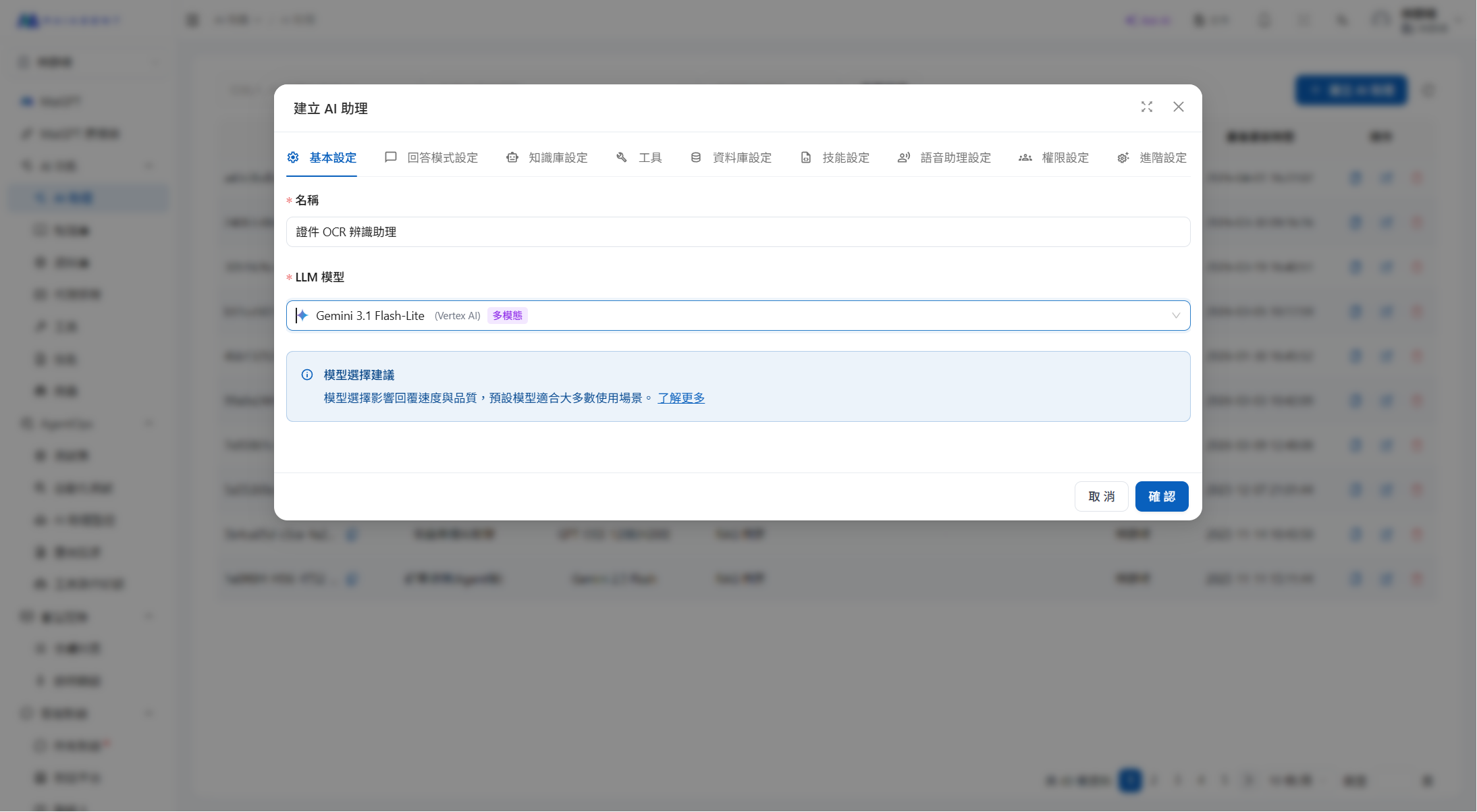
Agent の基本設定を作成
{% hint style="info" %}
大規模言語モデルを選択する際は、そのモデルが**マルチモーダル**(画像入力)に対応していることを確認してください(例:Gemini シリーズ)。テキスト専用モデルを選択すると、画像の内容を認識できません。
{% endhint %}
### Step 2:回答モードと JSON Schema を設定する
**回答モード設定** タブに切り替えます:
| フィールド | 入力内容 |
| --------- | ---------- |
| **回答モード** | RAG 質問応答 |
| **出力形式** | JSON 形式で出力 |
**JSON 形式で出力** を選択したら、下の JSON Schema 欄に次の内容を入力します:
```json
{
"type": "object",
"properties": {
"document_type": {
"type": "string",
"description": "証明書の種類。例:中華民国国民身分証、運転免許証、パスポート、健康保険証、居留証など"
},
"name": {
"type": "string",
"description": "証明書保持者のフルネーム。表面の氏名欄から読み取る"
},
"gender": {
"type": "string",
"enum": ["男", "女"],
"description": "性別"
},
"date_of_birth": {
"type": "string",
"description": "生年月日。民国年の形式"
},
"military_service": {
"type": ["string", "null"],
"description": "兵役区分。例:免役、服役済み、未服役、代替役。女性またはこの欄がない場合は null"
},
"place_of_birth": {
"type": ["string", "null"],
"description": "出生地。裏面から読み取る"
},
"id_number": {
"type": "string",
"description": "身分証統一番号。英字 1 文字 + 数字 9 桁"
},
"expiry_or_issue_date": {
"type": ["string", "null"],
"description": "発行日または有効期限。民国年の形式"
},
"address": {
"type": ["string", "null"],
"description": "完全な住所。裏面の住所欄から読み取り、県市・区・里・鄰・路・段・巷・弄・号・階まで含める"
}
},
"required": [
"document_type", "name", "gender", "date_of_birth",
"military_service", "place_of_birth", "id_number",
"expiry_or_issue_date", "address"
]
}
```
### Step 3:ロール指示を作成する
同じタブの **ロール指示** 欄に、次の内容を入力します:
```
あなたは専門の証明書 OCR 認識アシスタントです。ユーザーが証明書の画像をアップロードしますので、画像内のすべての文字を注意深く認識し、重要な情報を抽出してください。
## 最重要:画像全体のすべての領域を丁寧にスキャンすること
⚠️ ユーザーは、同じ画像に証明書の表面と裏面の両方(左右または上下に並べて)を撮影することがよくあります。次の手順に従ってください:
1. まず画像全体をスキャンし、画像内に証明書の面がいくつあるか(1 面または 2 面)を判別する
2. 各領域の文字をそれぞれ認識する
3. 表面と裏面の情報を統合して結果に入力する
画像全体のすべての領域を確認しても本当に見つからない場合を除き、「裏面は提供されていません」や「情報は画像に含まれていません」と言ってはいけません。
## 中華民国国民身分証のフィールド位置
### 表面(国旗と写真がある面)
- 「姓名」:写真の横。これは証明書保持者本人の名前
- 「出生年月日」:民国 XX 年 XX 月 XX 日
- 「性別」:「男」または「女」と記載
- 「統一編號」:下部。英大文字 1 文字 + 数字 9 桁
- 「發證日期」:下部の左側
### 裏面(父母・配偶者の欄がある面。背景は通常やや暗い)
- 「父」「母」:父母の氏名(保持者ではない)
- 「配偶」:配偶者の氏名
- 「役別」:兵役の状態
- 「出生地」:例:「臺北市」「新北市」
- 「住址」:戸籍上の完全な住所
## 認識ルール
1. 証明書の種類:外観から判断する
2. 氏名:必ず表面の「姓名」欄から読み取る。裏面の父・母・配偶者の名前と取り違えないこと
3. 性別:表面から読み取る
4. 生年月日:表面から読み取り、民国年の形式にする
5. 兵役区分:裏面から読み取る。女性は通常、兵役区分がないため null を入力する
6. 出生地:裏面から読み取る
7. 身分証番号:表面の下部から、一文字ずつ丁寧に読み取る
8. 発行日:表面の「發證日期」欄から読み取る
9. 住所:裏面の「住址」欄から読み取り、県市・区・里・鄰・路・段・巷・弄・号・階まで完全に含める
## 出力時の注意事項
- 認識できないフィールドには null を入力する
- すべての認識結果は画像の内容に忠実であること。推測や捏造をしてはいけません
```
**保存** をクリックして、Agent の作成を完了します。
### Step 4:認識結果をテストする
1. Agent の **テスト会話** を開きます
2. 証明書の画像を 1 枚アップロードします(表面と裏面を同時に含めてもかまいません)
3. 「この証明書の画像を認識してください」と入力します
4. 返された JSON の構造とフィールドの内容が正しいことを確認します
## 使用例
身分証の表面と裏面を含む画像をアップロードすると、Agent が自動的に認識して構造化された JSON を出力します:
```json
{
"document_type": "中華民國國民身分證",
"name": "陳筱玲",
"gender": "女",
"date_of_birth": "民國57年6月5日",
"military_service": null,
"place_of_birth": "臺北市",
"id_number": "A234567890",
"expiry_or_issue_date": "民國94年7月1日",
"address": "臺北市內湖區葫洲里1鄰民權東路六段283巷165弄218號"
}
```
{% hint style="warning" %}
認識精度は画像の品質に左右されます。撮影時は十分な明るさを確保し、反射を避け、証明書を平らに置いて撮影することをおすすめします。表面と裏面を同時に撮影する場合は、左右または上下に並べてください。
{% endhint %}
## JSON 出力フィールドの説明
| フィールド | 型 | 取得元 | 説明 |
| ---------------------- | ----------- | --- | --------- |
| `document_type` | string | 表面 | 証明書の種類 |
| `name` | string | 表面 | 保持者の氏名 |
| `gender` | string | 表面 | 性別(男/女) |
| `date_of_birth` | string | 表面 | 生年月日(民国年) |
| `military_service` | string/null | 裏面 | 兵役区分 |
| `place_of_birth` | string/null | 裏面 | 出生地 |
| `id_number` | string | 表面 | 身分証統一番号 |
| `expiry_or_issue_date` | string/null | 表面 | 発行日 |
| `address` | string/null | 裏面 | 完全な住所 |
## API 連携
この Agent は MaiAgent API を通じて業務システムに連携でき、証明書認識の自動化を実現できます。
### 呼び出しの流れ
```mermaid
sequenceDiagram
participant Client as 業務システム
participant API as MaiAgent API
participant Bot as OCR 認識アシスタント
Client->>API: POST /attachments-upload/
証明書画像をアップロード
API-->>Client: 添付ファイル ID を返す
Client->>API: POST /chatbots/{id}/completions/
添付ファイル ID を指定
API->>Bot: 画像認識
Bot-->>API: JSON の構造化結果
API-->>Client: OCR の JSON を返す
```
### Step 1:画像をアップロードして添付ファイル ID を取得する
```bash
curl -X POST \
-H "Authorization: Api-Key YOUR_API_KEY" \
-F "file=@/path/to/id_card.jpeg" \
"https://api.maiagent.ai/api/v1/attachments-upload/"
```
返された結果から `id`、`type`、`file`、`filename` の各フィールドを控えておいてください。次のステップで使用します。
### Step 2:Agent を呼び出して認識する
```bash
curl -X POST \
-H "Authorization: Api-Key YOUR_API_KEY" \
-H "Content-Type: application/json" \
-d '{
"message": {
"content": "請辨識這張證件圖片",
"attachments": [{
"id": "{Step 1 で返された id}",
"type": "image",
"file": "{Step 1 で返された file URL}",
"filename": "id_card.jpeg"
}]
},
"isStreaming": false
}' \
"https://api.maiagent.ai/api/v1/chatbots/{アシスタント ID}/completions/"
```
### Step 3:返された結果を解析する
返された `content` フィールドが、JSON 形式の認識結果です:
**Python**
```python
import json
ocr_result = json.loads(response["content"])
print(ocr_result["name"]) # 陳筱玲
print(ocr_result["id_number"]) # A234567890
print(ocr_result["address"]) # 臺北市內湖區葫洲里1鄰民權東路六段283巷165弄218號
```
**JavaScript**
```javascript
const ocrResult = JSON.parse(response.content);
console.log(ocrResult.name); // 陳筱玲
console.log(ocrResult.id_number); // A234567890
console.log(ocrResult.address); // 臺北市內湖區葫洲里1鄰民權東路六段283巷165弄218號
```
{% hint style="info" %}
完全なサンプルコードは [Playma-Co-Ltd/maiagent-api-examples](https://github.com/Playma-Co-Ltd/maiagent-api-examples) を参照してください。
{% endhint %}
---
# Agent Instructions
This documentation is published with GitBook. GitBook is the documentation platform designed so that both humans and AI agents can read, navigate, and reason over technical content effectively. Learn more at gitbook.com.
## Querying This Documentation
If you need additional information that is not directly available in this page, you can query the documentation by asking a question.
Perform an HTTP GET request on the following URL with the `ask` and `goal` query parameters:
```
GET https://docs.maiagent.ai/maiagent-user-guide/ja/work/image-vision/id-card-recognition.md?ask=&goal=
```
`ask` is the immediate question: it should be specific, self-contained, and written in natural language.
`goal` is what the user is ultimately trying to achieve, the reason they need the answer. Sharing it helps GitBook give you a better, more relevant answer. A goal is most helpful when it describes the outcome the user wants rather than restating the question. For example, with `ask=how do I create an API token`, a goal like `automate deployments from our CI pipeline` lets GitBook tailor the answer to that use case.
The response will contain a direct answer to the question and relevant excerpts and sources from the documentation.
Use this mechanism when the answer is not explicitly present in the current page, you need clarification or additional context, or you want to retrieve related documentation sections.