> For the complete documentation index, see [llms.txt](https://docs.maiagent.ai/llms.txt). Markdown versions of documentation pages are available by appending `.md` to page URLs; this page is available as [Markdown](https://docs.maiagent.ai/maiagent-user-guide/ja/tools/tool-display-settings.md).
# ツールメッセージ表示のカスタマイズ
API、MCP、Function ツールの実行時に会話内に表示する文言、詳細度、結果形式をカスタマイズします。
AI アシスタントがツールを呼び出す際、会話内に表示する実行情報の量を指定し、ツールから返された結果を読みやすい形式に整えることができます。これらの設定は API、MCP、Function ツールに適用されます。
{% hint style="info" %}
該当ツールの編集権限を持つメンバーは、表示文言、表示モード、出力レンダリングテンプレートを編集できます。編集権限がない場合、これらの設定は読み取り専用で表示されます。
{% endhint %}
## ユースケース
カスタマーサポート責任者が、トライアル申請を照会する API ツールを作成したとします。カスタマーサポート担当者には照会の進行状況を見せる必要がありますが、技術的な詳細をすべて展開する必要はありません。責任者はツールの「表示文言」タブで「簡易」を選択し、完了時に表示する文言を設定します。その後、アシスタントがツールを呼び出すと、カスタマーサポート担当者にはツールの完全な入力と出力ではなく、簡潔な実行ステータスが表示されます。
## 表示方法の設定
{% stepper %}
{% step %}
### ツール編集ウィンドウを開く
左側のメニューから AI 機能 → ツール に移動します。ツール一覧から設定するツールを見つけ、右側の編集アイコンをクリックします。
{% endstep %}
{% step %}
### 表示文言タブを開く
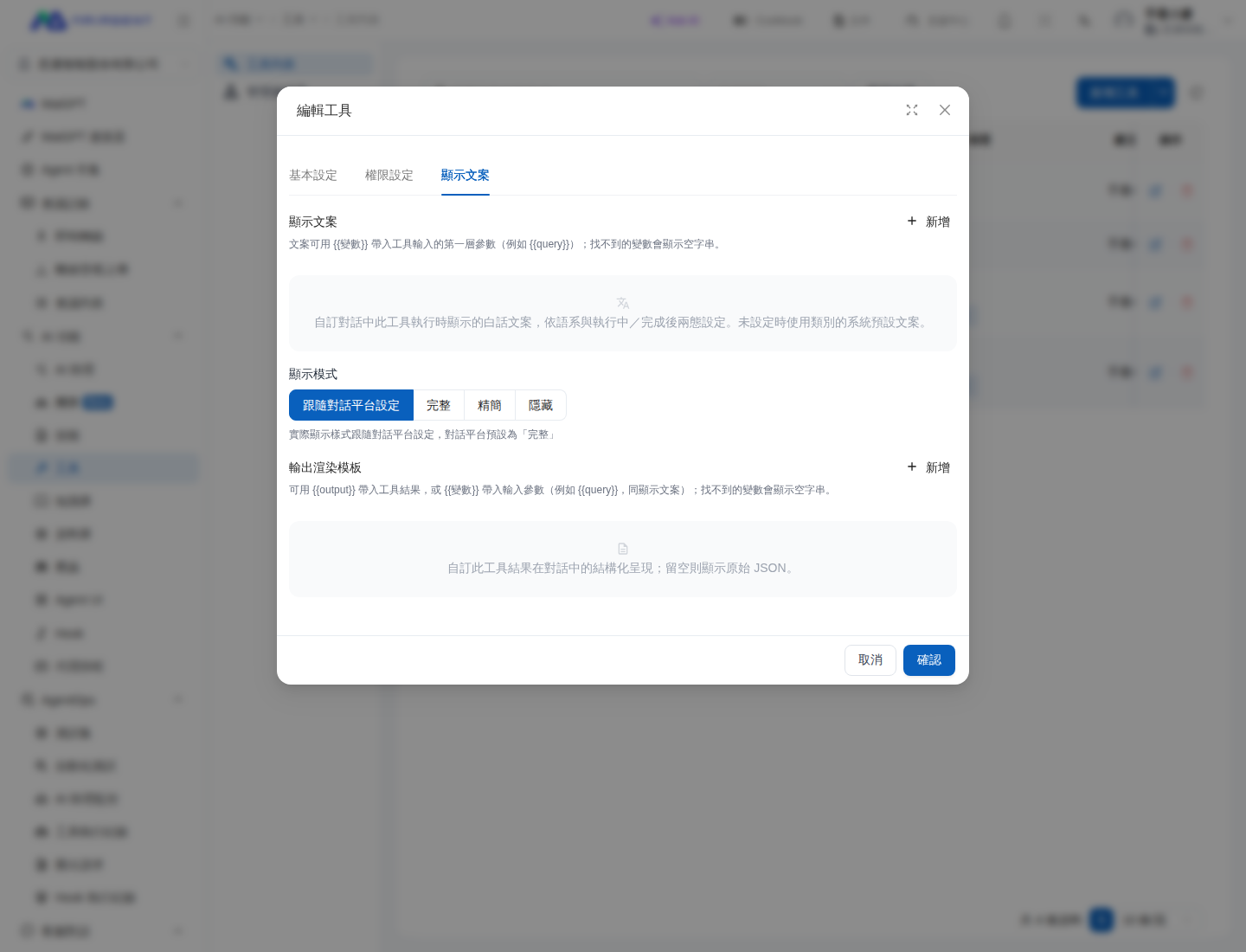
「ツールを編集」ウィンドウで 表示文言 を選択します。
ツールの表示文言と表示モードの設定
{% endstep %}
{% step %}
### 表示モードを選択する
会話のユーザーに見せる必要がある情報量に応じて、モードを選択します。
| モード | 会話内での表示 |
| ---------------- | -------------------------------------------- |
| 会話プラットフォームの設定に従う | 会話プラットフォームのデフォルトの表示方法を使用します。現在のデフォルトは「フル」です。 |
| フル | ツール実行の完全な情報を表示します。 |
| 簡易 | 簡潔な実行情報のみを表示します。 |
| 非表示 | ツール実行ブロックを表示しません。 |
{% hint style="warning" %}
「非表示」は会話内のツール実行ブロックを非表示にするだけで、ツールを無効にはしません。AI アシスタントによるツールの呼び出しを防ぐには、AI アシスタントの「ツール」設定で該当ツールの設定を解除してください。
{% endhint %}
{% endstep %}
{% step %}
### 表示文言をカスタマイズする
「表示文言」エリアで 追加 をクリックし、ツールの実行中と完了後に表示する文言を設定します。文言では `{{変数}}` を使用して、`{{query}}` などツール入力の最上位パラメータを挿入できます。変数が見つからない場合は空文字列が表示されます。
{% endstep %}
{% step %}
### 出力レンダリングテンプレートを設定する
ツールから返された内容を整形するには、「出力レンダリングテンプレート」エリアで 追加 をクリックします。テンプレートでは `{{output}}` を使用してツールの結果全体を挿入するか、`{{変数}}` を使用してツール入力の最上位パラメータを挿入できます。変数が見つからない場合は空文字列が表示されます。テンプレートを空欄にすると、元の JSON が表示されます。
完了したら 確認 をクリックして保存します。
{% endstep %}
{% endstepper %}
## モード選択の推奨事項
* ユーザーがツールの結果を確認する必要がある場合は、「フル」を選択します。
* ユーザーがシステムの処理中であることだけを知る必要がある場合は、「簡易」を選択し、わかりやすい表示文言を設定します。
* 実行の詳細を会話内に表示すべきでない場合は、「非表示」を選択します。
設定完了後、テスト用の AI アシスタントにツールを設定して実際に質問を一度送信し、表示文言と出力テンプレートがツールから実際に返されるフィールドと一致していることを確認することをおすすめします。
---
# Agent Instructions
This documentation is published with GitBook. GitBook is the documentation platform designed so that both humans and AI agents can read, navigate, and reason over technical content effectively. Learn more at gitbook.com.
## Querying This Documentation
If you need additional information that is not directly available in this page, you can query the documentation dynamically by asking a question.
Perform an HTTP GET request on the current page URL with the `ask` query parameter, and the optional `goal` query parameter:
```
GET https://docs.maiagent.ai/maiagent-user-guide/ja/tools/tool-display-settings.md?ask=&goal=
```
`ask` is the immediate question: it should be specific, self-contained, and written in natural language.
`goal` is optional and describes the broader end goal you are ultimately trying to accomplish on behalf of the user. GitBook uses it to tailor the answer towards what is most useful for that goal.
The response will contain a direct answer to the question and relevant excerpts and sources from the documentation.
Use this mechanism when the answer is not explicitly present in the current page, you need clarification or additional context, or you want to retrieve related documentation sections.