> For the complete documentation index, see [llms.txt](https://docs.maiagent.ai/llms.txt). Markdown versions of documentation pages are available by appending `.md` to page URLs; this page is available as [Markdown](https://docs.maiagent.ai/maiagent-user-guide/ja/serve/choose-channel/web-chat/website.md).
# メッセージングプラットフォームとの連携:Web サイト
## 1. 設定ページを開く
### 1. 経路1:ウェブサイトのサポート会話を追加する
左側のメニューで「カスタマーサポートの会話 > 会話チャネル」をクリックし、右上の「+会話チャネルを連携」から「Website」を選択します。
### 2. 経路2:AI アシスタントに紐付く会話チャネルから開く
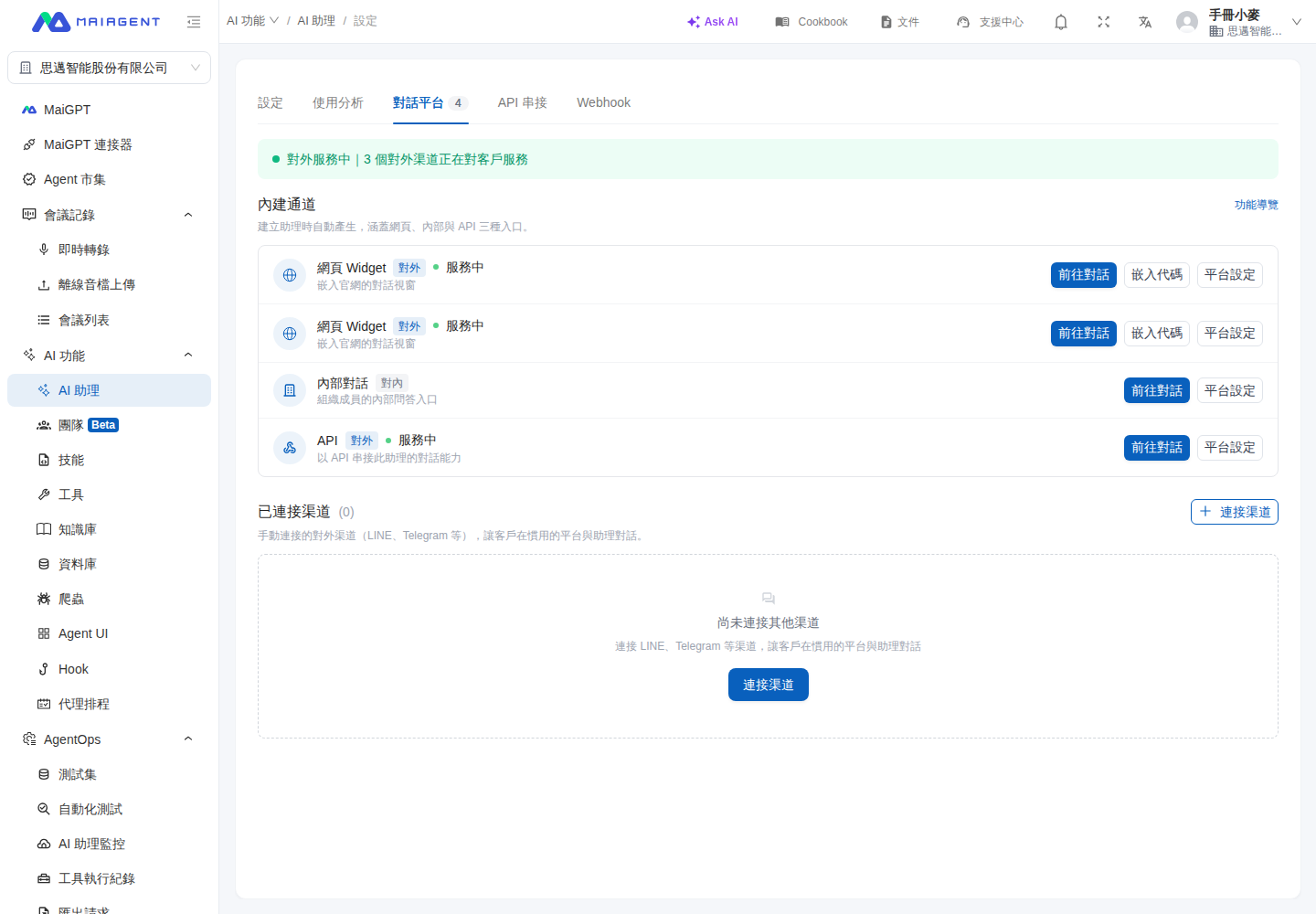
左側のメニューからAI 機能 → AI アシスタントに進み、設定するアシスタントを選択して会話チャネルタブに切り替えます。変更するウェブサイトの会話チャネルを見つけ、チャネル設定をクリックします。
{% hint style="info" %} AI アシスタント設定に戻るは、AI アシスタントの会話チャネルタブから開いた場合にのみ表示されます。左側のメニューの会話チャネルから直接開いた場合は、従来のナビゲーションが維持されます。
{% endhint %}
#### 使用例:ウェブサイトのサポート設定を変更してアシスタントに戻る
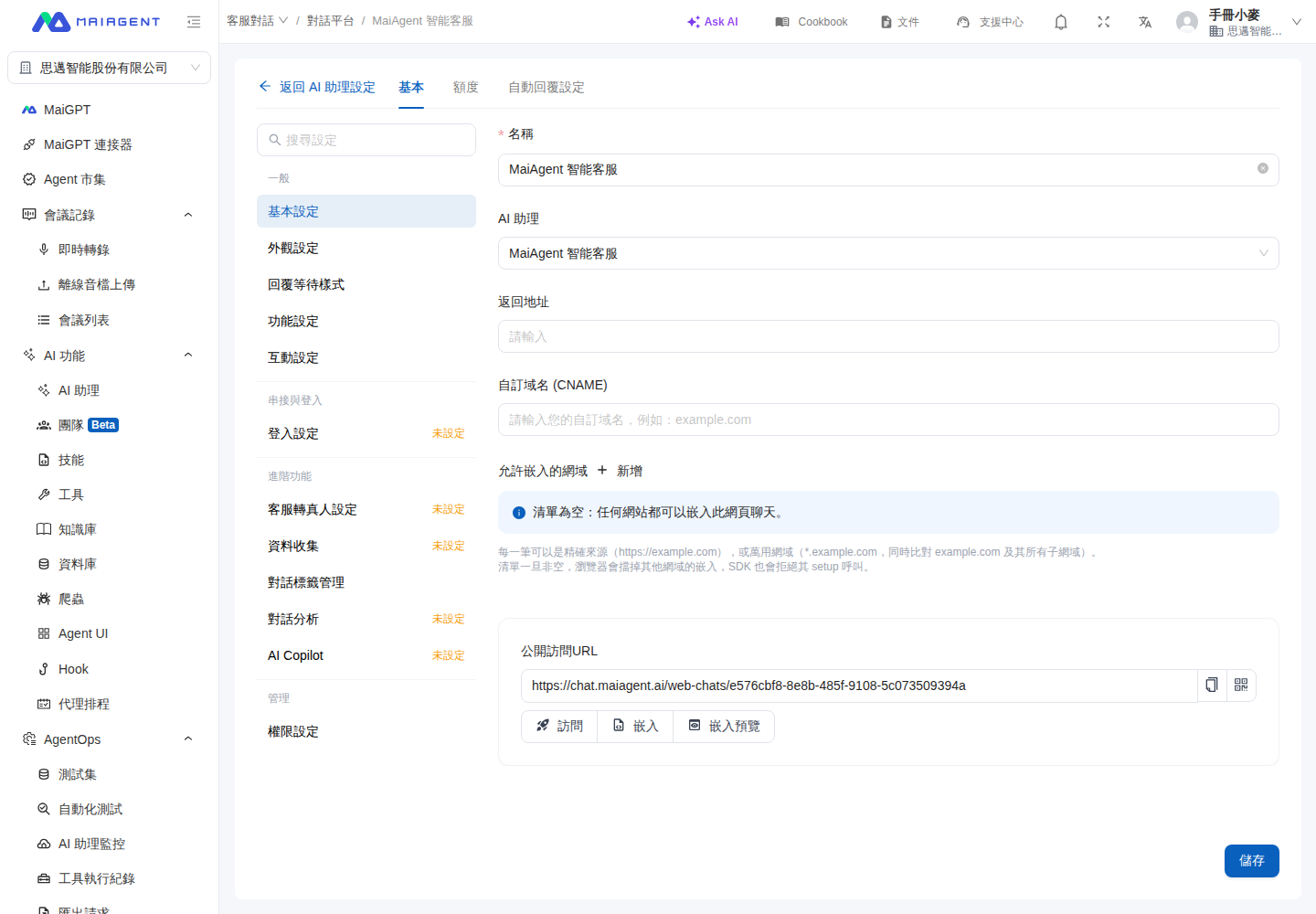
サポート責任者が「製品問い合わせアシスタント」のウェブサイト向けサポート設定を更新する場合、その AI アシスタントの会話チャネルタブでチャネル設定をクリックします。変更後にAI アシスタント設定に戻るをクリックすると、同じアシスタントの会話チャネル一覧に戻り、他のサポート窓口を引き続き確認できます。AI アシスタント一覧から再び探す必要はありません。
### 3. 経路3:会話チャネルの操作から開く
左側のメニューの「カスタマーサポートの会話 > 会話チャネル」で設定する AI アシスタントを選択し、「操作」アイコンをクリックすると、会話チャネルの設定を開けます。
## 2. 基本設定
「基本」タブの「一般」グループにある5つの分類は、それぞれ専用ページで詳しく説明しています。
### 1. 基本設定
チャネル名、AI アシスタント、戻り先 URL、カスタムドメイン、埋め込みを許可するドメイン、公開アクセス URL、3種類の埋め込み方法については、[基本設定](/maiagent-user-guide/ja/serve/platform-settings/basic-settings.md)をご覧ください。
#### 埋め込みを許可するドメイン
埋め込み許可リストの動作、設定手順、有効にする前のチェックリストについては、[基本設定:埋め込みを許可するドメイン](/maiagent-user-guide/ja/serve/platform-settings/basic-settings.md#allowed-embed-origins)をご覧ください。
### 2. 外観設定
Logo、アバター、表示設定、ライト/ダークテーマの配色については、[外観設定](/maiagent-user-guide/ja/serve/platform-settings/appearance-settings.md)をご覧ください。
### 3. 機能設定
有効化、ファイルのアップロード許可、ドキュメントの引用、OCR、ツールの表示モード、質問セットの選択肢の表示モード、AI 認識設定については、[機能設定](/maiagent-user-guide/ja/serve/platform-settings/function-settings.md)をご覧ください。
### 4. インタラクション設定
開始メッセージ、会話開始時の質問、開始メッセージの選択肢を Agent のコンテキストに含める設定、会話の表示設定、満足度アンケート、利用枠を使い切った際のメッセージについては、[インタラクション設定](/maiagent-user-guide/ja/serve/platform-settings/interaction-settings.md)をご覧ください。
#### 開始メッセージの選択肢を Agent のコンテキストに含める
有効にする前後の違い、適した用途、注意事項については、[インタラクション設定:開始メッセージの選択肢を Agent のコンテキストに含める](/maiagent-user-guide/ja/serve/platform-settings/interaction-settings.md#include-greeting-in-context)をご覧ください。
### 5. ログイン設定
**SSO のログイン元を設定する**
* MaiAgent は現在、Keycloak との連携による SSO(Single Sign-On)に対応しています。
* 「ログイン元」ドロップダウンで切り替えます。
* 認証方式として Maiagent または Keycloak を選択します。
**埋め込み元からログインせずに会話する**
Web Chat を自社サイトに埋め込み、ユーザーがすでにそのサイトにログインしている場合は、「埋め込み元から Source ID でログインせずに会話することを許可」を有効にすると、直接会話できます。設定方法と署名連携については、[連絡先の Source ID でログインせずに会話する](/maiagent-user-guide/ja/serve/choose-channel/web-chat/source-id-access.md)をご覧ください。
**Keycloak のログイン情報を引き継いでツールを呼び出す**
ログイン元に Keycloak を選択している場合は、「Keycloak のログイン情報を引き継いでツールを呼び出す」を有効にすると、AI アシスタントが MCP/API ツールを呼び出す際に訪問者本人の Keycloak ログイン認証情報を自動的に付与します。設定方法と注意事項については、[Keycloak のログイン情報を引き継いでツールを呼び出す](/maiagent-user-guide/ja/serve/choose-channel/web-chat.md#keycloak-token-passthrough)をご覧ください。
## 3. 自動返信設定
ここではボットが返信する時間帯を設定できます。
* 日付の横のスイッチをクリックし、週のどの日に返信するかを選択します。
* 時間帯の設定:開始時刻と終了時刻を選択します。
* 時間帯の追加:複数の時間帯が必要な場合は、「+時間帯を追加」をクリックして追加し、時間帯を設定します。
---
# Agent Instructions
This documentation is published with GitBook. GitBook is the documentation platform designed so that both humans and AI agents can read, navigate, and reason over technical content effectively. Learn more at gitbook.com.
## Querying This Documentation
If you need additional information that is not directly available in this page, you can query the documentation by asking a question.
Perform an HTTP GET request on the following URL with the `ask` and `goal` query parameters:
```
GET https://docs.maiagent.ai/maiagent-user-guide/ja/serve/choose-channel/web-chat/website.md?ask=&goal=
```
`ask` is the immediate question: it should be specific, self-contained, and written in natural language.
`goal` is what the user is ultimately trying to achieve, the reason they need the answer. Sharing it helps GitBook give you a better, more relevant answer. A goal is most helpful when it describes the outcome the user wants rather than restating the question. For example, with `ask=how do I create an API token`, a goal like `automate deployments from our CI pipeline` lets GitBook tailor the answer to that use case.
The response will contain a direct answer to the question and relevant excerpts and sources from the documentation.
Use this mechanism when the answer is not explicitly present in the current page, you need clarification or additional context, or you want to retrieve related documentation sections.