> For the complete documentation index, see [llms.txt](https://docs.maiagent.ai/llms.txt). Markdown versions of documentation pages are available by appending `.md` to page URLs; this page is available as [Markdown](https://docs.maiagent.ai/maiagent-user-guide/ja/org/roles/maigpt-role-permissions.md).
# MaiGPT のロール別利用権限
ロールごとに利用可能な MaiGPT のモデル、ツール、スキル、コネクタ、組み込み機能を設定します。
組織管理者は、MaiGPT で利用できるモデル、ツール、スキル、コネクタ、組み込み機能をロールごとに制限できます。メンバーが複数のロールを持つ場合、各ロールに付与された権限が統合されます。いずれか 1 つのロールで許可されていれば、その機能を利用できます。
{% hint style="info" %}
オーナーはロールの利用範囲による制限を受けません。以下の設定は、デフォルトロールとカスタムロールの両方に適用されます。
{% endhint %}
## 利用シーン
情報システム責任者は、カスタマーサポートのロールで会社が承認したモデルのみを利用できるようにしたいと考えています。そのロールの MaiGPT 利用権限を開き、「利用可能なモデル」の「すべて」を解除して、承認済みのモデルにチェックを入れます。カードにはすぐに「一部」と選択数が表示され、更新成功のメッセージが表示されます。ツール、スキル、コネクタはそれぞれの「すべて」設定を維持し、モデルの範囲を変更しても一緒に制限されません。
## ロールの MaiGPT 利用範囲を設定する
{% stepper %}
{% step %}
### 1. ロール権限を開く
組織設定 → 組織概要に移動し、「管理」セクションでロール権限を編集を選択します。
{% endstep %}
{% step %}
### 2. ロールを選択する
ロール一覧からデフォルトロールまたはカスタムロールを見つけ、右側の編集を選択して、MaiGPT 利用権限を割り当てタブを開きます。
{% endstep %}
{% step %}
### 3. 利用可能な範囲を設定する
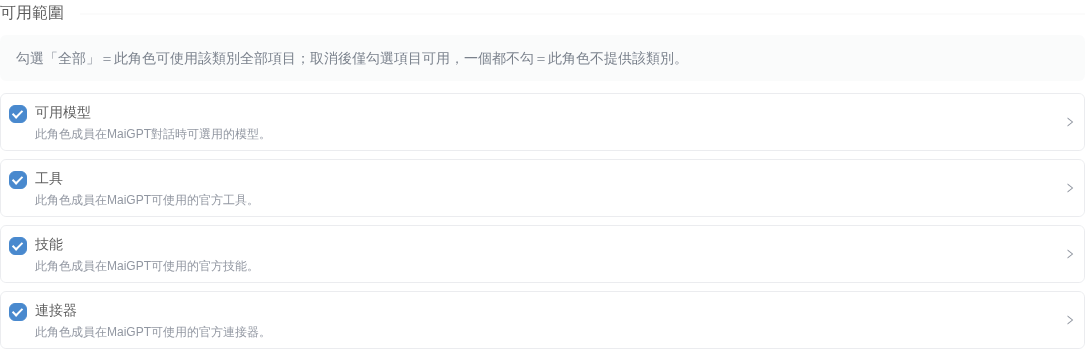
「利用可能な範囲」で、利用可能なモデル、ツール、スキル、コネクタをそれぞれ設定します。各カードの「すべて」チェックボックスは独立しています。カテゴリ名をクリックすると、項目の一覧を展開または折りたためます。
| カテゴリの設定 | メンバーが利用できる範囲 |
| ------------------ | -------------------------------------- |
| 「すべて」を選択 | そのカテゴリの利用可能な全項目。リストはグレー表示になります |
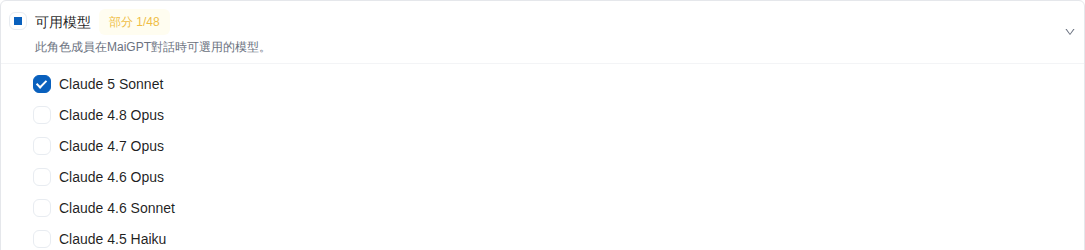
| 「すべて」を解除し、一部の項目を選択 | 選択した項目のみ。カードには「一部」と選択数が表示されます |
| 「すべて」を解除し、何も選択しない | このロールではそのカテゴリを利用できません。カードには「なし」と表示されます |
範囲を制限するには、そのカテゴリの「すべて」を解除し、自動的に展開される一覧から許可する項目を選択します。「すべて」を再度選択すると、個別の選択は消去されます。後から「すべて」を解除する場合は、項目を選び直す必要があります。
「利用可能なモデル」「ツール」「スキル」「コネクタ」を個別に設定します
モデルを選択していない場合、このロールではモデルを利用できません
カードには「一部」と選択数が表示されます。総数は組織で利用可能なモデルに応じて変わります
{% hint style="warning" %}
「利用可能なモデル」が「なし」の場合、このロールでは選択できるモデルがなく、MaiGPT で会話できないという警告が表示されますが、その設定を維持することもできます。このロールのメンバーが MaiGPT で会話する必要があるか確認してください。
{% endhint %}
{% endstep %}
{% step %}
### 4. 組み込み機能を設定する
「機能」セクションで、以下の機能を有効または無効にします。
* Code Interpreter:コードを実行し、グラフ、スプレッドシート、ドキュメントを生成します。
* ナレッジベース RAG:組織のナレッジベースを使用して回答し、出典を示します。
* Deep Research:質問を分解し、複数回にわたって Web 上の情報を検索します。独自の Web 検索を使用するため、公式検索ツールが有効かどうかには影響されません。
* Browser Tool:ブラウザを操作し、ページを開き、Web ページの要素を操作して画面をキャプチャします。
変更は自動的に保存されるため、別途「保存」をクリックする必要はありません。更新成功のメッセージが表示されたら、ページを離れてもかまいません。保存に失敗した場合は、更新できなかった項目が画面に表示され、最後に保存に成功した状態へ戻ります。
ロール設定で MaiGPT の組み込み機能を管理します
{% endstep %}
{% endstepper %}
## メンバーに表示される内容
ロール設定が反映されると、MaiGPT にはメンバーが利用できるモデル、ツール、スキル、機能への入口だけが表示されます。以前は利用できたナレッジベース検索や Code Interpreter がロールで無効にされた場合、右側のパネルに、その機能がこのロールにはまだ許可されていないことが表示されます。
組織では有効になっているものの、メンバーのロールにはまだ許可されていないコネクタの場合、メンバーには認証ボタンが表示されず、代わりに利用申請を送信できます。メンバーが以前に認証を完了している場合でも、接続を解除して、使用しなくなった認証情報を削除できます。
{% hint style="warning" %}
権限を変更した後、開始済みの対話で許可されなくなったモデルを使用している場合、システムはロールで利用可能なモデルへの切り替えを試みます。対話を続ける前にモデル名を確認するよう、メンバーに案内してください。
{% endhint %}
## 関連ガイド
* [ロール権限管理](/maiagent-user-guide/ja/org/roles/role-permission.md)
* [MaiGPT コネクタ](/maiagent-user-guide/ja/work/maigpt/connectors.md)
---
# Agent Instructions
This documentation is published with GitBook. GitBook is the documentation platform designed so that both humans and AI agents can read, navigate, and reason over technical content effectively. Learn more at gitbook.com.
## Querying This Documentation
If you need additional information that is not directly available in this page, you can query the documentation by asking a question.
Perform an HTTP GET request on the following URL with the `ask` and `goal` query parameters:
```
GET https://docs.maiagent.ai/maiagent-user-guide/ja/org/roles/maigpt-role-permissions.md?ask=&goal=
```
`ask` is the immediate question: it should be specific, self-contained, and written in natural language.
`goal` is what the user is ultimately trying to achieve, the reason they need the answer. Sharing it helps GitBook give you a better, more relevant answer. A goal is most helpful when it describes the outcome the user wants rather than restating the question. For example, with `ask=how do I create an API token`, a goal like `automate deployments from our CI pipeline` lets GitBook tailor the answer to that use case.
The response will contain a direct answer to the question and relevant excerpts and sources from the documentation.
Use this mechanism when the answer is not explicitly present in the current page, you need clarification or additional context, or you want to retrieve related documentation sections.