> For the complete documentation index, see [llms.txt](https://docs.maiagent.ai/llms.txt). Markdown versions of documentation pages are available by appending `.md` to page URLs; this page is available as [Markdown](https://docs.maiagent.ai/maiagent-user-guide/ja/meeting-records/live-transcription.md).
# リアルタイム会議記録
リアルタイムモードは低遅延の音声文字起こしと翻訳を提供し、会議をしながらリアルタイムの逐語録を確認できます。
## 録音を開始する
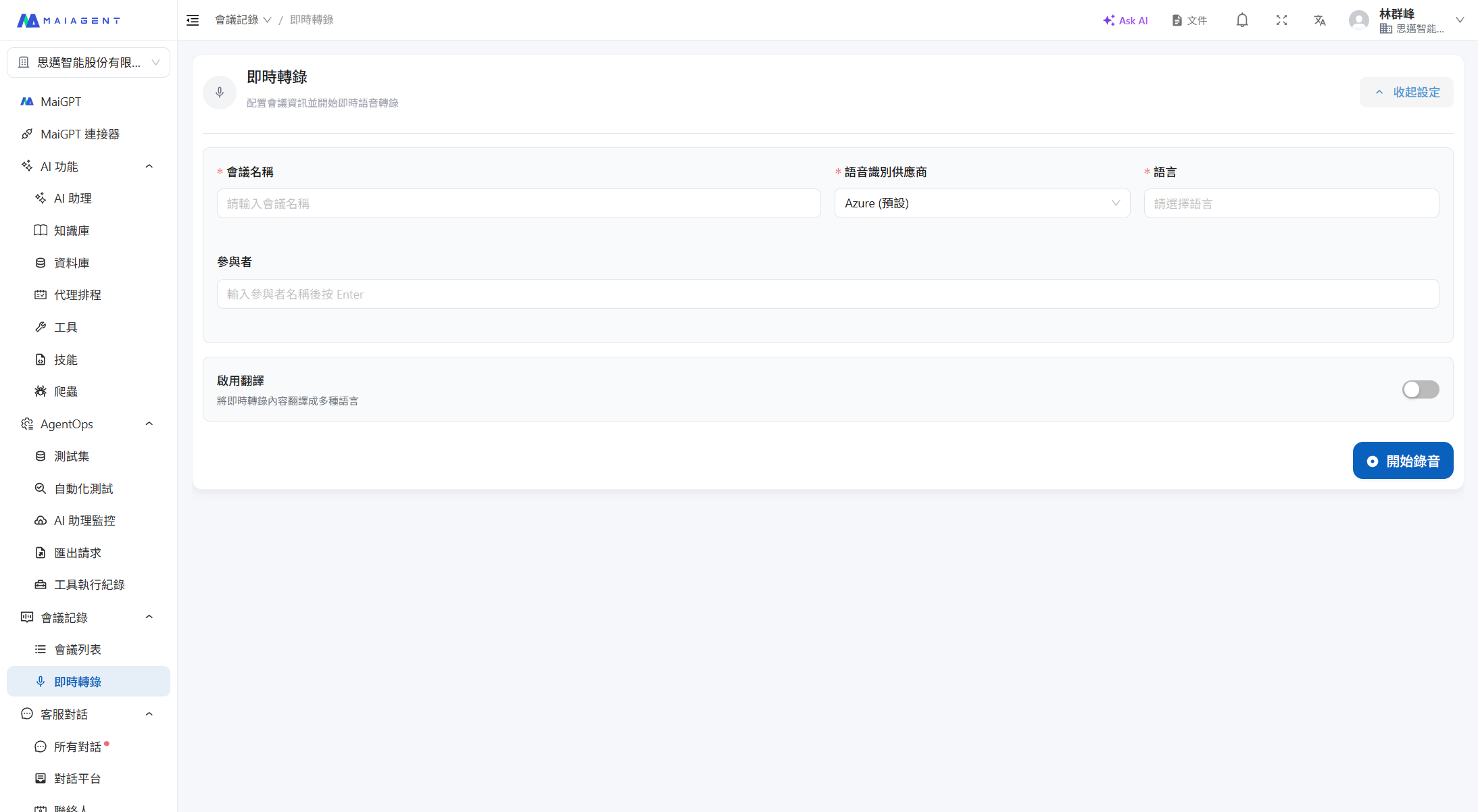
会議記録を作成したあと、「録音開始」をクリックするとリアルタイム文字起こしが始まります。
リアルタイム文字起こし設定ページ
システムは次の処理を行います。
1. リアルタイム通信ルーム(LiveKit)を作成する
2. 音声認識エンジンを起動する
3. マイクの音声を受信しながらリアルタイムで文字起こしを開始する
## 文字起こし画面
録音中は、画面に次の内容がリアルタイムで表示されます。
* **録音タイマー**:すでに録音した時間を表示します
* **リアルタイム逐語録**:音声認識の結果が画面上にリアルタイムで表示されます
* **発言者の表示**:各テキストの発言者を示します
* **言語ラベル**:各テキストの元の言語を表示します
* **翻訳結果**:翻訳を有効にしている場合、翻訳テキストが原文の下に同期して表示されます
* **文字起こし統計**:完了したセグメント数、進行中のセグメント数、総文字数
* **ローカルバックアップのステータス**:会議名の下に「ローカルバックアップ録音中」と表示されます。ブラウザがバックアップ音声を同時に録音しているため、ネットワークが切断されても音声を失いません。詳しくは[会議記録のバックアップ音声](/maiagent-user-guide/ja/meeting-records/backup-audio.md)をご覧ください
## 低遅延のリアルタイム文字起こし
リアルタイムモードの最大の特長は低遅延です。発話してから数秒以内に文字起こしテキストが画面に表示されるため、参加者はその場で記録内容を確認できます。
## 低遅延のリアルタイム翻訳
翻訳機能を有効にすると、システムは文字起こしと同時に内容を指定した対象言語へ翻訳します。翻訳も同じく低遅延でリアルタイムに処理されます。
* 最大 **3 種類の対象言語**を同時に翻訳できます
* 翻訳は選択した LLM モデルがリアルタイムで処理します
* 翻訳結果は各逐語録の下に付与されます
* 国際会議や多言語チームのリアルタイムコミュニケーションに適しています
## 操作コントロール
| 操作 | 説明 |
| --------------- | --------------------------------------------------------------------------------------------------------------------------------------------------------------------------------------------------- |
| **マイクのオン/オフ** | マイクを一時的にオフまたはオンにします |
| **録音停止** | 会議の録音を終了し、システムが後処理を開始します |
| **逐語録を検索** | リアルタイム逐語録内のキーワードを検索します |
| **外部参加者の追加・削除** | 急きょ参加した顧客や取引先などの組織メンバー以外の人を、右側の参加者カードにある「外部参加者」セクションでいつでも追加・削除できます。録音は中断されません。詳しくは[会議アクセス権限](/maiagent-user-guide/ja/meeting-records/access-control.md#manage-external-participants-sidebar)をご覧ください |
## 録音終了後
「録音停止」をクリックすると、会議のステータスが「処理中」に変わり、システムはバックグラウンドで次の処理を行います。
1. **音声ファイルの変換**:元の音声ファイルを MP3 形式に変換します
2. **逐語録の整理**:リアルタイム文字起こしの結果を構造化された逐語録ファイルにまとめます
3. **クラウドへの保存**:音声ファイルと逐語録を S3 ストレージへアップロードします
処理が完了すると、ステータスは自動的に「完了」に更新され、会議詳細ページに進んで全内容を確認できます。ローカルバックアップ音声はバックグラウンドで追加アップロードと結合が行われ、完了すると詳細ページに「バックアップ完了」と表示されます。詳しくは[会議記録のバックアップ音声](/maiagent-user-guide/ja/meeting-records/backup-audio.md)をご覧ください。
---
# Agent Instructions
This documentation is published with GitBook. GitBook is the documentation platform designed so that both humans and AI agents can read, navigate, and reason over technical content effectively. Learn more at gitbook.com.
## Querying This Documentation
If you need additional information that is not directly available in this page, you can query the documentation dynamically by asking a question.
Perform an HTTP GET request on the current page URL with the `ask` query parameter, and the optional `goal` query parameter:
```
GET https://docs.maiagent.ai/maiagent-user-guide/ja/meeting-records/live-transcription.md?ask=&goal=
```
`ask` is the immediate question: it should be specific, self-contained, and written in natural language.
`goal` is optional and describes the broader end goal you are ultimately trying to accomplish on behalf of the user. GitBook uses it to tailor the answer towards what is most useful for that goal.
The response will contain a direct answer to the question and relevant excerpts and sources from the documentation.
Use this mechanism when the answer is not explicitly present in the current page, you need clarification or additional context, or you want to retrieve related documentation sections.