> For the complete documentation index, see [llms.txt](https://docs.maiagent.ai/llms.txt). Markdown versions of documentation pages are available by appending `.md` to page URLs; this page is available as [Markdown](https://docs.maiagent.ai/maiagent-user-guide/ja/developer/maiagent-mcp.md).
# MaiAgent MCP
MaiAgent MCP を使って、Claude や Cursor などの外部 AI ツールから MaiAgent プラットフォームを直接操作 — 接続設定、認証、使い方ガイド
## 一、MaiAgent MCP とは?
MaiAgent MCP は、MaiAgent が公式に提供するリモート [MCP(Model Context Protocol)](https://modelcontextprotocol.io/)サービスです。Claude Code、Claude Desktop、Cursor など MCP に対応した AI ツールに追加すると、自然言語で MaiAgent プラットフォームを直接操作できるようになります。例えば:
* 「カスタマーサポート用の AI アシスタントを作成して、Claude Sonnet モデルを使用して」
* 「組織内のすべてのナレッジベースを一覧表示して、この FAQ を製品ナレッジベースにアップロードして」
* 「昨日の会話履歴を検索して、ユーザーからよく寄せられる質問をまとめて」
| 項目 | 説明 |
| --------------- | ------------------------------------------------------------------------ |
| **サービスエンドポイント** | `https://mcp.maiagent.ai/mcp` |
| **通信方式** | Streamable HTTP(リモート接続、ローカルへのインストール不要) |
| **認証方式** | MaiAgent API Key(HTTP Header) |
| **対応範囲** | MaiAgent プラットフォームの完全な API:AI アシスタント、ナレッジベース、会話、ツール、組織管理など 300 以上のエンドポイント |
### 提供されるツール
接続が成功すると、お使いの AI ツールは以下の 6 つのツールを取得します。AI がこれらを自動的に組み合わせて使用します(まず API を検索し、次に仕様を確認し、最後に実行します)ので、API の詳細を覚える必要はありません:
| ツール | 用途 |
| --------------------- | ----------------------------------------------------------------------- |
| `debug_auth` | 認証ステータスが正しいかどうかを確認します |
| `list_api_categories` | すべての API カテゴリを一覧表示します |
| `search_apis` | カテゴリまたはキーワードで API エンドポイントを検索します |
| `get_api_details` | 特定の API の完全な仕様(パラメータ、リクエストボディ、レスポンス形式)を取得します |
| `call_api` | 実際に API 呼び出しを実行します |
| `refresh_schema` | API リストを強制的に再読み込みします(新しくリリースされた API が見つからない場合に使用します。通常は 5 分ごとに自動更新されます) |
{% hint style="info" %}
**方向を間違えないでください**:このページで説明しているのは「MaiAgent を**外部**の AI ツールに接続する」方法です。逆の方向 —— MaiAgent の AI アシスタントに他の MCP ツールを追加したい場合は、[MCP ツールの作成](/maiagent-user-guide/ja/tools/mcp-setup.md)を参照してください。
{% endhint %}
***
## 二、事前準備
始める前に、**API Key** を 1 つ用意するだけで準備完了です。
{% hint style="warning" %}
API Key は「**キー作成時に所属していた組織**」に紐づけられ、MCP のすべての操作はその組織に対して実行されます。複数の組織に所属している場合は、管理コンソールの左上で操作対象の組織に切り替えてからキーを作成してください。各メンバーは同一組織内で有効なキーを 1 つだけ持つことができます。
{% endhint %}
### API Key の取得
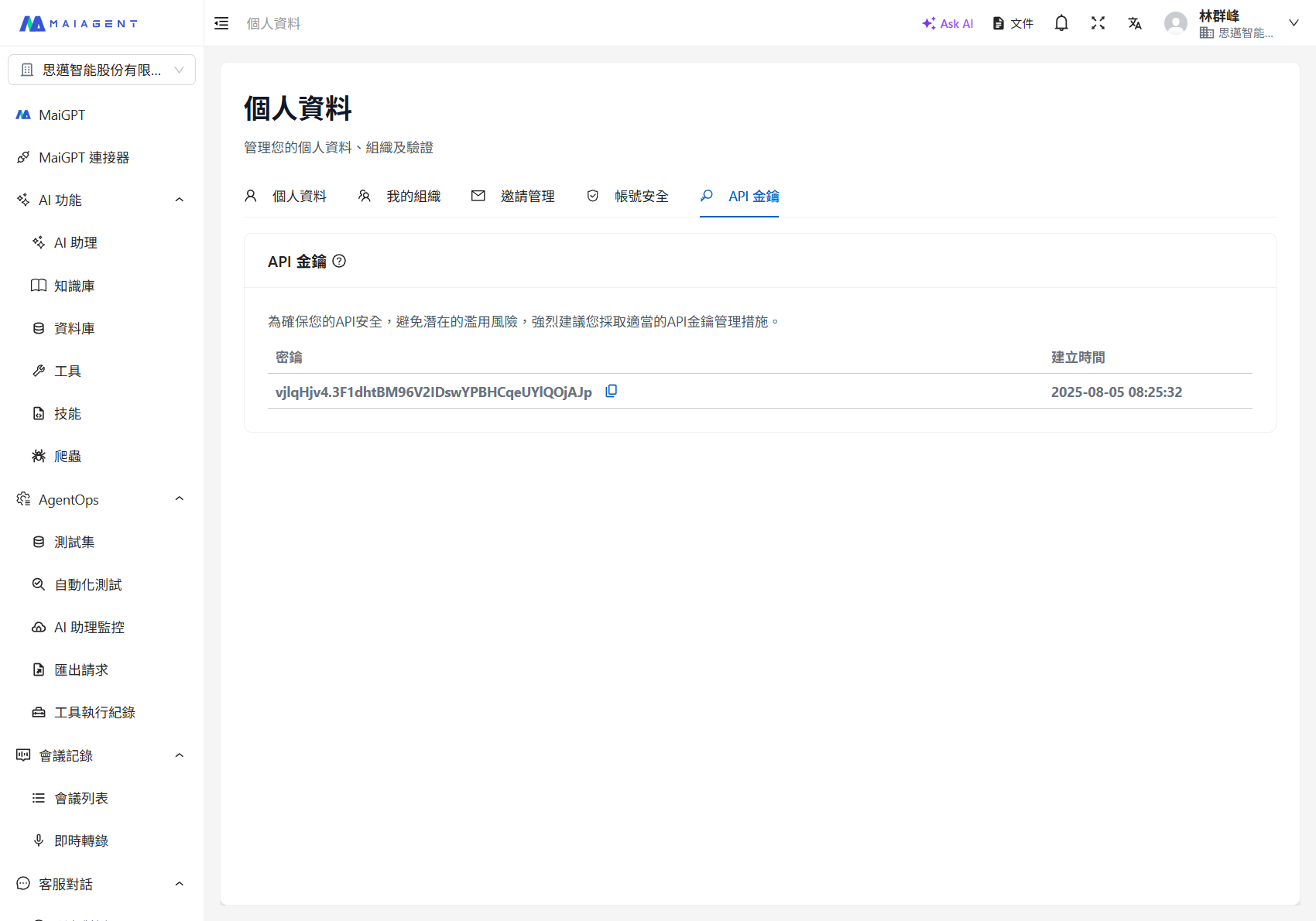
[MaiAgent 管理コンソール](https://admin.maiagent.ai)にログインし、右上のアバターをクリック → プロフィール → API キータブに切り替え → 新しいキーを作成をクリックして、生成された API Key をコピーします。
プロフィール → API キータブ
{% hint style="danger" %}
API Key は作成後に一度だけ表示されます。すぐにコピーして安全に保管してください。API Key はあなたのログイン情報と同等です。他人と共有したり、バージョン管理(git)にコミットしたりしないでください。
{% endhint %}
***
## 三、接続設定
お使いの AI ツールに応じて、対応する設定方法を選択してください。以下の例では、`` を事前準備で取得した API Key に置き換えてください。
{% tabs %}
{% tab title="Claude Code" %}
ターミナルで以下を実行します:
```bash
claude mcp add --transport http maiagent https://mcp.maiagent.ai/mcp \
-s user \
--header "Authorization: Api-Key "
```
`-s user` はすべてのプロジェクトで使用できることを意味します。現在のプロジェクトのみで使用したい場合は、`-s project` に変更してください(設定はプロジェクトルートの `.mcp.json` に書き込まれます)。
`.mcp.json` を直接手動で編集することもできます:
```json
{
"mcpServers": {
"maiagent": {
"type": "http",
"url": "https://mcp.maiagent.ai/mcp",
"headers": {
"Authorization": "Api-Key "
}
}
}
}
```
{% hint style="warning" %}
`-s project` を使用する場合、Claude Code の初回起動時にこのプロジェクトの MCP server を信頼するかどうか確認されますので、同意を選択してください。`.mcp.json` が配置されているディレクトリが git プロジェクトの場合は、`.mcp.json` を `.gitignore` に追加して、API Key がコミットされないようにしてください。
{% endhint %}
{% endtab %}
{% tab title="Claude Desktop" %}
Claude Desktop の設定ファイル(macOS:`~/Library/Application Support/Claude/claude_desktop_config.json`、Windows:`%APPDATA%\Claude\claude_desktop_config.json`)を編集し、以下を追加します:
```json
{
"mcpServers": {
"maiagent": {
"command": "npx",
"args": [
"-y",
"mcp-remote",
"https://mcp.maiagent.ai/mcp",
"--header",
"Authorization:${AUTH_HEADER}"
],
"env": {
"AUTH_HEADER": "Api-Key "
}
}
}
}
```
保存後、Claude Desktop を再起動してください。
{% hint style="info" %}
この方法では、ローカルに [Node.js](https://nodejs.org/) がインストールされている必要があります。`Authorization` の値を `env` 経由で渡しているのは、設定ファイル内でスペースを含むパラメータが誤って分割されるのを防ぐためです。
{% endhint %}
{% endtab %}
{% tab title="Cursor" %}
`~/.cursor/mcp.json`(グローバル)またはプロジェクト内の `.cursor/mcp.json` を編集し、以下を追加します:
```json
{
"mcpServers": {
"maiagent": {
"url": "https://mcp.maiagent.ai/mcp",
"headers": {
"Authorization": "Api-Key "
}
}
}
}
```
保存後、Cursor Settings → MCP で `maiagent` が接続済みと表示されていることを確認してください。
{% endtab %}
{% tab title="その他の MCP ツール" %}
**Streamable HTTP** リモート接続に対応している MCP クライアントであれば使用できます。設定のポイント:
| 設定項目 | 値 |
| ---------------------- | ----------------------------- |
| Server URL | `https://mcp.maiagent.ai/mcp` |
| Transport | Streamable HTTP |
| Header:`Authorization` | `Api-Key ` |
| {% endtab %} | |
| {% endtabs %} | |
***
## 四、接続の確認
設定完了後、お使いの AI ツールで AI に `debug_auth` ツールを呼び出すよう依頼します(例:「maiagent の debug\_auth ツールを呼び出して接続を確認してください」と入力)。以下のような結果が表示されるはずです:
```json
{
"has_auth_header": true,
"auth_header_preview": "Api-Key xxxxxxxx...",
"has_organization_id": false,
"organization_id": null
}
```
`has_auth_header` が `true` であれば、接続と認証は成功しています(`organization_id` が `null` と表示されるのは正常です —— 操作対象の組織は API Key 自体によって決定されます)。
***
## 五、使い方
接続が成功したら、自然言語で指示を出すだけです。AI が `search_apis` → `get_api_details` → `call_api` の流れで対応する API を自動的に見つけて実行します。実用的な指示の例をいくつかご紹介します:
* **照会**:「すべての AI アシスタントを一覧表示して」、「この組織にはどのメンバーがいますか?」
* **作成**:「『製品カスタマーサポート』という名前の AI アシスタントを作成して、役割指示は……」
* **ナレッジベース**:「新しいナレッジベースを作成して、現在どのファイルがあるか一覧表示して」
* **運用**:「『製品カスタマーサポート』アシスタントの最近の会話を確認して、よくある質問をまとめて」
{% hint style="warning" %}
MCP を通じて実行される操作は、管理コンソールでの手動操作と**同等の効力**を持ちます(権限はあなたのアカウントと同等です)。削除や変更などの操作を行う前に、AI にこれから実行する操作内容を説明してもらうことをお勧めします。
{% endhint %}
***
## 六、トラブルシューティング
| 症状 | 考えられる原因と解決策 |
| ------------------------------------------ | --------------------------------------------------------------------------------------------------------------------------------------- |
| 接続失敗、**401** レスポンス | API Key が間違っている、すでに削除されている、または `Authorization` header が送信されていません。形式が `Api-Key `(`Api-Key` とキーの間にスペースが 1 つ)であることを確認してください。 |
| 誤った組織に対して操作している(期待するアシスタント/ナレッジベースが見つからない) | API Key は「キー作成時に所属していた組織」に紐づけられています。正しい組織に切り替えてからキーを再作成し、設定ファイルを更新してください。 |
| ツールリストが空 | 接続が正常に確立されていません。AI ツールを再起動してください。Claude Code では `/mcp` コマンドで接続状態を確認できます。 |
| Claude Code で `Pending approval` と表示される | プロジェクトレベル(`-s project`)の MCP は、先に信頼を承認しないと接続されません。対話型の Claude Code を起動し、プロンプトに従って同意してください。 |
| API 実行時に権限エラーが発生する | `call_api` はあなたの ID で実行されるため、あなたのアカウントに権限のあるリソースのみ操作できます。該当組織でのロール権限を確認してください。 |
{% hint style="info" %}
専用デプロイ(オンプレミス)環境をご利用の場合、MCP サービスエンドポイントはクラウド版とは異なります。MaiAgent のサービス担当者にお問い合わせのうえご確認ください。
{% endhint %}
---
# Agent Instructions
This documentation is published with GitBook. GitBook is the documentation platform designed so that both humans and AI agents can read, navigate, and reason over technical content effectively. Learn more at gitbook.com.
## Querying This Documentation
If you need additional information that is not directly available in this page, you can query the documentation dynamically by asking a question.
Perform an HTTP GET request on the current page URL with the `ask` query parameter, and the optional `goal` query parameter:
```
GET https://docs.maiagent.ai/maiagent-user-guide/ja/developer/maiagent-mcp.md?ask=&goal=
```
`ask` is the immediate question: it should be specific, self-contained, and written in natural language.
`goal` is optional and describes the broader end goal you are ultimately trying to accomplish on behalf of the user. GitBook uses it to tailor the answer towards what is most useful for that goal.
The response will contain a direct answer to the question and relevant excerpts and sources from the documentation.
Use this mechanism when the answer is not explicitly present in the current page, you need clarification or additional context, or you want to retrieve related documentation sections.