> For the complete documentation index, see [llms.txt](https://docs.maiagent.ai/llms.txt). Markdown versions of documentation pages are available by appending `.md` to page URLs; this page is available as [Markdown](https://docs.maiagent.ai/maiagent-user-guide/ja/conversations/human-handoff/human-handoff-operations.md).
# 有人オペレーターによる引き継ぎと返信
有人オペレーターの日常操作について、引き継ぎ通知の受信、対話の引き継ぎ、ユーザーへの返信、同僚への再割り当て、AI への復帰、ユーザー満足度フィードバックの確認まで説明します。
このページでは、対話が引き継がれた後の有人オペレーターの操作手順を説明します。引き継ぎ条件と割り当てルールの設定については、[有人対応への引き継ぎ設定](/maiagent-user-guide/ja/conversations/human-handoff.md)を参照してください。
## 引き継ぎ通知の受信
対話が割り当てられると、[有人対応への引き継ぎ通知](/maiagent-user-guide/ja/conversations/human-handoff/handoff-notification.md)の設定に応じて、次の 2 つの通知を受信します:
* **Email 通知**:対話へのリンクが含まれており、クリックすると該当する対話を直接開けます
* **通知センターのお知らせ**:プラットフォーム右上の通知センターに引き継ぎのお知らせが表示されます
## 対話の引き継ぎ
「すべての対話」を開くと、割り当てられた対話が一覧に表示されます。対話を開いて「自分が対応」をクリックすると、有人返信モードに切り替わります:
* AI の自動応答が一時停止し、入力欄から直接返信できます
* 送信したメッセージは、Web チャット画面、LINE、Teams など、ユーザーが利用していた元のチャネルへリアルタイムに送信されます
* 「引き継ぎ完了案内」が設定されている場合、ユーザー側に対応オペレーターの名前が表示されます
### 未割り当ての対話
次の場合、対話は「未割り当て」タブに残り、オペレーターによる引き継ぎを待ちます:
* 割り当て一覧のすべてのオペレーターが対応数の上限に達しています
* 自動割り当てのメンバーが設定されていません(引き継ぎ方式)
* 営業時間外のメッセージです(オフライン時の動作が「メッセージを受け付ける」に設定されています)
必要な権限を持つオペレーターは、「未割り当て」タブで「自分が対応」をクリックして対話を引き継げます。
{% hint style="warning" %}
「未割り当て」の待機列にある対話については、Email 通知が送信されません。メッセージ受付方式または引き継ぎ方式を使用する場合は、ユーザーのメッセージが放置されないよう、このタブを定期的に確認する運用を整えてください。
{% endhint %}
## 再割り当てと AI への復帰
* **同僚へ再割り当て**:対話を別のオペレーターへ再割り当てできます(問題が別のチームの担当である場合など)
* **AI Agent に戻す**:対応が完了したら「AI Agent に戻す」をクリックすると、AI の自動応答が再開します
引き継ぎ、対応開始、AI への復帰はすべて対話のイベントタイムラインに記録されます(「有人オペレーターが対応を開始」「待機がタイムアウトしたため AI Agent に戻しました」など)。後から対応経緯を確認できます。
## ユーザー側に表示される内容
引き継ぎ中、ユーザーは各段階に応じた案内を受信します。メッセージの内容は[引き継ぎメッセージ](/maiagent-user-guide/ja/conversations/human-handoff.md#transfer-messages)でカスタマイズできます:
1. 引き継ぎが発生 → 引き継ぎ通知メッセージ(例:有人オペレーターへおつなぎしています。しばらくお待ちください)
2. 待機列へ追加 → 待機案内(待機順位と推定待ち時間を表示できます)
3. オペレーターが対応開始 → 引き継ぎ完了案内(オペレーター名を表示できます)
4. 待機がタイムアウト → タイムアウト通知を送信し、AI の対応へ戻ります
5. 営業時間外 → オフラインメッセージ
## 満足度フィードバック
ユーザーからのサービス品質に関するフィードバックには、次の 2 つの種類があります:
### メッセージへのフィードバック(高評価/低評価)
ユーザーは各応答を高評価または低評価で評価し、意見を入力できます。フィードバックの内容は対話記録で確認できます。
### 対話満足度アンケート(1~5 点)
Web Chat では、対話全体に対する満足度アンケートを有効にできます。対話が一定時間操作されていない場合、1~5 点(不満~満足)の評価と任意入力の意見欄が自動的に表示されます。回答できるのは 1 回の対話につき 1 回です。
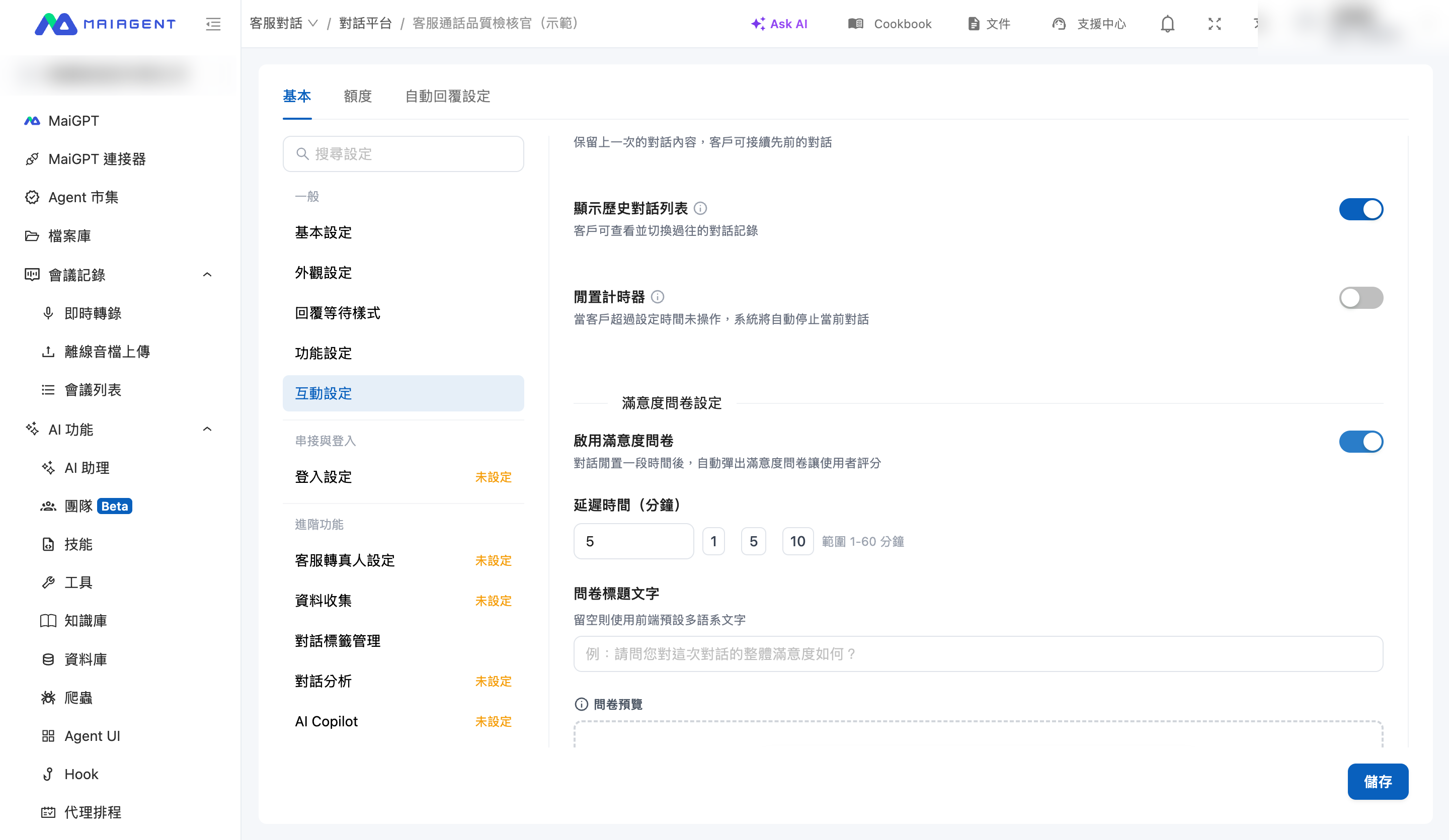
設定場所:「対話プラットフォーム」 → Web プラットフォームを選択 → 「満足度アンケート設定」で、「満足度アンケートを有効にする」をオンにします。その後、「遅延時間(分)」と「アンケートのタイトル」を調整できます。
Web プラットフォームの満足度アンケート設定
回答結果は該当する対話の「対話満足度」フィールドに表示され、管理画面でスコアを指定して絞り込めます。
---
# Agent Instructions
This documentation is published with GitBook. GitBook is the documentation platform designed so that both humans and AI agents can read, navigate, and reason over technical content effectively. Learn more at gitbook.com.
## Querying This Documentation
If you need additional information that is not directly available in this page, you can query the documentation dynamically by asking a question.
Perform an HTTP GET request on the current page URL with the `ask` query parameter, and the optional `goal` query parameter:
```
GET https://docs.maiagent.ai/maiagent-user-guide/ja/conversations/human-handoff/human-handoff-operations.md?ask=&goal=
```
`ask` is the immediate question: it should be specific, self-contained, and written in natural language.
`goal` is optional and describes the broader end goal you are ultimately trying to accomplish on behalf of the user. GitBook uses it to tailor the answer towards what is most useful for that goal.
The response will contain a direct answer to the question and relevant excerpts and sources from the documentation.
Use this mechanism when the answer is not explicitly present in the current page, you need clarification or additional context, or you want to retrieve related documentation sections.