> For the complete documentation index, see [llms.txt](https://docs.maiagent.ai/llms.txt). Markdown versions of documentation pages are available by appending `.md` to page URLs; this page is available as [Markdown](https://docs.maiagent.ai/maiagent-user-guide/ja/build/tools/configure_tools.md).

# Agent へのツールの設定

Agent のツールを設定する方法です。Agent 設定ページで作成済みの API／MCP ツールを選択し、不要なシステム機能を無効にして、MaiAgent の組み込みツールを有効にします。

作成済みのツールを Agent 設定で選択することで、Agent により多くの機能を持たせられます。このガイドでは、作成したツールを特定の Agent に割り当てる方法を説明します。

## ツールの設定 <a href="#configure-tools" id="configure-tools"></a>

### 1. Agent 設定を開く <a href="#step-1-enter-ai-agent-settings" id="step-1-enter-ai-agent-settings"></a>

まず、左側のナビゲーションバーから「<mark style="color:blue;">AI 機能</mark>」に移動し、「<mark style="color:blue;">AI アシスタント</mark>」をクリックしてください。アカウントで作成したすべての Agent が一覧表示されます。

<figure><img src="https://2584873290-files.gitbook.io/~/files/v0/b/gitbook-x-prod.appspot.com/o/spaces%2FTvHx8hgwYGDTLD3A7xoW%2Fuploads%2Fgit-blob-87b5a1243ec25ab81a5f9c010df5c95917736f43%2Fagent-builder-list.png?alt=media" alt="Agent 一覧：名前、大規模言語モデル、回答モードなどの列、右上に Agent 作成ボタン、各行の右側に操作ボタンが表示されています"><figcaption><p>ツールを設定する Agent を探してください</p></figcaption></figure>

### 2. 設定する Agent を選択する <a href="#step-2-select-ai-agent" id="step-2-select-ai-agent"></a>

Agent 一覧でツールを設定する Agent を探し、「<mark style="color:blue;">編集</mark>」ボタンをクリックして、その Agent の詳細設定ページを開いてください。

<figure><img src="https://2584873290-files.gitbook.io/~/files/v0/b/gitbook-x-prod.appspot.com/o/spaces%2FTvHx8hgwYGDTLD3A7xoW%2Fuploads%2Fgit-blob-87b5a1243ec25ab81a5f9c010df5c95917736f43%2Fagent-builder-list.png?alt=media" alt="Agent 一覧の各行の右側にある操作列に編集ボタンが表示されています"><figcaption><p>操作列の編集ボタンをクリックして Agent の設定ページを開いてください</p></figcaption></figure>

### 3. Agent の回答モードを切り替える <a href="#step-3-switch-qa-mode" id="step-3-switch-qa-mode"></a>

{% hint style="danger" %}
**重要な前提：** ツールを使用できるのは **Agent モード**に設定された Agent だけです。他のモード（例：RAG Q\&A モード）の場合、ツールの設定や使用はできません。
{% endhint %}

Agent の設定ページで、左側ナビゲーションの「<mark style="color:blue;">回答モード設定</mark>」をクリックしてください。

* **確認**：現在選択されているモードが「<mark style="color:blue;">Agent モード</mark>」であることを確認してください
* **変更**：Agent モードでない場合は、Agent モードに**切り替えてください**。

<figure><img src="https://2584873290-files.gitbook.io/~/files/v0/b/gitbook-x-prod.appspot.com/o/spaces%2FTvHx8hgwYGDTLD3A7xoW%2Fuploads%2Fgit-blob-4720e2275f9ff8972360e8724ed7521dff892a68%2Fagent-builder-reply-mode-agent.png?alt=media" alt="回答モード設定で Agent モードが選択され、左側ナビゲーションにデータベース設定やツールなどが表示されています"><figcaption><p>ツールを使用するには Agent モードに設定してください</p></figcaption></figure>

### 4. ツール設定ページを開く <a href="#step-4-go-to-tool-config-page" id="step-4-go-to-tool-config-page"></a>

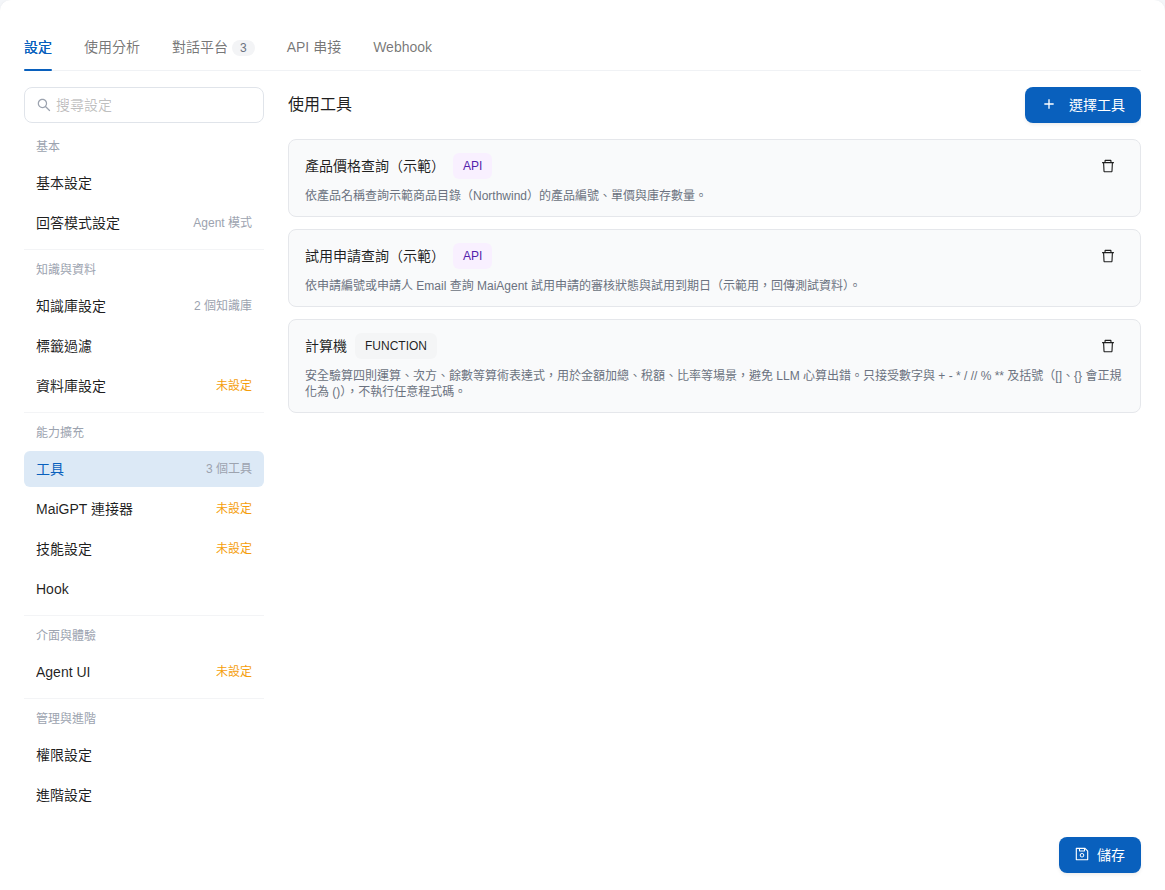
Agent の設定ページで、左側ナビゲーションの「<mark style="color:blue;">ツール</mark>」をクリックしてください。

<figure><img src="https://2584873290-files.gitbook.io/~/files/v0/b/gitbook-x-prod.appspot.com/o/spaces%2FTvHx8hgwYGDTLD3A7xoW%2Fuploads%2Fgit-blob-5ebd173d876bceafb12c2e62674512fb2c2a5781%2Fagent-builder-tools-page.png?alt=media" alt="Agent 設定ページ：左側ナビゲーションでツールが選択され、右側の使用ツール欄に選択済みツール、右上にツール選択ボタン、右下に保存ボタンが表示されています"><figcaption><p>ツール設定ページです</p></figcaption></figure>

### 5. 有効にするツールを選択する <a href="#step-5-select-enabled-tools" id="step-5-select-enabled-tools"></a>

ツール設定ページの右上にある「<mark style="color:blue;">ツールを選択</mark>」ボタンをクリックすると、作成済みのツール一覧が開きます。次の操作を行ってください。

* **操作**：
  1. 一覧から、この Agent に使用させたいツールを探してください。
  2. 有効にするツールの横にあるチェックボックスを選択してください。
  3. Agent のタスクや要件に応じて、必要な数のツールを選択できます。

{% hint style="info" %}
MaiAgent の組み込みツール、または自分で定義したツールを選択できます
{% endhint %}

<figure><img src="https://2584873290-files.gitbook.io/~/files/v0/b/gitbook-x-prod.appspot.com/o/spaces%2FTvHx8hgwYGDTLD3A7xoW%2Fuploads%2Fgit-blob-19d0d2ea8d6cb2d488c9058ec0eec8cda5640a34%2Fagent-builder-select-tools-modal.png?alt=media" alt="ツール選択ウィンドウ：上部に検索欄とツール種別フィルターがあり、選択済みツールとシステム組み込みツールが一覧表示され、各ツールの前にチェックボックスがあります"><figcaption><p>この Agent に使用させるツールを選択してください</p></figcaption></figure>

{% hint style="info" %}
**ヒント：** Agent が実際に必要とし、使用を許可されているツールだけを割り当ててください。無関係なツールが多すぎると、AI の判断精度や回答効率に影響する場合があります。
{% endhint %}

### 6. 選択済みツールを確認する <a href="#step-6-review-selected-tools" id="step-6-review-selected-tools"></a>

選択後、Agent に割り当てたツールを再確認し、適切なツールが設定されていることを確認してください。

<figure><img src="https://2584873290-files.gitbook.io/~/files/v0/b/gitbook-x-prod.appspot.com/o/spaces%2FTvHx8hgwYGDTLD3A7xoW%2Fuploads%2Fgit-blob-5ebd173d876bceafb12c2e62674512fb2c2a5781%2Fagent-builder-tools-page.png?alt=media" alt="使用ツール欄に選択済みの3つのツールが表示され、各ツールの右側に削除アイコンがあります"><figcaption><p>Agent に適切なツールが設定されていることを確認してください</p></figcaption></figure>

## システム機能を制御する <a href="#control-system-functions" id="control-system-functions"></a>

選択したツール以外にも、Agent には現在の会話履歴の検索、添付ファイルの読み取り、ダウンロードリンクの生成など、デフォルトで有効なシステム機能があります。Agent の用途に応じて個別に無効にすることで、不要なトークン使用を減らし、動作を予測しやすくできます。

例えば、カスタマーサービスの責任者が、よくある質問にだけ回答し、添付ファイルを処理しない Agent を作成します。Agent の詳細設定で添付ファイルの読み取りと解析を無効にして保存すると、ナレッジベースの質問には引き続き回答できますが、顧客がアップロードしたファイルの解析は試みなくなります。

{% stepper %}
{% step %}

### 1. 詳細設定を開く <a href="#open-advanced-settings" id="open-advanced-settings"></a>

変更する Agent を開き、設定ページの左側から<mark style="color:blue;">詳細設定</mark>を選択してください。
{% endstep %}

{% step %}

### 2. システム機能を調整する <a href="#adjust-system-functions" id="adjust-system-functions"></a>

<mark style="color:blue;">システム機能</mark>までスクロールし、必要に応じて以下の機能を有効または無効にしてください。

* 会話履歴の検索
* メッセージの前後の文脈の取得
* プレーンテキスト添付ファイルの読み取り
* 添付ファイルの内容の解析
* 利用可能なパーサーの一覧表示
* ダウンロードリンクの生成

無効にすると Agent はその機能を使用できなくなり、回答に影響する場合もあります。

<mark style="color:blue;">プレーンテキスト添付ファイルの読み取り</mark>または<mark style="color:blue;">添付ファイルの内容の解析</mark>のどちらかを有効にすると、Agent モードでは「この会話のファイルを一覧表示」ツールも利用できます。ユーザーが数ターン前に送った文書や画像、有人サポート担当者が送ったファイル、Agent 自身が生成したファイル（Code Interpreter の出力、Canvas など）を一覧表示できます。一覧にはファイル名、種類、サイズ、アップロード者、時刻が含まれ、種類、アップロード者、ファイル名、時刻で絞り込めます。その後、解析ツールで文書を開き直したり、画像を再確認したりできます。例えば、ユーザーがレシート画像を送り、数ターン後に「さっきのレシートの金額はいくら？」と質問すると、Agent は会話内のファイルを一覧表示して画像を見つけてから回答します。すべてのチャネル（LINE、Messenger、Web、MaiGPT など）で利用でき、現在の会話のファイルだけが表示されます。両方のスイッチが無効の場合、このツールは利用できません。

<figure><img src="https://2584873290-files.gitbook.io/~/files/v0/b/gitbook-x-prod.appspot.com/o/spaces%2FTvHx8hgwYGDTLD3A7xoW%2Fuploads%2Fgit-blob-c9c94f6d31a9899182ab5b66fa1269ecbff5cfa7%2Fai-agent-system-functions.png?alt=media" alt="Agent の詳細設定にあるシステム機能のスイッチ"><figcaption><p>Agent の用途に応じてシステム機能を有効または無効にしてください</p></figcaption></figure>
{% endstep %}

{% step %}

### 3. 設定を保存する <a href="#save-system-functions" id="save-system-functions"></a>

右下の<mark style="color:blue;">保存</mark>をクリックして設定を適用してください。
{% endstep %}
{% endstepper %}

{% hint style="info" %}
一覧の最後の4項目は、<mark style="color:blue;">Agent モード</mark>でのみ有効です。スイッチを操作できない場合は、先に<mark style="color:blue;">回答モード設定</mark>で Agent モードに切り替えてください。
{% endhint %}

### 7. 💾 Agent 設定を保存する <a href="#step-7-save-ai-agent-settings" id="step-7-save-ai-agent-settings"></a>

ツールの選択が完了したら、**必ず**「<mark style="color:blue;">保存</mark>」ボタンをクリックし、Agent 設定の変更を保存してください。

<figure><img src="https://2584873290-files.gitbook.io/~/files/v0/b/gitbook-x-prod.appspot.com/o/spaces%2FTvHx8hgwYGDTLD3A7xoW%2Fuploads%2Fgit-blob-5ebd173d876bceafb12c2e62674512fb2c2a5781%2Fagent-builder-tools-page.png?alt=media" alt="ツール設定ページの右下にある保存ボタン"><figcaption><p>「保存」をクリックしてツール設定を適用してください</p></figcaption></figure>

## Agent モードの組み込みツールのスイッチ <a href="#agent-mode-builtin-switches" id="agent-mode-builtin-switches"></a>

回答モードが <mark style="color:blue;">Agent モード</mark>の場合、<mark style="color:blue;">回答モード設定</mark>タブには、別途ツールを作成せずにスイッチで直接制御できる機能もあります。

| 設定                                                | 画面上の説明                                                                                        | 補足                                                                                                                                                                                                                          |
| ------------------------------------------------- | --------------------------------------------------------------------------------------------- | --------------------------------------------------------------------------------------------------------------------------------------------------------------------------------------------------------------------------- |
| <mark style="color:blue;">ツール検索機能を有効にする</mark>    | 利用可能なツールを自動検索し、回答を支援します                                                                       | デフォルトで有効です。ツールが多い場合、Agent は検索してから呼び出します。ツール検索だけを行うターンは最大反復回数に含まれません。[Agent の実行上限](/maiagent-user-guide/ja/build/agent/custom-max-tokens.md#agent-iteration-timeout-relationship)をご覧ください                                     |
| <mark style="color:blue;">Agent モード</mark>        | <mark style="color:blue;">通常モード</mark>／<mark style="color:blue;">キャンバスモード (Canvas)</mark>     | 違いは [Agent モードのサブオプション](/maiagent-user-guide/ja/build/agent/setup.md#agent-mode-normal-vs-canvas)をご覧ください                                                                                                                    |
| <mark style="color:blue;">Code Interpreter</mark> | 有効にすると、AI がサンドボックス環境でコードを実行してタスクを処理できます。                                                      | 有効にすると4つの説明（Python 対応、安全なサンドボックス、Output パネルからファイルをダウンロード可能、計算やデータ処理に適している）が表示されます。[Code Interpreter](/maiagent-user-guide/ja/build/agent/code-interpreter.md)をご覧ください                                                        |
| <mark style="color:blue;">Browser Tool</mark>     | 有効にすると、AI アシスタントがブラウザーを操作して Web ページの閲覧や操作を行えます。                                               | 画面には「この機能は Claude モデル向けに最適化されており、他のモデルでは十分な効果が得られない場合があります」と表示されます。[Browser Tool](/maiagent-user-guide/ja/build/agent/browser-tool.md)をご覧ください                                                                               |
| <mark style="color:blue;">画像検索</mark>             | ナレッジベースがマルチモーダル embedding モデルを使用している場合、image\_search ツールで画像の内容を検索できます。無効にすると、このツールは完全に削除されます。 | 関連付けられたナレッジベースがマルチモーダル Embedding モデルを使用し、画像がアップロードされている場合にのみ機能します。画像による画像検索が不要な Agent では無効にして、ツール説明が使用するトークンを節約できます。使用量は [Agent の監視](/maiagent-user-guide/ja/build/agent-ops/evaluations.md#view-image-search-usage)で確認できます |

これらのスイッチは、<mark style="color:blue;">ツール</mark>タブで選択した API／MCP ツールとは独立しています。変更後は同様に右下の<mark style="color:blue;">保存</mark>をクリックしてください。

## MaiAgent の組み込みツールを設定する <a href="#configure-maiagent-builtin-tools" id="configure-maiagent-builtin-tools"></a>

MaiAgent には3種類の AI 画像生成ツールが組み込まれており、追加設定なしで用途に応じて Agent に割り当てられます。「<mark style="color:blue;">ツールを選択</mark>」ウィンドウの「<mark style="color:blue;">システム組み込みツール</mark>」で、<mark style="color:blue;">Gemini 3 Pro Image</mark>、<mark style="color:blue;">Gemini 3.1 Flash Image</mark>、または <mark style="color:blue;">GPT Image 2 画像生成ツール</mark>を選択してください。

{% hint style="info" %}
3種類のツールの比較は、[MaiAgent の組み込み AI 画像生成ツール](/maiagent-user-guide/ja/build/tools/ai-image-generation-guide.md)をご覧ください
{% endhint %}

<figure><img src="https://2584873290-files.gitbook.io/~/files/v0/b/gitbook-x-prod.appspot.com/o/spaces%2FTvHx8hgwYGDTLD3A7xoW%2Fuploads%2Fgit-blob-79b7d7d056695fd0b39063bb5214a57698409eb5%2Fai-image-tools-select-tools.png?alt=media" alt="ツール選択ウィンドウ内の Gemini 3.1 Flash Image、GPT Image 2 画像生成ツール、Gemini 3 Pro Image"><figcaption><p>「ツールを選択」ウィンドウ内の画像生成ツールです</p></figcaption></figure>

***

これで、選択した Agent は有効にしたツールを使用できるようになりました。会話中に関連する場面が発生すると、AI はタスクの処理や情報の取得のためにこれらのツールの呼び出しを試みます。


---

# Agent Instructions
This documentation is published with GitBook. GitBook is the documentation platform designed so that both humans and AI agents can read, navigate, and reason over technical content effectively. Learn more at gitbook.com.

## Querying This Documentation
If you need additional information that is not directly available in this page, you can query the documentation by asking a question.

Perform an HTTP GET request on the following URL with the `ask` and `goal` query parameters:

```
GET https://docs.maiagent.ai/maiagent-user-guide/ja/build/tools/configure_tools.md?ask=<question>&goal=<user_goal>
```

`ask` is the immediate question: it should be specific, self-contained, and written in natural language.
`goal` is what the user is ultimately trying to achieve, the reason they need the answer. Sharing it helps GitBook give you a better, more relevant answer. A goal is most helpful when it describes the outcome the user wants rather than restating the question. For example, with `ask=how do I create an API token`, a goal like `automate deployments from our CI pipeline` lets GitBook tailor the answer to that use case.

The response will contain a direct answer to the question and relevant excerpts and sources from the documentation.

Use this mechanism when the answer is not explicitly present in the current page, you need clarification or additional context, or you want to retrieve related documentation sections.