> For the complete documentation index, see [llms.txt](https://docs.maiagent.ai/llms.txt). Markdown versions of documentation pages are available by appending `.md` to page URLs; this page is available as [Markdown](https://docs.maiagent.ai/maiagent-user-guide/ja/build/tools/agent-ui.md).

# Agent UI

FlexMessage の情報カードを作成して Agent に紐付け、応答をカード形式で表示します。

## <mark style="color:blue;">一、Agent UI とは？</mark> <a href="#what-is-agent-ui" id="what-is-agent-ui"></a>

Agent UI を使うと、Agent が会話内に情報カードや選択肢を表示できます。このページでは **FlexMessage** を紹介します。テキスト、画像、ボタンをカードにまとめ、ユーザーが情報を読みやすくします。

<mark style="color:blue;">Agent UI を追加</mark>する際には、**FlexMessage**、[Quick Reply](/maiagent-user-guide/ja/build/tools/agent-ui/quick-reply.md)、[クイックメニュー](/maiagent-user-guide/ja/build/tools/quick-menu.md)を選択できます。

<figure><img src="https://2584873290-files.gitbook.io/~/files/v0/b/gitbook-x-prod.appspot.com/o/spaces%2FTvHx8hgwYGDTLD3A7xoW%2Fuploads%2Fgit-blob-4cb414d3dbbae7b27b0edeb25c0b1a65cb64f1f3%2Fagent-ui-prod-types.png?alt=media" alt="Agent UI の種類を選択する画面に FlexMessage とクイックメニューが表示されています"><figcaption><p>追加時に、作成する種類を選択します</p></figcaption></figure>

### 利用場面 <a href="#live-demo" id="live-demo"></a>

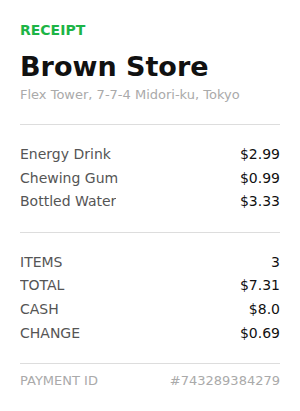
カスタマーサポートの責任者が、同僚に領収書カードの表示方法を説明したいと考えています。そこで、<mark style="color:blue;">Receipt</mark> テンプレートのカードを作成し、架空の商品と金額を残したままテスト用 Agent に紐付けます。その後、Web Chat で架空のサンプル領収書を表示するよう Agent に依頼します。Agent がカードツールを呼び出すと、会話内に商品、合計金額、支払い番号が表示され、レイアウトを確認できます。

{% hint style="warning" %}
カードテンプレートと AI プロンプトは、請求、会員、宿泊予約、診療予約のシステムに自動では接続されません。実際の最新データを表示するには、ナレッジベースの内容を別途提供するか、データを取得できるツールを設定してください。ボタンでリンクを開いても、支払いや予約が完了したことにはなりません。以下の領収書は架空のテンプレートデータです。
{% endhint %}

## <mark style="color:blue;">二、カードのフィールドとボタン</mark> <a href="#how-it-works" id="how-it-works"></a>

カードのフィールドには <mark style="color:blue;">デフォルト値</mark>を設定できます。また、<mark style="color:blue;">AI プロンプト</mark>を入力し、各フィールドにどのような内容を表示するか Agent に指示できます。AI プロンプトを設定していないフィールドには、デフォルト値が使われます。

### カードのボタンでは何ができますか？ <a href="#button-types" id="button-types"></a>

* **URL ボタン**：商品説明ページなど、指定した URL を開きます。
* **Prompt ボタン**：「他の商品を見る」などのメッセージを Agent に送り、会話を続けます。

ボタンの結果は、リンク先や Agent に設定した機能によって異なります。ユーザーに正式に提供する前にテストしてください。

## <mark style="color:blue;">三、Agent UI（FlexMessage）を作成します</mark> <a href="#create-agent-ui" id="create-agent-ui"></a>

{% stepper %}
{% step %}

### 1. Agent UI ページを開きます <a href="#open-agent-ui" id="open-agent-ui"></a>

左側のメニューで <mark style="color:blue;">AI 機能</mark> → <mark style="color:blue;">Agent UI</mark> をクリックし、<mark style="color:blue;">Agent UI を追加</mark>をクリックします。**FlexMessage** を選択し、設定ページを開きます。
{% endstep %}

{% step %}

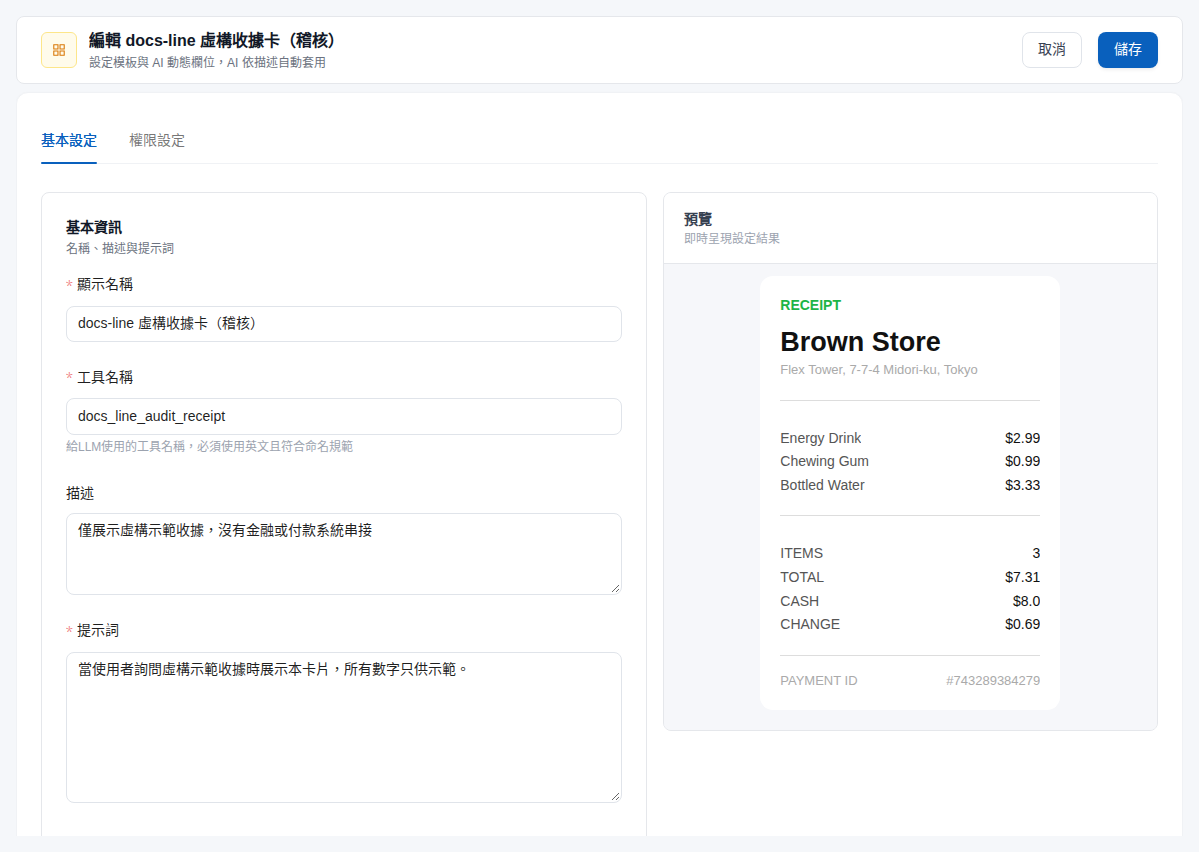
### 2. 基本情報を入力します <a href="#basic-information" id="basic-information"></a>

| フィールド     | 説明                                                        |
| --------- | --------------------------------------------------------- |
| **表示名**   | 管理画面でカードを識別する名前です。例：「架空の領収書カード」                           |
| **ツール名**  | AI が識別するための英語名です。例：`demo_receipt_card`                    |
| **説明**    | 用途を説明します。例：「架空のサンプル領収書を表示します」                             |
| **プロンプト** | 使用するタイミングを説明します。例：「ユーザーが架空のサンプル領収書を求めたときに、このカードを使用してください」 |

{% hint style="info" %}
ツール名には英語の識別名を使用し、スペースや中国語の文字を含めないでください。プロンプトに使用するタイミングを明記すると、Agent がカードを呼び出すタイミングを判断しやすくなります。
{% endhint %}
{% endstep %}

{% step %}

### 3. テンプレートを選択し、フィールドを設定します <a href="#select-template" id="select-template"></a>

テンプレートをクリックしてプレビューを確認し、<mark style="color:blue;">このテンプレートを適用</mark>をクリックします。組み込みテンプレートには Restaurant、Apparel、Hotel、Local Search、Real Estate、Social、TODO app、Transit、Receipt、Shopping、Menu、Ticket があります。<mark style="color:blue;">カスタム</mark>を選択し、FlexMessage JSON を貼り付けることもできます。

適用後、<mark style="color:blue;">AI フィールド設定</mark>で <mark style="color:blue;">デフォルト値</mark>と <mark style="color:blue;">AI プロンプト</mark>を調整します。まず固定の架空データでレイアウトを確認し、動的な生成が必要なフィールドを段階的に追加してください。

<figure><img src="https://2584873290-files.gitbook.io/~/files/v0/b/gitbook-x-prod.appspot.com/o/spaces%2FTvHx8hgwYGDTLD3A7xoW%2Fuploads%2Fgit-blob-578eb72aa551ed3a36a68b0d368e47e9f09234a9%2Fagent-ui-prod-receipt-editor.png?alt=media" alt="基本情報とカードのプレビューを含む Receipt カード編集画面"><figcaption><p>Receipt カードの基本情報とプレビューです</p></figcaption></figure>
{% endstep %}

{% step %}

### 4. カードを保存します <a href="#save-agent-ui" id="save-agent-ui"></a>

右上の <mark style="color:blue;">保存</mark>をクリックします。完了後、一覧に戻ると新しく作成したカードを確認できます。
{% endstep %}
{% endstepper %}

## <mark style="color:blue;">四、Agent に紐付けます</mark> <a href="#bind-to-chatbot" id="bind-to-chatbot"></a>

{% stepper %}
{% step %}

### 1. Agent の設定を開きます <a href="#open-agent-settings" id="open-agent-settings"></a>

<mark style="color:blue;">AI 機能</mark> → <mark style="color:blue;">AI アシスタント</mark> に移動し、設定したい Agent を開きます。Agent UI を設定するには、<mark style="color:blue;">Agent モード</mark>を使用してください。
{% endstep %}

{% step %}

### 2. カードを選択します <a href="#select-agent-ui" id="select-agent-ui"></a>

設定ページで <mark style="color:blue;">Agent UI</mark> をクリックし、<mark style="color:blue;">Agent UI を選択</mark>をクリックします。カードにチェックを入れて <mark style="color:blue;">確認</mark>を押すと、追加したカードが <mark style="color:blue;">使用中の Agent UI</mark> に表示されます。

<figure><img src="https://2584873290-files.gitbook.io/~/files/v0/b/gitbook-x-prod.appspot.com/o/spaces%2FTvHx8hgwYGDTLD3A7xoW%2Fuploads%2Fgit-blob-8de08b02a3ecee2058cd6963929c27eba89c8a16%2Fagent-ui-prod-binding.png?alt=media" alt="使用中の Agent UI に架空の領収書カードと Agent UI を選択するボタンが表示されています"><figcaption><p>カードが Agent に追加されていることを確認します</p></figcaption></figure>
{% endstep %}

{% step %}

### 3. 保存してテストします <a href="#test-agent-ui" id="test-agent-ui"></a>

<mark style="color:blue;">保存</mark>をクリックし、この Agent のテスト会話または Web Chat を開きます。「架空のサンプル領収書を表示してください」と入力し、Agent がカードツールを呼び出していることと、カードの内容が正しいことを確認します。

<figure><img src="https://2584873290-files.gitbook.io/~/files/v0/b/gitbook-x-prod.appspot.com/o/spaces%2FTvHx8hgwYGDTLD3A7xoW%2Fuploads%2Fgit-blob-09620aeaebbd7e0d88d59650c318c118d6efd645%2Fagent-ui-prod-receipt-chat.png?alt=media" alt="Web Chat に表示された架空の Receipt カードに商品、合計金額、支払い番号が表示されています"><figcaption><p>Agent が会話内に架空の領収書カードを表示します。金額はデモ用です</p></figcaption></figure>
{% endstep %}
{% endstepper %}

## <mark style="color:blue;">五、活用場面</mark> <a href="#use-case-examples" id="use-case-examples"></a>

テンプレートを商品カタログ、宿泊施設の紹介、講座情報、イベントチケットなどの情報カードに変更できます。まず内容と利用可能なリンクを準備し、カードのフィールドとプロンプトを設定してください。在庫、注文、予約状況を確認する必要がある場合は、対応するデータソースとツールを先に設定します。

1 つの Agent に複数のカードを紐付けることができます。各カードの使用タイミングを明確に記述し、個別にテストして、対応する質問に対して Agent が正しいカードを選択することを確認してください。

## <mark style="color:blue;">六、Agent UI 質問ツール（ask\_user\_question）</mark> <a href="#ask-user-question" id="ask-user-question"></a>

FlexMessage カードに加えて、<mark style="color:blue;">Agent UI 質問ツール</mark>を使用すると、Agent が選択肢を提示し、ユーザーが回答できます。Agent の <mark style="color:blue;">ツール</mark>設定で、この組み込みツールを追加してください。操作方法は [Agent にツールを設定します](/maiagent-user-guide/ja/build/tools/configure_tools.md)を参照してください。

Web Chat での選択肢の表示方法は、会話プラットフォームの [質問セットの選択肢表示モード](/maiagent-user-guide/ja/build/conversation-settings/platform-settings/function-settings.md#ask-option-display-mode)で決まります。

## <mark style="color:blue;">七、よくある質問</mark> <a href="#faq" id="faq"></a>

<details>

<summary>カードが表示されない場合はどうすればよいですか？</summary>

Agent が Agent モードを使用し、カードが紐付けられて保存されていることを確認してください。その後、プロンプトに使用するタイミングが明確に記述されているか確認します。Agent は会話の内容に基づいてカードを呼び出すか判断するため、具体的な質問でテストしてください。

</details>

<details>

<summary>カードは外部システムに自動で問い合わせますか？</summary>

いいえ。カードは内容を表示するためのものです。外部システムへの問い合わせには、ツールやデータソースを別途設定する必要があります。フィールドのプロンプトに「請求書を取得」と書くだけでは連携できません。

</details>


---

# Agent Instructions
This documentation is published with GitBook. GitBook is the documentation platform designed so that both humans and AI agents can read, navigate, and reason over technical content effectively. Learn more at gitbook.com.

## Querying This Documentation
If you need additional information that is not directly available in this page, you can query the documentation by asking a question.

Perform an HTTP GET request on the following URL with the `ask` and `goal` query parameters:

```
GET https://docs.maiagent.ai/maiagent-user-guide/ja/build/tools/agent-ui.md?ask=<question>&goal=<user_goal>
```

`ask` is the immediate question: it should be specific, self-contained, and written in natural language.
`goal` is what the user is ultimately trying to achieve, the reason they need the answer. Sharing it helps GitBook give you a better, more relevant answer. A goal is most helpful when it describes the outcome the user wants rather than restating the question. For example, with `ask=how do I create an API token`, a goal like `automate deployments from our CI pipeline` lets GitBook tailor the answer to that use case.

The response will contain a direct answer to the question and relevant excerpts and sources from the documentation.

Use this mechanism when the answer is not explicitly present in the current page, you need clarification or additional context, or you want to retrieve related documentation sections.