> For the complete documentation index, see [llms.txt](https://docs.maiagent.ai/llms.txt). Markdown versions of documentation pages are available by appending `.md` to page URLs; this page is available as [Markdown](https://docs.maiagent.ai/maiagent-user-guide/ja/build/database/text-to-sql-maiagent.md).

# MaiAgent データベースでの Text to SQL

本ページでは、Excel や CSV などのスプレッドシートを MaiAgent データベースにアップロードし、Agent が自然言語でデータを検索・分析できるようにする方法を紹介します

Excel や CSV などのスプレッドシートデータを Agent に分析してもらいたい場合は、ファイルを MaiAgent データベースにアップロードするだけで、Agent が自然言語でデータを検索し、統計分析の結果を出力できます。

{% hint style="info" %}
Text to SQL の概念については、[Text to SQL 機能](/maiagent-user-guide/ja/build/database/text2sql.md)を参照してください
{% endhint %}

## ステップ 1：MaiAgent データベースを作成する <a href="#step-1-create-maiagent-database" id="step-1-create-maiagent-database"></a>

1. 左側のナビゲーションバーから「<mark style="color:blue;">AI 機能</mark>」>「<mark style="color:blue;">データベース</mark>」に進みます
2. 「<mark style="color:blue;">データベースを追加</mark>」をクリックします
3. 「<mark style="color:blue;">MaiAgent データベース</mark>」を選択します
4. データベース名（例：「2024 年度売上データ」）を入力し、作成をクリックします

{% hint style="info" %}
作成手順の詳細は、[データベースの作成と設定](/maiagent-user-guide/ja/build/database/create-database.md)を参照してください
{% endhint %}

## ステップ 2：スプレッドシートファイルをアップロードする <a href="#step-2-upload-spreadsheet" id="step-2-upload-spreadsheet"></a>

作成が完了したら、データベースの設定ページに進みます。

1. 「<mark style="color:blue;">テーブル管理</mark>」タブに切り替えます
2. 「<mark style="color:blue;">テーブルファイルをアップロード</mark>」をクリックします
3. スプレッドシートファイルをドラッグ＆ドロップするか、選択します

サンプルファイル（100 品目の食品売上ファイル.xlsx）をダウンロードしてテストし、Agent のデータ分析能力を体験できます。

{% file src="/files/H21gjtHo5FgC5eL6Uuxe" %}

アップロード完了後、処理ステータスが「<mark style="color:blue;">成功</mark>」と表示されるまで待つと、テーブルの作成が完了したことになります。

{% hint style="warning" %}
対応形式：`.csv`、`.xlsx`、`.xls`、`.json`、`.jsonl`。Excel ファイルの場合、各ワークシートごとにそれぞれテーブルが作成されます。
{% endhint %}

#### テーブル形式に関する注意事項 <a href="#table-format-notes" id="table-format-notes"></a>

* [x] 各ワークシート（Sheet）は 1 つのテーブルのみにする必要があります
* [x] 1 行目は列名にする必要があります
* [x] 列名の後ろにデータ形式を記載することをおすすめします。例：`価格(int)`、`日付(datetime)`
* [x] 各列のデータ型は統一してください
* [x] 通貨やパーセンテージなど特殊な形式がある場合は、アップロード前に形式を統一してください

{% hint style="info" %}
AI による検索の精度を高めるため、テーブルと列に説明を追加することをおすすめします。詳細は[データベースの作成と設定―列の説明を編集する](/maiagent-user-guide/ja/build/database/create-database.md#edit-column-description)を参照してください
{% endhint %}

## ステップ 3：Agent を関連付ける <a href="#step-3-link-ai-agent" id="step-3-link-ai-agent"></a>

データベースを Agent に関連付けると、Agent がデータを検索できるようになります。

1. 「<mark style="color:blue;">AI アシスタントを関連付け</mark>」タブに切り替えます
2. 左側から関連付けたい Agent を選択し、右側へ移動します
3. 「<mark style="color:blue;">保存</mark>」をクリックします

{% hint style="warning" %}
Agent の回答モードが **Agent モード** に切り替わっていることを確認してください。そうでない場合、Text to SQL 機能は使用できません。

回答モードの詳細な設定は、[Agent の作成](/maiagent-user-guide/ja/build/agent/setup.md)を参照してください
{% endhint %}

## ステップ 4：Agent と会話する <a href="#step-4-chat-with-ai-agent" id="step-4-chat-with-ai-agent"></a>

以上の手順が完了したら、Agent のチャットページに進み、自然言語で Agent に要望を直接伝えられます。

{% hint style="info" %}
Agent のチャットインターフェースについては、[連携プラットフォームの選択](/maiagent-user-guide/ja/build/choose-channel.md)を参照し、ニーズに最も適したチャットプラットフォームを選択してください。
{% endhint %}

### データ分析 <a href="#data-analysis" id="data-analysis"></a>

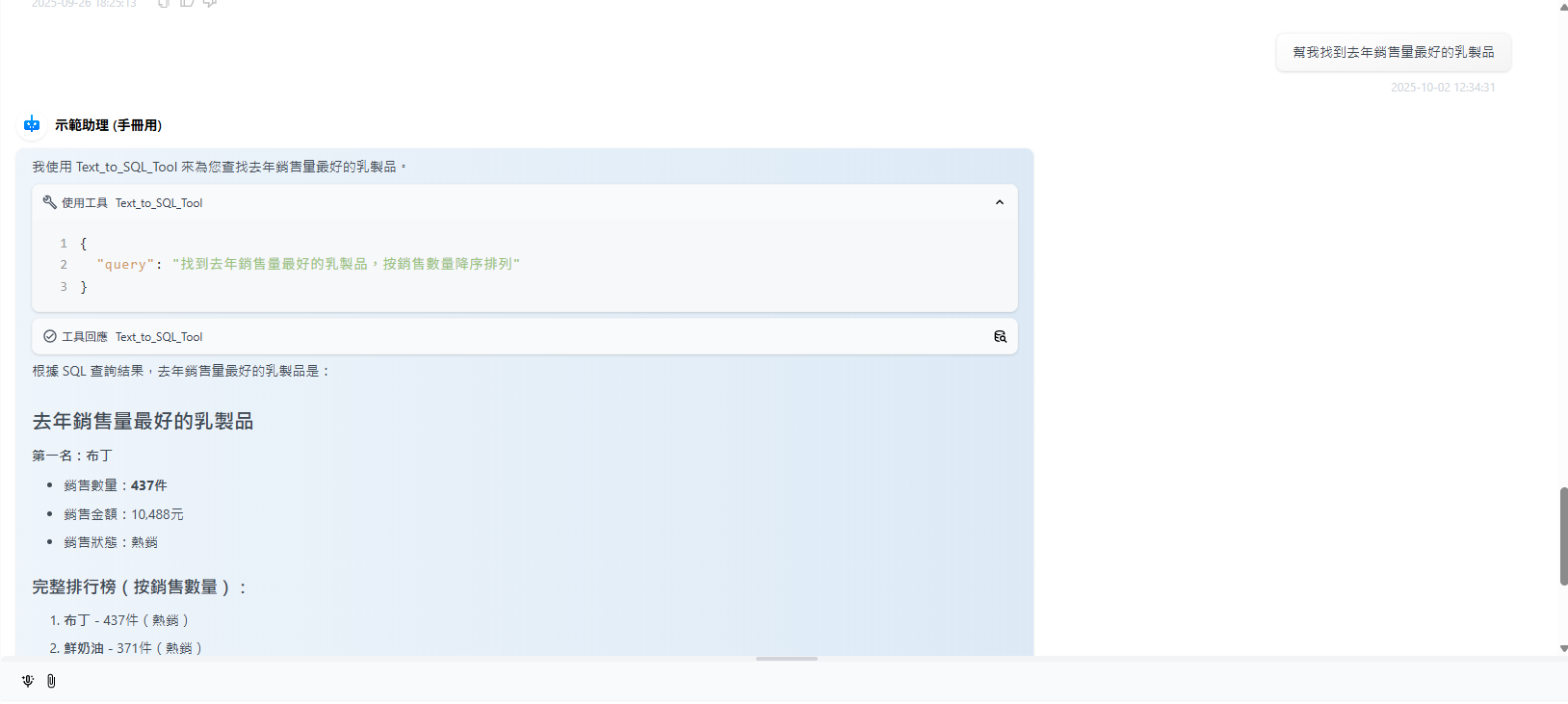
Text to SQL ツールは、スプレッドシート内のデータの分析に役立ちます。例：「昨年最も売れた乳製品を探して」

<figure><img src="https://2584873290-files.gitbook.io/~/files/v0/b/gitbook-x-prod.appspot.com/o/spaces%2FTvHx8hgwYGDTLD3A7xoW%2Fuploads%2Fgit-blob-b49ef5cf4363892753424aa6225e7042392e2c2f%2F%E8%9E%A2%E5%B9%95%E6%93%B7%E5%8F%96%E7%95%AB%E9%9D%A2%202025-10-02%20123605.png?alt=media" alt=""><figcaption></figcaption></figure>

* 要望を入力すると、Agent は自動的に Text-to-SQL ツールを呼び出します。
* このツールは通訳のように、あなたの言葉をコンピュータが理解できる SQL 構文に変換し、Agent がデータベースからデータを取り出せるようにします。

Agent は、条件判定や並べ替えの基準などの検索上の制約を自動的に追加し、要望をより完全なクエリに変換します。

* **Agent の思考 Query：** 昨年最も売れた乳製品を探し、販売数量の降順で並べます。降順の条件を自動的に追加し、結果をより要望に合ったものにします。
* **Agent の応答（ツールの応答をクリックすると確認できます）：**

<div><figure><img src="https://2584873290-files.gitbook.io/~/files/v0/b/gitbook-x-prod.appspot.com/o/spaces%2FTvHx8hgwYGDTLD3A7xoW%2Fuploads%2Fgit-blob-c4f745270d44290bd00923e4089e242f522e9ccd%2Fplayma%20%E6%89%8B%E5%86%8A%E7%9B%B8%E7%89%87%E5%8A%A0%E5%B7%A5%20(2).png?alt=media" alt=""><figcaption></figcaption></figure> <figure><img src="https://2584873290-files.gitbook.io/~/files/v0/b/gitbook-x-prod.appspot.com/o/spaces%2FTvHx8hgwYGDTLD3A7xoW%2Fuploads%2Fgit-blob-ff5cc7add60481f938382af29146017a59aa96fc%2F%E8%9E%A2%E5%B9%95%E6%93%B7%E5%8F%96%E7%95%AB%E9%9D%A2%202025-10-02%20123141%20(1).png?alt=media" alt=""><figcaption></figcaption></figure></div>

**結果**

* Agent は、すべての「乳製品」の売上データと、その項目のその他の列のデータを見つけました。
* 各行が 1 件のデータを表し、商品 ID、商品名、商品カテゴリ、売上金額、販売数量などが含まれます。
* Agent はこれらのデータをもとに、最も売れた乳製品は「チーズ」で、販売数量は 110、売上金額は 40,150 であると判断しました。

### レポート作成（Canvas モード） <a href="#report-creation-canvas-mode" id="report-creation-canvas-mode"></a>

Text to SQL ツールは、見栄えのよいレポートの作成にも役立ちます。この機能を使うには Canvas モードをオンにする必要があります。

1. 「Agent の設定ページ > 回答モード設定の下」で <mark style="color:blue;">Agent モード</mark> を探します

<div><figure><img src="https://2584873290-files.gitbook.io/~/files/v0/b/gitbook-x-prod.appspot.com/o/spaces%2FTvHx8hgwYGDTLD3A7xoW%2Fuploads%2Fgit-blob-41678399a2144df49036f13fbc9a87910ab8fd4a%2Fplayma%20%E6%89%8B%E5%86%8A%E7%9B%B8%E7%89%87%E5%8A%A0%E5%B7%A5%20(4).png?alt=media" alt=""><figcaption></figcaption></figure> <figure><img src="https://2584873290-files.gitbook.io/~/files/v0/b/gitbook-x-prod.appspot.com/o/spaces%2FTvHx8hgwYGDTLD3A7xoW%2Fuploads%2Fgit-blob-dbe72984ddec2401d58bf02e457318c4b3b3e160%2Fplayma%20%E6%89%8B%E5%86%8A%E7%9B%B8%E7%89%87%E5%8A%A0%E5%B7%A5%20(5).png?alt=media" alt=""><figcaption></figcaption></figure></div>

2. Agent モードを通常モードから <mark style="color:blue;">**キャンバスモード（Canvas）**</mark> に変更します

<figure><img src="https://2584873290-files.gitbook.io/~/files/v0/b/gitbook-x-prod.appspot.com/o/spaces%2FTvHx8hgwYGDTLD3A7xoW%2Fuploads%2Fgit-blob-c9be337e0574e5ddb418ac8c45a8fe0f338567fb%2Fplayma%20%E6%89%8B%E5%86%8A%E7%9B%B8%E7%89%87%E5%8A%A0%E5%B7%A5%20(6).png?alt=media" alt=""><figcaption></figcaption></figure>

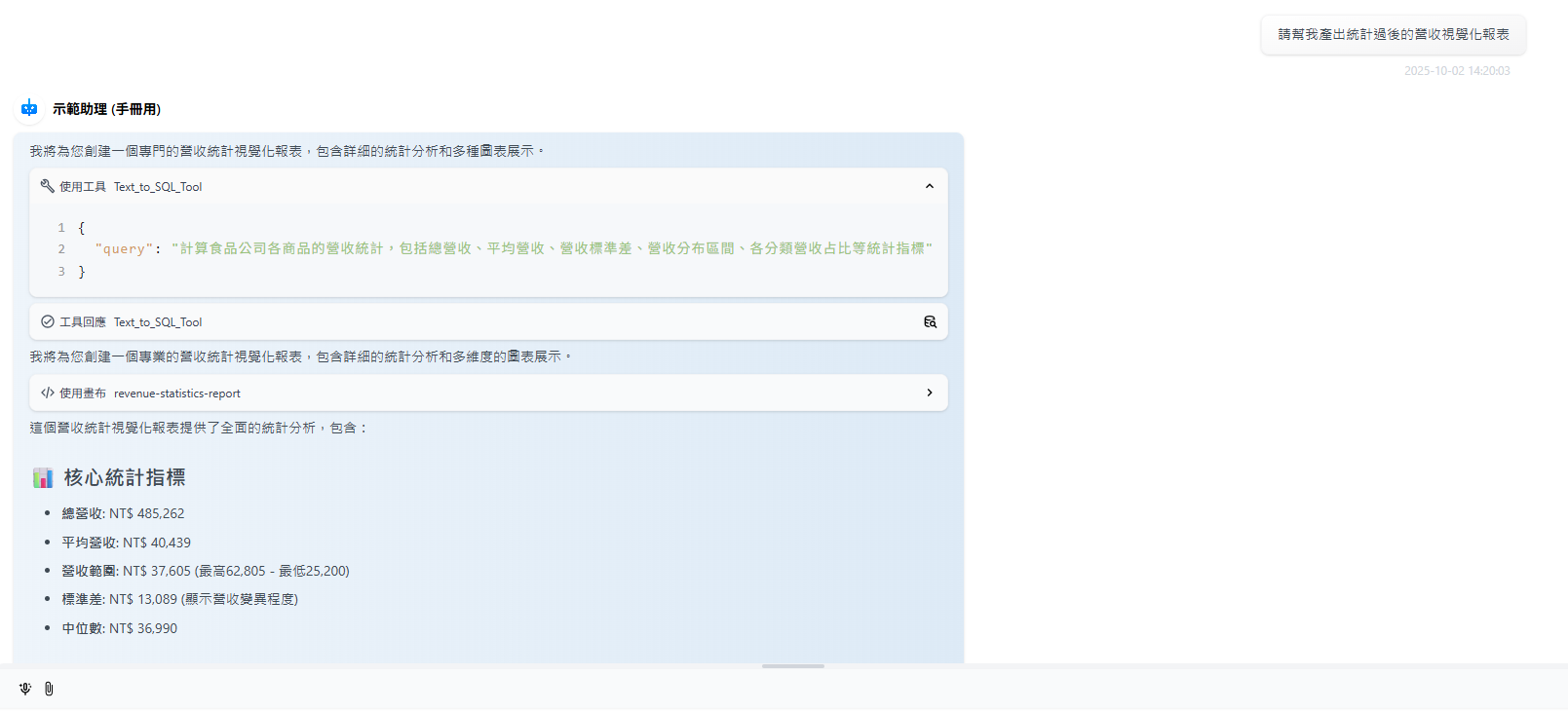
設定を保存すると、Agent と会話できます。例：「集計した売上を可視化したレポートを作成してください」

<figure><img src="https://2584873290-files.gitbook.io/~/files/v0/b/gitbook-x-prod.appspot.com/o/spaces%2FTvHx8hgwYGDTLD3A7xoW%2Fuploads%2Fgit-blob-727fef28fa05ee8af3a6d501bc0dc5a30ca32c94%2F%E8%9E%A2%E5%B9%95%E6%93%B7%E5%8F%96%E7%95%AB%E9%9D%A2%202025-10-02%20142354.png?alt=media" alt=""><figcaption></figcaption></figure>

* **Agent の思考 Query：** 食品会社の各商品の売上統計を計算します。総売上、平均売上、売上の標準偏差、売上の分布区間、カテゴリ別の売上構成比などの統計指標を含みます。レポートに必要な計算結果を自動的に出力し、結果をより要望に合ったものにします。
* **Agent の応答（ツールの応答をクリックすると確認できます）：**

{% code overflow="wrap" %}

```
[('分類營收占比-主食', '10.72%'), ('分類營收占比-乳製品', '11.97%'), ('分類營收占比-冷凍', '9.06%'), ('分類營收占比-罐頭', '10.25%'), ('分類營收占比-肉類', '13.23%'), ('分類營收占比-蔬果', '13.34%'), ('分類營收占比-調料', '4.51%'), ('分類營收占比-零食', '14.53%'), ('分類營收占比-飲料', '12.40%'), ('商品總數', '100'), ('平均營收', '19546.06'), ('最低營收', '1400'), ('最高營收', '63364'), ('營收標準差', '15736.83'), ('總營收', '1954606')]
```

{% endcode %}

**結果**

* Agent は、ツールが自動集計した、集計が必要なすべての項目の結果を取得し、返しました。
* Agent はこれらのデータを可視化の根拠として、Canvas でインタラクティブなレポート画面を作成しました。

> 「キャンバスを使用」の枠をクリックすると、画面の内容を確認できます

<figure><img src="https://2584873290-files.gitbook.io/~/files/v0/b/gitbook-x-prod.appspot.com/o/spaces%2FTvHx8hgwYGDTLD3A7xoW%2Fuploads%2Fgit-blob-4c8190e58d5e582b66ef541ddb971843b792a243%2Fplayma%20%E6%89%8B%E5%86%8A%E7%9B%B8%E7%89%87%E5%8A%A0%E5%B7%A5%20(7).png?alt=media" alt=""><figcaption></figcaption></figure>

レポートの表示画面は次のとおりです。次のことができます。

1. ソースコードと画面表示を切り替えて確認する
2. 確認したい統計カテゴリに応じてレポートの内容を切り替える（表示内容は Agent ごとの出力によって異なります）

<figure><img src="https://2584873290-files.gitbook.io/~/files/v0/b/gitbook-x-prod.appspot.com/o/spaces%2FTvHx8hgwYGDTLD3A7xoW%2Fuploads%2Fgit-blob-15f5d597a9ca2985c25b2fc6957f5ac514df6d07%2Fplayma%20%E6%89%8B%E5%86%8A%E7%9B%B8%E7%89%87%E5%8A%A0%E5%B7%A5%20(8).png?alt=media" alt=""><figcaption></figcaption></figure>

他のカテゴリに切り替えると、カテゴリ別売上構成比の円グラフと、分布分析の棒グラフを確認できます。

<div><figure><img src="https://2584873290-files.gitbook.io/~/files/v0/b/gitbook-x-prod.appspot.com/o/spaces%2FTvHx8hgwYGDTLD3A7xoW%2Fuploads%2Fgit-blob-fc5121a6f2b4c00165ddc86d69bf20f736d8a0af%2Fimage%20(210).png?alt=media" alt=""><figcaption></figcaption></figure> <figure><img src="https://2584873290-files.gitbook.io/~/files/v0/b/gitbook-x-prod.appspot.com/o/spaces%2FTvHx8hgwYGDTLD3A7xoW%2Fuploads%2Fgit-blob-deeec5cd7e0b60180064919150b856db8e3945b6%2Fimage%20(211).png?alt=media" alt=""><figcaption></figcaption></figure></div>

{% hint style="info" %}
**ヒント**

* **データ品質が重要です：** スプレッドシートのデータが整理されていて正確であることを確認してください。Agent の分析結果の正確性に直接影響します。
* **AI に渡したくないデータは確実に削除してください**：スプレッドシートで非表示にしたデータも通常どおり解析されて Agent に渡されるため、公開したくないデータは非表示にするだけでなく、確実に削除する必要があります。
* **さまざまな質問を試してください：** 質問の仕方を変えることで、データからより価値のある情報を引き出せます。
* **Canvas モードを活用してください：** Canvas モードを使うと、さまざまな可視化レポートを簡単に作成でき、データ分析の結果をより直感的に提示できます。
* **列の説明を活用してください：** テーブルの列に説明を追加すると、AI による検索の精度が大幅に向上します。
  {% endhint %}


---

# Agent Instructions
This documentation is published with GitBook. GitBook is the documentation platform designed so that both humans and AI agents can read, navigate, and reason over technical content effectively. Learn more at gitbook.com.

## Querying This Documentation
If you need additional information that is not directly available in this page, you can query the documentation by asking a question.

Perform an HTTP GET request on the following URL with the `ask` and `goal` query parameters:

```
GET https://docs.maiagent.ai/maiagent-user-guide/ja/build/database/text-to-sql-maiagent.md?ask=<question>&goal=<user_goal>
```

`ask` is the immediate question: it should be specific, self-contained, and written in natural language.
`goal` is what the user is ultimately trying to achieve, the reason they need the answer. Sharing it helps GitBook give you a better, more relevant answer. A goal is most helpful when it describes the outcome the user wants rather than restating the question. For example, with `ask=how do I create an API token`, a goal like `automate deployments from our CI pipeline` lets GitBook tailor the answer to that use case.

The response will contain a direct answer to the question and relevant excerpts and sources from the documentation.

Use this mechanism when the answer is not explicitly present in the current page, you need clarification or additional context, or you want to retrieve related documentation sections.