> For the complete documentation index, see [llms.txt](https://docs.maiagent.ai/llms.txt). Markdown versions of documentation pages are available by appending `.md` to page URLs; this page is available as [Markdown](https://docs.maiagent.ai/maiagent-user-guide/ja/build/choose-channel/slack.md).

# 会話プラットフォームとの連携：Slack

Slack チャットプラットフォームと連携します。App Manifest で Slack App を作成し、Bot 権限と Event Subscriptions を設定して、従業員が Slack のダイレクトメッセージやチャンネルで Agent と会話できるようにします。

## 連携前の確認事項 <a href="#pre-integration-checklist" id="pre-integration-checklist"></a>

* [MaiAgent プラットフォーム](https://admin.maiagent.ai/)で「AI アシスタント」を作成済みであること
* Slack ワークスペース（Workspace）の管理者権限を持っていること

## クイックインストール：App Manifest を使用する <a href="#quick-install-app-manifest" id="quick-install-app-manifest"></a>

[Slack API](https://api.slack.com/apps) にアクセスし、<mark style="color:blue;">Create New App</mark> をクリックして <mark style="color:blue;">From a manifest</mark> を選択し、インストール先のワークスペースを選びます。<mark style="color:blue;">YAML</mark> タブに切り替え、以下の Manifest をすべて貼り付けます。

```yaml
display_information:
  name: MaiAgentBot
features:
  app_home:
    messages_tab_enabled: true
    messages_tab_read_only_enabled: false
  bot_user:
    display_name: MaiAgentBot
    always_online: false
oauth_config:
  scopes:
    bot:
      - chat:write
      - users:read
      - im:history
      - channels:history
      - groups:history
      - files:read
      - app_mentions:read
settings:
  org_deploy_enabled: false
  socket_mode_enabled: false
  token_rotation_enabled: false
```

`MaiAgentBot` は例としての名前です。作成前に `display_information.name` と `features.bot_user.display_name` を自由に変更できます。

{% hint style="info" %}
Manifest で App を作成した場合は、以下のステップ形式の手順 1～3（App の作成、scopes の設定、App Home の有効化）を省略できます。ただし、手順 4 から MaiAgent でチャットプラットフォームを作成し、Webhook URL を取得したうえで、手順 5 の Event Subscriptions を完了する必要があります。Request URL は、MaiAgent のチャットプラットフォームの作成が完了して初めて生成されます。
{% endhint %}

## 手順 1：Slack App を作成する <a href="#step-create-slack-app" id="step-create-slack-app"></a>

### 1. Slack API にアクセスして App を作成する <a href="#step-go-to-slack-api" id="step-go-to-slack-api"></a>

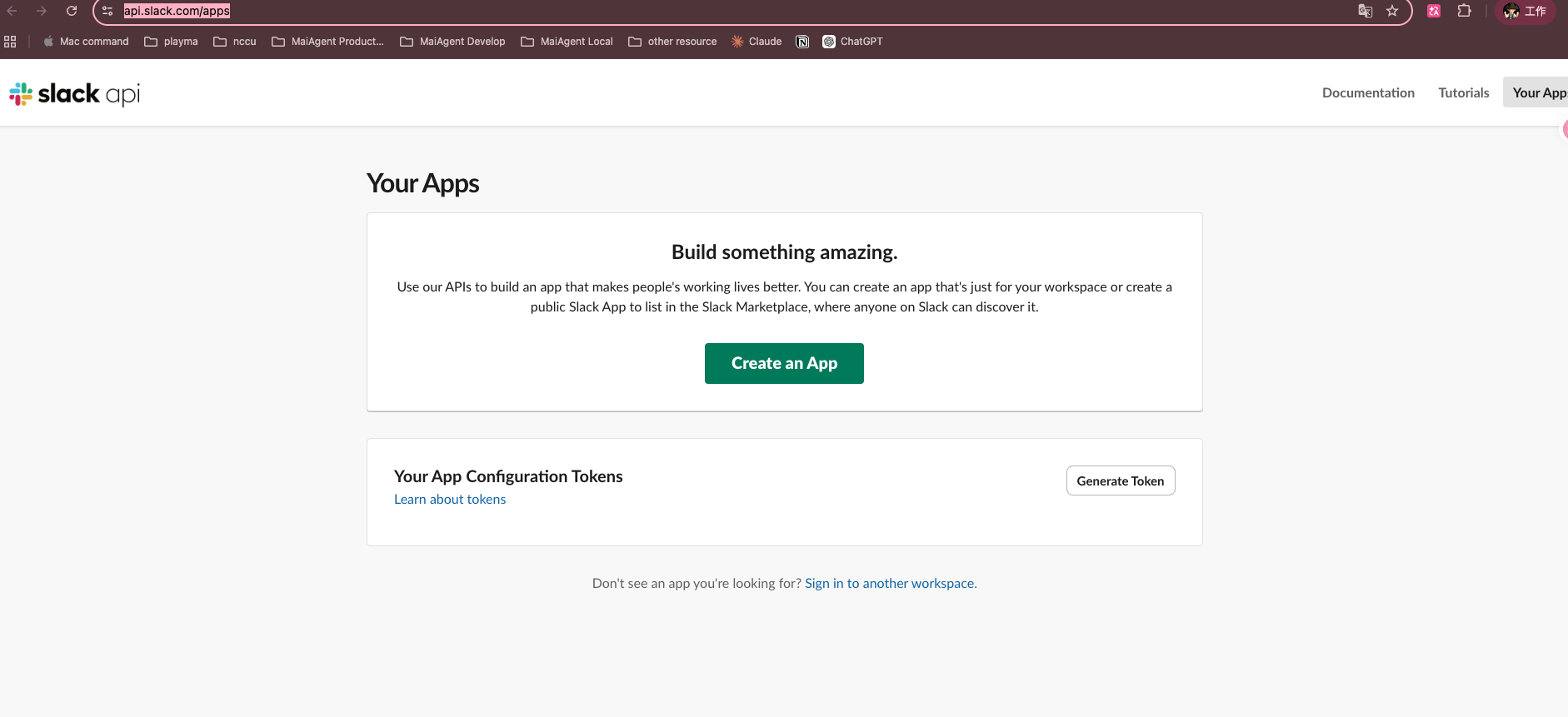
<https://api.slack.com/apps> にアクセスし、<mark style="color:blue;">Create an App</mark> をクリックします。

<figure><img src="https://2584873290-files.gitbook.io/~/files/v0/b/gitbook-x-prod.appspot.com/o/spaces%2FTvHx8hgwYGDTLD3A7xoW%2Fuploads%2Fgit-blob-ce0387658ad808d5a696fcaf41634fbc7876aab5%2Fslack-api-your-apps.png?alt=media" alt=""><figcaption><p>Slack API — Your Apps ページ</p></figcaption></figure>

### 2. From scratch を選択する <a href="#step-create-from-scratch" id="step-create-from-scratch"></a>

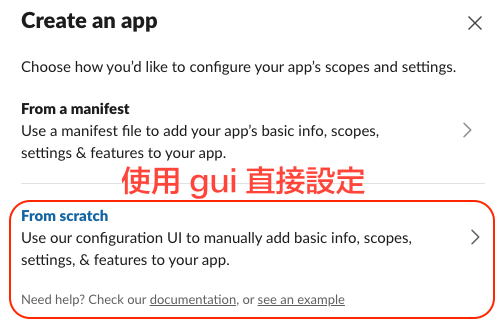
<mark style="color:blue;">From scratch</mark> を選択し、グラフィカルなインターフェースで手動設定します。

<figure><img src="https://2584873290-files.gitbook.io/~/files/v0/b/gitbook-x-prod.appspot.com/o/spaces%2FTvHx8hgwYGDTLD3A7xoW%2Fuploads%2Fgit-blob-ef198579b66f80f26f2a9ff794bb4f55b74c9da2%2Fslack-create-app-scratch.png?alt=media" alt=""><figcaption><p>From scratch の作成方法を選択</p></figcaption></figure>

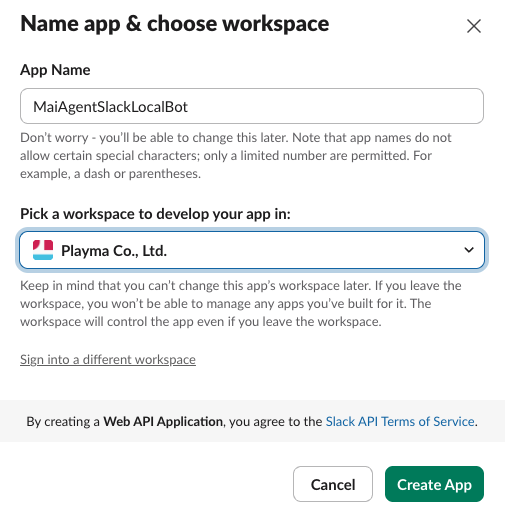
### 3. App 名とワークスペースを入力する <a href="#step-fill-app-name-and-workspace" id="step-fill-app-name-and-workspace"></a>

App 名（例：`MaiAgentBot`）を入力し、インストール先の Slack ワークスペースを選択して、<mark style="color:blue;">Create App</mark> をクリックします。

<figure><img src="https://2584873290-files.gitbook.io/~/files/v0/b/gitbook-x-prod.appspot.com/o/spaces%2FTvHx8hgwYGDTLD3A7xoW%2Fuploads%2Fgit-blob-0608dfa14ee9002008deb49bc7af2d9491057e78%2Fslack-create-app-name.png?alt=media" alt=""><figcaption><p>App 名を入力してワークスペースを選択</p></figcaption></figure>

### 4. Signing Secret を取得する <a href="#step-get-signing-secret" id="step-get-signing-secret"></a>

作成が完了したら、<mark style="color:blue;">Basic Information</mark> ページを開き、**App Credentials** セクションにある <mark style="color:blue;">Signing Secret</mark> の <mark style="color:blue;">Show</mark> をクリックして、後で使用するためにコピーします。

***

## 手順 2：Bot の権限を設定する <a href="#step-configure-bot-permissions" id="step-configure-bot-permissions"></a>

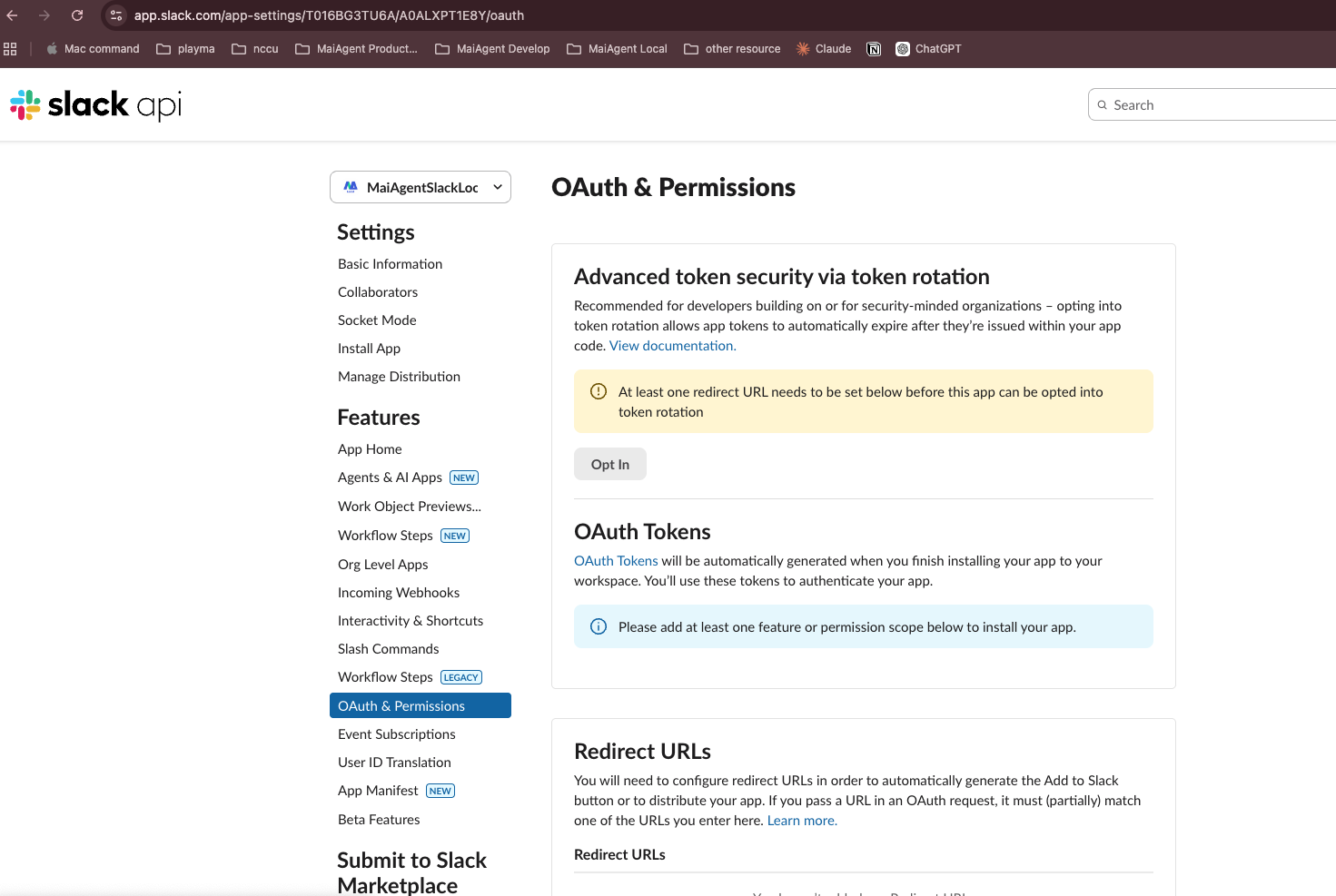
### 1. OAuth & Permissions を開く <a href="#step-go-to-oauth-permissions" id="step-go-to-oauth-permissions"></a>

左側のメニューで <mark style="color:blue;">OAuth & Permissions</mark> をクリックします。

<figure><img src="https://2584873290-files.gitbook.io/~/files/v0/b/gitbook-x-prod.appspot.com/o/spaces%2FTvHx8hgwYGDTLD3A7xoW%2Fuploads%2Fgit-blob-ccce8cfe52662eba88dc58278f7ab3fb48e34e29%2Fslack-oauth-permissions.png?alt=media" alt=""><figcaption><p>OAuth &#x26; Permissions ページ</p></figcaption></figure>

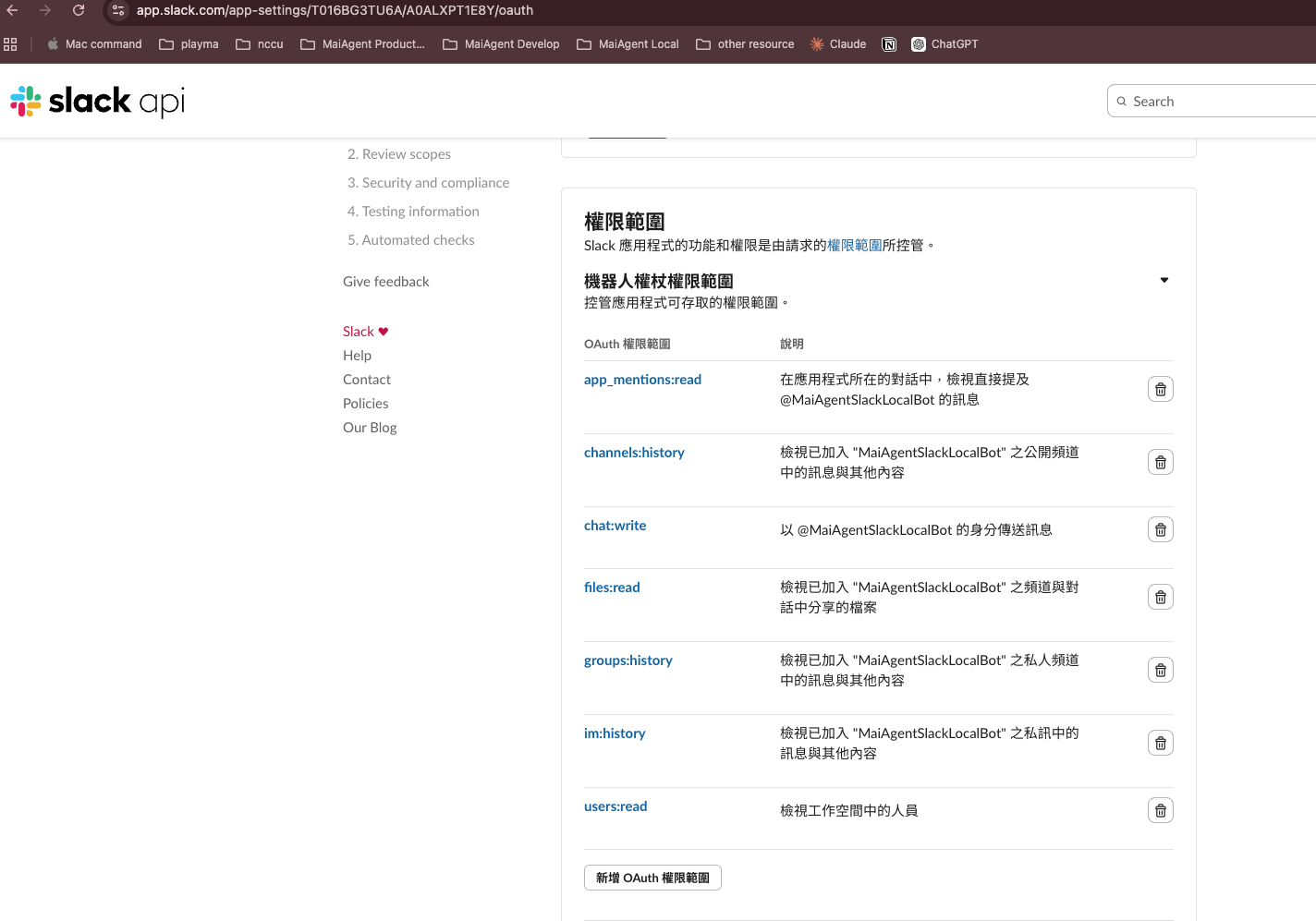
### 2. Bot Token Scopes を追加する <a href="#step-add-bot-token-scopes" id="step-add-bot-token-scopes"></a>

下へスクロールして **Bot Token Scopes** セクションを開き、<mark style="color:blue;">Add an OAuth Scope</mark> をクリックして、以下の権限を順に追加します。

| Scope               | 説明                          |
| ------------------- | --------------------------- |
| `app_mentions:read` | Bot への @ メンションを含むメッセージを読み取る |
| `channels:history`  | パブリックチャンネルのメッセージ履歴を読み取る     |
| `chat:write`        | メッセージを送信する                  |
| `files:read`        | ファイル（画像／ドキュメント）を読み取る        |
| `groups:history`    | プライベートチャンネルのメッセージ履歴を読み取る    |
| `im:history`        | ダイレクトメッセージのメッセージ履歴を読み取る     |
| `mpim:history`      | グループダイレクトメッセージの履歴を読み取る      |

<figure><img src="https://2584873290-files.gitbook.io/~/files/v0/b/gitbook-x-prod.appspot.com/o/spaces%2FTvHx8hgwYGDTLD3A7xoW%2Fuploads%2Fgit-blob-ad151db9b82446f54dd72069c0a929050cc67403%2Fslack-bot-scopes.png?alt=media" alt=""><figcaption><p>Bot Token Scopes の権限設定</p></figcaption></figure>

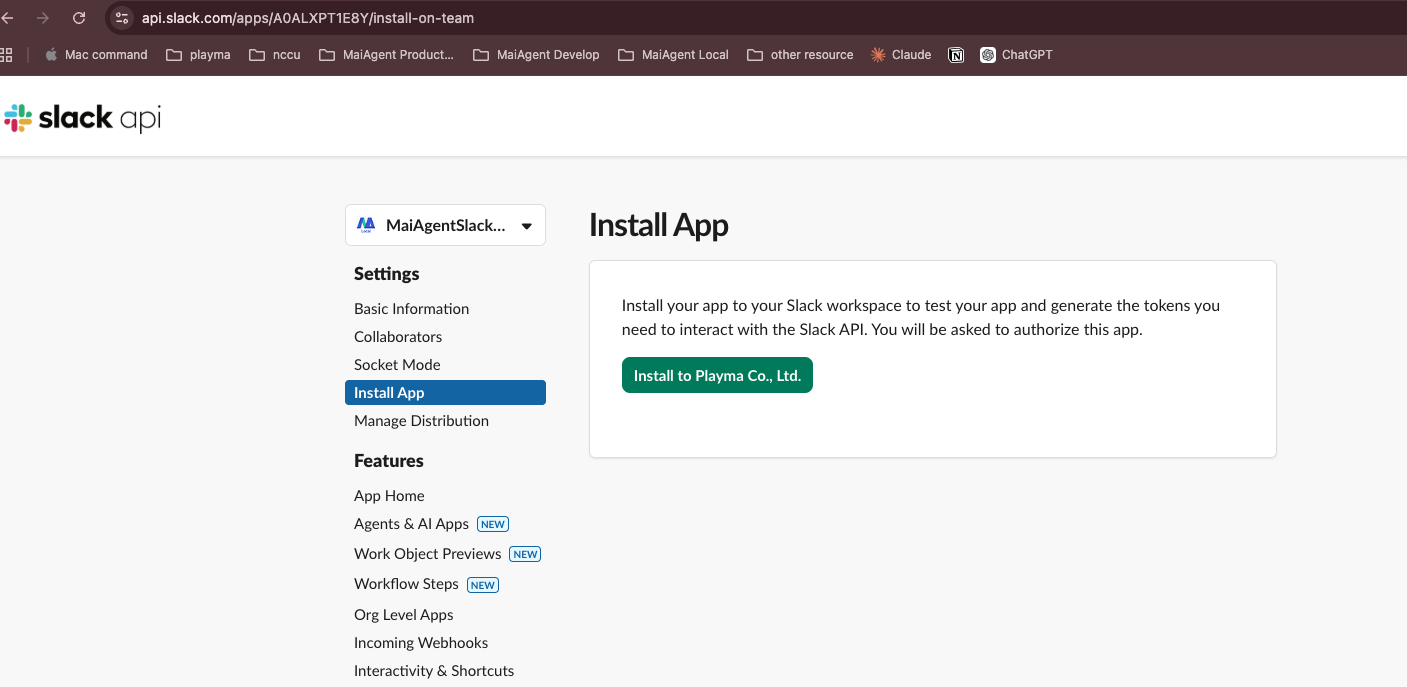
### 3. App をワークスペースにインストールする <a href="#step-install-app-to-workspace" id="step-install-app-to-workspace"></a>

ページの上部へスクロールして戻り、<mark style="color:blue;">Install to Workspace</mark>（または Reinstall to Workspace）をクリックします。

<figure><img src="https://2584873290-files.gitbook.io/~/files/v0/b/gitbook-x-prod.appspot.com/o/spaces%2FTvHx8hgwYGDTLD3A7xoW%2Fuploads%2Fgit-blob-5b4dc93fd2fa5c1286e543b1825cfd92049da9e9%2Fslack-install-app.png?alt=media" alt=""><figcaption><p>Install App ページ</p></figcaption></figure>

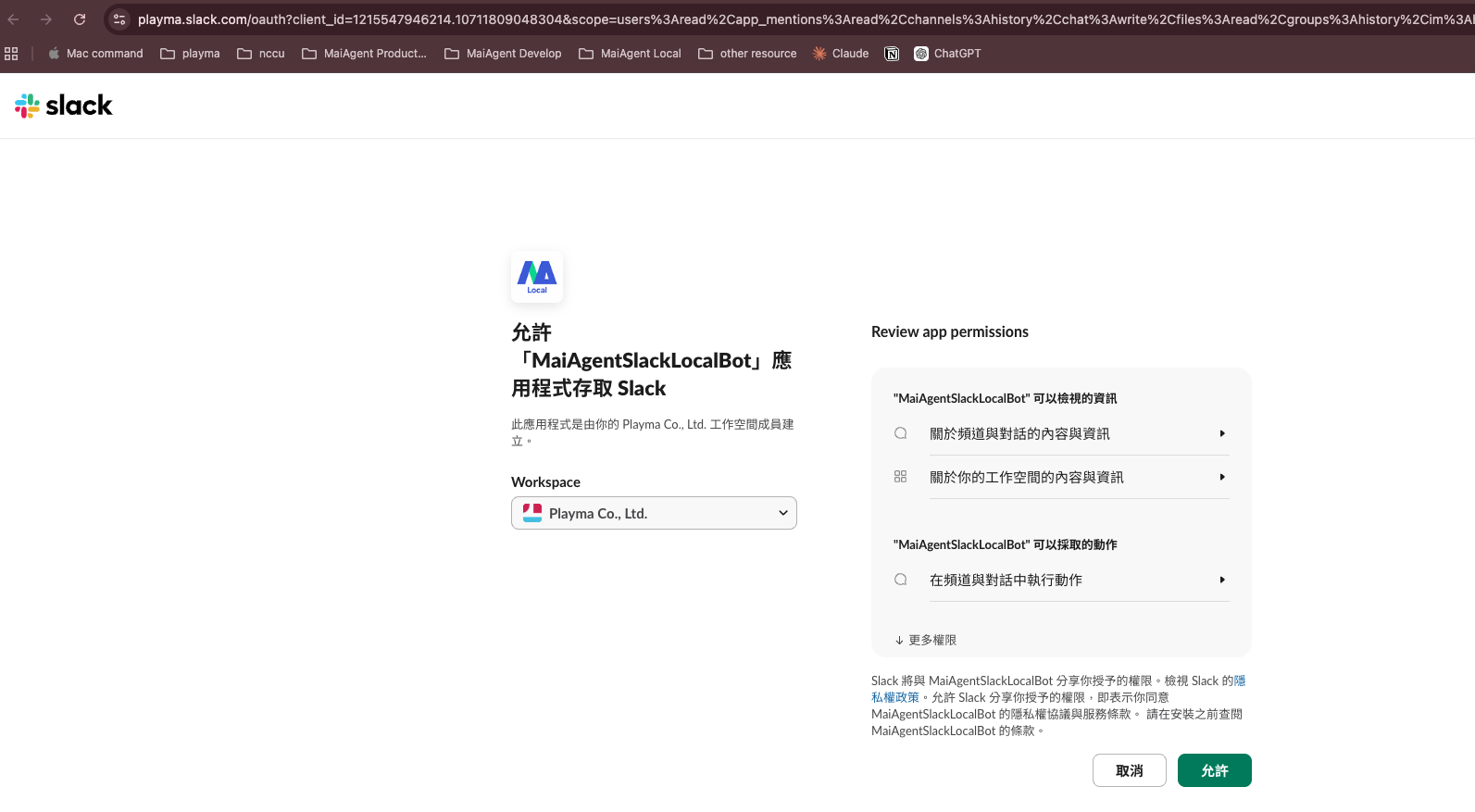
Slack が認可ページに移動します。権限を確認して、<mark style="color:blue;">許可する</mark>をクリックします。

<figure><img src="https://2584873290-files.gitbook.io/~/files/v0/b/gitbook-x-prod.appspot.com/o/spaces%2FTvHx8hgwYGDTLD3A7xoW%2Fuploads%2Fgit-blob-daf77d582ca9b5f01416b59e0c1c2733cf9b8d4d%2Fslack-authorize.png?alt=media" alt=""><figcaption><p>App によるワークスペースへのアクセスを認可</p></figcaption></figure>

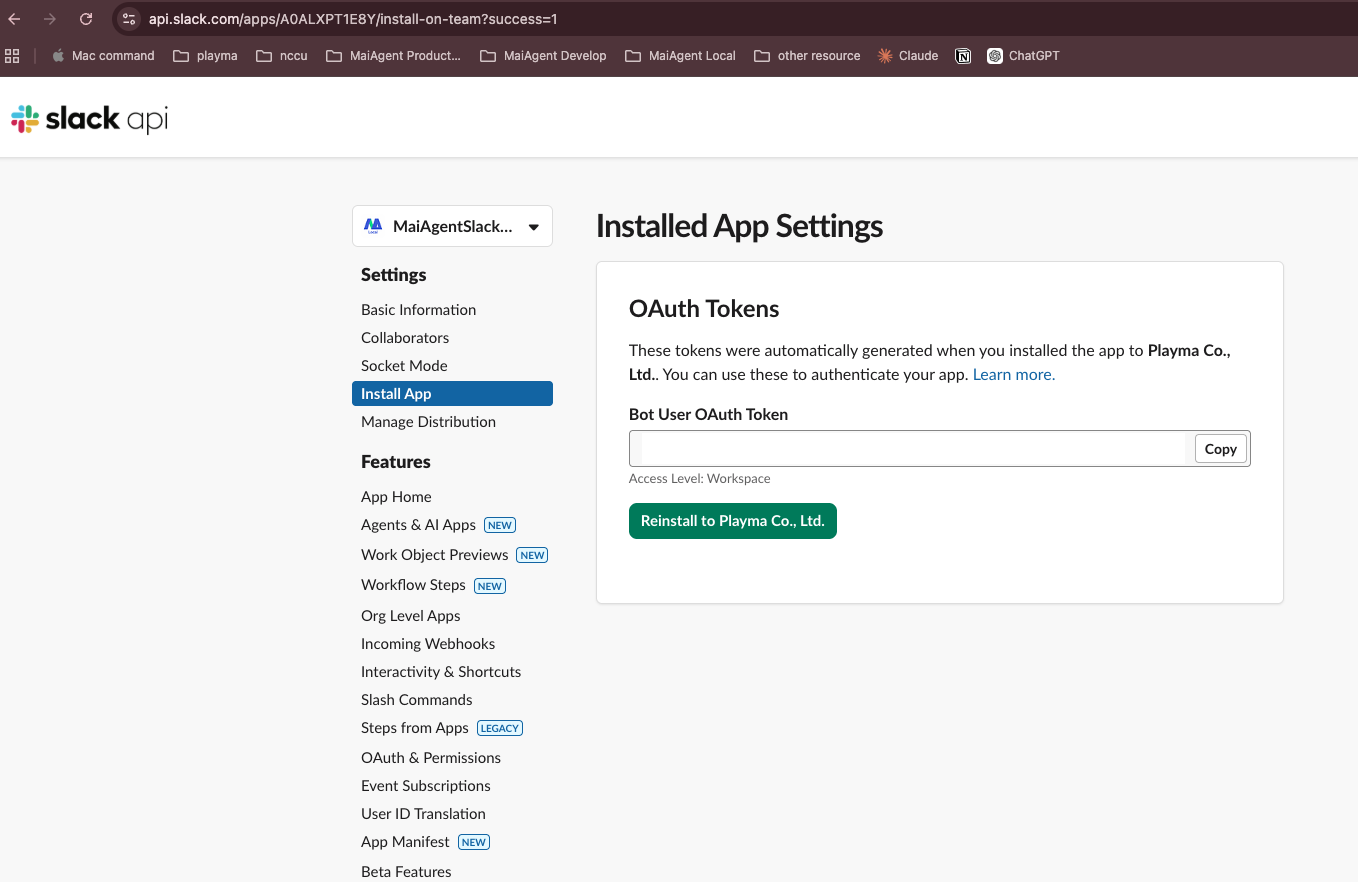
### 4. Bot User OAuth Token をコピーする <a href="#step-copy-bot-user-oauth-token" id="step-copy-bot-user-oauth-token"></a>

インストールが完了したら、<mark style="color:blue;">OAuth & Permissions</mark> ページに戻り、<mark style="color:blue;">Bot User OAuth Token</mark>（形式は `xoxb-...`）をコピーします。

<figure><img src="https://2584873290-files.gitbook.io/~/files/v0/b/gitbook-x-prod.appspot.com/o/spaces%2FTvHx8hgwYGDTLD3A7xoW%2Fuploads%2Fgit-blob-0497bc9b32949a666883cab21c8da7cdbc013795%2Fslack-bot-token.png?alt=media" alt=""><figcaption><p>Bot User OAuth Token をコピー</p></figcaption></figure>

***

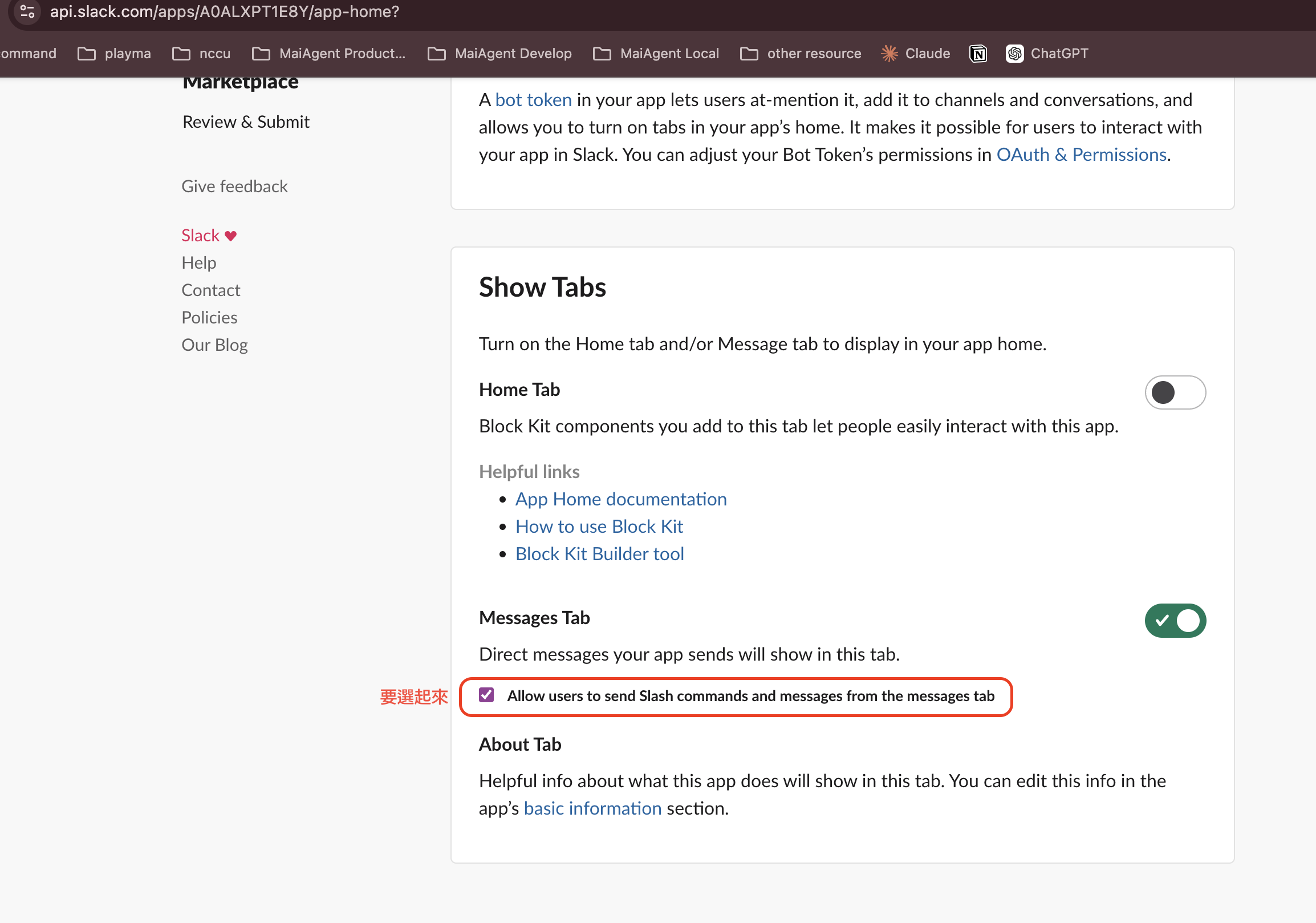
## 手順 3：App Home を設定する（ダイレクトメッセージの有効化） <a href="#step-configure-app-home" id="step-configure-app-home"></a>

左側のメニューから <mark style="color:blue;">App Home</mark> ページを開き、**Show Tabs** セクションで次の操作を行います。

1. <mark style="color:blue;">Messages Tab</mark> をオンにする
2. <mark style="color:blue;">Allow users to send Slash commands and messages from the messages tab</mark> にチェックを入れる

<figure><img src="https://2584873290-files.gitbook.io/~/files/v0/b/gitbook-x-prod.appspot.com/o/spaces%2FTvHx8hgwYGDTLD3A7xoW%2Fuploads%2Fgit-blob-2d94bf960a8fc3380a7d7558b963b1047874fd5e%2Fslack-app-home-messages.png?alt=media" alt=""><figcaption><p>Messages Tab を有効にして、ユーザーが Bot にダイレクトメッセージを送れるようにする</p></figcaption></figure>

{% hint style="warning" %}
この手順は必ず完了してください。完了していないと、ユーザーはダイレクトメッセージで Bot とやり取りできません。
{% endhint %}

***

## 手順 4：MaiAgent で Slack チャットプラットフォームを作成する <a href="#step-create-slack-channel-in-maiagent" id="step-create-slack-channel-in-maiagent"></a>

### 1. チャットプラットフォーム連携を開く <a href="#step-go-to-channel-integration" id="step-go-to-channel-integration"></a>

MaiAgent の左側のメニューで <mark style="color:blue;">チャットプラットフォーム</mark>をクリックし、右上の<mark style="color:blue;">チャットプラットフォームを連携</mark>をクリックして、<mark style="color:blue;">Slack</mark> を選択します。

### 2. 基本設定を入力する <a href="#step-fill-basic-settings" id="step-fill-basic-settings"></a>

| 項目                       | 説明                                    |
| ------------------------ | ------------------------------------- |
| **名前**                   | この連携の名前を付けます（必須）                      |
| **AI アシスタント**            | 紐付ける Agent を選択します                     |
| **Bot User OAuth Token** | 手順 2 で取得した Bot Token を貼り付けます（必須）      |
| **Signing Secret**       | 手順 1 で取得した Signing Secret を貼り付けます（必須） |

### 3. 認証情報を検証する <a href="#step-verify-credentials" id="step-verify-credentials"></a>

<mark style="color:blue;">認証情報を検証</mark>ボタンをクリックして、Token と Secret が正しいことを確認します。

### 4. チャットルームの設定 <a href="#step-chat-room-settings" id="step-chat-room-settings"></a>

| 設定                          | 説明                                         |
| --------------------------- | ------------------------------------------ |
| **グループでは @ メンションされたときのみ応答** | オンにすると、Bot はグループチャンネルで @ メンションされたときのみ応答します |
| **リセットコマンドを有効化**            | オンにすると、ユーザーはコマンドで会話を最初からやり直せます             |

### 5. 保存して Webhook URL を取得する <a href="#step-save-and-get-webhook-url" id="step-save-and-get-webhook-url"></a>

<mark style="color:blue;">チャットプラットフォームを連携</mark>をクリックして作成を完了します。システムが **Webhook URL** を生成するので、後で使用するためにコピーします。

***

## 手順 5：Slack App に戻って Event Subscriptions を設定する <a href="#step-configure-event-subscriptions" id="step-configure-event-subscriptions"></a>

### 1. Events を有効にする <a href="#step-enable-events" id="step-enable-events"></a>

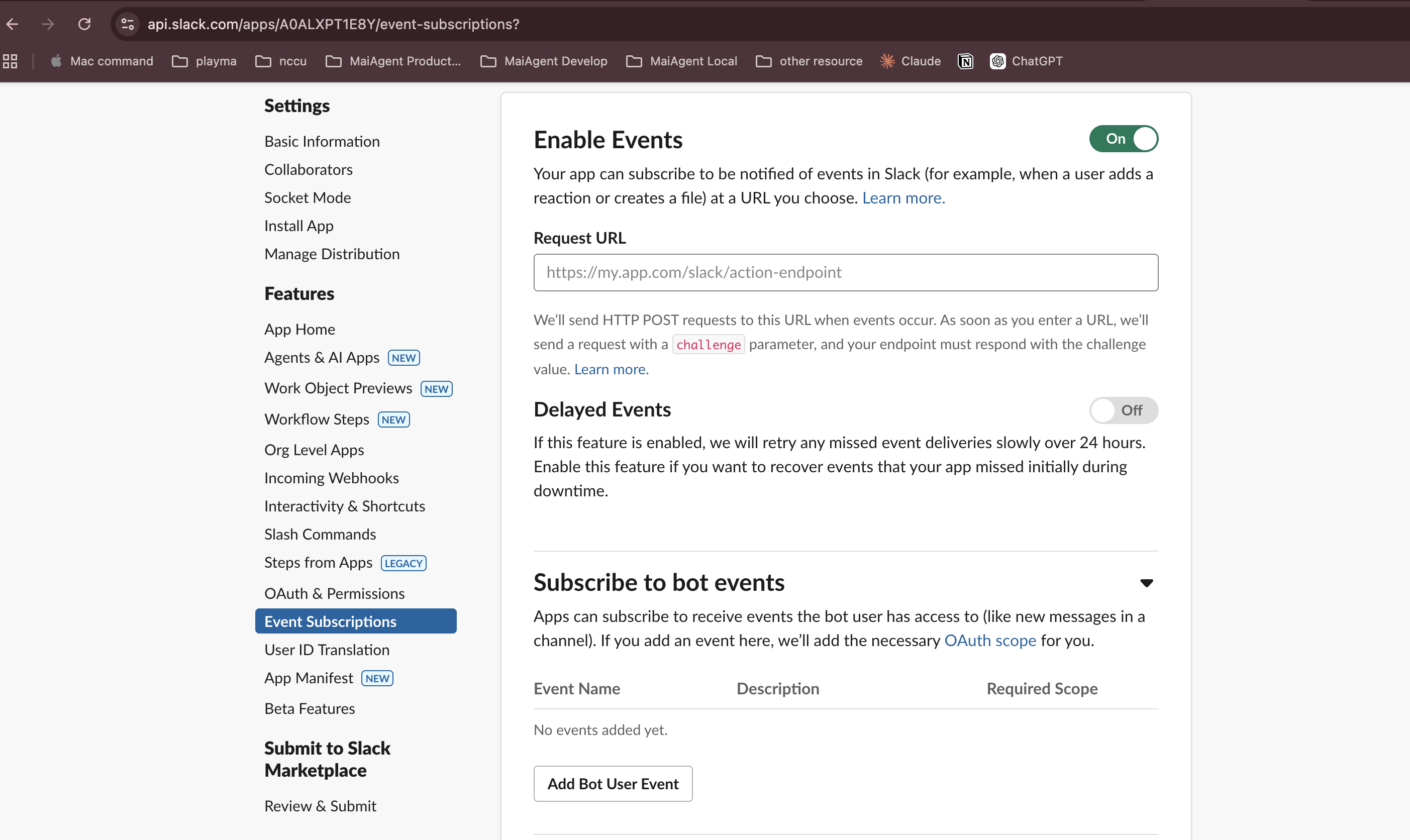
Slack App の左側のメニューで <mark style="color:blue;">Event Subscriptions</mark> をクリックし、<mark style="color:blue;">Enable Events</mark> をオンにします。

<figure><img src="https://2584873290-files.gitbook.io/~/files/v0/b/gitbook-x-prod.appspot.com/o/spaces%2FTvHx8hgwYGDTLD3A7xoW%2Fuploads%2Fgit-blob-589c809a1adab5265cedad08dadedf9699b1cfeb%2Fslack-event-subscriptions.png?alt=media" alt=""><figcaption><p>Event Subscriptions の設定ページ</p></figcaption></figure>

### 2. Request URL を貼り付ける <a href="#step-paste-request-url" id="step-paste-request-url"></a>

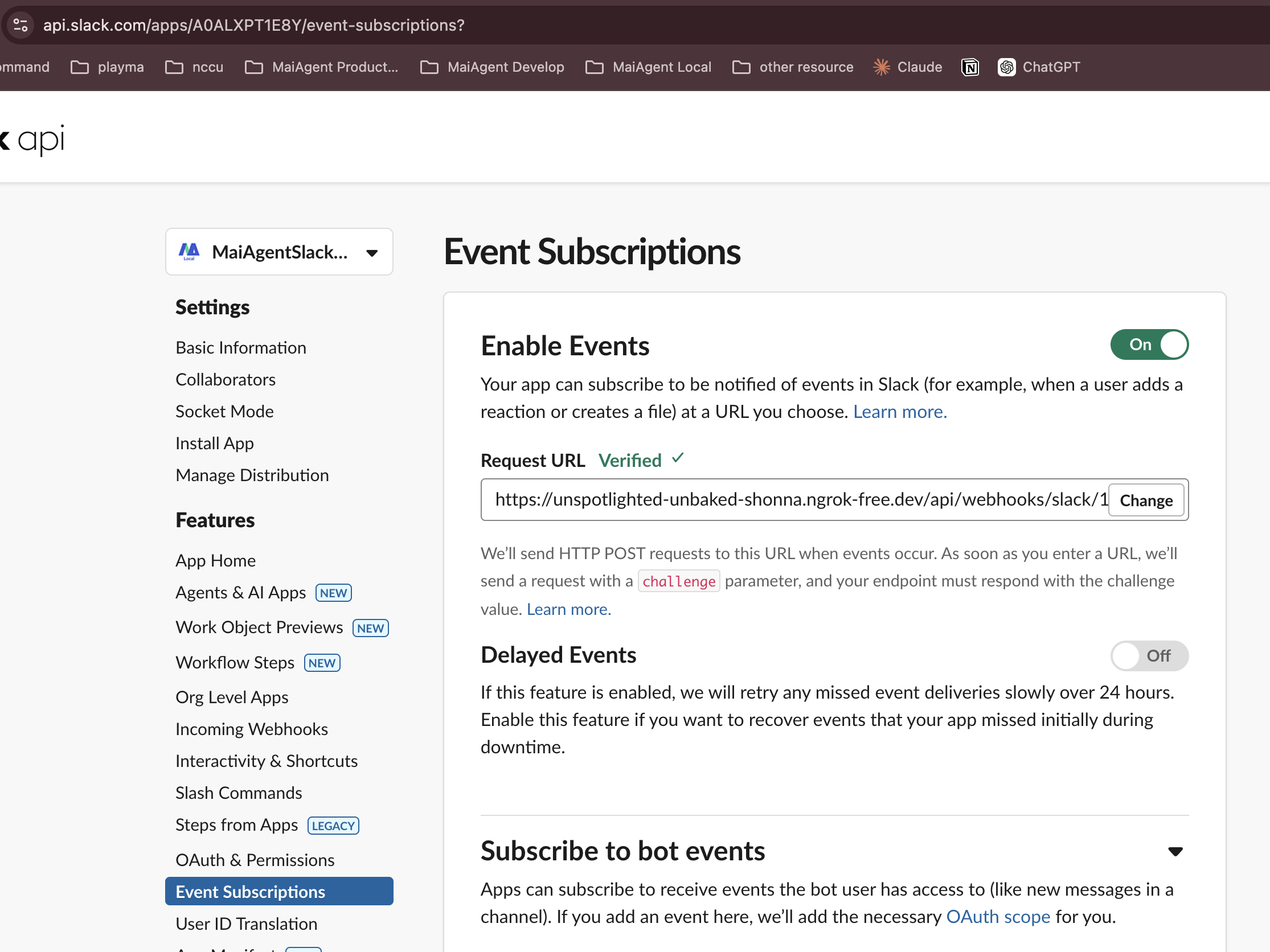
MaiAgent が生成した **Webhook URL** を <mark style="color:blue;">Request URL</mark> 欄に貼り付けます。Slack が自動的に検証し、<mark style="color:green;">Verified ✓</mark> と表示されれば設定は成功です。

<figure><img src="https://2584873290-files.gitbook.io/~/files/v0/b/gitbook-x-prod.appspot.com/o/spaces%2FTvHx8hgwYGDTLD3A7xoW%2Fuploads%2Fgit-blob-0166cb7b78b16d9424fb3d506b972ab76f6ed744%2Fslack-event-verified.png?alt=media" alt=""><figcaption><p>Request URL の検証に成功</p></figcaption></figure>

### 3. Bot Events をサブスクライブする <a href="#step-subscribe-bot-events" id="step-subscribe-bot-events"></a>

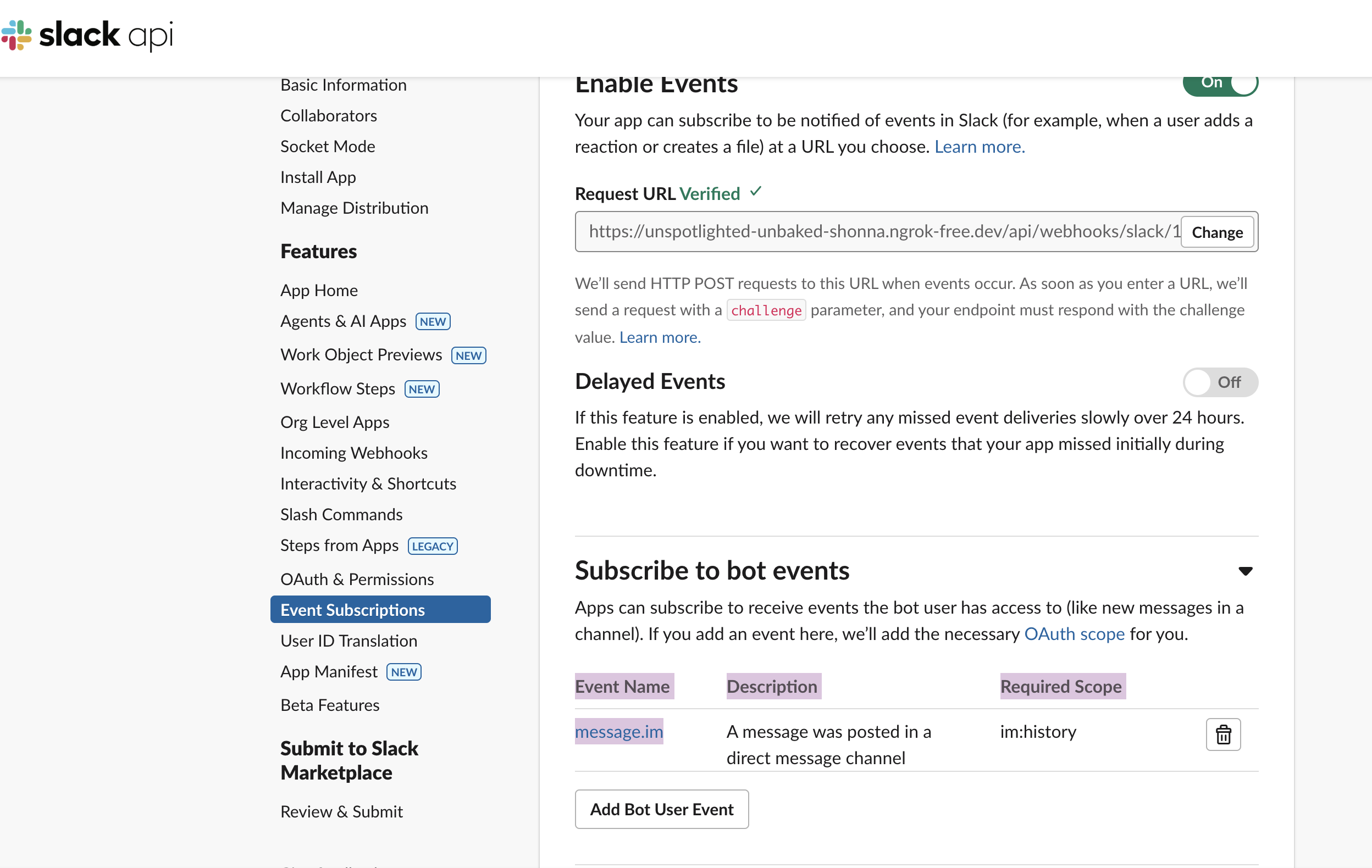
**Subscribe to bot events** セクションを展開し、<mark style="color:blue;">Add Bot User Event</mark> をクリックして、以下のイベントを追加します。

| Event              | 説明                     |
| ------------------ | ---------------------- |
| `message.im`       | ダイレクトメッセージの新着メッセージ     |
| `message.channels` | パブリックチャンネルの新着メッセージ     |
| `message.groups`   | プライベートチャンネルの新着メッセージ    |
| `message.mpim`     | グループダイレクトメッセージの新着メッセージ |
| `app_mention`      | チャンネルで @ メンションされた      |

<figure><img src="https://2584873290-files.gitbook.io/~/files/v0/b/gitbook-x-prod.appspot.com/o/spaces%2FTvHx8hgwYGDTLD3A7xoW%2Fuploads%2Fgit-blob-a739fd3cc31beba2fbb8aa335c6a9ca7bb6fd79f%2Fslack-event-bot-events.png?alt=media" alt=""><figcaption><p>Bot Events のサブスクライブ</p></figcaption></figure>

### 4. 変更を保存する <a href="#step-save-changes" id="step-save-changes"></a>

<mark style="color:blue;">Save Changes</mark> をクリックして設定を完了します。

{% hint style="warning" %}
保存後、Slack から App の再インストールを求められることがあります。ページ上部の通知をクリックして再インストールし、新しい権限を適用してください。
{% endhint %}

***

## 使い始める <a href="#getting-started" id="getting-started"></a>

連携が完了すると、次の方法で Agent とやり取りできます。

### ダイレクトメッセージでの会話 <a href="#direct-message-conversation" id="direct-message-conversation"></a>

Slack で Bot にダイレクトメッセージを送ると、Agent が自動的に返信します。テキスト、画像、ファイルの送信に対応しています。

### ファイルのアップロードと分析 <a href="#file-upload-and-analysis" id="file-upload-and-analysis"></a>

ユーザーは会話の中で Excel や PDF などのファイルをアップロードでき、Agent はファイルの内容を読み取って関連する質問に回答できます。

### チャンネルでの @ メンション <a href="#channel-mention" id="channel-mention"></a>

チャンネルで `@Bot名 ご質問内容` と入力すると、Agent がチャンネル内で返信します。

{% hint style="info" %}
Bot を特定のチャンネルに追加するには、そのチャンネルで `/invite @Bot名` と入力するか、チャンネル設定 → インテグレーション → アプリを追加 から追加してください。
{% endhint %}


---

# Agent Instructions
This documentation is published with GitBook. GitBook is the documentation platform designed so that both humans and AI agents can read, navigate, and reason over technical content effectively. Learn more at gitbook.com.

## Querying This Documentation
If you need additional information that is not directly available in this page, you can query the documentation by asking a question.

Perform an HTTP GET request on the following URL with the `ask` and `goal` query parameters:

```
GET https://docs.maiagent.ai/maiagent-user-guide/ja/build/choose-channel/slack.md?ask=<question>&goal=<user_goal>
```

`ask` is the immediate question: it should be specific, self-contained, and written in natural language.
`goal` is what the user is ultimately trying to achieve, the reason they need the answer. Sharing it helps GitBook give you a better, more relevant answer. A goal is most helpful when it describes the outcome the user wants rather than restating the question. For example, with `ask=how do I create an API token`, a goal like `automate deployments from our CI pipeline` lets GitBook tailor the answer to that use case.

The response will contain a direct answer to the question and relevant excerpts and sources from the documentation.

Use this mechanism when the answer is not explicitly present in the current page, you need clarification or additional context, or you want to retrieve related documentation sections.