> For the complete documentation index, see [llms.txt](https://docs.maiagent.ai/llms.txt). Markdown versions of documentation pages are available by appending `.md` to page URLs; this page is available as [Markdown](https://docs.maiagent.ai/maiagent-user-guide/en/work/meeting-records/summary.md).

# AI Meeting Summaries and Q\&A

AI meeting summary and Q\&A: generate summaries with the default template or a custom Agent, manage summary versions, copy and read aloud, ask questions about meeting content, and connect an Agent to c

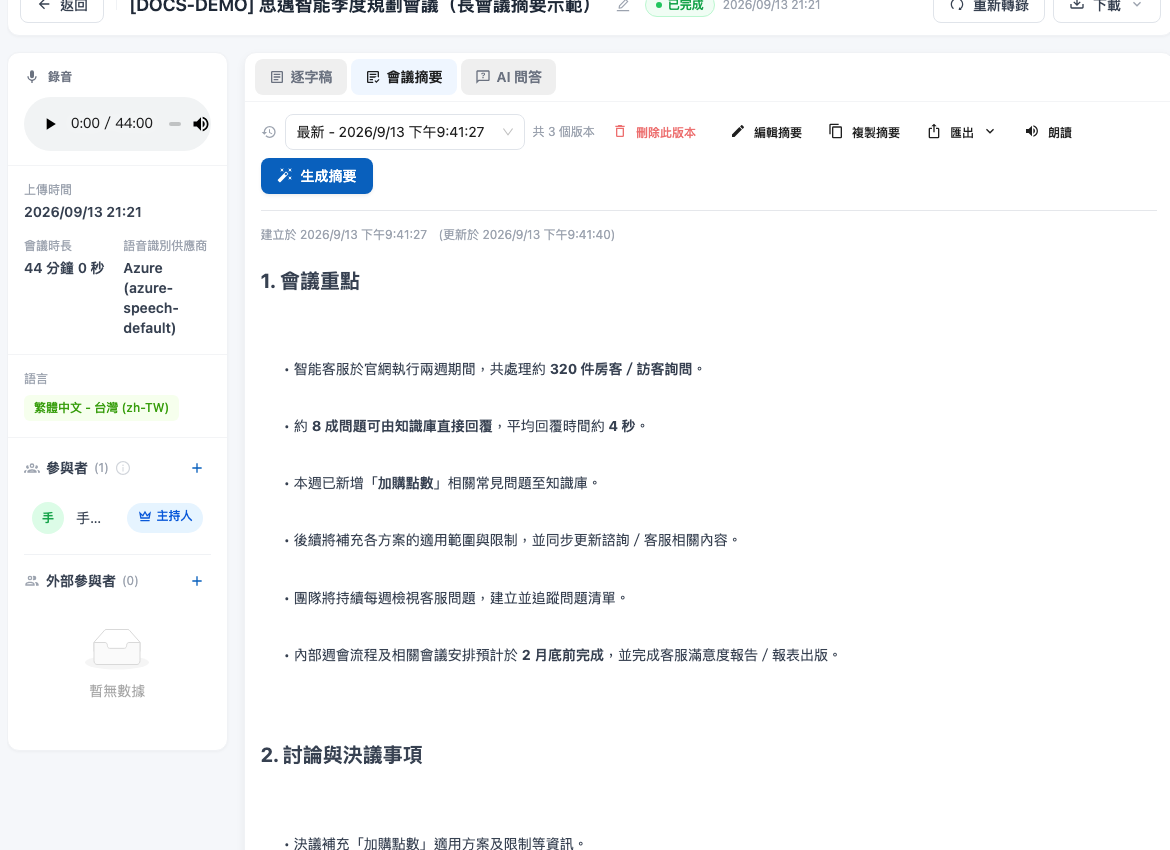
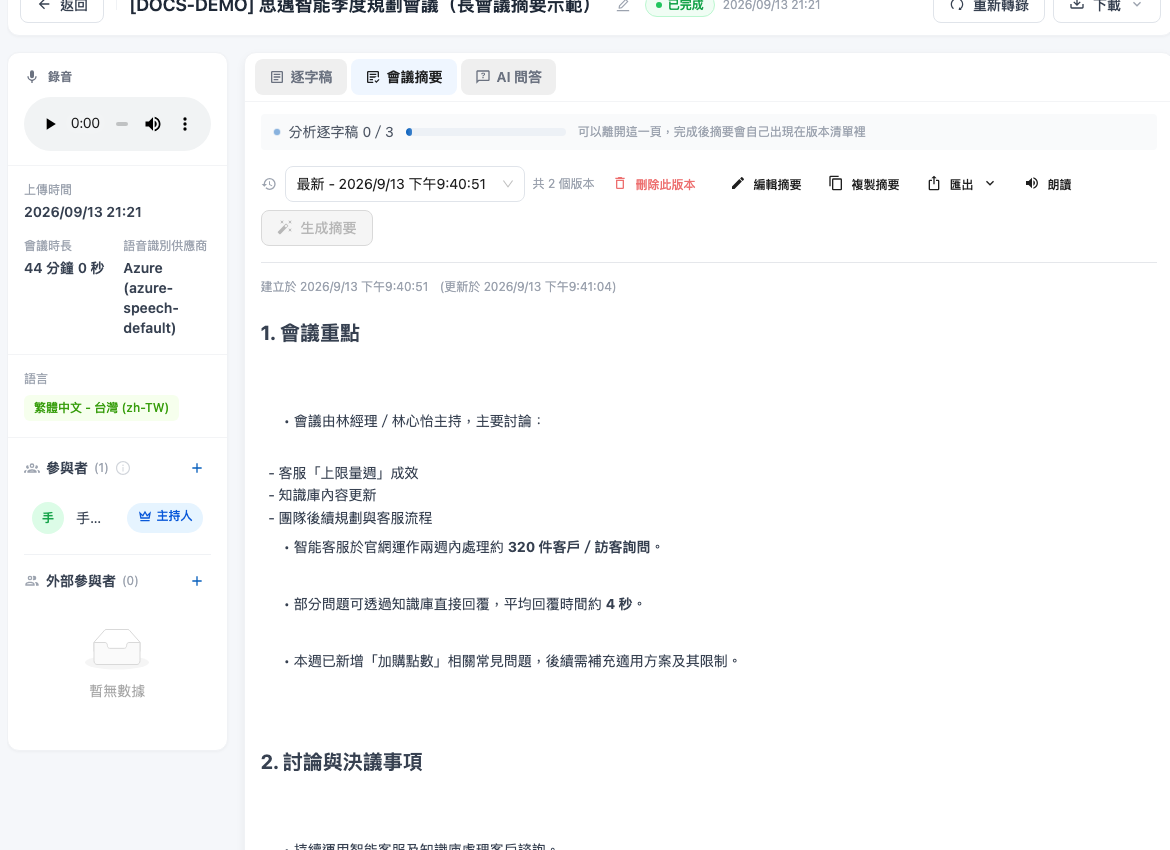
Meeting summaries are processed in the background, so you don't have to stay on the summary page and wait for long meetings. You can leave the page while a summary is being generated and come back later to check progress. When processing finishes, the summary is created as a new version.

## Use Case <a href="#summary-scenario" id="summary-scenario"></a>

A project manager has just finished a long quarterly meeting and wants to organize the decisions before the end of the day. She goes to the <mark style="color:blue;">Meeting Summary</mark> tab for that meeting and starts generating a summary with the default template. After seeing that the system is analyzing the transcript, she leaves the page to work on something else. When she returns to the same meeting later, the screen continues to show the progress. Once processing is complete, she can review the decisions and to-dos in the newly created summary version.

## Custom Summary Agent <a href="#custom-summary-agent" id="custom-summary-agent"></a>

The summary feature for meeting records lets you choose a custom Agent to generate summaries. Different Agents can have different role instructions and produce summaries in different styles:

* **General Summary Agent**: Organizes key points, decisions, and to-dos from the meeting
* **Technical Meeting Agent**: Focuses on technical decisions, architecture discussions, and technical debt items
* **Business Meeting Agent**: Focuses on customer needs, sales progress, and opportunity tracking

## Generate a Summary <a href="#auto-generate-summary" id="auto-generate-summary"></a>

1. Go to the meeting details page
2. Switch to the <mark style="color:blue;">Meeting Summary</mark> tab
3. Click <mark style="color:blue;">Generate Summary</mark>, and in the dialog that appears, configure how to summarize this time (you can leave everything at the defaults)
4. Click <mark style="color:blue;">Start Generating</mark>

### Fields in the "Generate Summary" Dialog <a href="#generate-summary-options" id="generate-summary-options"></a>

| Field                                                 | Description                                                                                                                                                                                                                                                                                                                                                                                                                                                                                                                            |
| ----------------------------------------------------- | -------------------------------------------------------------------------------------------------------------------------------------------------------------------------------------------------------------------------------------------------------------------------------------------------------------------------------------------------------------------------------------------------------------------------------------------------------------------------------------------------------------------------------------- |
| <mark style="color:blue;">Transcript Source</mark>    | Use this meeting's own transcript. If a backup transcript is available, you can switch to the backup version. The two have different timelines; see [Meeting Record Backup Audio](/maiagent-user-guide/en/work/meeting-records/backup-audio.md)                                                                                                                                                                                                                                                                                        |
| <mark style="color:blue;">Summary Agent</mark>        | Leave empty to use the default template. To customize the style, select an Agent (see [Custom Summary Agent](#custom-summary-agent) below). Once an Agent is selected, the next two fields switch to using that Agent's own model and prompt                                                                                                                                                                                                                                                                                           |
| <mark style="color:blue;">Language Model</mark>       | The model the default template uses to generate the summary. Leave empty to use the default model. If the list fails to load, the message "Failed to load the language model list. The default model will be used for generation" appears                                                                                                                                                                                                                                                                                              |
| <mark style="color:blue;">Summary Instructions</mark> | Optional. Additional requirements for the default template, such as focusing on a specific topic or specifying an output format. Three examples below can be applied with one click: <mark style="color:blue;">Meeting Minutes</mark> (bulleted key points, discussions, and decisions, with owners and deadlines noted), <mark style="color:blue;">Action Items</mark> (only to-dos, including owners, deadlines, and resources), and <mark style="color:blue;">Executive Summary</mark> (an executive summary of 300 words or fewer) |

The AI organizes the key points, decisions, and to-dos of the meeting based on the full transcript. When using the default template, the screen shows <mark style="color:blue;">Analyzing transcript N/M</mark> followed by the status of consolidating the summary, where N is the number of completed segments and M is the total number of segments. When a custom Agent is selected, the Agent processes the transcript directly and no segment N/M progress is shown.

Whether you use the default template or a custom Agent, you can leave the page and the work continues in the background. When you refresh or return to this meeting later, the system continues to show the current status.

<figure><img src="https://1360999650-files.gitbook.io/~/files/v0/b/gitbook-x-prod.appspot.com/o/spaces%2F6v6TNkkOQVfRYfcNirHL%2Fuploads%2Fgit-blob-61d8c4726b9e278842929b724ea85d69c6faa538%2Fmeeting-summary-progress.png?alt=media" alt="The Meeting Summary tab of a long meeting showing Analyzing transcript 0/3 and a progress bar"><figcaption><p>After leaving the page and coming back, you can still see the segment progress of the default template</p></figcaption></figure>

<figure><img src="https://1360999650-files.gitbook.io/~/files/v0/b/gitbook-x-prod.appspot.com/o/spaces%2F6v6TNkkOQVfRYfcNirHL%2Fuploads%2Fgit-blob-cbcb02b8196e7519846ac89827588c029712f6b4%2Fmeeting-detail-summary.png?alt=media" alt="After the summary of a long meeting is complete, the latest version is shown along with three versions in total"><figcaption><p>After the summary is complete, the new version appears in the version list</p></figcaption></figure>

{% hint style="info" %}
When a summary is complete, a new version is created automatically and you don't need to save it separately. If generation fails, the screen prompts you to retry. After confirming that the transcript is available, click <mark style="color:blue;">Regenerate</mark> again.
{% endhint %}

## Summary Version Management <a href="#summary-version-management" id="summary-version-management"></a>

Each time a summary is generated or edited, the system keeps a complete version history:

* **Add a summary**: Each time you generate a summary, a new version is created
* **Edit a summary**: You can modify the content of an existing summary
* **Version history**: View all summary versions and when they were created
* **Delete a summary**: Remove summary versions you no longer need

## Copy a Summary <a href="#copy-summary" id="copy-summary"></a>

When viewing a saved summary, a <mark style="color:blue;">Copy Summary</mark> button appears in the toolbar above the summary. One click copies the entire summary to the clipboard, so you don't have to drag to select the full text manually, which makes it easy to paste into an email, document, or messaging app.

1. Go to the meeting details page and switch to the "Meeting Summary" tab
2. Select a saved summary
3. Click <mark style="color:blue;">Copy Summary</mark>
4. After the "Copied successfully" message appears, paste it into another application

<figure><img src="https://1360999650-files.gitbook.io/~/files/v0/b/gitbook-x-prod.appspot.com/o/spaces%2F6v6TNkkOQVfRYfcNirHL%2Fuploads%2Fgit-blob-558d2684a9c9471306571d306d3a3e3d7e4663cd%2Fmeeting-summary-copy.png?alt=media" alt="The Copy Summary button on the toolbar of the Meeting Summary tab"><figcaption><p>The toolbar of the "Meeting Summary" tab</p></figcaption></figure>

The copied content is the raw text of the summary, and the original paragraph structure is preserved.

{% hint style="info" %} <mark style="color:blue;">Copy Summary</mark> is available only when viewing a saved summary. It does not appear in the toolbar when you are editing a summary or previewing an unsaved draft. When the summary is empty, the button is disabled.
{% endhint %}

If the screen shows "Copy failed," it is usually because the browser blocked clipboard permission. Please select and copy the text manually instead.

## Export a Summary and Send by Email <a href="#export-summary" id="export-summary"></a>

To save a summary as a file or send it directly, use the <mark style="color:blue;">Export</mark> dropdown next to <mark style="color:blue;">Copy Summary</mark>:

| Option                                                | What You Get                                                                                                                                                                                                                                                                                                                                                                |
| ----------------------------------------------------- | --------------------------------------------------------------------------------------------------------------------------------------------------------------------------------------------------------------------------------------------------------------------------------------------------------------------------------------------------------------------------- |
| <mark style="color:blue;">Export as Markdown</mark>   | An `.md` file that keeps headings, bullet lists, and other formatting; suitable for pasting into tools that support Markdown, such as Notion and GitHub                                                                                                                                                                                                                     |
| <mark style="color:blue;">Export as PDF</mark>        | A PDF whose layout matches the screen; suitable for forwarding or archiving as is                                                                                                                                                                                                                                                                                           |
| <mark style="color:blue;">Export as docx</mark>       | A Word file; suitable when you need to edit it further                                                                                                                                                                                                                                                                                                                      |
| <mark style="color:blue;">Export as Plain Text</mark> | A `.txt` file without any formatting symbols                                                                                                                                                                                                                                                                                                                                |
| <mark style="color:blue;">Send Email</mark>           | Opens the email app on your computer, with the subject "{Meeting Name} Meeting Summary" and the summary filled in as the body; enter the recipient yourself. If the summary is too long to fit in an email, the body includes the note "(Content too long. Please use Export for the full summary)"; in that case, use the export options above and attach the file instead |

The export applies to **the version you are currently viewing**. The file is downloaded by the browser, and "Export successful" appears when it finishes. Downloading transcripts and audio files is done from the title bar of the details page; see [Download and Knowledge Base Integration](/maiagent-user-guide/en/work/meeting-records/download-and-export.md).

## Read a Summary Aloud <a href="#read-aloud-summary" id="read-aloud-summary"></a>

When reading isn't convenient, you can have the system read the summary aloud. When viewing a saved summary, a <mark style="color:blue;">Read Aloud</mark> button appears in the toolbar. Click it to play the summary content as speech.

1. Go to the meeting details page and switch to the "Meeting Summary" tab
2. Select a saved summary
3. Click <mark style="color:blue;">Read Aloud</mark>; the button shows "Preparing…" and playback starts shortly
4. During playback, click <mark style="color:blue;">Pause</mark> to pause, <mark style="color:blue;">Resume</mark> to continue, or <mark style="color:blue;">Stop</mark> to end

<figure><img src="https://1360999650-files.gitbook.io/~/files/v0/b/gitbook-x-prod.appspot.com/o/spaces%2F6v6TNkkOQVfRYfcNirHL%2Fuploads%2Fgit-blob-dbbc0c6b9faadebe54b82a231fe8b5291fc9d906%2Fmeeting-summary-read-aloud.png?alt=media" alt="The Pause and Stop buttons during playback"><figcaption><p>During playback, "Read Aloud" changes to "Pause" and "Stop"</p></figcaption></figure>

Before reading aloud, the system automatically removes Markdown symbols (such as `#`, `*`, and `-`) from the summary, so the symbols are not read out.

### Read-Aloud Voices and Supported Languages <a href="#read-aloud-languages" id="read-aloud-languages"></a>

The read-aloud voice is determined by **the speech or target translation language of the meeting**, not by the actual content of the summary. The following seven languages are currently supported:

| Language                     | Language Code |
| ---------------------------- | ------------- |
| Traditional Chinese (Taiwan) | `zh-TW`       |
| English (US)                 | `en-US`       |
| Japanese                     | `ja-JP`       |
| Korean                       | `ko-KR`       |
| Thai                         | `th-TH`       |
| Indonesian                   | `id-ID`       |
| Vietnamese                   | `vi-VN`       |

{% hint style="warning" %}
If the meeting language is not in the list above (for example, Simplified Chinese `zh-CN` or Cantonese `zh-HK`), the toolbar shows a message such as "... is not currently supported. The default language will be used for reading aloud." You can still use read aloud, but a Traditional Chinese voice is used instead.
{% endhint %}

### Limitations <a href="#read-aloud-limits" id="read-aloud-limits"></a>

* <mark style="color:blue;">Read Aloud</mark> is available only when viewing a saved summary; it does not appear when you are editing a summary or previewing an unsaved draft
* When the summary is empty, the button is disabled
* Playback stops automatically when you switch summary versions or leave the "Meeting Summary" tab, so no sound keeps playing in the background
* If the browser does not support speech playback, the button is not shown
* If playback fails, "Read aloud failed. Please try again later" appears; you can try again later

## AI Q\&A <a href="#ai-qa" id="ai-qa"></a>

In addition to summaries, you can also ask questions directly about the transcript content:

1. Switch to the "AI Q\&A" tab
2. Select the Agent to use
3. Enter a question (for example, "What decisions were made in this meeting?" or "What are the next action items?")
4. The AI finds the relevant content in the transcript and answers

This feature is especially useful for quickly reviewing specific parts of a long meeting without rereading the entire transcript.

## Connect an Agent to Create Tickets <a href="#connect-agent-ticket-creation" id="connect-agent-ticket-creation"></a>

After a meeting, someone usually has to manually move the to-dos and decisions into a project management or ticketing system. You can have an Agent take over this step: in the <mark style="color:blue;">AI Q\&A</mark> tab, ask it to create tasks or tickets directly from the items agreed upon in the meeting.

{% hint style="info" %}
Meeting records do not have a standalone "create ticket" button. <mark style="color:blue;">AI Q\&A</mark> uses a full Agent conversation, so **as long as the selected Agent is configured with a tool that can create tickets, you can ask it to create tickets in the conversation**. The ticket creation capability comes from the Agent, not from the meeting record.
{% endhint %}

### How It Works <a href="#ticket-how-it-works" id="ticket-how-it-works"></a>

| Step                                     | Description                                                                                                             |
| ---------------------------------------- | ----------------------------------------------------------------------------------------------------------------------- |
| **① Meeting transcript**                 | Meeting transcription is complete, and the transcript has been uploaded to the knowledge base and parsed                |
| **② Select an Agent**                    | In the <mark style="color:blue;">AI Q\&A</mark> tab, select an Agent that has a ticket creation tool configured         |
| **③ Give a ticket creation instruction** | For example, "List the to-dos from this meeting and create a ticket for each one"                                       |
| **④ The Agent calls a tool**             | Following the field mapping and ticket creation rules in the role instructions, the Agent calls an API tool or MCP tool |
| **⑤ Tickets are created**                | The tickets are written to your company's ticketing or project management system                                        |
| **⑥ Results are reported**               | The Agent reports the number and link of each ticket in the conversation                                                |

### Prerequisites <a href="#ticket-prerequisites" id="ticket-prerequisites"></a>

| Requirement                                                                      | Description                                                                                                                                                                                                                                                                                                                                                                                                                                                                                                                                              |
| -------------------------------------------------------------------------------- | -------------------------------------------------------------------------------------------------------------------------------------------------------------------------------------------------------------------------------------------------------------------------------------------------------------------------------------------------------------------------------------------------------------------------------------------------------------------------------------------------------------------------------------------------------- |
| **The meeting is linked to a knowledge base and the transcript has been parsed** | <mark style="color:blue;">AI Q\&A</mark> can be used only after the transcript is in the knowledge base. You can link a knowledge base when you [create the meeting](/maiagent-user-guide/en/work/meeting-records/create-meeting.md); if you didn't set one then, you can also select a knowledge base in the <mark style="color:blue;">AI Q\&A</mark> tab and click <mark style="color:blue;">Upload Transcript</mark>. For details, see [Download and Knowledge Base Integration](/maiagent-user-guide/en/work/meeting-records/download-and-export.md) |
| **An Agent with a ticket creation tool configured**                              | It is the tool, not the meeting record, that actually calls the ticketing system. See the steps below for how to set it up                                                                                                                                                                                                                                                                                                                                                                                                                               |
| **A ticketing system that provides a callable API**                              | MaiAgent communicates with external systems through API tools or MCP tools and is not limited to a specific vendor; any system that exposes an API for creating tickets can be integrated                                                                                                                                                                                                                                                                                                                                                                |

### Setup Steps <a href="#ticket-setup" id="ticket-setup"></a>

1. **Create a ticket creation tool**: On the <mark style="color:blue;">Tools</mark> page, click <mark style="color:blue;">Add API Tool</mark> and configure your company's ticketing system "create ticket" API (you can paste a cURL command directly, and the system automatically parses the URL, headers, and HTTP method). For details, see [Create an API Tool](/maiagent-user-guide/en/build/tools/setup_api_tool.md). If the other side provides an MCP server, you can use an [MCP tool](/maiagent-user-guide/en/build/tools/mcp-setup.md) instead.
2. **Assign the tool to the Agent**: Add the tool you just created to the Agent's available tools list. See [Configure Tools for an Agent](/maiagent-user-guide/en/build/tools/configure_tools.md).
3. **Write clear ticket creation rules in the role instructions**: Whether the AI calls the tool at the right time and how it fills in the fields depends on the role instructions. Refer to the example below; for writing principles, see the [Role Instruction Design Guide](/maiagent-user-guide/en/build/agent/system-prompt.md).
4. **Use it in a meeting**: Go to the <mark style="color:blue;">AI Q\&A</mark> tab on the meeting details page, select this Agent, and give an instruction directly, for example, "List the to-dos from this meeting and create a ticket for each one."

{% hint style="warning" %}
Creating tickets is an action that writes to an external system. We recommend first verifying the field mapping with a test project or test environment before switching to the production ticketing system.
{% endhint %}

### Role Instruction Example <a href="#ticket-prompt-example" id="ticket-prompt-example"></a>

```
# Role
You are a ticket creation assistant for meeting action items.

# Task
The user will ask you to create tickets based on the meeting transcript. Follow the process below:

1. Identify clear to-dos and decisions from the transcript, and ignore pure discussion and items that have not been finalized
2. Organize each to-do into one ticket, with the following field mapping:
   - Title: A one-sentence description of what needs to be done, within 30 characters
   - Description: Add the background and rationale mentioned in the meeting
   - Owner: The person explicitly assigned in the transcript
   - Due date: The date explicitly mentioned in the transcript
3. Before calling the tool, list the organized tickets for the user to confirm, and create them only after receiving approval
4. After creation is complete, report the number and link of each ticket

# Constraints
- Create tickets only based on the transcript content, and do not add tasks that were not discussed
- If the owner or due date cannot be determined from the transcript, leave it blank and note it in the reply; do not guess
- When the same item is mentioned multiple times in the meeting, merge them into one ticket
```

### Verification and Troubleshooting <a href="#ticket-troubleshooting" id="ticket-troubleshooting"></a>

You can view the parameters the tool actually received and the results it returned in AgentOps [Tool Execution Records](/maiagent-user-guide/en/build/agent-ops/tool-execution-records.md). This is the fastest way to troubleshoot ticket creation issues.

| Problem                                                     | Cause and Solution                                                                                                                                                                                  |
| ----------------------------------------------------------- | --------------------------------------------------------------------------------------------------------------------------------------------------------------------------------------------------- |
| <mark style="color:blue;">AI Q\&A</mark> is unavailable     | The meeting is not yet linked to a knowledge base, or the transcript is still being parsed. Select a knowledge base on that tab and upload the transcript, then try again after parsing is complete |
| The AI listed the to-dos but didn't actually create tickets | The tool was not added to the Agent's tools list, or the role instructions don't explicitly require calling the tool. Check steps 2 and 3                                                           |
| Ticket creation failed                                      | Check the error message in the tool execution records. Common causes are missing required fields, expired authentication, or insufficient permissions                                               |
| Ticket field contents are incorrect                         | Make the field mapping rules in the role instructions more specific, and explicitly instruct the Agent to leave fields blank instead of guessing when it cannot determine them                      |
| The AI's answer is unrelated to this meeting                | The currently selected Agent may not be linked to this meeting's knowledge base, and a reminder appears in the interface. Switch to an Agent that is linked                                         |


---

# Agent Instructions
This documentation is published with GitBook. GitBook is the documentation platform designed so that both humans and AI agents can read, navigate, and reason over technical content effectively. Learn more at gitbook.com.

## Querying This Documentation
If you need additional information that is not directly available in this page, you can query the documentation by asking a question.

Perform an HTTP GET request on the following URL with the `ask` and `goal` query parameters:

```
GET https://docs.maiagent.ai/maiagent-user-guide/en/work/meeting-records/summary.md?ask=<question>&goal=<user_goal>
```

`ask` is the immediate question: it should be specific, self-contained, and written in natural language.
`goal` is what the user is ultimately trying to achieve, the reason they need the answer. Sharing it helps GitBook give you a better, more relevant answer. A goal is most helpful when it describes the outcome the user wants rather than restating the question. For example, with `ask=how do I create an API token`, a goal like `automate deployments from our CI pipeline` lets GitBook tailor the answer to that use case.

The response will contain a direct answer to the question and relevant excerpts and sources from the documentation.

Use this mechanism when the answer is not explicitly present in the current page, you need clarification or additional context, or you want to retrieve related documentation sections.