Meeting Backup Audio
Live meeting records create a local backup audio file in the browser, preventing audio loss during network outages. Afterward, you can play it or use it to retranscribe missing sections.
Live meeting records send microphone audio over the network for cloud transcription. Previously, if a laptop lost its connection during a meeting, audio from the disconnected period could not be sent, leaving a gap in both the cloud recording and transcript. Backup audio fills this gap: when recording starts, the browser also records a local backup and uploads it in segments. Even if the network disconnects, local recording continues, and the segments upload automatically when the connection is restored. After the meeting, the system combines all segments into a complete backup audio file—the most complete recording in the system.
Use Case
A customer service manager uses a laptop in a conference room to record a product meeting with Live Transcription. Halfway through, the Wi-Fi becomes unstable. The transcript stops updating, but "Recording Local Backup" remains visible below the title, so she knows no audio is being lost and continues as usual. After clicking "Stop Recording," she sees "Backup Complete" on the meeting details page and switches the player to "Backup Audio" to confirm that the discussion during the outage is included. She then clicks "Retranscribe," changes the source to "Backup Audio," reviews the estimated cost, and confirms. A few minutes later, a backup version appears in the Transcript tab, where she can view the complete meeting without asking colleagues to reconstruct the missing section from memory.
Backup Status During Recording
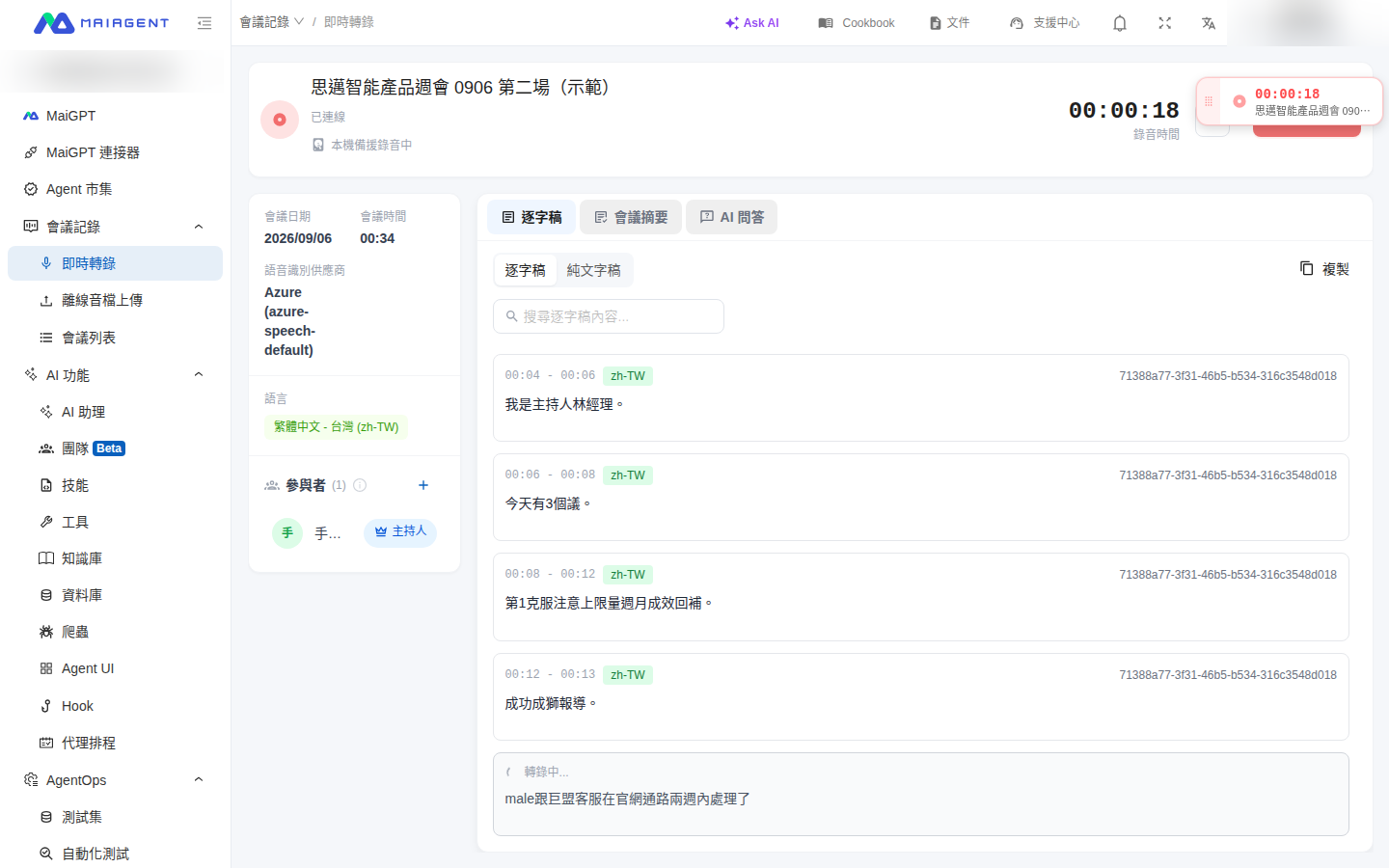
After you click Start Recording, the backup status appears below the meeting name:
Recording Local Backup
Cloud recording and local backup are running simultaneously; everything is working normally
Syncing Backup, N Segments Remaining
The network is unstable or disconnected. Recorded segments are queued locally and upload automatically when the connection is restored; no action is required
Local Backup Unavailable (Reason); Meeting Continues Normally
Backup cannot be enabled (for example, the browser is unsupported, browser storage is unavailable, or another tab is already recording). The meeting and cloud recording are unaffected

Backup recording runs in the browser. Keep the entire meeting open in the same browser tab. Only one tab can record a meeting; a second tab displays "Recording in Another Tab."
When you click the microphone icon to the left of "Stop Recording" to mute, the corresponding section of the backup audio is also muted, so content you do not want recorded is not captured.
Local backup data awaiting upload is limited to 1 GB. Once the limit is reached, you cannot start another backup recording.
Backup Status After the Meeting
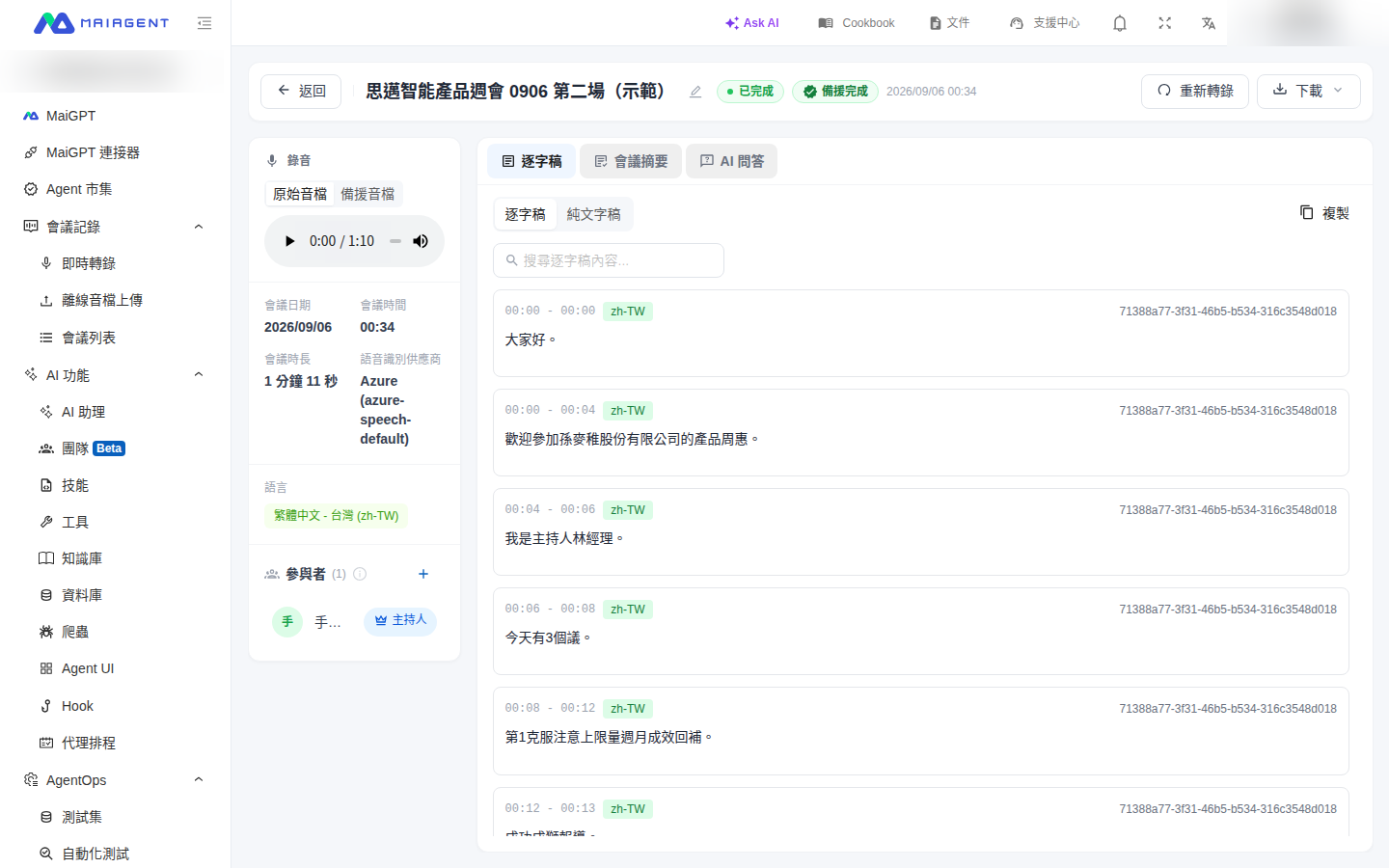
After you click Stop Recording, the meeting status first changes to "Completed." Backup audio has its own sync status, displayed next to the title on the meeting details page:
Backup Complete
The meeting is complete and the backup audio is fully synchronized—this backup is the most complete recording in the system
Syncing Backup
The meeting is complete, but the local backup audio is still uploading and merging. The status automatically changes to "Backup Complete" when finished
Backup Incomplete
The backup has not synchronized after more than one day. The system combines the uploaded segments into a backup audio file with the final section missing

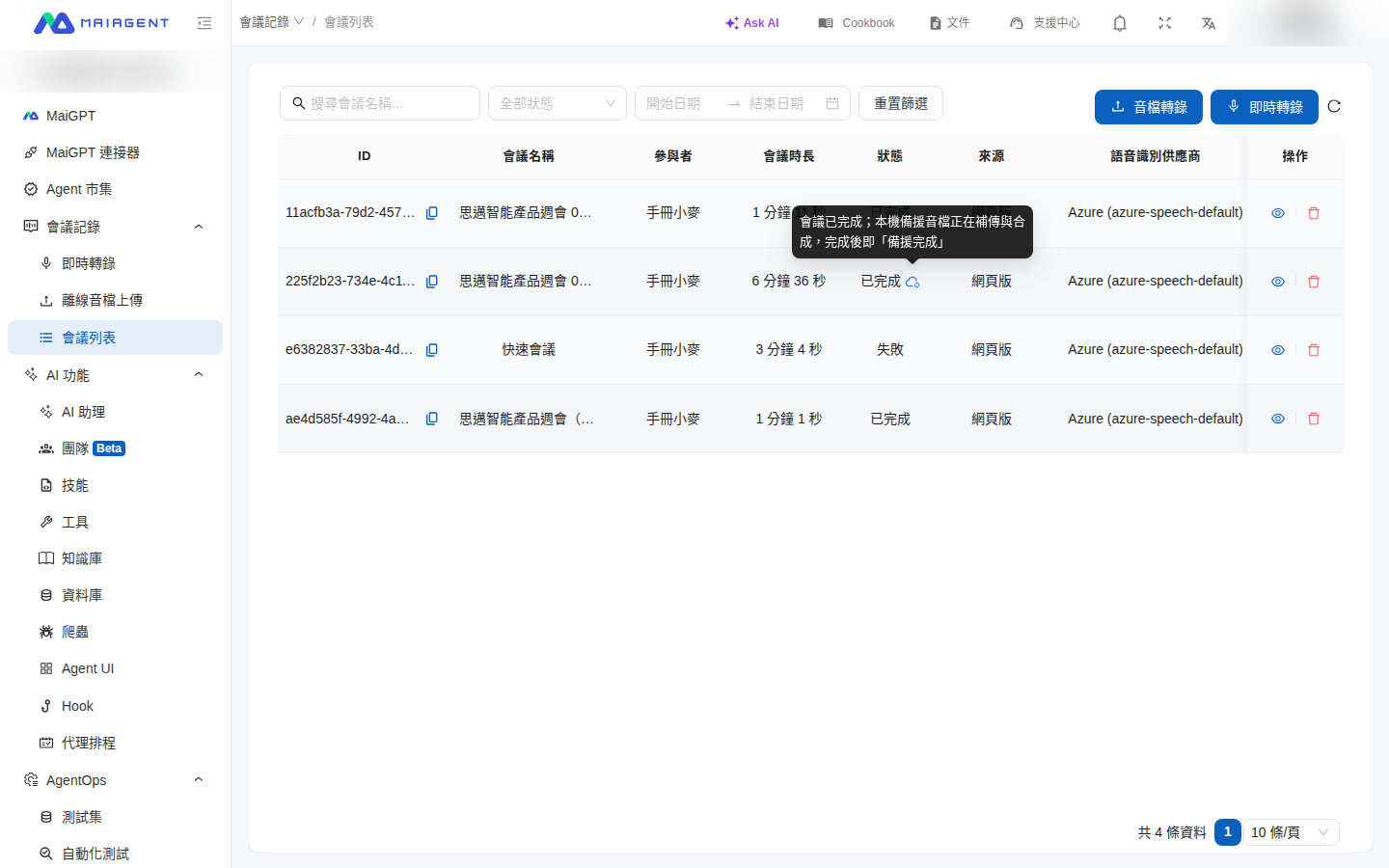
In the meeting list, meetings whose backups are not yet finalized display an additional icon beside the status column. Hover over it to view details. Meetings with completed backups have no additional indicator.

Switch to Backup Audio for Playback
For a meeting with backup audio, an Original Audio / Backup Audio switch appears above the player in the "Recording" section on the left side of the details page. This switch affects playback only: meeting summaries, AI Q&A, knowledge base uploads, and MP3 downloads continue to use the original recording (unless you select another transcript source when generating a summary, as described below).
Retranscribe Using Backup Audio
If the original transcript is missing a section due to a network outage, you can retranscribe the backup audio to create a new transcript version. The existing transcript is retained.
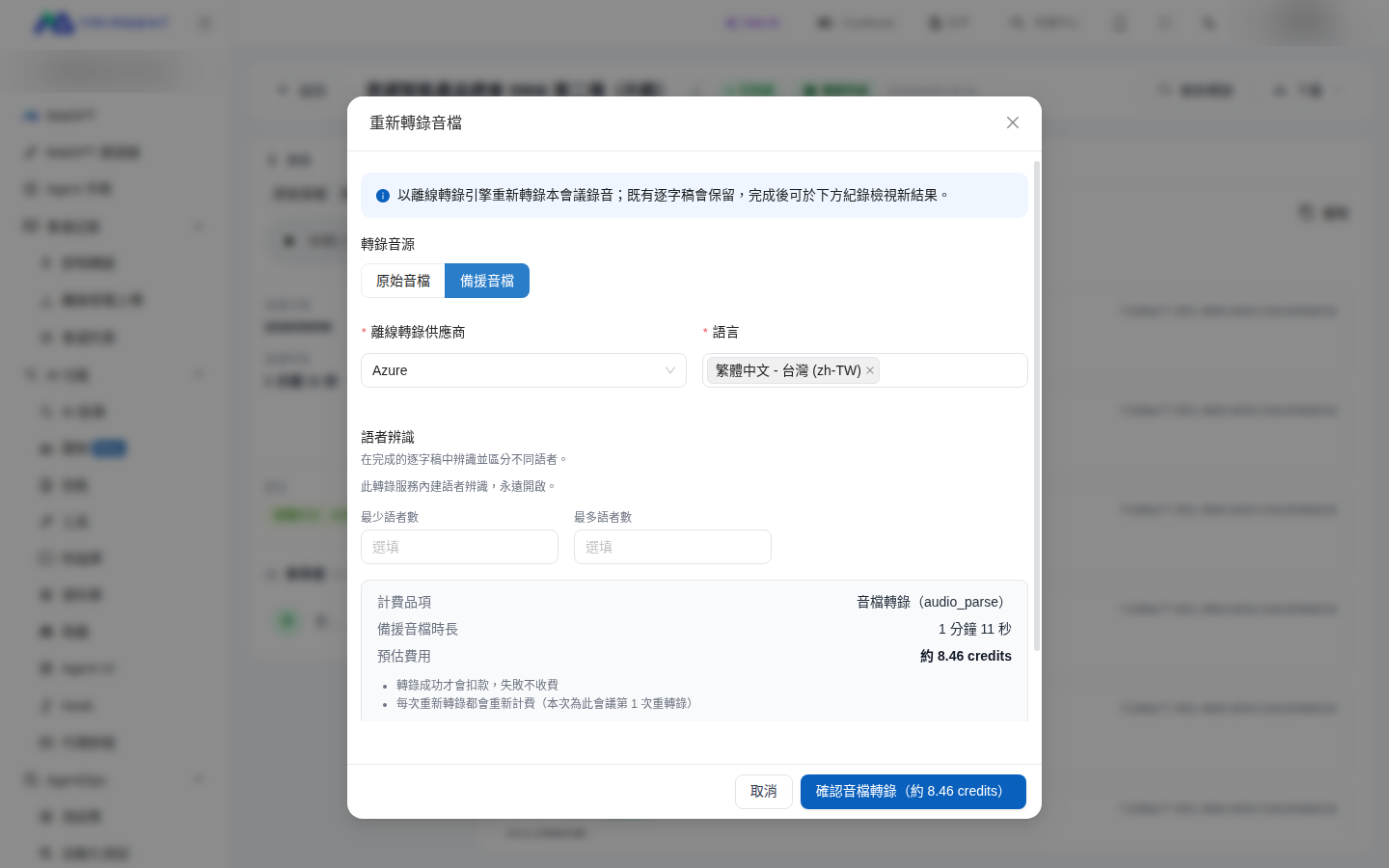
Select "Backup Audio" and Confirm the Cost
Under Transcription Source, select Backup Audio. Billing information appears at the bottom of the dialog, including the billable item (audio transcription), backup audio duration, and estimated cost. It also explains that "you are charged only if transcription succeeds; failed attempts are free" and "each retranscription is billed separately."

Submit the Transcription
Click Confirm Audio Transcription (Approx. X credits)—the button displays the estimated charge. After submission, the screen indicates that transcription has started and that you will be charged only if it succeeds. A "Processing" entry appears under "Retranscription History."
View the Backup Transcript Version
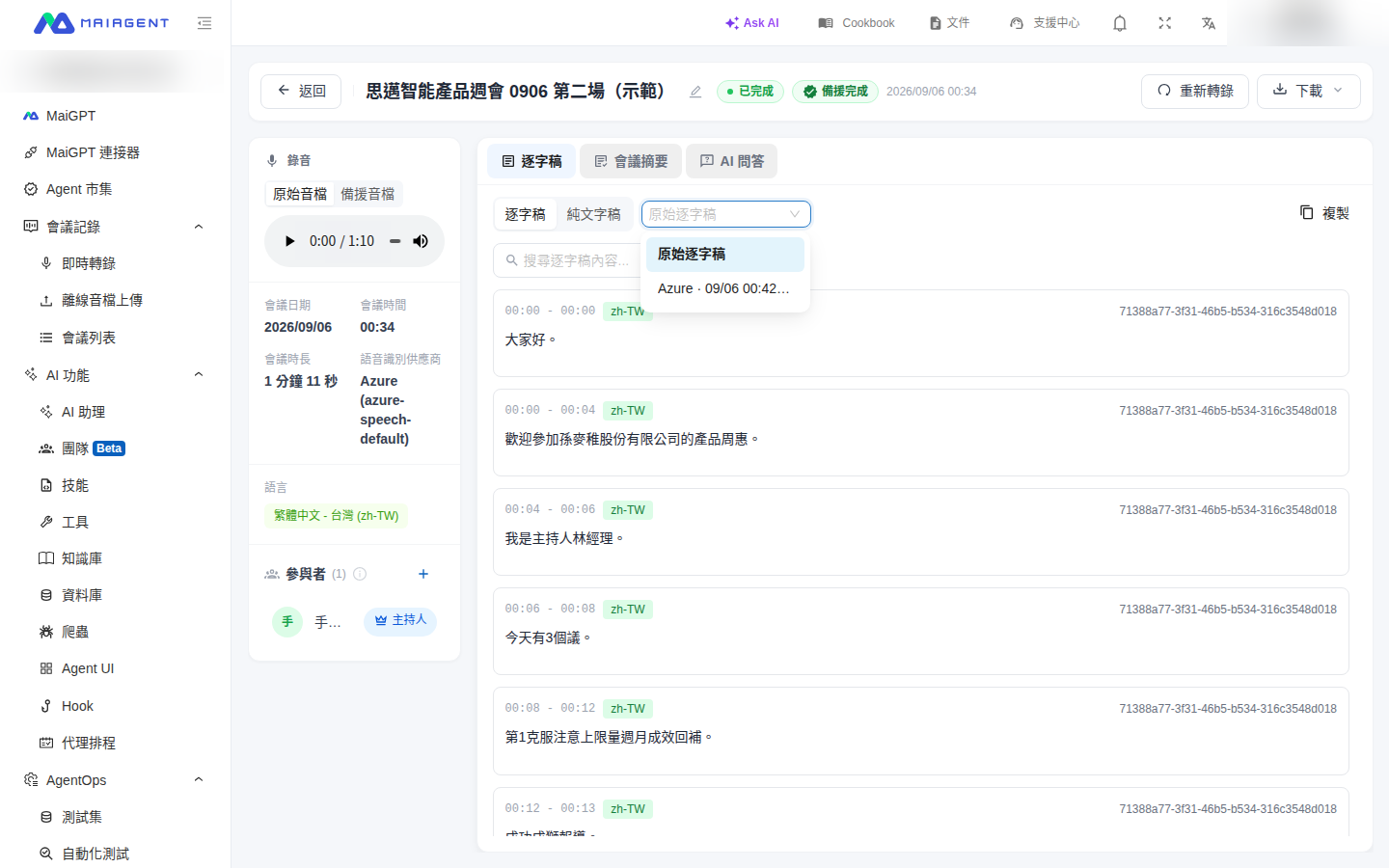
After transcription is complete, a version labeled "Backup" appears in the version menu on the Transcript tab (for example, "Azure · 09/06 00:42 · Backup"). When selected, the player automatically switches to the backup audio, allowing you to click the transcript and jump accurately to the corresponding timestamp.

Generate a Summary from a Backup Transcript
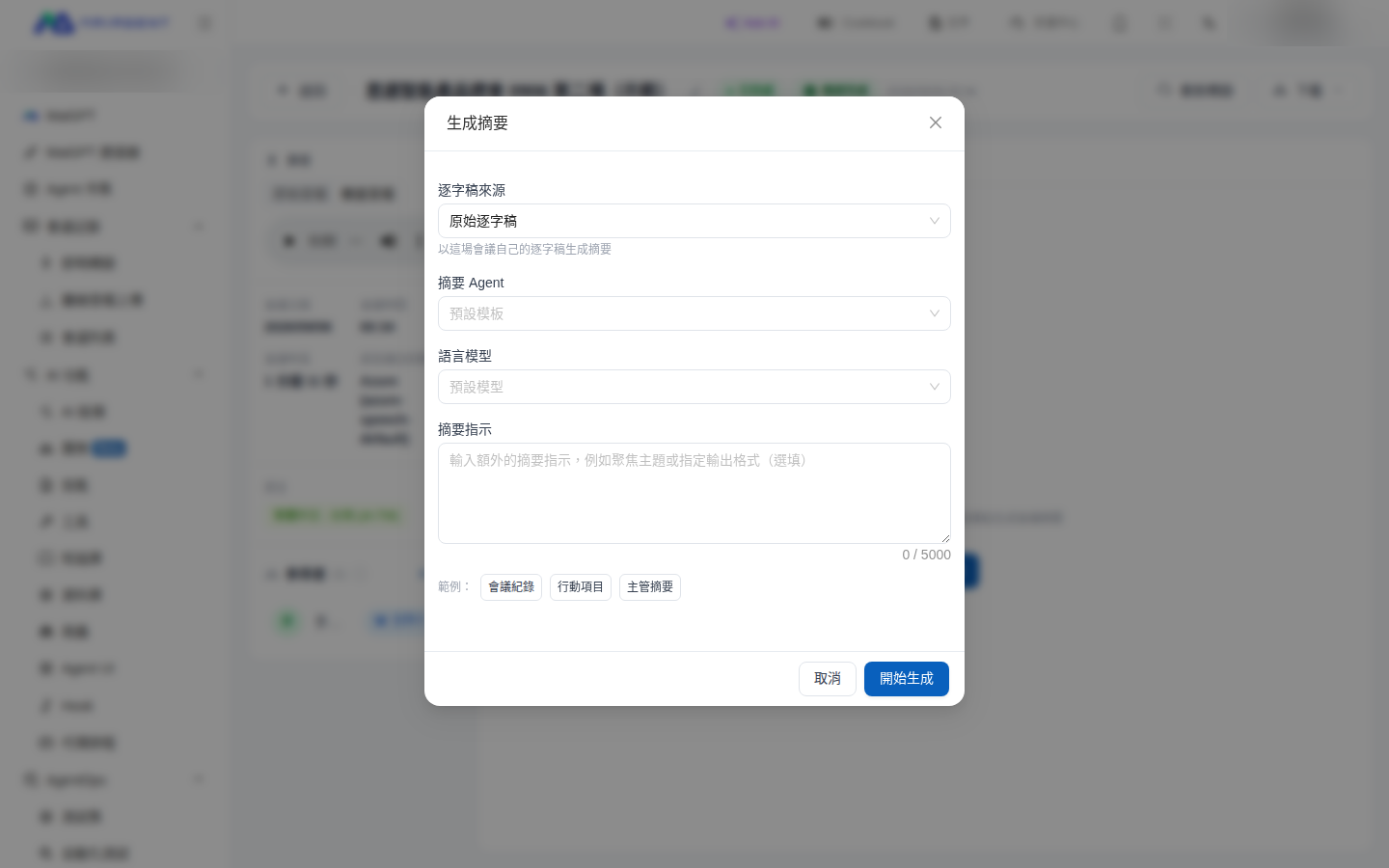
When you click Generate Summary on the Meeting Summary tab, Transcript Source defaults to "Original Transcript." If a backup version is available, you can select it so the summary includes the recovered sections. The dialog then states: "The backup transcript timeline corresponds to the backup audio and differs from the original audio."

Further Reading
Live Meeting Transcription: Start recording and view the recording screen
Meeting Record Details: Transcript, player, and meeting information
AI Meeting Summary & Q&A: Generate summaries and manage summary versions
Last updated
Was this helpful?