> For the complete documentation index, see [llms.txt](https://docs.maiagent.ai/llms.txt). Markdown versions of documentation pages are available by appending `.md` to page URLs; this page is available as [Markdown](https://docs.maiagent.ai/maiagent-user-guide/en/work/maigpt/video.md).

# AI Video Generation

Describe a video in MaiGPT, select the quality and aspect ratio, review the estimated Credits, and start generating

MaiGPT can generate videos from text descriptions. The conversation guides you through selecting the video quality and aspect ratio, then displays a summary of your settings and the estimated Credits before submission. You do not need to remember the technical names of video models.

{% hint style="info" %}
Video generation consumes Credits. Before submitting, review the estimated usage on the confirmation screen, then decide whether to generate the video.
{% endhint %}

## Use Case <a href="#video-generation-scenario" id="video-generation-scenario"></a>

A marketer wants to create a short social media video for a new product. In MaiGPT, they describe the appearance, setting, and camera movement for a fictional smart speaker, select the video quality and a landscape aspect ratio based on the campaign requirements, then review the duration, settings, and estimated Credits on the confirmation card. Generation starts only after they confirm.

## Generate a Video from Text <a href="#generate-video-from-text" id="generate-video-from-text"></a>

{% stepper %}
{% step %}

### 1. Describe the Video <a href="#describe-video" id="describe-video"></a>

In a new MaiGPT conversation, describe the subject, setting, action, and camera effects. For example:

> Generate a 4-second product showcase video: a white smart speaker slowly rotates on a table in a bright living room as the camera smoothly moves closer. Do not show any people or text.
> {% endstep %}

{% step %}

### 2. Choose Generation Settings <a href="#choose-video-options" id="choose-video-options"></a>

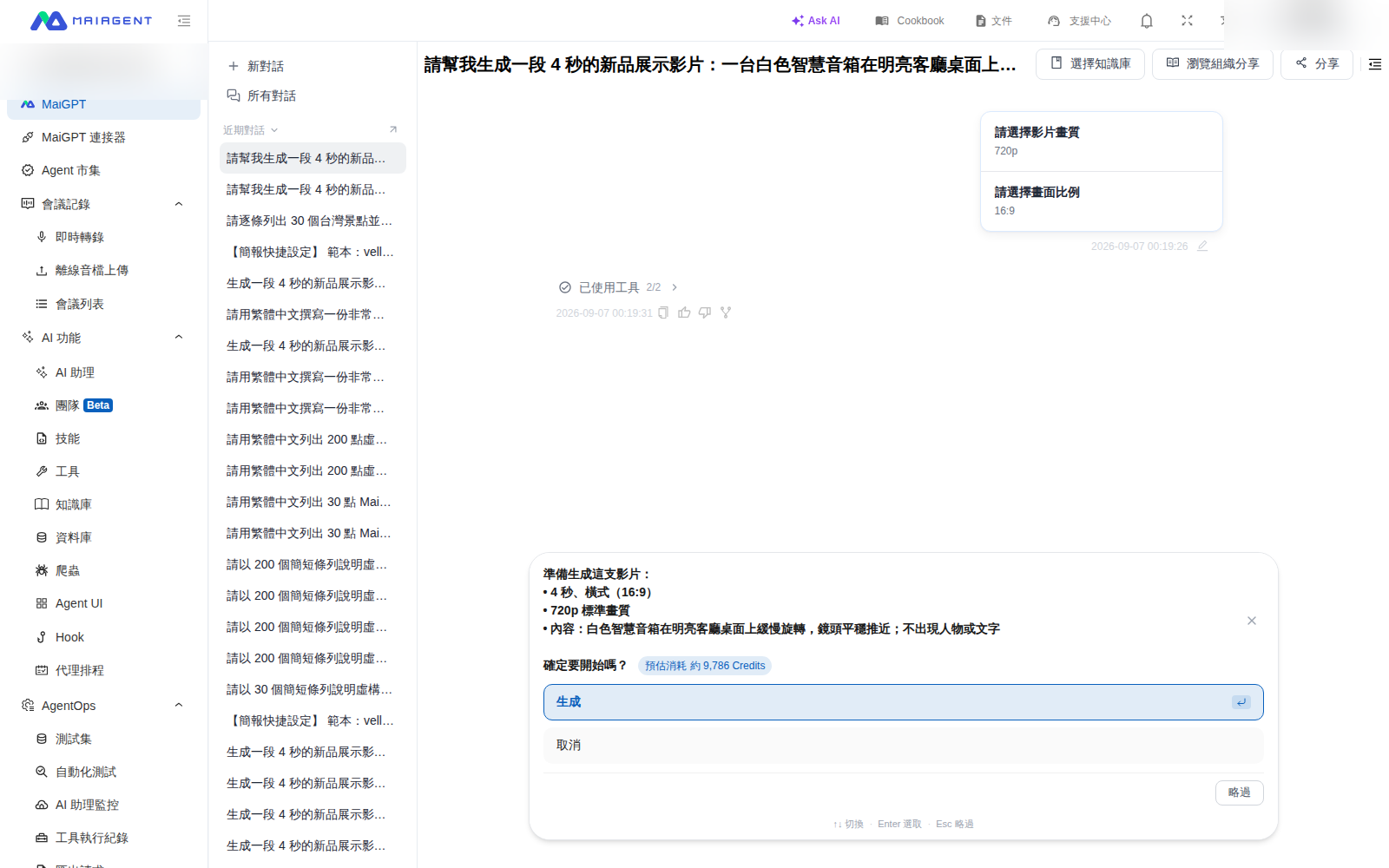
Use the options in the conversation to select the video quality, then choose the aspect ratio. Available options may vary; refer to the options displayed at the time.

<figure><img src="https://1360999650-files.gitbook.io/~/files/v0/b/gitbook-x-prod.appspot.com/o/spaces%2F6v6TNkkOQVfRYfcNirHL%2Fuploads%2Fgit-blob-7aa3567da7a43a9ebcf24794fffc822ffb3c6f3a%2Fmaigpt-seeddance-options.png?alt=media" alt="MaiGPT settings and Credits confirmation card before video generation"><figcaption><p>After selecting the quality and aspect ratio, the confirmation card displays the duration, aspect ratio, quality, content, and estimated Credits</p></figcaption></figure>
{% endstep %}

{% step %}

### 3. Confirm and Generate <a href="#confirm-video-generation" id="confirm-video-generation"></a>

Review the content description, duration, aspect ratio, quality, and estimated Credits on the confirmation card. If the settings are correct, click <mark style="color:blue;">Generate</mark>. To stop, click <mark style="color:blue;">Cancel</mark>.
{% endstep %}

{% step %}

### 4. Preview the Result <a href="#preview-generated-video" id="preview-generated-video"></a>

After submitting, wait for the generated result in the same conversation.
{% endstep %}
{% endstepper %}

## Video Length and Model Limits <a href="#video-length-limits" id="video-length-limits"></a>

MaiGPT currently uses the following video models. Each generation produces one video, with a maximum length of 15 seconds:

| Video model            | Available quality | Length per video |
| ---------------------- | ----------------- | ---------------- |
| HappyHorse 1.0         | 720p, 1080p       | 3–15 seconds     |
| SeedDance 2.0 Standard | 480p, 720p, 1080p | 4–15 seconds     |
| SeedDance 2.0 Fast     | 480p, 720p        | 4–15 seconds     |

15 seconds is the maximum for a single generation by the video models and cannot be changed in the settings. If you need a longer video, split the content into multiple segments of 15 seconds or less, generate each one separately, and join them together in video editing software.

{% hint style="info" %}
Credits are calculated by video duration: the longer the video, the more Credits it uses. The available quality options and lengths are as shown on the confirmation card.
{% endhint %}

## Next Steps <a href="#next-steps" id="next-steps"></a>

* [AI Image Generation](/maiagent-user-guide/en/work/maigpt/image.md)
* [Usage and Credits](/maiagent-user-guide/en/work/maigpt/faq/usage.md)
* [Back to MaiGPT Overview](/maiagent-user-guide/en/work/maigpt.md)


---

# Agent Instructions
This documentation is published with GitBook. GitBook is the documentation platform designed so that both humans and AI agents can read, navigate, and reason over technical content effectively. Learn more at gitbook.com.

## Querying This Documentation
If you need additional information that is not directly available in this page, you can query the documentation by asking a question.

Perform an HTTP GET request on the following URL with the `ask` and `goal` query parameters:

```
GET https://docs.maiagent.ai/maiagent-user-guide/en/work/maigpt/video.md?ask=<question>&goal=<user_goal>
```

`ask` is the immediate question: it should be specific, self-contained, and written in natural language.
`goal` is what the user is ultimately trying to achieve, the reason they need the answer. Sharing it helps GitBook give you a better, more relevant answer. A goal is most helpful when it describes the outcome the user wants rather than restating the question. For example, with `ask=how do I create an API token`, a goal like `automate deployments from our CI pipeline` lets GitBook tailor the answer to that use case.

The response will contain a direct answer to the question and relevant excerpts and sources from the documentation.

Use this mechanism when the answer is not explicitly present in the current page, you need clarification or additional context, or you want to retrieve related documentation sections.
