> For the complete documentation index, see [llms.txt](https://docs.maiagent.ai/llms.txt). Markdown versions of documentation pages are available by appending `.md` to page URLs; this page is available as [Markdown](https://docs.maiagent.ai/maiagent-user-guide/en/work/maigpt/document-templates.md).

# Create Documents and Spreadsheets with Templates

Start with a MaiGPT document or spreadsheet template, then use knowledge bases, skills, or databases to create a working draft

The <mark style="color:blue;">Document</mark> and <mark style="color:blue;">Spreadsheet</mark> shortcuts on the MaiGPT home page let you select a template and data sources before returning to the conversation and asking AI to generate content. Documents work well for reports, summaries, and proposals, while spreadsheets are ideal for organizing data into fields and rows.

<figure><img src="https://1360999650-files.gitbook.io/~/files/v0/b/gitbook-x-prod.appspot.com/o/spaces%2F6v6TNkkOQVfRYfcNirHL%2Fuploads%2Fgit-blob-7b6909af7a7042f59559fbf968e88a27e4fe2ea8%2Fmaigpt-document-templates.png?alt=media" alt="MaiGPT document template and data source selection panel"><figcaption><p>Filter document templates by source and category, then add a knowledge base, skill, or database below</p></figcaption></figure>

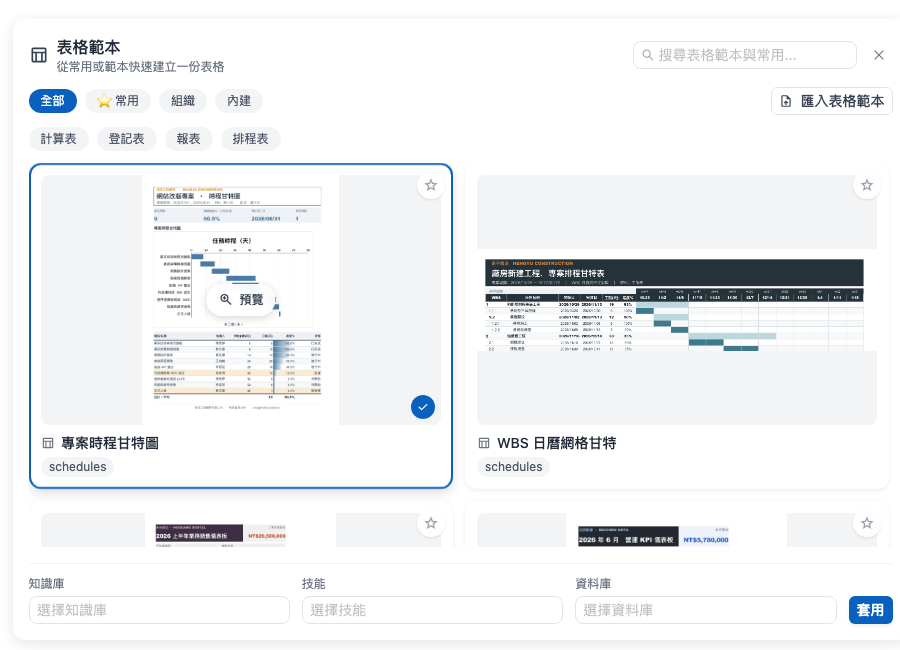
<figure><img src="https://1360999650-files.gitbook.io/~/files/v0/b/gitbook-x-prod.appspot.com/o/spaces%2F6v6TNkkOQVfRYfcNirHL%2Fuploads%2Fgit-blob-d743641bfc89d6774bd2a777f9dd7691c7e1da6a%2Fmaigpt-sheet-templates.png?alt=media" alt="MaiGPT spreadsheet template and data source selection panel"><figcaption><p>The spreadsheet shortcut provides built-in templates such as Gantt charts, dashboards, registers, and spreadsheets</p></figcaption></figure>

## Use Case <a href="#document-template-scenario" id="document-template-scenario"></a>

Project manager Mai needs to prepare a weekly progress report. She selects the weekly report template under <mark style="color:blue;">Document</mark>, adds the project knowledge base, and applies the template. MaiGPT brings the template and selected data sources into the conversation, where she can specify the scope for the week and generate a draft.

## Create a Document or Spreadsheet <a href="#create-a-document-or-table" id="create-a-document-or-table"></a>

{% stepper %}
{% step %}

### Choose a Document or Spreadsheet <a href="#choose-document-or-table" id="choose-document-or-table"></a>

In the <mark style="color:blue;">Productivity</mark> section of the MaiGPT home page, select <mark style="color:blue;">Document</mark> or <mark style="color:blue;">Spreadsheet</mark>.
{% endstep %}

{% step %}

### Find a Template <a href="#find-a-template" id="find-a-template"></a>

Use search, source, or category filters to find a suitable template. You can also select the star icon to add frequently used templates to <mark style="color:blue;">Favorites</mark>.

{% hint style="info" %} <mark style="color:blue;">Organization</mark> templates are provided by your company, while <mark style="color:blue;">Built-in</mark> templates are included with MaiGPT. The templates displayed depend on your organization's settings.
{% endhint %}
{% endstep %}

{% step %}

### Add Data Sources <a href="#add-data-sources" id="add-data-sources"></a>

At the bottom of the panel, select the <mark style="color:blue;">knowledge bases</mark>, <mark style="color:blue;">skills</mark>, or <mark style="color:blue;">databases</mark> to reference. Add only the sources needed for the content to keep the subsequent conversation focused.
{% endstep %}

{% step %}

### Apply the Template and Describe Your Request <a href="#apply-and-describe-request" id="apply-and-describe-request"></a>

Select a template, then click <mark style="color:blue;">Apply</mark>. The selected template appears above the input box, which is also prefilled with prompt text. Close the template panel, add the time period, audience, output tone, or required fields to your message, and submit the generation request.
{% endstep %}
{% endstepper %}

When generation is complete, MaiGPT lists a summary of the results and the generated files in its response. Review the content, then click <mark style="color:blue;">Download</mark> to get the document or spreadsheet.

<figure><img src="https://1360999650-files.gitbook.io/~/files/v0/b/gitbook-x-prod.appspot.com/o/spaces%2F6v6TNkkOQVfRYfcNirHL%2Fuploads%2Fgit-blob-dbd8c6cfff5ac484928f68bb592a135d20a75655%2Fmaigpt-document-template-result.png?alt=media" alt="Fictitious weekly report and downloadable file generated from a weekly progress report template"><figcaption><p>MaiGPT displays the weekly report summary, generated file name, and download button</p></figcaption></figure>

The workflow is the same for spreadsheets. The following example uses the <mark style="color:blue;">Project Schedule Gantt Chart</mark> template to generate an Excel file from three fictitious work items. When it is ready, review the item summary, file name, and file size in the response, then download the `.xlsx` file.

<figure><img src="https://1360999650-files.gitbook.io/~/files/v0/b/gitbook-x-prod.appspot.com/o/spaces%2F6v6TNkkOQVfRYfcNirHL%2Fuploads%2Fgit-blob-aa4d83d2263df1f1d61ced10c5449678648bae89%2Fmaigpt-sheet-template-result.png?alt=media" alt="Fictitious work tracker and downloadable Excel file generated from a project schedule Gantt chart template"><figcaption><p>The spreadsheet result lists three work items and provides an Excel file for download</p></figcaption></figure>

## Manage Your Own Templates <a href="#manage-your-own-templates" id="manage-your-own-templates"></a>

Select <mark style="color:blue;">Import Document Template</mark> or <mark style="color:blue;">Import Spreadsheet Template</mark> in the upper-right corner of the panel to add custom templates permitted by your organization. Imported templates appear in the template list and can be reused later.

{% hint style="warning" %}
If the data source list is empty, first confirm that you have access to the relevant knowledge base, skill, or database, then contact your organization administrator for assistance.
{% endhint %}


---

# Agent Instructions
This documentation is published with GitBook. GitBook is the documentation platform designed so that both humans and AI agents can read, navigate, and reason over technical content effectively. Learn more at gitbook.com.

## Querying This Documentation
If you need additional information that is not directly available in this page, you can query the documentation by asking a question.

Perform an HTTP GET request on the following URL with the `ask` and `goal` query parameters:

```
GET https://docs.maiagent.ai/maiagent-user-guide/en/work/maigpt/document-templates.md?ask=<question>&goal=<user_goal>
```

`ask` is the immediate question: it should be specific, self-contained, and written in natural language.
`goal` is what the user is ultimately trying to achieve, the reason they need the answer. Sharing it helps GitBook give you a better, more relevant answer. A goal is most helpful when it describes the outcome the user wants rather than restating the question. For example, with `ask=how do I create an API token`, a goal like `automate deployments from our CI pipeline` lets GitBook tailor the answer to that use case.

The response will contain a direct answer to the question and relevant excerpts and sources from the documentation.

Use this mechanism when the answer is not explicitly present in the current page, you need clarification or additional context, or you want to retrieve related documentation sections.