For the complete documentation index, see llms.txt. This page is also available as Markdown.

Deep Research

Create a research plan in MaiGPT, review estimated Credits and output formats, then read the research report

Deep Research is MaiGPT's in-depth research feature. Enter a research topic, and AI proposes a research plan. It then searches for and organizes information based on the direction you confirm and produces a report. It is suitable for market research, competitive analysis, and technical research.

How It Differs from Regular Chat

Regular Chat
Deep Research

Best suited for

Quick questions and everyday tasks

Research that requires searching and organizing multiple sources

How it works

Enter a question and receive a response

Review the research plan and cost estimate first, then choose an output format

Research results

Chat response

Canvas document, chat response, or downloadable files

Waiting time

Usually shorter

Varies with the topic's scope and search conditions

When to Use It

A corporate planning manager is preparing to evaluate how to adopt generative AI. He enables Deep Research in MaiGPT and enters "Research the current state, challenges, and success stories of generative AI adoption among Taiwanese businesses." He first reviews the research plan and estimated Credits, then selects Reply directly in the chat. Once the research is complete, he can read the organized findings and cited sources in the original conversation as a basis for further discussion.


Start a Research Task

The following example covers topic research without attached files.

1. Enable Deep Research

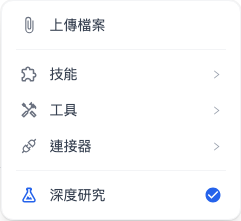
Open a New Chat in MaiGPT, click Add (+) next to the input box, and select Deep Research. Once enabled, a label with the same name appears below the input box.

Deep Research entry in the Add menu
Select "Deep Research" in the Add menu

If you cannot see Deep Research, contact your organization administrator to check your MaiGPT role permissions.

2. Enter a Research Topic

Describe the topic, scope, and purpose of the report, then click the send button at the bottom right of the input box. If you want to confirm the direction first, explicitly request, "Please propose a research plan first and wait for my confirmation before proceeding."

More general
More specific

"Research AI"

"Research the current state, challenges, and success stories of generative AI adoption among Taiwanese businesses"

"Analyze competitors"

"Compare the enterprise knowledge base features of three specified products and summarize their use cases"

Input box with Deep Research enabled and a research topic entered
Confirm that "Deep Research" is enabled before submitting your research topic
3. Review the Plan and Cost Estimate

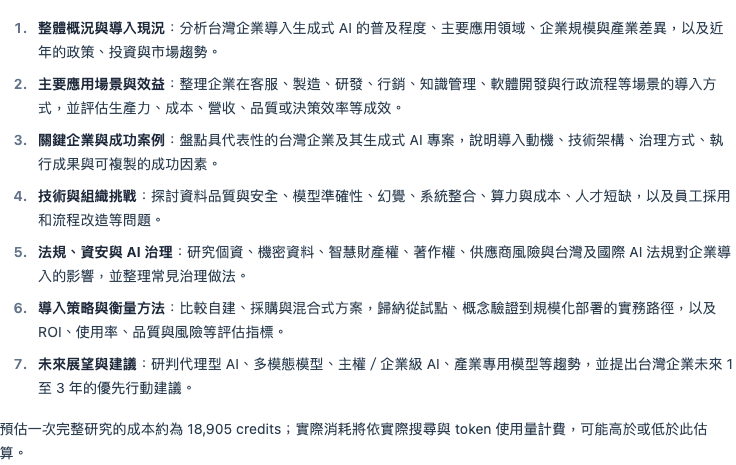
Read the research direction proposed by AI and the estimated Credits. If the scope is unsuitable, request adjustments in the same conversation first. Proceed to the next step once both the direction and the estimate are acceptable.

List of research directions and estimated Credits usage
The research plan includes a cost estimate; the amount shown is only an estimate for this demonstration
4. Choose an Output Format and Confirm the Start

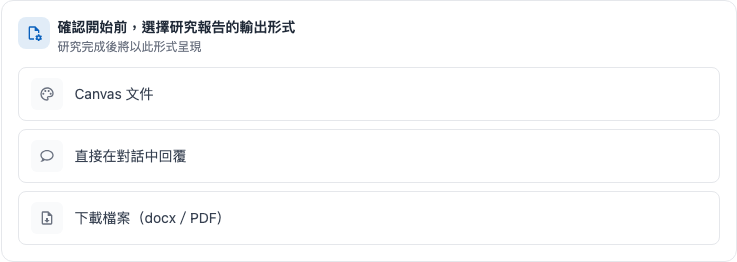
Select a format in the Choose the research report's output format before confirming the start card:

Option
How results appear after research is complete

Canvas document

Preview the report in Canvas, view its source, read it in full screen, or download it

Reply directly in the chat

Display the report in the original conversation for convenient reading within the chat

Download files (docx/PDF)

Generate downloadable Word and PDF files for saving or sharing

Card offering three research report output formats
Choose Canvas, a chat response, or downloadable files based on the report's purpose
Card with Reply directly in the chat selected
After selection, the card retains only the output format used for this research

5. Wait for the Research Results

Once research starts, the conversation displays Research progress. AI searches for and organizes information, then generates a report. The time required varies with the research scope, sources, and generation conditions. Refer to the actual progress shown.


Credits Usage Estimates and Quota Prechecks

Deep Research may perform multiple searches and analyses. The cost estimate in the plan helps you decide whether to proceed. When you confirm execution, the system checks the available quota against the estimate.

How the Estimate Is Calculated

  • The estimate first uses the median actual usage from up to 20 of your organization's most recent research tasks.

  • If your organization has no research history, it uses the median of recent research tasks across the platform. If there is still no history, it uses the default estimate configured in the system.

  • This is a reference based on historical usage, rather than a fixed price quoted for the current topic. Actual charges depend on usage such as searches and Tokens, and may be higher or lower than the estimate.

The Research Plan Includes a Cost Estimate

When AI proposes a plan, it includes estimated Credits and a note that actual usage may be higher or lower than the estimate. AI generates this text, so the wording and amount may vary. Read the notice in your current conversation.

Quota Check Before Execution

After you confirm execution, the system checks the organization wallet and the quotas applicable to this task. If any applicable quota is insufficient, the research will not start:

Check
What is checked
Details

Organization wallet

Whether available Credits can cover the estimated usage

Individual quota

The member's available quota, if configured

Shared role quota

The available shared quota of the member's role, if configured

Conversation platform quota

The available quota for the platform used by this conversation, if configured

What Happens If the Check Blocks Research

  • AI displays a notice about insufficient quota. Follow the notice and contact your organization administrator for assistance.

  • Research does not start. The original conversation and research plan remain at the stage awaiting confirmation.

  • Once the quota has been replenished, ask AI to proceed in the same conversation. For example, "The quota has been replenished. Please start the research according to the plan you just proposed." You do not need to enter the topic again.

What to Do When Quota Is Insufficient

Your role
What to do

Regular member

Share the insufficient quota notice with your organization administrator and explain the research purpose and estimated usage

Organization administrator

Follow the notice to check the organization wallet, individual quota, role quota, or conversation platform quota, then take action according to the organization's budget

Frequently Asked Questions

Q: Does seeing a cost estimate mean that amount has already been deducted?

The estimated amount is not deducted directly. The estimate and quota check themselves are free, but AI responses such as generating the research plan and confirming details in the conversation may still consume Credits. Therefore, research that has not started or is blocked by the quota check does not mean the entire conversation is free.

Q: Why is actual usage higher or lower than the estimate?

The estimate uses historical research costs. Differences in the number of searches, source lengths, and Token usage for this task lead to differences in actual usage.

Q: Do I need to start a new research task after replenishing the quota?

No. Return to the original conversation and ask AI to proceed according to the confirmed plan.

Q: Why do I not see a cost estimate?

Deployments without Credits billing enabled do not provide cost estimates. If an estimate is temporarily unavailable, the system still checks the existing available quota rules. The absence of an estimate does not mean the task is free.


Read and Export the Report

Read the Report

Once research is complete, open the results in the format you selected earlier. As you read the conclusions, also check the cited sources and the scope of applicability provided in the report.

Beginning of a research report displayed directly in the chat
When a chat response is selected, the completed report can be read in the original conversation; the image shows an excerpt from the beginning

When you select Canvas document, the report appears in the Canvas panel. Click Full screen view at the top right to enlarge it for reading. Switch to code mode displays the Markdown source. Click Switch to preview mode to return to the formatted view.

Research report displayed in Canvas full screen preview
Canvas full screen preview preserves the report title, body, and action buttons at the top
Edit the Report

The Markdown Canvas used for research output on this page provides preview, source viewing, and download features. It does not support editing by typing directly. To edit the report manually, download the original Markdown file, or select Download files (docx/PDF) before starting the research and edit the downloaded Word file with an appropriate editor.

For additional searches or analysis, ask follow-up questions in the conversation. New AI responses are still charged based on actual usage.

Export

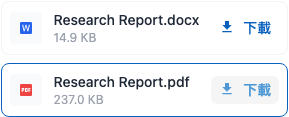
If you select Download files (docx/PDF), Generating downloadable files… appears after the report is complete. Wait until the files have been generated, then click Download for the corresponding file. If you select Canvas, click Download at the top right of the panel and choose Original format (.md) or PDF document.

Word and PDF files available for download after research is complete
Once the files have been generated, click "Download" next to the Word or PDF file
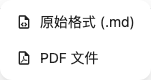
Canvas download menu for original Markdown and PDF
The Canvas download menu offers the original Markdown and a PDF document

Next Steps

Last updated

Was this helpful?