> For the complete documentation index, see [llms.txt](https://docs.maiagent.ai/llms.txt). Markdown versions of documentation pages are available by appending `.md` to page URLs; this page is available as [Markdown](https://docs.maiagent.ai/maiagent-user-guide/en/work/maigpt/chat.md).

# AI Chat

Chat with AI in MaiGPT: choose a model, adjust thinking effort, add files, skills, tools, and connectors from the "+" menu, and search, organize, and share conversations.

AI Chat is the core experience of MaiGPT. Choose an AI model, enter a question, and get an answer. You can also upload files for the AI to analyze, query your company knowledge base, search the web for the latest information, and adjust the AI's thinking effort based on how difficult the question is.

***

On this page: [Chat Capabilities Overview](#chat-capabilities)｜[Quick Start](#quick-start)｜[Select an AI Model](#select-ai-model)｜["+" Menu: Files, Skills, Tools, and Connectors](#plus-menu)｜[Upload Files and Images](#upload-files-and-images)｜[Knowledge Base Q\&A](#knowledge-base-qa)｜[Web Search](#web-search)｜[Thinking Effort](#deep-thinking)｜[Chat Memory](#chat-memory)｜[Message Actions](#message-actions)｜[Organize Conversations: Pin Frequently Used Conversations](#pin-conversations)｜[Organize Conversations: Rename and Delete](#manage-conversations)｜[Organize Conversations: Search Conversations](#search-conversations)｜[Share a Conversation](#share-conversation)｜[Review Earlier Messages While a Reply Is Generating](#review-during-generation)｜[Navigation Bar for Long Conversations](#conversation-navigator)｜[Next Steps](#next-steps)

## Chat Capabilities Overview <a href="#chat-capabilities" id="chat-capabilities"></a>

| Capability                                                                                   | What It Does                                                                                                           | Best For                                                                                                                |
| -------------------------------------------------------------------------------------------- | ---------------------------------------------------------------------------------------------------------------------- | ----------------------------------------------------------------------------------------------------------------------- |
| **Select AI Model**                                                                          | Choose the model to use before starting a conversation                                                                 | Picking the best AI for each task                                                                                       |
| **Thinking Effort**                                                                          | Decides how deeply the AI reasons before answering                                                                     | Multi-step analysis, logical reasoning, decision recommendations                                                        |
| **Upload Files and Images**                                                                  | Upload documents for the AI to read, summarize, and analyze                                                            | Contract review, report analysis, image recognition                                                                     |
| **Knowledge Base Q\&A**                                                                      | Query your company's internal knowledge base                                                                           | Company policies, product manuals, SOPs                                                                                 |
| **Web Search**                                                                               | Search the web for the latest information                                                                              | News, market trends, competitor information                                                                             |
| **Skills, Tools, and Connectors**                                                            | Specify the skills, tools, or external services to use this time from the "+" menu                                     | Fixed workflows, querying external systems                                                                              |
| **Chat Memory**                                                                              | Remembers conversation context and your preferences                                                                    | Continuing discussions, long-term collaboration                                                                         |
| [**Message Actions**](#message-actions)                                                      | Edit a sent message and switch between versions, like or dislike a reply, branch from a reply                          | Asked the wrong question and want to retry, feedback on reply quality, trying different approaches to the same question |
| [**Organize Conversations**](#manage-conversations)                                          | Rename, delete, and pin conversations                                                                                  | When you have accumulated many conversations                                                                            |
| **Search Conversations**                                                                     | Find past conversations by title or message content                                                                    | When you have accumulated many conversations                                                                            |
| **Share Conversations**                                                                      | Share an entire conversation with members of your organization, who can browse it or copy it and keep asking questions | Sharing results, follow-up work                                                                                         |
| [**Conversation Handoff**](/maiagent-user-guide/en/work/maigpt/chat/conversation-handoff.md) | When a conversation gets too long, summarize it for handoff and continue in a new conversation                         | Long discussions, high context usage                                                                                    |

***

## Quick Start <a href="#quick-start" id="quick-start"></a>

After logging in to the MaiAgent console, click <mark style="color:blue;">MaiGPT</mark> at the top of the left menu to open the chat screen (see [Web Version: Where to Open It](/maiagent-user-guide/en/work/maigpt/access/web.md#where-to-open)), then:

1. **Choose a model** — Before sending your first message, click the model name at the bottom right of the input box to choose an AI
2. **Type your question** — Enter your question in the input box and press Enter to send
3. **Upload a file** — Click <mark style="color:blue;">Add</mark> (+) at the bottom left of the input box → <mark style="color:blue;">Upload file</mark>, or drag a file directly into the chat area

> Not sure how to start? Just type your question. The AI will answer based on your question automatically, with no setup required.

While the AI is replying, the send button turns into a square <mark style="color:blue;">Stop</mark> button. If you realize you asked the wrong question, press it to stop the reply. Messages you have already sent and the earlier conversation are kept, so you can ask again or use [Edit Message](#edit-message).

When you start a new conversation, the <mark style="color:blue;">Office Apps</mark> row below the input box offers <mark style="color:blue;">Slides</mark>, <mark style="color:blue;">Documents</mark>, and <mark style="color:blue;">Spreadsheets</mark> shortcuts (plus <mark style="color:blue;">Meeting Records</mark> if your organization has enabled meeting records), so you can pick a template before you begin. See [AI Slides](/maiagent-user-guide/en/work/maigpt/slides.md), [Create Documents and Spreadsheets from Templates](/maiagent-user-guide/en/work/maigpt/document-templates.md), and [Meeting Records Quick Entry](/maiagent-user-guide/en/work/meeting-records/quick-entry.md). After you send the first message, this row is no longer shown.

***

## Select an AI Model <a href="#select-ai-model" id="select-ai-model"></a>

MaiGPT includes a variety of built-in AI models, and you can choose one based on your task. Each model has its own strengths, and choosing the right one gets you better answers.

### How to Choose a Model <a href="#how-to-switch-model" id="how-to-switch-model"></a>

1. Start a new conversation.
2. Click the model name at the bottom right of the input box, next to the send button. The menu opens upward.
3. Type a name in <mark style="color:blue;">Search models…</mark> to filter, then click the model you want to use.

Each model name in the menu may have one of these labels next to it:

| Label                                       | Meaning                                                                                                                                                   |
| ------------------------------------------- | --------------------------------------------------------------------------------------------------------------------------------------------------------- |
| <mark style="color:blue;">Default</mark>    | The model used when you do not choose one                                                                                                                 |
| <mark style="color:blue;">Custom</mark>     | A model your organization connected itself (for example, a self-hosted model or one from the company's own cloud account), configured by an administrator |
| <mark style="color:blue;">Multimodal</mark> | Can understand images, suitable for asking questions with uploaded images                                                                                 |
| <mark style="color:blue;">Thinking</mark>   | Supports [thinking effort](#deep-thinking) adjustment, suitable for questions that need reasoning                                                         |

{% hint style="warning" %}
**You cannot switch models after sending the first message**

Once the conversation starts, the model name is locked, and hovering over it shows "You cannot change the model after the conversation has started." To ask the same question with a different model, start a new conversation and choose that model.
{% endhint %}

### When a Model Is Locked or No Longer Available <a href="#model-unavailable" id="model-unavailable"></a>

After an administrator changes the models available to a role, you may see the following messages in older conversations:

| What You See                                                                                                                     | Meaning and What to Do                                                                                                                                                               |
| -------------------------------------------------------------------------------------------------------------------------------- | ------------------------------------------------------------------------------------------------------------------------------------------------------------------------------------ |
| The model name is grayed out, and hovering shows "Your role can no longer use this model"                                        | Access to this conversation's model has been revoked. You can keep viewing the content, but sending a message opens the dialog described in the next row                             |
| A dialog "The model used in this conversation is no longer available" + <mark style="color:blue;">Create new conversation</mark> | Click <mark style="color:blue;">Create new conversation</mark> to use a currently available model. Attached files are not carried over to the new conversation, so upload them again |
| Hovering shows "Your role has no available models. Please contact your organization administrator"                               | Your role has no available models. Ask an administrator to adjust [MaiGPT Role Permissions](/maiagent-user-guide/en/org/roles/maigpt-role-permissions.md)                            |
| Hovering shows "Conversation messages are loading. You can choose a model shortly" or "Failed to load conversation messages…"    | For the former, wait a moment. For the latter, refresh the page                                                                                                                      |

### Which Model Should I Choose <a href="#model-selection-guide" id="model-selection-guide"></a>

| My Task                              | Recommended Model                | Reason                                                    |
| ------------------------------------ | -------------------------------- | --------------------------------------------------------- |
| Writing reports, analyzing documents | Claude                           | Strong Chinese comprehension, excels at long-form writing |
| Code, technical questions            | Claude / GPT                     | Both excel here, so you can alternate and compare         |
| Quick Q\&A, translation              | Gemini                           | Faster response times                                     |
| Creative ideation, brainstorming     | Claude / GPT                     | Better creative quality                                   |
| Need the latest information          | Pair with the web search feature | Any model works                                           |

{% hint style="info" %}
**Not sure which to pick?**

Start with the default model. If you are not satisfied with the answer quality, start a new conversation, choose a different model, and ask the same question to compare which answer better fits your needs.
{% endhint %}

### FAQ <a href="#faq" id="faq"></a>

**Can I switch models in the middle of a conversation?**

No. Once you send the first message, the model for that conversation is fixed, and the existing chat history is fully preserved. To use a different model, start a new conversation.

**Why can't I see some models?**

Available models are configured by your organization administrator by role (see [MaiGPT Role Permissions](/maiagent-user-guide/en/org/roles/maigpt-role-permissions.md)). If your role currently has no available models, the model menu shows "Your role has no available models. Please contact your organization administrator."

**Do different models cost the same?**

Usage is calculated differently for different models, but this is usually managed centrally by your company, so you do not need to worry about costs.

***

## "+" Menu: Files, Skills, Tools, and Connectors <a href="#plus-menu" id="plus-menu"></a>

<mark style="color:blue;">Add</mark> (+) at the bottom left of the input box holds the resources to use with this question. After you open it, hover over an item with an arrow to expand its submenu.

| Item                                           | What It Does                                                                                                                                                                 |
| ---------------------------------------------- | ---------------------------------------------------------------------------------------------------------------------------------------------------------------------------- |
| <mark style="color:blue;">Upload file</mark>   | Choose a file to attach to this message. See [Upload Files and Images](#upload-files-and-images). Not shown if the Agent does not allow uploads                              |
| <mark style="color:blue;">Skills</mark>        | Specify the skills to use this time, divided into <mark style="color:blue;">Built-in</mark> and <mark style="color:blue;">Organization custom</mark>                         |
| <mark style="color:blue;">Tools</mark>         | Specify the tools to use this time, such as web search; also divided into <mark style="color:blue;">Built-in</mark> and <mark style="color:blue;">Organization custom</mark> |
| <mark style="color:blue;">Connectors</mark>    | Turn external services on or off for this conversation, or click <mark style="color:blue;">Authorize</mark> for services that require authorization                          |
| <mark style="color:blue;">Deep Research</mark> | Have the AI break down the question and search over multiple rounds to produce a research report. See [Deep Research](/maiagent-user-guide/en/work/maigpt/deep-research.md)  |

### Specify Skills and Tools <a href="#select-skills-and-tools" id="select-skills-and-tools"></a>

1. Click <mark style="color:blue;">Add</mark> (+) and hover over <mark style="color:blue;">Skills</mark> or <mark style="color:blue;">Tools</mark>.
2. Enter a keyword in <mark style="color:blue;">Search skills</mark> / <mark style="color:blue;">Search tools</mark> at the top of the submenu, or click directly in the list. You can select more than one; click again to deselect.
3. Selected items appear as tags in the input box. When you send the message, the AI uses the skills or tools you specified to answer.

Selected tags stay with this conversation and are included with later messages as well. Click the × on a tag to remove it when you no longer need it; they are cleared automatically when you switch to another conversation. <mark style="color:blue;">Add skill</mark> / <mark style="color:blue;">Manage my skills</mark> and <mark style="color:blue;">Add tool</mark> / <mark style="color:blue;">Manage my tools</mark> at the bottom of the submenu take you to the [Skills](/maiagent-user-guide/en/build/skills.md) and [Tools](/maiagent-user-guide/en/build/tools.md) management pages.

### Connectors <a href="#plus-menu-connectors" id="plus-menu-connectors"></a>

<mark style="color:blue;">Connected services</mark> in the <mark style="color:blue;">Connectors</mark> submenu lists the services your organization has enabled. Use the switch on the right to decide whether this conversation uses that service. Services that require login authorization show <mark style="color:blue;">Authorize</mark>, and you can use them only after completing authorization. If your organization has not enabled any connectors, "Connectors are not enabled for your organization" is shown. For how to connect and how to use each service, see [Connectors](/maiagent-user-guide/en/work/maigpt/connectors.md).

### Deep Research <a href="#plus-menu-deep-research" id="plus-menu-deep-research"></a>

After you choose <mark style="color:blue;">Deep Research</mark>, a tag with the same name appears in the input box, and the next message you send is processed in research mode. Each conversation can run Deep Research only once: in a conversation that has already been researched, this item becomes unavailable, so start a new conversation to use it again. If your role does not have this feature enabled, the item is also unavailable, and hovering over it shows "This feature is not enabled for your role. Contact your organization administrator to use it."

{% hint style="info" %}
**Don't see the item you want in the menu?**

<mark style="color:blue;">Skills</mark>, <mark style="color:blue;">Tools</mark>, and <mark style="color:blue;">Connectors</mark> list only the items your role can use. The scope is set by your organization administrator. See [MaiGPT Role Permissions](/maiagent-user-guide/en/org/roles/maigpt-role-permissions.md).
{% endhint %}

***

## Upload Files and Images <a href="#upload-files-and-images" id="upload-files-and-images"></a>

You can send files or images to MaiGPT and have the AI read, summarize, analyze, or translate them for you.

### How to Upload <a href="#how-to-upload" id="how-to-upload"></a>

There are two ways:

1. **Upload from the "+" menu** — Click <mark style="color:blue;">Add</mark> (+) at the bottom left of the input box → <mark style="color:blue;">Upload file</mark>, then choose a file
2. **Drag and drop** — Drag files from your desktop into the chat area

After uploading, the file appears above the input box. Then enter the question you want to ask and press Enter to send.

### Supported Formats <a href="#supported-formats" id="supported-formats"></a>

| Type      | Formats                                                   |
| --------- | --------------------------------------------------------- |
| Documents | PDF, Word (.docx), Excel (.xlsx), PowerPoint (.pptx), TXT |
| Images    | PNG, JPG, GIF                                             |
| Other     | CSV, JSON, Markdown                                       |

### What You Can Do <a href="#what-you-can-do" id="what-you-can-do"></a>

| Uploaded Content       | What You Can Ask the AI                                 |
| ---------------------- | ------------------------------------------------------- |
| A contract PDF         | "Which clauses in this contract are unfavorable to us?" |
| An Excel report        | "Summarize the key trends in this report"               |
| A product image        | "What are the product specifications in this image?"    |
| A meeting presentation | "List the three key points of this presentation"        |
| An English document    | "Translate this into Traditional Chinese"               |

### Tips <a href="#tips" id="tips"></a>

{% hint style="success" %}
**Upload multiple files at once**

You can select and upload multiple files at the same time, and the AI analyzes them together. For example, upload three quotes and ask "Compare the differences between these three quotes."
{% endhint %}

{% hint style="warning" %}
**File size limits**

The limit for documents and audio files in a conversation depends on your company's settings; the current default is 10 MB. Images use a separate limit. If a file exceeds the limit, MaiGPT shows the next steps instead of uploading it directly.
{% endhint %}

### When File Content Cannot Be Read <a href="#unreadable-files" id="unreadable-files"></a>

For example, a project manager wants to summarize a PDF sent by a partner, but the file was corrupted in transit. She clicks <mark style="color:blue;">Add</mark> → <mark style="color:blue;">Upload file</mark>, selects the file, and enters a summary request. If the system cannot read the content, the answer may explain that it cannot provide a summary and prompt her to upload again. When you see this kind of message, first confirm that the original file opens normally, then obtain the complete file and upload it again.

<figure><img src="https://1360999650-files.gitbook.io/~/files/v0/b/gitbook-x-prod.appspot.com/o/spaces%2F6v6TNkkOQVfRYfcNirHL%2Fuploads%2Fgit-blob-c6d60089f7f31a65e558a113db00d810b6a88d29%2Fmaigpt-unreadable-attachment.png?alt=media" alt="MaiGPT explains that it cannot read the attachment and asks the user to upload it again"><figcaption><p>In this verification, MaiGPT explained that it could not summarize the file and prompted the user to upload it again.</p></figcaption></figure>

{% hint style="warning" %}
When you see a parsing failure, first open the original file on your computer to confirm it is not corrupted and its content is complete, then download it again or ask the sender to resend it. Do not rely on the file name as a basis for the summary content; after uploading again, check that the answer really comes from the file content.
{% endhint %}

### What to Do When a File Exceeds the Limit <a href="#handle-oversized-files" id="handle-oversized-files"></a>

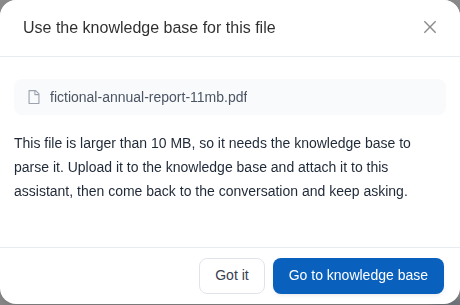
For example, project manager Xiaomai wants MaiGPT to summarize an 11 MB fictional company report. After selecting the file, the screen shows that the file exceeds 10 MB. Xiaomai can go to the knowledge base, upload and attach the file there, and then return to the conversation to continue asking questions.

<figure><img src="https://1360999650-files.gitbook.io/~/files/v0/b/gitbook-x-prod.appspot.com/o/spaces%2F6v6TNkkOQVfRYfcNirHL%2Fuploads%2Fgit-blob-87b59159b8a6f2cb418daf26169a59932d697ada%2Fmaigpt-attachment-limit.png?alt=media" alt="MaiGPT shows that the file exceeds 10 MB and offers a button to go to the knowledge base"><figcaption><p>When a file exceeds the conversation limit, follow the on-screen guidance to handle it through the knowledge base instead</p></figcaption></figure>

{% stepper %}
{% step %}
In the prompt dialog, confirm the file name and the current size limit.
{% endstep %}

{% step %}
If you have knowledge base permissions, click <mark style="color:blue;">Go to knowledge base</mark>. Create or open a knowledge base, upload the file, and wait for processing to finish.
{% endstep %}

{% step %}
In the knowledge base's <mark style="color:blue;">Linked AI Assistant</mark> (linked Agent) settings, link the knowledge base to the Agent that MaiGPT uses. Return to <mark style="color:blue;">AI Chat</mark>, click <mark style="color:blue;">Select knowledge base</mark> and choose the knowledge base you just set up, then enter the question you want MaiGPT to handle.
{% endstep %}
{% endstepper %}

{% hint style="info" %}
The above describes the MaiGPT console web version. End users of Web Chat have no knowledge base entry point. If <mark style="color:blue;">Go to knowledge base</mark> does not appear on your screen, contact your organization administrator to add the file to the Agent's knowledge base. You can also paste the passages you need analyzed, or split the file into smaller files and upload them again. Audio files reach the limit more easily, so you can compress the file first.
{% endhint %}

***

## Knowledge Base Q\&A <a href="#knowledge-base-qa" id="knowledge-base-qa"></a>

MaiGPT can connect to your company's knowledge base, so you can query internal company information directly through conversation. The AI's answers include source references, and you can click them to view the original documents.

### How to Use <a href="#how-to-use" id="how-to-use"></a>

Just ask. If your MaiGPT is already connected to the company knowledge base, the AI automatically searches for relevant information to answer your question.

> "What is the company's leave process?"
>
> "What is the difference between Product A and Product B?"
>
> "What should new hires do on their first day?"

To limit the scope of this search, click <mark style="color:blue;">Select knowledge base</mark> at the top right of the chat page and check knowledge bases, or documents and FAQs within them, in the right panel. After you make a selection, the button changes to show "N documents selected". If you do not see this button, your role does not have knowledge base RAG enabled, so please contact your organization administrator.

### Right Panel: Reference Documents and Output <a href="#right-panel" id="right-panel"></a>

The <mark style="color:blue;">Expand/collapse side panel</mark> button at the far right of the chat page opens the right panel, which has two sections:

| Section                                              | Content                                                                                                                                                                                        |
| ---------------------------------------------------- | ---------------------------------------------------------------------------------------------------------------------------------------------------------------------------------------------- |
| <mark style="color:blue;">Reference documents</mark> | Knowledge base documents cited in this conversation. You can check the scope to search (this is the same setting as <mark style="color:blue;">Select knowledge base</mark>)                    |
| <mark style="color:blue;">Output</mark>              | Files, images, and videos generated in this conversation. Each item can be <mark style="color:blue;">downloaded</mark> directly. When nothing has been generated yet, "No output yet" is shown |

When "This feature is not enabled for your role" appears below a section title, it means the administrator has not enabled that capability for your role. See [MaiGPT Role Permissions](/maiagent-user-guide/en/org/roles/maigpt-role-permissions.md).

### Answers Include Sources <a href="#answers-with-sources" id="answers-with-sources"></a>

The AI's reply marks its data sources, usually shown as citation markers or links. Click one to view the relevant passage of the original document.

This lets you:

* **Verify the accuracy of the answer** — See which document the AI based its answer on
* **Dig deeper** — If the summary is not enough, click through to read the full original text

### Can't Find an Answer? <a href="#no-answer-found" id="no-answer-found"></a>

If the AI replies "I could not find relevant information in the knowledge base," possible reasons are:

| Situation                                                | What to Do                                                        |
| -------------------------------------------------------- | ----------------------------------------------------------------- |
| The data has not been uploaded to the knowledge base yet | Ask an administrator to upload the relevant documents             |
| The question is too vague                                | Try asking with more specific keywords                            |
| Knowledge base permission restrictions                   | You may not have access to that data, so contact an administrator |

{% hint style="info" %}
**The AI not finding something does not mean your company doesn't have it**

Knowledge base content is uploaded and maintained by administrators. If you are sure a document exists but the AI cannot find it, notify an administrator to check whether it has been imported into the knowledge base.
{% endhint %}

***

## Web Search <a href="#web-search" id="web-search"></a>

MaiGPT can search the web to get the latest information to answer your questions. It is suited to situations that need real-time data, such as news, market trends, and competitor information.

### How to Use <a href="#how-to-use-web-search" id="how-to-use-web-search"></a>

State in your question that you need the latest information, and MaiGPT decides whether to search the web:

> "Search for today's closing price of the Taiwan stock market index"
>
> "What recent updates have there been to AI-related regulations?"
>
> "Help me find out what new products competitor Company X recently released"

To make sure it searches the web this time, you can specify the web search tool from the "+" menu:

1. Click <mark style="color:blue;">Add</mark> (+) at the bottom left of the input box and hover over <mark style="color:blue;">Tools</mark>.
2. Enter "搜尋" or "search" in <mark style="color:blue;">Search tools</mark>, and click the web search tool under <mark style="color:blue;">Built-in</mark>.
3. Enter your question and send it.

While the AI searches, the reply shows "Searching the web" along with the search keywords. When it finishes, this changes to "Searched the web", and the results are then compiled into a complete answer with links to the sources.

{% hint style="info" %}
The tool list shows only the tools your role can use. If you cannot find the web search tool, ask your organization administrator to check the <mark style="color:blue;">Tools</mark> scope in [MaiGPT Role Permissions](/maiagent-user-guide/en/org/roles/maigpt-role-permissions.md).
{% endhint %}

### When to Use Web Search <a href="#when-to-use-web-search" id="when-to-use-web-search"></a>

| Good For                          | Not Needed                                                  |
| --------------------------------- | ----------------------------------------------------------- |
| Latest news and current events    | Asking about internal company data (use the knowledge base) |
| Product prices and specifications | Writing reports, translation (no external data needed)      |
| Regulation and policy updates     | Analyzing uploaded files                                    |
| Researching market trends         | Everyday conversation, brainstorming                        |

{% hint style="info" %}
**Web Search vs. Deep Research**

Web search is suited to **quickly looking up a single question**, with an answer in a few seconds. If you need to **research a topic in depth** and produce a complete report, use [Deep Research](/maiagent-user-guide/en/work/maigpt/deep-research.md).
{% endhint %}

***

## Thinking Effort <a href="#deep-thinking" id="deep-thinking"></a>

Thinking effort decides how deeply the AI reasons before answering. The higher the effort, the better suited it is to complex questions that need reasoning, analysis, or multi-step judgment, but replies are slower and use more quota.

### How to Adjust <a href="#how-to-use-deep-thinking" id="how-to-use-deep-thinking"></a>

1. At the bottom right of the input box, to the left of the model name, click the <mark style="color:blue;">Thinking effort</mark> button (the button shows the current level, for example <mark style="color:blue;">Default</mark>).
2. Choose a level from the menu. The setting applies only to this conversation, and you can change it at any time during the conversation; later replies use the new level.

| Level                                                                                | Description                                                                                                                                                                                                                                                                                              |
| ------------------------------------------------------------------------------------ | -------------------------------------------------------------------------------------------------------------------------------------------------------------------------------------------------------------------------------------------------------------------------------------------------------- |
| <mark style="color:blue;">Default</mark>                                             | No level specified; determined by the Agent settings or the model itself. Depending on the model's actual behavior, the menu labels it <mark style="color:blue;">Default (no thinking · fastest)</mark> or <mark style="color:blue;">Default (model thinks on its own)</mark>. See the explanation below |
| <mark style="color:blue;">Off</mark>                                                 | No thinking. If the model does not think by default, it is labeled <mark style="color:blue;">Off (same as default)</mark>; if the model thinks by default, it is labeled <mark style="color:blue;">Off (fastest)</mark>                                                                                  |
| <mark style="color:blue;">Minimal</mark> to <mark style="color:blue;">Maximum</mark> | Turns thinking on. The higher the level, the deeper the reasoning, the slower the reply, and the more credits used. With thinking on, each model call takes about 1–3 seconds longer, depending on the model                                                                                             |

**Will "Default" think or not?** It depends on the model:

* <mark style="color:blue;">Default (no thinking · fastest)</mark>: This model does not think when no level is specified, which is the fastest option. Choosing any thinking level here (including <mark style="color:blue;">Minimal</mark>) is slower than Default
* <mark style="color:blue;">Default (model thinks on its own)</mark>: When no level is specified, this model decides on its own whether to think and how deeply. For the fastest reply, choose <mark style="color:blue;">Off (fastest)</mark> (shown only when the model can turn thinking off)
* If <mark style="color:blue;">Default</mark> and <mark style="color:blue;">Off</mark> have no parenthetical label, "Default" follows the level already set on the Agent (specified by the Agent administrator in the Agent settings), and the menu does not label it as fast or slow

{% hint style="info" %}
**Available levels depend on the model**

The menu lists only the levels the current model supports; <mark style="color:blue;">Off</mark> appears only when the model can turn thinking off. If the current model does not support adjusting thinking effort, the input box does not show this button. The menu button shows only the short name (for example <mark style="color:blue;">Default</mark> or <mark style="color:blue;">High</mark>); the parenthetical labels appear only when the menu is expanded.
{% endhint %}

While the AI is thinking, a "Thinking" block usually appears above the reply and expands automatically. When thinking ends, it collapses to "Thought for N seconds"; click it to expand and view the thinking.

### When to Raise It <a href="#when-to-enable-deep-thinking" id="when-to-enable-deep-thinking"></a>

| Good to Raise                    | Default or Lower Is Enough                |
| -------------------------------- | ----------------------------------------- |
| Complex analysis and comparison  | Simple Q\&A ("What's the weather today?") |
| Logical reasoning                | Translation                               |
| Math calculations, data analysis | Everyday chat                             |
| Multi-angle decision advice      | Text polishing, rewriting                 |

***

## Conversation Memory <a href="#chat-memory" id="chat-memory"></a>

MaiGPT remembers the content of your conversations, so you can continue earlier discussions without re-explaining the background each time.

### Two Types of Memory <a href="#two-types-of-memory" id="two-types-of-memory"></a>

#### Conversation Memory (Short-Term) <a href="#short-term-memory" id="short-term-memory"></a>

Within the same conversation, the AI remembers what was said earlier. You can pick up the discussion where you left off:

> You: "Summarize the key points of Q1 performance for me"
>
> AI: (replies with the summary)
>
> You: "Now add a comparison with Q2" ← The AI knows you're talking about performance

**Starting a new conversation** clears short-term memory, and the AI starts from scratch.

#### Long-Term Memory <a href="#long-term-memory" id="long-term-memory"></a>

MaiGPT can remember important information across conversations, such as your role, preferences, and commonly used formats.

> You: "Remember that I'm in marketing and I always use bullet lists for reports"
>
> AI: Got it, I'll remember that.

Even in new conversations later, the AI will remember these preferences.

### Tips <a href="#memory-tips" id="memory-tips"></a>

{% hint style="success" %}
**Stay in the Same Conversation**

If you are working on one topic (such as writing a report), try to finish it in the same conversation. That way the AI remembers all the context and gives better answers.
{% endhint %}

{% hint style="info" %}
**Need a Fresh Start?**

If you want to switch to a completely different topic, start a new conversation so the previous topic does not influence the answers to the new one.
{% endhint %}

***

## Message Actions <a href="#message-actions" id="message-actions"></a>

Move your mouse over any message and a row of small icons appears below it. Your own messages have <mark style="color:blue;">Copy</mark> and <mark style="color:blue;">Edit message</mark>; the AI's replies have <mark style="color:blue;">Copy</mark>, <mark style="color:blue;">Like</mark>, <mark style="color:blue;">Dislike</mark>, and <mark style="color:blue;">Branch conversation from here</mark>. These actions work the same way in MaiGPT, the [Agent Marketplace](/maiagent-user-guide/en/work/explain.md#message-and-conversation-actions), and [Web Chat](/maiagent-user-guide/en/build/choose-channel/web-chat.md#message-actions). For the differences, see the [comparison table](#actions-on-other-surfaces) at the end of this section.

### Edit a Sent Message and Switch Versions <a href="#edit-message" id="edit-message"></a>

If you asked the wrong thing or left out a condition, you don't need to start a new conversation.

1. Hover over your own message and click <mark style="color:blue;">Edit message</mark> (the pencil icon). The message becomes an editable text box.
2. Change the content. A reminder appears below the text box: "Editing this message will delete all subsequent conversation content, and the Bot will reply again based on the new content."
3. Click <mark style="color:blue;">Confirm</mark> (or <mark style="color:blue;">Cancel</mark> if you no longer want to change it). The AI replies again based on the new content.

A version switcher <mark style="color:blue;">‹ 2 / 2 ›</mark> appears below an edited message: use the left and right arrows to switch between versions. The numbers show "current version / total versions". When you switch versions, the AI replies that follow that version switch with it, and the original replies don't actually disappear.

{% hint style="warning" %}
Editing rewrites the direction of the conversation **after** this message. If you still need the later replies, copy them first, or use a [branch conversation](#fork-conversation) to keep the original line.
{% endhint %}

### Like, Dislike, and Give Feedback on Replies <a href="#message-feedback" id="message-feedback"></a>

* If a reply is helpful, click <mark style="color:blue;">Like</mark>; click again to undo.
* If a reply has a problem, click <mark style="color:blue;">Dislike</mark> to open the <mark style="color:blue;">Provide feedback</mark> window: select the reasons (the answer is unrelated to the question / the information is inaccurate or off the facts / the answer is incomplete or too brief / it did not follow instructions or requirements / the tone is inappropriate or unprofessional), add details in <mark style="color:blue;">Other feedback</mark> if needed, and click <mark style="color:blue;">Submit</mark>. Click a submitted dislike again to undo it.

Your likes and dislikes are recorded on that reply. People who manage this Agent can see the feedback for each reply in the [Conversation Viewer](/maiagent-user-guide/en/serve/daily-operations/reply/conversation-viewer.md), and the "User satisfaction" metric in [Usage Analytics](/maiagent-user-guide/en/build/agent/usage.md#user-satisfaction-rate) is also calculated from these likes and dislikes, so please rate according to your actual experience.

### Create a Branch Conversation from a Reply <a href="#fork-conversation" id="fork-conversation"></a>

When you want to try a different way of asking within the same context without disturbing the current conversation, hover over that AI reply and click <mark style="color:blue;">Branch conversation from here</mark> (the fork icon). The system copies the content **up to and including this reply** into a new conversation, shows "Branch conversation created!", and switches to it automatically. The original conversation is not affected at all, and the two develop independently.

The difference from [editing a message](#edit-message): editing rewrites what follows within the same conversation, while branching opens a separate conversation.

### Answer an Agent's Question Cards <a href="#answer-ask-cards" id="answer-ask-cards"></a>

Some Agents (for example [Deep Research](/maiagent-user-guide/en/work/maigpt/deep-research.md) or [Conversation Handoff](/maiagent-user-guide/en/work/maigpt/chat/conversation-handoff.md#assistant-asks)) first use "question cards" to confirm your needs before continuing. Question cards appear where the input box is. How to use them:

| Action                   | How                                                                                                                                                   |
| ------------------------ | ----------------------------------------------------------------------------------------------------------------------------------------------------- |
| Single / multiple choice | Click an option; for questions marked "multiple options can be selected", you can select several, and click again to deselect                         |
| Ranking questions        | Drag options to reorder, or move them with `Shift + ↑／↓`                                                                                              |
| Other answers            | When a question allows free-form answers, there is an <mark style="color:blue;">Enter another answer…</mark> field                                    |
| Switching questions      | <mark style="color:blue;">Previous</mark> / <mark style="color:blue;">Next</mark>, with "Question N / M" shown above                                  |
| Submit                   | <mark style="color:blue;">Confirm and submit</mark>; if a question can be skipped, there is also <mark style="color:blue;">Skip</mark>                |
| Keyboard                 | `Enter` to submit or go to the next question, `Space` to toggle selection, `↑／↓` to switch options, `←／→` for previous / next question, `Esc` to skip |

If a card shows "Estimated usage about N Credits", it means the work that follows after you submit will use about that many Credits. On Web Chat, administrators can change question cards into a button row floating above the input box; see [Function Settings: Question Option Display Mode](/maiagent-user-guide/en/build/conversation-settings/platform-settings/function-settings.md#ask-option-display-mode).

Another kind of card comes from the tool itself: after an Agent calls an MCP tool or connector that has an interactive interface, a card appears below the reply that you can query, fill in, or submit directly. See [MCP Interactive Cards (MCP Apps)](/maiagent-user-guide/en/build/tools/mcp-apps.md).

### Comparison Across the Three Surfaces <a href="#actions-on-other-surfaces" id="actions-on-other-surfaces"></a>

| Action                           | MaiGPT                            | Agent Marketplace | Web Chat (Website Visitors)                                                                                  |
| -------------------------------- | --------------------------------- | ----------------- | ------------------------------------------------------------------------------------------------------------ |
| Copy                             | ✅                                 | ✅                 | ✅                                                                                                            |
| Like / Dislike, provide feedback | ✅                                 | ✅                 | ✅ All visitors                                                                                               |
| Edit message, switch versions    | ✅                                 | ✅                 | Only for visitors who are [logged in](/maiagent-user-guide/en/build/choose-channel/web-chat.md#login-config) |
| Branch conversation              | ✅ "Branch conversation from here" | ✅ Same as left    | Only for logged-in visitors; the button is named <mark style="color:blue;">Fork conversation</mark>          |
| Question cards                   | Option panel                      | Option panel      | Option panel or floating buttons, set by the administrator                                                   |

***

## Organize Conversations: Pin Frequently Used Conversations <a href="#pin-conversations" id="pin-conversations"></a>

Once you have accumulated many conversations, important or frequently used ones get pushed down by new ones and become hard to find. You can "pin" them so they stay at the very top of the conversation list on the left, one click away at any time.

### How to Pin <a href="#how-to-pin" id="how-to-pin"></a>

1. In the conversation list on the left, move your mouse over the conversation you want to pin
2. Click the <mark style="color:blue;">⋮</mark> menu that appears on the right
3. Select <mark style="color:blue;">Pin</mark>

After pinning, the conversation moves to the <mark style="color:blue;">Pinned</mark> section at the top of the conversation list, and a 📌 icon appears next to its title.

### Unpin <a href="#how-to-unpin" id="how-to-unpin"></a>

On a pinned conversation, click the <mark style="color:blue;">⋮</mark> menu and select <mark style="color:blue;">Unpin</mark>. The conversation returns to <mark style="color:blue;">Recent conversations</mark> below.

### Ordering and Rules <a href="#pin-rules" id="pin-rules"></a>

| Item                   | Description                                                                                                                                         |
| ---------------------- | --------------------------------------------------------------------------------------------------------------------------------------------------- |
| Ordering               | Both the pinned section and the regular list are sorted by the time of the last message, newest first, regardless of when a conversation was pinned |
| Pin limit              | There is no limit; you can pin multiple conversations at the same time                                                                              |
| Persistence            | The pinned state is saved and remains after refreshing or logging in again                                                                          |
| Collapsing the section | Click the "Pinned" title to expand or collapse the whole section                                                                                    |
| Scope                  | You can only pin your own conversations                                                                                                             |

### Good Scenarios for Pinning <a href="#pin-use-cases" id="pin-use-cases"></a>

* **Finance / Banking**: conversations for ongoing reconciliation tracking and comparisons of wealth management plans
* **Technology / Electronics manufacturing**: frequently used product specification and technical support troubleshooting conversations
* **Educational institutions**: admissions Q\&A and course planning discussions you use repeatedly
* **Services / Retail**: ongoing event planning and membership benefit inquiry conversations
* Or any workflow you return to every day to continue

{% hint style="info" %}
**Pinning Only Affects Your Own View**

Pinning is a personal way of organizing. It only changes the order you see in your conversation list; it does not affect other members, and it does not change the conversation content itself.
{% endhint %}

***

## Organize Conversations: Rename and Delete <a href="#manage-conversations" id="manage-conversations"></a>

In the conversation list on the left, hover over any conversation and click <mark style="color:blue;">⋮</mark> on the right to see these options: <mark style="color:blue;">Pin</mark> / <mark style="color:blue;">Unpin</mark> (see the [previous section](#pin-conversations)), <mark style="color:blue;">Rename</mark>, and <mark style="color:blue;">Delete conversation</mark>.

### Rename <a href="#rename-conversation" id="rename-conversation"></a>

By default, the conversation title is generated automatically from the first message. Click <mark style="color:blue;">⋮</mark> → <mark style="color:blue;">Rename</mark>, enter a new title, and press `Enter` or <mark style="color:blue;">Confirm</mark>. This only changes the title and does not affect the content.

### Delete a Conversation <a href="#delete-conversation" id="delete-conversation"></a>

Click <mark style="color:blue;">⋮</mark> → <mark style="color:blue;">Delete conversation</mark>, and after confirming "Are you sure you want to delete this conversation?", it is deleted and cannot be restored. Versions you have shared do not disappear with it; for the rules, see [Sharing Rules](#share-rules).

{% hint style="info" %}
Pinning is an organizing feature exclusive to MaiGPT. The conversation sidebar in the Agent Marketplace only has rename and delete, and the history sidebar in Web Chat is automatically grouped by Today / Yesterday / Past 7 days; see [Web Chat: Chat History Sidebar](/maiagent-user-guide/en/build/choose-channel/web-chat.md#chat-history).
{% endhint %}

***

## Organize Conversations: Search Conversations <a href="#search-conversations" id="search-conversations"></a>

When you remember discussing something but can't recall which conversation it was, you can search by keyword. The search covers your own MaiGPT conversations and matches **conversation titles and message content**.

### Open the Search Panel with a Shortcut <a href="#search-palette" id="search-palette"></a>

1. On the MaiGPT page, press `Cmd + K` (`Ctrl + K` on Windows) to open the search panel in the center of the screen.
2. Before you type anything, the panel lists <mark style="color:blue;">Recent conversations</mark>. Enter a keyword in <mark style="color:blue;">Search conversation titles or messages…</mark> and the results update instantly: when a title matches, the keyword in the title is highlighted; when a message matches, a message snippet containing the keyword appears below the title.
3. Use `↑`／`↓` to select and press `Enter` to open a conversation, or click a result directly. Press `Cmd + K` (`Ctrl + K`) again or press `Esc` to close the panel.

### Browse and Search on the "All Conversations" Page <a href="#all-chats-page" id="all-chats-page"></a>

Click <mark style="color:blue;">All conversations</mark> above the conversation list on the left (or the arrow next to the <mark style="color:blue;">Recent conversations</mark> heading) to open a full-page conversation list. Scrolling down loads more conversations automatically; enter a keyword in the search box at the top, which matches the same way as the search panel.

{% hint style="info" %}
When no conversations match, the search panel shows "No results found", and the All conversations page prompts you to try a different keyword. If the search panel shows "Search failed, please try again later", wait a moment and search again.
{% endhint %}

***

## Share a Conversation <a href="#share-conversation" id="share-conversation"></a>

You can share an entire conversation with members of your organization: the recipient opens the link and sees the full content, and if you allow copying, they can copy the conversation into their own conversation list with one click and keep asking.

### Use Case <a href="#share-scenario" id="share-scenario"></a>

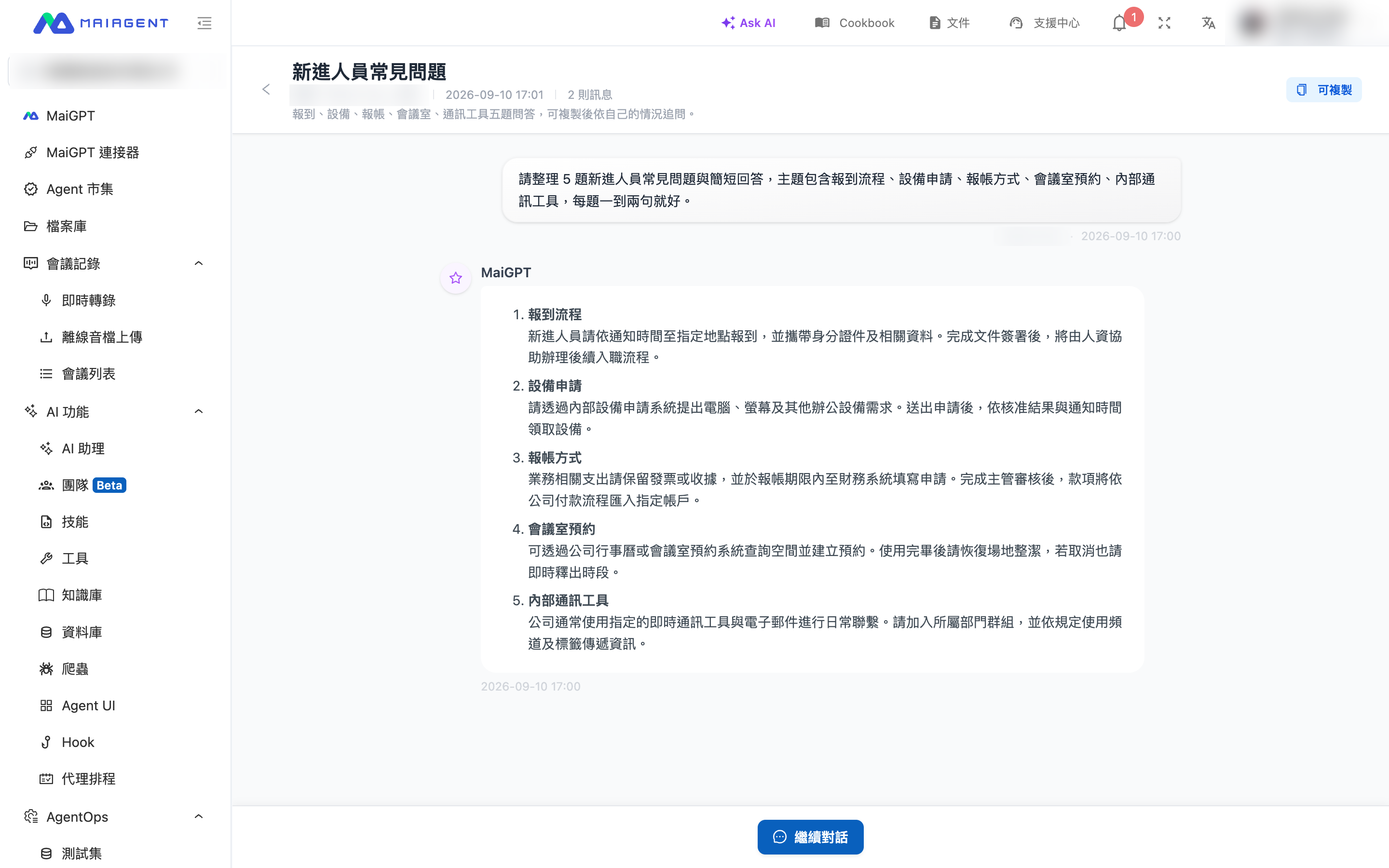
A knowledge base administrator used MaiGPT to put together a Q\&A on "New Employee FAQs" and wants the whole organization to be able to use it directly. At the top of the conversation, they click <mark style="color:blue;">Share</mark> and choose <mark style="color:blue;">Quick share with the whole organization</mark>. The link is copied to the clipboard immediately, ready to paste into an announcement. Members open the link to browse the whole Q\&A; to ask follow-up questions for their own situation, they click <mark style="color:blue;">Continue conversation</mark> to copy it into their own conversation list and keep asking, and the original conversation is not affected.

### How to Share <a href="#how-to-share" id="how-to-share"></a>

The share entry point is at the top of the conversation page and appears only when the current conversation already has messages.

{% stepper %}
{% step %}

### 1. Click "Share" <a href="#share-click-button" id="share-click-button"></a>

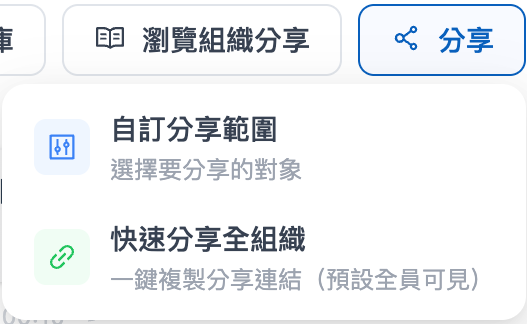
At the top of the conversation page, click <mark style="color:blue;">Share</mark> to expand two options:

* <mark style="color:blue;">Quick share with the whole organization</mark>: Generates a link and copies it to the clipboard right away. All members of the organization can view and copy it, and there are no settings to fill in.
* <mark style="color:blue;">Customize sharing scope</mark>: You decide who to share with and what permissions they have; see the next step.

<figure><img src="https://1360999650-files.gitbook.io/~/files/v0/b/gitbook-x-prod.appspot.com/o/spaces%2F6v6TNkkOQVfRYfcNirHL%2Fuploads%2Fgit-blob-2a033e6ae791e7becefdc8f1fd203af3f3941b2f%2Fmaigpt-share-menu.png?alt=media" alt="Menu expanded from the &#x27;Share&#x27; button at the top of the conversation page"><figcaption><p>The "Share" button offers two ways: "Quick share with the whole organization" and "Customize sharing scope"</p></figcaption></figure>
{% endstep %}

{% step %}

### 2. Set the Sharing Scope and Permissions <a href="#share-settings" id="share-settings"></a>

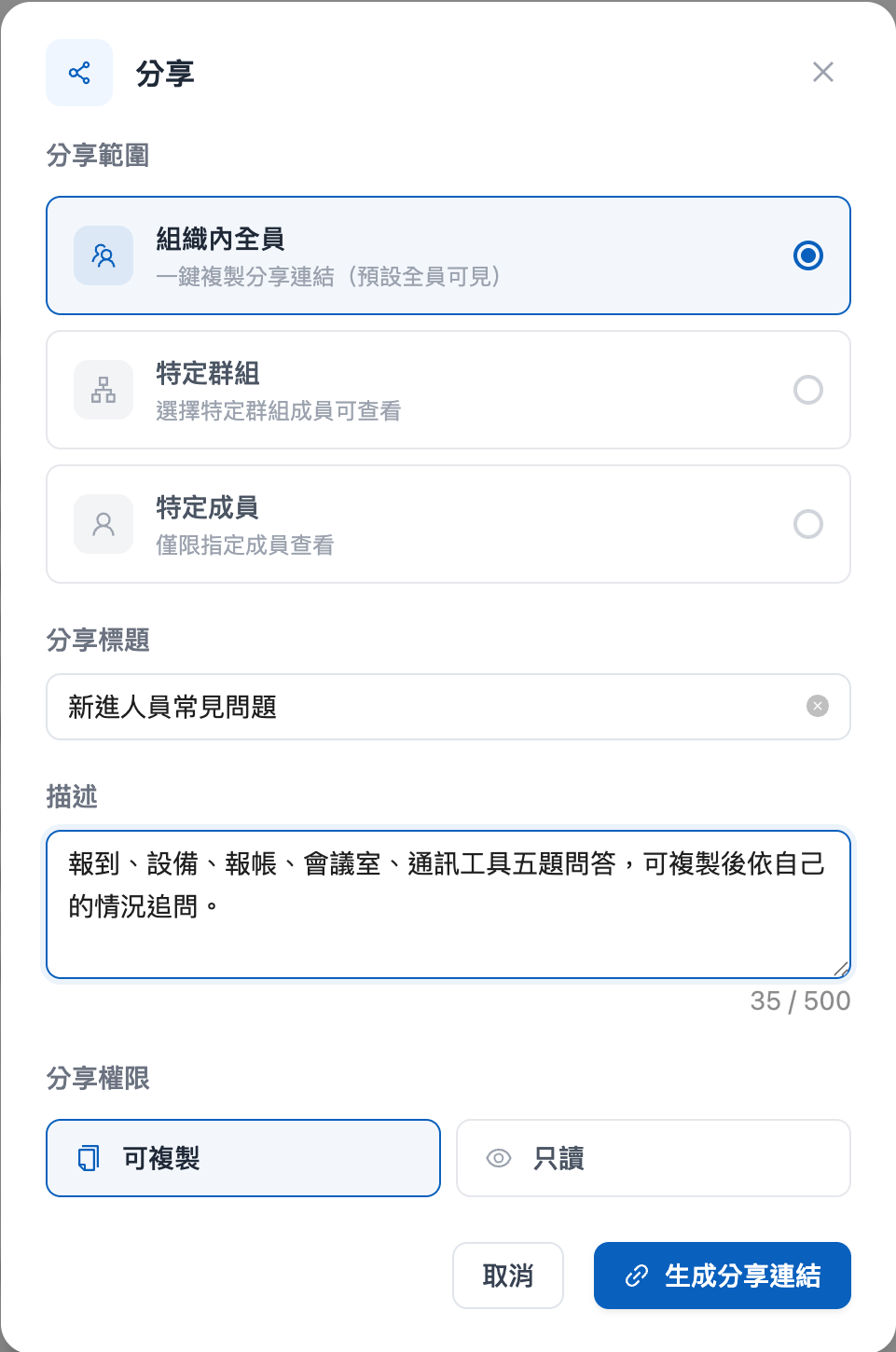
After choosing <mark style="color:blue;">Customize sharing scope</mark>, configure the following in the dialog:

| Field                                               | Description                                                                                                                                                                                                                                                                                |
| --------------------------------------------------- | ------------------------------------------------------------------------------------------------------------------------------------------------------------------------------------------------------------------------------------------------------------------------------------------ |
| <mark style="color:blue;">Sharing scope</mark>      | <mark style="color:blue;">Everyone in the organization</mark>, <mark style="color:blue;">Specific groups</mark>, or <mark style="color:blue;">Specific members</mark>. When you choose groups or members, click the selection bar below to pick recipients; you can select several at once |
| <mark style="color:blue;">Share title</mark>        | Optional. The title the recipient sees on the shared page and in the "Browse organization shares" list; if left blank, the conversation title is used                                                                                                                                      |
| <mark style="color:blue;">Description</mark>        | Optional. A short summary of the key points or purpose of this conversation                                                                                                                                                                                                                |
| <mark style="color:blue;">Sharing permission</mark> | <mark style="color:blue;">Can copy</mark> (default): the recipient can copy the conversation into their own list and keep asking; <mark style="color:blue;">Read-only</mark>: the recipient can only browse                                                                                |

<figure><img src="https://1360999650-files.gitbook.io/~/files/v0/b/gitbook-x-prod.appspot.com/o/spaces%2F6v6TNkkOQVfRYfcNirHL%2Fuploads%2Fgit-blob-f29c0c7ec8a9edcf85e9ea62bb240887942e6111%2Fmaigpt-share-modal.png?alt=media" alt="Customize sharing scope dialog"><figcaption><p>Sharing scope, title, description, and sharing permission are all set in the same dialog</p></figcaption></figure>
{% endstep %}

{% step %}

### 3. Generate and Send the Link <a href="#share-generate-link" id="share-generate-link"></a>

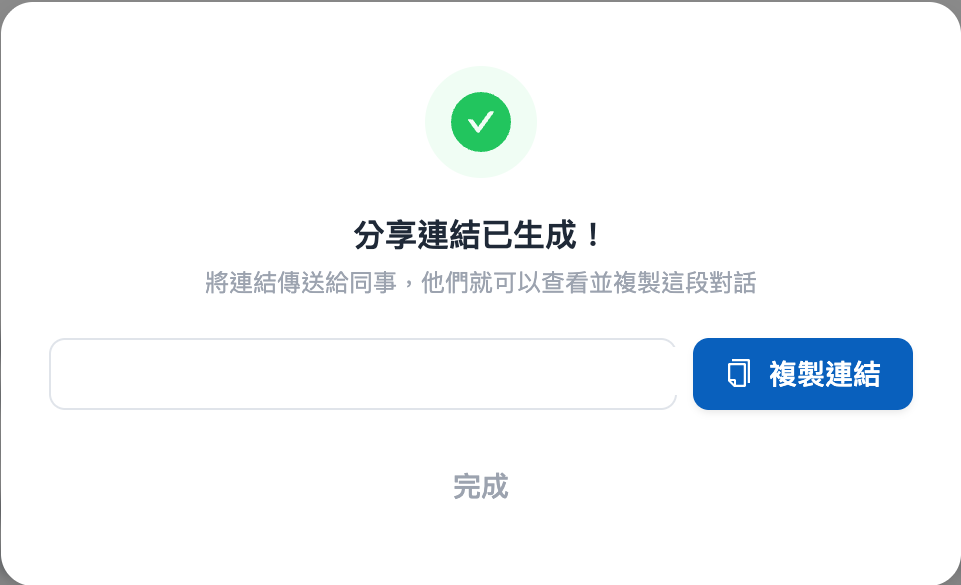
Click <mark style="color:blue;">Generate share link</mark>. The link is copied to the clipboard automatically, and the screen also offers <mark style="color:blue;">Copy link</mark> to copy it again. Just paste the link to the recipient; they need to be logged in to MaiAgent to open it.

<figure><img src="https://1360999650-files.gitbook.io/~/files/v0/b/gitbook-x-prod.appspot.com/o/spaces%2F6v6TNkkOQVfRYfcNirHL%2Fuploads%2Fgit-blob-70c2bb9362956c511dbada4c114bdbe95e8e7ed3%2Fmaigpt-share-link-generated.png?alt=media" alt="Share link generated"><figcaption><p>The link is copied automatically once generated, and you can also click "Copy link" again</p></figcaption></figure>
{% endstep %}
{% endstepper %}

### What the Recipient Sees <a href="#shared-page" id="shared-page"></a>

After logging in and opening the link, the recipient lands on the shared page: the title, sharer, sharing time, and message count are shown at the top, and the full conversation is below. It is view-only, and you cannot type on this page.

* When the permission is <mark style="color:blue;">Can copy</mark>, there is a <mark style="color:blue;">Continue conversation</mark> button at the bottom of the page. After clicking it, the system copies this conversation into a new conversation that belongs to the recipient, shows "Copied to your conversation list!", and switches to it automatically, so the recipient can ask questions right away.
* When the permission is <mark style="color:blue;">Read-only</mark>, the page shows "This conversation is a read-only share" and there is no copy button.
* Members who are not in the sharing scope, or accounts from a different organization, who open the link will see "Unable to load this shared conversation. The link may have expired".

<figure><img src="https://1360999650-files.gitbook.io/~/files/v0/b/gitbook-x-prod.appspot.com/o/spaces%2F6v6TNkkOQVfRYfcNirHL%2Fuploads%2Fgit-blob-8fcb8b18458961a9b6f097bb16a0403ae4e2c178%2Fmaigpt-shared-page-continue.png?alt=media" alt="Shared page and Continue conversation button"><figcaption><p>The bottom of a "Can copy" shared page has "Continue conversation"; click it to copy to your own conversation list</p></figcaption></figure>

{% hint style="info" %}
**What Gets Copied Is a New Conversation**

After clicking <mark style="color:blue;">Continue conversation</mark>, the recipient keeps asking in a new conversation under their own name. Your original conversation is not changed, and you can't see what they add afterward. The two are independent.
{% endhint %}

### Browse Organization Shares and Manage My Shares <a href="#browse-and-manage-shares" id="browse-and-manage-shares"></a>

<mark style="color:blue;">Browse organization shares</mark> at the top of the conversation page lists all shares in the organization that you have permission to view. You can search by title or description, and click <mark style="color:blue;">View</mark> to open the shared page.

On this page, click <mark style="color:blue;">My shares</mark> to manage each conversation you have shared:

| Action                                     | Description                                                                                                                                                                   |
| ------------------------------------------ | ----------------------------------------------------------------------------------------------------------------------------------------------------------------------------- |
| <mark style="color:blue;">Edit</mark>      | Change the share title, description, and sharing permission. The sharing scope and recipients cannot be changed after creation; to change recipients, unshare and share again |
| <mark style="color:blue;">Copy link</mark> | Get the same share link again                                                                                                                                                 |
| <mark style="color:blue;">Unshare</mark>   | After unsharing, anyone who opens the link will see that it cannot be loaded; conversations already copied to someone's own list are not affected                             |

<figure><img src="https://1360999650-files.gitbook.io/~/files/v0/b/gitbook-x-prod.appspot.com/o/spaces%2F6v6TNkkOQVfRYfcNirHL%2Fuploads%2Fgit-blob-c132940ae78d23e4d5e506245d8949e6ad5e7698%2Fmaigpt-my-shares.png?alt=media" alt="My shares list"><figcaption><p>"My shares" lets you edit, copy the link, or unshare</p></figcaption></figure>

### Sharing Rules <a href="#share-rules" id="share-rules"></a>

| Item                                       | Description                                                                                                                                                                            |
| ------------------------------------------ | -------------------------------------------------------------------------------------------------------------------------------------------------------------------------------------- |
| What is shared                             | What is shared is the content "at the moment you click Share". Messages you add to the original conversation later do not appear on the shared page; to share new content, share again |
| What is not included                       | The AI's thinking process and tool execution records do not appear on the shared page; only the conversation text, code, and Canvas content are kept                                   |
| Who can open it                            | Only logged-in members of the same organization. When the scope is set to groups or members, people outside the list cannot open it                                                    |
| Expiration                                 | There is no expiration date; it stays until you unshare                                                                                                                                |
| After the original conversation is deleted | The shared page can still be browsed and copied, and the content stays as it was when shared                                                                                           |
| Who can manage it                          | Only the person who shared it can edit or unshare                                                                                                                                      |

***

## Look Back While a Reply Is Generating <a href="#review-during-generation" id="review-during-generation"></a>

While MaiGPT is generating a long reply, you can scroll up to look back at earlier content. The view stays where you scrolled and is not pulled back to the latest progress as new text keeps appearing; when you scroll to **above the last question**, a white capsule <mark style="color:blue;">Back to latest</mark> appears above the input box. Click it to return to the position of the last question and resume auto-follow.

### Use Case <a href="#generation-scroll-scenario" id="generation-scroll-scenario"></a>

A customer service manager asks MaiGPT to put together a very long training checklist. While the AI is still writing, she wants to go back and check the conditions she gave in the previous round, so she scrolls up. The view stays on the section she wants to read and is not pushed away by text generated afterward, and <mark style="color:blue;">Back to latest</mark> appears above the input box. After checking, she clicks the capsule, the view returns to the position of this round's question, and she continues watching MaiGPT finish the rest.

### How to Use It <a href="#generation-scroll-steps" id="generation-scroll-steps"></a>

{% stepper %}
{% step %}

### 1. Scroll Up <a href="#scroll-up-during-generation" id="scroll-up-during-generation"></a>

While MaiGPT is generating a reply, scroll up with the mouse wheel, a touch gesture, or by dragging the scrollbar.
{% endstep %}

{% step %}

### 2. Read in Place <a href="#read-in-place" id="read-in-place"></a>

The view stays where you scrolled, and new content being generated does not change your current position. When you scroll to above the last question, <mark style="color:blue;">Back to latest</mark> appears above the input box.

<figure><img src="https://1360999650-files.gitbook.io/~/files/v0/b/gitbook-x-prod.appspot.com/o/spaces%2F6v6TNkkOQVfRYfcNirHL%2Fuploads%2Fgit-blob-6961a587e28c6370d0effa4c176c496ff5791543%2Fmaigpt-back-to-latest.png?alt=media" alt="MaiGPT scrolled up while a reply is generating, with &#x27;Back to latest&#x27; shown above the input box"><figcaption><p>After scrolling up to above the last question, "Back to latest" appears above the input box; click it to return to this question's position</p></figcaption></figure>
{% endstep %}

{% step %}

### 3. Return to Latest <a href="#return-to-latest-content" id="return-to-latest-content"></a>

Click <mark style="color:blue;">Back to latest</mark> and the view returns to the position of the last question and resumes automatically following the latest content. You can also scroll down to the bottom yourself, which resumes following as well.
{% endstep %}
{% endstepper %}

{% hint style="info" %} <mark style="color:blue;">Back to latest</mark> appears only when you are **above** the last question. If you scroll down within the same long reply to read content that has already been generated, the view also stays in place but the capsule does not appear; scrolling down to the bottom reconnects you to the latest progress.
{% endhint %}

***

## Navigator for Long Conversations <a href="#conversation-navigator" id="conversation-navigator"></a>

After many questions in the same conversation, it is hard to go back and find a particular one. When the conversation has 3 or more of your questions and the browser window is at least 768 pixels wide, a column of small dots appears on the right side of the conversation area. Each dot represents one of your questions, and the question you are currently viewing is highlighted.

1. Move your mouse over the dot column to expand a text list showing the beginning of each question (up to 50 characters); a question with only attachments is shown as "\[Attachment]".
2. Click any question and the view scrolls to it, briefly highlighting it to show you where you are.
3. When you move the mouse away, the list collapses back into the dot column.

***

## Next Steps <a href="#next-steps" id="next-steps"></a>

* [Write Documents with Canvas](/maiagent-user-guide/en/work/maigpt/canvas.md)
* [Create AI Slides](/maiagent-user-guide/en/work/maigpt/slides.md)
* [Meeting Records Quick Entry](/maiagent-user-guide/en/work/meeting-records/quick-entry.md)
* [Back to MaiGPT Overview](/maiagent-user-guide/en/work/maigpt.md)


---

# Agent Instructions
This documentation is published with GitBook. GitBook is the documentation platform designed so that both humans and AI agents can read, navigate, and reason over technical content effectively. Learn more at gitbook.com.

## Querying This Documentation
If you need additional information that is not directly available in this page, you can query the documentation by asking a question.

Perform an HTTP GET request on the following URL with the `ask` and `goal` query parameters:

```
GET https://docs.maiagent.ai/maiagent-user-guide/en/work/maigpt/chat.md?ask=<question>&goal=<user_goal>
```

`ask` is the immediate question: it should be specific, self-contained, and written in natural language.
`goal` is what the user is ultimately trying to achieve, the reason they need the answer. Sharing it helps GitBook give you a better, more relevant answer. A goal is most helpful when it describes the outcome the user wants rather than restating the question. For example, with `ask=how do I create an API token`, a goal like `automate deployments from our CI pipeline` lets GitBook tailor the answer to that use case.

The response will contain a direct answer to the question and relevant excerpts and sources from the documentation.

Use this mechanism when the answer is not explicitly present in the current page, you need clarification or additional context, or you want to retrieve related documentation sections.