For the complete documentation index, see llms.txt. This page is also available as Markdown.

Canvas

Canvas is the area MaiGPT uses to display documents and charts. When AI generates content in Canvas, you can view the result alongside the conversation and use preview, source code, and download features depending on the content type. Markdown documents currently support previewing. To edit text manually, download the file first, then open it in a text editor.

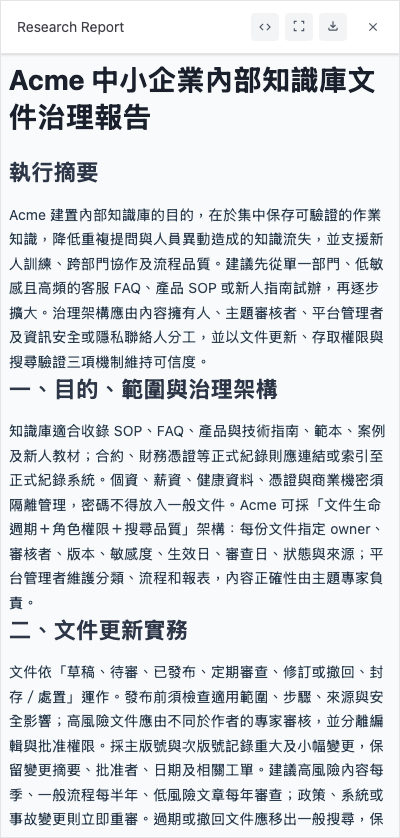
Markdown document preview in Canvas
Markdown Canvas displays the document content, with source code, full-screen, and download controls in the upper-right corner
When to use Canvas

Scenario
Example prompt

Write a report

"Write a Q1 performance summary for me"

Write an email

"Help me reply to this customer's inquiry"

Organize meeting notes

"Format the following content as meeting notes"

Draw a flowchart

"Draw a leave request flowchart"

Create a table

"Create a table comparing Plan A and Plan B"


How to use it

Open Canvas

AI automatically opens Canvas when generating longer documents. You can also ask it directly:

"Use Canvas to write a..."

Edit content

After Canvas opens, you can:

  1. View the document — Read the content in Markdown Canvas. Switch to source code mode to view the Markdown text; this mode is not a text-editing field.

  2. Download and edit — Download the Markdown file, then edit it in a text editor. Changes to the local file are not automatically written back to Canvas.

  3. Request changes — Clearly specify the paragraph you want to adjust in the conversation, such as "Make the second paragraph more concise."

Export

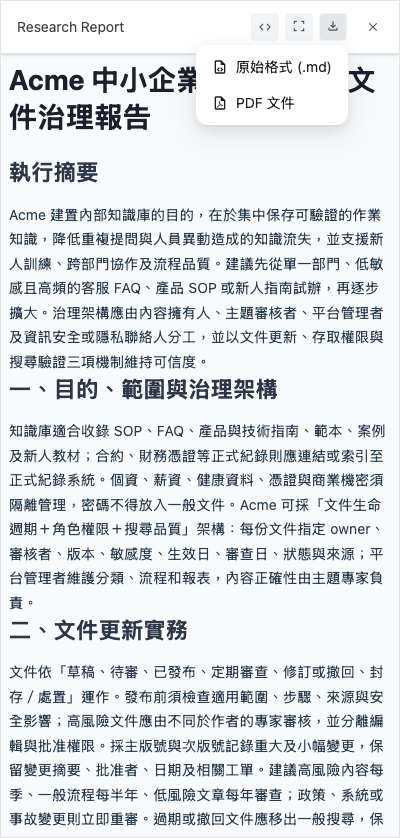
The upper-right corner of Markdown Canvas provides a Download menu:

  • Original format (.md) — Save the Markdown file so you can edit it in a text editor

  • PDF document — Download a PDF for reading and sharing

To copy the Markdown text, switch to code mode, then use the copy button in the content area.


What Canvas can create

Type
Suitable for
Example

Documents

Reports, emails, proposals, announcements

"Write a new product launch announcement"

Tables

Comparative analysis, data organization

"Compare quotes from three vendors"

Charts

Flowcharts, organization charts, sequence diagrams

"Draw the customer complaint handling process"


Tips

Keep the versions you need

Download the file first when you need to preserve the current content. Markdown Canvas preview and source code modes do not support direct text editing; edit the downloaded local file instead.


Write documents

You can ask AI to write reports, emails, proposals, announcements, or meeting notes, then view the result in Canvas. You can download Markdown documents and edit them manually.

Quick start

Tell AI directly what you want to write:

"Write a reply to a customer's request for a quote"

"Use Canvas to organize today's meeting notes"

"Write an internal announcement for a new feature launch"

After AI generates the document in Canvas, you can open the preview and download the result.

Edit and revise

Edit manually after downloading

Unlike Word, Markdown Canvas does not let you click text to edit it directly. Use the download menu in the upper-right corner to save the Markdown file, then open it in a text editor. Source code mode is only for viewing and copying.

Ask AI to make changes

Enter clear revision instructions in the conversation, such as:

You say
AI does

"Make the tone more formal"

Adjusts the tone throughout the document

"The second paragraph is too long. Make it more concise"

Shortens the specified paragraph

"Add a paragraph about the schedule"

Adds a paragraph

"Convert it to a bulleted list"

Reformats the content

"Translate it into English"

Translates the entire document

Markdown Canvas download menu
The download menu provides the original Markdown format and PDF

Common document templates

Try these prompts to quickly create common documents:

Document type
Example prompt

Weekly report

"Write this week's report. Highlights: completed Project A, started Requirement B, and will work on C next week"

Email

"Write an email politely but clearly declining a vendor's quote"

Meeting notes

"Format the following content as meeting notes: (paste notes)"

Proposal

"Write an outline for a proposal to introduce AI customer service, including a benefits analysis"

Announcement

"Write a system maintenance announcement for Saturday from 2:00 to 6:00 a.m."

Export documents

See Export above for how to download and copy Markdown documents. You can edit downloaded local files with the appropriate tools.


Create charts

Describe what you need in natural language, and AI can create flowcharts, organization charts, sequence diagrams, and other charts for you in Canvas. You do not need to learn any syntax—simply say what you want to draw.

Quick start

Tell AI directly what you want to draw:

"Draw a leave request flowchart"

"Draw our department's organization chart"

"Draw the process from a user placing an order to shipment"

Supported chart types

Chart type
Example prompt
Purpose

Flowchart

"Draw the reimbursement process"

Steps and decision branches

Organization chart

"Draw the department structure"

Reporting relationships

Sequence diagram

"Draw a sequence diagram for API calls"

Sequence of system interactions

Gantt chart

"Draw a Gantt chart for the project schedule"

Project scheduling

Mind map

"Organize the marketing strategy as a mind map"

Brainstorming and categorization

Edit charts

Want to make changes after the chart is generated? Just say what you need:

You say
AI does

"Add an approval step after the second step"

Adds a node

"Change the flowchart to run from left to right"

Adjusts the direction

"Remove the last step"

Deletes the node

"Change the colors to shades of blue"

Adjusts the style

Export charts

When finished, you can:

  • Copy — Paste into a presentation or document

  • Take a screenshot — Capture the chart directly in Canvas


Next steps

Last updated

Was this helpful?