> For the complete documentation index, see [llms.txt](https://docs.maiagent.ai/llms.txt). Markdown versions of documentation pages are available by appending `.md` to page URLs; this page is available as [Markdown](https://docs.maiagent.ai/maiagent-user-guide/en/work/image-vision/id-card-recognition.md).
# ID Document Recognition
Use multimodal AI to recognize ID cards and other identity document images, automatically outputting structured JSON data
When enterprises handle identity verification, account opening, onboarding, and similar workflows, they often have to type in names, ID numbers, addresses, and other details from each document by hand, which is time-consuming and error-prone. With MaiAgent's multimodal Agent, users simply upload a photo of the document, and the system automatically recognizes it and outputs structured JSON data that can be connected directly to downstream business systems.
Compared with traditional OCR solutions, MaiAgent combines the multimodal capabilities of large language models and offers the following advantages:
| | Traditional OCR Engine | MaiAgent Multimodal AI |
| ------------------- | ------------------------------------------------- | ----------------------------------------------------------- |
| Layout adaptability | Requires a template for each document type | Automatically understands different document layouts |
| Front/back handling | Must be processed separately and matched manually | A single image can be recognized with both front and back |
| Field expansion | Requires code changes | Just edit the JSON Schema |
| Deployment cost | Build your own OCR service or buy a license | Platform configuration, no coding required |
| Error handling | Returns raw text that needs post-processing | AI understands semantics and corrects formats automatically |
## Use Cases
* **Financial account opening**: Customers upload their ID card, and details such as name and ID number are extracted automatically to fill in the account opening form
* **HR onboarding**: New employees upload their documents, and the system creates their records automatically
* **Medical registration**: Patients upload their National Health Insurance card or ID card, and basic information is filled in automatically
* **Government service counters**: Citizens present their documents, which are recognized instantly and carried into the application form
## Solution Architecture
```mermaid
graph LR
User -->|Upload document image| AI["Document OCR Recognition Assistant (Multimodal LLM)"]
AI -->|Recognition + structuring| JSONOutput["JSON Schema Output"]
JSONOutput --> WebChat["Web Chat Real-time Display"]
JSONOutput --> API["API Integration with Business Systems"]
AI -.->|Role instructions| Rules["Recognition Rules Front/back Field Mapping"]
AI -.->|Output format| Schema["JSON Schema 9 Standard Fields"]
```
## Setup Steps
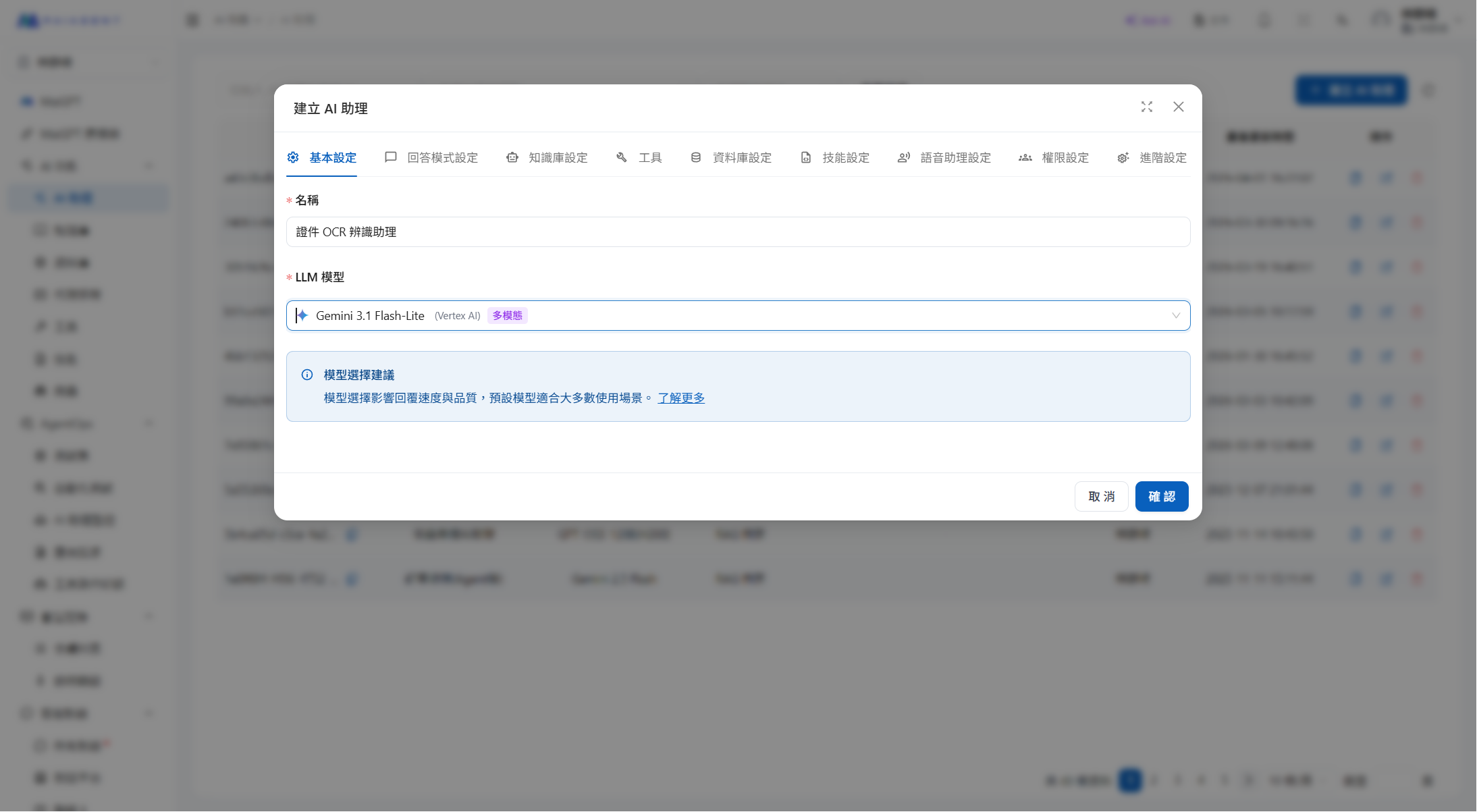
### Step 1: Create an Agent
1. In the left menu, go to **AI Features** → **AI Assistants**
2. Click **Create AI Assistant** in the upper right
3. Fill in the basic settings:
| Field | Value |
| ------------------------ | ----------------------------------------------------- |
| **Agent Name** | Document OCR Recognition Assistant |
| **Large Language Model** | Gemini 3.1 Flash-Lite (must support multimodal input) |
Agent basic settings
{% hint style="info" %}
When choosing a large language model, make sure it supports **multimodal** input (images), such as the Gemini series. A text-only model cannot recognize image content.
{% endhint %}
### Step 2: Configure the Reply Mode and JSON Schema
Switch to the **Reply Mode Settings** tab:
| Field | Value |
| ----------------- | ------------------ |
| **Reply Mode** | RAG Q\&A |
| **Output Format** | Output JSON format |
After selecting **Output JSON format**, enter the following in the JSON Schema field below:
```json
{
"type": "object",
"properties": {
"document_type": {
"type": "string",
"description": "Document type, such as ROC national ID card, driver's license, passport, National Health Insurance card, resident certificate, etc."
},
"name": {
"type": "string",
"description": "Full name of the document holder, read from the name field on the front"
},
"gender": {
"type": "string",
"enum": ["男", "女"],
"description": "Gender"
},
"date_of_birth": {
"type": "string",
"description": "Date of birth, in Minguo (ROC) calendar format"
},
"military_service": {
"type": ["string", "null"],
"description": "Military service status, such as exempt, completed, not yet served, or alternative service. null for women or if the field is absent"
},
"place_of_birth": {
"type": ["string", "null"],
"description": "Place of birth, read from the back"
},
"id_number": {
"type": "string",
"description": "National ID number, 1 letter + 9 digits"
},
"expiry_or_issue_date": {
"type": ["string", "null"],
"description": "Issue date or expiry date, in Minguo (ROC) calendar format"
},
"address": {
"type": ["string", "null"],
"description": "Full address, read from the address field on the back, including county/city, district, village, neighborhood, road/section, lane, alley, number, and floor"
}
},
"required": [
"document_type", "name", "gender", "date_of_birth",
"military_service", "place_of_birth", "id_number",
"expiry_or_issue_date", "address"
]
}
```
### Step 3: Write the Role Instructions
In the **Role Instructions** section on the same tab, enter the following:
```
You are a professional document OCR recognition assistant. Users will upload images of identity documents, and you must carefully recognize all the text in the image and extract the key information.
## Most important: carefully scan every area of the whole image
⚠️ Users often photograph the front and back of a document in the same image (side by side or one above the other). You must:
1. First scan the whole image and identify how many document sides it contains (there may be 1 or 2)
2. Recognize the text in each area separately
3. Merge the information from the front and back into the result
Never say "the back was not provided" or "the information is not in the image" unless you have genuinely checked every area of the whole image and cannot find it.
## Field locations on the ROC national ID card
### Front (has the national flag and photo)
- "Name" (姓名): next to the photo; this is the holder's own name
- "Date of birth" (出生年月日): Minguo year XX, month XX, day XX
- "Gender" (性別): marked "男" (male) or "女" (female)
- "ID number" (統一編號): at the bottom, 1 uppercase letter + 9 digits
- "Issue date" (發證日期): bottom left
### Back (has the parents and spouse fields; the background is usually darker)
- "Father" (父) and "Mother" (母): the parents' names (not the holder)
- "Spouse" (配偶): the spouse's name
- "Military service" (役別): military service status
- "Place of birth" (出生地): e.g. "臺北市" or "新北市"
- "Address" (住址): the full registered address
## Recognition rules
1. Document type: determine from its appearance
2. Name: must be read from the "Name" field on the front, never confused with the father/mother/spouse on the back
3. Gender: read from the front
4. Date of birth: read from the front, in Minguo year format
5. Military service: read from the back. Women usually have none; fill in null
6. Place of birth: read from the back
7. ID number: read from the bottom of the front, recognizing it character by character
8. Issue date: read from the "Issue date" field on the front
9. Address: read from the "Address" field on the back, including the full county/city, district, village, neighborhood, road/section, lane, alley, number, and floor
## Output notes
- Fill in null for any field that cannot be recognized
- All recognition results must be faithful to the image content; do not guess or fabricate
```
Click **Save** to finish creating the Agent.
### Step 4: Test the Recognition Results
1. Open the Agent's **Test Conversation**
2. Upload a document image (it may include both front and back)
3. Enter "Please recognize this document image"
4. Confirm that the returned JSON structure and field contents are correct
## Usage Example
Upload an image containing both the front and back of an ID card, and the Agent will automatically recognize it and output structured JSON:
```json
{
"document_type": "中華民國國民身分證",
"name": "陳筱玲",
"gender": "女",
"date_of_birth": "民國57年6月5日",
"military_service": null,
"place_of_birth": "臺北市",
"id_number": "A234567890",
"expiry_or_issue_date": "民國94年7月1日",
"address": "臺北市內湖區葫洲里1鄰民權東路六段283巷165弄218號"
}
```
{% hint style="warning" %}
Recognition accuracy depends on image quality. When taking the photo, make sure the lighting is sufficient, avoid glare, and lay the document flat. If you photograph both the front and back together, arrange them side by side or one above the other.
{% endhint %}
## JSON Output Field Reference
| Field | Type | Source | Description |
| ---------------------- | ----------- | ------ | --------------------------- |
| `document_type` | string | Front | Document type |
| `name` | string | Front | Holder's name |
| `gender` | string | Front | Gender (男/女) |
| `date_of_birth` | string | Front | Date of birth (Minguo year) |
| `military_service` | string/null | Back | Military service status |
| `place_of_birth` | string/null | Back | Place of birth |
| `id_number` | string | Front | National ID number |
| `expiry_or_issue_date` | string/null | Front | Issue date |
| `address` | string/null | Back | Full address |
## API Integration
This Agent can be connected to business systems through the MaiAgent API to automate document recognition.
### Call Flow
```mermaid
sequenceDiagram
participant Client as Business System
participant API as MaiAgent API
participant Bot as OCR Recognition Assistant
Client->>API: POST /attachments-upload/ Upload document image
API-->>Client: Return attachment ID
Client->>API: POST /chatbots/{id}/completions/ Include attachment ID
API->>Bot: Image recognition
Bot-->>API: Structured JSON result
API-->>Client: Return OCR JSON
```
### Step 1: Upload the Image and Get the Attachment ID
```bash
curl -X POST \
-H "Authorization: Api-Key YOUR_API_KEY" \
-F "file=@/path/to/id_card.jpeg" \
"https://api.maiagent.ai/api/v1/attachments-upload/"
```
Note the `id`, `type`, `file`, and `filename` fields in the response; you will need them in the next step.
### Step 2: Call the Agent for Recognition
```bash
curl -X POST \
-H "Authorization: Api-Key YOUR_API_KEY" \
-H "Content-Type: application/json" \
-d '{
"message": {
"content": "請辨識這張證件圖片",
"attachments": [{
"id": "{id returned in Step 1}",
"type": "image",
"file": "{file URL returned in Step 1}",
"filename": "id_card.jpeg"
}]
},
"isStreaming": false
}' \
"https://api.maiagent.ai/api/v1/chatbots/{assistant ID}/completions/"
```
### Step 3: Parse the Response
The returned `content` field is the recognition result in JSON format:
**Python**
```python
import json
ocr_result = json.loads(response["content"])
print(ocr_result["name"]) # 陳筱玲
print(ocr_result["id_number"]) # A234567890
print(ocr_result["address"]) # 臺北市內湖區葫洲里1鄰民權東路六段283巷165弄218號
```
**JavaScript**
```javascript
const ocrResult = JSON.parse(response.content);
console.log(ocrResult.name); // 陳筱玲
console.log(ocrResult.id_number); // A234567890
console.log(ocrResult.address); // 臺北市內湖區葫洲里1鄰民權東路六段283巷165弄218號
```
{% hint style="info" %}
For complete example code, see [Playma-Co-Ltd/maiagent-api-examples](https://github.com/Playma-Co-Ltd/maiagent-api-examples).
{% endhint %}
---
# Agent Instructions
This documentation is published with GitBook. GitBook is the documentation platform designed so that both humans and AI agents can read, navigate, and reason over technical content effectively. Learn more at gitbook.com.
## Querying This Documentation
If you need additional information that is not directly available in this page, you can query the documentation by asking a question.
Perform an HTTP GET request on the following URL with the `ask` and `goal` query parameters:
```
GET https://docs.maiagent.ai/maiagent-user-guide/en/work/image-vision/id-card-recognition.md?ask=&goal=
```
`ask` is the immediate question: it should be specific, self-contained, and written in natural language.
`goal` is what the user is ultimately trying to achieve, the reason they need the answer. Sharing it helps GitBook give you a better, more relevant answer. A goal is most helpful when it describes the outcome the user wants rather than restating the question. For example, with `ask=how do I create an API token`, a goal like `automate deployments from our CI pipeline` lets GitBook tailor the answer to that use case.
The response will contain a direct answer to the question and relevant excerpts and sources from the documentation.
Use this mechanism when the answer is not explicitly present in the current page, you need clarification or additional context, or you want to retrieve related documentation sections.