> For the complete documentation index, see [llms.txt](https://docs.maiagent.ai/llms.txt). Markdown versions of documentation pages are available by appending `.md` to page URLs; this page is available as [Markdown](https://docs.maiagent.ai/maiagent-user-guide/en/work/file-library.md).

# File Library

The file library is your organization's central file repository: organize project documents in file workspaces and let MaiGPT read and edit them directly, with version history to restore every change.

**Keep your files together and let AI use them directly.**

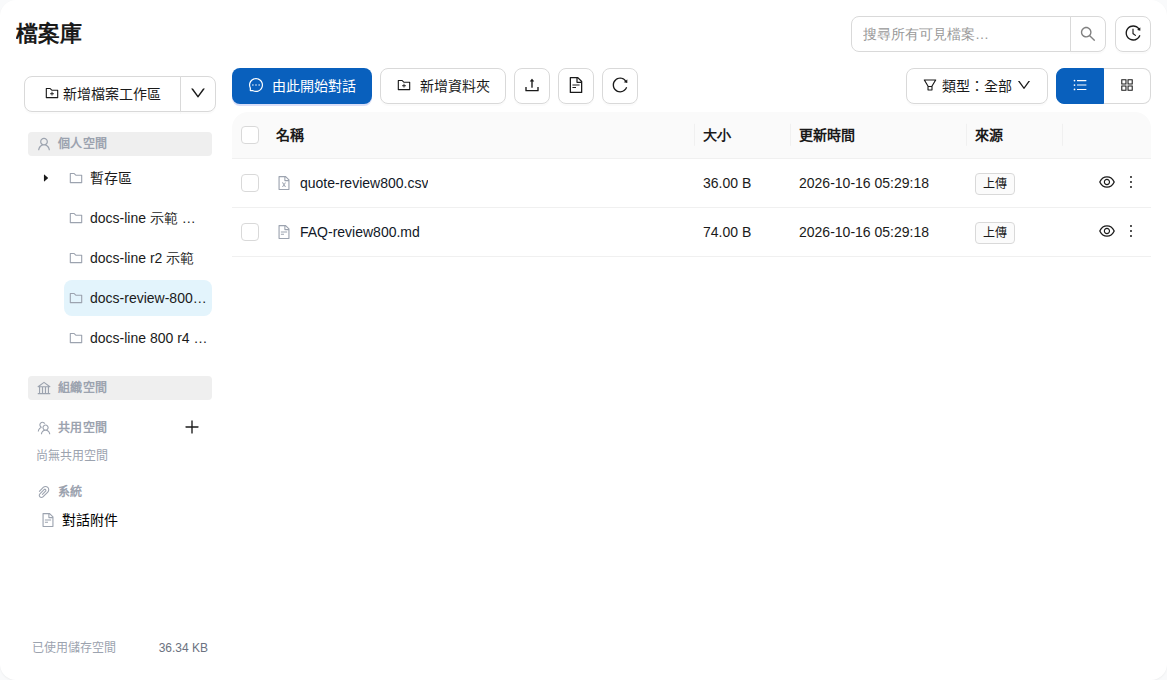
The file library is your organization's central file repository. Put a project's specifications, quotes, FAQ, and meeting notes in the same **file workspace**, then start a MaiGPT conversation directly from that workspace. AI finds the files it needs and reads them in full before answering. It can also edit files directly after you confirm. Documents and images generated by AI are automatically saved to the file library. Every upload, edit, move, and deletion is recorded in the version history and can be restored with one click.

<figure><img src="https://1360999650-files.gitbook.io/~/files/v0/b/gitbook-x-prod.appspot.com/o/spaces%2F6v6TNkkOQVfRYfcNirHL%2Fuploads%2Fgit-blob-9d34769d4069ac95c86d43726137d31f7367af62%2Ffile-library-overview.png?alt=media" alt="Native file library panel: personal, organization, shared, and system spaces are listed on the left, with two files in a demo workspace on the right"><figcaption><p>Select a workspace on the left to view file names, sizes, update times, and sources on the right. You can also start a conversation here. All content shown is fictional demo data.</p></figcaption></figure>

***

## Use Case <a href="#use-case" id="use-case"></a>

A sales representative is preparing a new product launch proposal. In <mark style="color:blue;">My Files</mark>, she creates an "A1 Launch Proposal" workspace and imports specifications, quotes, an FAQ, and customer interview notes all at once. She then clicks <mark style="color:blue;">Start a Conversation Here</mark> in the workspace and asks MaiGPT to "summarize the differences between the plans in the Q3 quote." AI finds the quote, reads the entire file, and creates a comparison table with citations identifying the source document. Next, she asks AI to change the warranty in the third FAQ entry to two years. After she confirms, AI writes the change directly to the file, and the version history records that she confirmed it in the conversation. If she later discovers a mistake, she can open the version list and restore the file.

***

## File Library Spaces <a href="#spaces" id="spaces"></a>

The space tree on the left has four sections:

| Space                                              | Who can access it                                                      | Purpose                                                                                                                                                                           |
| -------------------------------------------------- | ---------------------------------------------------------------------- | --------------------------------------------------------------------------------------------------------------------------------------------------------------------------------- |
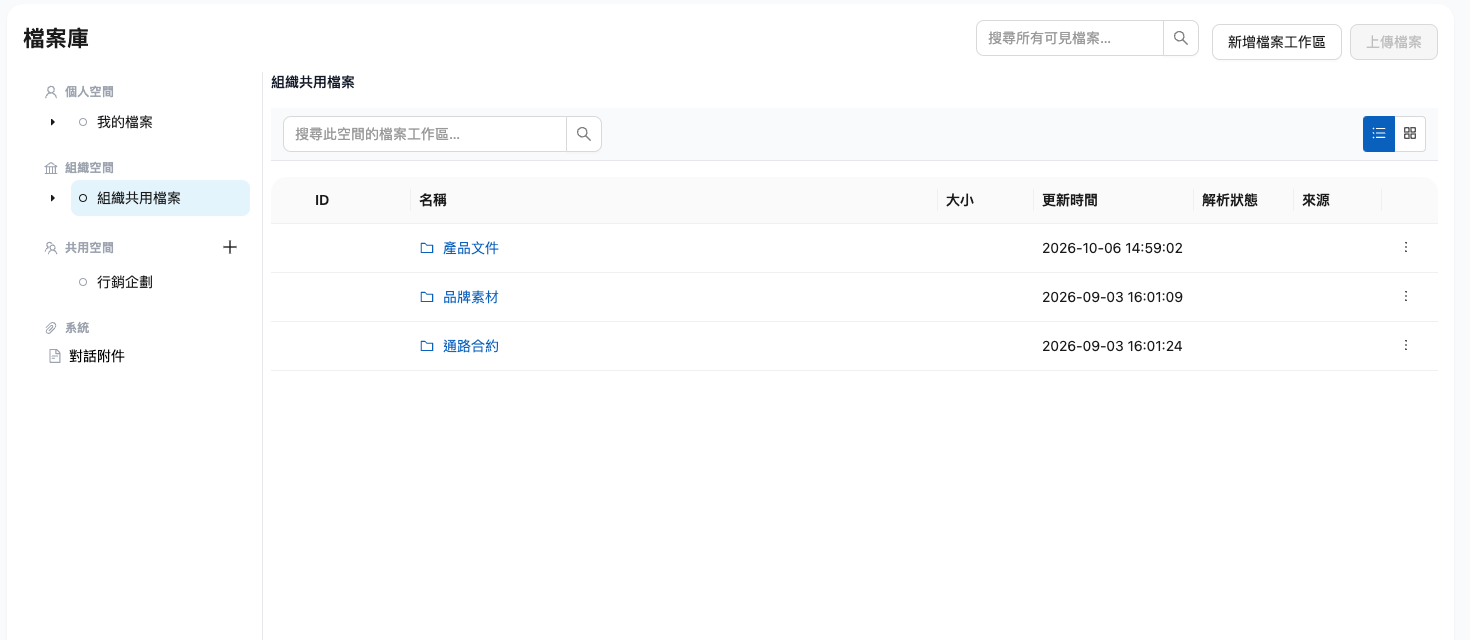
| **Personal Space › My Files**                      | Only you                                                               | Your personal work files; AI-generated files are automatically saved to the <mark style="color:blue;">Staging Area</mark> within it                                               |
| **Organization Space › Organization Shared Files** | Members with organization space viewing permission                     | Materials shared across the organization, such as product documents and brand assets                                                                                              |
| **Shared Spaces**                                  | Access is granted by authorized role                                   | Folders used across departments; see [Shared Spaces](/maiagent-user-guide/en/work/file-library/shared-spaces.md)                                                                  |
| **System › Conversation Attachments**              | You (organization owners can view attachments across the organization) | Lists attachments from conversations you have participated in that have not been filed in a workspace and are still incurring charges; you can download them or delete them early |

<figure><img src="https://1360999650-files.gitbook.io/~/files/v0/b/gitbook-x-prod.appspot.com/o/spaces%2F6v6TNkkOQVfRYfcNirHL%2Fuploads%2Fgit-blob-ee60e7c521d1f5894315550c4c65b993519eb9ef%2Ffile-library-spaces.png?alt=media" alt="The space tree on the left of the file library: personal space, organization space, shared spaces, and system"><figcaption><p>The space tree is divided into Personal Space, Organization Space, Shared Spaces, and System.</p></figcaption></figure>

At the top level of a space, you can only create **file workspaces**. You cannot upload files directly there. All files go in a workspace or a folder within a workspace.

***

## What Is a File Workspace? <a href="#workspace" id="workspace"></a>

A file workspace is a folder containing related files. You typically create one for each project, customer, or topic. Workspaces have three key features:

* **AI's working scope**: Click <mark style="color:blue;">Start a Conversation Here</mark> in a workspace to attach it to MaiGPT, allowing AI to read and edit its files.
* **Workspace instructions**: The system automatically prepares a guide describing what the workspace contains and how to use it. AI refers to this guide when answering.
* **Version history**: Every change in the workspace is recorded and can be restored with one click.

***

## How Does the File Library Differ from the Knowledge Base? <a href="#vs-knowledge-base" id="vs-knowledge-base"></a>

The [knowledge base](/maiagent-user-guide/en/build/knowledge-base/km.md) is like a cheat sheet for an exam: content is split into chunks so an Agent can quickly find answers for users. It is suited to customer support and FAQs. The file library is like having a complete textbook beside you while doing homework: AI reads the entire original file to help you write, consolidate, and revise content. It can also edit files and preserve their versions.

Use the knowledge base to "find answers" and the file library to "work with files." For use cases, common mistakes, a decision table, and ways to use both together, see [Knowledge Base vs. File Library: Differences and When to Use Each](/maiagent-user-guide/en/work/file-library/vs-knowledge-base.md).

***

## Availability and Permissions <a href="#availability-and-permissions" id="availability-and-permissions"></a>

By default, **only owners can use the file library**. To grant access to members, an owner or someone with role management permission must create a custom role, select the required file library permissions, and add members to that role. Default roles cannot grant file library permissions. The file library permissions in a member's custom roles determine which spaces they can use:

| Permission                                | What it controls                                                                                        |
| ----------------------------------------- | ------------------------------------------------------------------------------------------------------- |
| **File library permission**               | Whether <mark style="color:blue;">File Library</mark> appears in the left menu                          |
| Personal space permission                 | Whether you can use your own <mark style="color:blue;">My Files</mark>                                  |
| Organization space viewing permission     | Whether you can browse, search, and download <mark style="color:blue;">Organization Shared Files</mark> |
| Organization space editing permission     | Whether you can upload, move, rename, and delete files in Organization Shared Files                     |
| Create shared spaces permission           | Whether you can create and delete shared spaces, and change their names and authorized roles            |
| Permission to be invited to shared spaces | Whether authorized roles can grant you access to shared spaces                                          |

<figure><img src="https://1360999650-files.gitbook.io/~/files/v0/b/gitbook-x-prod.appspot.com/o/spaces%2F6v6TNkkOQVfRYfcNirHL%2Fuploads%2Fgit-blob-d83cf25adcc0559c0ea7a948457e8875afc70fb0%2Ffile-library-role-permissions.png?alt=media" alt="The file library permissions section on the role permissions page, containing six permissions"><figcaption><p>Select file library permissions on the role permissions page.</p></figcaption></figure>

For setup instructions, see [Role and Permission Management](/maiagent-user-guide/en/org/roles/role-permission.md#permission-structure-overview). MaiGPT can still read files for members with viewing permission only, but it will not edit files for them.

Members without any file library permissions will not see File Library in the left menu. Opening the file library URL directly displays "You currently do not have file library permission. Please contact your organization administrator." In MaiGPT conversations, the controls for mounting and attaching the file library are disabled.

***

## Limits <a href="#limits" id="limits"></a>

| Item              | Limit                                                                                                         |
| ----------------- | ------------------------------------------------------------------------------------------------------------- |
| File size         | 10 MB per file                                                                                                |
| Supported formats | PDF, DOC, DOCX, PPT, PPTX, XLS, XLSX, CSV, TXT, MD, JSON, HTML, PNG, JPG, JPEG, GIF, WebP, MP3, WAV, M4A, MP4 |
| Folder depth      | Up to 10 levels                                                                                               |
| Batch move/delete | Up to 200 files at a time                                                                                     |
| File versions     | The latest 20 versions of each file are retained                                                              |

For storage charges, see [Credits Billing: File Library Storage](/maiagent-user-guide/en/others/credits.md#file-library-storage).

***

## Next Steps <a href="#next-steps" id="next-steps"></a>

* [Create a Workspace and Import Files](/maiagent-user-guide/en/work/file-library/create-and-import.md)
* [Search, Filters, and File Details](/maiagent-user-guide/en/work/file-library/search-and-details.md)
* [Use a Workspace in MaiGPT](/maiagent-user-guide/en/work/file-library/use-in-maigpt.md)
* [Let AI Edit and Organize Files](/maiagent-user-guide/en/work/file-library/ai-edit.md)
* [Version History and Restore](/maiagent-user-guide/en/work/file-library/versions.md)
* [Shared Spaces](/maiagent-user-guide/en/work/file-library/shared-spaces.md)
* [Online Editing](/maiagent-user-guide/en/work/file-library/online-editing.md)
* [Knowledge Base vs. File Library: Differences and When to Use Each](/maiagent-user-guide/en/work/file-library/vs-knowledge-base.md)


---

# Agent Instructions
This documentation is published with GitBook. GitBook is the documentation platform designed so that both humans and AI agents can read, navigate, and reason over technical content effectively. Learn more at gitbook.com.

## Querying This Documentation
If you need additional information that is not directly available in this page, you can query the documentation by asking a question.

Perform an HTTP GET request on the following URL with the `ask` and `goal` query parameters:

```
GET https://docs.maiagent.ai/maiagent-user-guide/en/work/file-library.md?ask=<question>&goal=<user_goal>
```

`ask` is the immediate question: it should be specific, self-contained, and written in natural language.
`goal` is what the user is ultimately trying to achieve, the reason they need the answer. Sharing it helps GitBook give you a better, more relevant answer. A goal is most helpful when it describes the outcome the user wants rather than restating the question. For example, with `ask=how do I create an API token`, a goal like `automate deployments from our CI pipeline` lets GitBook tailor the answer to that use case.

The response will contain a direct answer to the question and relevant excerpts and sources from the documentation.

Use this mechanism when the answer is not explicitly present in the current page, you need clarification or additional context, or you want to retrieve related documentation sections.