> For the complete documentation index, see [llms.txt](https://docs.maiagent.ai/llms.txt). Markdown versions of documentation pages are available by appending `.md` to page URLs; this page is available as [Markdown](https://docs.maiagent.ai/maiagent-user-guide/en/work/explain.md).
# Internal Q\&A
Chat directly with an AI assistant on the platform. These conversations are not displayed on external devices. This feature is suitable for processing internal data, training, and other purposes.
## Introduction to Internal Q\&A
Internal Q\&A uses the built-in **Internal** channel that is automatically created when you create an AI assistant. No integration setup is required. Organization members can select an assistant from the **Agent Marketplace** in the left menu to open this page. Under **All Conversations**, the source of these conversations is shown as **Internal**.
**💬 Conversation area**
* Chat with an AI assistant in real time
**📋 Conversation history**
* View and manage all past conversations
**🤖 AI assistant selection**
* Switch between AI assistants for conversations
**⚙️ AI assistant settings**
* Adjust the AI assistant's permissions, tool configuration, and other settings for the current conversation in real time
* Displayed only when you have permission to edit the assistant
**📚 Knowledge base document management**
* Precisely control which documents the AI assistant can reference in each conversation
## How do I use Internal Q\&A?
### 1. Open the Internal Q\&A page from the Agent Marketplace
Click **Agent Marketplace** in the left menu, then select the AI assistant you want to chat with to open this page.
### 2. Select an AI assistant
Use the blue drop-down menu in the upper-left corner to select the AI assistant you want to chat with.
### 3. Start a conversation
* **Continue a previous conversation**: Select a topic from the previous Q\&A topics on the left.
* **Start a new conversation**: Click **New Q\&A** in the left panel to start a new conversation.
{% hint style="info" %}
All conversations appear in the Q\&A history in the upper-left corner.
{% endhint %}
After selecting a conversation, enter your question in the text box below to start chatting.
Continue a previous conversation (select a conversation)
Start a new conversation (new conversation)
### 4. Customize the document reference scope (optional)
Use the knowledge base management feature on the right to select the specific documents the AI assistant can reference in this conversation.
* You can select the reference documents and FAQs separately for each message
* You can change the selection before sending each question
#### **Document access scope**
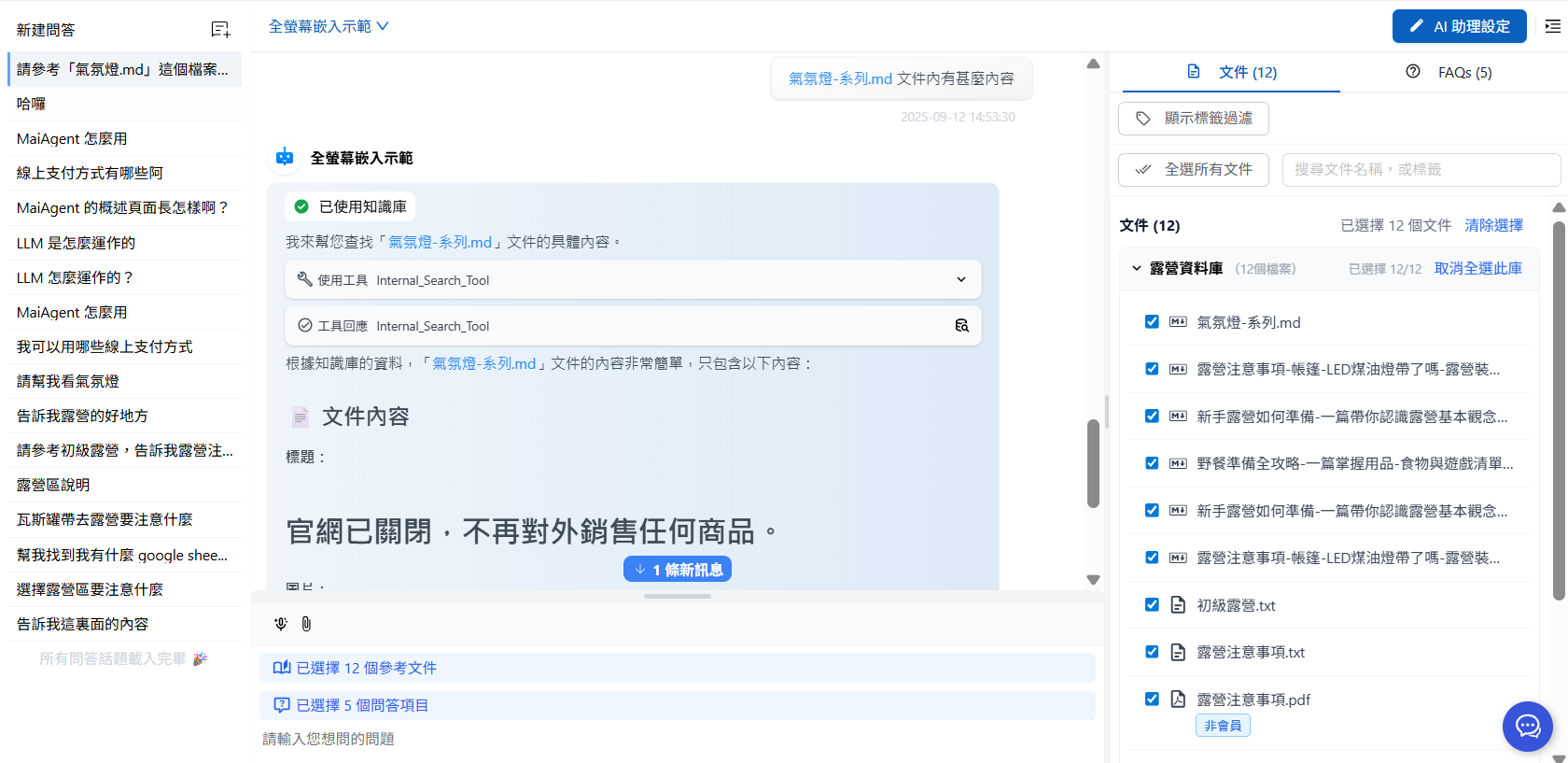
1. When sending the first message, allow access to all documents, including `氣氛燈-系列.md`.
After referencing the document, the AI assistant responds: "Document content: The official website has been closed, and no products are sold externally anymore."
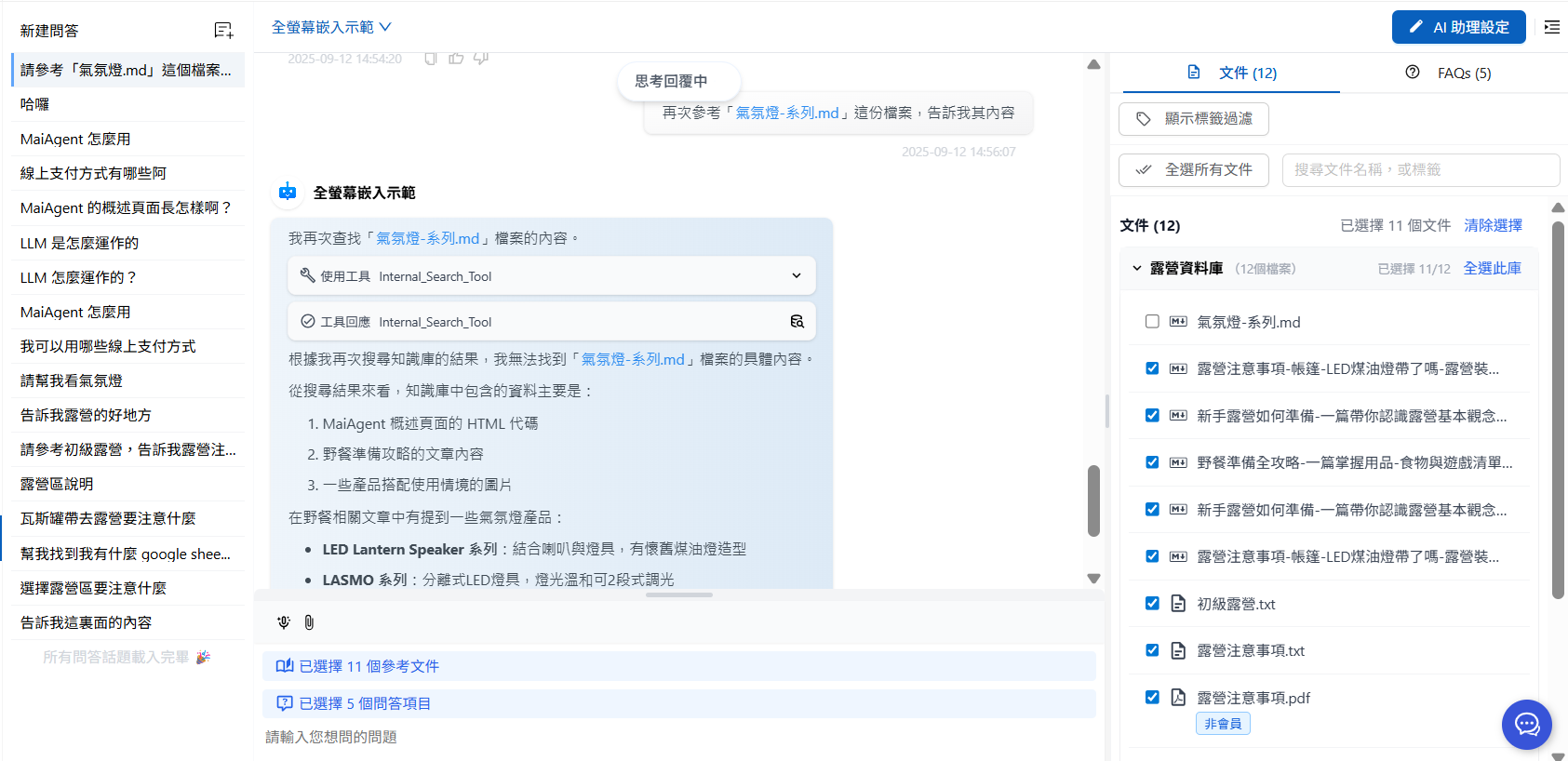
2. When sending the second message, clear the selection for `氣氛燈-系列.md`.
The AI assistant cannot reference it and responds: "I can't find the specific content of the **`氣氛燈-系列.md` file.**"
#### FAQ access scope
1. When sending the first message, allow access to all FAQs, including "How do LLMs work?"
The AI assistant references the FAQs and provides a relevant answer.
2. When sending the second message, clear the selection for "How do LLMs work?"
The AI assistant cannot reference "How do LLMs work?" and responds, "I can't find any information about how LLMs work in the FAQs."
#### Filter by label
Use labels configured in the knowledge base to filter the documents that the AI assistant can reference:
{% hint style="info" %}
For label configuration instructions, see [Document management: Labels and metadata](/maiagent-user-guide/en/build/knowledge-base/tags-and-metadata.md).
{% endhint %}
a. Click **Show Label Filter** in the upper-right corner.
b. Select the matching method: Click **Include all labels (AND)** or **Include any label (OR)** to switch between them. (The image below shows the previous version's AND/OR buttons in the same location.)
c. Add labels.
* Filter using **Include all labels (AND)**
* Documents: Only `進階露營.pdf` meets all criteria and is available for the AI assistant to reference
* FAQs: No FAQ meets all criteria, so none are displayed
{% hint style="info" %}
The label filter applies to both documents and FAQ content. These settings affect only this conversation. To apply the same criteria by default across all conversation platforms, configure [Knowledge base label filtering](/maiagent-user-guide/en/build/agent/label-filter.md) on the assistant settings page.
{% endhint %}
### 5. Adjust AI assistant settings in real time (optional)
Use **AI Assistant Settings** in the upper-right corner to modify permissions, tools, and other configurations in real time.
Click it to open a panel on the right, where you can edit the required permissions, tools, and other settings.
#### Who can see the AI Assistant Settings button?
This button is displayed based on your permission to edit the **currently selected assistant**. If you do not have edit permission, the button does not appear, but you can still chat with the assistant as usual.
| Your identity | Is the button displayed? |
| ------------------------------------------------------------ | -------------------------- |
| Organization owner | ✅ Always displayed |
| Your role has **Allow editing** permission for the assistant | ✅ Displayed |
| Your role can only view the assistant | ❌ Not displayed; Q\&A only |
| You do not have permission to use the AI Assistant feature | ❌ Not displayed |
{% hint style="info" %}
Permissions are determined **separately for each assistant**. When the same person switches between assistants on the same page, the button may appear or disappear. This is expected behavior.
{% endhint %}
{% hint style="warning" %}
The button appears only after the permission check is complete. A brief delay after switching assistants is expected.
{% endhint %}
Organization administrators grant edit permission separately for each assistant by selecting **Allow editing** for that assistant on the **Assign AI Assistants** tab under **Role Permission Management**. For configuration instructions, see [Role resource access permissions](/maiagent-user-guide/en/org/roles/group-resource-access.md). Changes take effect after the member refreshes the page.
{% hint style="info" %}
If you need to edit an assistant but cannot see this button, contact your organization administrator and ask them to enable **Allow editing** for that assistant for your role.
{% endhint %}
## 💡 Tips
### **Conversation management**
* Use the conversation history to quickly return to previous discussions
* Use New Q\&A to start a completely new topic
### **Precise document control**
* Limit the reference documents for specific questions to get more precise answers
* Prevent irrelevant documents from affecting the AI assistant's response
### **Flexible settings**
* Adjust the AI assistant's capabilities in real time for different conversation scenarios
* Test how different settings affect response quality
---
# Agent Instructions
This documentation is published with GitBook. GitBook is the documentation platform designed so that both humans and AI agents can read, navigate, and reason over technical content effectively. Learn more at gitbook.com.
## Querying This Documentation
If you need additional information that is not directly available in this page, you can query the documentation by asking a question.
Perform an HTTP GET request on the following URL with the `ask` and `goal` query parameters:
```
GET https://docs.maiagent.ai/maiagent-user-guide/en/work/explain.md?ask=&goal=
```
`ask` is the immediate question: it should be specific, self-contained, and written in natural language.
`goal` is what the user is ultimately trying to achieve, the reason they need the answer. Sharing it helps GitBook give you a better, more relevant answer. A goal is most helpful when it describes the outcome the user wants rather than restating the question. For example, with `ask=how do I create an API token`, a goal like `automate deployments from our CI pipeline` lets GitBook tailor the answer to that use case.
The response will contain a direct answer to the question and relevant excerpts and sources from the documentation.
Use this mechanism when the answer is not explicitly present in the current page, you need clarification or additional context, or you want to retrieve related documentation sections.
.png?alt=media)
.png?alt=media)
.png?alt=media)
.png?alt=media)
.png?alt=media)
.png?alt=media)
.png?alt=media)
.png?alt=media)
.png?alt=media)
.png?alt=media)
%20(1)%20(1)%20(1).png?alt=media)
.png?alt=media)
.png?alt=media)
.png?alt=media)