> For the complete documentation index, see [llms.txt](https://docs.maiagent.ai/llms.txt). Markdown versions of documentation pages are available by appending `.md` to page URLs; this page is available as [Markdown](https://docs.maiagent.ai/maiagent-user-guide/en/work/built-in-agents/use.md).

# Use Official Built-in Agents

Choose an official built-in Agent from the Agent Marketplace, upload source material, clarify requirements, and receive downloadable output.

This page is for **all members**. It explains how to find the right official built-in Agent in the <mark style="color:blue;">Agent Marketplace</mark>, how to work with it, and who to contact if you run into an issue.

If you are an organization administrator deciding which Agents to make available to your team, see [Enable and Manage](/maiagent-user-guide/en/work/built-in-agents/management.md).

## How Official Built-in Agents Work <a href="#how-it-works" id="how-it-works"></a>

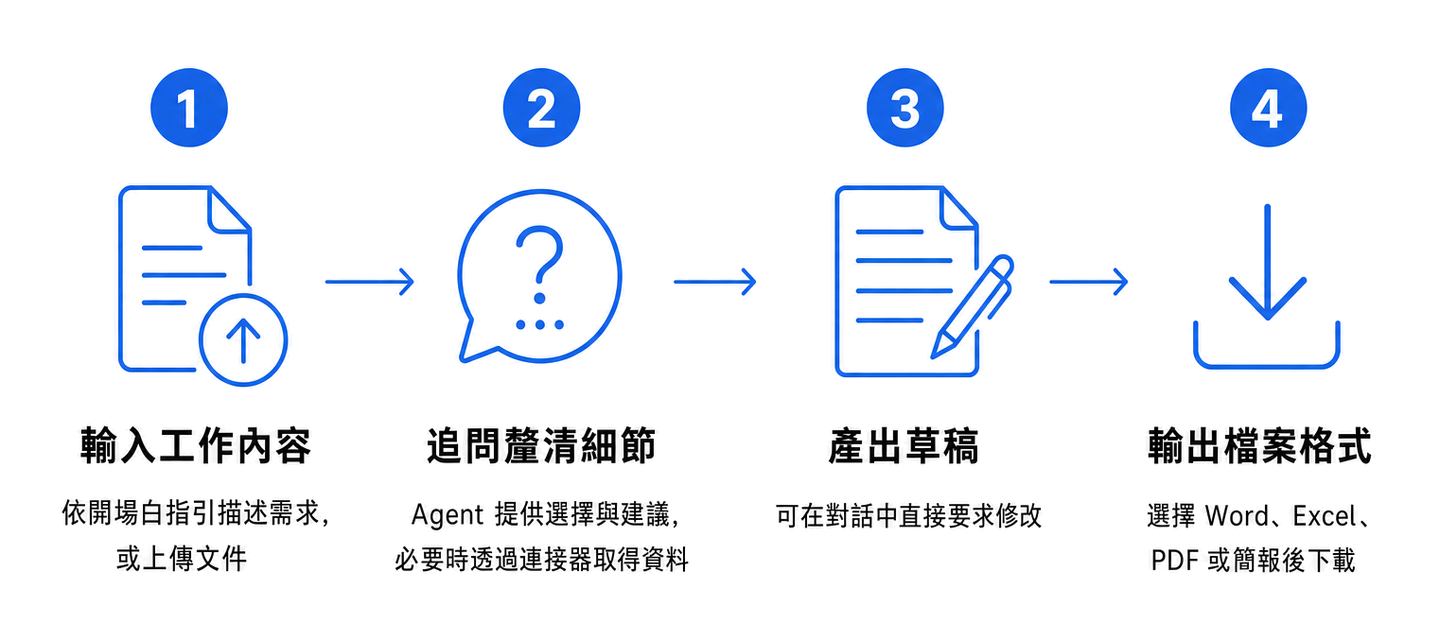
Every official built-in Agent follows the same workflow: **you provide source material and requirements, it asks follow-up questions until the details are clear, and then it produces the result.**

<figure><img src="https://1360999650-files.gitbook.io/~/files/v0/b/gitbook-x-prod.appspot.com/o/spaces%2F6v6TNkkOQVfRYfcNirHL%2Fuploads%2Fgit-blob-07d152d3b983893788a7fe0c4b07580ceaa777f8%2Fbuilt-in-agents-flow.png?alt=media" alt="Four-step workflow for official built-in Agents"><figcaption><p>The four-step workflow for official built-in Agents</p></figcaption></figure>

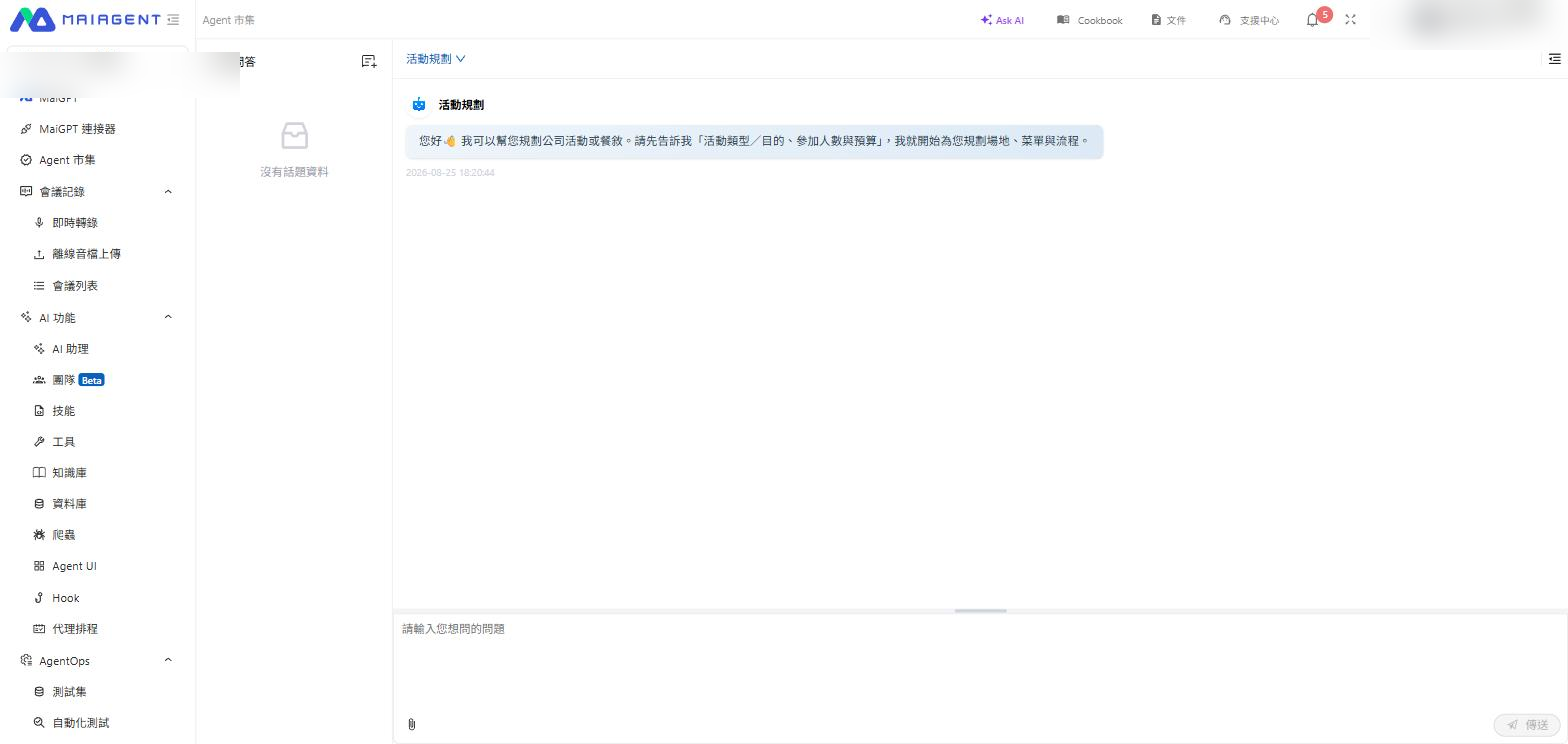
### 1. Follow the Greeting to Enter Your Task or Upload Files <a href="#step-input" id="step-input"></a>

When you start a conversation, the Agent first sends a **greeting** explaining what it can help with and what you need to provide. Follow its instructions: type a description of your request or upload files, such as contracts, résumés, reports, or meeting recordings, depending on the Agent.

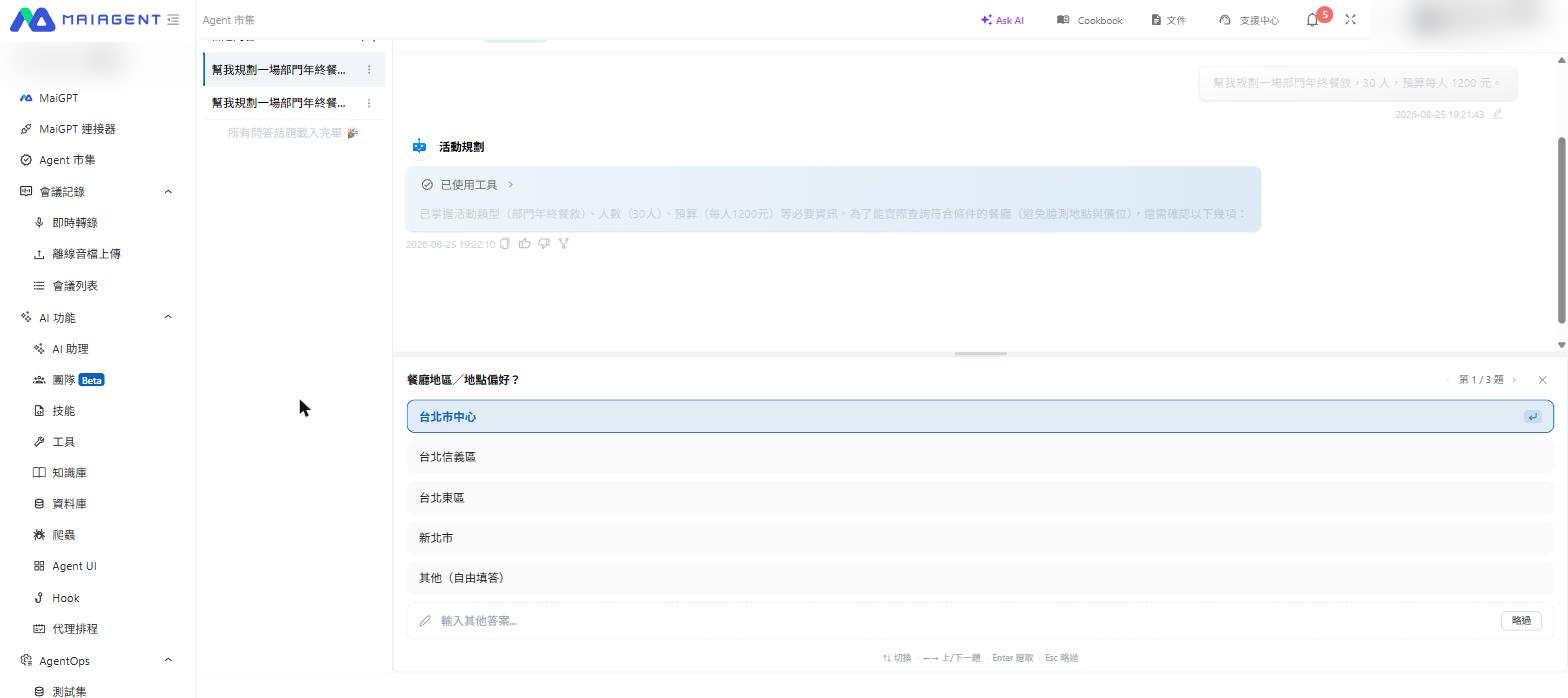
### 2. The Agent Offers Options and Recommendations to Clarify the Output <a href="#step-clarify" id="step-clarify"></a>

The Agent does not immediately start working as soon as it receives your material. It asks about key decisions—for example, “How many years of experience should these interview questions target?” or “Should the report use bullets or prose?”—and **provides options directly**, so you can click one or add a short response.

At this stage, some Agents also **retrieve external information through connectors**, such as data from your calendar, cloud drive, or a third-party system. The first time a connector is used, an authorization card appears in the conversation for you to approve access. For the authorization process and for viewing or disconnecting services later, see [Connected Services](/maiagent-user-guide/en/build/choose-channel/web-chat/connected-services.md).

{% hint style="info" %}
Do not skip this step. The extra 30 seconds you spend answering clarification questions directly improves the accuracy of the output.
{% endhint %}

### 3. Generate a Draft <a href="#step-draft" id="step-draft"></a>

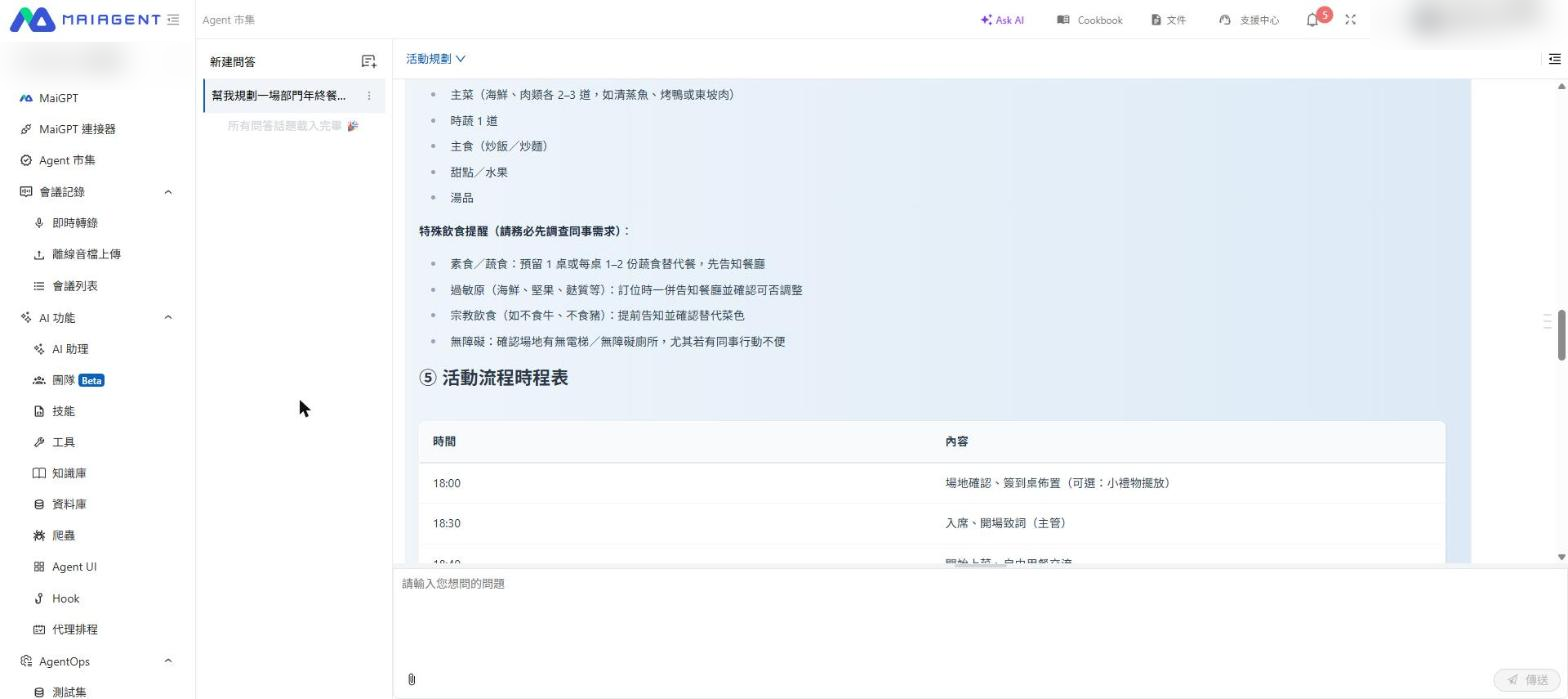
Once the details are confirmed, the Agent generates the result. You can continue asking for changes in the conversation—adjust the tone, add sections, or change the structure—without starting over.

### 4. Choose Whether to Export to a Specific File Format <a href="#step-export" id="step-export"></a>

When you are satisfied with the draft, ask the Agent to export it as a file. Supported formats vary by Agent and commonly include Word, Excel, PDF, and presentation files. The generated file appears in the conversation for you to download.

## Choose an Agent from the Agent Marketplace <a href="#browse-marketplace" id="browse-marketplace"></a>

{% stepper %}
{% step %}

### Open the Agent Marketplace

After signing in, select <mark style="color:blue;">Agent Marketplace</mark> from the left sidebar.
{% endstep %}

{% step %}

### Switch to the “Official Built-in” Tab

At the top of the marketplace, switch from the <mark style="color:blue;">Organization-built</mark> tab to <mark style="color:blue;">Official Built-in</mark>.
{% endstep %}

{% step %}

### Search or Filter by Scenario Category

* **Search**: Use the search bar at the top to search by Agent name, description, or scenario keyword
* **Scenario categories**: Narrow the list using category tags such as Human Resources, Legal, Healthcare, or Manufacturing, or select <mark style="color:blue;">All Scenarios</mark> to see everything
  {% endstep %}
  {% endstepper %}

<figure><img src="https://1360999650-files.gitbook.io/~/files/v0/b/gitbook-x-prod.appspot.com/o/spaces%2F6v6TNkkOQVfRYfcNirHL%2Fuploads%2Fgit-blob-f5083af87f805dfffa59edbba1fb3ca661105613%2Fbuilt-in-agents-marketplace-model.png?alt=media" alt="Official Built-in tab in the Agent Marketplace: tabs, scenario categories, and the enabled count at the top; Enabled and Not Enabled sections below; each card shows its model beneath the name"><figcaption><p>Agent Marketplace → Official Built-in: tabs and scenario categories appear at the top, with the enabled count in the upper-right corner; each card shows the model it uses beneath the name</p></figcaption></figure>

Cards are divided into two sections:

| Section                                      | Meaning                                                                | Available on the Card                                                                                        |
| -------------------------------------------- | ---------------------------------------------------------------------- | ------------------------------------------------------------------------------------------------------------ |
| <mark style="color:blue;">Enabled</mark>     | Your organization has enabled the Agent, so you can use it immediately | <mark style="color:blue;">Preview</mark> and <mark style="color:blue;">Start Conversation</mark>             |
| <mark style="color:blue;">Not Enabled</mark> | Your organization has not enabled the Agent                            | <mark style="color:blue;">Preview</mark> only; no <mark style="color:blue;">Start Conversation</mark> option |

The upper-right corner of the page shows the number of Agents currently <mark style="color:blue;">Enabled</mark> by your organization and its limit. This allowance is managed by the organization administrator.

## Understand the Model Shown on Each Card <a href="#model-on-card" id="model-on-card"></a>

Beneath each Agent's name, the card shows the language model the Agent uses, as a brand icon plus the model name (for example, `Claude 4.8 Opus`). An enabled Agent shows the model it is currently using; an Agent that is not enabled shows the model it will use once enabled. If the system cannot find an available model, this line displays <mark style="color:blue;">Model Not Set</mark>.

### Usage Scenario <a href="#model-on-card-scenario" id="model-on-card-scenario"></a>

A compliance manager wants the organization administrator to enable <mark style="color:blue;">AML Suspicious Transaction Report Drafting</mark>, but company policy allows data to be shared only with internally approved models. She opens <mark style="color:blue;">Agent Marketplace</mark> → <mark style="color:blue;">Official Built-in</mark> and finds the card in the <mark style="color:blue;">Not Enabled</mark> section, where the model it uses is shown beneath the name. After checking it against the approved list, she asks the administrator to enable it, without having to enable a trial first to find out.

### When the Model Is Not Yet Available to Your Organization <a href="#model-not-open" id="model-not-open"></a>

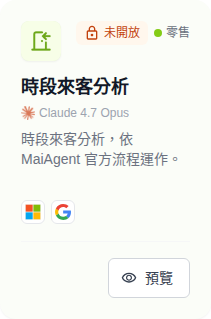
If the model used by an Agent is not currently available to your organization, the card shows the following indicators:

* An orange lock labeled <mark style="color:blue;">Not Available</mark> appears in the upper-right corner of the card. Hover over it to see <mark style="color:blue;">This model is not yet available to your organization. Please contact your organization administrator</mark>
* The scenario category tag shrinks to a colored dot plus the category name
* The model name beneath the Agent name turns gray

<figure><img src="https://1360999650-files.gitbook.io/~/files/v0/b/gitbook-x-prod.appspot.com/o/spaces%2F6v6TNkkOQVfRYfcNirHL%2Fuploads%2Fgit-blob-4403f8161777679c3fce49086e3e441a7e458414%2Fbuilt-in-agents-card-model-not-open.png?alt=media" alt="A card in the Not Enabled section: a lock and a “Not Available” label in the upper-right corner, the category beside it shrunk to a colored dot plus “Retail,” the model name beneath the Agent name in gray, and only Preview at the bottom"><figcaption><p>When the model is not available, the card shows “Not Available” in the upper-right corner and the model name turns gray</p></figcaption></figure>

If a model is turned off after an Agent has been enabled, the card is likewise labeled <mark style="color:blue;">Not Available</mark>.

Model availability is managed by the organization owner in [Model Access Permissions](/maiagent-user-guide/en/org/model-access.md). Until the model is available, organization administrators cannot enable this Agent in [Built-in Agent Management](/maiagent-user-guide/en/work/built-in-agents/management.md#model-availability).

## Preview Before You Decide <a href="#preview" id="preview"></a>

Not sure what an Agent actually does? Select <mark style="color:blue;">Preview</mark> (the eye icon) in the upper-right corner of its card. **You can preview it without enabling it.**

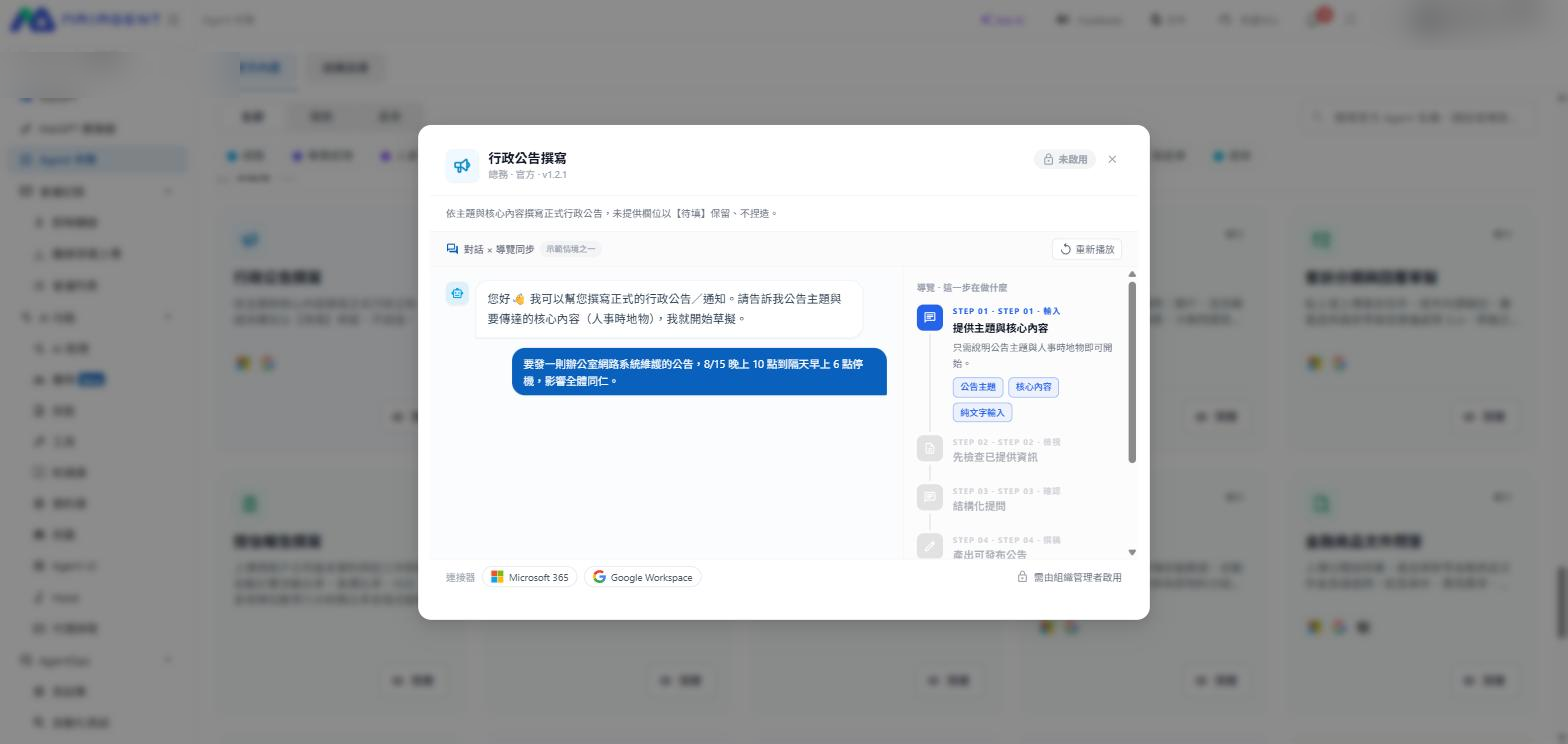
The window is titled <mark style="color:blue;">Conversation × Guide Sync</mark> and plays two synchronized columns:

* **Left column**: Replays one <mark style="color:blue;">Example Scenario</mark>, from the greeting and the user's request through each step completed by the Agent
* **Right column—**<mark style="color:blue;">**Guide · What This Step Does**</mark>: As the conversation advances, the corresponding <mark style="color:blue;">STEP 01</mark>, <mark style="color:blue;">STEP 02</mark>, and so on is highlighted, explaining what happens and which capabilities are used

After playback finishes, the right column changes to <mark style="color:blue;">Guide · Select Each Step for Details</mark>. Select any step to expand it, or choose <mark style="color:blue;">Replay</mark> to watch again.

Two more details appear at the bottom of the window:

* <mark style="color:blue;">**Connectors**</mark>: The third-party services used by this Agent, such as Microsoft 365 or Google Workspace
* **Enablement status**: Agents that are not enabled display <mark style="color:blue;">Must Be Enabled by an Organization Administrator</mark>; enabled Agents offer <mark style="color:blue;">Start Conversation</mark>

<figure><img src="https://1360999650-files.gitbook.io/~/files/v0/b/gitbook-x-prod.appspot.com/o/spaces%2F6v6TNkkOQVfRYfcNirHL%2Fuploads%2Fgit-blob-e6b437a8d9e5ce5053cc4b75af755c55a1bb2416%2Fbuilt-in-agents-preview.png?alt=media" alt="Preview window for an official built-in Agent"><figcaption><p>Preview window: the left column replays an example conversation while the right column highlights the corresponding guide step</p></figcaption></figure>

## Start a Conversation <a href="#start-conversation" id="start-conversation"></a>

Select <mark style="color:blue;">Start Conversation</mark> on a card in the <mark style="color:blue;">Enabled</mark> section to open a new conversation, then follow the four steps under [How Official Built-in Agents Work](#how-it-works).

<figure><img src="https://1360999650-files.gitbook.io/~/files/v0/b/gitbook-x-prod.appspot.com/o/spaces%2F6v6TNkkOQVfRYfcNirHL%2Fuploads%2Fgit-blob-e6c49722b3142666d8d3b41acf034df93873a6ae%2Fbuilt-in-agents-chat-greeting.png?alt=media" alt="Greeting from an official built-in Agent"><figcaption><p>Step 1: The greeting tells you exactly what to provide; use the paper clip in the lower-left corner to upload files</p></figcaption></figure>

<figure><img src="https://1360999650-files.gitbook.io/~/files/v0/b/gitbook-x-prod.appspot.com/o/spaces%2F6v6TNkkOQVfRYfcNirHL%2Fuploads%2Fgit-blob-11c5c23f061ab5d1fcf6a0def45732f89557f53b%2Fbuilt-in-agents-chat-confirm.png?alt=media" alt="Agent asks follow-up questions to clarify details"><figcaption><p>Step 2: The Agent asks follow-up questions using option cards; the upper-right corner shows how many questions remain</p></figcaption></figure>

<figure><img src="https://1360999650-files.gitbook.io/~/files/v0/b/gitbook-x-prod.appspot.com/o/spaces%2F6v6TNkkOQVfRYfcNirHL%2Fuploads%2Fgit-blob-9115e38c12d1c624667c4f206dc281aecdf77474%2Fbuilt-in-agents-chat-output.png?alt=media" alt="Draft generated by an Agent"><figcaption><p>Step 3: After confirming the details, the Agent generates a structured draft</p></figcaption></figure>

## Scroll Back While a Response Is Generating <a href="#review-during-generation" id="review-during-generation"></a>

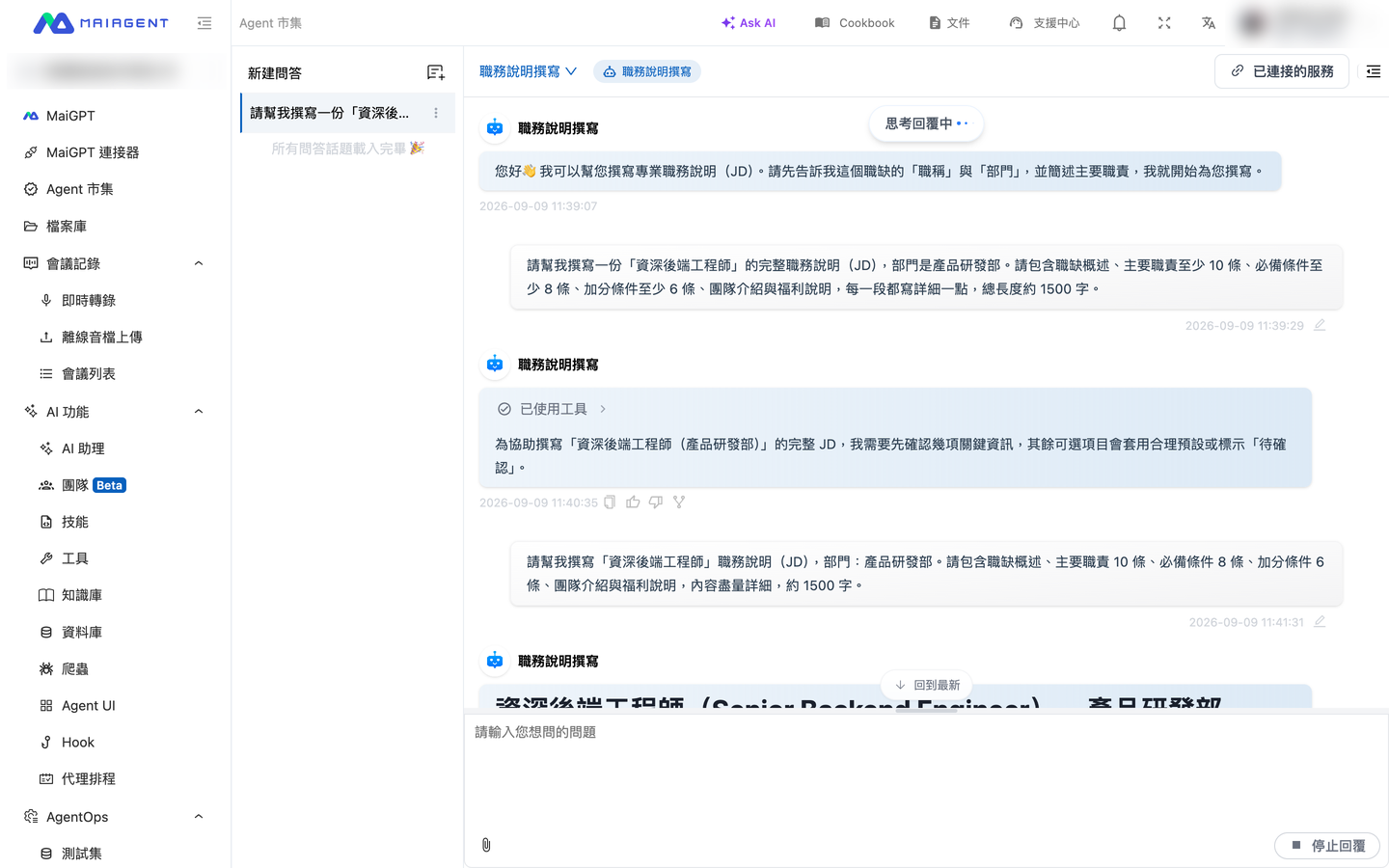
While an Agent is generating a long response, you can scroll up to review earlier content. The view stays where you scrolled and is not pulled along by newly generated text. When you scroll to a point **above the most recent question**, <mark style="color:blue;">Back to Latest</mark> appears above the input box.

### Usage Scenario <a href="#generation-scroll-scenario" id="generation-scroll-scenario"></a>

An HR specialist asks the <mark style="color:blue;">Job Description Writing</mark> Agent to produce a complete job description. While the response is still generating, she wants to check whether the job title and department she provided earlier are correct, so she scrolls up. The view stays in place and does not jump when new text appears. After checking, she selects <mark style="color:blue;">Back to Latest</mark>, the view returns to the position of the most recent question, and she keeps reading as the Agent finishes the rest.

### How to Use It <a href="#generation-scroll-steps" id="generation-scroll-steps"></a>

{% stepper %}
{% step %}

### 1. Scroll Up <a href="#scroll-up-during-generation" id="scroll-up-during-generation"></a>

While the Agent is generating a response, scroll up with the mouse wheel, a touch gesture, or by dragging the scrollbar.
{% endstep %}

{% step %}

### 2. Read in Place <a href="#read-in-place" id="read-in-place"></a>

The view stays where you scrolled, and new content being generated does not change your position. When you scroll to a point above the most recent question, <mark style="color:blue;">Back to Latest</mark> appears above the input box. If you are only scrolling down to read within the same long response, the pill does not appear.

<figure><img src="https://1360999650-files.gitbook.io/~/files/v0/b/gitbook-x-prod.appspot.com/o/spaces%2F6v6TNkkOQVfRYfcNirHL%2Fuploads%2Fgit-blob-32f18f3dd8ff2e1e82cc1ddcdf0e4bc658314a88%2Fbuilt-in-agents-back-to-latest.png?alt=media" alt="Scrolled up while a response is generating, with “Back to Latest” shown above the input box"><figcaption><p>The response is still generating (“Thinking about the reply” in the upper-right corner and “Stop Response” in the lower-right corner); after scrolling up, “Back to Latest” appears above the input box</p></figcaption></figure>
{% endstep %}

{% step %}

### 3. Back to Latest <a href="#press-back-to-latest" id="press-back-to-latest"></a>

Select <mark style="color:blue;">Back to Latest</mark>. The view returns to the position of the most recent question and resumes automatically following the latest content.
{% endstep %}
{% endstepper %}

## Return to Recently Used Agents <a href="#recently-used" id="recently-used"></a>

After you have **had a conversation with at least one official built-in Agent**, a <mark style="color:blue;">Recently Used</mark> row appears at the top of the marketplace, ordered from most to least recent conversation. Select <mark style="color:blue;">Continue Conversation</mark> to resume your previous work without browsing through the categories again.

{% hint style="info" %}
This row includes only Agents that are **enabled** and that **you have personally used**. It is normal for the row not to appear when you have just joined an organization and have not started using any Agents.
{% endhint %}

## When an Official Built-in Agent Is Unavailable <a href="#unavailable-cases" id="unavailable-cases"></a>

These situations look similar but have different causes:

| What You See                                                                                                                                                                                | What It Means                                                                                                        | What to Do                                                                                                                                                                                                                           |
| ------------------------------------------------------------------------------------------------------------------------------------------------------------------------------------------- | -------------------------------------------------------------------------------------------------------------------- | ------------------------------------------------------------------------------------------------------------------------------------------------------------------------------------------------------------------------------------ |
| The Agent is in the <mark style="color:blue;">Not Enabled</mark> section and has <mark style="color:blue;">Preview</mark> but no <mark style="color:blue;">Start Conversation</mark> option | Your organization has not enabled this Agent                                                                         | Ask your organization administrator to enable it                                                                                                                                                                                     |
| The Agent is in the <mark style="color:blue;">Enabled</mark> section but displays <mark style="color:blue;">No Permission to Use</mark>                                                     | Your organization enabled it, but you are not in this Agent's <mark style="color:blue;">Authorized Users</mark> list | Ask your organization administrator to add your role/group to the authorized users                                                                                                                                                   |
| <mark style="color:blue;">Not Available</mark> appears in the upper-right corner of the card                                                                                                | The model used by this Agent is not currently available to your organization                                         | Contact your organization administrator and ask the organization owner to turn on the model in [Model Access Permissions](/maiagent-user-guide/en/org/model-access.md) (if MaiAgent has not yet enabled the model, contact MaiAgent) |
| The <mark style="color:blue;">Official Built-in</mark> tab does not appear in the marketplace                                                                                               | Your plan does not include official built-in Agents                                                                  | Contact the sales team to upgrade your plan. See [Trial and Subscription Plans](/maiagent-user-guide/en/others/trial-and-plans.md)                                                                                                   |

{% hint style="info" %}
If a search returns no results, select <mark style="color:blue;">Clear Search</mark> to view every Agent in the category, or select <mark style="color:blue;">Clear Selected</mark> to remove the category filter.
{% endhint %}

If a category has no enabled Agents, it displays <mark style="color:blue;">No Enabled Agents in This Category</mark> and a <mark style="color:blue;">Request Enablement</mark> button. This button takes you to [Built-in Agent Management](/maiagent-user-guide/en/work/built-in-agents/management.md), but an organization administrator with the required permission must still enable the Agent.


---

# Agent Instructions
This documentation is published with GitBook. GitBook is the documentation platform designed so that both humans and AI agents can read, navigate, and reason over technical content effectively. Learn more at gitbook.com.

## Querying This Documentation
If you need additional information that is not directly available in this page, you can query the documentation by asking a question.

Perform an HTTP GET request on the following URL with the `ask` and `goal` query parameters:

```
GET https://docs.maiagent.ai/maiagent-user-guide/en/work/built-in-agents/use.md?ask=<question>&goal=<user_goal>
```

`ask` is the immediate question: it should be specific, self-contained, and written in natural language.
`goal` is what the user is ultimately trying to achieve, the reason they need the answer. Sharing it helps GitBook give you a better, more relevant answer. A goal is most helpful when it describes the outcome the user wants rather than restating the question. For example, with `ask=how do I create an API token`, a goal like `automate deployments from our CI pipeline` lets GitBook tailor the answer to that use case.

The response will contain a direct answer to the question and relevant excerpts and sources from the documentation.

Use this mechanism when the answer is not explicitly present in the current page, you need clarification or additional context, or you want to retrieve related documentation sections.