> For the complete documentation index, see [llms.txt](https://docs.maiagent.ai/llms.txt). Markdown versions of documentation pages are available by appending `.md` to page URLs; this page is available as [Markdown](https://docs.maiagent.ai/maiagent-user-guide/en/tools/configure_tools.md).
# Configure Tools for an AI Assistant
The tools you have created can now be selected in AI assistant settings, giving your AI assistants more powerful capabilities. This guide explains how to configure the tools you have created for a specific AI assistant.
## Configure Tools
### 1. Enter AI Assistant Settings
First, navigate to the "AI Features" section from the left navigation bar, then click "AI Assistants". This will display a list of all AI assistants created in your account.
### 2. Select the AI Assistant to Configure
In the AI assistant list, find the assistant you want to configure tools for, and click the "Edit" button to enter the detailed settings page for that assistant.
### 3. Switch the AI Assistant's Response Mode
{% hint style="danger" %}
**Important prerequisite:** Only AI assistants set to **Agent Mode** can use tools. If your AI assistant is in another mode (e.g., General (Default) response mode), you cannot configure or use tools for it.
{% endhint %}
On the AI assistant's settings page, switch to the "Response Mode Settings" page tab.
* **Check**: Confirm whether the currently selected mode is "Agent Mode"
* **Change**: If it is not currently in Agent Mode, please **switch** it to Agent Mode.
### 4. Navigate to the Tool Configuration Page
On the AI assistant's settings page, find the "🔧 Tools" page tab.
### 5. Select Tools to Enable
On this tool configuration page, click the "➕ Select Tools" button in the upper right corner. This will open a list of pre-built tools, where you can perform the following actions.
* **Actions**:
1. Browse the list and find the tools you want this AI assistant to be able to use.
2. Check the checkbox next to the tools you want to enable.
3. You can select any number of tools based on the AI assistant's tasks and needs.
{% hint style="info" %}
You can select MaiAgent built-in tools or tools you have defined yourself
{% endhint %}
{% hint style="info" %}
**Tip:** Make sure to only configure tools that the AI assistant actually needs and is authorized to use. Configuring too many irrelevant tools may affect the AI's judgment accuracy and response efficiency.
{% endhint %}
### 6. Review Selected Tools
After completing your selections, you can review the tools configured for the AI assistant once more to ensure the correct tools have been configured for this AI assistant.
## Control System Functions
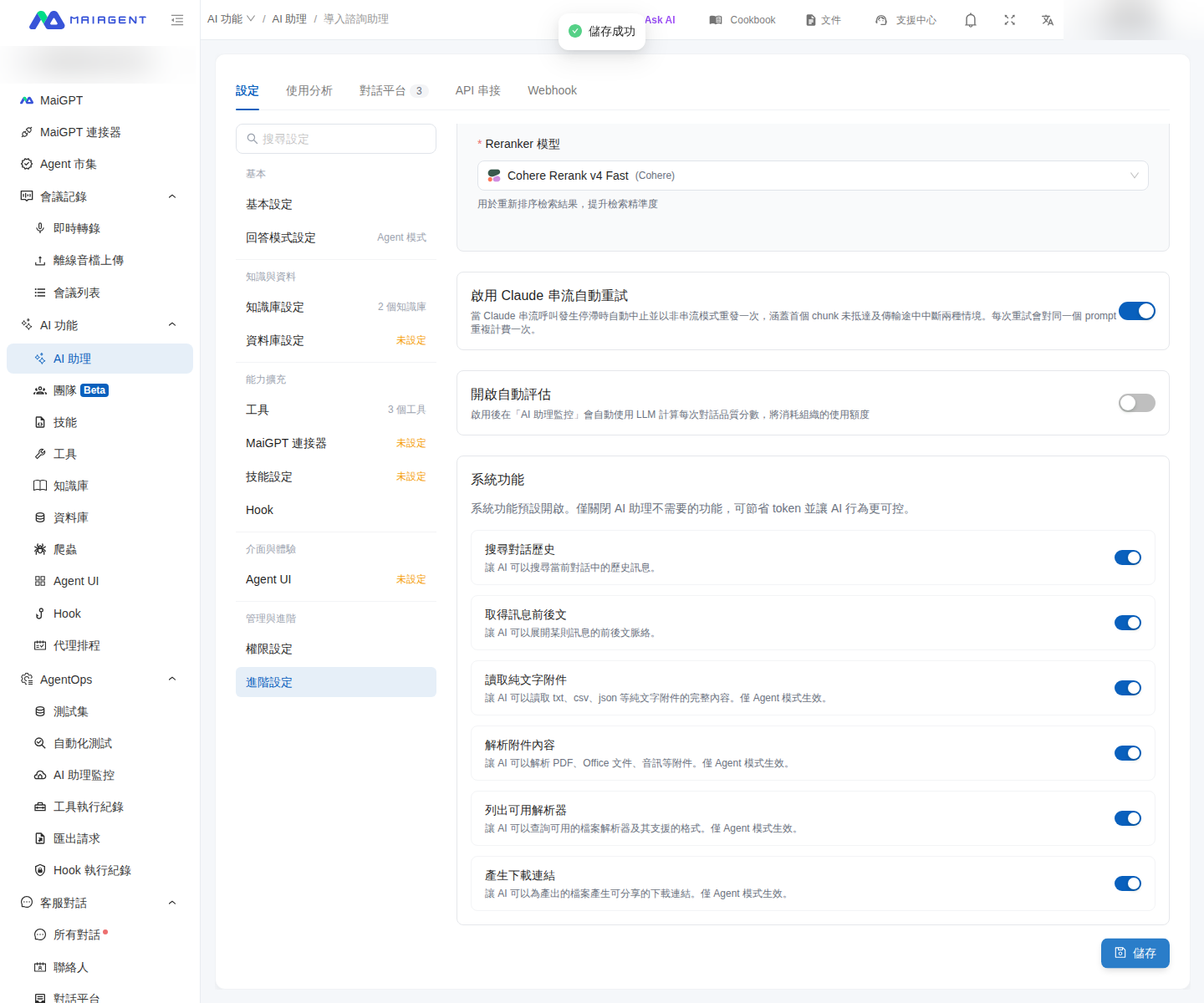
In addition to the tools you select, AI assistants have system functions enabled by default, such as searching the current conversation history, reading attachments, and generating download links. You can disable these functions individually based on each AI assistant's needs to reduce unnecessary token usage and make the assistant's behavior more predictable.
For example, a customer service supervisor creates an AI assistant that only answers frequently asked questions and does not process attachments. She opens the assistant's advanced settings, disables attachment reading and parsing, and saves the changes. The assistant can still answer knowledge base questions, but it will no longer attempt to parse files uploaded by customers.
{% stepper %}
{% step %}
### 1. Open Advanced Settings
Open the AI assistant you want to adjust and select Advanced Settings from the left side of the settings page.
{% endstep %}
{% step %}
### 2. Adjust System Functions
Scroll to System Functions, then enable or disable the following functions as needed:
* Search conversation history
* Get surrounding message context
* Read plain-text attachments
* Parse attachment content
* List available parsers
* Generate download links
After a function is disabled, the assistant can no longer use it, which may affect related responses.
Enable or disable system functions based on the AI assistant's purpose
{% endstep %}
{% step %}
### 3. Save the Settings
Click Save in the lower-right corner to apply the settings.
{% endstep %}
{% endstepper %}
{% hint style="info" %}
The last four functions in the list only work in Agent Mode. If you cannot change these toggles, go to Response Mode Settings and switch to Agent Mode first.
{% endhint %}
### 7. 💾 Save AI Assistant Settings
After completing your tool selections, **make sure to** click the "Save" button to save the changes you have made to the AI assistant settings.
## Configure MaiAgent Built-in Tools
MaiAgent has four built-in AI image generation tools that you can apply to your AI assistants based on your needs, with no additional setup required:
{% hint style="info" %}
For a comparison of the four tools, please refer to: [MaiAgent Built-in AI Image Generation Tools](/maiagent-user-guide/en/tools/ai-image-generation-guide.md)
{% endhint %}
***
Now, your selected AI assistant has the ability to use these enabled tools. When interacting with this assistant, if a relevant scenario is triggered, the AI will attempt to call these tools to complete tasks or retrieve information.
---
# Agent Instructions
This documentation is published with GitBook. GitBook is the documentation platform designed so that both humans and AI agents can read, navigate, and reason over technical content effectively. Learn more at gitbook.com.
## Querying This Documentation
If you need additional information that is not directly available in this page, you can query the documentation dynamically by asking a question.
Perform an HTTP GET request on the current page URL with the `ask` query parameter, and the optional `goal` query parameter:
```
GET https://docs.maiagent.ai/maiagent-user-guide/en/tools/configure_tools.md?ask=&goal=
```
`ask` is the immediate question: it should be specific, self-contained, and written in natural language.
`goal` is optional and describes the broader end goal you are ultimately trying to accomplish on behalf of the user. GitBook uses it to tailor the answer towards what is most useful for that goal.
The response will contain a direct answer to the question and relevant excerpts and sources from the documentation.
Use this mechanism when the answer is not explicitly present in the current page, you need clarification or additional context, or you want to retrieve related documentation sections.
%20(1).png?alt=media)