> For the complete documentation index, see [llms.txt](https://docs.maiagent.ai/llms.txt). Markdown versions of documentation pages are available by appending `.md` to page URLs; this page is available as [Markdown](https://docs.maiagent.ai/maiagent-user-guide/en/serve/daily-operations/reply/inbox-search.md).
# Inbox Search
Quickly search and filter inbox conversations
### Overview
The inbox search feature lets you quickly find specific conversation records without manually scrolling through a long conversation list. Using keyword search, you can instantly filter relevant conversations, significantly improving customer service efficiency.
{% hint style="info" %}
This feature supports instant search (search as you type) and automatically saves recent search history for quick repeat queries.
{% endhint %}
***
### How to Use the Search Feature
#### Basic Search
1. **Go to the inbox page**
* Click "Customer Service" in the left menu
* Click "All Conversations" or select a specific chat platform
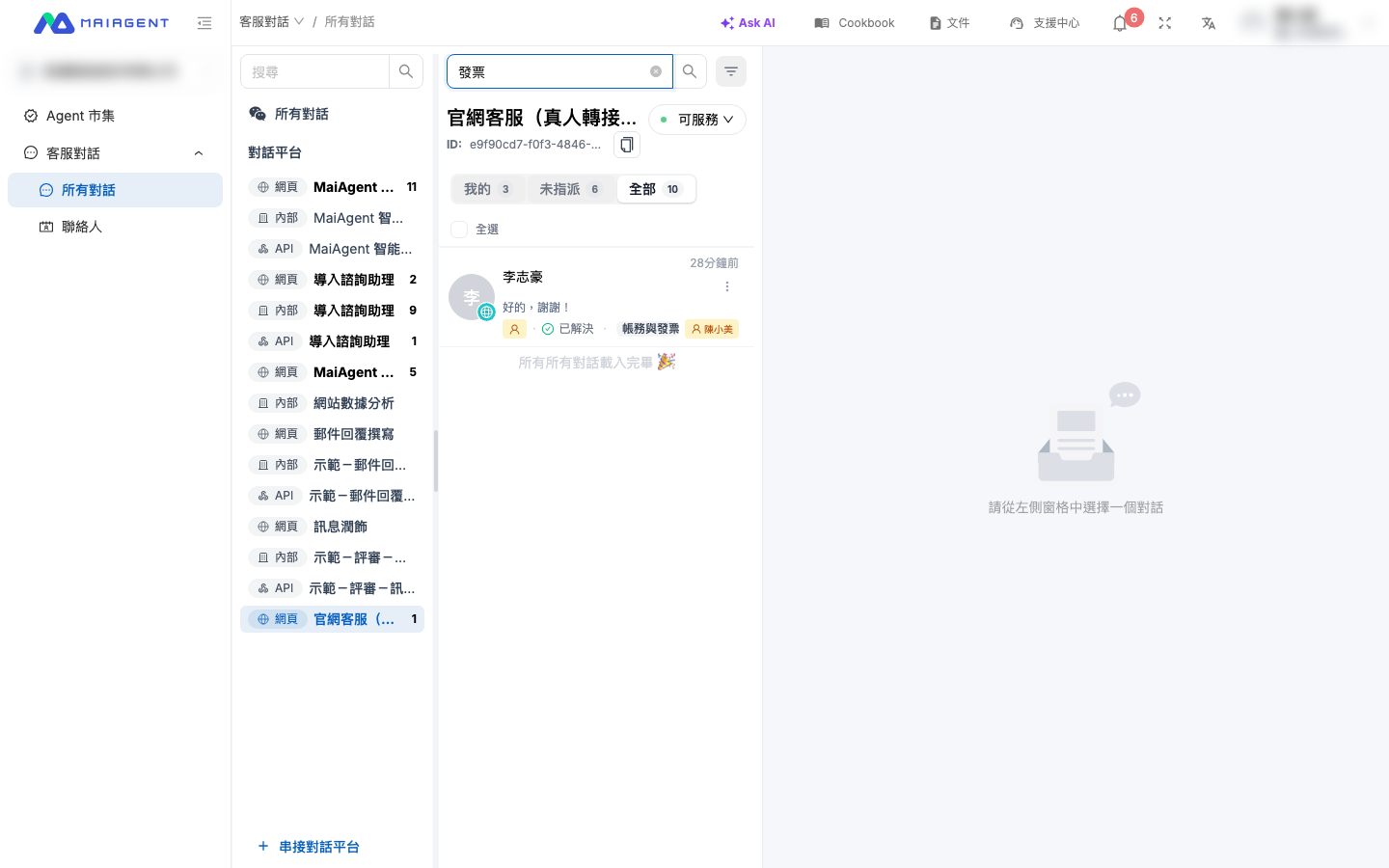
2. **Enter search keywords**
* Type keywords in the search box above the inbox
* The system instantly displays matching conversations
3. **View search results**
* The conversation list is filtered automatically and shows only conversations that contain the keyword; open a conversation and scroll up to find the message
After entering a keyword, the list keeps only the matching conversations
#### Search Scope
The system searches the following fields:
* Message content (user messages, AI replies, and agent replies)
* Conversation title (the renamed title)
Contact names are not searched; to find a particular customer's conversations, use Filter by contact below.
{% hint style="warning" %}
When a chat platform is selected in the left column, only that platform's conversations are searched; to search across platforms, first click "All Conversations" at the top.
{% endhint %}
***
### Advanced Search Tips
#### Using Filters
Besides keyword search, you can click the filter button next to the search box to combine the following conditions (see [All Conversations: Search and Filter](/maiagent-user-guide/en/serve/daily-operations/reply.md#search-and-filter)):
1. **Filter by status**: In progress, resolved, queued; multiple selections allowed
2. **Filter by contact**: Show only a specific contact's conversations
3. **Filter by contact tag**: By the tags on the contact
4. **Filter by conversation tag**: By the tags on the conversation itself
#### Search Combination Examples
**Example 1: Find unresolved invoice issues**
```
Search keyword: invoice
Filter by status: In progress
```
**Example 2: Look up a customer's conversation history**
```
Filter by contact: Wang Xiaoming
Filter by status: Resolved
```
***
### Use Cases
#### Case 1: Customer service quality monitoring
**Need**: A manager wants to review all conversations containing the keyword "refund" to evaluate handling quality
**Steps**:
1. Enter "refund" in the search box
2. Set the time range to "Last 7 days"
3. Review the search results one by one to confirm handling meets standards
#### Case 2: Issue tracking
**Need**: A user reported a problem, and you need to find the related conversation history
**Steps**:
1. Enter the user's name or a key description of the problem
2. View past conversation records
3. Understand how the problem occurred and how it was handled
#### Case 3: Performance analysis
**Need**: Analyze the inquiry volume and question types for a specific product
**Steps**:
1. Search for the product name keyword
2. Export the search results (if supported by the system)
3. Analyze common questions and directions for improvement
***
### FAQ
#### Q: Is search speed affected by the number of conversations?
**A**: The system uses high-performance search technology and returns results within 1-2 seconds even with a very large number of conversations. However, we recommend using the time range filter appropriately for the best experience.
#### Q: Is search case-sensitive?
**A**: No. Entering "Refund" or "refund" returns the same results.
#### Q: Can I search for multiple keywords at once?
**A**: Yes. Enter multiple keywords separated by spaces, and the system searches for conversations that contain any of the keywords.
Example: Entering "return refund" searches for conversations containing "return" or "refund".
#### Q: Is search history saved?
**A**: The system saves your recent search keywords so you can quickly repeat queries. Search history is stored in your browser, so clearing browser data also clears the search history.
#### Q: Why can't I find some conversations?
**A**: Possible reasons:
* The conversation has been deleted or archived
* You do not have access to the conversation (restricted by role permissions)
* The keyword is misspelled, or it appears only in the contact name (names are not searched)
* A filter has not been cleared, for example the status filter has only "Resolved" checked
***
### Notes
{% hint style="info" %}
**Permissions**
Search results are limited by your role permissions:
* You can only search chat platforms you have access to
* You can only search conversations related to Agents you have access to
* Organization owners can search all conversations
{% endhint %}
{% hint style="warning" %}
**Performance tips**
* Avoid overly common keywords (such as "hello" or "thanks"), which return too many results
* Use status and tag filters to narrow the search scope
* Mark finished conversations as "Resolved", then combine with the status filter so they don't get mixed in
{% endhint %}
***
### Related Features
{% hint style="info" %}
**Related features**
* [All Conversations features](/maiagent-user-guide/en/serve/daily-operations/reply.md)
* [Conversation Viewer](/maiagent-user-guide/en/serve/daily-operations/reply/conversation-viewer.md)
* [Agent Monitoring](/maiagent-user-guide/en/build/agent-ops/evaluations.md#ai-agent-monitoring)
{% endhint %}
---
# Agent Instructions
This documentation is published with GitBook. GitBook is the documentation platform designed so that both humans and AI agents can read, navigate, and reason over technical content effectively. Learn more at gitbook.com.
## Querying This Documentation
If you need additional information that is not directly available in this page, you can query the documentation by asking a question.
Perform an HTTP GET request on the following URL with the `ask` and `goal` query parameters:
```
GET https://docs.maiagent.ai/maiagent-user-guide/en/serve/daily-operations/reply/inbox-search.md?ask=&goal=
```
`ask` is the immediate question: it should be specific, self-contained, and written in natural language.
`goal` is what the user is ultimately trying to achieve, the reason they need the answer. Sharing it helps GitBook give you a better, more relevant answer. A goal is most helpful when it describes the outcome the user wants rather than restating the question. For example, with `ask=how do I create an API token`, a goal like `automate deployments from our CI pipeline` lets GitBook tailor the answer to that use case.
The response will contain a direct answer to the question and relevant excerpts and sources from the documentation.
Use this mechanism when the answer is not explicitly present in the current page, you need clarification or additional context, or you want to retrieve related documentation sections.