> For the complete documentation index, see [llms.txt](https://docs.maiagent.ai/llms.txt). Markdown versions of documentation pages are available by appending `.md` to page URLs; this page is available as [Markdown](https://docs.maiagent.ai/maiagent-user-guide/en/serve/daily-operations/reply.md).

# All Conversations

A guide to the All Conversations page: how to find conversations by platform, tab, and filter; how to step in with a reply, turn auto-reply on or off for a single conversation, take over, and return t

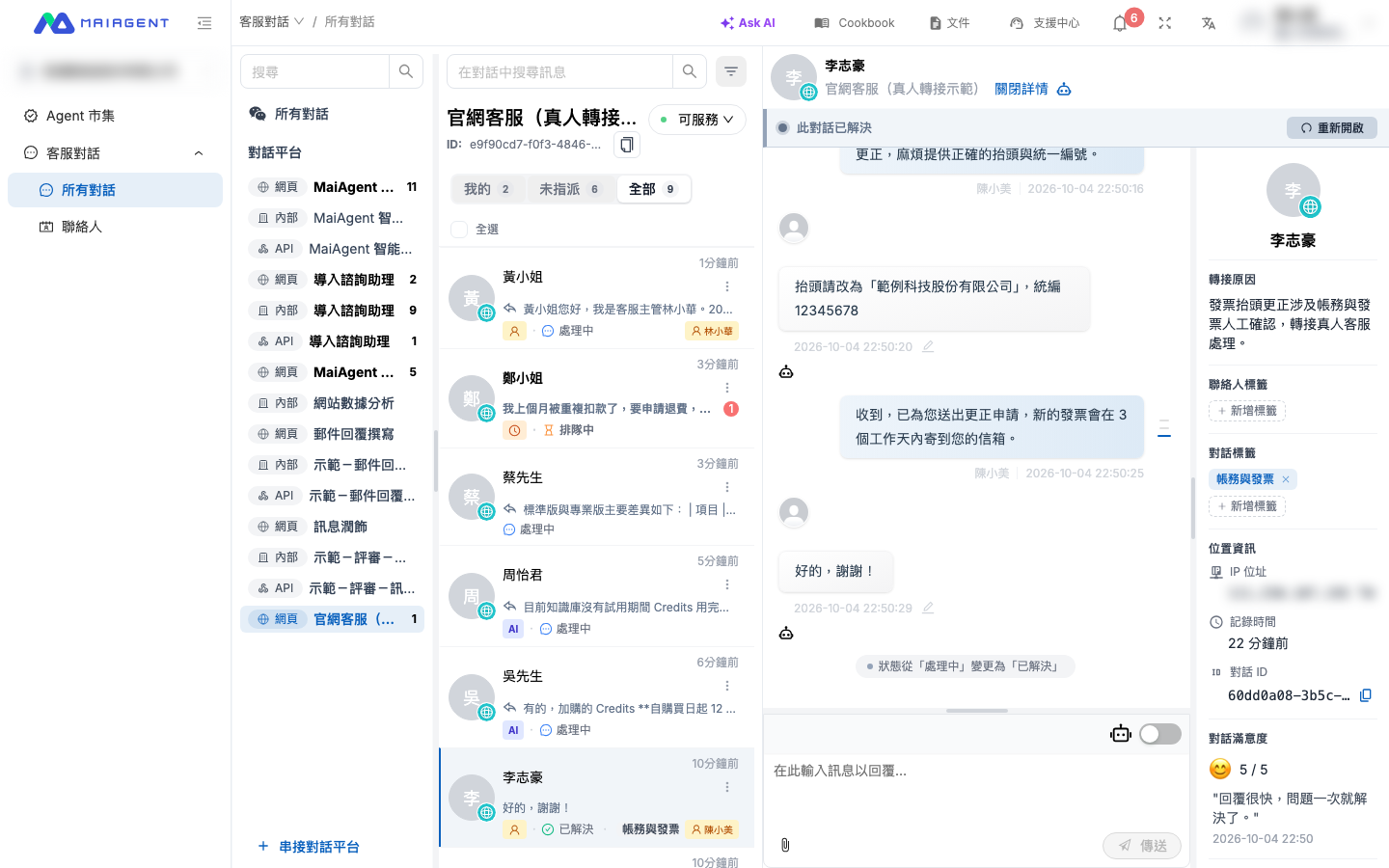
<mark style="color:blue;">All Conversations</mark> brings together customer conversations from every conversation platform (web, internal, LINE, Microsoft Teams, and so on). Support agents review the Agent's replies here and step in or take over when needed; supervisors can filter and organize conversations in bulk.

* **How to open**: In the left menu, go to <mark style="color:blue;">Customer Service Conversations</mark> → <mark style="color:blue;">All Conversations</mark>.
* **Permissions**: You need the <mark style="color:blue;">Customer Service Conversations permission</mark> and the <mark style="color:blue;">All Conversations permission</mark> under it. For permission details, see [Role Permission Management](/maiagent-user-guide/en/org/roles/role-permission.md).

## Page Layout <a href="#page-layout" id="page-layout"></a>

| Area                                    | Contents                                                                                                                                                                                                                                                                                                                                                   |
| --------------------------------------- | ---------------------------------------------------------------------------------------------------------------------------------------------------------------------------------------------------------------------------------------------------------------------------------------------------------------------------------------------------------- |
| Leftmost column: conversation platforms | At the top is <mark style="color:blue;">All Conversations</mark>. Below it, <mark style="color:blue;">Conversation Platforms</mark> lists each platform; click one to see only that platform's conversations. Use the search box above to find a platform, and use <mark style="color:blue;">Connect Conversation Platform</mark> at the bottom to add one |
| Middle column: conversation list        | The search box, the filter button, the <mark style="color:blue;">Mine</mark> / <mark style="color:blue;">Unassigned</mark> / <mark style="color:blue;">All</mark> tabs, and the handling status of each conversation                                                                                                                                       |
| Right side: conversation content        | At the top are the contact name, the platform, <mark style="color:blue;">Details</mark>, and the Copilot icon; below are the status bar, messages, and the input box                                                                                                                                                                                       |

<figure><img src="https://1360999650-files.gitbook.io/~/files/v0/b/gitbook-x-prod.appspot.com/o/spaces%2F6v6TNkkOQVfRYfcNirHL%2Fuploads%2Fgit-blob-82d89e21687954de8df72b872cc78f51a6c6f357%2Fconversations-page-layout.png?alt=media" alt="All Conversations page: conversation platform list in the left column, the selected platform&#x27;s conversation list and tabs in the middle column, and the open conversation with its status bar on the right"><figcaption><p>The All Conversations page with a specific platform selected: the list title shows the platform name and ID, and the open conversation is on the right</p></figcaption></figure>

When a specific platform is selected, the list title shows the platform name and platform ID. Click the button next to it to copy the ID.

## Find the Conversations to Handle <a href="#find-conversations" id="find-conversations"></a>

### Tabs <a href="#tabs" id="tabs"></a>

| Tab                                         | Conversations shown                                                                                              |
| ------------------------------------------- | ---------------------------------------------------------------------------------------------------------------- |
| <mark style="color:blue;">Mine</mark>       | Conversations assigned to you                                                                                    |
| <mark style="color:blue;">Unassigned</mark> | Conversations with no support agent assigned yet, including conversations the Agent is replying to automatically |
| <mark style="color:blue;">All</mark>        | All conversations within the current platform scope (default tab)                                                |

The number next to a tab name is the number of conversations in that tab. Each conversation in the list shows who is currently handling it: the "AI" badge means the Agent is replying automatically, the person icon means a human support agent is handling it, and the clock icon means it is queued for a human support agent. The name of the assigned support agent appears on the right.

### Search and Filters <a href="#search-and-filter" id="search-and-filter"></a>

* **Search**: Enter keywords in <mark style="color:blue;">Search messages in conversations</mark>. For the search scope, see [Inbox Search](/maiagent-user-guide/en/serve/daily-operations/reply/inbox-search.md).
* **Filter**: Click the filter button next to the search box to combine the conditions below. Active conditions appear as tags above the list; click the × on a tag to remove it, or click <mark style="color:blue;">Clear Filters</mark> to clear them all.

| Filter                                                      | Description                                                                                                                                                       |
| ----------------------------------------------------------- | ----------------------------------------------------------------------------------------------------------------------------------------------------------------- |
| <mark style="color:blue;">Filter by Status</mark>           | <mark style="color:blue;">In Progress</mark>, <mark style="color:blue;">Resolved</mark>, and <mark style="color:blue;">Queued</mark>; multiple selections allowed |
| <mark style="color:blue;">Filter by Contact</mark>          | Show only one contact's conversations; enter a name to search                                                                                                     |
| <mark style="color:blue;">Filter by Contact Tag</mark>      | Filter by tags on the contact; multiple selections allowed                                                                                                        |
| <mark style="color:blue;">Filter by Conversation Tag</mark> | Filter by tags on the conversation itself; multiple selections allowed                                                                                            |

<figure><img src="https://1360999650-files.gitbook.io/~/files/v0/b/gitbook-x-prod.appspot.com/o/spaces%2F6v6TNkkOQVfRYfcNirHL%2Fuploads%2Fgit-blob-b7da470a0c2fb82a881833f7d3293c2e02f69031%2Fconversations-filter-panel.png?alt=media" alt="Filter panel: Filter by Status with In Progress, Resolved, and Queued options, plus three dropdowns for contact, contact tag, and conversation tag"><figcaption><p>Filter panel: the four conditions can be combined</p></figcaption></figure>

### Rename and Delete Conversations <a href="#rename-and-delete" id="rename-and-delete"></a>

Hover over a conversation in the list to show the "⋯" menu on its right:

* <mark style="color:blue;">Update Status</mark>: Change the conversation directly to In Progress or Resolved (shown when you have assignment permission).
* <mark style="color:blue;">Rename</mark>: Change the conversation name shown in the list to make it easier for support agents to recognize (for example, "Order #1234 return"). This does not affect what the contact sees.
* <mark style="color:blue;">Delete Conversation</mark>: Deletes the conversation after you confirm "Are you sure you want to delete this conversation?". Deletion cannot be undone, and the conversation no longer appears in search, analytics, or exports. If you have simply finished handling it, use the "Resolved" status instead.

### Batch Update Status <a href="#batch-update" id="batch-update"></a>

After you select conversations (or select <mark style="color:blue;">Select All</mark> above the list), <mark style="color:blue;">Batch Update Conversations</mark> appears at the bottom. Choose the status to apply (<mark style="color:blue;">In Progress</mark> or <mark style="color:blue;">Resolved</mark>) and click <mark style="color:blue;">Apply to N conversations</mark>. When it finishes, the number of successes and failures is shown.

<figure><img src="https://1360999650-files.gitbook.io/~/files/v0/b/gitbook-x-prod.appspot.com/o/spaces%2F6v6TNkkOQVfRYfcNirHL%2Fuploads%2Fgit-blob-77f2e24b1238e4f6b498796fbd71df02decd777b%2Fconversations-batch-update.png?alt=media" alt="After two conversations are selected, 2 selected and the Batch Update Conversations button appear below the list, and the Update Status panel shows In Progress, Resolved, and Apply to 2 conversations"><figcaption><p>Batch update status: select conversations, click "Batch Update Conversations," choose a status, and apply</p></figcaption></figure>

## Step In and Auto-Reply <a href="#reply-and-auto-reply" id="reply-and-auto-reply"></a>

After you open a conversation, you can reply directly in the input box below. The message is sent through the channel the customer originally used (the web chat window, LINE, Teams, and so on).

The robot-icon switch at the upper right of the input box is the <mark style="color:blue;">Auto Reply</mark> setting for this conversation:

* **On**: The Agent automatically replies to new messages from the customer. By default, a conversation platform auto-replies all day; if the platform's auto-reply hours have been changed, auto-reply happens only within those hours. For hours settings, see [Website: Auto-Reply Settings](/maiagent-user-guide/en/build/choose-channel/web-chat/website.md#auto-reply-settings).
* **Off**: The Agent no longer replies to this conversation, and support agents reply manually.

{% hint style="warning" %}
Sending a message does not turn off auto-reply. While auto-reply is on, the customer's next message is still answered by the Agent, which may overlap with your reply. For this reason, when you send a message in a conversation that no human has taken over yet, a <mark style="color:blue;">Before You Send</mark> reminder appears first. You can choose <mark style="color:blue;">Take Over and Send</mark> (recommended) or <mark style="color:blue;">Send Directly</mark>. For details, see [Human Agent Takeover and Replies](/maiagent-user-guide/en/serve/daily-operations/human-handoff-operations.md#unclaimed-send-guard).
{% endhint %}

### Messages Not Delivered <a href="#delivery-failed" id="delivery-failed"></a>

In LINE, Messenger, and Instagram conversations, if a message sent by you or the Agent is rejected by the platform, <mark style="color:blue;">Not delivered: reason</mark> appears in red below that message bubble and remains after you refresh. Successfully sent messages show no marker. Common reasons:

| Displayed                                                              | What to do                                                                                                                                                                                                                                                                                                                                        |
| ---------------------------------------------------------------------- | ------------------------------------------------------------------------------------------------------------------------------------------------------------------------------------------------------------------------------------------------------------------------------------------------------------------------------------------------- |
| LINE monthly message quota used up                                     | Open the settings page of that LINE conversation platform and check the [monthly message quota](/maiagent-user-guide/en/build/choose-channel/line.md#line-monthly-quota), then upgrade your plan in LINE Official Account Manager or wait for the quota to reset next month. While the quota is used up, neither AI nor human replies can be sent |
| Too many messages sent to LINE in a short time; please try again later | Send again later                                                                                                                                                                                                                                                                                                                                  |
| Meta 24-hour reply window exceeded                                     | Messenger and Instagram allow replies only within 24 hours after the customer's last message; wait until the customer messages again                                                                                                                                                                                                              |
| The recipient has blocked you or cannot currently receive messages     | The Messenger or Instagram customer has blocked the page or currently cannot receive messages, so the message cannot be delivered                                                                                                                                                                                                                 |
| Message content or format not accepted by the platform                 | Check the message content (for example, it may be too long or use a format the platform does not support) and send again                                                                                                                                                                                                                          |
| The platform cannot process the message right now; sending failed      | A temporary error on the platform side; send again later                                                                                                                                                                                                                                                                                          |
| Sending failed (original message)                                      | The original error returned by the platform is shown in parentheses; based on the cause, decide whether to rewrite the content before sending again                                                                                                                                                                                               |

There is currently no "Resend" button; retype the message and send it again if needed.

For example, a support agent replies on Monday morning to a customer who left a message on Messenger on Friday evening, and after sending, "Not delivered: Meta 24-hour reply window exceeded" appears below the message. The agent knows the customer cannot receive this message, so they contact the customer by phone or Email instead, or reply when the customer messages again.

In group conversations (such as LINE groups), there is also a mention-icon switch above the input box; hovering over it displays "In groups, respond only when @mentioned." When on, the Agent responds in the group only when it is @mentioned; when off, it responds to all messages in the group.

## Take Over, Transfer, and Return to AI <a href="#handoff-actions" id="handoff-actions"></a>

The status bar above the conversation content shows who is currently handling the conversation and offers actions based on the status:

| Status bar shows                                                                                                                                            | What you can do                                                                                                                                                                                                                                        |
| ----------------------------------------------------------------------------------------------------------------------------------------------------------- | ------------------------------------------------------------------------------------------------------------------------------------------------------------------------------------------------------------------------------------------------------ |
| <mark style="color:blue;">AI Agent is handling</mark>, <mark style="color:blue;">No support agent assigned yet</mark>, or waiting for a human support agent | Click <mark style="color:blue;">Take Over</mark> to assign the conversation to yourself and stop AI auto-reply, or click <mark style="color:blue;">Assign Agent</mark> to assign it to a specific colleague                                            |
| <mark style="color:blue;">You are serving this conversation</mark>                                                                                          | Click <mark style="color:blue;">Resolve</mark> to close it; you can <mark style="color:blue;">Transfer</mark> it to a colleague, and in the <mark style="color:blue;">Mine</mark> tab you can also <mark style="color:blue;">Return to AI Agent</mark> |
| Another colleague is serving                                                                                                                                | You can <mark style="color:blue;">Transfer</mark> it to another support agent                                                                                                                                                                          |
| <mark style="color:blue;">This conversation is resolved</mark>                                                                                              | Click <mark style="color:blue;">Reopen</mark>                                                                                                                                                                                                          |

In the <mark style="color:blue;">Unassigned</mark> tab, you can also hover over a conversation and click the assign icon to assign it to a specific support agent. The agent selection window shows whether each colleague is online, their availability status, and their number of conversations in progress; see [Human Agent Takeover and Replies: Transfer and Return to AI](/maiagent-user-guide/en/serve/daily-operations/human-handoff-operations.md#transfer-and-return).

If a customer sends a message in a resolved conversation, it is automatically reopened and returns to AI auto-reply, and the previously assigned support agent is cleared.

For how to reply after taking over, availability and time off, transfer rules, and the prompts customers see, see [Human Agent Takeover and Replies](/maiagent-user-guide/en/serve/daily-operations/human-handoff-operations.md). For handoff conditions and assignment rules, see [Human Handoff Settings](/maiagent-user-guide/en/build/conversation-settings/human-handoff.md).

## Conversation Details <a href="#conversation-details" id="conversation-details"></a>

Click <mark style="color:blue;">Details</mark> at the top of the conversation to expand this conversation's information on the right:

* <mark style="color:blue;">Handoff Reason</mark> (when provided), <mark style="color:blue;">Contact Tags</mark> (created in [Contacts](/maiagent-user-guide/en/serve/daily-operations/contact.md#contact-tags)), and <mark style="color:blue;">Conversation Tags</mark> (created in the conversation platform's [Conversation Tag Management](/maiagent-user-guide/en/build/conversation-settings/conversation-tags.md))
* <mark style="color:blue;">Conversation Summary</mark>: When [Conversation Analysis](/maiagent-user-guide/en/build/conversation-settings/conversation-analysis.md) is enabled on the conversation platform, click <mark style="color:blue;">Analyze Conversation</mark> next to the conversation tags to generate it; the summary can be edited manually, as described below
* <mark style="color:blue;">Location Information</mark>: the IP address, the recorded time, and a copyable <mark style="color:blue;">Conversation ID</mark>
* <mark style="color:blue;">Conversation Satisfaction</mark>, <mark style="color:blue;">Credit Consumption Summary</mark> (see below), the <mark style="color:blue;">Conversation Timeline</mark> (handoff, takeover, return, and other events), and <mark style="color:blue;">Contact Information</mark> (Email, phone, and the contact's [custom properties](/maiagent-user-guide/en/serve/daily-operations/contact.md#custom-properties))

The robot icon in the title bar opens the <mark style="color:blue;">Conversation Copilot</mark>; see [Support Copilot](/maiagent-user-guide/en/serve/copilot.md).

<figure><img src="https://1360999650-files.gitbook.io/~/files/v0/b/gitbook-x-prod.appspot.com/o/spaces%2F6v6TNkkOQVfRYfcNirHL%2Fuploads%2Fgit-blob-2a960c9ffe1d5a9e98cf54b9ddd6e6d1f16c711d%2Fconversations-details-panel.png?alt=media" alt="Conversation details panel: handoff reason, contact tags, conversation tags, location information (IP address, recorded time, conversation ID), and conversation satisfaction"><figcaption><p>Conversation details: handoff reason, tags, location information, and conversation ID; scroll down for conversation satisfaction, the credit consumption summary, and the conversation timeline</p></figcaption></figure>

### Edit the Conversation Summary <a href="#edit-summary" id="edit-summary"></a>

AI-generated summaries are not always complete, and support agents can correct them directly:

* Click <mark style="color:blue;">Edit Summary</mark>, make your changes, and save; colleagues who take over later see the edited version.
* Click <mark style="color:blue;">Edit History</mark> to expand all versions: the first version is labeled <mark style="color:blue;">AI Analysis</mark> (the AI's original), and the version currently displayed is labeled <mark style="color:blue;">Current</mark>; click <mark style="color:blue;">Restore</mark> on any other version to switch back to it. If it has never been edited, "No edit history yet" is displayed.
* Clicking <mark style="color:blue;">Analyze Conversation</mark> again generates a new AI version, and older versions remain in the edit history.

### Credit Consumption Summary <a href="#credit-summary" id="credit-summary"></a>

<mark style="color:blue;">Credit Consumption Summary</mark> adds up the Credits for every round of AI replies in this conversation, so you can see cost at the conversation level:

| Item                                                                                                                                     | Description                                                                                                                       |
| ---------------------------------------------------------------------------------------------------------------------------------------- | --------------------------------------------------------------------------------------------------------------------------------- |
| Total                                                                                                                                    | Total Credits consumed across all rounds of this conversation                                                                     |
| <mark style="color:blue;">Rounds</mark>                                                                                                  | Number of completed AI reply rounds                                                                                               |
| <mark style="color:blue;">Average</mark> / <mark style="color:blue;">Median</mark> / <mark style="color:blue;">Standard Deviation</mark> | The average, median, and spread of per-round consumption; a large standard deviation means a few rounds were especially expensive |
| <mark style="color:blue;">Highest</mark> / <mark style="color:blue;">Lowest</mark>                                                       | The highest and lowest consumption of a single round; **click to jump to that round's message**                                   |
| Category bar                                                                                                                             | Shows the share of each category: embedding, LLM input, LLM output, cache read, cache write, tools, and so on                     |

Expand <mark style="color:blue;">Advanced Analysis</mark> for more:

* <mark style="color:blue;">Top 3 Most Expensive Rounds</mark>: Lists the three most expensive rounds directly; click to jump to the message.
* <mark style="color:blue;">Cumulative Credit Consumption</mark>: A curve that accumulates over the rounds, showing whether consumption is spread evenly or concentrated in a few rounds.
* <mark style="color:blue;">vs Organization Average (30 days)</mark>: Compares this conversation's per-round average with the average of all conversations with three or more rounds in your organization over the past 30 days. If the conversation has fewer than three rounds or the organization does not yet have enough data, "No organization baseline data yet" is displayed.
* <mark style="color:blue;">Export CSV</mark>: Downloads the per-round Credit details of this conversation.

To see the tokens, processing time, and execution steps of a single reply round, go to the conversation details page in AgentOps; see [Automated Evaluation and Agent Monitoring](/maiagent-user-guide/en/build/agent-ops/evaluations.md#monitoring-field-descriptions). For how Credits are priced, see [Credits Quota](/maiagent-user-guide/en/others/credits.md).

## Related Pages <a href="#related-pages" id="related-pages"></a>

| Page                                                                                                           | When to read it                                                                                                                   |
| -------------------------------------------------------------------------------------------------------------- | --------------------------------------------------------------------------------------------------------------------------------- |
| [Conversation Viewer](/maiagent-user-guide/en/serve/daily-operations/reply/conversation-viewer.md)             | Review conversation content, tool usage, and cited sources message by message for quality checks or troubleshooting               |
| [Inbox Search](/maiagent-user-guide/en/serve/daily-operations/reply/inbox-search.md)                           | Find specific conversations by keyword                                                                                            |
| [Conversation Platform Analysis](/maiagent-user-guide/en/serve/daily-operations/reply/inbox-analysis.md)       | Use AI to summarize topics, resolution rate, and improvement suggestions for a single conversation platform over a period of time |
| [Human Agent Takeover and Replies](/maiagent-user-guide/en/serve/daily-operations/human-handoff-operations.md) | Daily takeover, transfer, and return-to-AI tasks for support agents                                                               |
| [Support Agent Handbook](/maiagent-user-guide/en/serve/daily-operations/agent-handbook.md)                     | A new support agent's first day, a day's workflow, and step-by-step handling of common scenarios                                  |
| [Contacts](/maiagent-user-guide/en/serve/daily-operations/contact.md)                                          | Manage contact information and tags                                                                                               |

## FAQ <a href="#faq" id="faq"></a>

### The list is empty and shows "There seem to be no customer messages on your conversation platform"? <a href="#faq-empty" id="faq-empty"></a>

There are no conversations in the current scope yet. Make sure you selected the correct conversation platform, or first complete the setup in [Connect a Conversation Platform](/maiagent-user-guide/en/build/choose-channel.md).

### I replied to the customer, but the Agent keeps answering? <a href="#faq-ai-still-replying" id="faq-ai-still-replying"></a>

This conversation's <mark style="color:blue;">Auto Reply</mark> is still on. Click <mark style="color:blue;">Take Over</mark> in the status bar, or turn off the auto-reply switch above the input box. For other takeover and closing scenarios, see [Support Agent Handbook: Scenarios](/maiagent-user-guide/en/serve/daily-operations/agent-handbook.md#scenarios).


---

# Agent Instructions
This documentation is published with GitBook. GitBook is the documentation platform designed so that both humans and AI agents can read, navigate, and reason over technical content effectively. Learn more at gitbook.com.

## Querying This Documentation
If you need additional information that is not directly available in this page, you can query the documentation by asking a question.

Perform an HTTP GET request on the following URL with the `ask` and `goal` query parameters:

```
GET https://docs.maiagent.ai/maiagent-user-guide/en/serve/daily-operations/reply.md?ask=<question>&goal=<user_goal>
```

`ask` is the immediate question: it should be specific, self-contained, and written in natural language.
`goal` is what the user is ultimately trying to achieve, the reason they need the answer. Sharing it helps GitBook give you a better, more relevant answer. A goal is most helpful when it describes the outcome the user wants rather than restating the question. For example, with `ask=how do I create an API token`, a goal like `automate deployments from our CI pipeline` lets GitBook tailor the answer to that use case.

The response will contain a direct answer to the question and relevant excerpts and sources from the documentation.

Use this mechanism when the answer is not explicitly present in the current page, you need clarification or additional context, or you want to retrieve related documentation sections.